Munin is a powerful networked resource monitoring tool that can help you keep an eye on various metrics of your servers. It uses a master-node architecture, where the master collects and visualizes data from nodes. This guide will walk you through the process of installing Munin on Ubuntu 22.04.
Step 1: Initiating Instance Creation
- Creating a New Instance
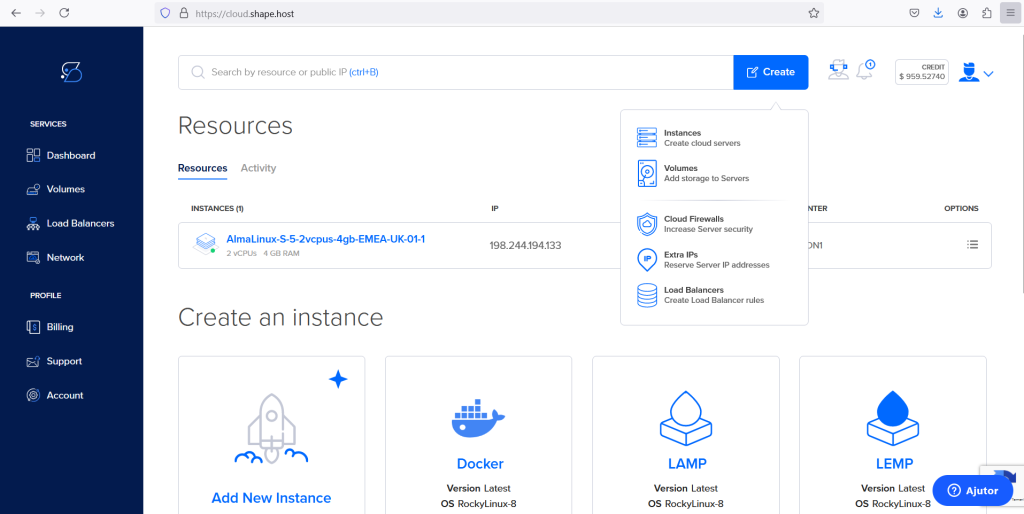
- To create a new instance, click on the blue “Create” button located in the top-right corner of the page.
- Select “Add New Instance” to begin setting up a new virtual machine.
Step 2: Choosing a Location
- Select a Data Center
- On the “Create New Instance” page, choose your preferred data center location. For example, you might select “Amsterdam, Netherlands”.

Step 3: Selecting a Plan
- Choose a Plan
- Pick a plan that meets your requirements. Options vary in specifications and price, from $3.5 to $22 per month, offering different CPU, memory, storage, and bandwidth.
- Choose an Operating System
- Scroll to the “Choose an image” section and select Ubuntu 22.04 from the list of available distributions.

Step 4: Authentication Method
- Select an Authentication Method
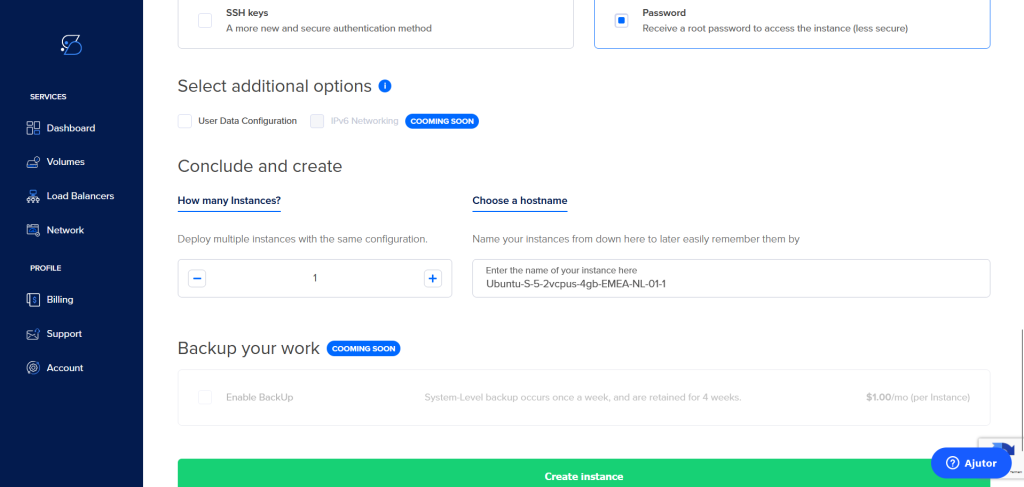
- Choose between SSH keys (recommended for better security) or a password for root access. In this guide, we’ll proceed with the password option.
- Complete Instance Creation
- Click the “Create Instance” button at the bottom of the page to finalize the setup.
Step 5: Connecting to Your Instance
- Retrieve SSH Credentials
- Note the IP address of your newly created instance from the Shape.host dashboard.
- Connect via SSH
- Open a terminal on your local machine and use the following command to connect to your instance:
ssh root@your_instance_ip- Replace
your_instance_ipwith the actual IP address of your instance. - A server running Ubuntu 22.04
- Root access to the server
- Basic knowledge of terminal commands
Step 6: Update Your System
First, ensure that your system packages are up to date.
apt update && apt upgrade -y
Step 7: Install Apache Web Server
Munin uses a web server to display its monitoring data. We will use Apache for this purpose.
apt install apache2 -y
Enable and start the Apache service:
systemctl enable apache2
systemctl start apache2
Step 8: Install Munin and Munin Node
Install Munin and Munin Node using the package manager:
apt install munin munin-node -y
Step 9: Configure Munin
- Edit Munin Configuration File: Open the Munin configuration file to specify the locations where Munin will output its HTML files and other data:
nano /etc/munin/munin.conf
Look for the following lines and ensure they are configured as shown:
   dbdir /var/lib/munin
   htmldir /var/cache/munin/www
   logdir /var/log/munin
   rundir /var/run/munin
   tmpldir /etc/munin/templates
Uncomment and set the hostname and contact address:
   [localhost]
       address 127.0.0.1
use_node_name yes- Configure Apache for Munin: Munin comes with a predefined configuration file for Apache. Enable this configuration:
ln -s /etc/munin/apache24.conf /etc/apache2/conf-available/munin.conf
Enable the configuration and the CGI module required by Munin:
   a2enconf munin
   a2enmod cgi
   systemctl restart apache2
Step 10: Configure Munin Node
- Edit Munin Node Configuration: Open the Munin node configuration file:
nano /etc/munin/munin-node.conf
Ensure the following lines are configured correctly to allow connections from the Munin master (if monitoring a remote node):
   allow ^127\.0\.0\.1$
   allow ^::1$
Restart the Munin node service to apply the changes:
systemctl restart munin-node
Step 11: Verify Installation and Access Munin
Munin should now be installed and configured. Verify the installation by checking the Munin status:
systemctl status munin
systemctl status munin-node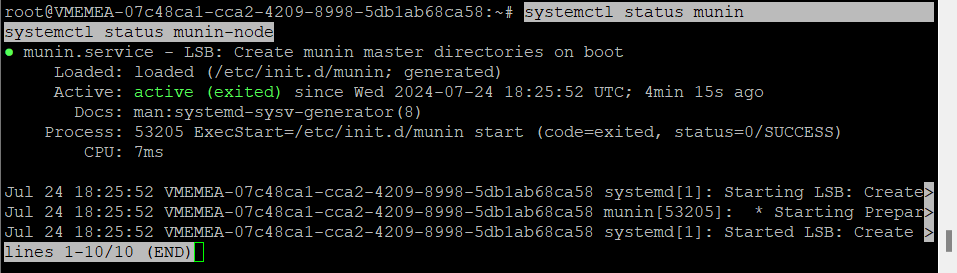
Fixing “Forbidden” Error
If you encounter a “Forbidden” error when accessing Munin, follow these steps to correct the configuration:
- Check Apache Configuration for Munin: Open the Munin Apache configuration file:
nano /etc/apache2/conf-available/munin.conf
Ensure the following configuration exists and is correct:
   Alias /munin /var/cache/munin/www
   <Directory /var/cache/munin/www>
       Order allow,deny
       Allow from all
       Options None
       Require all granted
   </Directory>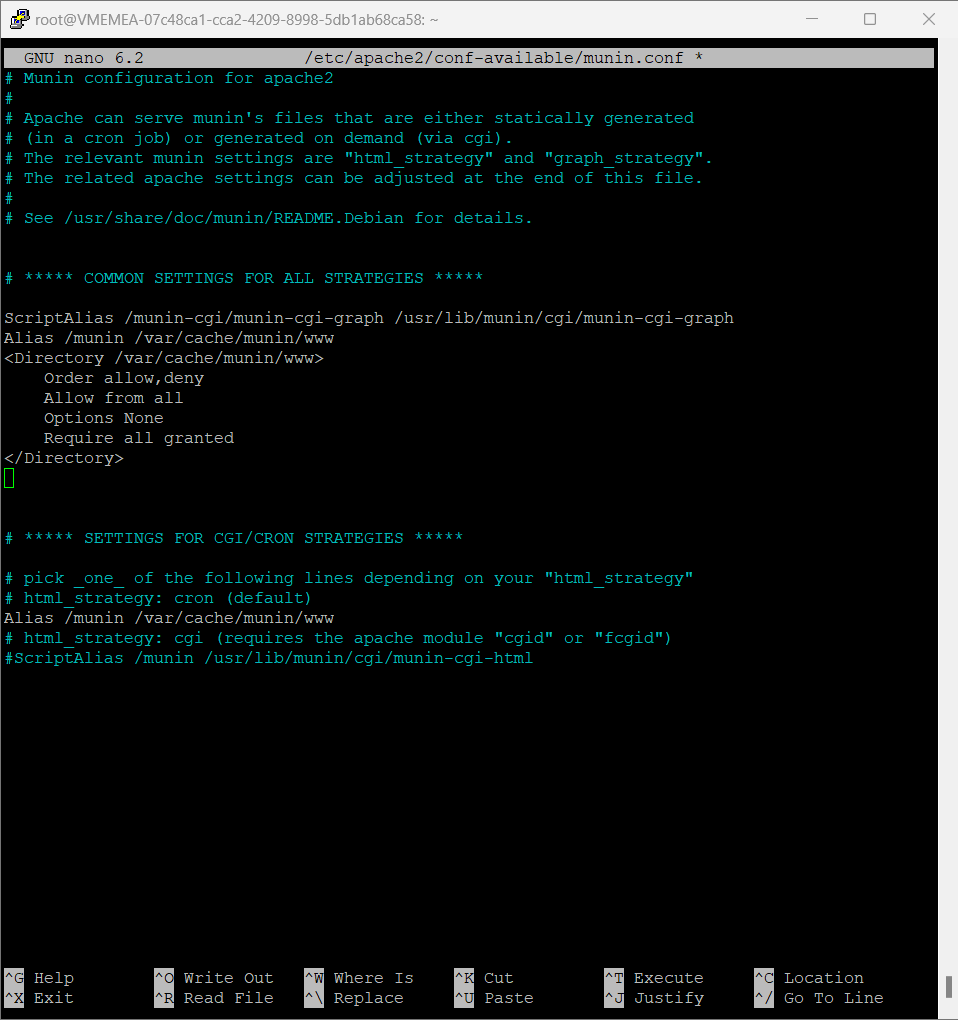
Save and exit the file. Enable the configuration and restart Apache:
   a2enconf munin
   systemctl restart apache2
- Check Directory Permissions: Ensure that the Munin web directory has the correct permissions:
   chown -R munin:munin /var/cache/munin/www
   chmod -R 755 /var/cache/munin/www
- Restart Munin and Apache Services: Restart the Munin and Apache services to apply the changes:
   systemctl restart munin
   systemctl restart apache2
- Verify Apache Modules: Ensure that the necessary Apache modules are enabled:
   a2enmod cgi
   a2enmod alias
   systemctl restart apache2
To access the Munin web interface, open your web browser and navigate to:
http://your_server_ip/munin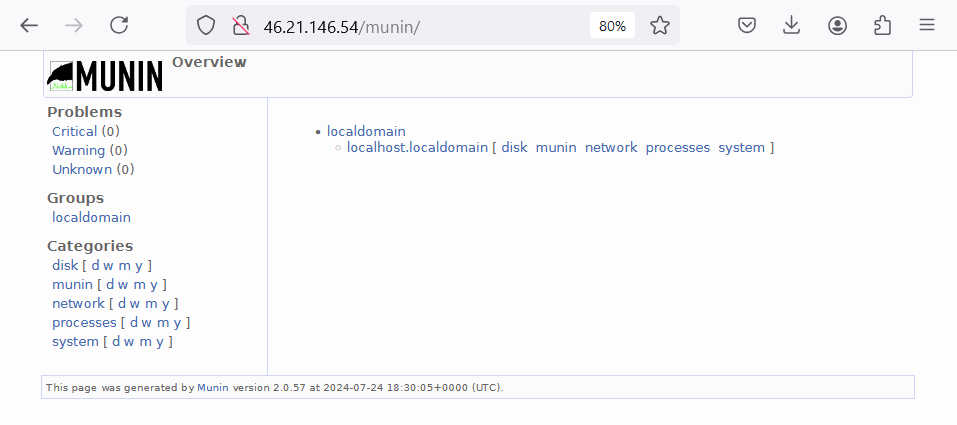
You should see the Munin interface displaying various system metrics.
Step 12: Adding Nodes to Munin Master
If you have additional nodes you want to monitor, install munin-node on each of those nodes and configure the Munin master to collect data from them.
- On the Node: Install Munin node:
apt install munin-node -yConfigure Munin node to allow connections from the Munin master:
nano /etc/munin/munin-node.confAdd the Munin master’s IP address:
allow ^<Munin_master_IP>$Restart Munin node:
systemctl restart munin-node- On the Master: Edit the Munin configuration file to add the new node:
nano /etc/munin/munin.confAdd the following configuration, replacing <node_name> and <node_IP> with appropriate values:
   [<node_name>]
       address <node_IP>
       use_node_name yes
Restart Munin on the master:
systemctl restart muninStep 13: Customize Munin Plugins
Munin uses plugins to collect various metrics. You can enable additional plugins as needed.
- List Available Plugins:
ls -l /usr/share/munin/plugins/- Enable a Plugin: To enable a plugin, create a symbolic link to it in the
/etc/munin/plugins/directory:
ln -s /usr/share/munin/plugins/<plugin_name> /etc/munin/plugins/- Restart Munin Node: After enabling new plugins, restart the Munin node to apply changes:
systemctl restart munin-nodeFor hosting your Munin setup, consider using Shape.host’s Cloud VPS services. Shape.host provides robust and scalable cloud solutions tailored to various needs, ensuring high performance and reliability for your Munin monitoring tool. With their Cloud VPS, you can easily scale resources as your monitoring needs grow, providing an optimal user experience.