Tiki Wiki is a powerful open-source web-based wiki and content management system (CMS) that is highly configurable and extensible. This guide will walk you through the steps required to install Tiki Wiki on an Ubuntu 22.04 server using root privileges. The installation process is designed to be straightforward and easy to follow, making it accessible for newcomers.
Step 1: Initiating Instance Creation
- Creating a New Instance
- To create a new instance, click on the blue “Create” button located in the top-right corner of the page.
- Select “Add New Instance” to begin setting up a new virtual machine.

Step 2: Choosing a Location
- Select a Data Center
- On the “Create New Instance” page, choose your preferred data center location. For example, you might select “Amsterdam, Netherlands”.

Step 3: Selecting a Plan
- Choose a Plan
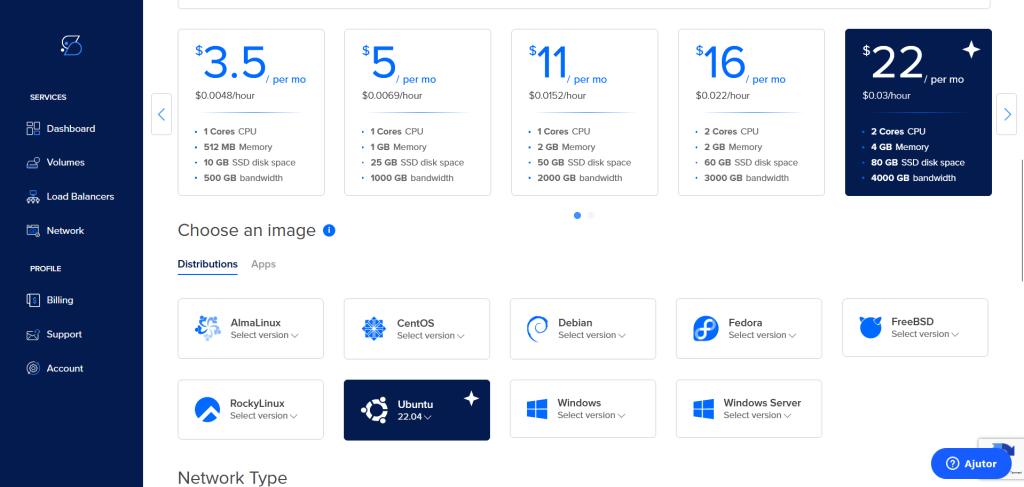
- Pick a plan that meets your requirements. Options vary in specifications and price, from $3.5 to $22 per month, offering different CPU, memory, storage, and bandwidth.
- Choose an Operating System
- Scroll to the “Choose an image” section and select Ubuntu 22.04 from the list of available distributions.
Step 4: Authentication Method
- Select an Authentication Method
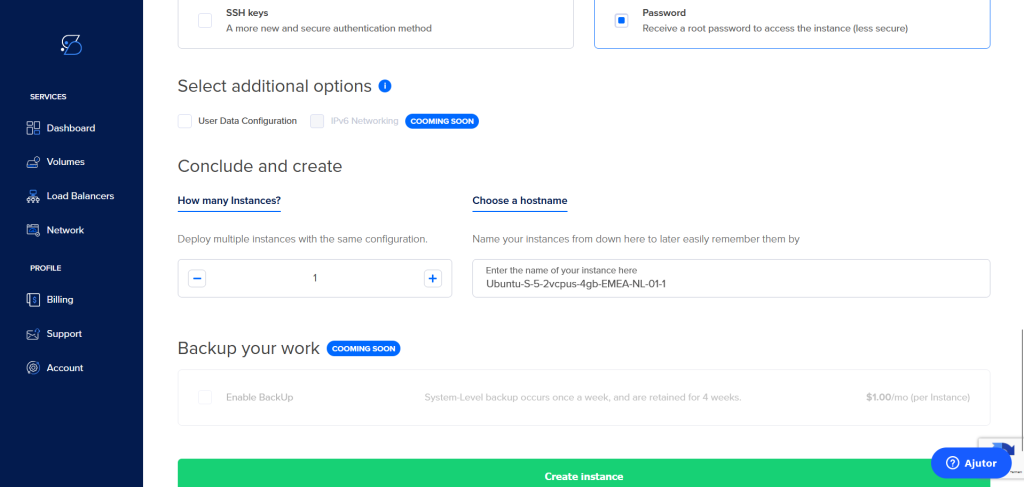
- Choose between SSH keys (recommended for better security) or a password for root access. In this guide, we’ll proceed with the password option.
- Complete Instance Creation
- Click the “Create Instance” button at the bottom of the page to finalize the setup.
Step 5: Connecting to Your Instance
- Retrieve SSH Credentials
- Note the IP address of your newly created instance from the Shape.host dashboard.
- Connect via SSH
- Open a terminal on your local machine and use the following command to connect to your instance:
ssh root@your_instance_ip- Replace
your_instance_ipwith the actual IP address of your instance.
- A server running Ubuntu 22.04
- Root access to the server
- Basic knowledge of terminal commands
Step 6: Update Your System
Before starting the installation, ensure that your system packages are up-to-date:
apt update && apt upgrade -y
Step 7: Install Required Dependencies
Tiki Wiki requires several dependencies, including a web server, a database server, and PHP. We’ll start by installing these necessary packages.
- Install Apache Web Server:
apt-get install apache2 unzip git gnupg -y
- Install MySQL Database Server:
apt install -y mysql-server
- Install PHP and Required Extensions:
apt install php8.1 php8.1-tidy php8.1-gd php8.1-xmlrpc php8.1-mbstring libapache2-mod-php8.1 php8.1-mysql php-apcu php8.1-curl php8.1-intl php8.1-sqlite3 php8.1-zip php-memcache php8.1-pspell php8.1-zip php8.1-memcached php-pear php8.1-common php8.1-opcache php8.1-xml php8.1-zip -y
Step 8: Create a MySQL Database and User for Tiki Wiki
Next, we’ll set up a MySQL database and user for Tiki Wiki.
- Log in to the MySQL shell:
mysql -u root -p
- Create a new database for Tiki Wiki:
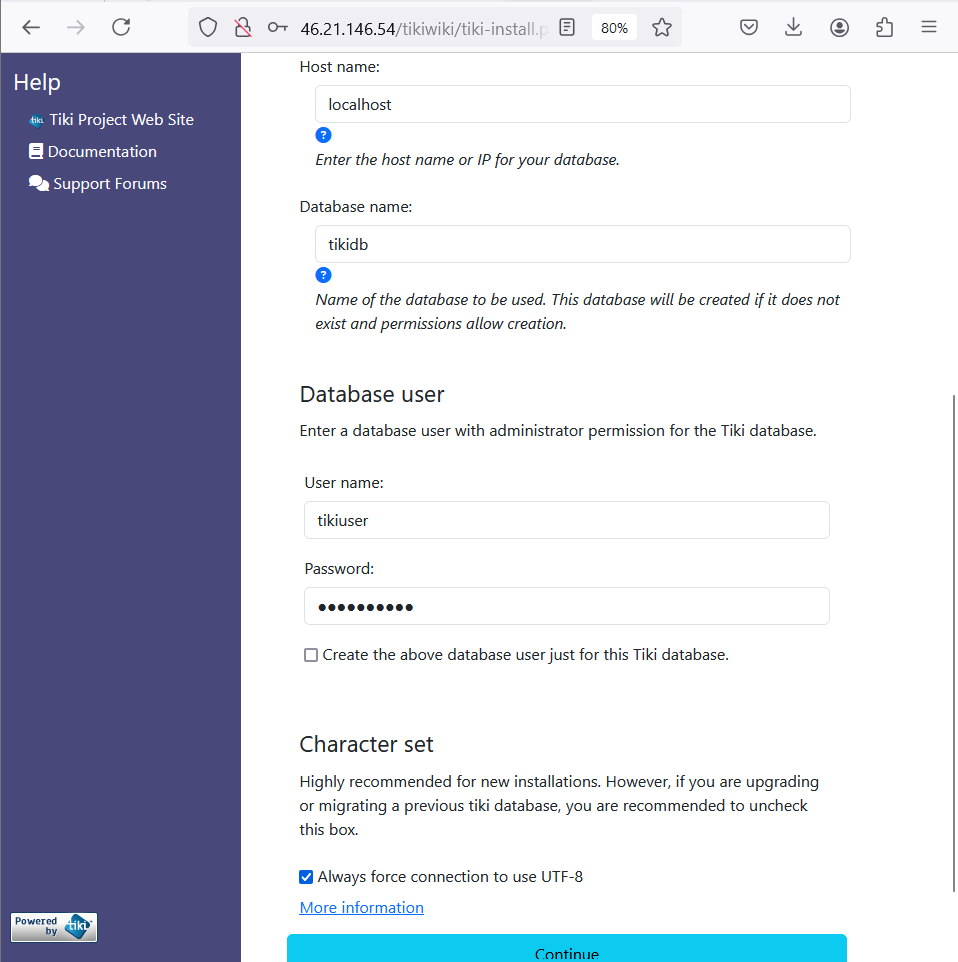
CREATE DATABASE tikidb;- Create a new MySQL user and grant privileges:
   CREATE USER 'tikiuser'@'localhost' IDENTIFIED BY 'yourpassword';
   GRANT ALL PRIVILEGES ON tikidb.* TO 'tikiuser'@'localhost';
   FLUSH PRIVILEGES;
   EXIT;
Replace yourpassword with a strong password.
Step 9: Download and Extract Tiki Wiki
Download the latest stable release of Tiki Wiki from the official website and extract it to the web server root directory.
- Navigate to the /tmp directory:
cd /tmp
- Download Tiki Wiki:
wget https://sourceforge.net/projects/tikiwiki/files/latest/download -O tikiwiki.zip
- Extract the downloaded archive:
unzip tikiwiki.zip -d /tmp/tikiwiki
- Move the extracted files to the web server root directory:
mv /tmp/tikiwiki/* /var/www/html/tikiwiki
Step 10: Configure Apache for Tiki Wiki
Set up an Apache virtual host for Tiki Wiki to make it accessible via your domain name or IP address.
- Create a new Apache configuration file:
nano /etc/apache2/sites-available/tikiwiki.conf
- Add the following configuration:
   <VirtualHost *:80>
       ServerAdmin admin@example.com
       DocumentRoot /var/www/html/tikiwiki
       ServerName your_domain_or_IP

       <Directory /var/www/html/tikiwiki>
           Options FollowSymLinks
           AllowOverride All
           Require all granted
       </Directory>

       ErrorLog ${APACHE_LOG_DIR}/error.log
       CustomLog ${APACHE_LOG_DIR}/access.log combined
   </VirtualHost>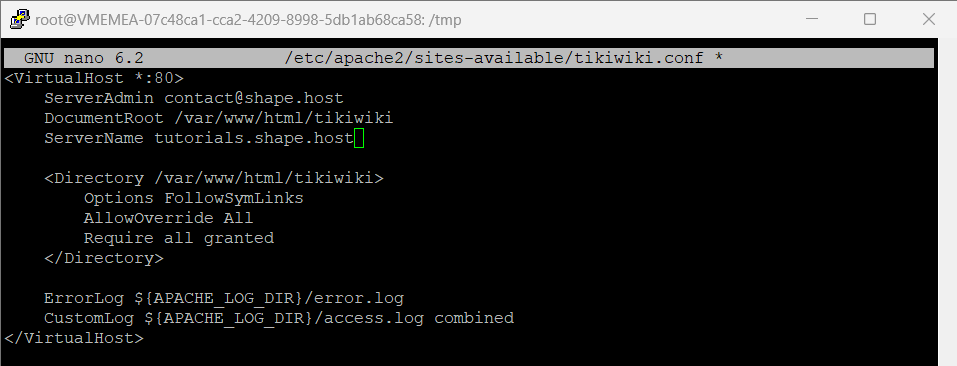
Replace your_domain_or_IP with your actual domain name or IP address.
- Enable the new virtual host and the rewrite module:
   a2ensite tikiwiki.conf
   a2enmod rewrite
- Restart Apache to apply the changes:
systemctl restart apache2
Step 11: Set Permissions
Ensure that the web server has the correct permissions to write to the Tiki Wiki directory.
chown -R www-data:www-data /var/www/html/tikiwiki
chmod -R 755 /var/www/html/tikiwiki
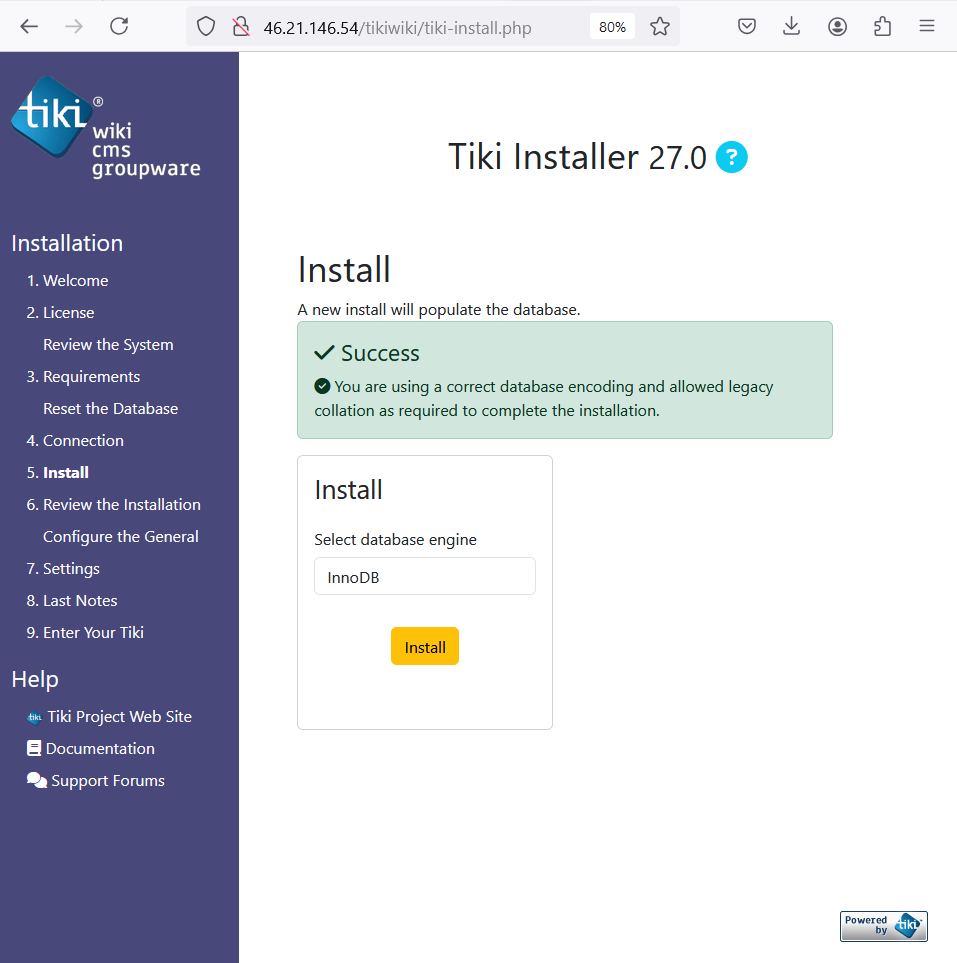
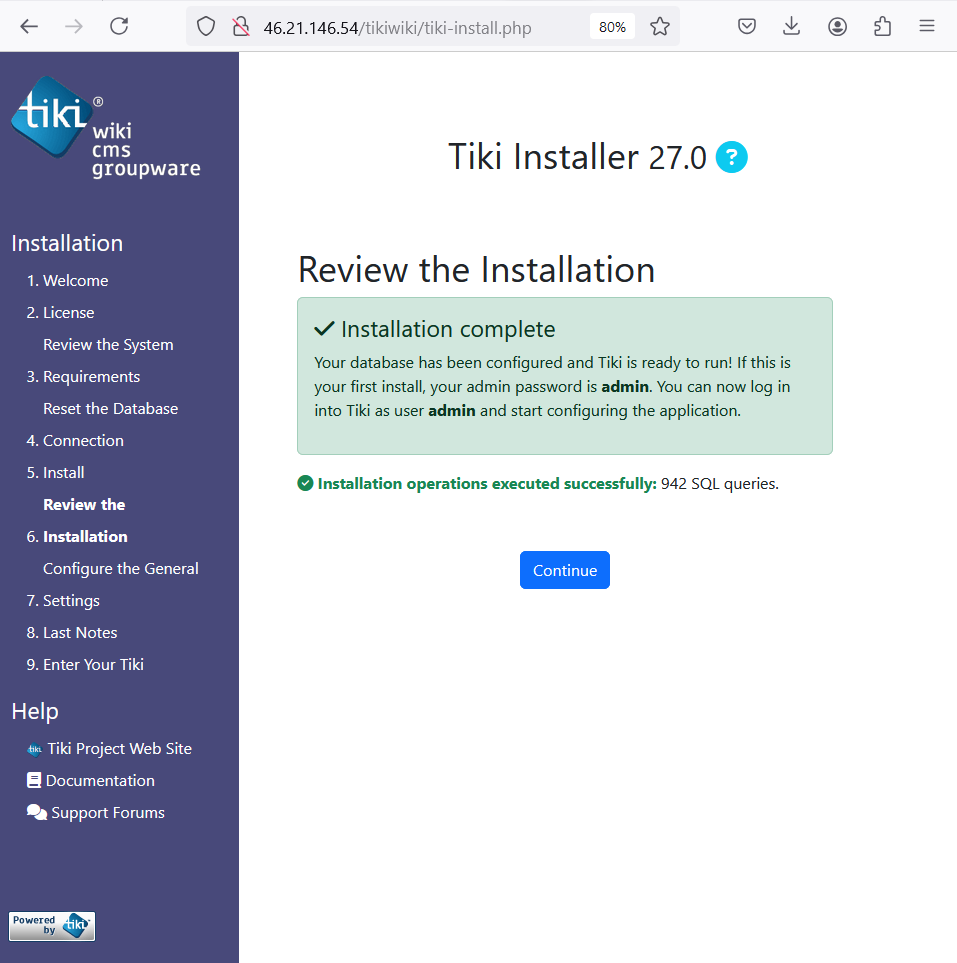
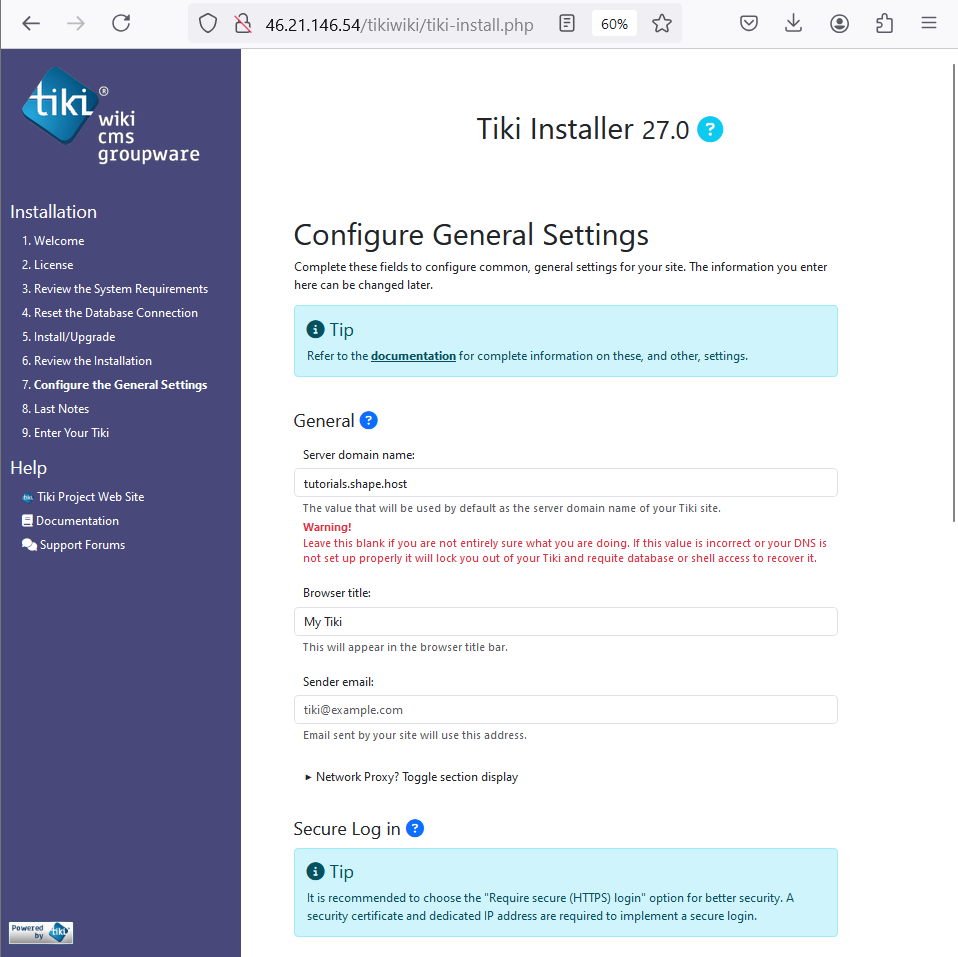
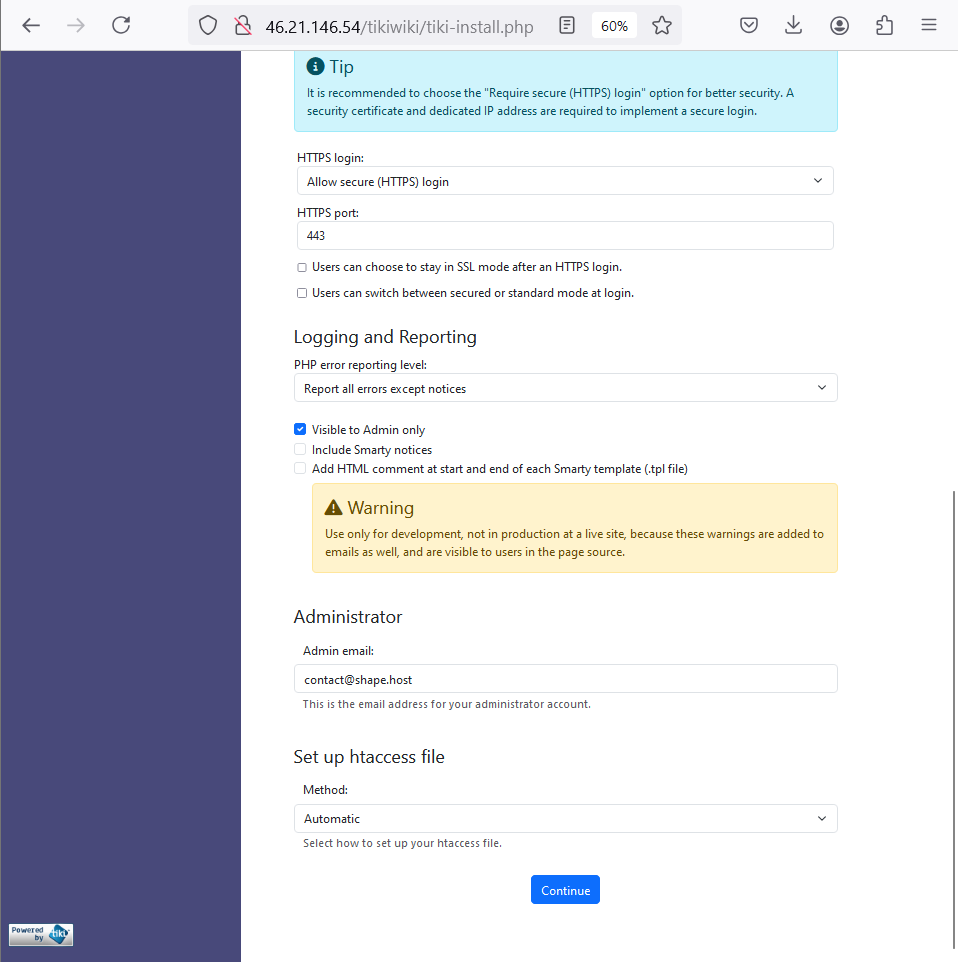
Step 12: Complete the Installation via Web Browser
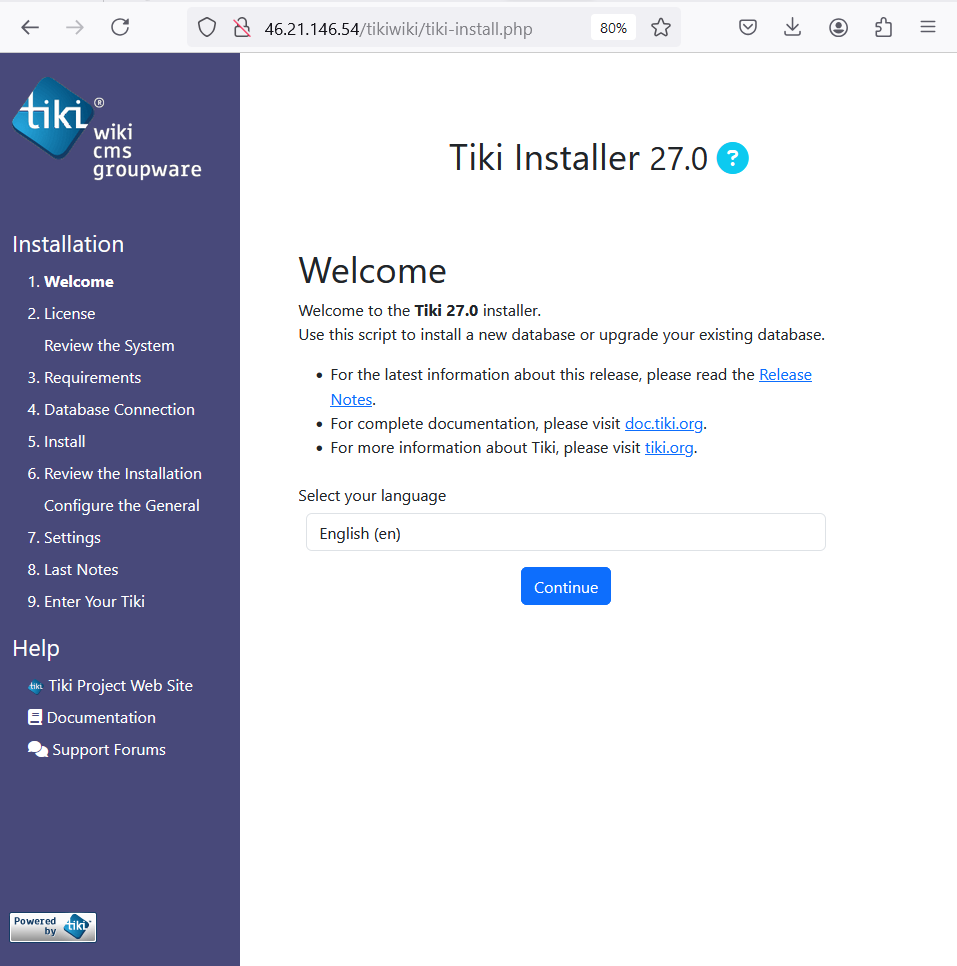
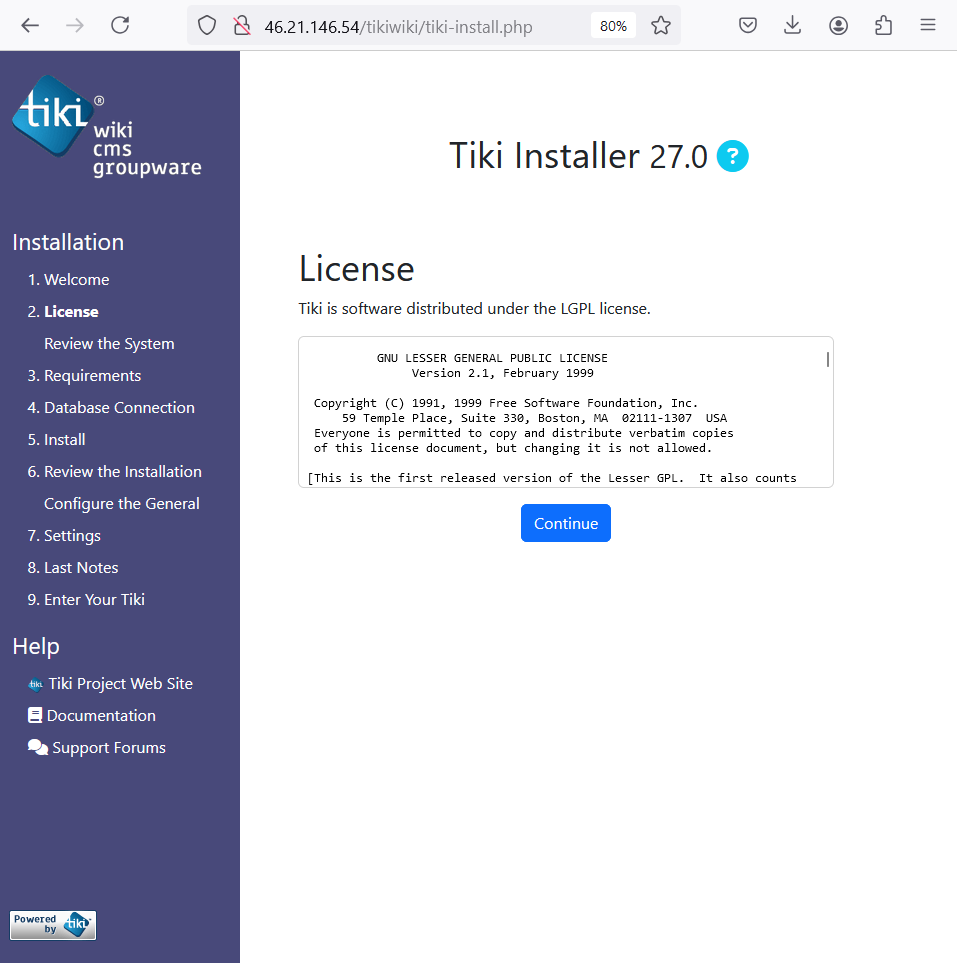
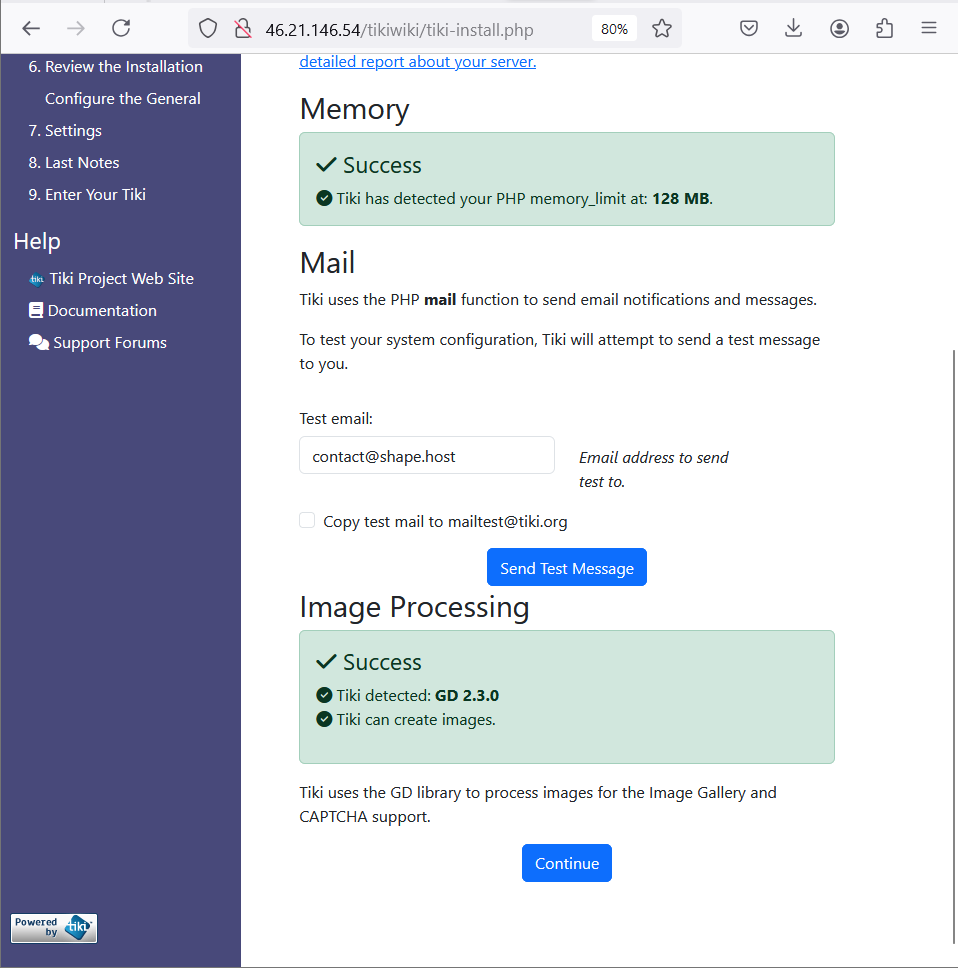
- Open your web browser and navigate to your Tiki Wiki instance:
http://your_domain_or_IP/tikiwiki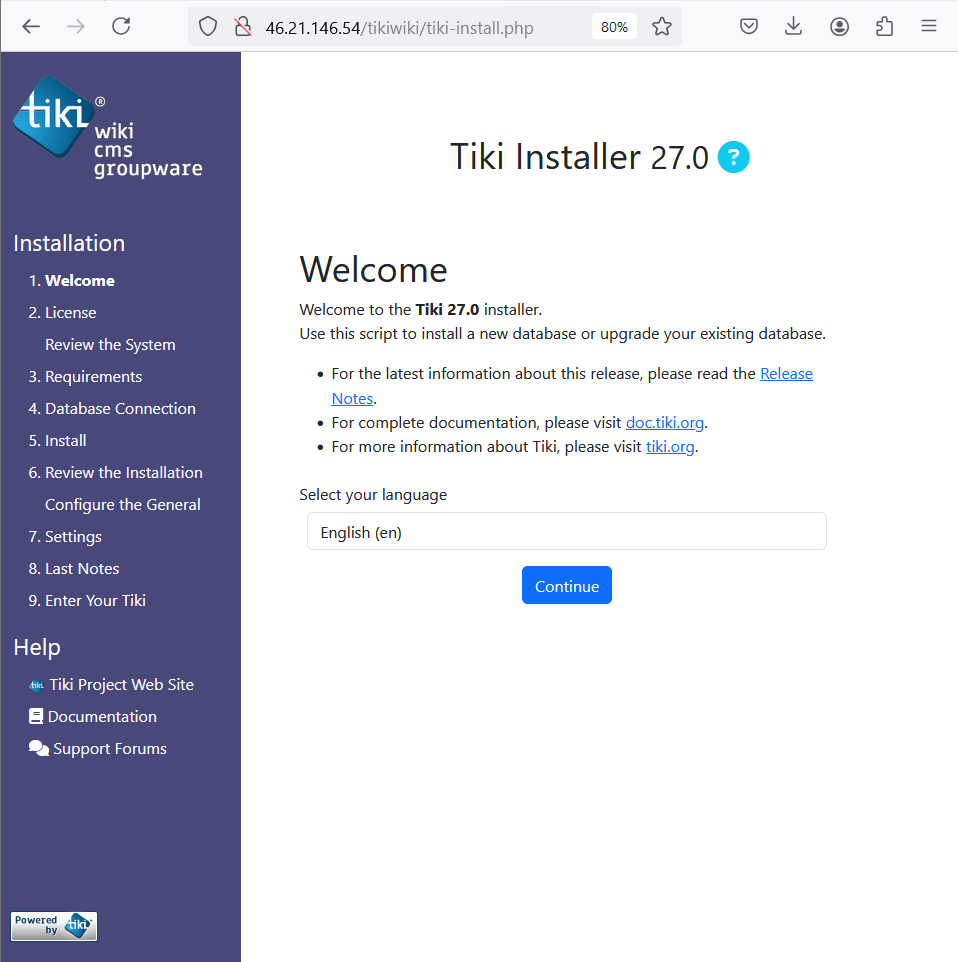
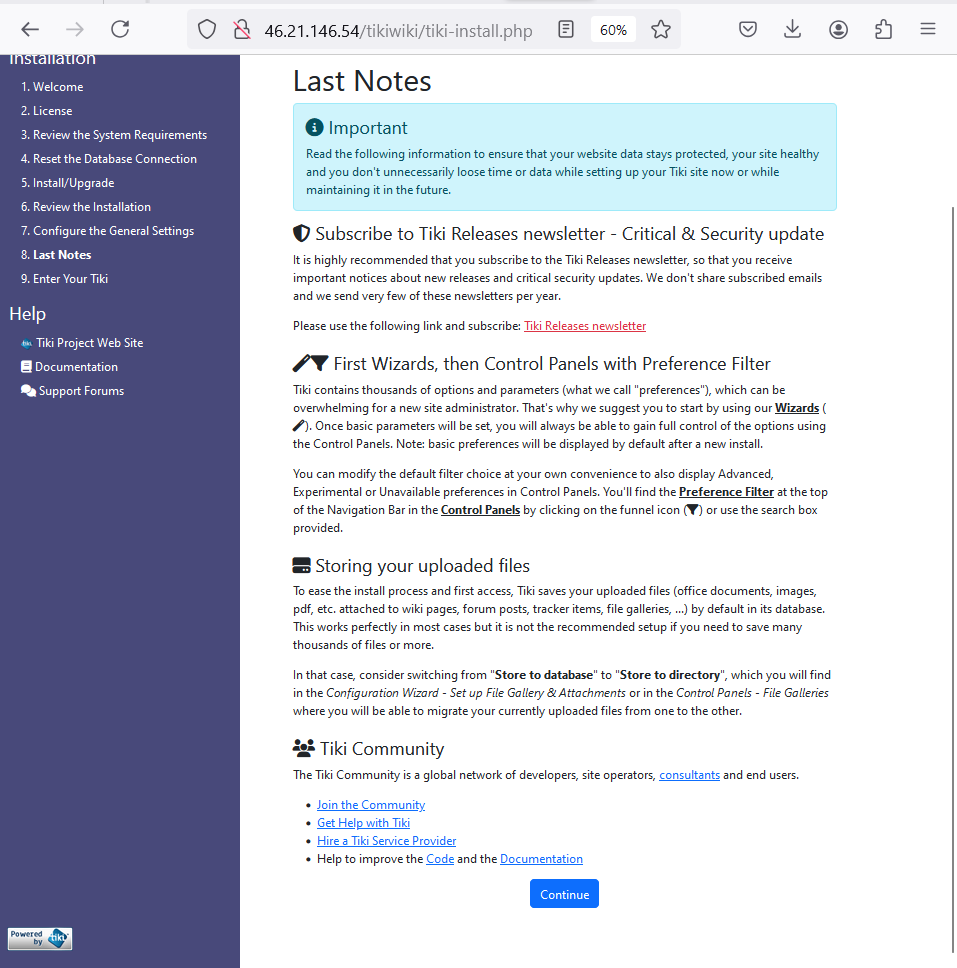
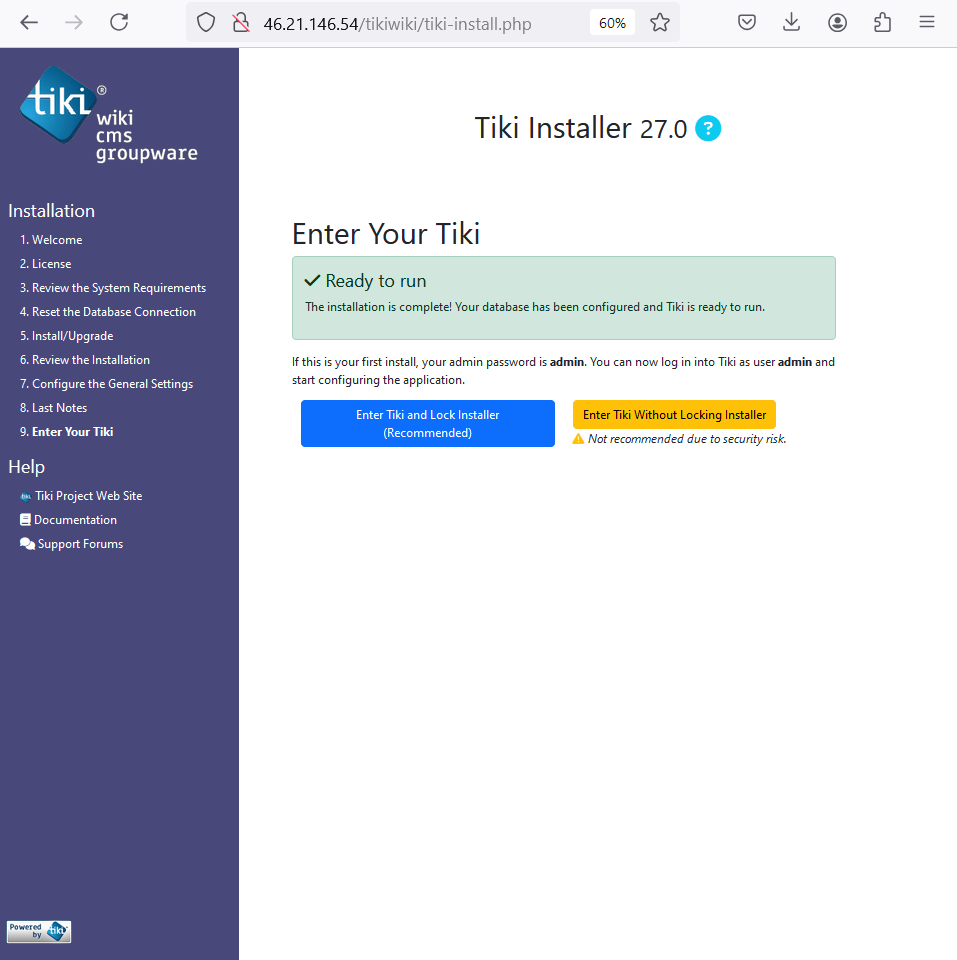
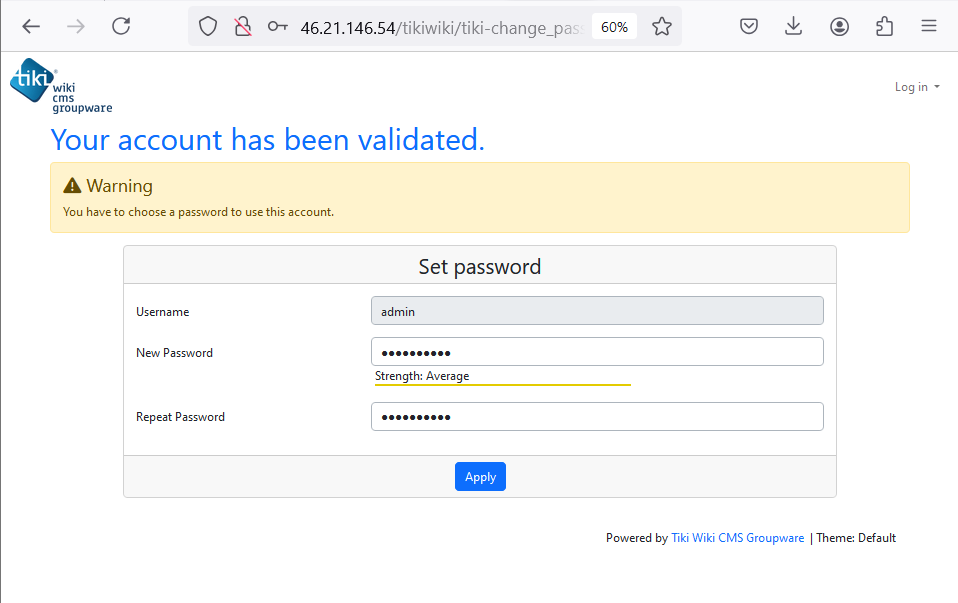
- Follow the on-screen instructions to complete the installation. You will need to enter the database details (database name, user, and password) you created in Step 3.
For hosting your Tiki Wiki, consider using Shape.host’s Linux SSD VPS services. Shape.host provides robust and scalable cloud solutions tailored to various needs, ensuring high performance and reliability for your Tiki Wiki instance. With their Cloud VPS, you can easily scale resources as your application grows, providing an optimal user experience.