Nginx is a popular web server known for its high performance, stability, and rich feature set. Running Nginx inside a Docker container can provide isolation, ease of deployment, and scalability. This tutorial will guide you through the process of running Nginx in a Docker container on an Ubuntu 22.04 server.
Step 1: Deploying a Cloud Instance on Shape.host
- Log in to Shape.host Dashboard:
- Navigate to the Shape.host website and log in to your account.
- Create a New Instance:
- Click on the “Create” button located at the top right corner of the dashboard.
- From the dropdown menu, select “Instances”.
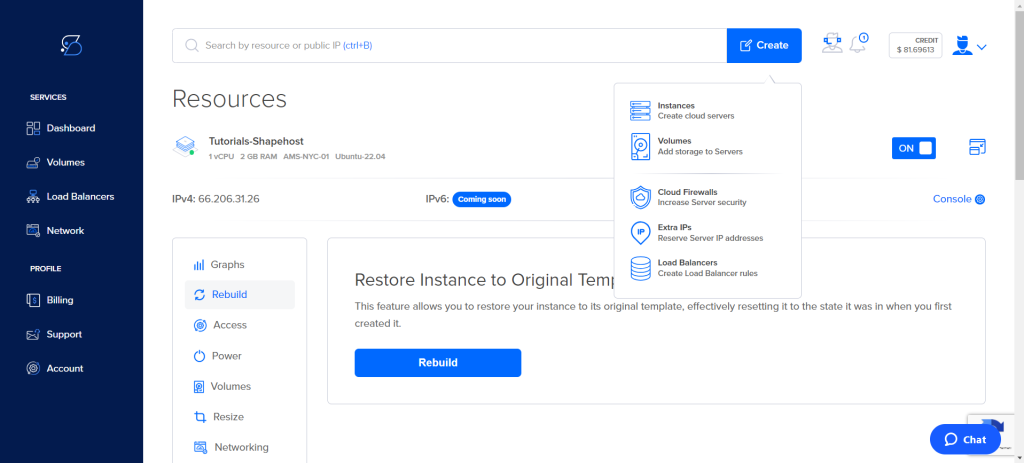
- Select Instance Location:
- Choose the desired location for your server. For this tutorial, we’ll select “New York, USA”.
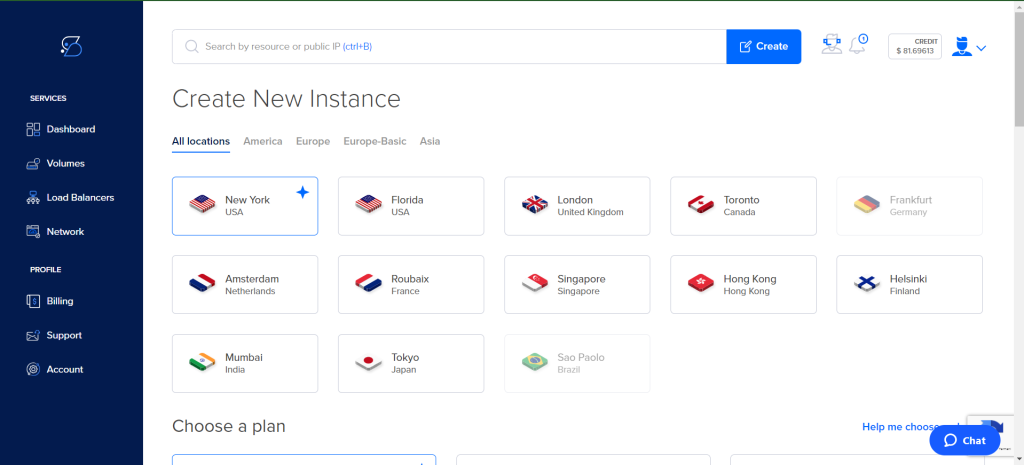
- Choose a Plan:
- Select a plan that fits your requirements. For example, you might choose a plan with 2 cores CPU, 2 GB Memory, and 50 GB SSD disk space.
- Select an Operating System:
- Scroll down to the “Choose an image” section and select “Ubuntu 22.04”.
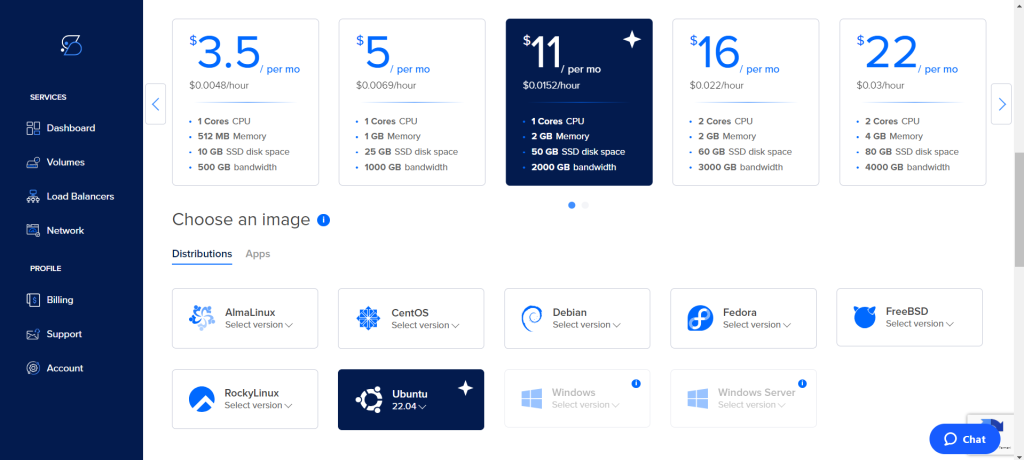
- Configure Additional Options:
- (Optional) You can configure additional options like User Data Configuration and IPv6 Networking.
- Enter a hostname for your instance, e.g., “Tutorial Ubuntu”.
- Click on the “Create instance” button to deploy the instance.
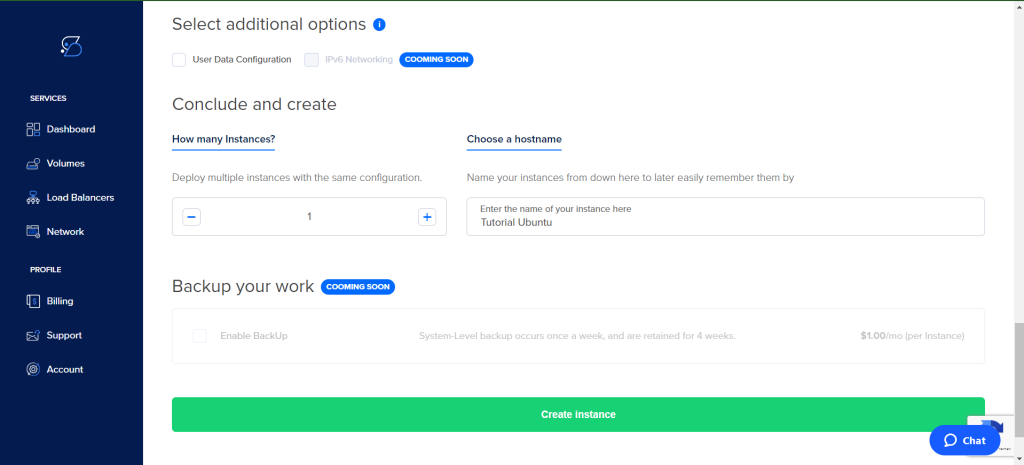
Step 2: Connecting to Your Instance
- Retrieve SSH Credentials:
- Note the IP address of your newly created instance from the Shape.host dashboard.
- Connect via SSH:
- Open a terminal on your local machine.
- Use the following command to connect to your instance:
sh ssh root@your_instance_ip - Replace
your_instance_ipwith the actual IP address of your instance.
To complete this tutorial, you will need:
- An Ubuntu 22.04 server with root access.
Step 3: Installing Docker
First, update your existing list of packages and upgrade them:
apt update
apt upgrade -y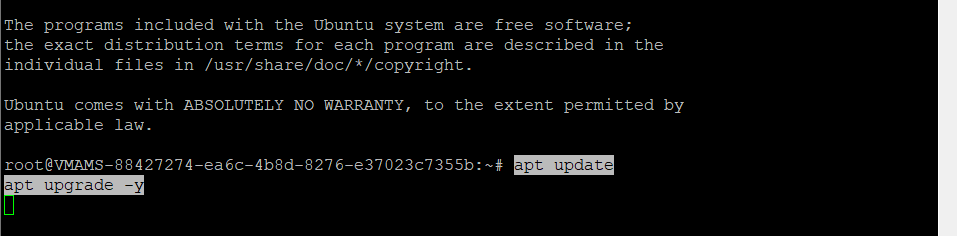
Next, install Docker using the apt command:
apt install docker.io -y
After the installation is complete, start the Docker service and enable it to start at boot:
systemctl start docker
systemctl enable docker
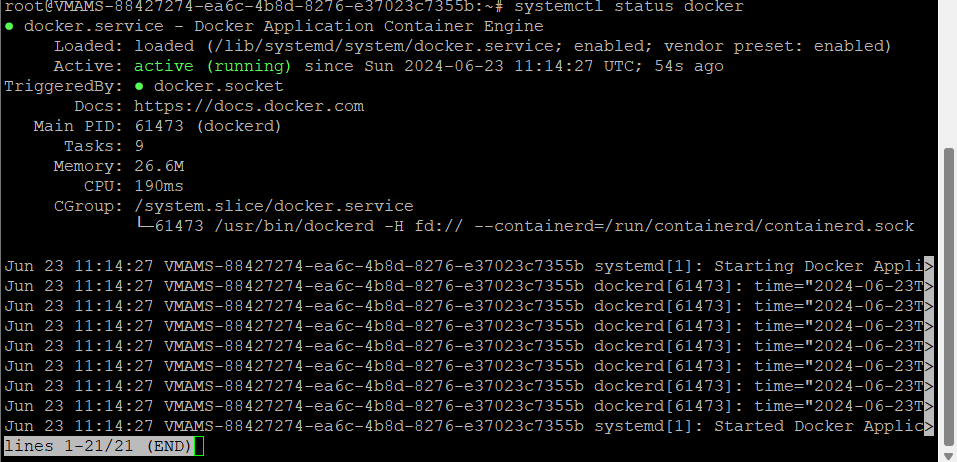
Verify that Docker is running:
systemctl status docker
Step 4: Running an Nginx Container
Now that Docker is installed and running, you can run an Nginx container using the official Nginx image. Pull the Nginx image from Docker Hub and run it in a container with the following command:
docker run --name mynginx -d -p 80:80 nginx
In this command:
--name mynginxnames the container “mynginx”.-druns the container in detached mode, meaning it runs in the background.-p 80:80maps port 80 on the host to port 80 in the container.
Verify that the Nginx container is running:
docker ps

You should see the “mynginx” container listed.
Step 5: Adjusting the Firewall
If your server is running a firewall, ensure that traffic on port 80 is allowed:
ufw allow 80
ufw enable
Check the status of the firewall:
ufw statusStep 5: Testing Nginx
To verify that the Nginx container is working, open your web browser and navigate to your server’s IP address:
http://your_server_ip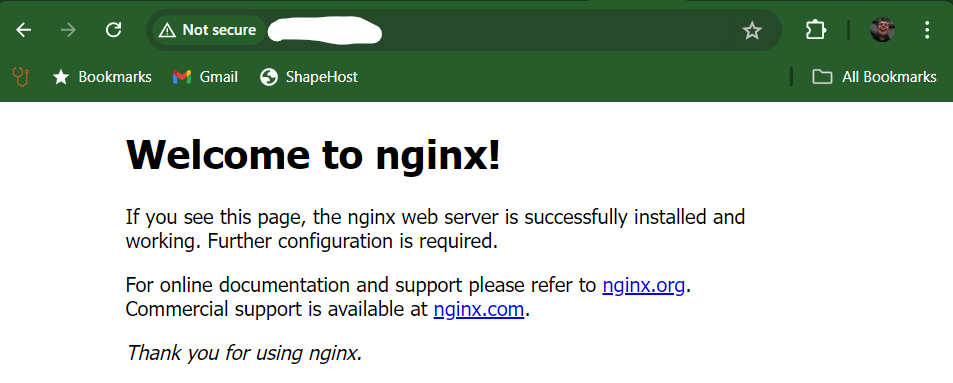
You should see the default Nginx welcome page.
Step 6: Managing the Nginx Container
Stopping the Container
To stop the Nginx container, use the following command:
docker stop mynginx
Starting the Container
To start the Nginx container again, use:
docker start mynginx
Removing the Container
If you want to remove the Nginx container, stop it first and then remove it:
docker stop mynginx
docker rm mynginx
Step 7: Customizing Nginx Configuration
To customize the Nginx configuration, you need to create a custom configuration file and mount it into the container. First, create a directory to store the Nginx configuration file:
mkdir -p ~/mynginx/conf.d
Create a new configuration file in this directory:
nano ~/mynginx/conf.d/my_custom_config.conf
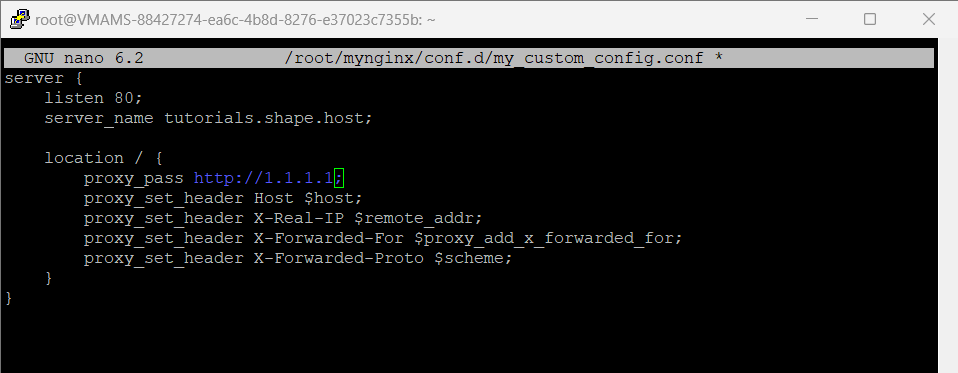
Add your custom Nginx configuration to this file and save it. For example:
server {
    listen 80;
    server_name your_domain;

    location / {
        proxy_pass http://your_backend_service;
        proxy_set_header Host $host;
        proxy_set_header X-Real-IP $remote_addr;
        proxy_set_header X-Forwarded-For $proxy_add_x_forwarded_for;
        proxy_set_header X-Forwarded-Proto $scheme;
    }
}
Run a new Nginx container with the custom configuration:
docker run --name mynginx -d -p 80:80 -v ~/mynginx/conf.d:/etc/nginx/conf.d nginx
In this command, -v ~/mynginx/conf.d:/etc/nginx/conf.d mounts the local configuration directory into the container.
Now, the Nginx container will use your custom configuration.
For reliable hosting solutions, consider using Shape.host services. They offer Cloud VPS, providing high performance and stability for running Docker containers with applications like Nginx.