What is Jenkins?
Jenkins is a widely used open-source automation server that supports continuous integration (CI) and continuous delivery (CD) workflows. It automates tasks like building, testing, and deploying applications, allowing development teams to streamline their software delivery pipelines.
Jenkins is written in Java and supports over 1,800 plugins to integrate with various tools across the software development lifecycle.
Why Use Jenkins on Rocky Linux 9?
Rocky Linux 9 is a stable, RHEL-compatible operating system that serves as a robust and secure foundation for enterprise infrastructure. It is particularly suitable for CI/CD servers like Jenkins because of its long-term support and compatibility with DevOps tools.
Key benefits of Jenkins on Rocky Linux 9:
- Enterprise-grade stability and binary compatibility with RHEL 9
- Native systemd support for service control
- Compatible with OpenJDK 17+, required by newer Jenkins versions
- Seamless integration with dnf, SELinux, firewalld, and Cockpit
- Supported by the official Jenkins YUM repository for easy upgrades and maintenance
Main Features of Jenkins
| Feature | Description |
|---|---|
| Pipeline Automation | Create build, test, and deploy pipelines using the Jenkinsfile (Groovy) |
| Extensible Plugin System | 1,800+ plugins for version control, testing, notification, and deployment |
| Web Dashboard | Full-featured web UI for job management, logs, and configuration |
| Distributed Builds | Run jobs on multiple agents across different environments |
| Source Control Support | Git, GitHub, GitLab, Bitbucket, Subversion |
| Security Integration | LDAP, OAuth, SAML, and local authentication with fine-grained access control |
Common Use Cases
- Automating code builds, static analysis, and unit testing
- Triggering deployments to test, staging, or production environments
- Integrating with container tools (Docker, Podman) and Kubernetes clusters
- Running infrastructure-as-code jobs with Ansible, Terraform, or Packer
- Managing CI/CD for microservices, monoliths, or hybrid systems
Jenkins on Rocky Linux 9: System Integration
- Java Runtime: Jenkins requires Java 17 or newer, available via EPEL/Remi or Adoptium
- Systemd Service: Jenkins runs as a system service (
jenkins.service) managed viasystemctl - Default Port: Web interface is accessible on port 8080
- Data Directory: Jenkins stores data, configs, and job history in
/var/lib/jenkins - Log Files: Logs are typically stored in
/var/log/jenkins/for debugging and auditing
Security Best Practices
- Use HTTPS via reverse proxy (e.g., Apache or Nginx) or native TLS support
- Configure role-based access control (RBAC) using the Matrix Authorization plugin
- Enable firewalld to allow only necessary ports
- Integrate with enterprise identity providers via LDAP or OAuth2
- Disable anonymous access and enforce credential rotation policies
- Set up SELinux in enforcing mode and apply correct file contexts for Jenkins directories
Performance Optimization Tips
- Use SSD storage for Jenkins data to reduce build latency
- Run Jenkins agents on separate hosts to distribute workloads
- Configure parallel stages in declarative pipelines for efficiency
- Tune Java heap size if handling large projects or frequent builds
- Offload logs and artifacts to cloud or NAS for better performance and backup
Deploying Jenkins on Rocky Linux 9 offers a powerful combination of enterprise-grade automation and operating system stability. It is an ideal setup for organizations that need secure, maintainable, and long-term CI/CD infrastructure.
Whether you’re managing small projects or orchestrating hundreds of pipelines across teams, Jenkins on Rocky Linux 9 provides the flexibility, integration, and performance needed for modern DevOps environments.
Step 1: Deploy a Rocky Linux 9 Server on Shape.Host
Before installation, you’ll need a clean server:
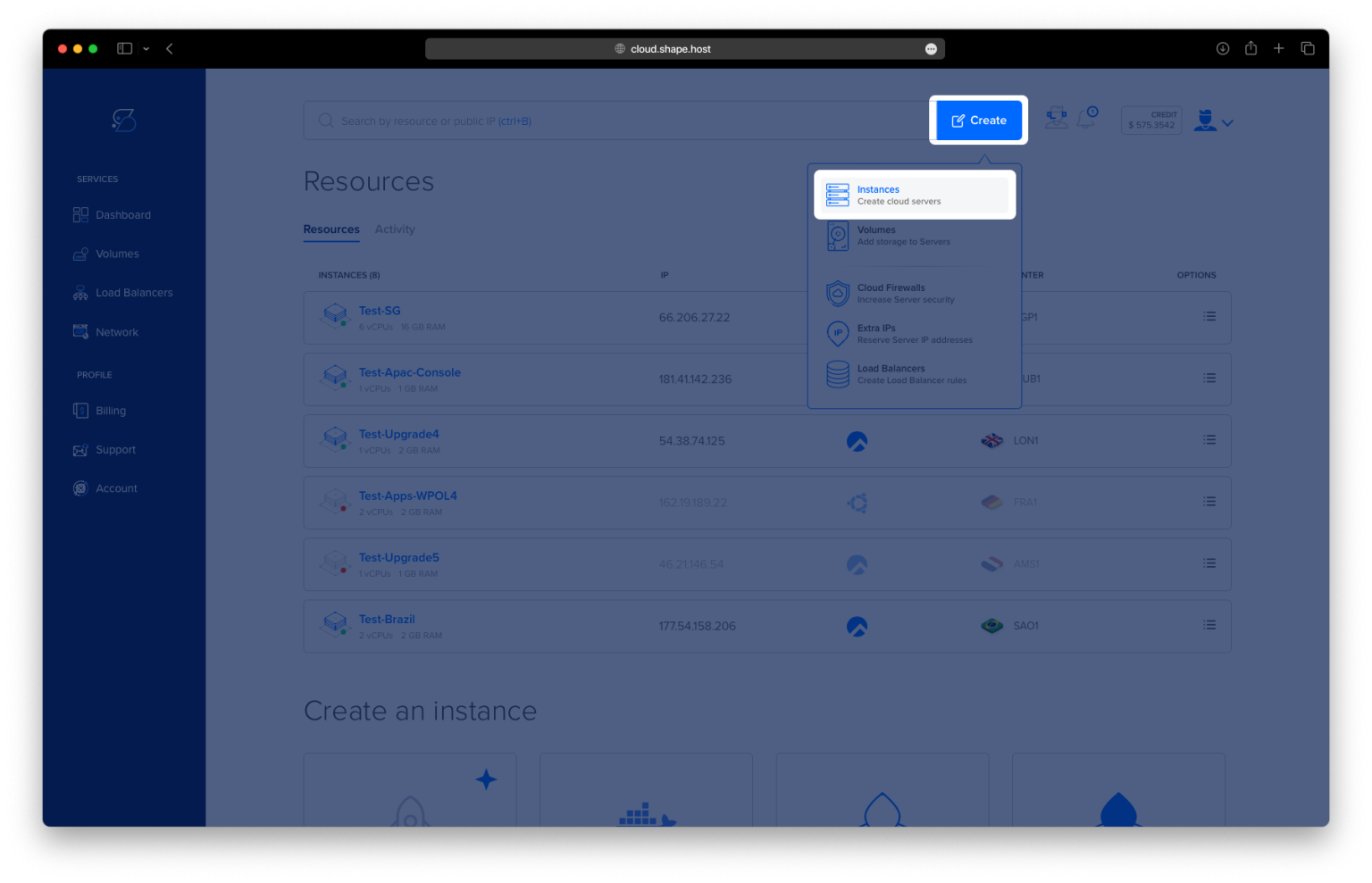
Go to https://shape.host and log in.
Click “Create”, then choose “Instance”.

Pick your preferred data center.

Choose Rocky Linux 9 (64-bit) as the operating system.
Select a plan with at least 2 CPUs, 4 GB RAM, and 20 GB SSD.

Click “Create Instance”.

After deployment, find your server’s IP address under the Resources section.

Step 2: Connect to Your Server
From Linux/macOS:
ssh root@your_server_ip
On Windows, connect using PuTTY.
Step 3: Update Your System
dnf update
This ensures all packages are up to date.

Step 4: Install Java (OpenJDK 17)
dnf install java-17-openjdk
Jenkins requires Java. This installs version 17, which is supported by Jenkins.

Check the installed version:
java -version

Step 5: Add Jenkins Repository and GPG Key
Download and store the Jenkins repository key:
curl -fsSL https://pkg.jenkins.io/redhat-stable/jenkins.io-2023.key | tee /etc/pki/rpm-gpg/RPM-GPG-KEY-jenkins.io > /dev/null
Create the Jenkins YUM repo file:
cat <<EOF > /etc/yum.repos.d/jenkins.repo
[jenkins]
name=Jenkins-stable
baseurl=https://pkg.jenkins.io/redhat-stable
gpgcheck=1
gpgkey=file:///etc/pki/rpm-gpg/RPM-GPG-KEY-jenkins.io
EOF
name=Jenkins-stable baseurl=https://pkg.jenkins.io/redhat-stable gpgcheck=1 gpgkey=file:///etc/pki/rpm-gpg/RPM-GPG-KEY-jenkins.io EOF

Step 6: Install Jenkins
dnf install jenkins

Step 7: Start and Enable Jenkins Service
systemctl enable --now jenkins
This starts Jenkins and sets it to launch at boot.
Check its status:
systemctl status jenkins
You should see active (running).

Step 8: Install and Configure Firewall (UFW)
Unmask and install UFW:
dnf install ufw
systemctl enable --now ufw

Allow traffic for Jenkins and SSH:
ufw allow 8080
ufw allow 22/tcp
Enable UFW and check the status:
ufw enable
ufw status

Step 9: Retrieve Jenkins Admin Password
To complete the web setup, copy the admin password from this file:
cat /var/lib/jenkins/secrets/initialAdminPassword

Step 10: Access Jenkins Web UI
Open a browser and go to:
http://your-server-ip:8080
Paste the admin password, install suggested plugins, and finish the setup.

Install suggested plugins


Create admin user

Confirm Jenkins URL

Proceed to the dashboard


- High-performance Linux SSD VPS for CI/CD pipelines
- Fast provisioning and root access
- Global server locations
- Full support for Rocky Linux and Jenkins
Start your Jenkins deployment now at https://shape.host