What is Jenkins?
Jenkins is a free, open-source automation server that enables continuous integration (CI) and continuous delivery (CD) of software. It automates tasks like building, testing, and deploying code, helping teams deliver applications reliably and efficiently.
Jenkins supports a plugin-rich architecture, integrates with virtually all major development, testing, and deployment tools, and is highly customizable through Jenkinsfiles and scripting.
Why Use Jenkins on AlmaLinux 9?
AlmaLinux 9 is a community-driven, enterprise-ready alternative to CentOS, fully binary-compatible with Red Hat Enterprise Linux (RHEL) 9. It is a solid operating system choice for running Jenkins because of its stability, security, and long-term support.
Key advantages of using Jenkins on AlmaLinux 9:
- Enterprise-grade OS with 10-year support (until 2032)
- Full compatibility with Java 17+, required by current Jenkins versions
- Works with dnf, systemd, SELinux, and firewalld
- Supported by the official Jenkins YUM repository for easy setup and updates
- Ideal for use in production-grade CI/CD pipelines and automation environments
Core Features of Jenkins
| Feature | Description |
|---|---|
| CI/CD Pipelines | Automate build, test, and deployment workflows using code (Jenkinsfile) |
| Plugin Ecosystem | 1,800+ plugins for version control, containers, notifications, and more |
| Web Interface | Browser-based UI for managing jobs, builds, and users |
| Pipeline as Code | Write declarative or scripted pipelines stored in version control |
| Integration Ready | Supports GitHub, GitLab, Docker, Ansible, Kubernetes, and more |
| Build Agents | Run distributed builds on remote workers or containers |
Common Use Cases
- Automating testing and deployment for applications
- Coordinating DevOps pipelines in multi-stage environments
- Managing container builds and Helm chart deployments
- Running infrastructure automation with tools like Terraform or Packer
- Performing static code analysis and security scanning
- Supporting microservices and monoliths alike
System Integration on AlmaLinux 9
- Java Requirement: Jenkins requires Java 17+; installable via EPEL/Remi or Adoptium builds
- Service Management: Jenkins runs as a
systemdservice (jenkins.service) - Web Access: Default port
8080; accessible via browser - Configuration: Data stored in
/var/lib/jenkins, with logs in/var/log/jenkins - Firewall & Security: Easily managed using
firewalldand SELinux enforcement
Security Practices
To safely run Jenkins in production on AlmaLinux 9:
- Enable HTTPS using a reverse proxy (Nginx or Apache) and Let’s Encrypt
- Limit access to Jenkins ports with
firewalldrules - Integrate with LDAP, GitHub OAuth, or SAML for authentication
- Use role-based access control (RBAC) via Matrix Authorization Plugin
- Harden system with SELinux (configure correct file contexts for Jenkins directories)
- Disable anonymous access and rotate credentials regularly
Performance Optimization Tips
- Use SSDs for fast I/O during builds
- Configure dedicated build agents for parallel or resource-intensive tasks
- Tune Java heap memory for large-scale jobs
- Archive logs and artifacts externally (S3, NAS, etc.) to save disk space
- Implement build throttling and pipeline optimization to reduce load
Jenkins on AlmaLinux 9 provides a secure, stable, and scalable environment for automating software development pipelines. The combination of Jenkins’ extensive integration support and AlmaLinux’s enterprise-ready foundation makes it a dependable solution for modern DevOps teams.
Whether you’re deploying in a private cloud, hybrid infrastructure, or air-gapped environment, Jenkins on AlmaLinux 9 can support everything from basic CI to advanced release workflows.
Step 1: Create a New AlmaLinux 9 Server on Shape.Host
To get started:
Go to https://shape.host and log in.
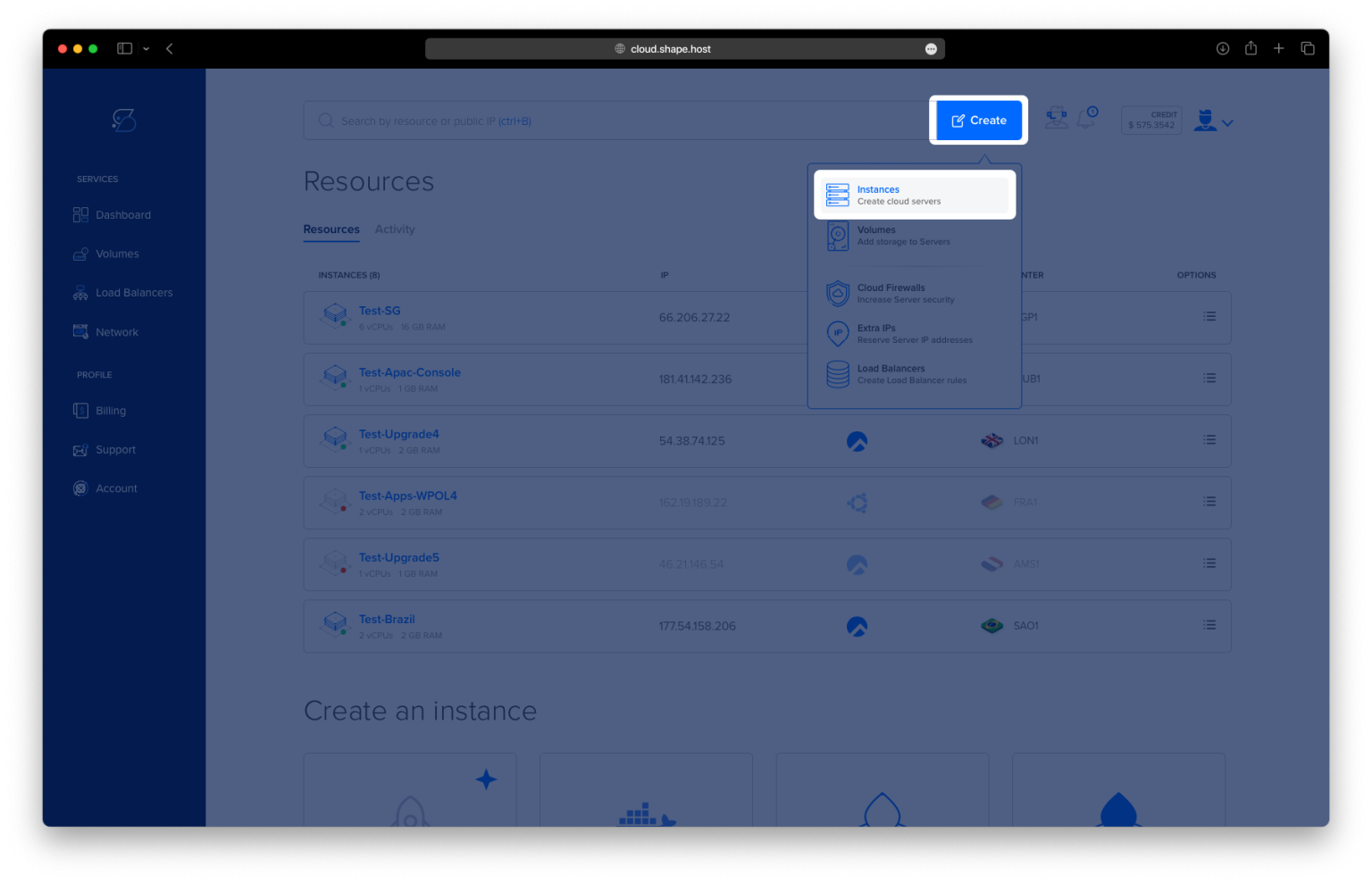
Click “Create”, then select “Instance”.

Choose your preferred server location.

Select AlmaLinux 9 (64-bit) as your OS.
Pick a plan with at least 2 CPUs, 4 GB RAM, and 20 GB SSD.

Click “Create Instance”.

Once it’s deployed, copy your instance’s IP address from the Resources section.

Step 2: Connect to Your Instance
From Linux/macOS:
ssh root@your_server_ip
From Windows, use PuTTY.
Step 3: Update System Packages
dnf update
This refreshes your system’s package list and installs available updates.

Step 4: Install Java (Jenkins requirement)
dnf install java-17-openjdk
Jenkins needs Java to run. This command installs OpenJDK 17.

Check Java installation:
java -version

Step 5: Add Jenkins Repository and Key
Import the official GPG key:
curl -fsSL https://pkg.jenkins.io/redhat-stable/jenkins.io-2023.key | tee /etc/pki/rpm-gpg/RPM-GPG-KEY-jenkins.io > /dev/null
Add the Jenkins repository configuration:
cat <<EOF > /etc/yum.repos.d/jenkins.repo
[jenkins]
name=Jenkins-stable
baseurl=https://pkg.jenkins.io/redhat-stable
gpgcheck=1
gpgkey=file:///etc/pki/rpm-gpg/RPM-GPG-KEY-jenkins.io
EOF

Step 6: Install Jenkins
dnf install jenkins
This command installs the Jenkins service on your system.

Step 7: Start and Enable Jenkins
systemctl enable --now jenkins
This starts Jenkins immediately and enables it to start on boot.
Check if Jenkins is running:
systemctl status jenkins

Step 8: Set Up Firewall with UFW
Install UFW (Uncomplicated Firewall):
dnf install ufw

Enable and start UFW:
systemctl enable --now ufw
Allow SSH access:
ufw allow 22/tcp
Allow Jenkins port:
ufw allow 8080/tcp
Check firewall status:
ufw status

Step 9: Get Jenkins Admin Password
To access the Jenkins dashboard, you’ll need the initial admin password:
cat /var/lib/jenkins/secrets/initialAdminPassword
Copy this password to use in the next step.

Step 10: Access Jenkins Web Interface
Open your browser and go to:
http://your-server-ip:8080
Paste the password when prompted, then complete the setup wizard.

Click “Install suggested plugins”


Create your admin user

Confirm Jenkins URL

Click “Start using Jenkins”


- Clean AlmaLinux Cloud VPS for CI/CD
- Instant server provisioning
- Root access and full control
- Global data center options
Get started at https://shape.host and launch your Jenkins environment in minutes.