Cockpit on Debian 12
Cockpit is a web-based server management tool that provides an intuitive graphical interface for system administrators. It allows real-time monitoring and administration of Debian 12 systems directly from a web browser. Cockpit is particularly useful for managing headless servers and provides an accessible alternative to command-line-only workflows.
Key Features
| Feature | Description |
|---|---|
| Web-Based Dashboard | Manage services, storage, logs, and system status via a browser |
| Real-Time System Monitoring | View CPU, memory, disk, and network usage in real-time |
| Service Management | Start, stop, enable, or disable system services using systemd |
| Terminal Access | Built-in web terminal for shell access on the server |
| Log Viewer | Browse system logs using the integrated journal viewer |
| User Management | Add, remove, or modify system users and groups |
| Networking Tools | Configure network interfaces, bridges, VLANs |
| Software Updates | Check and apply system updates from the web interface |
| Modular Extensions | Extend functionality with packages like cockpit-storaged, cockpit-pcp |
Advantages of Cockpit on Debian 12
- Ease of Use: Ideal for users who are more comfortable with a graphical interface.
- Remote Administration: Manage the system from anywhere using a web browser.
- Live Synchronization: Changes made through the CLI or another Cockpit session reflect immediately.
- No Learning Curve: Uses standard Linux tools in the background (e.g.,
systemd,journalctl,NetworkManager). - Secure Access: Uses the system’s PAM authentication, HTTPS encryption, and access control mechanisms.
Access and Port
- Cockpit runs on port 9090 by default.
- Access it using:
https://your-server-ip:9090 - Admin login uses your Debian system user credentials
Use Cases
- VPS Management: Administer a Debian 12 server hosted remotely.
- Local Server Dashboard: Useful for home servers and labs.
- Lightweight GUI: Ideal for systems where installing a full desktop environment is not practical.
- Multi-server Management: Add and manage multiple servers from a single Cockpit interface.
Comparison to Similar Tools
| Tool | Interface Type | Resource Usage | Suitable For |
|---|---|---|---|
| Cockpit | Web GUI | Low | General-purpose management |
| Webmin | Web GUI | Moderate | Broader feature set, heavier |
| SSH/CLI | Terminal | Minimal | Power users and automation |
| Ansible AWX | Web GUI/API | Higher | Configuration management |
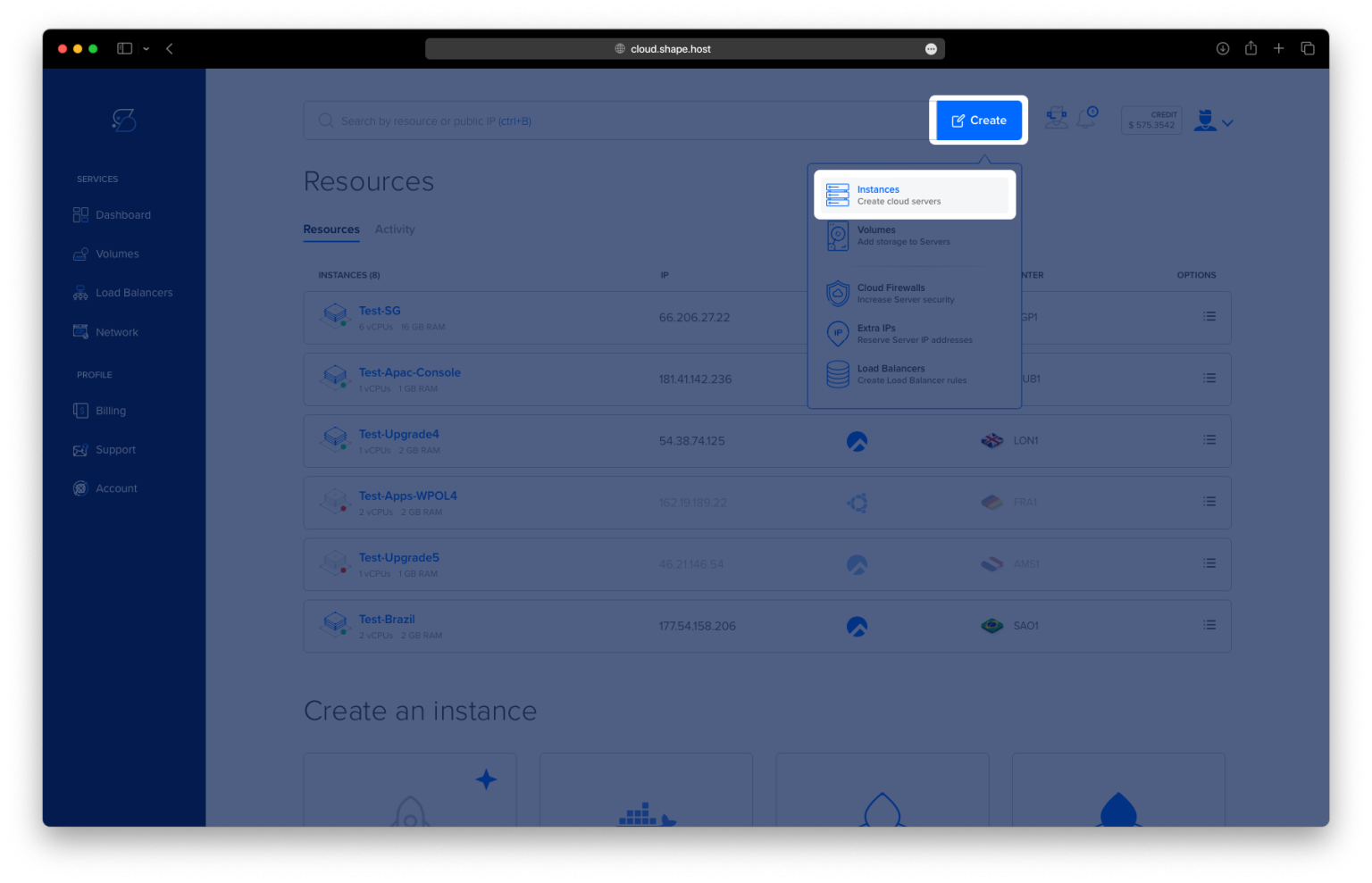
Create a VPS Instance on Shape.Host
Before you begin, create a VPS running Debian 12:
Go to https://shape.host and log in.
Click “Create”, then select “Instance”.

Choose:
Location: A data center near your region.

Operating System: Debian 12 (64-bit)
Resources: At least 1 CPU, 1 GB RAM, and 10 GB SSD

Click “Create Instance”.

After deployment, copy your server IP address for SSH access.

Connect via SSH:
ssh root@your-server-ipOn Windows, use PuTTY.
Step 1: Update the System
apt update
🔹 This refreshes your package list from Debian repositories to ensure you’re installing the latest versions of software.

Step 2: Install Cockpit
apt install cockpit
🔹 Installs the Cockpit service and its web-based UI interface components.

Step 3: Enable and Start the Cockpit Socket
systemctl enable --now cockpit.socket
🔹 Starts the Cockpit service immediately and ensures it starts automatically at system boot.
Step 4: Check Cockpit Service Status
systemctl status cockpit.socket
🔹 Verifies that Cockpit is running correctly and listening on port 9090.

Step 5: Install and Configure UFW Firewall
If ufw is not installed yet:
apt install ufw
🔹 Installs Uncomplicated Firewall (UFW), a user-friendly firewall utility.

Allow Cockpit’s port:
ufw allow 9090/tcp
🔹 Opens port 9090 for TCP, which is the default Cockpit web access port.
Allow SSH (to avoid locking yourself out):
ufw allow ssh
🔹 Ensures port 22 remains open for SSH access.
Enable the firewall:
ufw enable
🔹 Activates UFW with the current rule set.

Step 6: Adjust PAM Access Restrictions
Open Cockpit’s PAM configuration:
nano /etc/pam.d/cockpit
🔹 This file controls which users can authenticate via PAM (Pluggable Authentication Modules) for Cockpit.
Find this line:
account required pam_listfile.so item=user sense=deny file=/etc/cockpit/disallowed-users onerr=succeed
Comment it out by adding # at the beginning:
#account required pam_listfile.so item=user sense=deny file=/etc/cockpit/disallowed-users onerr=succeed
🔹 This change prevents the system from denying access based on the /etc/cockpit/disallowed-users file.

Step 7: Create a New Admin User
adduser myadmin
🔹 Adds a new user named myadmin and prompts you to set a password.
usermod -aG sudo myadmin
🔹 Adds the new user to the sudo group, allowing them to perform administrative tasks in Cockpit and via the terminal.

Step 8: Access Cockpit Web Interface
Open your web browser and go to:
https://YOUR_SERVER_IP:9090
Log in with the myadmin user and password you created.

You will be redirected to a modern dashboard where you can monitor and manage your Debian 12 server.

Choose Shape.Host Linux SSD VPS for:
- SSD-powered performance
- Full root access and instant provisioning
- Global data center locations
- 24/7 availability and scalability on demand
Start managing servers the smart way—host them with Shape.Host.