Cockpit on AlmaLinux 9
Cockpit is a powerful, browser-based server management tool designed to simplify administrative tasks on Linux systems, including AlmaLinux 9. It provides a modern web interface for real-time monitoring, configuration, and troubleshooting — ideal for both beginners and experienced system administrators.
Main Features
| Feature | Description |
|---|---|
| Web-Based GUI | Access and manage your server via a secure browser connection |
| Live System Metrics | View real-time charts for CPU, memory, disk, and network usage |
| Service Management | Start, stop, and enable/disable services managed by systemd |
| User Administration | Add, remove, and configure user accounts and groups |
| Log Viewer | Browse and filter logs from journald |
| Built-in Terminal | Full shell access from within the web interface |
| Networking Tools | Configure network interfaces, bridges, bonding, and firewall rules |
| Software Updates | Review and install pending package updates directly from the dashboard |
| Storage Management | Handle disks, partitions, LVM, and RAID with ease |
| Container Support | Extend functionality with cockpit-podman for managing containers |
Advantages on AlmaLinux 9
- Integrated into RHEL ecosystem: As AlmaLinux 9 is binary-compatible with RHEL 9, Cockpit works seamlessly out of the box.
- Minimal Overhead: Runs as a lightweight service with minimal system resource usage.
- Secure and Role-Based Access: Leverages Linux system users and supports secure HTTPS access.
- Modular and Extendable: Add extra modules for managing containers, virtual machines, or storage subsystems.
- Multi-server Admin: Connect to and manage multiple AlmaLinux (or other Linux) systems from one Cockpit session.
Default Access
- Cockpit runs on port
9090 - Login via browser:
https://your-server-ip:9090 - Authenticate using any system account with admin privileges
Use Cases
- Small & Medium Business Servers: Perfect for monitoring file servers, databases, and general-purpose Linux machines.
- Remote Infrastructure: Administer headless servers without needing SSH or a desktop environment.
- Educational Labs: Simple way to teach server management and Linux fundamentals.
- Home Servers: Great for managing personal AlmaLinux 9 installations used for backups, media, or development.
Comparison with Alternatives
| Tool | Interface | Resource Usage | Complexity | Focus |
|---|---|---|---|---|
| Cockpit | Web-based GUI | Low | Easy | General server/system management |
| Webmin | Web-based GUI | Medium | Medium | Full system config (incl. DNS/mail) |
| SSH/CLI | Terminal only | Minimal | Advanced | Most flexible, but requires expertise |
| Ansible AWX | Web UI + CLI | High | Complex | Automation and orchestration |
Create a VPS Instance on Shape.Host
To begin, deploy a cloud VPS running AlmaLinux 9:
Go to https://shape.host and log in.
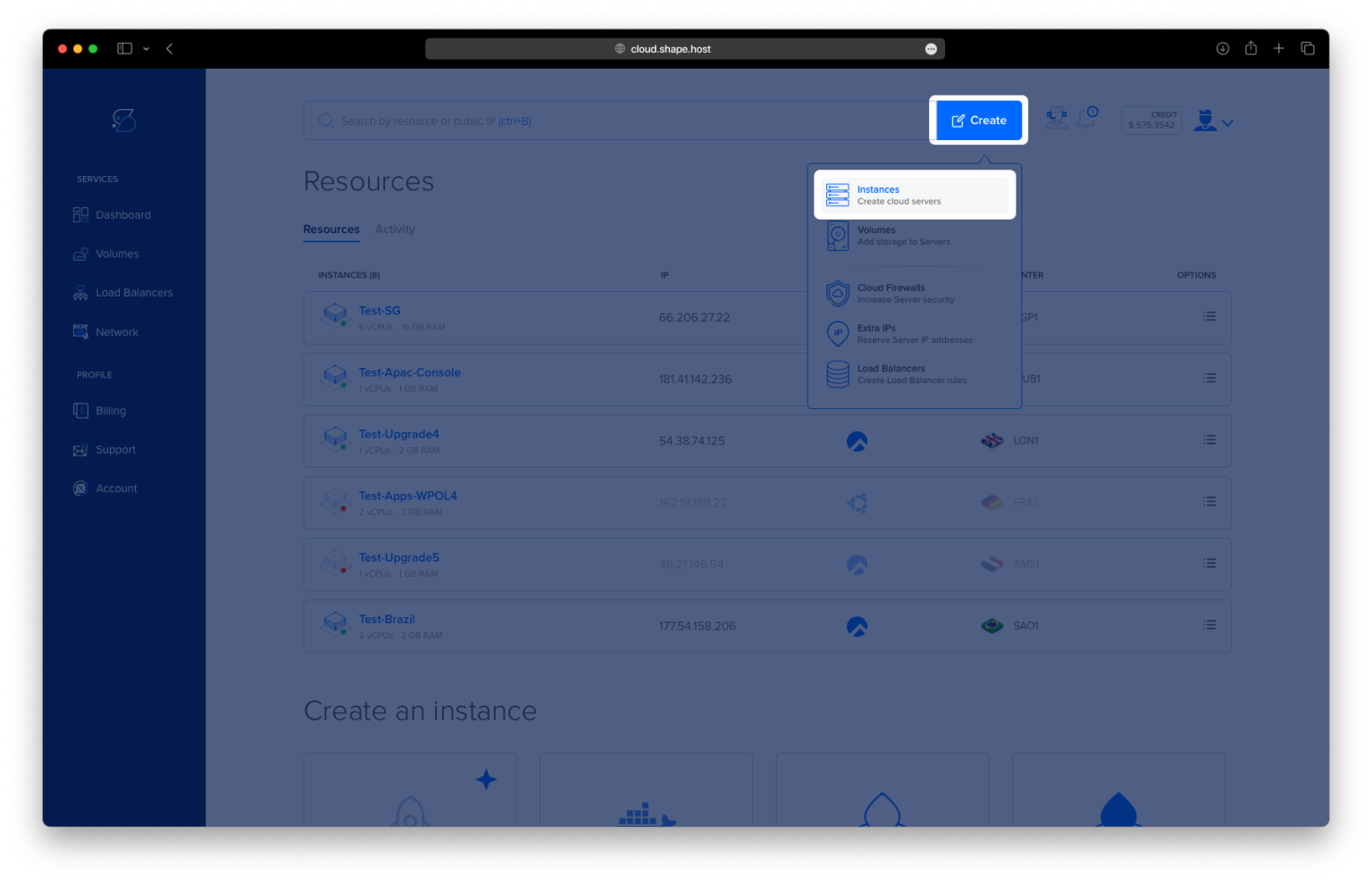
Click “Create” → “Instance”.

Configure:
Location: Choose the nearest data center.

Operating System: Select AlmaLinux 9 (64-bit)
Resources: Minimum 1 CPU, 1 GB RAM, and 10 GB SSD

Click “Create Instance”.

Once deployed, copy your server IP address for SSH access.

Connect via SSH:
ssh root@your-server-ipOn Windows, use PuTTY.
Step 1: Update System Packages
dnf update
🔹 Updates the system’s package database and ensures you’re using the latest versions.

Step 2: Install Cockpit
dnf install cockpit
🔹 Installs the core Cockpit package, which provides the web-based management dashboard.

Step 3: Enable and Start Cockpit
systemctl enable --now cockpit.socket
🔹 Starts the Cockpit service immediately and ensures it launches automatically on boot.
Step 4: Verify Cockpit Service Status
systemctl status cockpit.socket
🔹 Displays the current status of the Cockpit socket to confirm it’s active.

Step 5: Enable and Start Firewalld
systemctl unmask firewalld
🔹 Ensures the firewall service is unmasked and can be enabled.
systemctl enable --now firewalld
🔹 Enables and starts the firewall service.
Step 6: Allow Cockpit Through Firewall
firewall-cmd --permanent --add-service=cockpit
🔹 Opens the default Cockpit service port (9090).
firewall-cmd --permanent --add-port=9090/tcp
🔹 Explicitly opens TCP port 9090 in case the service definition is missing.
firewall-cmd --reload
🔹 Applies the new firewall rules.

Step 7: Create an Admin User
adduser adminuser
🔹 Creates a new user named adminuser.
passwd adminuser
🔹 Prompts you to set a secure password for the new user.
usermod -aG wheel adminuser
🔹 Adds the user to the wheel group, giving them sudo (administrative) privileges needed for Cockpit operations.

Step 8: Install Extra Cockpit Modules
dnf install cockpit-storaged cockpit-networkmanager cockpit-packagekit
🔹 Adds the following Cockpit features:
- cockpit-storaged – manage disks, partitions, and LVM
- cockpit-networkmanager – configure network interfaces
- cockpit-packagekit – manage software updates

Step 9: Access the Cockpit Web Interface
In your browser, visit:
https://YOUR_SERVER_IP:9090
Log in with the adminuser credentials.

The Cockpit dashboard will load, allowing you to manage your AlmaLinux system graphically.

Why Shape.Host?
- SSD-based Cloud VPS with instant setup
- Global data centers
- Full root access
- Support for AlmaLinux, Rocky, Ubuntu, Debian & more
Get started now at Shape.Host and build smarter infrastructure with powerful tools like Cockpit.