osTicket on AlmaLinux 9 – Open-Source Ticketing System on a Stable Enterprise Linux Platform
osTicket is a popular open-source support ticket system used by organizations worldwide for customer support, IT helpdesks, and service management. It transforms emails, form submissions, and API requests into tickets, giving teams a unified interface to track, manage, and respond to support inquiries.
Running osTicket on AlmaLinux 9, a RHEL-compatible distribution, provides an enterprise-grade, long-term supported environment ideal for production use in organizations that need stability and predictable updates.
Key Features of osTicket
- Email-to-Ticket Conversion – Automatically generates tickets from incoming emails.
- Customizable Ticket Forms – Add dynamic fields to capture specific information.
- Ticket Filters & Auto Assignment – Route tickets based on topics, departments, or users.
- Agent Collision Avoidance – Prevents duplicate responses.
- Knowledgebase & FAQs – Provide self-service resources to reduce ticket volume.
- REST API Support – Automate ticket creation and integrate with external tools.
LAMP Stack Compatibility on AlmaLinux 9
| Component | Recommended Version |
|---|---|
| Linux Kernel | 5.14 (default in AlmaLinux 9) |
| Apache | 2.4.57 (from AppStream) |
| PHP | 8.1 (via AppStream) – osTicket supports PHP ≤ 8.2 |
| MariaDB/MySQL | MariaDB 10.5 (default) or MySQL 8.0 |
| OpenSSL | 3.0+ (for SSL/TLS support) |
AlmaLinux 9 provides PHP 8.1, which is fully compatible with osTicket. For newer versions of PHP (8.2), the Remi repository can be used, but compatibility should be verified.
Security and SSL Support
For production environments, SSL/TLS is essential to protect sensitive ticket data.
- Apache mod_ssl works seamlessly on AlmaLinux 9 for HTTPS.
- Certbot (Let’s Encrypt) can issue free SSL certificates with auto-renewal.
- FirewallD can be configured to allow only ports 80 and 443.
- Fail2Ban helps prevent brute-force attempts on the web interface.
osTicket also supports encrypted SMTP connections for email notifications.
Recommended Server Specifications
| Ticket Volume / Users | CPU | RAM | Storage |
|---|---|---|---|
| Small (<10 agents) | 2 cores | 4 GB | 20–40 GB SSD |
| Medium (10–50 agents) | 4 cores | 8–16 GB | 50–100 GB SSD |
| Large (>100 agents) | 8+ cores | 16–32 GB | 100+ GB SSD/NVMe |
Attachments and database growth must be considered for long-term storage planning. External storage or S3-compatible systems can be used for attachments.
Typical Use Cases
- Customer Support Helpdesk – Manage customer inquiries from email and web forms.
- Internal IT Service Desk – Track incidents, service requests, and IT asset issues.
- Educational Institutions – Provide ticket-based support for students and staff.
- Government and NGOs – Use as a low-cost, secure solution for public support requests.
Integration and Automation
osTicket includes:
- REST API – For ticket creation, user management, and reporting.
- Email Fetching (IMAP/POP3) – Convert emails into tickets.
- LDAP/AD Authentication – Enterprise authentication integration.
- Third-party Plugins – Slack, Microsoft Teams, CRM tools, and more.
On AlmaLinux 9, osTicket can be deployed with PHP-FPM for better performance or in Docker containers for easier scaling.
osTicket vs. Other Helpdesk Solutions
| Feature | osTicket | Zammad | FreeScout | Cerb |
|---|---|---|---|---|
| License | Open Source | Open Source | Open Source | Open Source (Pro) |
| Email Integration | Yes | Yes | Yes | Yes |
| Automation Rules | Basic | Strong | Moderate | Advanced |
| API Support | Yes | Yes | Yes | Yes |
| Self-Hosted | Yes | Yes | Yes | Yes |
osTicket is a good fit for organizations that need a simple, lightweight, and cost-effective helpdesk solution without the complexity of heavier tools.
Deploying osTicket on AlmaLinux 9 with a LAMP stack provides:
- Enterprise-grade stability from a RHEL-compatible OS.
- Compatibility with PHP 8.1 and MariaDB 10.5 out of the box.
- Secure communications with HTTPS and encrypted email.
- A low-cost, open-source ticketing system suitable for small to large organizations.
This setup is ideal for businesses, IT departments, schools, and government agencies looking for a reliable, self-hosted support system with long-term OS support.
Step 1: Deploy an AlmaLinux 9 Server on Shape.Host
Start by setting up a new VPS on Shape.Host:
Go to https://shape.host and log in.
Click “Create”, then choose “Instance”.

Select the server location closest to your users for better performance.

Choose AlmaLinux 9 (64-bit) as the operating system.
Pick a plan with at least 2 CPUs, 4 GB RAM, and 20 GB SSD.

Click “Create Instance”.

Once your server is deployed, note down the IP address and root credentials.

Step 2: Connect to Your Server
On Linux/macOS:
ssh root@your-server-ip
On Windows:
Use PuTTY and connect to root@your-server-ip.
Step 3: Install Apache, PHP, and MariaDB
3.1 Update the System
dnf update

3.2 Enable EPEL and PHP 8.2 Module
dnf install epel-release
dnf module reset php
dnf module enable php:8.2


3.3 Install Apache, PHP, and Extensions
dnf install httpd php php-cli php-fpm php-mysqlnd php-gd php-intl php-mbstring php-xml php-zip php-opcache unzip curl

Enable and start services:
systemctl enable --now httpd php-fpm

3.4 Install MariaDB
dnf install mariadb-server
systemctl enable --now mariadb
mysql_secure_installation


Step 4: Create osTicket Database
mysql -u root <<EOF
CREATE DATABASE osticket CHARACTER SET utf8mb4 COLLATE utf8mb4_unicode_ci;
GRANT ALL PRIVILEGES ON osticket.* TO 'osticket'@'localhost' IDENTIFIED BY 'YourStrongPass!';
FLUSH PRIVILEGES;
EOF
🔒 Replace
YourStrongPass!with a secure password.

Step 5: Download and Prepare osTicket
cd /var/www/html
curl -s https://api.github.com/repos/osTicket/osTicket/releases/latest | grep browser_download_url | cut -d '"' -f 4 | wget -i -
unzip osTicket-*.zip -d osticket
mkdir -p /var/www/html/osticket
cp -r osticket/upload/* /var/www/html/osticket/

Step 6: Configure osTicket Files
cp /var/www/html/osticket/include/ost-sampleconfig.php /var/www/html/osticket/include/ost-config.php
chown -R apache:apache /var/www/html/osticket
find /var/www/html/osticket -type d -exec chmod 755 {} \;
find /var/www/html/osticket -type f -exec chmod 644 {} \;

Step 7: Configure Apache Virtual Host
Create a new configuration file:
nano /etc/httpd/conf.d/osticket.conf
Paste the following:
<VirtualHost *:80>
  ServerName your-domain.com
  DocumentRoot /var/www/html/osticket

  <Directory /var/www/html/osticket>
    AllowOverride All
    Require all granted
  </Directory>

  ErrorLog /var/log/httpd/osticket_error.log
  CustomLog /var/log/httpd/osticket_access.log combined
</VirtualHost>

Restart Apache:
systemctl restart httpd

Step 8: Enable SSL with Certbot
dnf install certbot python3-certbot-apache
certbot --apache -d your-domain.com
Follow the instructions to obtain and install a free SSL certificate.


Step 9: Remove Setup Directory
After completing the web-based installation, remove the setup directory:
rm -rf /var/www/html/osticket/setup
Step 10: Access osTicket
Open your browser and navigate to:
http://your-domain.com
or
https://your-domain.com
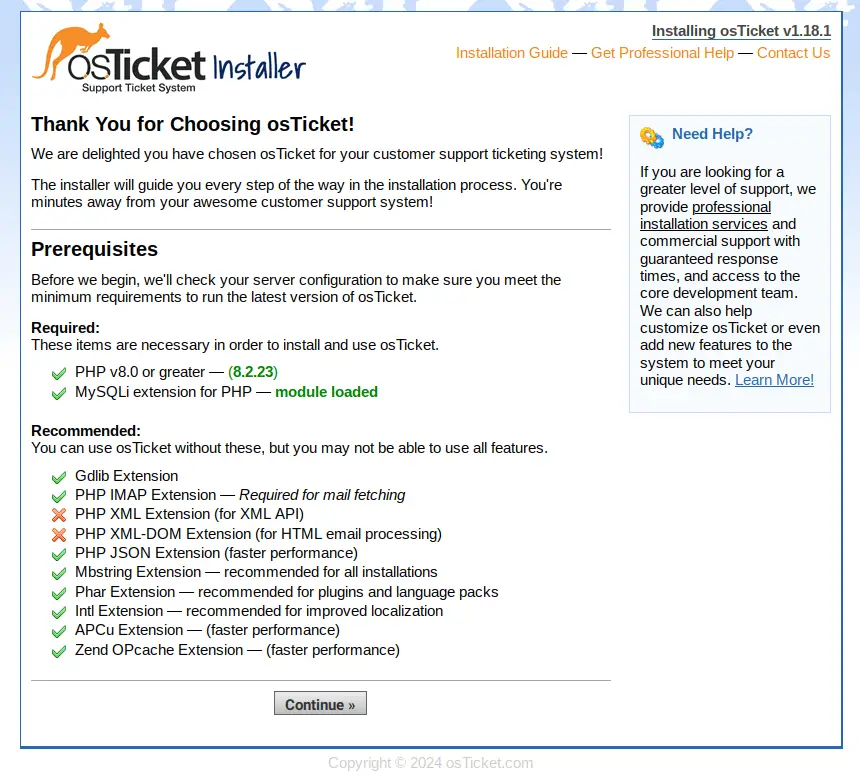
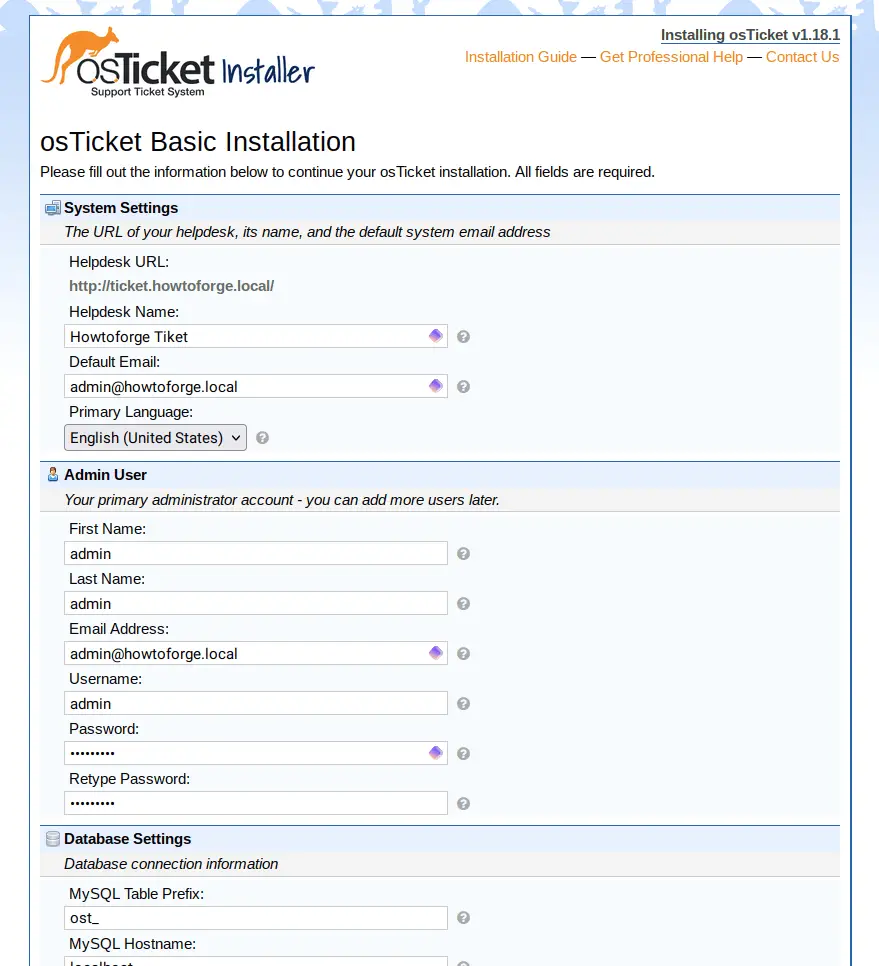
Complete the installation wizard using the database credentials you created earlier.
Make sure every dependency for osTicket is installed and click Continue.

Change the basic system settings such as your domain name, then input the new admin user for osTicket, and input the database details that you’ve created.

If the installation is complete, you’ll see the following page:


Open this link https://your-domain/scp and log in to the osTicket with your admin user and password.

You’ll see the following osTicket Administration Dashboard.

You have successfully installed osTicket on AlmaLinux 9 with Apache, PHP 8.2, MariaDB, and SSL. Your helpdesk system is now ready for use.
For fast, secure, and scalable Cloud Vps, deploy your osTicket server on Shape.Host.
Get started with Shape.Host and host your support system with ease.