Directus on Ubuntu 24.04 (PostgreSQL + PM2 + Nginx + SSL)
Directus is an open-source data platform that provides a real-time REST and GraphQL API plus an admin app on top of your SQL database. Unlike a traditional CMS that owns your schema, Directus treats your database as the source of truth: it introspects existing tables, adds a lightweight system schema, and exposes content and data with granular permissions.
Ubuntu 24.04 (Noble) offers a secure, long-supported base, modern OpenSSL 3, systemd 255, and up-to-date Node.js and PostgreSQL packages—ideal for self-hosted Directus.
Architecture Overview
| Layer | Component | Role |
|---|---|---|
| OS | Ubuntu 24.04 LTS | Stable, secure base; systemd service management |
| Runtime | Node.js LTS (18 or 20) | Runs Directus API/admin application |
| Database | PostgreSQL 15/16 | Primary datastore for content, system tables, and files metadata |
| Process Manager | PM2 | Keeps Directus alive, logging, clustering, startup on boot |
| Reverse Proxy | Nginx | TLS termination, HTTP/2, compression, caching, routing |
| TLS | Let’s Encrypt or corporate PKI | HTTPS for admin panel and APIs |
Why PostgreSQL for Directus
Directus supports MySQL, SQLite, and PostgreSQL; Postgres is commonly preferred for:
- JSONB and rich indexing for semi-structured fields.
- Strong transactional guarantees and concurrency under API load.
- Mature extensions (pg_trgm, full-text search) and role management.
- Straightforward replication/WAL archiving for backup and HA.
Use a dedicated Postgres instance for medium/large footprints; tune shared_buffers, work_mem, effective_cache_size, and WAL settings per workload and storage.
PM2 for Process Control
- Daemonizes Directus; auto-restarts on crashes and reboots (
pm2 startup). - Cluster mode to leverage multiple CPU cores with zero-downtime reloads.
- Centralized logs with rotation; basic metrics via
pm2 monitor exporters. - Use an ecosystem file to pin environment variables, working dir, instances, and per-env configs.
Nginx and SSL as the Public Edge
- Reverse proxy to Directus on localhost (e.g., 8055), keep the app port blocked externally.
- TLS termination with HTTP/2, OCSP stapling, modern ciphers (OpenSSL 3).
- Security headers: HSTS, X-Content-Type-Options, X-Frame-Options, Referrer-Policy, and a tight CSP for the admin UI.
- Static and upload routing, gzip/brotli, basic rate limiting on auth and admin endpoints.
- Automate certificates with Certbot/ACME; test renewals and reloads.
Security and Access Control
- Environment variables only for secrets; never commit
.envfiles. Consider a secret manager if already in your stack. - Ubuntu firewall (UFW or nftables): expose only 80/443; bind Directus to 127.0.0.1.
- Directus RBAC: roles, permissions, and granular field-level access. Separate “admin” from “editor” and “public” roles.
- Authentication: local accounts, OAuth/OIDC, SSO providers; rotate tokens.
- File security: choose a storage driver (local, S3/MinIO, GCS). For public assets, serve via Nginx or a CDN with signed URLs when needed.
- Keep Node, Directus core, and extensions patched; run dependency audits in CI.
- Fail2Ban on Nginx for brute-force mitigation; centralized logging for forensics.
Sizing and Performance
Small (pilot or internal)
- 2 vCPU, 4–8 GB RAM, single PM2 instance.
- PostgreSQL co-located or small dedicated VM.
- Local file storage acceptable; backups to object storage.
Medium (multi-team, public APIs)
- 4–8 vCPU, 8–16 GB RAM; PM2 cluster (2–4 workers).
- Dedicated PostgreSQL on NVMe; automated backups and point-in-time recovery.
- Object storage (S3/MinIO) for files; Nginx caching for GETs where safe.
Large (high traffic, complex schema)
- Multiple Directus nodes; L4/L7 load balancer plus per-node Nginx.
- HA PostgreSQL (managed service or Patroni) with read replicas for reporting.
- Redis (if used by extensions/ratelimiting); CDN in front of assets.
Operational tips:
- Set
NODE_ENV=production. - Cache safe, public GET endpoints at Nginx/CDN.
- Keep Directus system schema under version control via migrations; test upgrades in staging.
Observability
- Logs: PM2/application logs to journald or files; ship with Vector/Fluent Bit to ELK/OpenSearch.
- Metrics: Node/PM2 exporters to Prometheus; postgres_exporter for DB health; Nginx exporter or
stub_status. - Health checks: Nginx upstream checks; synthetic probes for key endpoints; database liveness checks in CI/CD.
Typical Use Cases
- Data-first headless CMS where you own the schema and data model.
- Rapid API layer over existing databases without rewriting schemas.
- Multi-tenant content hubs with granular permissions.
- Back-office dashboards and admin portals for operational data.
- Product catalogs, documentation hubs, and multilingual content services.
Directus vs. Other Headless/Databases-First Platforms
| Capability | Directus | Strapi | KeystoneJS | Payload | Hasura |
|---|---|---|---|---|---|
| DB ownership | Your existing SQL | ORM-managed | Schema-defined | Schema-defined | Your existing SQL |
| Admin app | Built-in | Built-in | Built-in | Built-in | Console (focus on GraphQL) |
| APIs | REST + GraphQL | REST + GraphQL | REST + GraphQL | REST + GraphQL | GraphQL (auto) |
| RBAC/permissions | Granular, field-level | Role/permission model | Schema-driven | Role/field rules | Row-level policies (RLS) |
| Files | Local/S3 drivers | Local/S3 drivers | Local/S3 | Local/S3 | External |
Directus is strongest when you want a no-lock-in admin UI and APIs directly on top of a database you fully control.
Production Checklist (no commands)
- Lock Node.js LTS and package manager versions in CI; build once, promote across environments.
- PostgreSQL 15/16 with backups, PITR, and monitoring; define roles per environment.
- Run Directus under PM2 with an ecosystem config; enable startup on boot; cluster where useful.
- Front with Nginx; terminate TLS; restrict the Directus port to localhost.
- Configure RBAC carefully; separate admin/editor/public roles; enable SSO if required.
- Store media in S3/MinIO; apply lifecycle and access policies; use a CDN for public assets.
- Enable logging, metrics, alerting; test disaster recovery regularly; patch on schedule.
A Directus + PostgreSQL + PM2 + Nginx + SSL stack on Ubuntu 24.04 delivers a secure, flexible, and maintainable data platform. You retain full control of your schema and data, gain real-time REST/GraphQL APIs and a polished admin UI, and rely on a hardened TLS edge and process supervision for uptime. This setup scales cleanly from MVPs to high-traffic, multi-team platforms while keeping operational complexity reasonable.
Step 1: Create an Ubuntu 24.04 VPS on Shape.Host
Go to https://shape.host and log in.
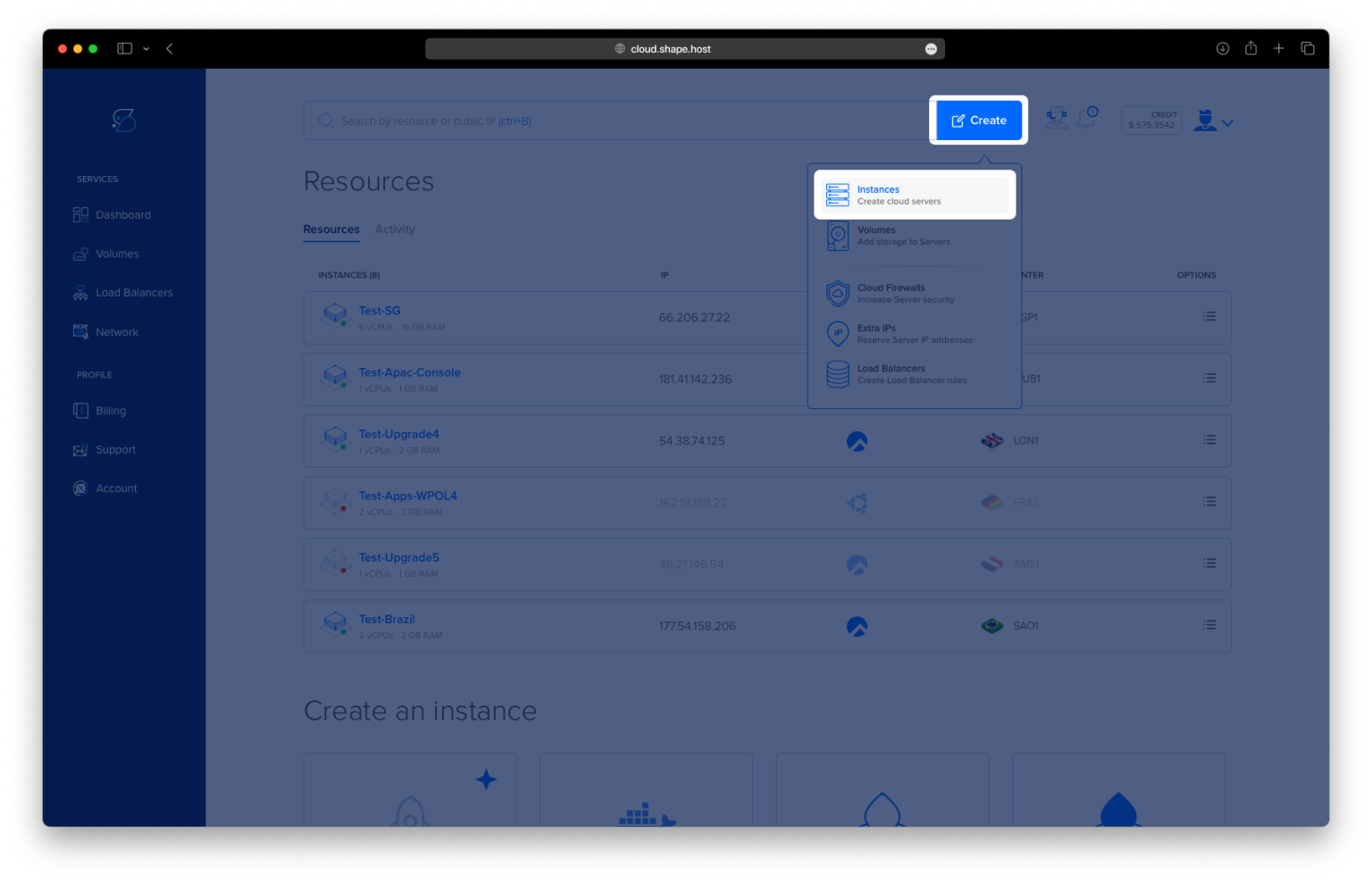
Click “Create”, then select “Instance”.
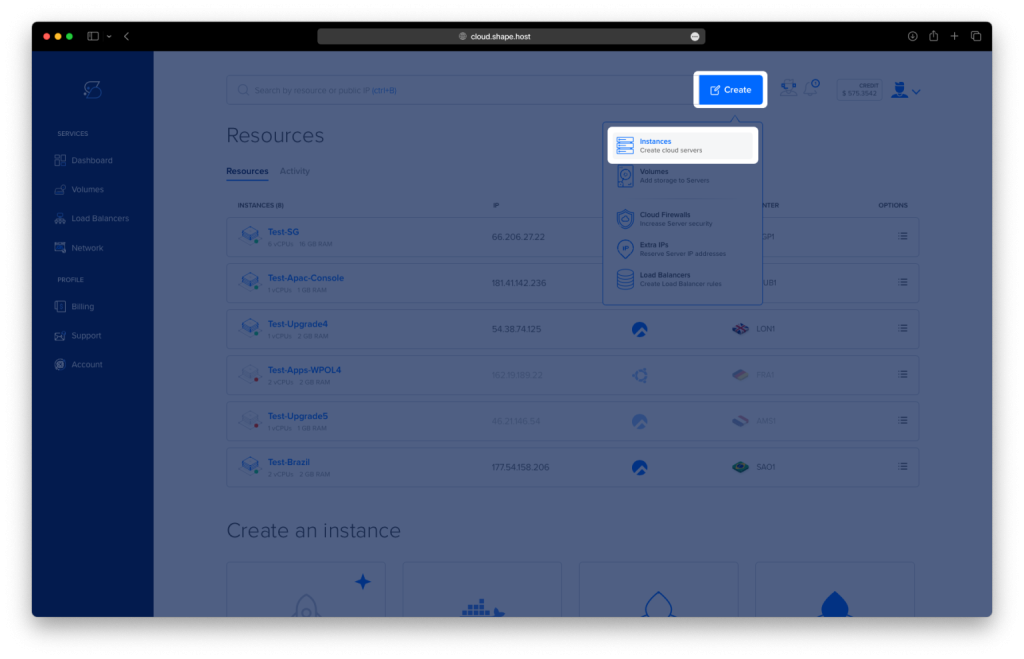
Choose the server location closest to your users.
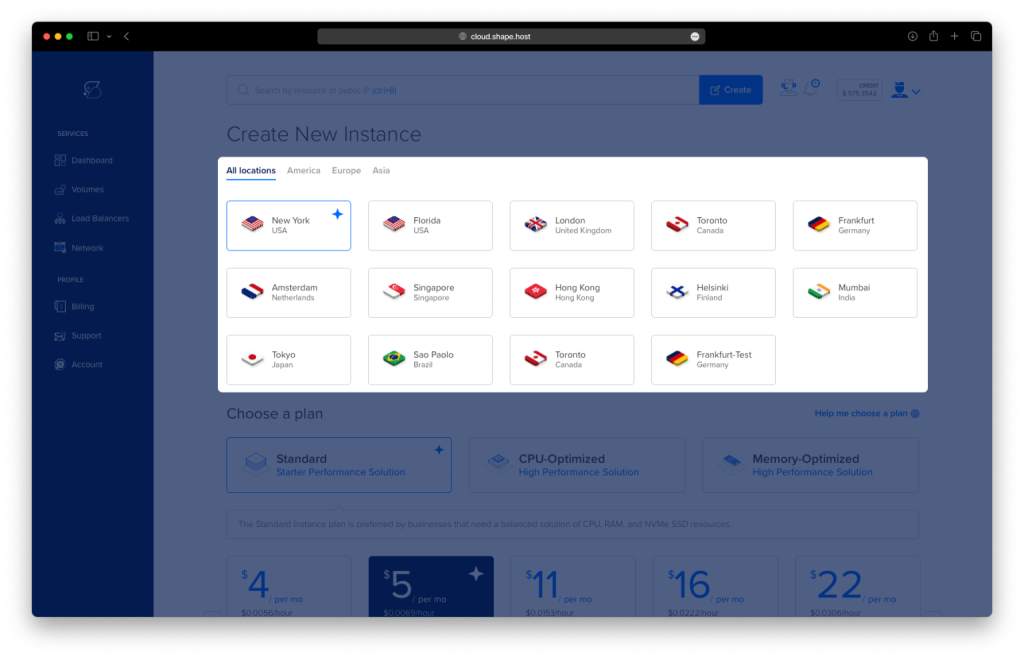
Select Ubuntu 24.04 (64-bit) as the operating system.
Pick a plan with at least 2 CPUs, 4 GB RAM, and 20 GB SSD storage.
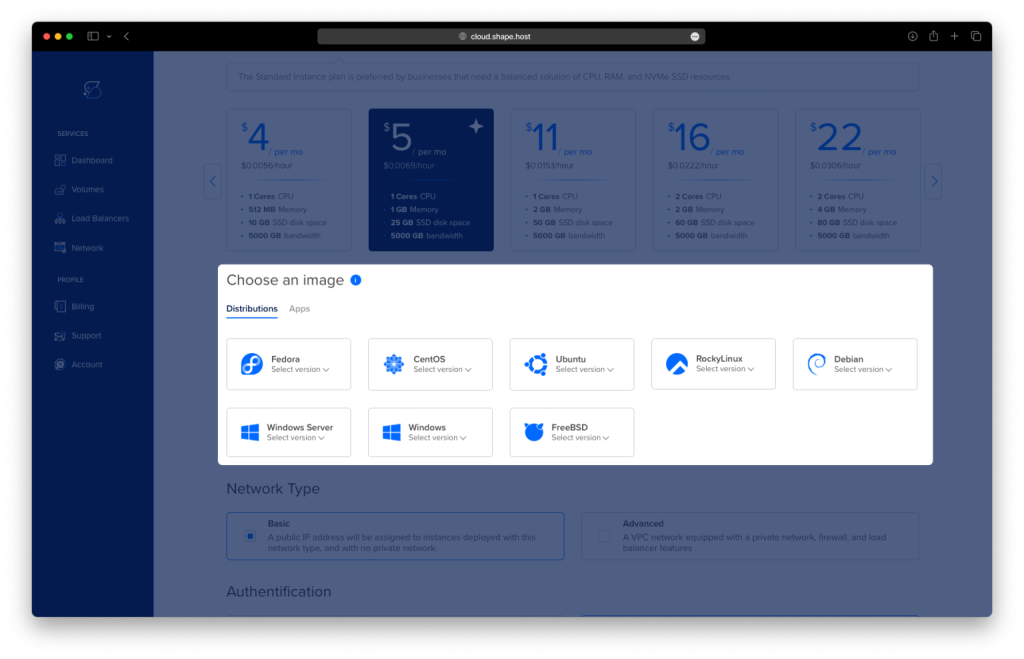
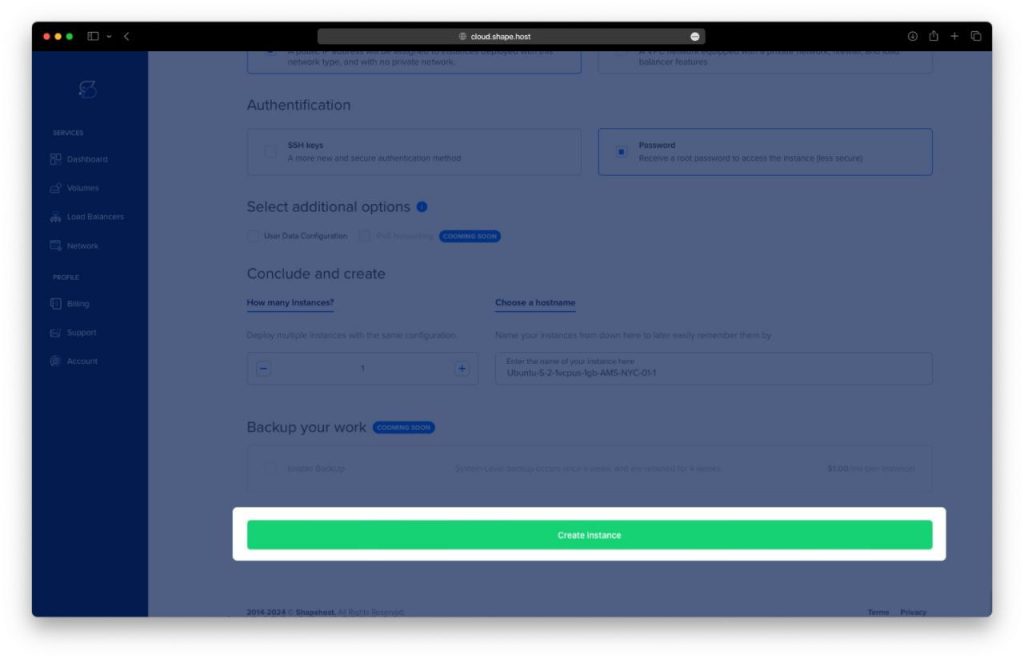
Click “Create Instance”.
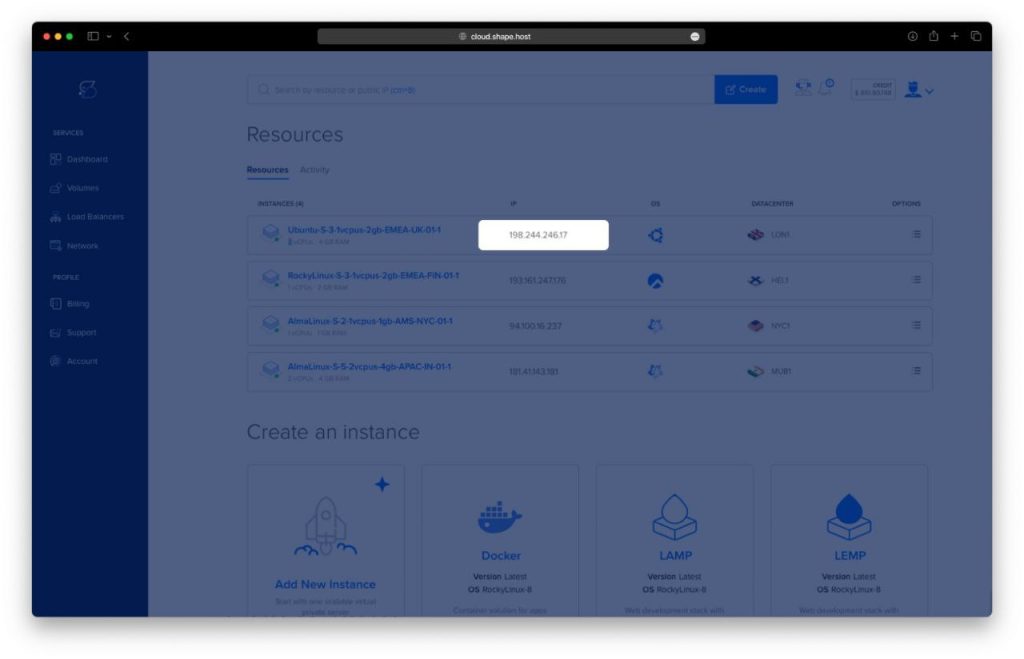
Copy your server IP address from the Resources section.
Step 2: Connect to Your Server
On Linux or macOS
Open a terminal and run:
ssh root@your-server-ip
This connects to the server using SSH (Secure Shell).
On Windows
If you’re on Windows, you can use:
- Command Prompt or PowerShell (Windows 10/11) – run:
ssh root@your-server-ip - PuTTY (older Windows versions) –
- Download PuTTY from https://www.putty.org/.
- Open PuTTY, enter your server IP, choose SSH connection, and click Open.
- Login as
rootwhen prompted.
Step 3: Update the System and Install Required Packages
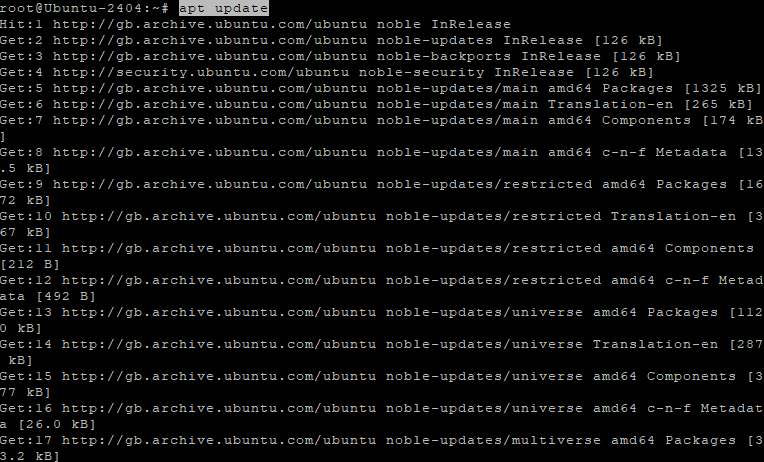
apt update
apt upgrade
apt updaterefreshes the package index.apt upgradeinstalls the latest available versions of all packages.
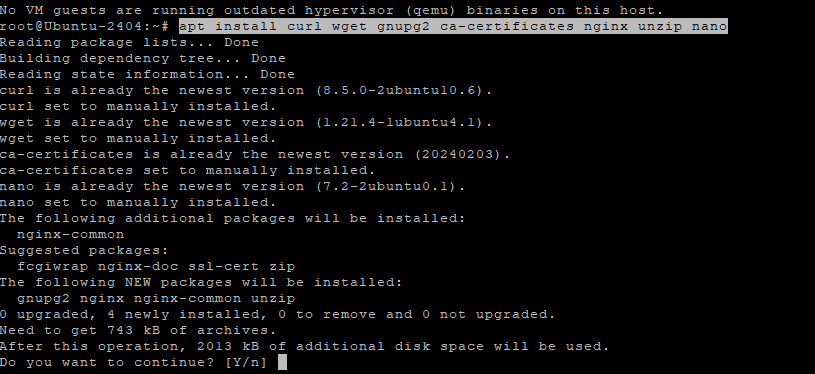
apt install curl wget gnupg2 ca-certificates nginx unzip nano -y
- Installs essential tools:
- curl/wget: download files from the internet.
- gnupg2: manage encryption keys.
- ca-certificates: ensures SSL certificates work.
- nginx: web server that will act as reverse proxy.
- unzip: extract
.zipfiles. - nano: text editor.
Step 4: Install and Configure PostgreSQL
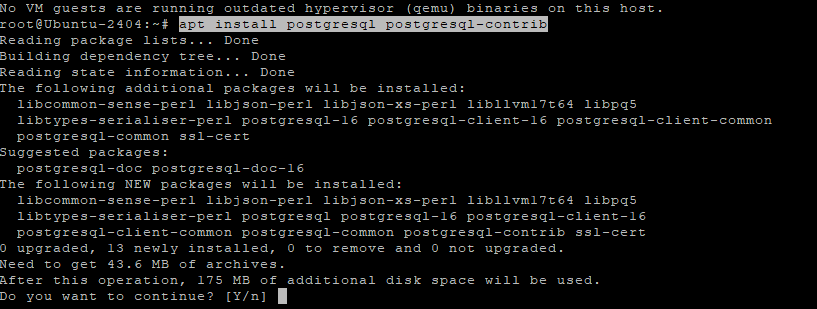
apt install postgresql postgresql-contrib -y
- Installs PostgreSQL database and extra utilities.
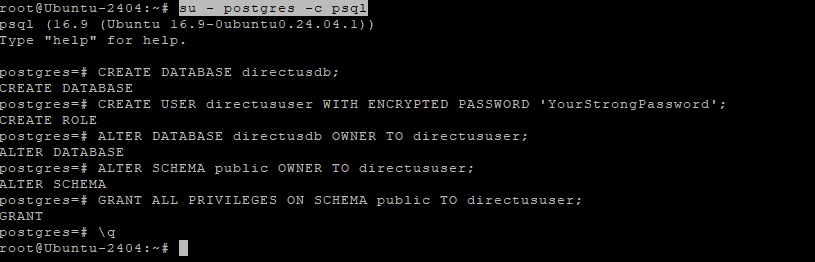
Log in as PostgreSQL user:
su - postgres -c psql
Run the following SQL commands to create database and user:
CREATE DATABASE directusdb;
CREATE USER directususer WITH ENCRYPTED PASSWORD 'YourStrongPassword';
ALTER DATABASE directusdb OWNER TO directususer;
ALTER SCHEMA public OWNER TO directususer;
GRANT ALL PRIVILEGES ON SCHEMA public TO directususer;
\q
- Creates a new database
directusdb. - Creates a user
directususerwith password. - Grants ownership and privileges so Directus can manage the database.
\qexits PostgreSQL shell.
Step 5: Install Node.js 20 and NPM
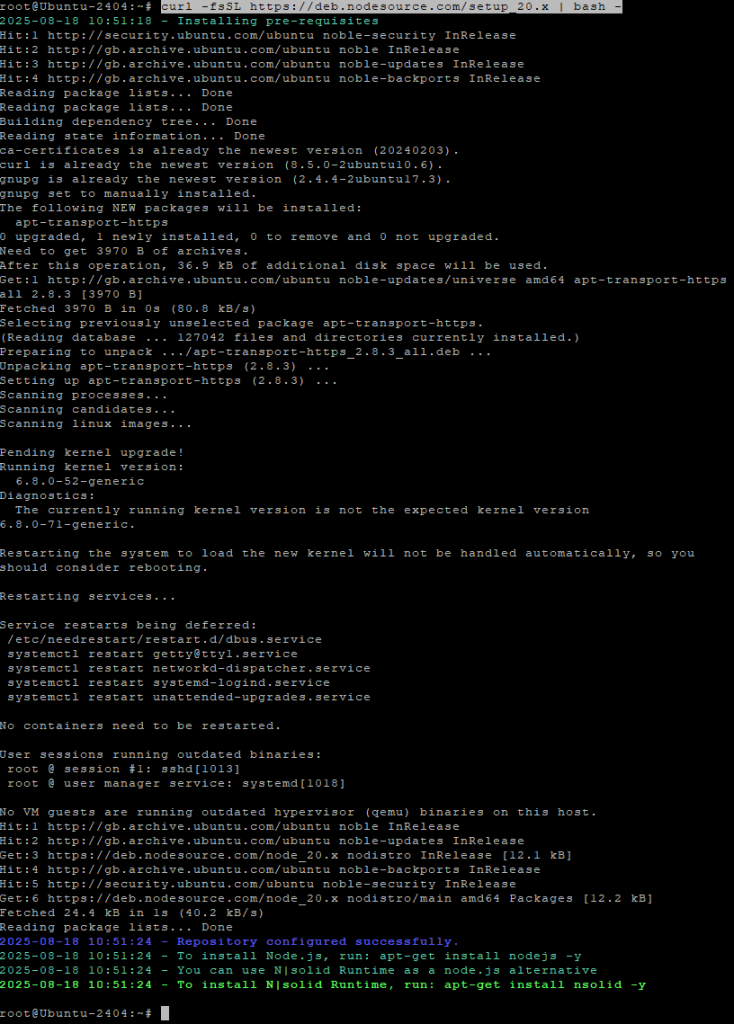
curl -fsSL https://deb.nodesource.com/setup_20.x | bash -
- Adds the NodeSource repository for Node.js 20.
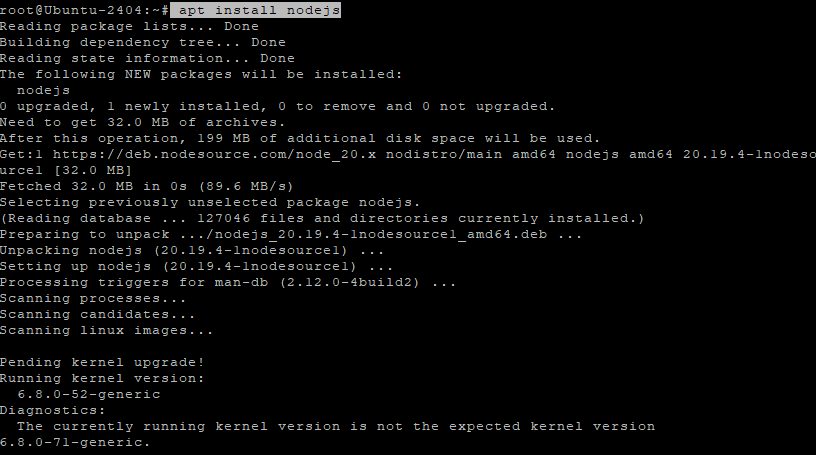
apt install nodejs -y
- Installs Node.js and npm.
node -v
npm -v
- Verify installed versions.

(Optional) Update npm to a specific version:
npm install -g npm@11.5.2

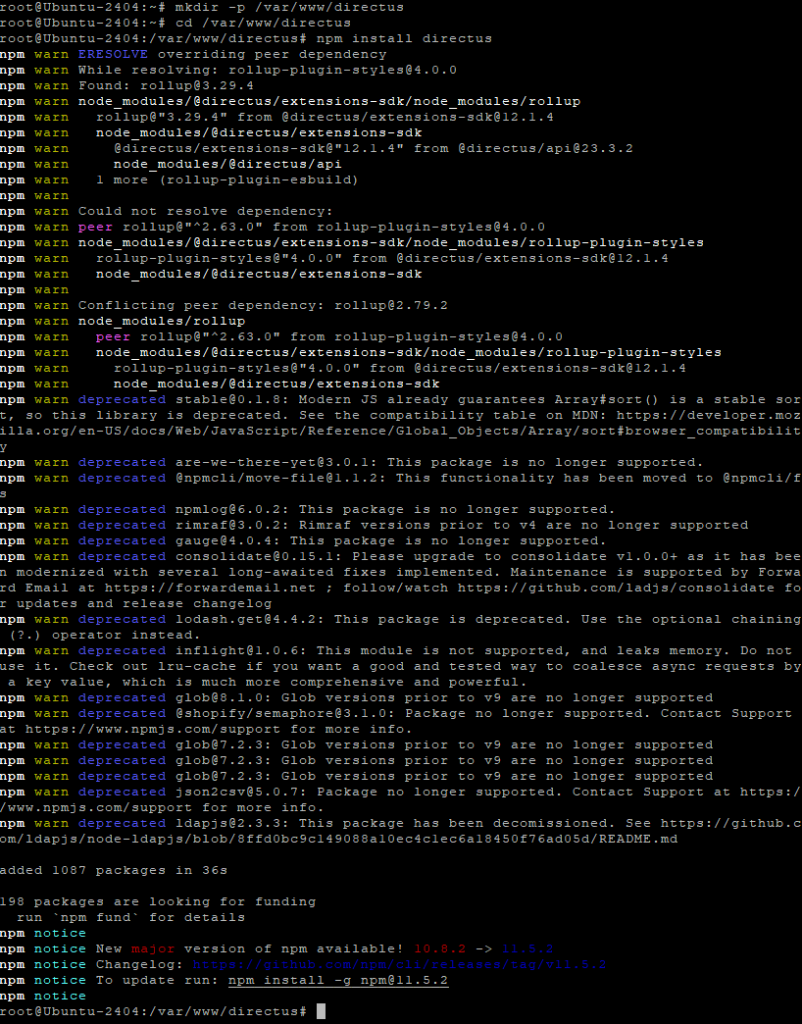
Step 6: Install Directus
Create a project folder:
mkdir -p /var/www/directus
cd /var/www/directus
Install Directus:
npm install directus
- Installs Directus locally in the project directory.
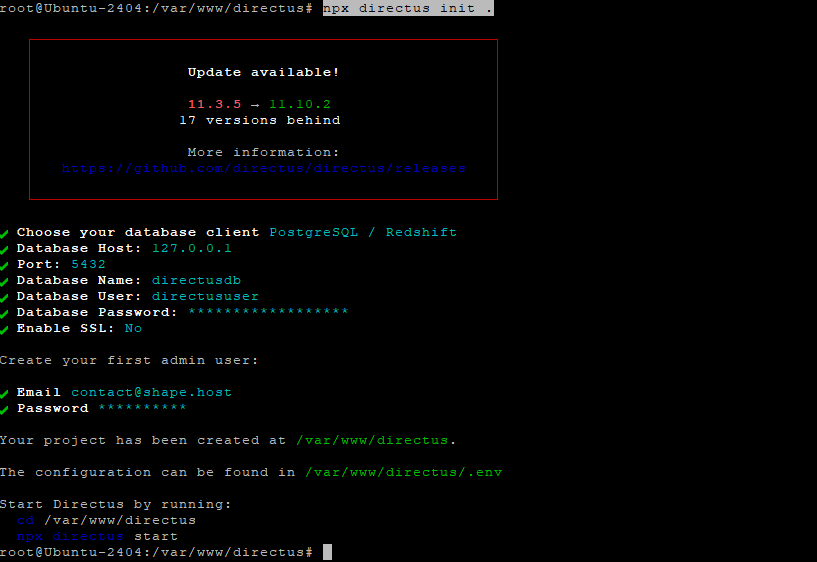
Initialize configuration:
npx directus init .
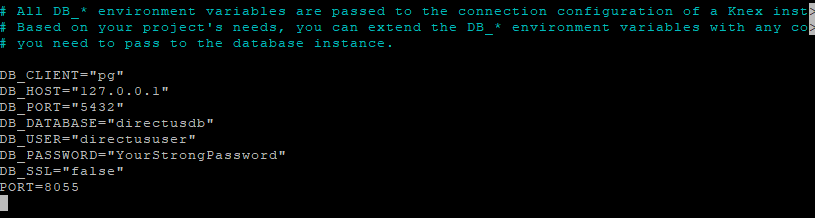
Edit environment file:
nano .env
Paste:
DB_CLIENT=pg
DB_HOST=127.0.0.1
DB_PORT=5432
DB_DATABASE=directusdb
DB_USER=directususer
DB_PASSWORD=YourStrongPassword
PORT=8055
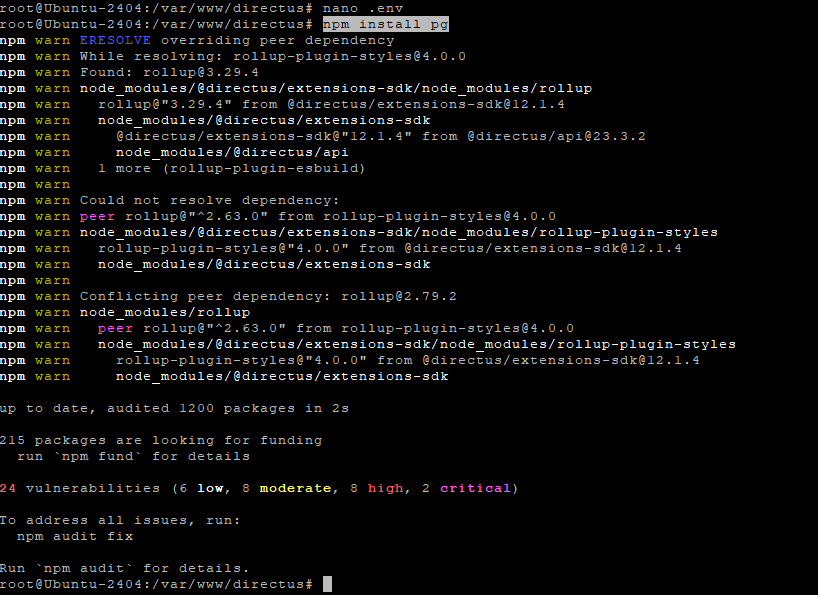
Install PostgreSQL driver and fix dependencies:
npm install pg
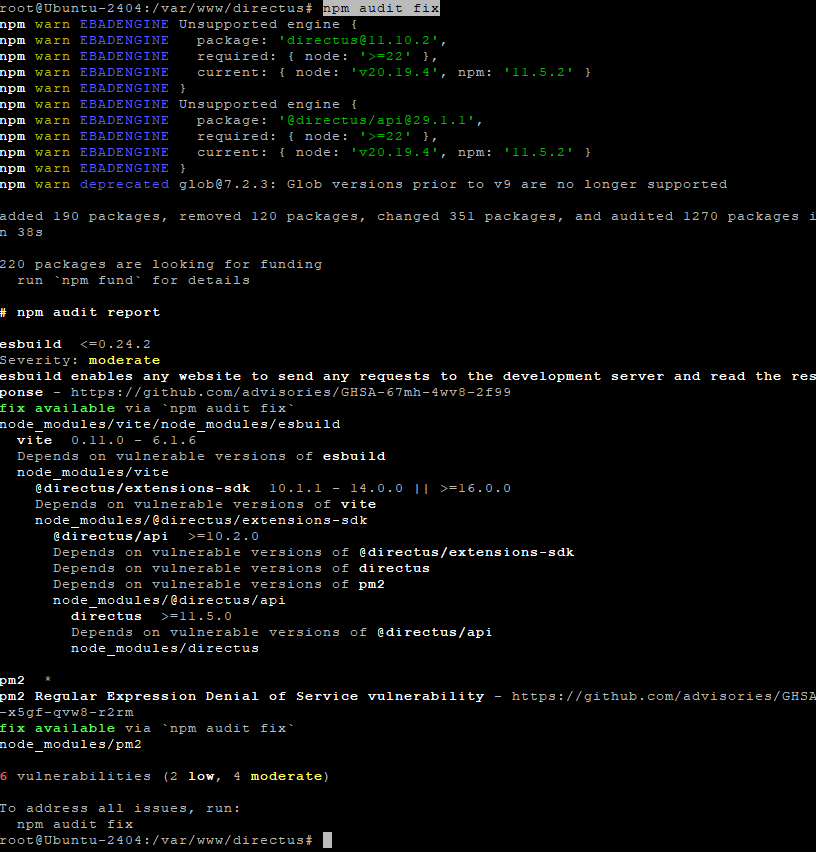
npm audit fix
Step 7: Set Up Directus with PM2
Install PM2:
npm install -g pm2

Create PM2 config file:
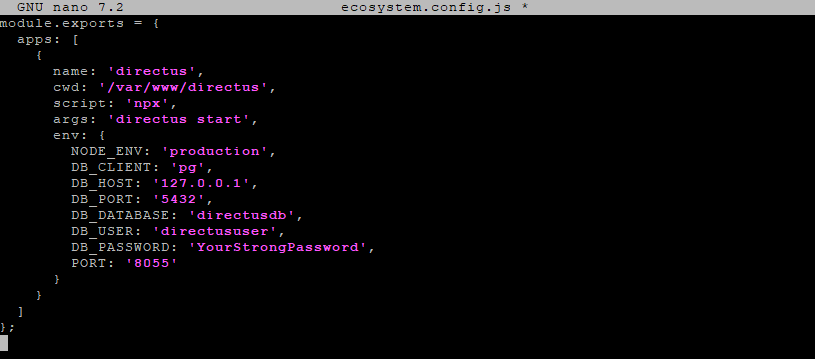
nano ecosystem.config.js
Paste:
module.exports = {
  apps: [
    {
      name: 'directus',
      cwd: '/var/www/directus',
      script: 'npx',
      args: 'directus start',
      env: {
        NODE_ENV: 'production',
        DB_CLIENT: 'pg',
        DB_HOST: '127.0.0.1',
        DB_PORT: '5432',
        DB_DATABASE: 'directusdb',
        DB_USER: 'directususer',
        DB_PASSWORD: 'YourStrongPassword',
        PORT: '8055'
      }
    }
  ]
};
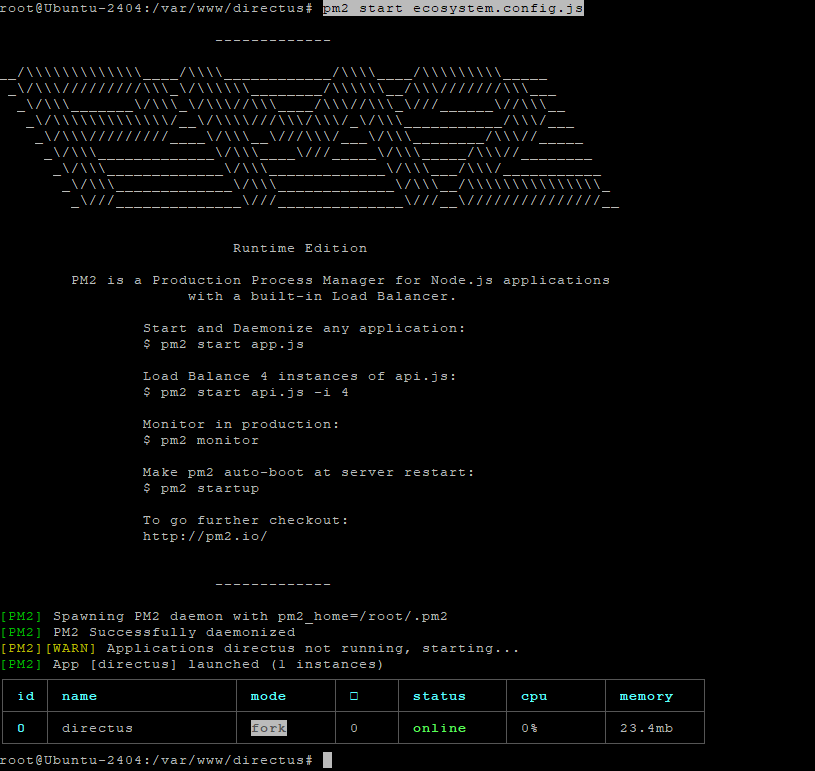
Start Directus:
pm2 start ecosystem.config.js
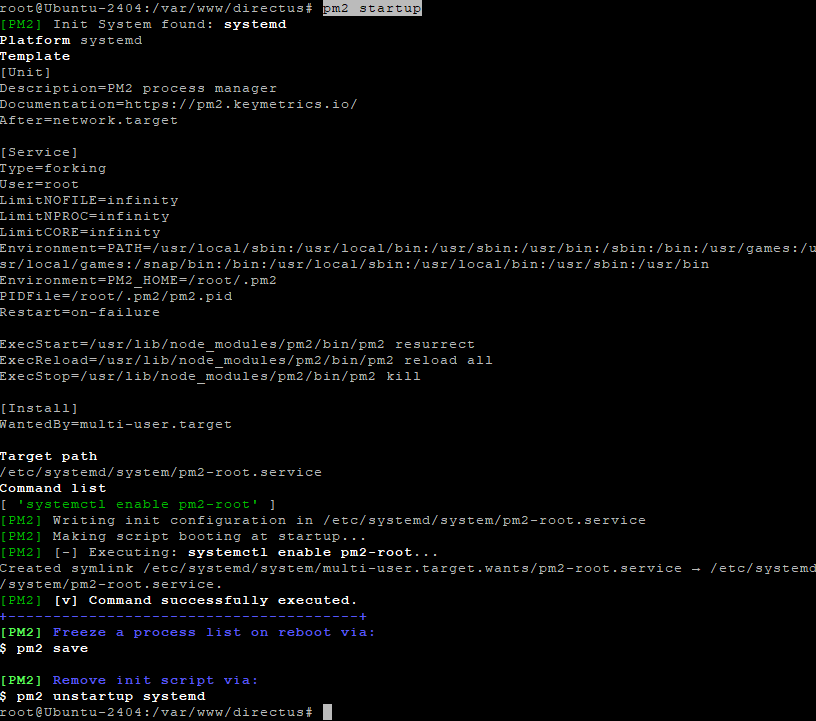
Save and enable on boot:
pm2 save
pm2 startup

Step 8: Configure Nginx as Reverse Proxy
Create new site config:
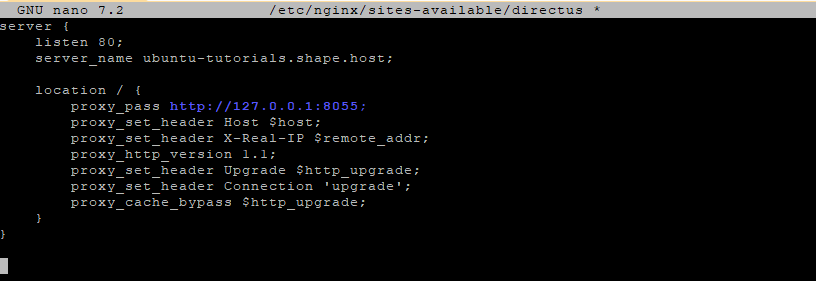
nano /etc/nginx/sites-available/directus
Paste:
server {
    listen 80;
    server_name your_domain.com;

    location / {
        proxy_pass http://127.0.0.1:8055;
        proxy_set_header Host $host;
        proxy_set_header X-Real-IP $remote_addr;
        proxy_http_version 1.1;
        proxy_set_header Upgrade $http_upgrade;
        proxy_set_header Connection 'upgrade';
        proxy_cache_bypass $http_upgrade;
    }
}
Enable the config and reload Nginx:
ln -s /etc/nginx/sites-available/directus /etc/nginx/sites-enabled/
nginx -t
systemctl reload nginx

Step 9: Secure Directus with SSL
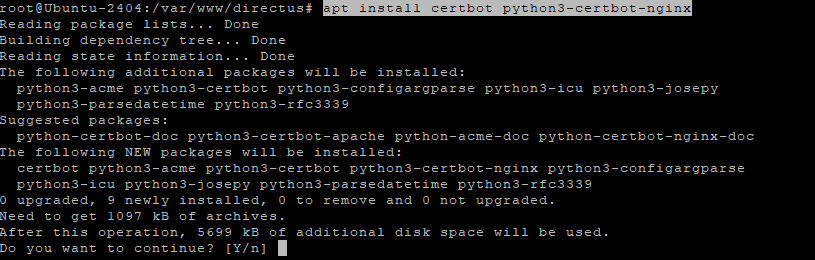
Install Certbot:
apt install certbot python3-certbot-nginx -y
Run certificate request:
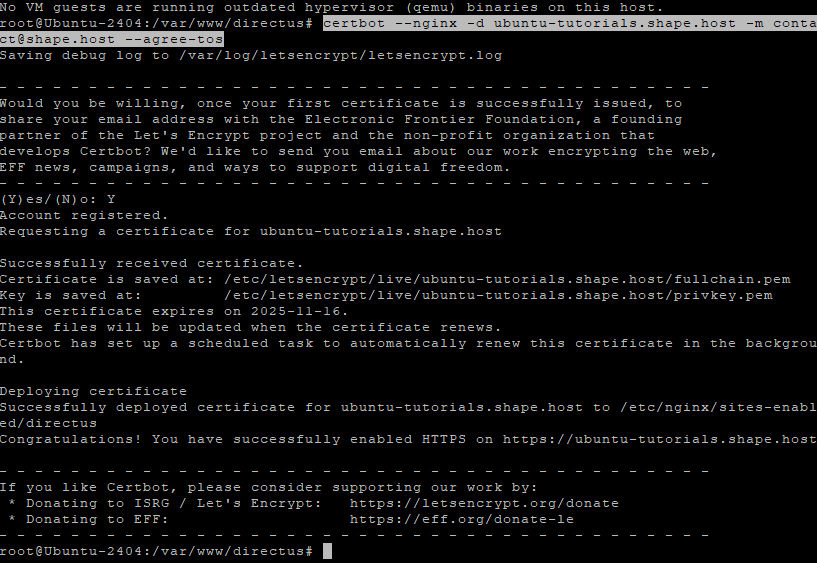
certbot --nginx -d ubuntu-tutorials.shape.host -m contact@shape.host --agree-tos
This automatically sets up HTTPS for your domain.
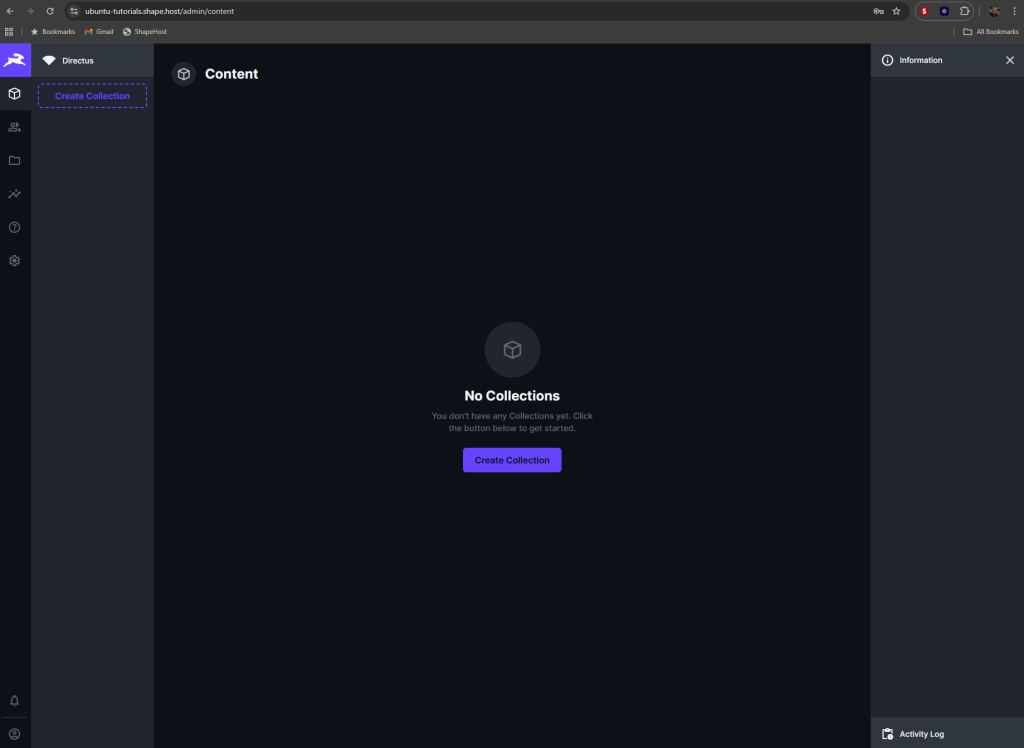
Directus is now installed and running on Ubuntu 24.04 with PostgreSQL, PM2, Nginx, and SSL.
Access it in your browser:
https://ubuntu-tutorials.shape.host

This tutorial was created and tested on a Shape.Host Cloud VPS.
With Shape.Host you can:
- Deploy fast Cloud VPS servers in multiple worldwide locations.
- Run popular Linux distributions like Ubuntu, Debian, AlmaLinux, and Rocky Linux.
- Scale resources instantly (CPU, RAM, Storage) as your project grows.
- Use built-in tools for snapshots, backups, and easy management.
Start your own instance today at https://shape.host and set up Directus, Strapi, or any other application in minutes.