BoxBilling on Ubuntu 24.04 (Apache + MariaDB + PHP + SSL)
BoxBilling is a free, open-source billing and client management platform tailored for web hosting companies, digital service providers, and freelancers. It provides an all-in-one solution for invoicing, order management, product provisioning, domain integration, ticketing, and client support. With its extensible plugin system and automation features, BoxBilling allows service providers to streamline operations and focus on customers.
Running BoxBilling on Ubuntu 24.04 LTS (Noble Numbat) ensures long-term stability, security, and up-to-date packages. Ubuntu 24.04 ships with systemd 255, OpenSSL 3, and modern PHP/MariaDB versions — providing a hardened, production-ready foundation for financial transactions and customer data management.
Architecture Overview
| Layer | Component | Role |
|---|---|---|
| OS | Ubuntu 24.04 LTS | Stable, secure base with long-term support |
| Web Server | Apache HTTPD | Serves PHP-based BoxBilling frontend and backend |
| Database | MariaDB/MySQL | Stores client data, invoices, products, domains, and transactions |
| Runtime | PHP 8.x + Extensions | Executes BoxBilling application logic |
| Reverse Proxy | Nginx (optional) | TLS termination, caching, and load balancing |
| TLS | Let’s Encrypt / PKI | Provides secure HTTPS for client and admin access |
Why Use BoxBilling?
- Complete billing system – invoicing, taxes, multiple currencies, and automated reminders.
- Client management – track customers, products, orders, and tickets in one place.
- Hosting integration – supports domain registration, hosting control panels, and automation.
- Open-source & extensible – build plugins, customize themes, or integrate with APIs.
- Multi-language & multi-currency – serve global audiences.
BoxBilling vs Other Platforms
| Feature/Capability | BoxBilling | WHMCS (Paid) | Blesta (Paid) | ClientExec (Paid) |
|---|---|---|---|---|
| License cost | Free, open-source | Commercial license | Commercial license | Commercial license |
| Core features | Billing, support, hosting | Full suite + addons | Billing + support | Billing + support |
| Extensibility | Plugins + themes | Wide marketplace | Limited | Limited |
| Target users | Small/medium providers | Enterprises & SMBs | SMBs | SMBs |
BoxBilling is a cost-effective alternative to WHMCS or Blesta for small to mid-sized hosting businesses or freelancers who want full control without licensing fees.
Security & Best Practices
- Always run BoxBilling over HTTPS with Let’s Encrypt or PKI certificates.
- Harden PHP with recommended security extensions and configurations.
- Use MariaDB with strong user permissions and enable regular backups.
- Keep Ubuntu, Apache, PHP, and BoxBilling core patched and up to date.
- Restrict access to the admin panel via firewall or IP whitelisting if possible.
- Enable fail2ban or rate limiting for brute-force protection.
Typical Use Cases
- Web hosting companies – manage clients, domains, and hosting plans.
- Freelancers and digital service providers – automate invoicing and customer support.
- Small SaaS platforms – offer subscriptions, products, and customer billing.
- Educational/test environments – explore billing automation without licensing costs.
1. Create a Shape.Host VPS Instance
Go to https://shape.host and log in.
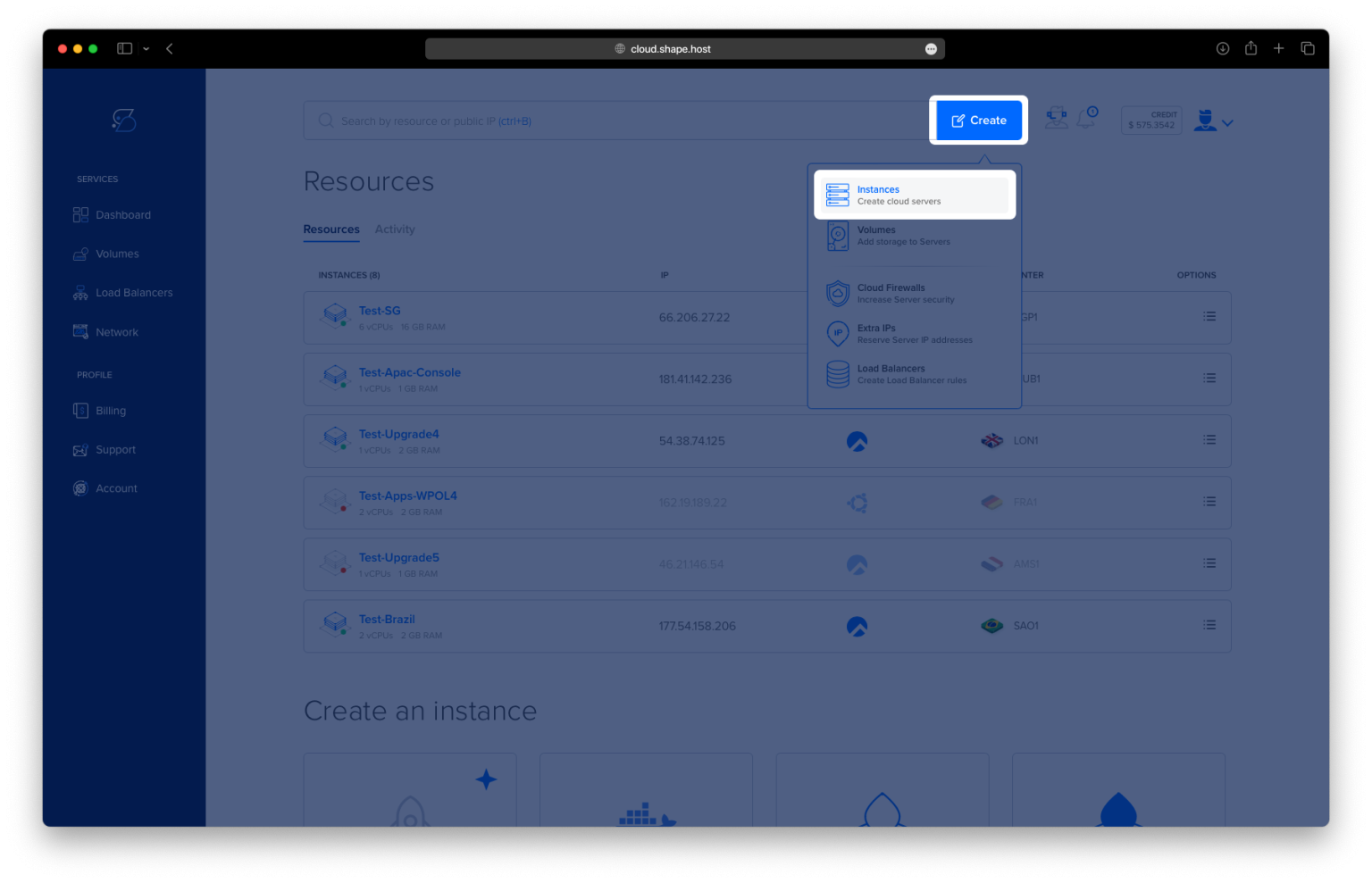
Click “Create” → “Instance”.

Choose your preferred server location.

Select Ubuntu 24.04 (64-bit) as the OS.
Pick a VPS plan with at least 2 CPUs, 4 GB RAM, and 20 GB SSD.

Click Create Instance.

Copy the IP address from the Resources section.

2. Connect to Your VPS
On Linux/macOS
ssh root@your-server-ip
On Windows
- For Windows 10/11 PowerShell:
ssh root@your-server-ip - For older versions, install PuTTY and connect with root credentials.
3. Update the System and Install Required Packages
Update and upgrade packages:
apt update
apt upgrade

Install Apache:
apt install apache2

Install MariaDB (server + client):
apt install mariadb-server mariadb-client

Install PHP with required extensions:
apt install php php-cli php-mysql php-curl php-mbstring php-xml php-gd php-zip php-imagick unzip wget

4. Configure MariaDB Database
Secure MariaDB:
mysql_secure_installation

Log into MariaDB:
mysql -u root -p
Create database and user:
CREATE DATABASE boxbilling_db;
CREATE USER 'boxbilling_user'@'localhost' IDENTIFIED BY 'StrongPassword123!';
GRANT ALL PRIVILEGES ON boxbilling_db.* TO 'boxbilling_user'@'localhost';
FLUSH PRIVILEGES;
EXIT;

5. Install BoxBilling
Navigate to web root:
cd /var/www/html
Download latest BoxBilling:
wget https://github.com/boxbilling/boxbilling/releases/latest/download/boxbilling.zip -O boxbilling.zip

Extract files:
unzip boxbilling.zip -d boxbilling
Set permissions:
chown -R www-data:www-data /var/www/html/boxbilling
chmod -R 755 /var/www/html/boxbilling

6. Configure Apache Virtual Host
Create a config file:
nano /etc/apache2/sites-available/boxbilling.conf
Add:
<VirtualHost *:80>
    ServerName yourdomain.com
    DocumentRoot /var/www/html/boxbilling

    <Directory /var/www/html/boxbilling>
        AllowOverride All
        Require all granted
    </Directory>

    ErrorLog ${APACHE_LOG_DIR}/boxbilling_error.log
    CustomLog ${APACHE_LOG_DIR}/boxbilling_access.log combined
</VirtualHost>

Enable the site and rewrite module:
a2ensite boxbilling.conf
a2enmod rewrite
systemctl restart apache2

7. Configure PHP
Edit php.ini (adjusting for Apache’s PHP version, usually /etc/php/8.x/apache2/php.ini):
nano /etc/php/*/apache2/php.ini
Set:
memory_limit = 256M
upload_max_filesize = 64M
post_max_size = 64M
max_execution_time = 300
Restart Apache:
systemctl restart apache2
8. Secure with SSL
Install Certbot:
apt install certbot python3-certbot-apache

Generate SSL certificate:
certbot --apache -d ubuntu-tutorials.shape.host

9. Set Up BoxBilling Data Directories
Create required directories:
mkdir -p /var/www/html/boxbilling/bb-data/cache
mkdir -p /var/www/html/boxbilling/bb-data/uploads
Assign permissions:
chown -R www-data:www-data /var/www/html/boxbilling/bb-data
chmod -R 775 /var/www/html/boxbilling/bb-data
ls -ld /var/www/html/boxbilling/bb-data/*

Remove the installer for security:
rm -rf /var/www/html/boxbilling/install
Secure the config file:
chmod 644 /var/www/html/boxbilling/bb-config.php

10. Access BoxBilling
Now open your browser:
https://yourdomain.com
Complete the web-based installer, connecting it to the database you created.
Preparation – The installer checks your server environment for PHP version and required extensions. Accept the terms of service and click Next.

Database Configuration – Enter your database host, name, user, and password created earlier. Click Next to create tables.

Administrator Account – Set up the admin username, email, and password to manage BoxBilling. Click Next.

Finish – You’ll see a confirmation that BoxBilling was successfully installed. Delete the install folder, set bb-config.php to read-only (chmod 644), and configure the cron job as instructed.

After completing these steps, log in to the admin area at http://your-domain/bb-admin using your new credentials.


This tutorial was created and tested on a Shape.Host Cloud VPS.
With Shape.Host, you get:
- High-performance VPS with global datacenters
- Support for Ubuntu, Debian, Rocky Linux, AlmaLinux
- One-click scalability for CPU, RAM, and storage
- Tools like snapshots, backups, and monitoring
Start today at https://shape.host and deploy BoxBilling in minutes.