LibreNMS on Debian 12 (Nginx + PHP-FPM)
LibreNMS is a community-driven, open-source network monitoring platform that provides auto-discovery, alerting, graphing, and a powerful API. Supporting a wide range of devices via SNMP, it’s a flexible tool suitable for small networks up to ISP-level infrastructures. With its modern dashboards, customizable alerting system, and extensive device support, LibreNMS is one of the most popular free alternatives to commercial monitoring suites such as PRTG or SolarWinds.
Running LibreNMS on Debian 12 (Bookworm) with Nginx and PHP-FPM gives you a stable, secure, and long-term supported base system. Debian’s reputation for reliability, combined with systemd 252, OpenSSL 3, PHP 8.2, and modern MariaDB packages, makes it a rock-solid foundation for mission-critical monitoring environments.
Architecture Overview
| Layer | Component | Role |
|---|---|---|
| OS | Debian 12 (Bookworm) | Stable, secure Linux base with long-term support |
| Web Server | Nginx + PHP-FPM | Efficiently serves the LibreNMS PHP application |
| Database | MariaDB/MySQL | Stores devices, configurations, and performance metrics |
| Runtime | PHP 8.2 + Extensions | Executes LibreNMS core logic |
| Monitoring | SNMPD + Pollers | Collects metrics from network devices and systems |
| TLS | Let’s Encrypt / PKI | Provides secure HTTPS access to the LibreNMS web interface |
Why Use LibreNMS?
- Automatic network discovery – finds devices and interfaces using SNMP.
- Powerful alerting – email, Slack, Discord, Telegram, and webhook integrations.
- Scalable – distributed pollers support large networks.
- Modern dashboards – easy visualization with RRDTool graphing.
- Rich API – RESTful API for automation and third-party integration.
- Free & community-driven – enterprise features without vendor lock-in.
LibreNMS vs Other Monitoring Tools
| Feature/Capability | LibreNMS | Zabbix | Nagios Core | SolarWinds / PRTG |
|---|---|---|---|---|
| License | Free, open-source | Free, open-source | Free, open-source | Commercial only |
| Auto-discovery | Yes | Limited | Manual configs | Yes |
| Dashboards | Modern web UI | Configurable | Basic UI | Advanced GUI |
| Alerting | Multi-channel | Very advanced | Plugin-based | Advanced |
| Scalability | Distributed pollers | Distributed agents | Manual scaling | Enterprise-ready |
LibreNMS excels when you want a free yet feature-rich alternative to commercial network monitoring solutions.
Security & Best Practices
- Serve LibreNMS via Nginx with HTTPS enabled.
- Secure MariaDB with strong credentials and automated backups.
- Use SNMP v3 whenever possible for encrypted polling.
- Enable role-based access control (RBAC) for multiple user levels.
- Keep Debian, PHP, and LibreNMS updated regularly.
- Harden access with a firewall and Fail2Ban to block brute-force attempts.
Typical Use Cases
- Monitoring enterprise and ISP networks across mixed vendors.
- Tracking server, storage, and virtualization performance.
- Setting up alerts for downtime, spikes, or hardware issues.
- Creating custom dashboards for NOC and IT teams.
- Replacing expensive commercial monitoring software with a free, open-source option.
Step 1: Create a Server Instance on Shape.Host
First, you need a fresh Debian 12 server. Shape.Host makes provisioning simple:
Log in to your Shape.Host dashboard.
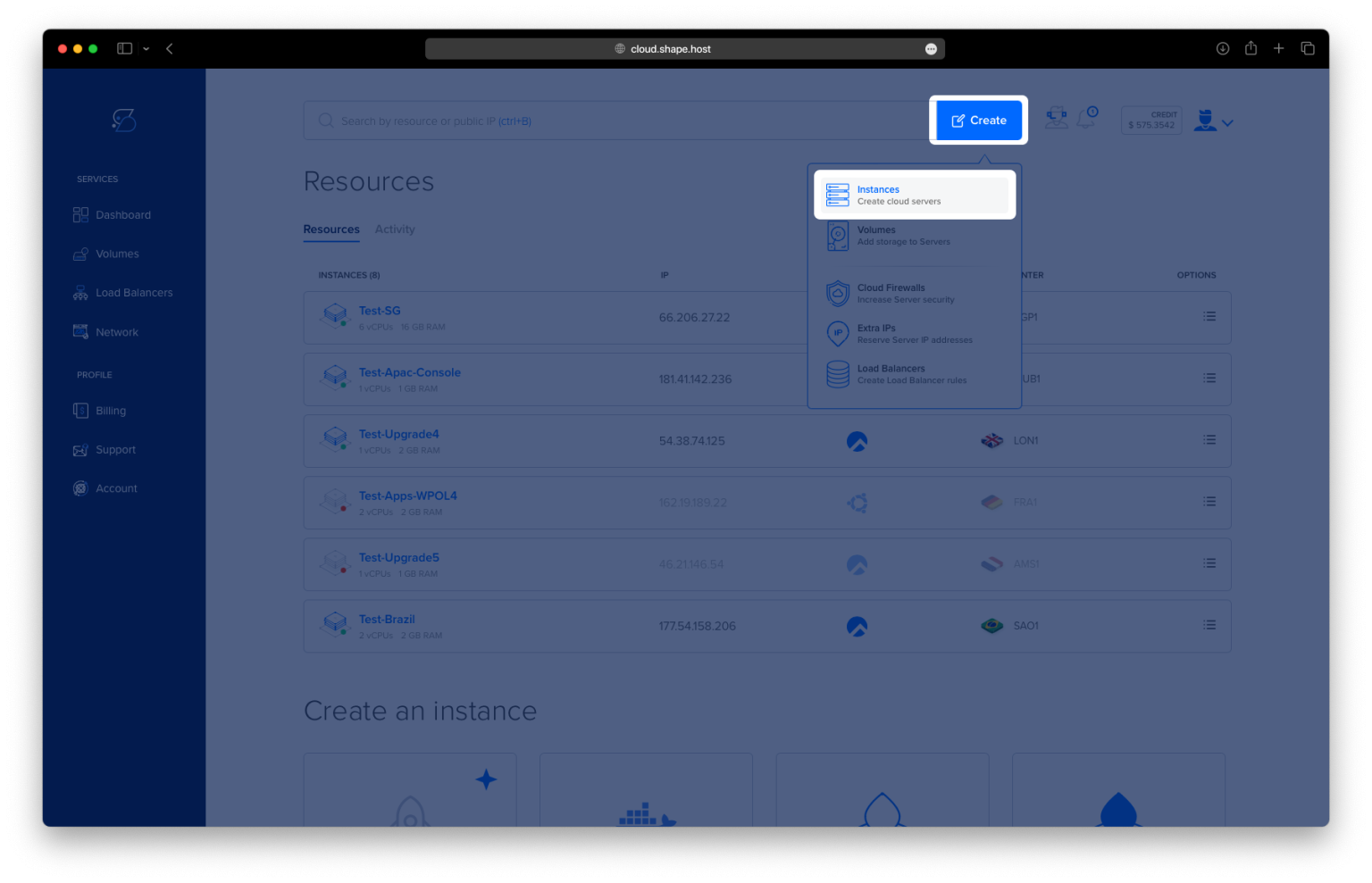
Click Create → Instance.
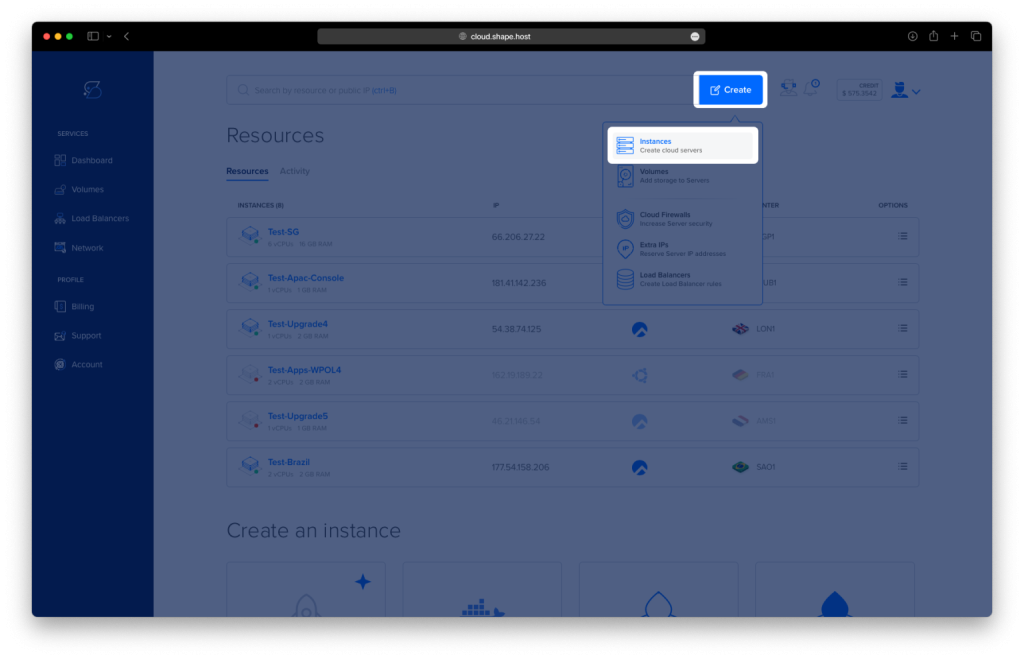
Select your data center location for best latency.
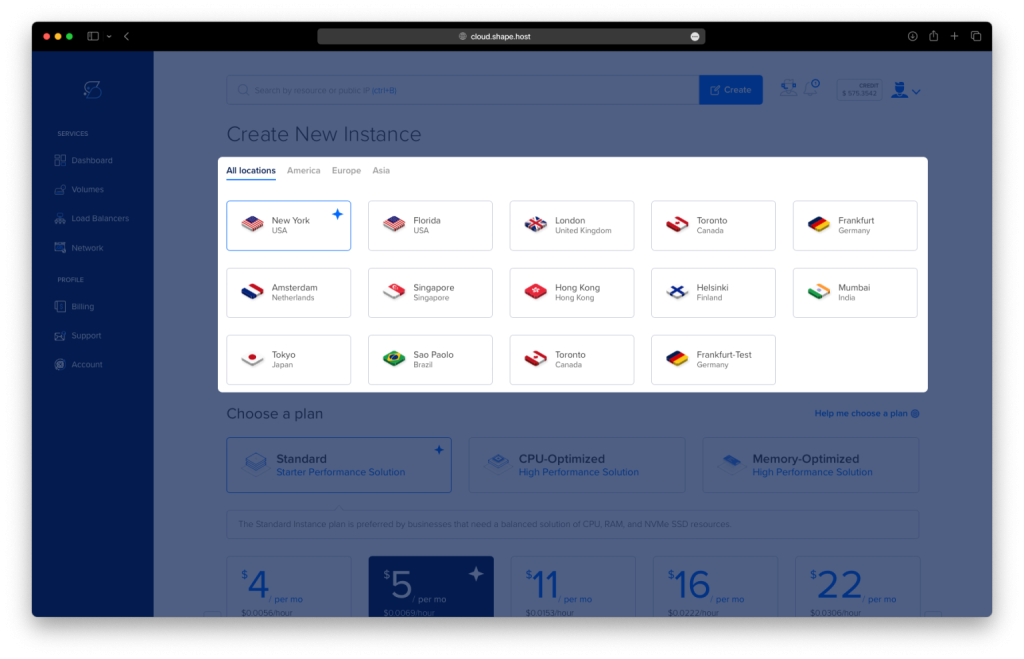
Pick a plan with at least 4 GB RAM, 2 CPUs, and 40 GB SSD (LibreNMS benefits from more memory).
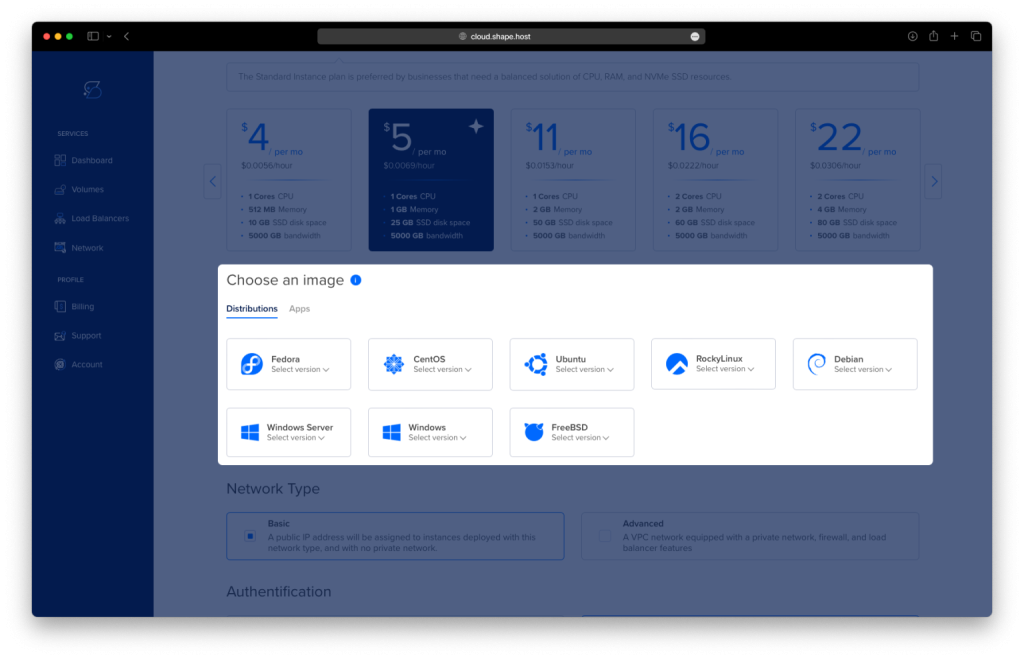
Choose Debian 12 (64-bit) as the operating system.
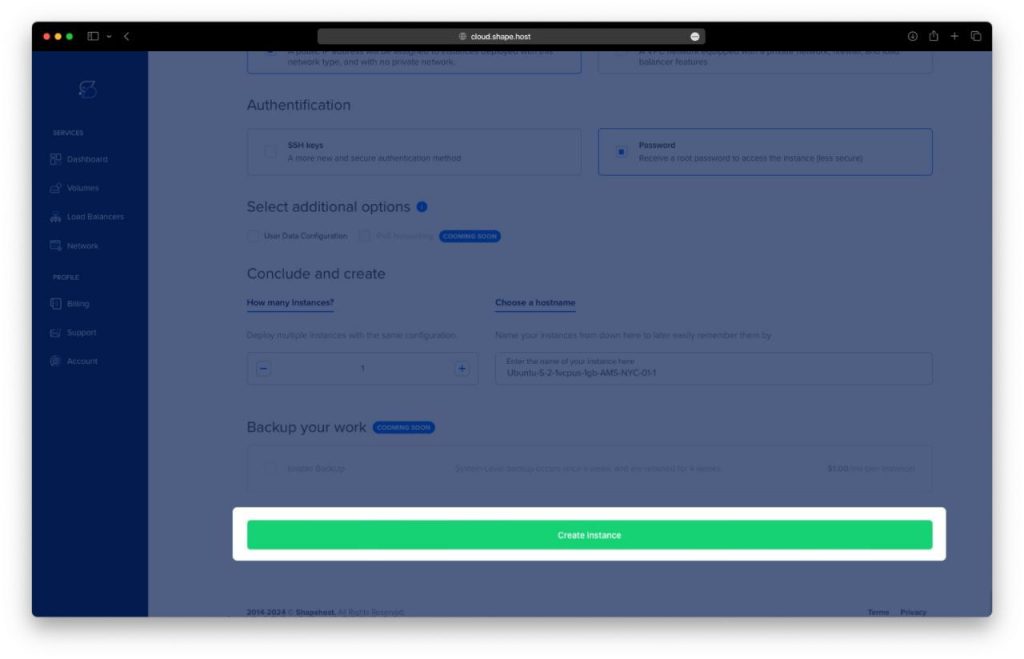
Click Create Instance.
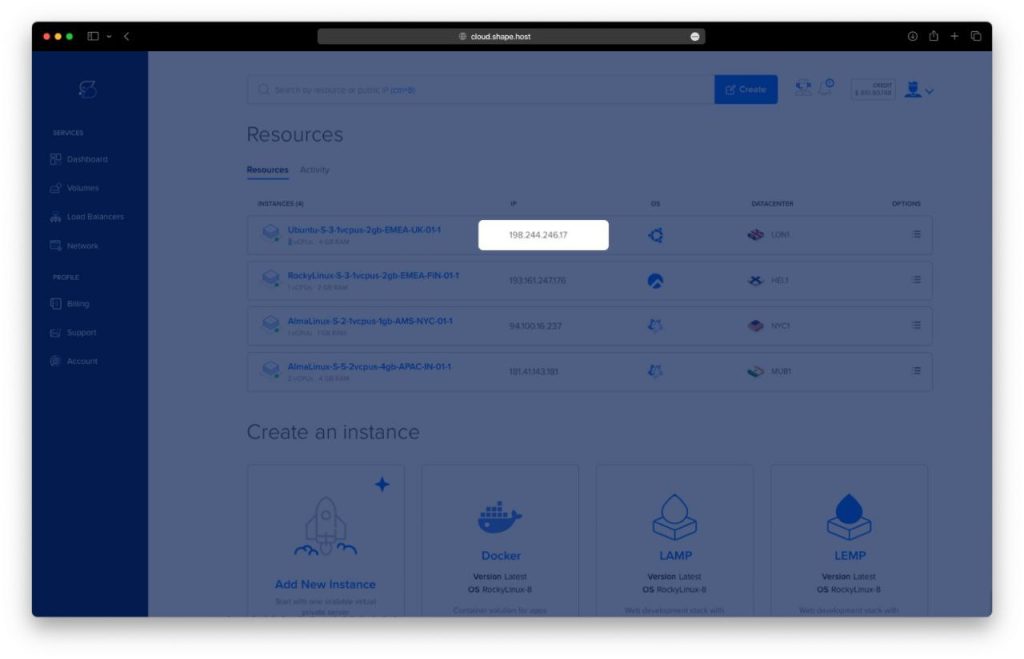
Copy the public IP address from the Resources section once the VM is created.
Step 2: Connect to Your Server
- Linux/macOS:
ssh root@your_server_ip - Windows:
Use PuTTY, enter the server IP, select SSH, and log in with your Shape.Host root credentials.
Step 3: Update and Install Dependencies
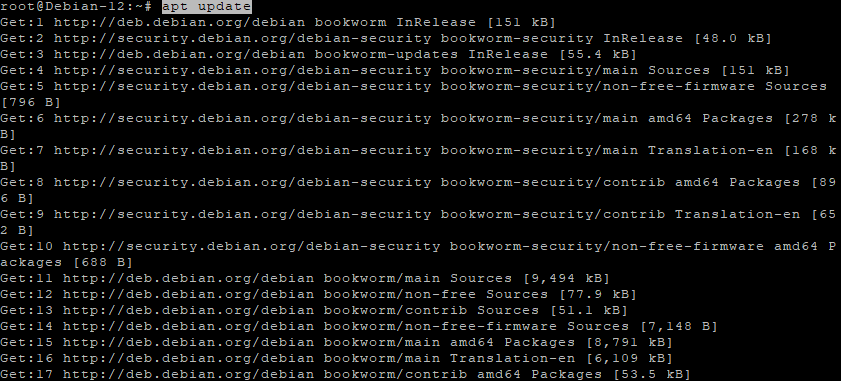
Update package lists and upgrade the system
apt update
apt upgrade
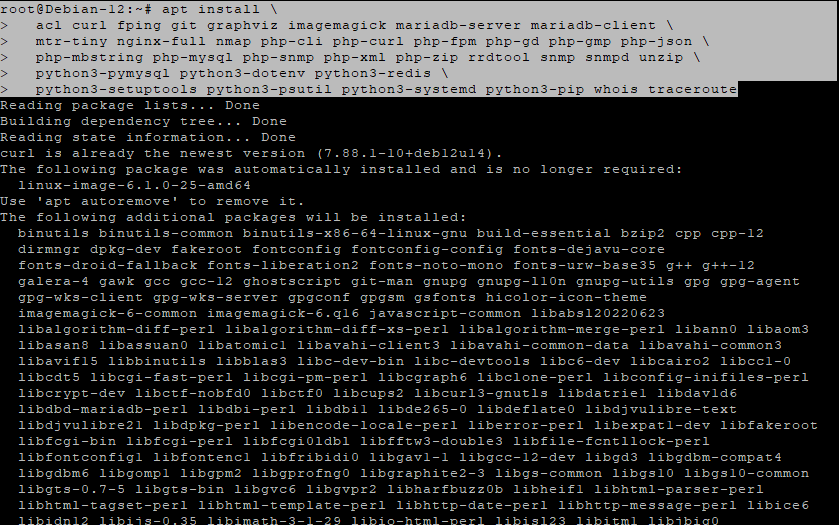
Install all required packages
apt install acl curl fping git graphviz imagemagick mariadb-server mariadb-client \
mtr-tiny nginx-full nmap php-cli php-curl php-fpm php-gd php-gmp php-json \
php-mbstring php-mysql php-snmp php-xml php-zip rrdtool snmp snmpd unzip \
python3-command-runner python3-pymysql python3-dotenv python3-redis \
python3-setuptools python3-psutil python3-systemd python3-pip whois traceroute
(This installs Nginx, MariaDB, PHP 8.2 with extensions, SNMP tools, and Python modules required by LibreNMS.)
Step 4: Create LibreNMS User and Download Source
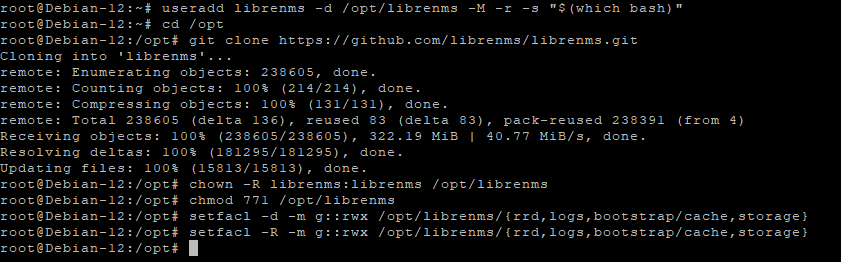
useradd librenms -d /opt/librenms -M -r -s "$(which bash)"
cd /opt
git clone https://github.com/librenms/librenms.git
chown -R librenms:librenms /opt/librenms
chmod 771 /opt/librenms
Creates a system user, downloads LibreNMS, and sets correct permissions.
Set ACLs for writable directories
setfacl -d -m g::rwx /opt/librenms/{rrd,logs,bootstrap/cache,storage}
setfacl -R -m g::rwx /opt/librenms/{rrd,logs,bootstrap/cache,storage}
Install PHP dependencies with Composer
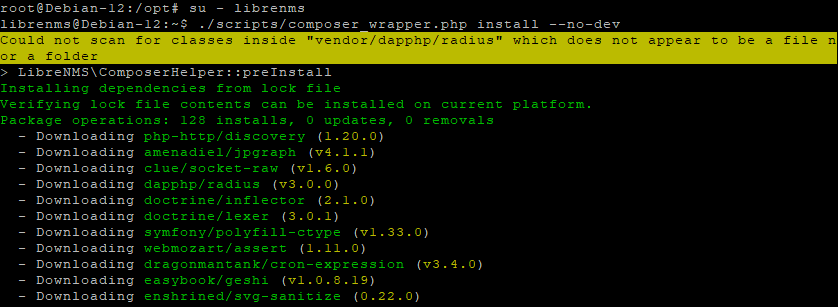
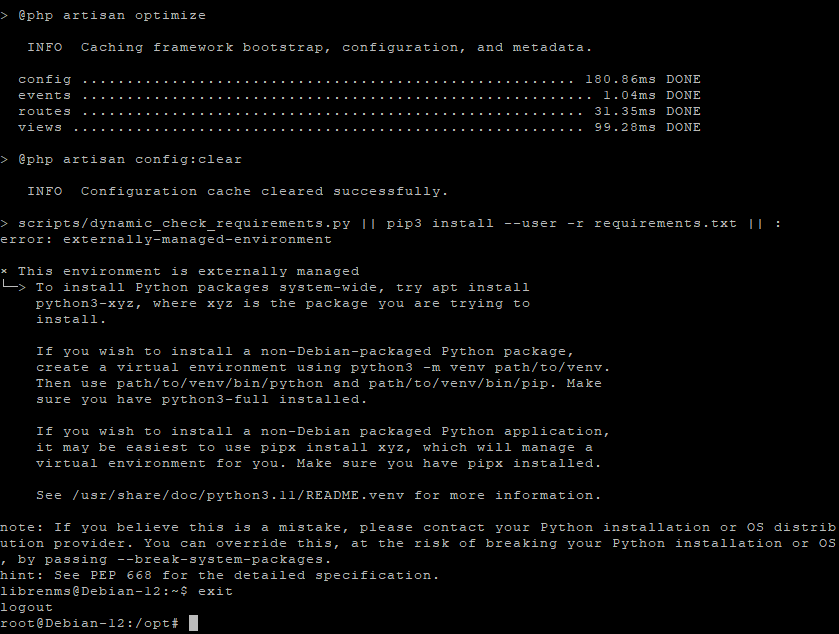
su - librenms
./scripts/composer_wrapper.php install --no-dev
exit
Step 5: Configure PHP
sed -i 's|^;*date.timezone =.*|date.timezone = Europe/Bucharest|' /etc/php/8.2/fpm/php.ini
sed -i 's|^;*date.timezone =.*|date.timezone = Europe/Bucharest|' /etc/php/8.2/cli/php.ini
timedatectl set-timezone Europe/Bucharest
systemctl restart php8.2-fpm
Sets PHP and system timezones to match your region and restarts PHP-FPM.

Step 6: Configure MariaDB
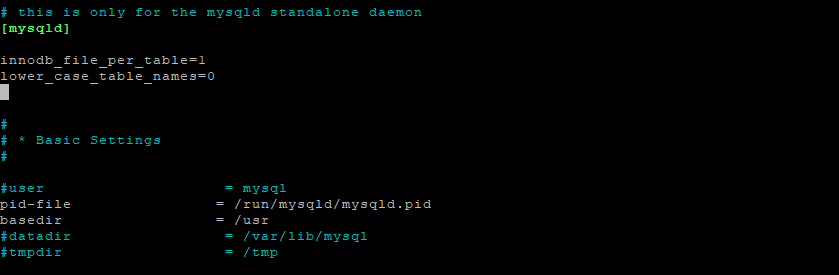
nano /etc/mysql/mariadb.conf.d/50-server.cnf
Add under [mysqld]:
innodb_file_per_table=1
lower_case_table_names=0
Enable and restart MariaDB:
systemctl enable mariadb
systemctl restart mariadb

Create database and user
mysql -u root <<'SQL'
CREATE DATABASE librenms CHARACTER SET utf8mb4 COLLATE utf8mb4_unicode_ci;
CREATE USER 'librenms'@'localhost' IDENTIFIED BY 'StrongPassword123!';
GRANT ALL PRIVILEGES ON librenms.* TO 'librenms'@'localhost';
FLUSH PRIVILEGES;
SQL

Step 7: Configure PHP-FPM Pool
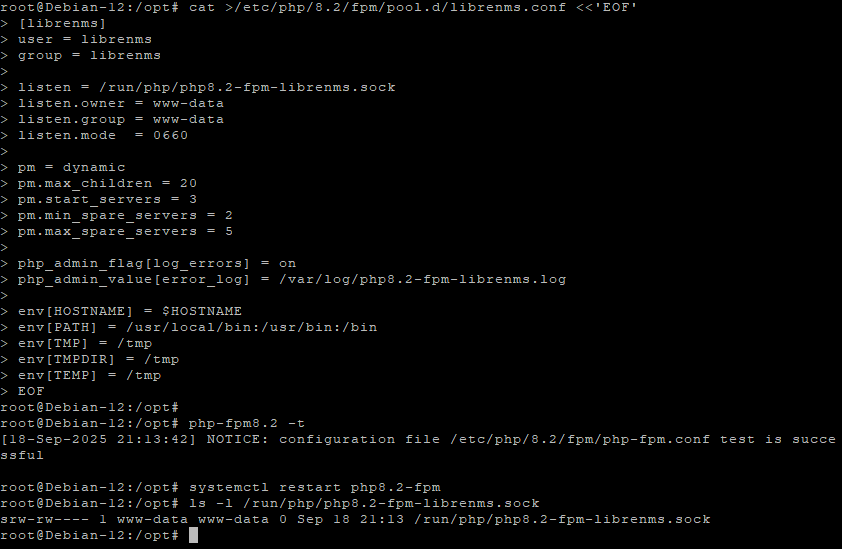
Create a dedicated pool file:
22  cat >/etc/php/8.2/fpm/pool.d/librenms.conf <<'EOF'
[librenms]
user = librenms
group = librenms

listen = /run/php/php8.2-fpm-librenms.sock
listen.owner = www-data
listen.group = www-data
listen.mode  = 0660

pm = dynamic
pm.max_children = 20
pm.start_servers = 3
pm.min_spare_servers = 2
pm.max_spare_servers = 5

php_admin_flag[log_errors] = on
php_admin_value[error_log] = /var/log/php8.2-fpm-librenms.log

env[HOSTNAME] = $HOSTNAME
env[PATH] = /usr/local/bin:/usr/bin:/bin
env[TMP] = /tmp
env[TMPDIR] = /tmp
env[TEMP] = /tmp
EOF
Test and restart PHP-FPM:
php-fpm8.2 -t
systemctl restart php8.2-fpm
ls -l /run/php/php8.2-fpm-librenms.sock
Step 8: Configure Nginx
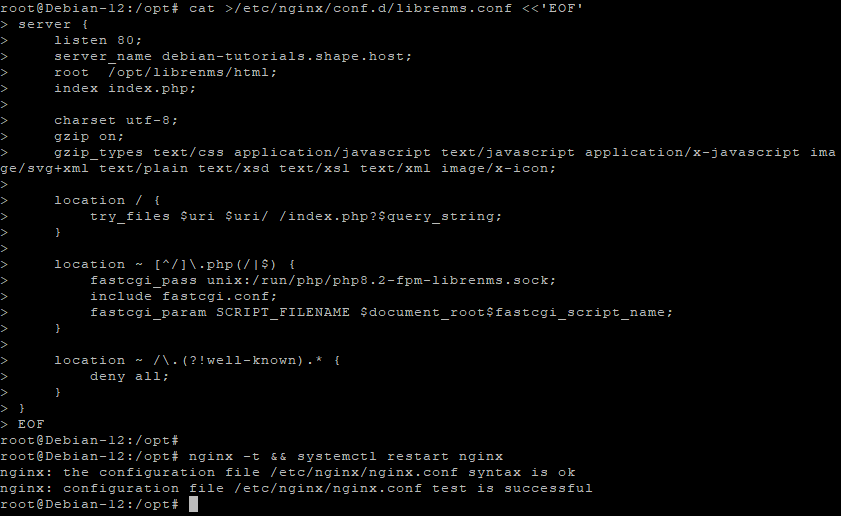
Create the configuration:
cat >/etc/nginx/conf.d/librenms.conf <<'EOF'
server {
    listen 80;
    server_name debian-tutorials.shape.host;
    root  /opt/librenms/html;
    index index.php;

    charset utf-8;
    gzip on;
    gzip_types text/css application/javascript text/javascript application/x-javascript image/svg+xml text/plain text/xsd text/xsl text/xml image/x-icon;

    location / {
        try_files $uri $uri/ /index.php?$query_string;
    }

    location ~ [^/]\.php(/|$) {
        fastcgi_pass unix:/run/php/php8.2-fpm-librenms.sock;
        include fastcgi.conf;
        fastcgi_param SCRIPT_FILENAME $document_root$fastcgi_script_name;
    }

    location ~ /\.(?!well-known).* {
        deny all;
    }
}
EOF
Test and restart Nginx:
nginx -t && systemctl restart nginx
Step 9: Configure SNMP
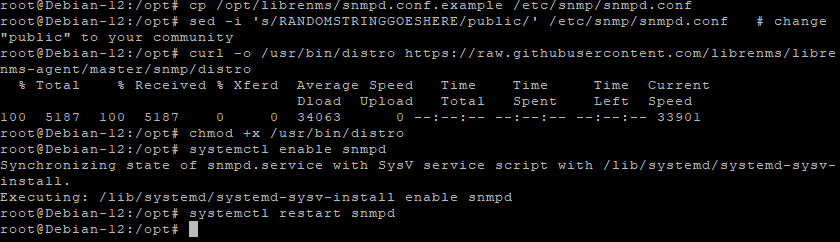
cp /opt/librenms/snmpd.conf.example /etc/snmp/snmpd.conf
sed -i 's/RANDOMSTRINGGOESHERE/public/' /etc/snmp/snmpd.conf   # replace "public" with your own SNMP community
curl -o /usr/bin/distro https://raw.githubusercontent.com/librenms/librenms-agent/master/snmp/distro
chmod +x /usr/bin/distro
systemctl enable snmpd
systemctl restart snmpd
Step 10: Final LibreNMS Setup
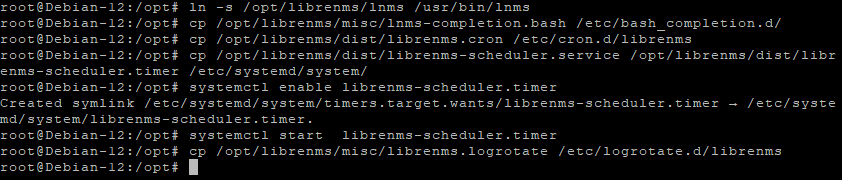
ln -s /opt/librenms/lnms /usr/bin/lnms
cp /opt/librenms/misc/lnms-completion.bash /etc/bash_completion.d/
cp /opt/librenms/dist/librenms.cron /etc/cron.d/librenms
cp /opt/librenms/dist/librenms-scheduler.service /opt/librenms/dist/librenms-scheduler.timer /etc/systemd/system/
systemctl enable librenms-scheduler.timer
systemctl start librenms-scheduler.timer
cp /opt/librenms/misc/librenms.logrotate /etc/logrotate.d/librenms
Step 11: Enable SSL with Certbot
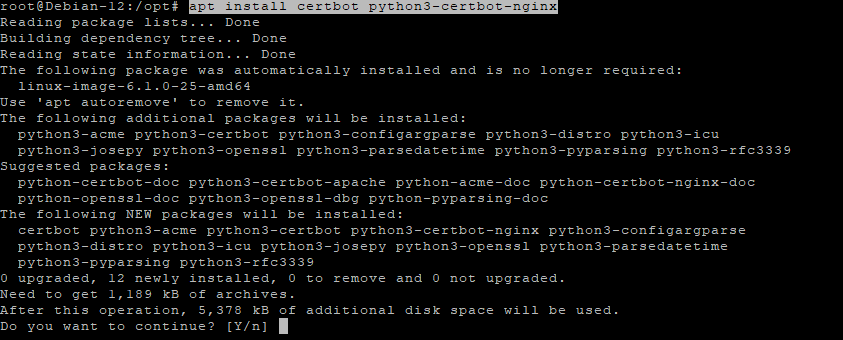
apt install certbot python3-certbot-nginx
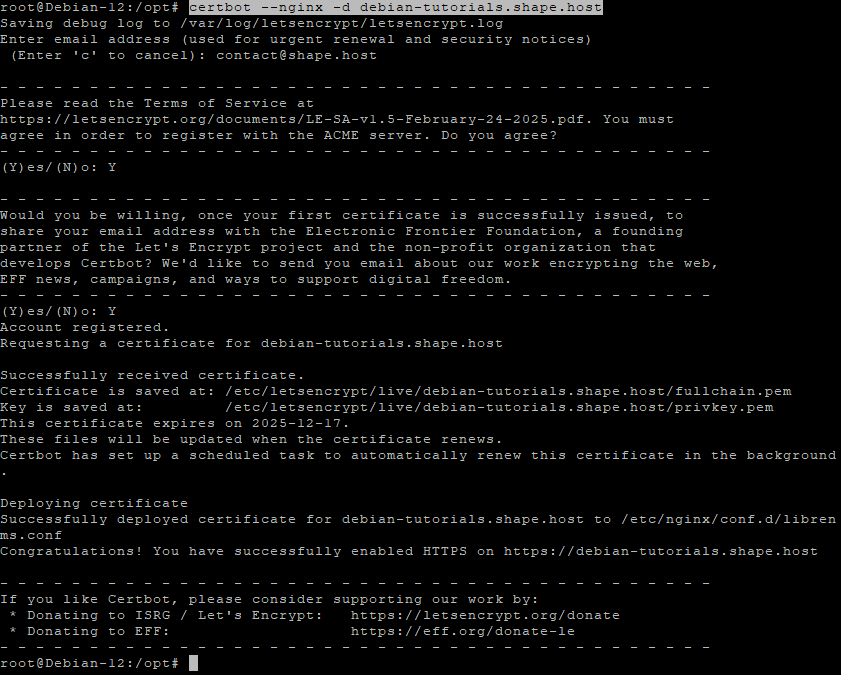
certbot --nginx -d debian-tutorials.shape.host
This will automatically configure HTTPS for your LibreNMS site.
Step 12: Access Web Installer
Now open your browser and go to:
http://librenms.example.com/install
Follow the installer wizard to complete the setup.
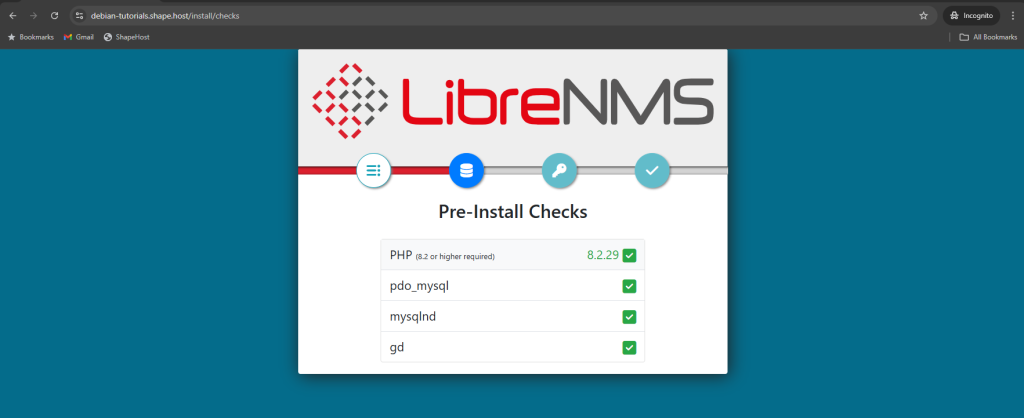
Pre-Install Checks – The wizard validates PHP version and required extensions (pdo_mysql, mysqlnd, gd). All should show green before moving on.
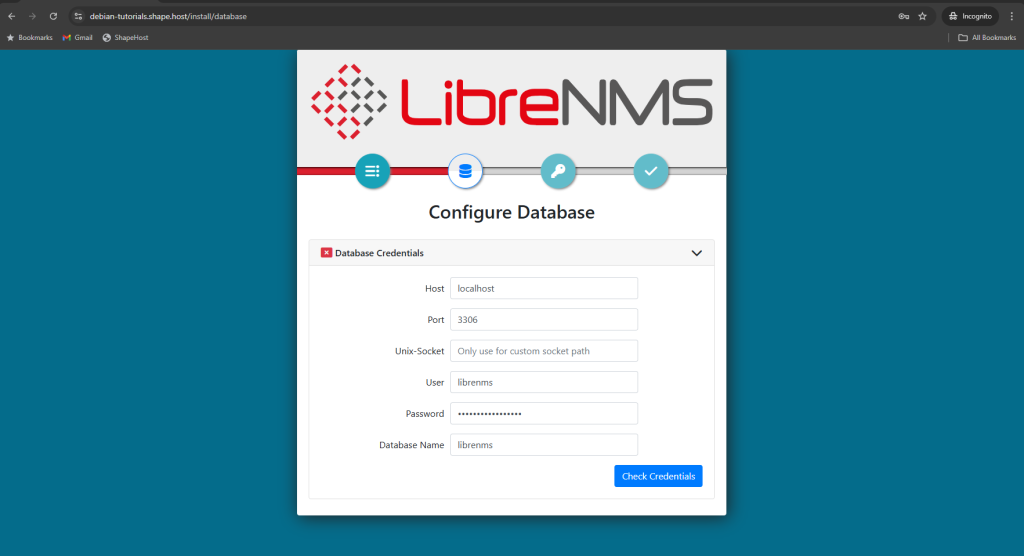
Configure Database – Enter the database host, port (3306 by default), database name, username, and password you created on Debian 12, then click Check Credentials.
Create Admin User – Set up the admin account by choosing a username, secure password, and email address. Click Add User to continue.
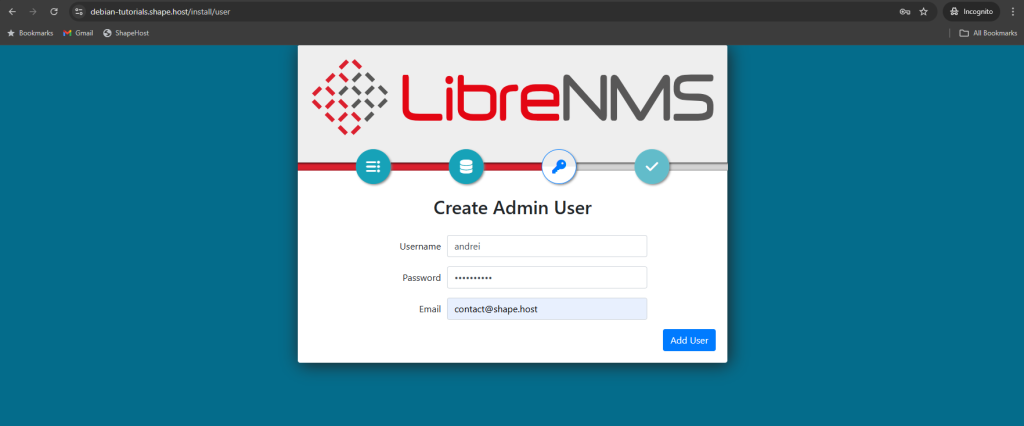
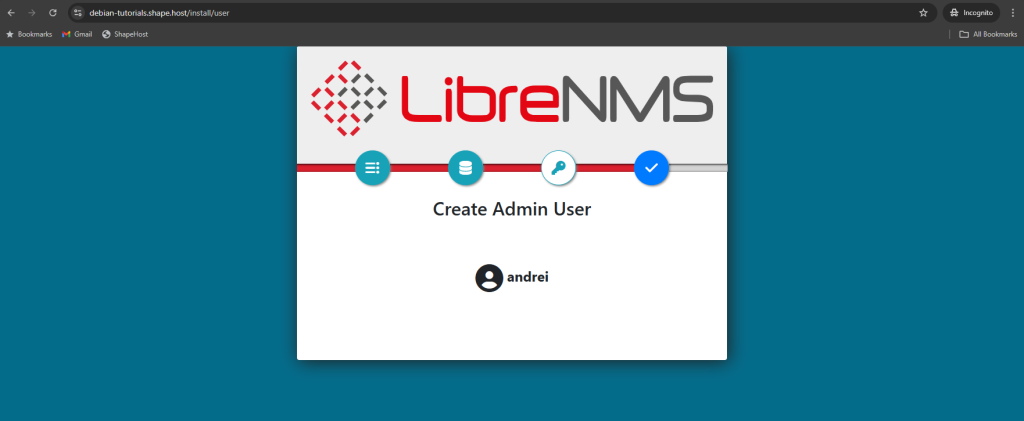
Finish Install – Choose update channel (daily or monthly), select default theme (light/dark), and click Finish Install.
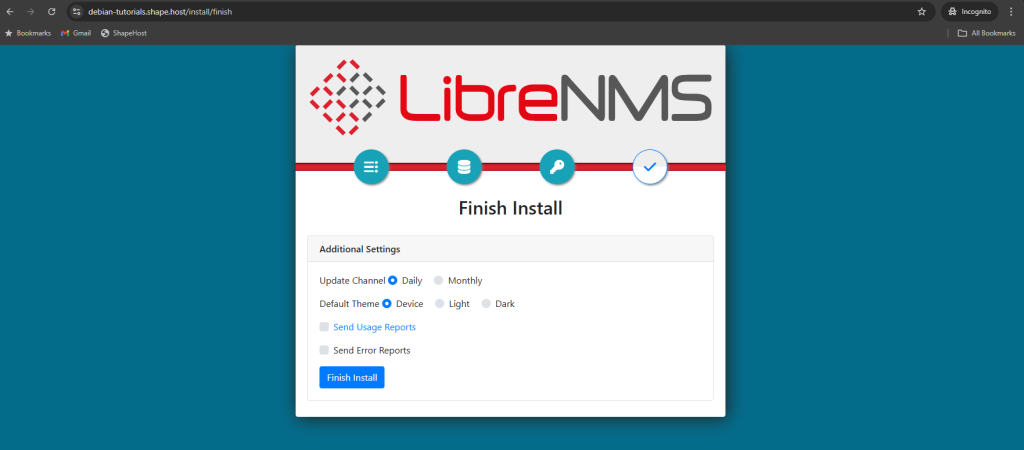
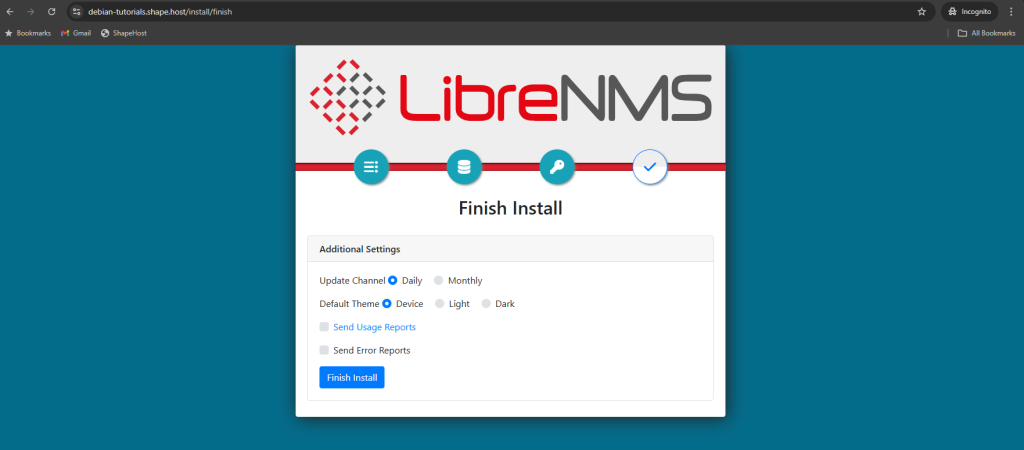
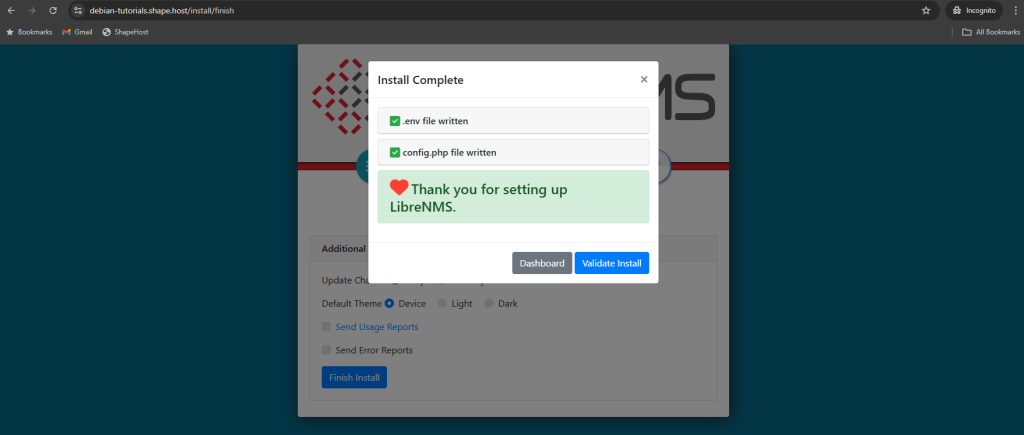
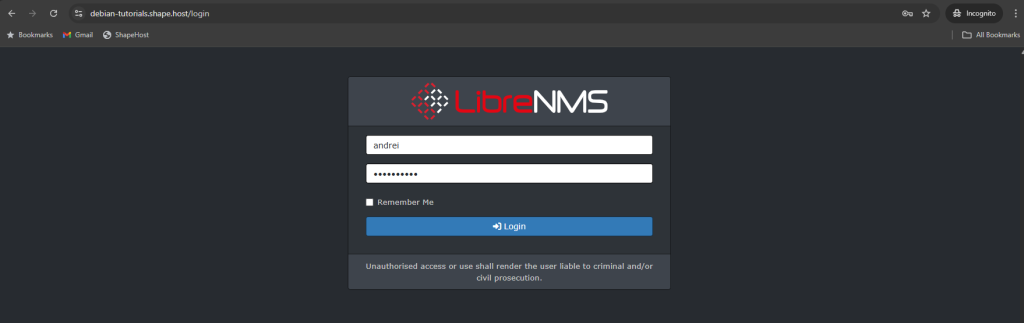
Once done, log in to LibreNMS with the admin credentials you’ve just created to access the dashboard.
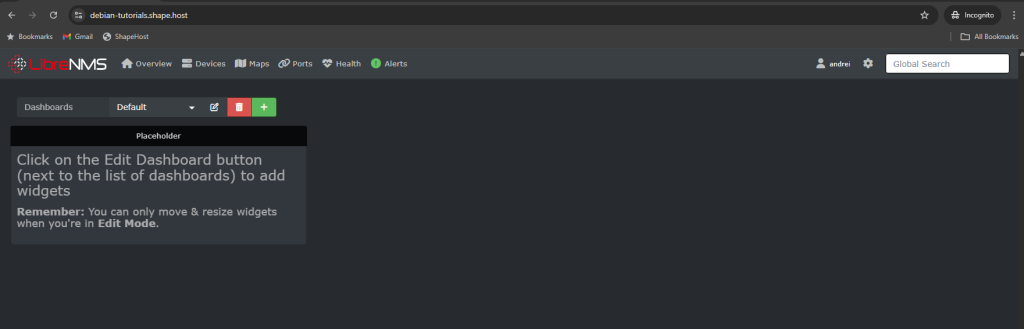
Step 13: Secure Config File
chown librenms:librenms /opt/librenms/config.php
chmod 640 /opt/librenms/config.php
You’ve installed LibreNMS on Debian 12 with Nginx + PHP-FPM. Your system is now equipped with MariaDB, SNMP, SSL via Let’s Encrypt, and proper scheduling/log rotation.
For a reliable and scalable infrastructure, run LibreNMS on Shape.Host Linux SSD VPS — optimized for monitoring, security, and high availability.