Tandoor Recipes on Rocky Linux 9 (Docker Compose + PostgreSQL + Nginx + SSL)
Tandoor Recipes is a free, open-source recipe management and meal planning platform that lets you store, organize, and share recipes securely on your own server. It offers powerful features such as ingredient management, shopping lists, nutrition calculation, meal planning, and recipe import from popular cooking sites — all from a sleek, web-based interface.
Running Tandoor Recipes on Rocky Linux 9, a RHEL-compatible enterprise operating system, ensures stability, reliability, and long-term support for production environments. Combined with Docker Compose, PostgreSQL, Nginx, and SSL, this setup provides a secure and scalable foundation for hosting your recipe platform privately, whether for personal use, professional kitchens, or collaborative cooking communities.
Architecture Overview
| Layer | Component | Role |
|---|---|---|
| OS | Rocky Linux 9 | RHEL-compatible, enterprise-grade Linux base |
| Container Runtime | Docker Engine + Compose | Manages Tandoor Recipes and its dependent containers |
| Application | Tandoor Recipes (Django) | Core web application and REST API |
| Database | PostgreSQL 15 | Stores recipes, ingredients, users, and app configuration |
| Reverse Proxy | Nginx | Handles HTTPS, compression, routing, and caching |
| TLS | Let’s Encrypt / PKI | Provides HTTPS encryption for secure access |
Why Use Tandoor Recipes?
- All-in-one recipe organizer – manage, tag, and categorize all recipes in one place.
- Meal planning and shopping lists – automate grocery lists and weekly meal plans.
- Recipe import – fetch recipes from websites directly via URL.
- Nutrition tracking – view calories, macros, and nutrient breakdown per recipe.
- Multi-user support – perfect for families, restaurants, or small communities.
- Image uploads & tagging – visually organize and search recipes faster.
- Open-source and self-hosted – full privacy and control over your data.
Tandoor Recipes vs Other Recipe Management Apps
| Feature/Capability | Tandoor Recipes (Self-hosted) | Paprika (App) | Cookpad (Cloud) | AnyList (Cloud) |
|---|---|---|---|---|
| Hosting | Self-hosted / Docker | Mobile only | Cloud-based | Cloud-based |
| Cost | Free, open-source | Paid | Free/Paid | Subscription |
| Multi-user support | ✅ Yes | ❌ No | ✅ Limited | ✅ Limited |
| Nutrition data | ✅ Yes | ❌ No | ❌ No | ❌ No |
| Privacy | Full control (self-hosted) | Cloud sync | Cloud only | Cloud only |
Tandoor Recipes is the ideal open-source alternative for anyone who values privacy, flexibility, and full control, offering advanced recipe management features without any vendor lock-in.
Security & Best Practices
- Run behind Nginx or Traefik with HTTPS (Let’s Encrypt recommended).
- Store PostgreSQL credentials and Django secrets securely in
.envor Docker secrets. - Limit PostgreSQL and application containers to internal Docker networks.
- Keep Rocky Linux, Docker, and application images updated regularly.
- Use firewalld to expose only ports 80/443.
- Enable SELinux enforcing mode for enhanced system security.
- Schedule PostgreSQL backups using cron or external snapshot tools.
- Automate SSL renewals with Certbot or Traefik ACME.
- Protect file permissions — ensure
mediaandstaticfolders persist safely.
Typical Use Cases
- Personal recipe archive with searchable categories and images.
- Family or shared cooking projects with meal planning and shopping lists.
- Restaurants and catering teams managing internal recipe databases.
- Dietitians or nutritionists creating meal plans with nutritional details.
- Cooking schools and content creators building public or private recipe hubs.
Deploying Tandoor Recipes on Rocky Linux 9 with Docker Compose and PostgreSQL provides a secure, feature-rich, and fully private recipe management system, perfect for home users, culinary professionals, and organizations that value open-source flexibility and data sovereignty.
Step 1: Set Up a Server Instance
Before installing Tandoor, you need a clean Rocky Linux 9 server. The simplest and most reliable option is using a Shape.Host Cloud VPS, which ensures excellent uptime and NVMe-powered performance.
Log in to your Shape.Host account.
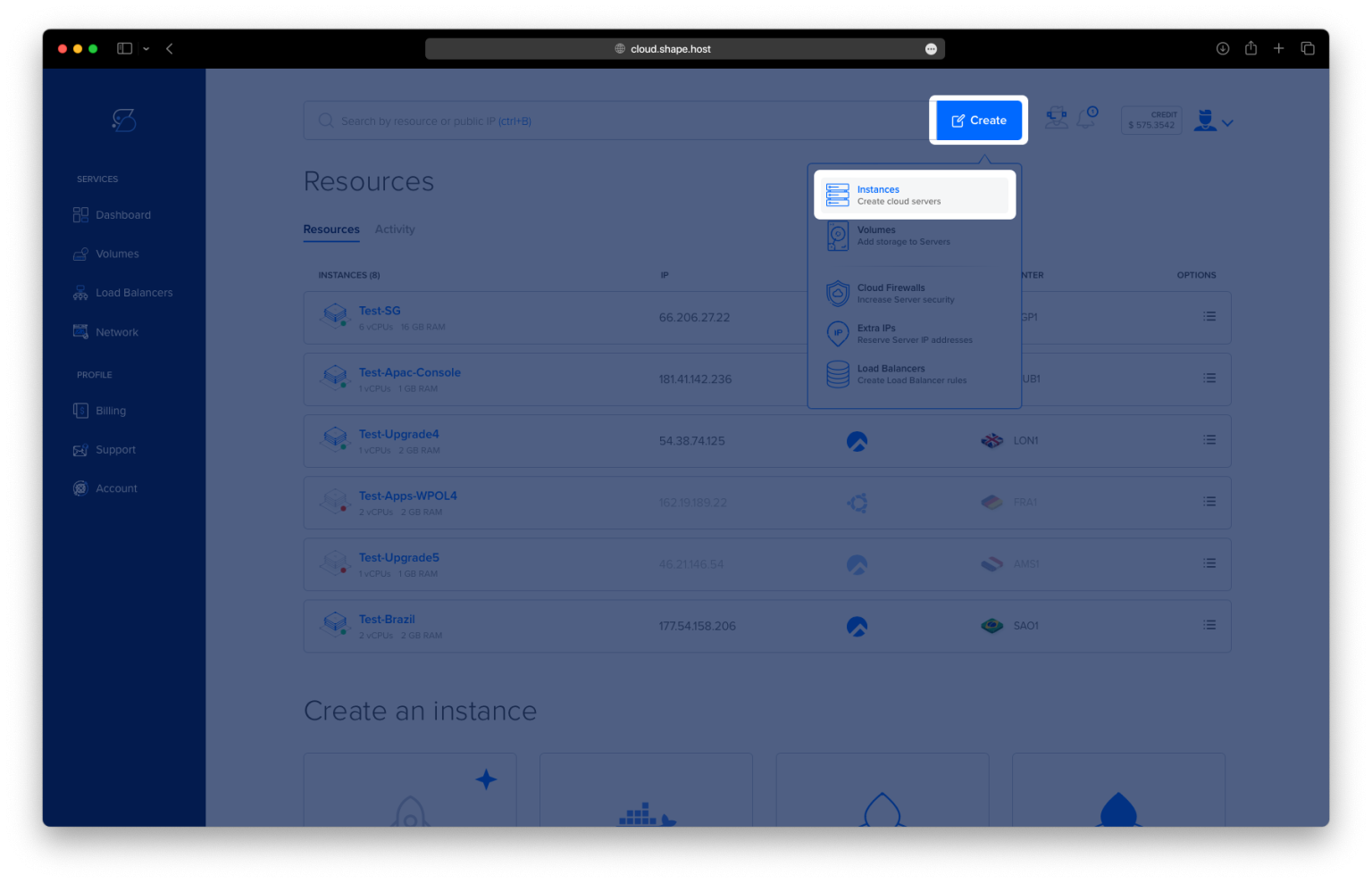
Click Create → Instance.

Choose the server location closest to your audience.

Select a VPS plan with at least 2 CPU cores, 4 GB RAM, and 20 GB SSD/NVMe.
Under Operating System, choose Rocky Linux 9 (64-bit).

Click Create Instance to deploy it.

After deployment, copy your instance’s IP address from the dashboard.
Your server is now ready for SSH access.

Step 2: Connect to Your Instance
Use SSH to log in as root.
Linux/macOS
ssh root@your_server_ip
Windows (PuTTY)
- Open PuTTY
- Enter your server IP
- Connect and login as root
Step 3: Install Docker & Docker Compose
Run the following commands exactly as recorded in your terminal history.
Update packages
dnf update

Add Docker repository
dnf config-manager --add-repo https://download.docker.com/linux/centos/docker-ce.repo
Install Docker & plugins
dnf install docker-ce docker-ce-cli containerd.io docker-buildx-plugin docker-compose-plugin

Enable + start Docker
systemctl enable docker
systemctl start docker
Check Docker Compose version
docker compose version
Step 4: Deploy Tandoor Recipes with Docker Compose
Create working directory
mkdir -p /opt/tandoor
cd /opt/tandoor

Generate a SECRET_KEY
python3 - <<EOF
import secrets
print(secrets.token_urlsafe(50))
EOF
Create docker-compose.yml
nano docker-compose.yml
Paste your exact configuration:
version: "3.8"

services:

  db:
    image: postgres:15
    container_name: tandoor_db
    restart: always
    environment:
      POSTGRES_USER: tandoor
      POSTGRES_PASSWORD: strongpassword
      POSTGRES_DB: tandoor
    volumes:
      - db_data:/var/lib/postgresql/data

  web:
    image: vabene1111/recipes
    container_name: tandoor_web
    restart: always
    depends_on:
      - db
    environment:
      DB_ENGINE: django.db.backends.postgresql
      POSTGRES_HOST: db
      POSTGRES_PORT: 5432
      POSTGRES_USER: tandoor
      POSTGRES_PASSWORD: strongpassword
      POSTGRES_DB: tandoor
      SECRET_KEY: changeme-secret-key
      ALLOWED_HOSTS: '*'
      DEBUG: 0
    ports:
      - "8080:80"
    volumes:
      - staticfiles:/opt/recipes/staticfiles
      - mediafiles:/opt/recipes/mediafiles

volumes:
  db_data:
  staticfiles:
  mediafiles:

Start Tandoor containers
docker compose up -d

Verify running containers
docker ps
You should see tandoor_db and tandoor_web in UP status.

Step 5: Install & Configure Nginx
Install Nginx
dnf install nginx

Enable and start Nginx
systemctl enable nginx
systemctl start nginx

Create reverse proxy config
nano /etc/nginx/conf.d/tandoor.conf
Paste your exact configuration:
server {
    listen 80;
    server_name YOUR_DOMAIN;

    location / {
        proxy_pass http://127.0.0.1:8080;

        proxy_set_header Host $host;
        proxy_set_header X-Real-IP $remote_addr;
        proxy_set_header X-Forwarded-For $proxy_add_x_forwarded_for;
        proxy_set_header X-Forwarded-Proto $scheme;

        proxy_read_timeout 600;
        proxy_connect_timeout 600;
    }

    client_max_body_size 64M;
}

Test config
nginx -t
Reload Nginx
systemctl reload nginx

Step 6: Enable HTTPS with Certbot
Install EPEL + Certbot:
dnf install epel-release
dnf install certbot python3-certbot-nginx


Issue SSL certificate:
certbot --nginx -d rockylinux-tutorials.shape.host
Your site now supports HTTPS automatically.

Step 7: Verify Installation
Open your browser and visit:
https://rockylinux-tutorials.shape.host
Or replace with your own domain.
You should now see the Tandoor Recipes login page.


You’ve installed Tandoor Recipes on Rocky Linux 9 using Docker Compose, PostgreSQL, Nginx, and Certbot. This setup is production-ready, secure, and easy to maintain.
For best performance and reliability, deploy your apps on Shape.Host Linux SSD VPS — offering powerful compute, SSD storage, and seamless scalability for all your Docker-based deployments.