HedgeDoc (HackMD/CodiMD Successor) on AlmaLinux 9 (Docker + Nginx + SSL)
HedgeDoc is an open-source real-time collaborative markdown editor, designed for teams that need to write, share, and present documents together securely. As the successor to HackMD/CodiMD, it combines markdown simplicity with powerful real-time editing, presentation, and authentication features, all within a self-hosted, privacy-focused environment.
Running HedgeDoc on AlmaLinux 9, a RHEL-compatible enterprise operating system, ensures stability, reliability, and long-term security. With Docker Compose, PostgreSQL, Nginx, and Let’s Encrypt SSL, AlmaLinux 9 offers a hardened production environment for hosting HedgeDoc with high uptime and minimal maintenance.
Architecture Overview
| Layer | Component | Role |
|---|---|---|
| OS | AlmaLinux 9 | RHEL-compatible enterprise-grade Linux platform |
| Container Runtime | Docker Engine + Compose | Orchestrates HedgeDoc, PostgreSQL, and other containers |
| Application | HedgeDoc (Node.js) | Collaborative markdown editor with real-time backend API |
| Database | PostgreSQL 15 | Stores documents, users, sessions, and configuration data |
| Reverse Proxy | Nginx | Handles HTTPS termination, routing, compression, and caching |
| TLS | Let’s Encrypt / PKI | Provides secure SSL/TLS certificates for web access |
Why Use HedgeDoc?
- Real-time collaboration – multiple users can edit and view documents simultaneously.
- Markdown-based simplicity – GitHub-flavored markdown with live preview and media embedding.
- Presentation mode – instantly convert markdown notes into slideshows.
- Authentication options – supports LDAP, OAuth2, GitHub, GitLab, and SSO.
- File uploads & attachments – images, charts, and media support within notes.
- Privacy-focused – fully self-hosted; no data leaves your server.
- Team productivity – built for developers, writers, educators, and documentation teams.
HedgeDoc vs Other Markdown Collaboration Platforms
| Feature/Capability | HedgeDoc (Self-hosted) | HackMD (Cloud) | Notion (Cloud) | Obsidian (Local) |
|---|---|---|---|---|
| Hosting | Self-hosted / Docker | Cloud-based | Cloud-based | Local filesystem |
| Real-time editing | ✅ Yes | ✅ Yes | ✅ Yes | ❌ No |
| Markdown support | ✅ Full (GFM) | ✅ Full | Partial | ✅ Full |
| Authentication | OAuth2 / LDAP / SSO | GitHub / Google | Notion accounts | Local only |
| Collaboration | ✅ Real-time | ✅ Real-time | ✅ Real-time | ❌ No |
| Privacy | 100% self-hosted | Cloud storage | Cloud storage | Local only |
| Cost | Free, open-source | Paid tiers | Subscription | Free |
HedgeDoc is the most complete open-source alternative to HackMD and Notion for teams seeking secure, self-hosted markdown collaboration without vendor lock-in.
Security & Best Practices
- Deploy behind Nginx or Traefik for HTTPS and reverse proxy management.
- Store credentials (PostgreSQL, JWT secrets) in Docker secrets or
.envsecurely. - Enable SELinux enforcement for additional security layers.
- Limit PostgreSQL to internal Docker networks only.
- Keep AlmaLinux, Docker, and HedgeDoc images updated regularly.
- Expose only ports 80 and 443 through
firewalld. - Configure Let’s Encrypt for SSL and automate renewals with Certbot or Traefik ACME.
- Schedule PostgreSQL backups with cron and verify restore capability.
- Use strong session and JWT secrets in your environment configuration.
Typical Use Cases
- Collaborative documentation for DevOps, developers, or research teams.
- Internal wikis and knowledge bases for companies and organizations.
- Lecture notes and real-time writing for education and workshops.
- Markdown-based presentations for technical or community events.
- Public collaborative editing (optionally restricted to registered users).
- Developer journals and meeting notes with markdown formatting.
Deploying HedgeDoc on AlmaLinux 9 with Docker, Nginx, and SSL gives you a secure, enterprise-grade, real-time markdown collaboration platform. It’s perfect for teams that value data privacy, stability, and flexibility — combining the power of open-source software with the reliability of the AlmaLinux ecosystem.
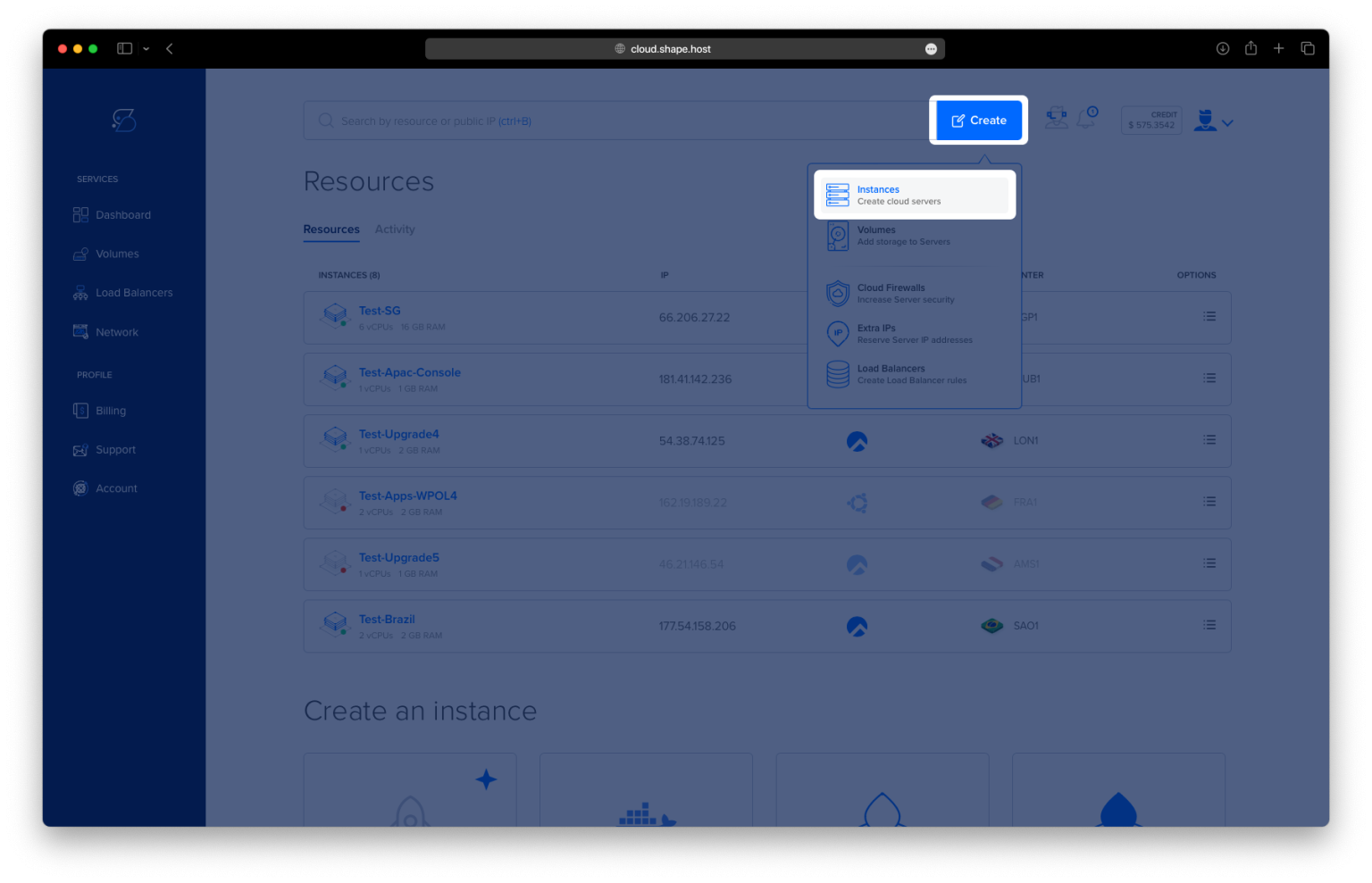
Create a Cloud Server Instance on Shape.Host
Before installing HedgeDoc, you first need a server. The easiest way is to create a VPS using Shape.Host.
Here is the full, beginner-friendly process:
Go to https://shape.host and log into your account.
Click the “Create” button in the top-right corner.

Select “Instance” from the dropdown.

Choose your server location (pick the closest region to your users).
Scroll to the Operating System section and select AlmaLinux 9 (64-bit).
Choose a plan — recommended minimum:
2 vCPUs
4 GB RAM
20 GB SSD/NVMe

Click Create Instance to finalize the deployment.
Wait 20–40 seconds for your VPS to be created.

Copy the server’s IP Address from the dashboard (you will use it for SSH connection).
Your AlmaLinux 9 server is now ready for setup.

Step 1: Update Your Server
dnf update
Updates package lists and installs the latest security patches.

Step 2: Install Required Tools
dnf install yum-utils curl device-mapper-persistent-data lvm2
Why these packages?
- yum-utils → needed for adding repositories
- curl → downloads files from the internet
- device-mapper + lvm2 → storage layer dependencies for Docker

Step 3: Add Docker Repository
yum-config-manager --add-repo https://download.docker.com/linux/centos/docker-ce.repo
Adds the official Docker repository for AlmaLinux/CentOS.
Step 4: Install Docker Engine + Plugins
dnf install docker-ce docker-ce-cli containerd.io docker-buildx-plugin docker-compose-plugin
Installs:
- Docker Engine
- CLI tools
- containerd runtime
- Buildx plugin
- Docker Compose v2 plugin

Step 5: Enable and Start Docker
systemctl enable --now docker
Starts Docker and ensures it launches at boot.
Step 6: Verify Docker Compose
docker compose version
If it outputs a version number, installation is successful.

Step 7: Create HedgeDoc Directory
mkdir -p /opt/hedgedoc
Creates a dedicated directory.
Step 8: Enter the Working Directory
cd /opt/hedgedoc

Step 9: Create Docker Compose File
nano /opt/hedgedoc/docker-compose.yml
Paste your exact configuration:
services:

  database:
    image: postgres:15
    container_name: hedgedoc_db
    environment:
      POSTGRES_USER: hedgedoc
      POSTGRES_PASSWORD: strongpassword
      POSTGRES_DB: hedgedoc
    volumes:
      - db-data:/var/lib/postgresql/data
    restart: unless-stopped

  hedgedoc:
    image: linuxserver/hedgedoc:latest
    container_name: hedgedoc_app
    depends_on:
      - database
    environment:
      PUID: "1000"
      PGID: "1000"
      TZ: "Europe/Bucharest"
      CMD_DB_URL: "postgres://hedgedoc:strongpassword@database:5432/hedgedoc"
      CMD_DOMAIN: "YOUR_DOMAIN"
      CMD_PROTOCOL_USESSL: "true"
      CMD_URL_ADDPORT: "false"
      CMD_ALLOW_ORIGIN: "*"
      CMD_USECDN: "false"
      CMD_ALLOW_FREEURL: "true"
    volumes:
      - config:/config
    ports:
      - "3000:3000"
    restart: unless-stopped

volumes:
  db-data:
  config:
This configuration starts:
- PostgreSQL database
- HedgeDoc application
- Necessary environment variables
- Persistent storage volumes

Step 10: Start the Containers
docker compose up -d
Starts HedgeDoc and the PostgreSQL database in the background.

Step 11: Test HedgeDoc Internally
curl http://127.0.0.1:3000
If working → you’ll see HTML in terminal.
Step 12: Install Nginx
dnf install nginx

Step 13: Enable and Start Nginx
systemctl enable --now nginx

Step 14: Create Nginx Reverse Proxy
nano /etc/nginx/conf.d/hedgedoc.conf
Paste:
server {
    listen 80;
    server_name YOUR_DOMAIN;

    location / {
        proxy_pass http://127.0.0.1:3000;
        proxy_set_header Host $host;
        proxy_set_header X-Real-IP $remote_addr;
        proxy_set_header X-Forwarded-For $proxy_add_x_forwarded_for;
        proxy_set_header X-Forwarded-Proto $scheme;
    }
}
This makes HedgeDoc available at:http://YOUR_DOMAIN

Step 15: Test Nginx Config
nginx -t
Step 16: Reload Nginx
systemctl reload nginx

Step 17: Install Certbot (Let’s Encrypt SSL)
dnf install certbot python3-certbot-nginx

Step 18: Generate SSL Certificate
certbot --nginx -d almalinux-tutorials.shape.host
This enables HTTPS automatically.

Step 19: Reload Nginx Again
systemctl reload nginx
Installation Complete
Your HedgeDoc instance is now available at:
https://YOUR_DOMAIN
Fully encrypted with SSL, running behind Nginx, using Docker, and production-ready.

For consistent performance, security, and easy scaling, always deploy your apps on Shape.Host Linux SSD VPS — especially Docker-based apps like HedgeDoc.