Ghostfolio (Investment Tracker) on AlmaLinux 9 (Docker + Nginx + SSL)
Ghostfolio is an open-source, self-hosted investment portfolio tracker and wealth analytics platform that lets you monitor and manage your financial assets — including stocks, ETFs, cryptocurrencies, and commodities — all from a single, private dashboard. Built with NestJS and Angular, Ghostfolio provides real-time portfolio analytics, asset diversification reports, and performance visualization — empowering you to make smarter investment decisions while keeping your data secure and self-managed.
Running Ghostfolio on AlmaLinux 9, a RHEL-compatible enterprise-grade operating system, provides long-term stability, enhanced security, and predictable performance for production environments. Combined with Docker Compose, PostgreSQL, Nginx, and SSL encryption, this deployment delivers a secure, scalable, and privacy-respecting investment management platform.
Architecture Overview
| Layer | Component | Role |
|---|---|---|
| OS | AlmaLinux 9 | Enterprise-grade, RHEL-compatible Linux base |
| Container Runtime | Docker Engine + Compose | Orchestrates Ghostfolio and dependent services |
| Application | Ghostfolio (Node.js + NestJS) | Core portfolio tracking and API backend |
| Database | PostgreSQL 15/16 | Stores portfolio data, user credentials, and historical prices |
| Reverse Proxy | Nginx | Handles HTTPS termination, caching, and compression |
| TLS | Let’s Encrypt / PKI | Provides SSL certificates for secure web access |
Why Use Ghostfolio?
- Unified financial dashboard – track your investments across multiple brokers, currencies, and asset classes.
- Self-hosted and open-source – retain complete ownership of your data.
- Privacy-first design – no third-party analytics, ads, or telemetry.
- Real-time analytics – visualize allocations, risk, and performance metrics.
- API integrations – fetch live prices and automate portfolio updates.
- Multi-user environment – suitable for families, financial teams, or shared use.
- Mobile-friendly UI – optimized for both desktop and mobile viewing.
Ghostfolio vs Other Investment Trackers
| Feature/Capability | Ghostfolio (Self-hosted) | Sharesight | CoinStats | Kubera |
|---|---|---|---|---|
| Hosting | Self-hosted / Cloud | Cloud only | Cloud only | Cloud only |
| Privacy | 100% local control | Cloud-based | Cloud-based | Cloud-based |
| Assets supported | Stocks, ETFs, crypto | Stocks/ETFs only | Crypto only | Multi-asset |
| Cost | Free, open-source | Subscription | Subscription | Subscription |
| API Integration | ✅ Yes | ✅ Limited | ✅ Yes | ✅ Yes |
| Data Ownership | Full | None | None | None |
Ghostfolio offers the power of advanced investment analytics with the freedom of self-hosting, making it a leading open-source alternative for privacy-conscious investors and financial professionals.
Security & Best Practices
- Run behind Nginx with HTTPS (Let’s Encrypt or corporate PKI).
- Use Docker secrets or
.envfiles for PostgreSQL credentials and tokens. - Restrict database access to internal Docker networks.
- Enable SELinux enforcing and firewalld, allowing only ports 80 and 443.
- Automate SSL renewals using Certbot or Traefik ACME integration.
- Regularly update AlmaLinux, Docker, and Ghostfolio images.
- Schedule PostgreSQL backups and verify restore integrity.
- Apply Nginx rate limiting and fail2ban to secure authentication endpoints.
- Use complex passwords and enable multi-factor authentication if available.
Typical Use Cases
- Personal finance management – track investments and net worth securely.
- Stock and crypto tracking – monitor hybrid portfolios in one dashboard.
- Family wealth management – organize shared portfolios across users.
- Financial advisors – manage multiple client portfolios securely.
- Developers and data enthusiasts – integrate Ghostfolio with APIs for automation and reporting.
Deploying Ghostfolio on AlmaLinux 9 with Docker, PostgreSQL, Nginx, and SSL provides a private, modern, and data-driven investment tracker — combining financial intelligence, open-source transparency, and enterprise-grade reliability in one secure environment.
Create a Cloud Server on Shape.Host
Before installing Ghostfolio, deploy a clean AlmaLinux 9 server.
Go to https://shape.host and log into your account.
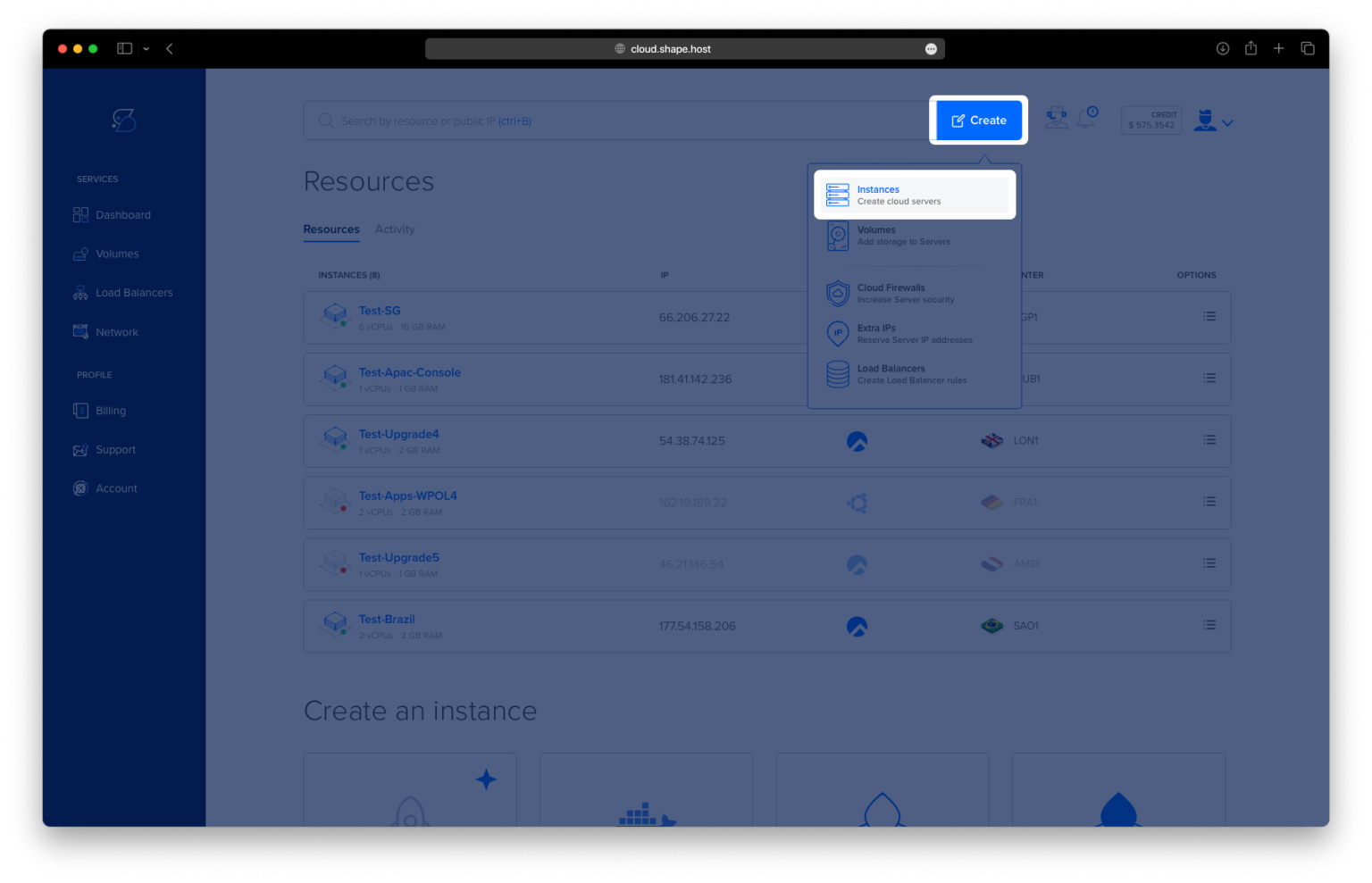
Click Create → Instance.

Select a data center near your users.

Choose AlmaLinux 9 (64-bit) as the OS.
Choose a plan. Recommended minimum:
2 vCPUs
4 GB RAM
20 GB NVMe SSD

Click Create Instance.
Wait 20–40 seconds for deployment.

Copy the public IP address from the dashboard.
Your server is now ready for SSH access.

Step 1: Connect to the Server via SSH
On Linux/macOS:
ssh root@YOUR_SERVER_IP
On Windows (PowerShell / Windows Terminal):
ssh root@YOUR_SERVER_IP
After accepting the fingerprint, you are logged in as root.
Step 2: Update System Packages
dnf update
Ensures the system is up to date.

Step 3: Install Required Dependencies
dnf install curl ca-certificates gnupg2 lsb-release
These tools allow secure downloads and key verification.

Step 4: Add the Docker Repository
dnf config-manager --add-repo https://download.docker.com/linux/centos/docker-ce.repo
AlmaLinux uses the CentOS repository for Docker Engine.
Step 5: Install Docker & Docker Compose
dnf install docker-ce docker-ce-cli containerd.io docker-buildx-plugin docker-compose-plugin
This installs:
- Docker Engine
- Docker CLI
- Containerd
- Buildx plugin
- Docker Compose v2

Step 6: Enable Docker at Boot
systemctl enable docker
Step 7: Start Docker
systemctl start docker
Step 8: Allow Current User to Run Docker
usermod -aG docker $USER
This allows running Docker without sudo (after re-login).

Step 9: Create Ghostfolio Directory
mkdir -p /opt/ghostfolio

Step 10: Enter Directory
cd /opt/ghostfolio
Step 11: Generate Security Keys
openssl rand -hex 32
openssl rand -hex 32
openssl rand -hex 32
openssl rand -hex 16
You will use these values for:
- JWT secret
- Access token salt
- Refresh token salt
Store them securely.
Step 12: Create docker-compose.yml
nano docker-compose.yml
Paste your exact configuration:
version: "3.8"

services:
  postgres:
    image: postgres:15
    container_name: ghostfolio_postgres
    environment:
      POSTGRES_USER: ghostfolio
      POSTGRES_PASSWORD: YOUR_DB_PASSWORD
      POSTGRES_DB: ghostfolio
    volumes:
      - pgdata:/var/lib/postgresql/data
    restart: unless-stopped

  redis:
    image: redis:7
    container_name: ghostfolio_redis
    restart: unless-stopped

  ghostfolio:
    image: ghostfolio/ghostfolio:latest
    container_name: ghostfolio_app
    depends_on:
      - postgres
      - redis
    ports:
      - "3333:3333"
    environment:
      NODE_ENV: production
      JWT_SECRET_KEY: YOUR_JWT_SECRET
      ACCESS_TOKEN_SALT: YOUR_ACCESS_TOKEN_SALT
      REFRESH_TOKEN_SALT: YOUR_REFRESH_TOKEN_SALT
      DATABASE_URL: postgres://ghostfolio:YOUR_DB_PASSWORD@postgres:5432/ghostfolio
      REDIS_URL: redis://redis:6379
    restart: unless-stopped

volumes:
  pgdata:
Save and exit (CTRL + O, ENTER, CTRL + X).

Step 13: Start Ghostfolio
docker compose up -d
This launches PostgreSQL, Redis, and Ghostfolio.

Step 14: Check Logs (Optional)
docker logs ghostfolio_app --tail 50
Used to confirm successful startup.
Step 15: Test Ghostfolio from Your Browser
Before configuring Nginx, verify that Ghostfolio works:
http://YOUR.SERVER.IP:3333
If everything is correct, you should see the Ghostfolio interface.

Step 16: Install Nginx
dnf install nginx

Step 17: Install Certbot for HTTPS
dnf install certbot python3-certbot-nginx

Step 18: Enable and Start Nginx
systemctl enable nginx
systemctl start nginx

Step 19: Create Nginx Reverse Proxy Configuration
nano /etc/nginx/conf.d/ghostfolio.conf
Paste:
server {
    listen 80;
    server_name your.domain.com;

    location / {
        proxy_pass http://127.0.0.1:3333;
        proxy_set_header Host $host;
        proxy_set_header X-Real-IP $remote_addr;
        proxy_set_header X-Forwarded-For $proxy_add_x_forwarded_for;
    }
}

Step 20: Test Nginx Configuration
nginx -t
Step 21: Reload Nginx
systemctl reload nginx

Step 22: Enable HTTPS with Certbot
certbot --nginx -d almalinux-tutorials.shape.host
Certbot configures SSL automatically.

Step 23: Access Ghostfolio Securely
https://your.domain.com
Your Ghostfolio platform is now fully operational and secured with SSL.

Deploying applications like Ghostfolio, NocoDB, HedgeDoc, Appwrite, and Paperless-ngx requires stable cloud hosting. Shape.Host provides:
- Fast Linux SSD VPS
- Instant deployment
- Clean OS images
- High reliability
- Scalable compute options
Visit https://shape.host to launch your next project on powerful cloud hosting.