Ackee (Self-Hosted Analytics) on AlmaLinux 9
Ackee is a lightweight, open-source self-hosted web analytics platform created for site owners who want clear insights without violating user privacy. It tracks essential metrics such as page views, referrers, browsers, devices, and screen sizes, while deliberately avoiding cookies, personal identifiers, and invasive tracking techniques.
Ackee is privacy-first by design, making it a strong alternative to Google Analytics and other SaaS analytics tools. In most cases, it can be used without cookie consent banners, which greatly simplifies GDPR compliance and improves user trust.
Running Ackee on AlmaLinux 9, a RHEL-compatible, enterprise-grade Linux distribution, provides long-term stability, security updates, and predictable behavior in production environments. AlmaLinux 9 is an excellent choice for businesses and serious self-hosters, especially when combined with Docker, MongoDB, Nginx, and HTTPS for a clean, secure, and scalable analytics stack.
Architecture Overview
| Layer | Component | Role |
|---|---|---|
| OS | AlmaLinux 9 | Enterprise-grade, RHEL-compatible Linux base |
| Container Runtime | Docker / Docker Compose | Runs Ackee and MongoDB services |
| Application | Ackee (Node.js) | Analytics engine and web dashboard |
| Database | MongoDB | Stores anonymized analytics data |
| Reverse Proxy | Nginx | HTTPS termination, routing, compression |
| TLS | Let’s Encrypt / PKI | Secures access to the analytics interface |
Ackee’s minimal architecture keeps operational complexity low, making it easy to deploy, easy to maintain, and easy to back up.
Why Use Ackee?
- Privacy-first analytics – no cookies, no tracking profiles, no fingerprinting
- GDPR-friendly by default – usually no consent banner required
- Self-hosted & open-source – full ownership of analytics data
- Lightweight and efficient – minimal CPU and memory usage
- Focused metrics – only the data that actually matters
- Simple JavaScript tracking snippet – quick integration into any website
- Multi-site support – monitor multiple domains from a single dashboard
Ackee is ideal for users who want ethical analytics without sacrificing clarity or control.
Ackee vs Other Analytics Platforms
| Feature / Capability | Ackee | Google Analytics | Plausible | Umami |
|---|---|---|---|---|
| Hosting | Self-hosted | Cloud only | Cloud / self-hosted | Cloud / self-hosted |
| Cookies | ❌ No | ✅ Yes | ❌ No | ❌ No |
| GDPR friendly | ✅ Yes | ❌ No (by default) | ✅ Yes | ✅ Yes |
| Data ownership | Full | Google-controlled | Partial | Full |
| Tracking depth | Essential | Very detailed | Essential | Moderate |
| Cost | Free, open-source | Free / Paid | Paid | Free / Paid |
Ackee is best suited for blogs, business websites, landing pages, and privacy-focused projects where transparency and trust are more important than aggressive data collection.
Security & Best Practices on AlmaLinux 9
- Run Ackee behind Nginx with HTTPS enabled.
- Keep Ackee and MongoDB accessible only via internal Docker networks.
- Store admin tokens and database credentials using environment variables.
- Enable SELinux enforcing mode and use proper Docker volume labeling.
- Configure firewalld to allow only ports 80 and 443.
- Automate SSL certificate renewal using Certbot or another ACME client.
- Regularly update AlmaLinux, Docker, Ackee, and MongoDB images.
- Schedule MongoDB data backups and verify restore procedures.
- Restrict dashboard access to trusted users or IP ranges when needed.
Typical Use Cases
- Personal blogs and portfolios – privacy-respecting visitor insights
- Company websites – GDPR-compliant analytics without cookie banners
- Landing pages – track traffic sources ethically
- Agencies & developers – analytics for multiple client projects
- Open-source, NGO, or non-profit websites – transparent and ethical tracking
Deploying Ackee on AlmaLinux 9 with Docker, MongoDB, Nginx, and SSL gives you a fast, private, and enterprise-ready analytics solution — delivering meaningful insights while keeping user trust and data ownership firmly in your control.
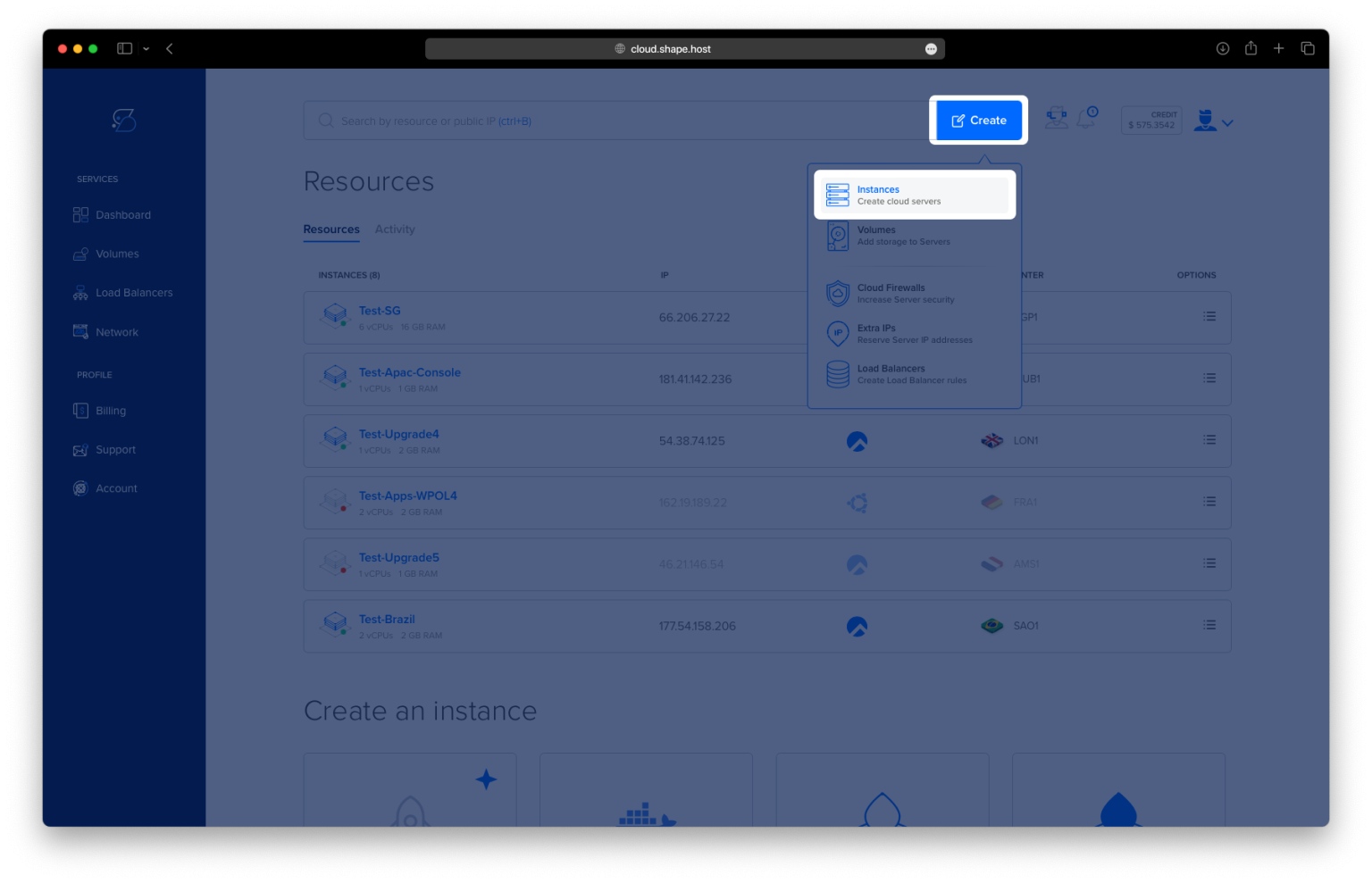
Create an AlmaLinux 9 Instance on Shape.Host
Go to https://shape.host and log in
Click Create
Choose Instance

Select a server location

Choose AlmaLinux 9 (64-bit)
Pick a plan (recommended minimum):
2 vCPU
4 GB RAM
20 GB NVMe SSD

Click Create Instance
Wait for provisioning

Copy the public IP address

Step 1: Connect to the Server via SSH
ssh root@YOUR_SERVER_IP
You are now logged in as the root user.
Step 2: Update the System
dnf update
Updates all installed packages to the latest versions.

Step 3: Enable Required Repositories
dnf install epel-release
dnf config-manager --set-enabled crb
EPEL and CRB repositories are required for dependencies on AlmaLinux 9.
Step 4: Install Required System Packages
dnf install ca-certificates curl gnupg2 dnf-utils
These tools are needed to securely add external repositories.

Step 5: Add Docker Repository
dnf config-manager --add-repo https://download.docker.com/linux/centos/docker-ce.repo
Adds the official Docker repository compatible with AlmaLinux 9.
Step 6: Install Docker and Docker Compose
dnf install docker-ce docker-ce-cli containerd.io docker-buildx-plugin docker-compose-plugin
Installs Docker Engine and Docker Compose v2.

Step 7: Enable and Start Docker
systemctl enable docker
systemctl start docker
Ensures Docker starts automatically on boot.
Step 8: Verify Docker Installation
docker version
docker compose version
Confirms Docker and Docker Compose are installed correctly.
Step 9: Create Ackee Directory
mkdir -p /opt/ackee
cd /opt/ackee
This directory will store Ackee configuration and MongoDB data.

Step 10: Create Docker Compose Configuration
nano docker-compose.yml
Paste the following configuration:
services:
  mongo:
    image: mongo:6
    container_name: ackee-mongo
    restart: unless-stopped
    volumes:
      - ./mongo-data:/data/db

  ackee:
    image: electerious/ackee:latest
    container_name: ackee
    restart: unless-stopped
    depends_on:
      - mongo
    environment:
      - ACKEE_MONGODB=mongodb://mongo:27017/ackee
      - ACKEE_USERNAME=admin
      - ACKEE_PASSWORD=STRONG_ADMIN_PASSWORD
      - ACKEE_ALLOW_ORIGIN=https://analytics.example.com
    ports:
      - "127.0.0.1:3000:3000"
Explanation:
- MongoDB stores analytics data
- Ackee connects internally to MongoDB
- Ackee listens only on localhost for security
- Admin credentials are defined via environment variables
Save and exit the file.

Step 11: Start Ackee
docker compose up -d
Starts MongoDB and Ackee containers in the background.

Step 12: Check Running Containers
docker ps
You should see:
ackeeackee-mongo
Both containers must be running.

Step 13: Test Ackee Locally
curl http://127.0.0.1:3000
This confirms Ackee is responding before exposing it publicly.

Step 14: Install Nginx
dnf install nginx
Nginx will be used as a reverse proxy.

Step 15: Enable and Start Nginx
systemctl enable nginx
systemctl start nginx

Step 16: Create Nginx Configuration
nano /etc/nginx/conf.d/ackee.conf
Paste:
server {
    listen 80;
    server_name analytics.example.com;

    location / {
        proxy_pass http://127.0.0.1:3000;
        proxy_set_header Host $host;
        proxy_set_header X-Real-IP $remote_addr;
        proxy_set_header X-Forwarded-For $proxy_add_x_forwarded_for;
        proxy_set_header X-Forwarded-Proto $scheme;
    }
}

Step 17: Remove Default Nginx Config
rm -f /etc/nginx/conf.d/default.conf
Prevents conflicts with the default configuration.
Step 18: Test and Reload Nginx
nginx -t
systemctl reload nginx
Step 19: Allow Network Connections via SELinux
AlmaLinux uses SELinux by default. You must allow Nginx to connect to Docker containers.
setsebool -P httpd_can_network_connect on
This is a required step on AlmaLinux and Rocky Linux.

Step 20: Install SSL Certificate
dnf install certbot python3-certbot-nginx
certbot --nginx -d almalinux-tutorials.shape.host
Certbot automatically configures HTTPS for your domain.


Access Ackee Analytics
https://your-domain.com
Login credentials:
Username: admin
Password: STRONG_ADMIN_PASSWORD


Ackee benefits from fast storage and stable networking.
Shape.Host Cloud VPS provides:
- NVMe SSD storage
- Instant AlmaLinux deployments
- Clean, minimal OS images
- Stable networking
- Excellent performance for Docker workloads
Deploy your next self-hosted analytics stack at https://shape.host.