PhotoPrism (AI-Powered Photo Manager) on Ubuntu 24.04
PhotoPrism is an open-source, self-hosted AI-powered photo and video management platform designed to organize, browse, and search large media libraries with ease. Using machine learning, PhotoPrism can automatically classify images, detect objects and scenes, recognize faces, and extract metadata, making your entire photo collection searchable and intelligently indexed.
Unlike cloud photo services, PhotoPrism gives you full ownership of your photos and videos. Everything runs on your own server, with no data sent to third parties — making it ideal for privacy-conscious users, photographers, and organizations.
Running PhotoPrism on Ubuntu 24.04 LTS (Noble Numbat) provides a modern, secure, and long-term supported foundation. Ubuntu 24.04 includes OpenSSL 3, systemd 255, and excellent Docker support, making it a solid platform for deploying PhotoPrism with Docker, PostgreSQL, Nginx, and HTTPS in a production-ready setup.
Architecture Overview
| Layer | Component | Role |
|---|---|---|
| OS | Ubuntu 24.04 LTS | Stable, long-term supported Linux base |
| Container Runtime | Docker / Docker Compose | Runs PhotoPrism and supporting services |
| Application | PhotoPrism (Go + TensorFlow Lite) | AI-powered photo and video management |
| Database | PostgreSQL | Stores metadata, indexes, and search data |
| Storage | Local filesystem / NAS | Original photos and videos |
| Reverse Proxy | Nginx | HTTPS termination, routing, compression |
| TLS | Let’s Encrypt / PKI | Secure web access to the PhotoPrism UI |
PhotoPrism uses a resource-efficient AI pipeline and can scale from small personal libraries to hundreds of thousands of photos.
Why Use PhotoPrism?
- AI-powered search – find photos by objects, scenes, places, and keywords
- Face recognition – group photos by people automatically
- Privacy-first – fully self-hosted, no cloud dependency
- Modern web interface – fast, responsive, and mobile-friendly
- Powerful metadata handling – EXIF, GPS, camera data, RAW support
- Video support – manage and preview videos alongside photos
- Multi-user support – shared libraries with access control
- Open-source & extensible – active development and plugins
PhotoPrism is designed for users who want Google Photos-like features without sacrificing privacy or control.
PhotoPrism vs Other Photo Management Solutions
| Feature / Capability | PhotoPrism | Google Photos | Nextcloud Photos | Piwigo |
|---|---|---|---|---|
| Hosting | Self-hosted | Cloud only | Self-hosted / Cloud | Self-hosted |
| AI search | ✅ Yes | ✅ Yes | ❌ No | ❌ Limited |
| Face recognition | ✅ Yes | ✅ Yes | ❌ No | ❌ No |
| Privacy | Full control | Google-controlled | Partial | Full |
| RAW support | ✅ Yes | Limited | Limited | Limited |
| Cost | Free / Open-source | Free / Paid | Free / Paid | Free / Paid |
PhotoPrism is ideal for users who want advanced AI features with full data ownership.
Security & Best Practices on Ubuntu 24.04
- Run PhotoPrism behind Nginx with HTTPS enabled.
- Keep PhotoPrism and PostgreSQL on internal Docker networks only.
- Store secrets (DB passwords, admin credentials) using environment variables.
- Enable UFW and allow only ports 80 and 443.
- Automate SSL certificate renewal using Certbot.
- Regularly update Ubuntu, Docker, and PhotoPrism images.
- Back up:
- original photos/videos
- PostgreSQL database
- PhotoPrism configuration and index
- Use read-only mounts for original photo directories when possible.
- Limit admin access and create separate user roles.
Typical Use Cases
- Personal photo libraries – replace Google Photos or iCloud Photos
- Family media servers – shared albums with private hosting
- Photographers – manage large RAW and JPEG collections
- Home labs & NAS setups – centralized photo management
- Privacy-focused users – AI features without cloud tracking
- Small organizations – internal photo archives and media catalogs
Deploying PhotoPrism on Ubuntu 24.04 with Docker, PostgreSQL, Nginx, and SSL gives you a powerful, AI-driven photo management platform — combining modern machine learning features with complete data ownership, privacy, and long-term reliability.
Create an Ubuntu 24.04 Instance on Shape.Host
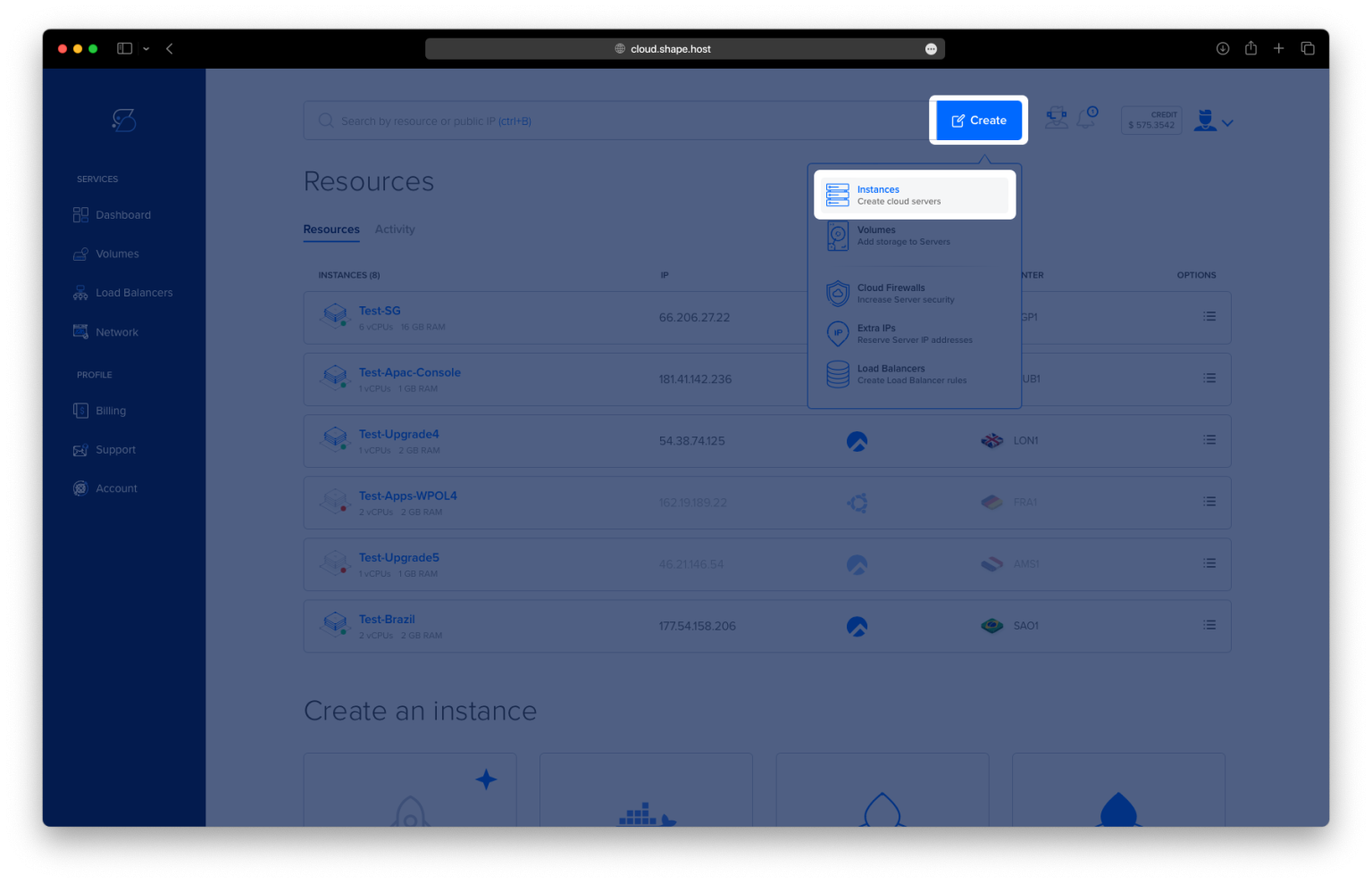
Go to https://shape.host and log in
Click Create
Choose Instance

Select a server location

Choose Ubuntu 24.04 (64-bit)
Pick a plan (recommended minimum for PhotoPrism):
2 vCPU
4 GB RAM (8 GB recommended for AI indexing)
40 GB NVMe SSD (or more, depending on photo library size)

Click Create Instance
Wait for provisioning

Copy the public IP address

Step 1: Connect to the Server via SSH
From your local machine:
ssh root@YOUR_SERVER_IP
You are now logged in as the root user.
Step 2: Update the System
apt update
apt upgrade -y
Updates all installed packages and applies security patches.

Step 3: Install Required System Packages
apt install ca-certificates curl gnupg lsb-release
These packages are required to securely add external repositories.

Step 4: Create Docker Keyrings Directory
mkdir -p /etc/apt/keyrings
This directory stores trusted GPG keys for external repositories.
Step 5: Add Docker GPG Key
curl -fsSL https://download.docker.com/linux/ubuntu/gpg | gpg --dearmor -o /etc/apt/keyrings/docker.gpg
Ensures Docker packages are verified and trusted.
Step 6: Add Docker Repository
echo "deb [arch=$(dpkg --print-architecture) signed-by=/etc/apt/keyrings/docker.gpg]
https://download.docker.com/linux/ubuntu $(lsb_release -cs) stable" > /etc/apt/sources.list.d/docker.list
Adds the official Docker package source.
Step 7: Update Package Index
apt update
Loads packages from the Docker repository.

Step 8: Install Docker and Docker Compose
apt install docker-ce docker-ce-cli containerd.io docker-buildx-plugin docker-compose-plugin
Installs Docker Engine and Docker Compose v2.

Step 9: Verify Docker Installation
docker --version
docker compose version
Confirms Docker and Docker Compose are installed correctly.

Step 10: Create PhotoPrism Directory
mkdir -p /opt/photoprism
cd /opt/photoprism
This directory will store configuration, originals, and index data.
Step 11: Download PhotoPrism Docker Compose File
wget https://dl.photoprism.app/docker/compose.yaml -O docker-compose.yml
Downloads the official PhotoPrism Docker Compose template.

Step 12: Edit Docker Compose Configuration
nano docker-compose.yml
Adjust the configuration to match your setup:
services:
  photoprism:
    image: photoprism/photoprism:latest
    restart: unless-stopped
    ports:
      - "2342:2342"
    environment:
      PHOTOPRISM_ADMIN_PASSWORD: "StrongAdminPasswordHere"
      PHOTOPRISM_ORIGINALS_PATH: "/photoprism/originals"
      PHOTOPRISM_STORAGE_PATH: "/photoprism/storage"
    volumes:
      - /opt/photoprism/originals:/photoprism/originals
      - /opt/photoprism/storage:/photoprism/storage
Explanation:
- Admin password secures the web interface
- Originals store your photos
- Storage holds thumbnails, indexes, and metadata
Save and exit the file.
Step 13: Create Required Directories
mkdir -p /opt/photoprism/originals
mkdir -p /opt/photoprism/storage
These directories will persist your photos and PhotoPrism data.

Step 14: Pull PhotoPrism Image
docker compose pull
Downloads the latest PhotoPrism Docker image.

Step 15: Start PhotoPrism
docker compose up -d
Starts PhotoPrism in the background.

Step 16: Verify Running Containers
docker compose ps
Ensures PhotoPrism container is running.

Step 17: Install Nginx
apt install nginx
Nginx will act as a reverse proxy.

Step 18: Create Nginx Configuration
nano /etc/nginx/sites-available/photoprism
Paste the following configuration:
server {
    listen 80;
    server_name photos.example.com;

    client_max_body_size 500M;

    location / {
        proxy_pass http://127.0.0.1:2342;
        proxy_http_version 1.1;

        proxy_set_header Host $host;
        proxy_set_header X-Real-IP $remote_addr;
        proxy_set_header X-Forwarded-For $proxy_add_x_forwarded_for;
        proxy_set_header X-Forwarded-Proto $scheme;

        proxy_set_header Upgrade $http_upgrade;
        proxy_set_header Connection "upgrade";

        proxy_buffering off;
    }
}
Explanation:
- Allows large photo uploads
- Supports WebSockets
- Proxies traffic securely to PhotoPrism

Step 19: Enable Nginx Site
ln -s /etc/nginx/sites-available/photoprism /etc/nginx/sites-enabled/
rm /etc/nginx/sites-enabled/default
Step 20: Test and Reload Nginx
nginx -t
systemctl reload nginx

Step 21: Install SSL Certificate
apt install certbot python3-certbot-nginx
certbot --nginx -d ubuntu-tutorials.shape.host
Certbot automatically configures HTTPS.


https://yourdomain.com
Login using the admin password set in the Docker Compose file.


Run PhotoPrism on Shape.Host
PhotoPrism benefits from fast NVMe storage and strong CPU performance, especially during AI indexing.
Shape.Host Cloud VPS offers:
- NVMe SSD storage
- Instant Ubuntu 24.04 deployments
- Clean OS images
- Stable networking
- Excellent performance for Docker workloads
Deploy your next self-hosted media stack at https://shape.host.