ntfy (Push Notifications via HTTP) on AlmaLinux 9
ntfy is a lightweight, open-source push notification service over HTTP that allows you to send real-time notifications to mobile devices, desktops, and scripts using simple HTTP requests. Instead of relying on third-party push providers, ntfy lets you self-host your own notification server, giving you full control over messages, topics, authentication, and data privacy.
With ntfy, sending a notification can be as simple as a single curl command. This makes it especially useful for server monitoring, CI/CD pipelines, cron jobs, webhooks, DevOps automation, and IoT systems.
Running ntfy on AlmaLinux 9, a RHEL-compatible, enterprise-grade Linux distribution, provides long-term stability, security updates, and predictable behavior. AlmaLinux 9 is well suited for production workloads and pairs perfectly with Nginx and HTTPS, resulting in a secure, reliable, and maintainable push notification service.
Architecture Overview
| Layer | Component | Role |
|---|---|---|
| OS | AlmaLinux 9 | Enterprise-grade, RHEL-compatible Linux base |
| Application | ntfy server (Go binary) | Push notification service |
| Protocol | HTTP / WebSockets | Message publishing and real-time delivery |
| Reverse Proxy | Nginx | HTTPS termination, routing, rate limiting |
| TLS | Let’s Encrypt / PKI | Encrypted client connections |
| Clients | Mobile, Desktop, CLI, Web | Subscribe to topics and receive notifications |
ntfy is distributed as a single static Go binary, making it extremely fast, resource-efficient, and easy to manage.
Why Use ntfy?
- Push notifications via simple HTTP calls
- Fully self-hosted — no external push providers
- Extremely lightweight — minimal CPU and memory usage
- Cross-platform clients — Android, iOS, desktop, web, CLI
- Topic-based publish/subscribe model
- Supports WebSockets, streaming, and polling
- Authentication & access control — public or private topics
- Ideal for automation and monitoring workflows
ntfy is designed for users who want reliable notifications without unnecessary complexity.
ntfy vs Other Notification Solutions
| Feature / Capability | ntfy | Pushover | Firebase | Gotify |
|---|---|---|---|---|
| Hosting | Self-hosted | Cloud only | Cloud only | Self-hosted |
| Protocol | HTTP / WebSocket | API | SDK-based | HTTP |
| Privacy | Full control | Cloud-based | Cloud-based | Full control |
| Setup complexity | Very low | Low | High | Medium |
| Clients | Mobile, desktop, CLI | Mobile | Mobile | Mobile / web |
| Cost | Free, open-source | Paid | Free / Paid | Free |
ntfy stands out for its simplicity, flexibility, and DevOps-friendly design.
Security & Best Practices on AlmaLinux 9
- Run ntfy behind Nginx with HTTPS enabled.
- Bind ntfy to 127.0.0.1 and expose only Nginx publicly.
- Use TLS certificates (Let’s Encrypt recommended).
- Enable authentication and access control for private topics.
- Store credentials and tokens securely in configuration files or environment variables.
- Enable SELinux enforcing mode and configure Docker/paths accordingly.
- Configure firewalld to allow only ports 80 and 443.
- Add rate limiting in Nginx to prevent abuse.
- Keep AlmaLinux and ntfy updated regularly.
- Manage ntfy with systemd for automatic restarts and startup on boot.
Typical Use Cases
- Server monitoring alerts (CPU, disk, memory, downtime)
- CI/CD pipeline notifications
- Cron job success or failure alerts
- Home-lab and self-hosted service monitoring
- IoT device status notifications
- Webhook-based automation
- Personal push notifications without cloud services
Deploying ntfy on AlmaLinux 9 with SSL gives you a fast, secure, and fully self-hosted push notification system — ideal for automation, monitoring, and real-time alerts, all while keeping full control over your data and infrastructure.
Step 1: Set Up a Server Instance on Shape.Host
Before installing ntfy, you need a virtual server.
Log in to your Shape.Host account at https://shape.host.
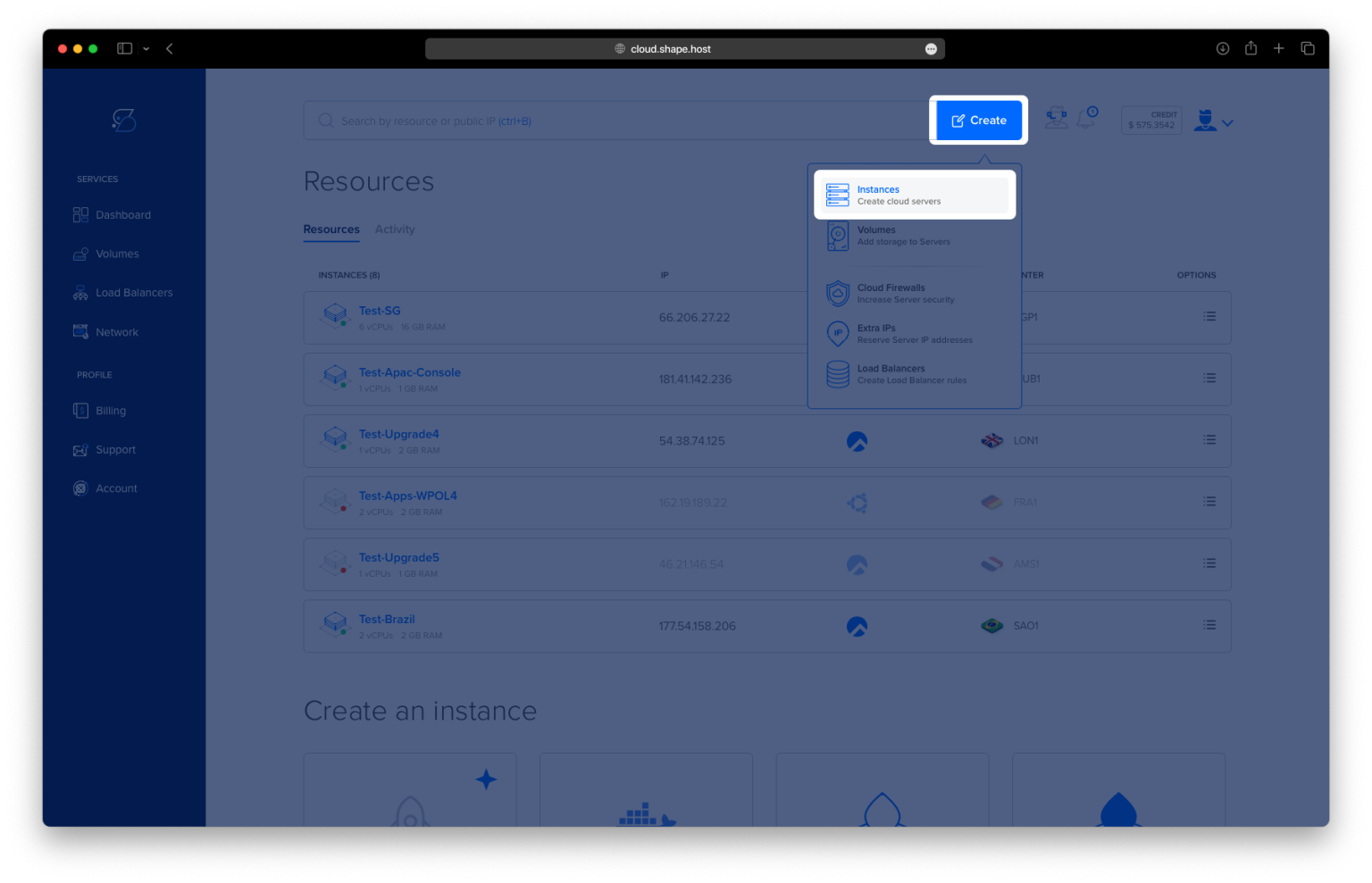
Open the dashboard and click Create.
Choose Instance as the resource type.

Select a data center location close to your users.

Choose a VPS plan with at least:
2 CPU cores
2–4 GB RAM
20 GB SSD storage

Select AlmaLinux 9 (64-bit) as the operating system.
Finalize the creation and wait for the instance to be provisioned.

Copy the public IP address of your server.
This server will host Docker, ntfy, and Nginx, secured with HTTPS.

Step 2: Connect to Your AlmaLinux 9 Server
Linux / macOS
ssh root@YOUR_SERVER_IP
Windows
Use PowerShell, Windows Terminal, or PuTTY:
ssh root@YOUR_SERVER_IP
After logging in, you should be authenticated as root.
Step 3: Install ntfy Using Docker Compose
3.1 Update the System
dnf update
Updates all installed packages to their latest versions.

3.2 Install Required Dependencies
dnf install ca-certificates curl gnupg2 dnf-utils
Installs tools required for managing repositories and secure downloads.

3.3 Add Docker Repository
dnf config-manager --add-repo https://download.docker.com/linux/centos/docker-ce.repo
Adds the official Docker repository compatible with AlmaLinux 9.
dnf makecache
Refreshes the package metadata cache.

3.4 Install Docker and Docker Compose
dnf install docker-ce docker-ce-cli containerd.io docker-buildx-plugin docker-compose-plugin

Installs Docker Engine and Docker Compose plugin.
systemctl enable docker
Enables Docker to start automatically at boot.
systemctl start docker
Starts the Docker service.
docker --version
Verifies Docker installation.
docker compose version
Verifies Docker Compose availability.
3.5 Create ntfy Project Directory
mkdir -p /opt/ntfy
cd /opt/ntfy

3.6 Create Docker Compose Configuration
nano docker-compose.yml
Paste the following content:
services:
  ntfy:
    image: binwiederhier/ntfy:latest
    container_name: ntfy
    restart: unless-stopped
    ports:
      - "127.0.0.1:2586:80"
    volumes:
      - /opt/ntfy/cache:/var/cache/ntfy
      - /opt/ntfy/config:/etc/ntfy
    command: serve
This configuration ensures ntfy:
- Runs in a Docker container
- Is only accessible locally
- Is safely exposed through Nginx

3.7 Create Cache and Configuration Directories
mkdir -p /opt/ntfy/cache
mkdir -p /opt/ntfy/config

3.8 Configure ntfy Server
nano /opt/ntfy/config/server.yml
Paste:
base-url: https://ntfy.example.com
listen-http: ":80"

cache-file: /var/cache/ntfy/cache.db
behind-proxy: true

auth-default-access: deny
auth-file: /etc/ntfy/auth.db

attachment-cache-dir: /var/cache/ntfy/attachments
attachment-total-size-limit: 5G
attachment-file-size-limit: 50M
This configuration:
- Enables reverse proxy support
- Denies anonymous access by default
- Allows controlled attachment uploads

3.9 Start ntfy
docker compose pull
Downloads the latest ntfy image.
docker compose up -d
Starts the ntfy container in detached mode.
docker compose ps
Confirms the container is running.

Step 4: Configure Nginx Reverse Proxy
4.1 Install and Enable Nginx
dnf install nginx

systemctl enable nginx
systemctl start nginx
systemctl status nginx

4.2 Create Nginx Configuration for ntfy
nano /etc/nginx/conf.d/ntfy.conf
Paste:
server {
    listen 80;
    server_name ntfy.example.com;

    client_max_body_size 100M;

    location / {
        proxy_pass http://127.0.0.1:2586;
        proxy_http_version 1.1;

        proxy_set_header Host $host;
        proxy_set_header X-Real-IP $remote_addr;
        proxy_set_header X-Forwarded-For $proxy_add_x_forwarded_for;
        proxy_set_header X-Forwarded-Proto $scheme;

        proxy_buffering off;
    }
}

4.3 Test and Reload Nginx
nginx -t
systemctl reload nginx

Step 5: Enable SSL with Let’s Encrypt
5.1 Install Certbot
dnf install epel-release
dnf install certbot python3-certbot-nginx

5.2 Obtain SSL Certificate
certbot --nginx -d ntfy.example.com

Replace with your real domain if needed:
yourdomain.com
Certbot will automatically:
- Issue a free SSL certificate
- Configure Nginx for HTTPS
- Enable automatic renewal

You have installed ntfy on AlmaLinux 9 using Docker Compose, secured it behind Nginx, and enabled SSL with Let’s Encrypt. This setup is stable, secure, and well-suited for production use cases such as monitoring, alerting, and automation.
For hosting ntfy and other self-hosted services with excellent performance and scalability, Shape.Host Cloud VPS offers a reliable infrastructure designed for modern server workloads.