CherryPy on AlmaLinux 9 (Python + WSGI + Nginx + SSL)
CherryPy is a minimalist yet production-ready Python web framework that ships with its own embedded HTTP server. Unlike heavier frameworks such as Django or Flask, CherryPy emphasizes simplicity, speed, and flexibility, giving developers freedom to design applications without enforcing strict patterns. It comes with built-in tools like session handling, caching, and static file serving, making it ideal for lightweight web services, APIs, and embedded Python applications.
Running CherryPy on AlmaLinux 9, a RHEL-compatible enterprise distribution, provides a secure, stable, and long-term supported platform. With SELinux enforcement, systemd 252, OpenSSL 3, and Python 3.9 (with access to newer versions via AppStream or EPEL), AlmaLinux 9 offers an enterprise-grade environment for deploying CherryPy applications behind Nginx with SSL termination.
Architecture Overview
| Layer | Component | Role |
|---|---|---|
| OS | AlmaLinux 9 | RHEL-compatible enterprise base with SELinux enforcement |
| Runtime | Python 3.9+ + venv | Runs CherryPy applications in isolated environments |
| Framework | CherryPy (WSGI server) | Lightweight Python HTTP server and web framework |
| Process Manager | systemd | Manages CherryPy as a background service with logging and restarts |
| Reverse Proxy | Nginx | TLS termination, routing, caching, and compression |
| TLS | Let’s Encrypt / PKI | Provides secure HTTPS for external access |
Why Use CherryPy?
- Lightweight & fast – minimal overhead with a built-in HTTP server.
- Mature & stable – actively maintained and production-ready since 2002.
- Flexible integration – works with any Python libraries (ORMs, templates, APIs).
- Object-oriented style – intuitive application structure.
- Enterprise-friendly – can run securely under SELinux and systemd.
CherryPy vs Other Python Frameworks
| Feature/Capability | CherryPy | Flask | Django | FastAPI |
|---|---|---|---|---|
| Design philosophy | Minimal + WSGI | Microframework | Full-stack | Async API-first |
| HTTP server | Built-in | Needs WSGI server | Needs WSGI server | ASGI (uvicorn) |
| Complexity | Low | Low | High | Medium |
| Best use case | Small apps, APIs | Lightweight APIs | Enterprise apps | Async APIs |
CherryPy is strongest when you need a simple, efficient Python web stack without the overhead of full-stack frameworks.
Security & Best Practices
- Deploy CherryPy behind Nginx with HTTPS enabled.
- Use a dedicated non-root system user for CherryPy.
- Run applications in virtual environments to isolate dependencies.
- Configure systemd services for uptime, logging, and automatic restarts.
- Keep AlmaLinux, Python, and CherryPy packages patched regularly.
- Apply SELinux policies and add Nginx security headers (HSTS, CSP, etc.).
Typical Use Cases
- Lightweight REST APIs and microservices.
- Internal dashboards and monitoring tools.
- Embedded web services in larger Python projects.
- Prototyping and small-scale web apps.
- Secure production apps with Nginx and SSL termination.
Step 1: Create a Server Instance on Shape.Host
Start by provisioning a new AlmaLinux 9 VPS:
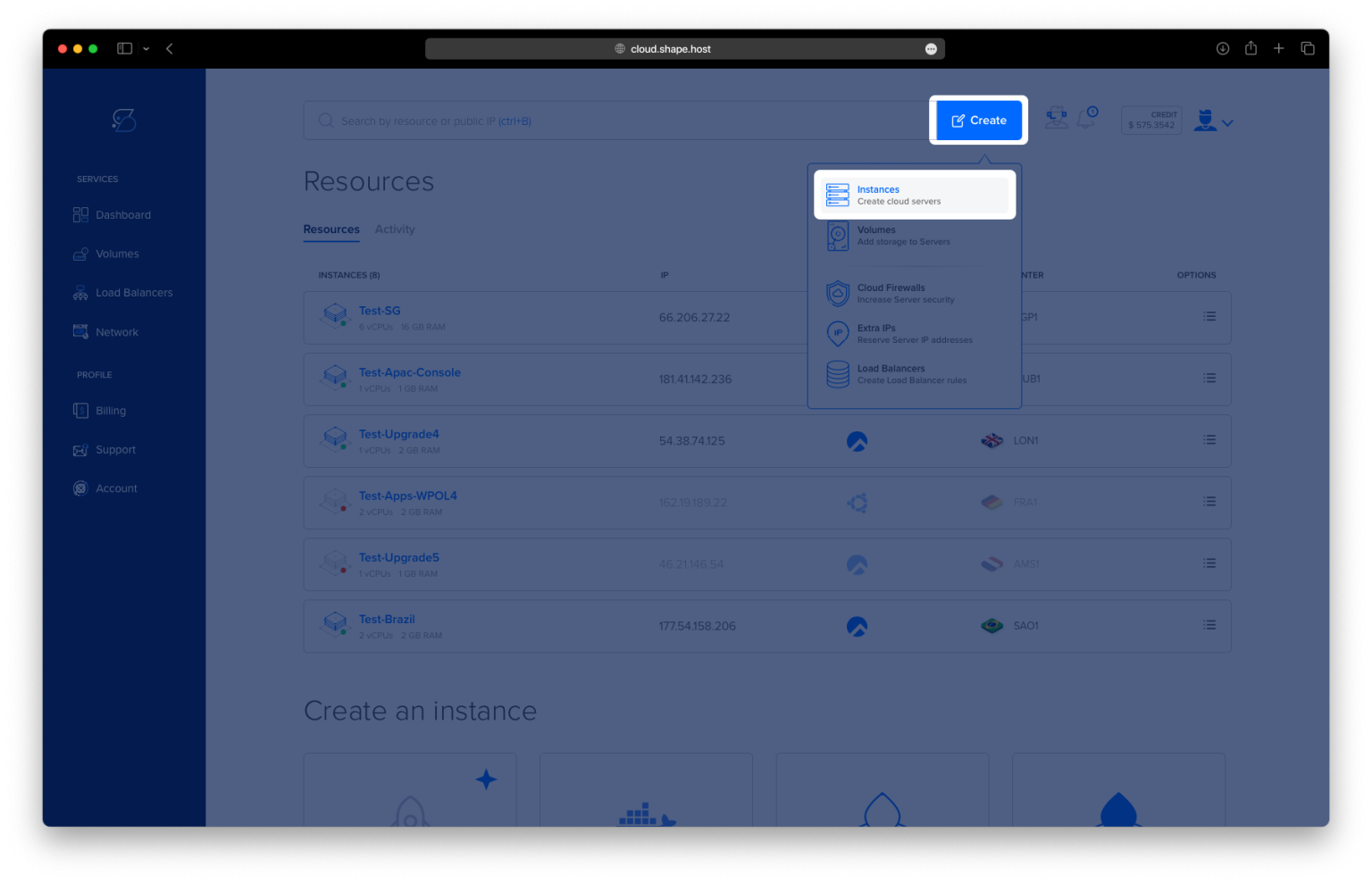
Log into your Shape.Host dashboard.
Click Create → Instance.

Pick a data center location close to your users.

Choose a plan with at least 2 CPUs, 2 GB RAM, and 20 GB SSD.
Select AlmaLinux 9 (64-bit) as your operating system.

Click Create Instance.

Copy your server’s IP address from the Resources section.

Step 2: Connect to Your Server
- Linux/macOS:
ssh root@your_server_ip - Windows (with PuTTY):
- Download PuTTY.
- Enter your server’s IP address, select SSH, and click Open.
- Log in with your Shape.Host root credentials.
Step 3: Install Dependencies
Update system and install Python + Nginx:
dnf update
dnf install python3 python3-pip nginx


Enable and start Nginx:
systemctl enable --now nginx
systemctl status nginx

Step 4: Create a Dedicated User and App Directory
groupadd -r cherrypy
useradd -r -g cherrypy -s /sbin/nologin -M cherrypy
mkdir -p /opt/myapp
Creates a cherrypy system user and an application directory.

Step 5: Set Up Virtual Environment and Install CherryPy
python3 -m venv /opt/myapp/venv
/opt/myapp/venv/bin/pip install --upgrade pip
/opt/myapp/venv/bin/pip install cherrypy
Creates a Python virtual environment, upgrades pip, and installs CherryPy.

Step 6: Create a CherryPy Application
cat >/opt/myapp/app.py <<'PY'
import cherrypy

class App:
    @cherrypy.expose
    def index(self):
        return "Hello from CherryPy behind Nginx (AlmaLinux 9)!"

def main():
    cherrypy.config.update({
        "server.socket_host": "127.0.0.1",
        "server.socket_port": 8000,
        "engine.autoreload.on": False
    })
    cherrypy.quickstart(App(), "/")

if __name__ == "__main__":
    main()
PY
This app returns a simple greeting at /.
Set correct ownership:
chown -R cherrypy:cherrypy /opt/myapp

Step 7: Test the Application Manually
runuser -u cherrypy -- /opt/myapp/venv/bin/python /opt/myapp/app.py &
sleep 1
curl -v http://127.0.0.1:8000/ || true
pkill -f /opt/myapp/app.py || true
Starts the app temporarily, tests it with curl, then stops it.

Step 8: Create a systemd Service
cat >/etc/systemd/system/cherrypy.service <<'UNIT'
[Unit]
Description=CherryPy WSGI App
After=network-online.target
Wants=network-online.target

[Service]
Type=simple
User=cherrypy
Group=cherrypy
WorkingDirectory=/opt/myapp
ExecStart=/opt/myapp/venv/bin/python -u /opt/myapp/app.py
Environment=PATH=/opt/myapp/venv/bin
Environment=HOME=/opt/myapp
Restart=always
RestartSec=2
StandardOutput=journal
StandardError=journal
UMask=0022
NoNewPrivileges=true

[Install]
WantedBy=multi-user.target
UNIT
Reload systemd and start the service:
systemctl daemon-reload
systemctl enable cherrypy
systemctl restart cherrypy
systemctl status cherrypy --no-pager -l

Check that it’s running:
ss -tlnp | grep ':8000' || true
curl -v http://127.0.0.1:8000/ || true

Step 9: Configure Nginx Reverse Proxy
cat >/etc/nginx/conf.d/myapp.conf <<'NGINX'
server {
    listen 80;
    server_name almalinux-tutorials.shape.host;  # change this

    client_max_body_size 20M;

    location / {
        proxy_pass http://127.0.0.1:8000;
        proxy_http_version 1.1;
        proxy_set_header Host $host;
        proxy_set_header X-Forwarded-Proto $scheme;
        proxy_set_header X-Forwarded-For $proxy_add_x_forwarded_for;
        proxy_set_header Connection "";
        proxy_read_timeout 300;
    }

    access_log /var/log/nginx/myapp_access.log;
    error_log  /var/log/nginx/myapp_error.log;
}
NGINX
Enable and reload Nginx:
nginx -t
systemctl reload nginx

Step 10: Adjust SELinux (if enforced)
setsebool -P httpd_can_network_connect 1
Allows Nginx to connect to CherryPy under SELinux.
Step 11: Enable SSL with Let’s Encrypt
dnf install certbot python3-certbot-nginx
certbot --nginx -d almalinux-tutorials.shape.host


Now visit your domain over HTTPS:
https://almalinux-tutorials.shape.host
You should see:
Hello from CherryPy behind Nginx (AlmaLinux 9)!

You’ve successfully deployed CherryPy on AlmaLinux 9 with systemd, Nginx reverse proxy, SELinux adjustments, and SSL encryption. This production-ready setup ensures both security and performance.
For reliable deployments with fast networking and scalable VPS resources, consider hosting your apps on Shape.Host Cloud VPS.