Apache Web Server on Debian 12 – A Stable Foundation for Hosting and Web Services
The Apache HTTP Server, commonly referred to as Apache, is one of the most widely used open-source web servers in the world. On Debian 12 “Bookworm”, Apache offers a reliable and highly configurable platform for serving static and dynamic content, reverse proxying, load balancing, and more.
Why Debian 12 Is a Solid Host for Apache
Debian 12 is a long-term support release focused on stability, security, and package consistency—making it a preferred OS for hosting services. It features:
- Linux Kernel 6.1 LTS: Stable and widely tested
- systemd service management
- AppArmor for mandatory access control
- Regular upstream security patches
- Strong compatibility with widely used web stacks
Apache’s conservative evolution aligns well with Debian’s packaging model, resulting in long-lived, low-maintenance deployments.
Apache HTTP Server – Key Features
Apache’s modular and extensible design allows it to support a wide variety of use cases. Key features include:
- Virtual Hosts: Host multiple domains or applications on one server
- Per-directory Configuration: Using
.htaccessfiles for access control, redirects, and rewrite rules - SSL/TLS Support: Works with
mod_ssland tools like Certbot for HTTPS - Reverse Proxy Capabilities: Through
mod_proxy,mod_proxy_http, andmod_proxy_balancer - Module Ecosystem: Enable functionality with
mod_rewrite,mod_headers,mod_deflate, etc. - Process-based Architecture: Makes it easy to monitor and scale under controlled conditions
Performance and Use Cases
Apache remains a top choice for:
- LAMP stacks (Linux, Apache, MySQL/MariaDB, PHP)
- PHP applications such as WordPress, Drupal, and Joomla
- Secure web applications requiring per-directory access control
- Internal tools, dashboards, and documentation servers
- Reverse proxy setups for backend services (Node.js, Flask, Tomcat)
While not as lightweight as Nginx for static files, Apache excels in application hosting, backward compatibility, and fine-grained configuration.
Apache on Debian 12 – Technical Highlights
| Feature | Benefit |
|---|---|
| AppArmor Support | Enhances process isolation and access control |
| Systemd Integration | Reliable service management, restarts, logging |
| mod_status & mod_info | Enables web-based server introspection |
| Robust Logging | Access logs, error logs, and compatibility with syslog |
| Compatibility | Supports PHP, Python (via CGI), Perl, and other stacks |
| Security Options | Header customization, protocol control, and DoS mitigation |
Apache’s default configuration in Debian emphasizes security-first defaults: disabled directory indexing, limited exposure of server tokens, and compatibility with HTTP/2 and modern cipher suites.
Apache vs Other Web Servers on Debian 12
| Feature | Apache | Nginx | Lighttpd |
|---|---|---|---|
| Virtual hosting | Full (IP/name/port-based) | Full | Partial |
| Dynamic content (PHP) | mod_php or PHP-FPM | PHP-FPM only | FPM/CGI |
| Static file serving | Moderate | High performance | Fast |
| Per-directory config | .htaccess supported | Not supported | Not supported |
| SSL/TLS support | Full via mod_ssl | Full via OpenSSL | Full |
| Load balancing | Supported (mod_proxy) | Native | Basic |
Apache offers the broadest compatibility with legacy apps and is highly favored in environments where .htaccess usage, full access control, and dynamic module configuration are required.
Integration and Ecosystem
Apache on Debian 12 integrates well with:
- PHP (via
mod_phporphp-fpm) - MariaDB/MySQL databases
- Python and WSGI via proxy or
mod_wsgi - Certbot and Let’s Encrypt for automated HTTPS
- Monitoring tools (e.g., mod_status + Prometheus exporters)
- Load balancers and CDNs in front-line web architecture
Apache is often deployed alongside fail2ban, UFW, and logrotate in production environments for improved security and log management.
The Apache Web Server on Debian 12 is a highly stable, security-focused, and standards-compliant platform for serving web content. Its powerful module ecosystem, configuration flexibility, and strong support for both legacy and modern applications make it a go-to solution for sysadmins and developers alike.
Whether you’re running a simple website, a PHP-based CMS, or a backend-heavy enterprise application, Apache offers a proven and trustworthy foundation—especially when deployed on Debian’s reliable and long-supported infrastructure.
Step 1: Create a Shape.Host VPS
Go to https://shape.host and log in.
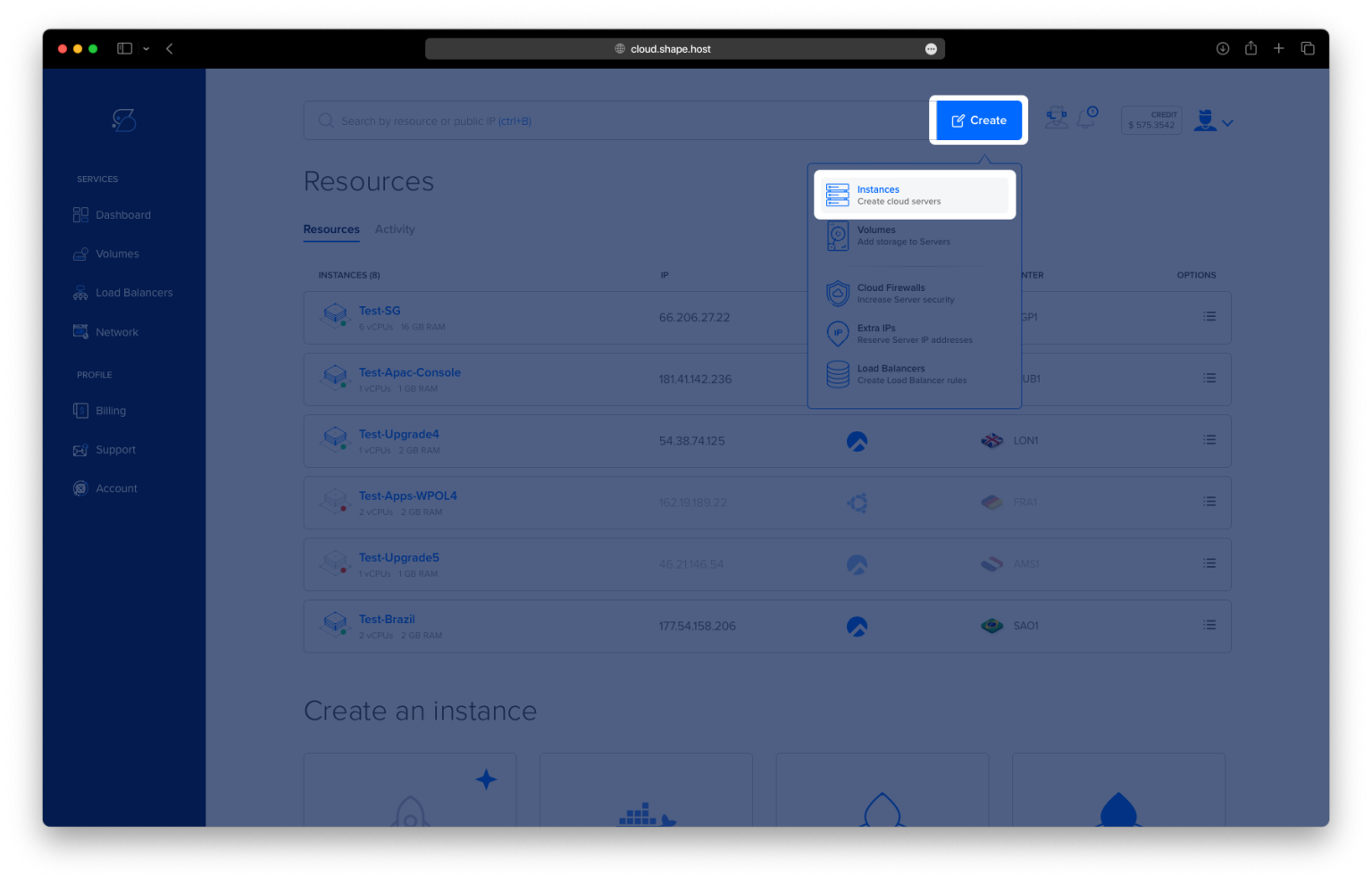
Click “Create” → “Instance”.

Choose your server location.

Select Debian 12 (64-bit) as the operating system.
Pick a plan with at least 1 CPU and 1 GB RAM.

Click “Create Instance”.

Find your instance’s IP under the Resources section.

Step 2: Connect to Your Server
Use SSH to access your instance:
ssh root@your-server-ip
Step 3: Update the System and Install Apache
Update package index:
apt update

Install Apache Web Server:
apt install apache2

Step 4: Start and Enable Apache
Start Apache service:
systemctl start apache2
Enable Apache to start on boot:
systemctl enable apache2
Check Apache status:
systemctl status apache2

Step 5: Configure the Firewall
Install UFW:
apt install ufw

Allow Apache through UFW:
ufw allow 'Apache Full'
ufw allow 80/tcp
ufw allow 443/tcp
ufw allow ssh
ufw enable


Step 6: Verify Apache is Working
Visit your server’s IP address in a browser:
http://your-server-ip
You should see the default Apache welcome page.

Step 7: Replace the Default Page
Replace the default index.html with a custom message:
cd /var/www/html
echo "<h1>Hello from Apache on Debian 12</h1>" > /var/www/html/index.html

Now refresh http://your-server-ip and you’ll see your message.

Step 8: Uninstall Apache (Optional)
To completely remove Apache:
apt remove apache2
apt purge apache2 && apt autoremove


Useful Apache Commands
| Command | Description |
|---|---|
systemctl start apache2 | Start the Apache service |
systemctl stop apache2 | Stop the Apache service |
systemctl restart apache2 | Restart Apache |
systemctl reload apache2 | Reload Apache configuration |
systemctl enable apache2 | Start Apache at boot |
systemctl status apache2 | Show the service status |
Need fast and secure cloud servers for your projects? Shape.Host provides scalable Cloud VPS, dedicated servers, and fully managed hosting solutions — perfect for running Apache web servers, WordPress, Laravel apps, and more.
Visit https://shape.host and launch your next server in minutes.