Appwrite with Docker on Ubuntu 24.04 (Nginx + SSL)
Appwrite is a secure, self-hosted backend-as-a-service (BaaS) platform designed to speed up app development. It provides a full suite of backend APIs — including authentication, databases, storage, functions, and real-time APIs — all accessible through REST or GraphQL. With Appwrite, developers can focus on building frontends while relying on a powerful, ready-to-use backend.
Running Appwrite with Docker ensures simple deployment and consistent environments, since all services (API server, database, queue, storage) are containerized. With Ubuntu 24.04 LTS (Noble Numbat), you get a modern, secure, and long-supported foundation, featuring systemd 255, updated OpenSSL 3, and the latest Docker packages — perfect for production-grade deployments.
Architecture Overview
| Layer | Component | Role |
|---|---|---|
| OS | Ubuntu 24.04 LTS | Stable, secure foundation with long-term support |
| Runtime | Docker Engine + Compose | Runs Appwrite’s multi-container stack |
| Application | Appwrite Core Services | Provides APIs for auth, DB, storage, functions, messaging, and more |
| Database | MariaDB (default) / PostgreSQL | Stores user data, projects, configs |
| Cache/Queue | Redis | Caching and background task management |
| Reverse Proxy | Nginx (built-in container) | TLS termination, routing, load handling |
| TLS | Let’s Encrypt / PKI | HTTPS access for APIs and Appwrite console |
Why Use Appwrite?
- Backend-as-a-Service – instantly get APIs for auth, DB, storage, and functions.
- Self-hosted – keep full control of your data, unlike SaaS BaaS solutions (Firebase, Supabase cloud).
- Modern APIs – REST and GraphQL endpoints for easy frontend integration.
- Secure & extensible – RBAC, OAuth2, JWT tokens, rate limiting, and custom cloud functions.
- Docker-first deployment – consistent, easy to set up, scale, and maintain.
Appwrite vs Other BaaS Platforms
| Feature/Capability | Appwrite (Self-hosted) | Firebase (Google) | Supabase | Hasura |
|---|---|---|---|---|
| Hosting model | Self-hosted (Docker) | Fully managed SaaS | Cloud + self-host | Cloud + self-host |
| Database | MariaDB / PostgreSQL | Firestore | PostgreSQL | PostgreSQL only |
| APIs | REST + GraphQL | Proprietary SDKs | REST + GraphQL | GraphQL only |
| Auth | Built-in (RBAC, OAuth) | Google Identity | Auth service | External providers |
| Extensibility | Functions (Node, Deno) | Cloud Functions | Edge Functions | Custom resolvers |
Appwrite shines if you want the power of Firebase but with self-hosting, full control, and no vendor lock-in.
Security & Best Practices
- Always run Appwrite behind HTTPS; Let’s Encrypt integration is supported.
- Store secrets in environment variables; avoid committing
.envfiles. - Restrict external exposure with UFW/nftables, allowing only ports 80/443.
- Use RBAC and JWT-based tokens to secure APIs.
- Keep Docker images (
appwrite/appwrite,redis,mariadb) updated. - Use external object storage (MinIO, S3, GCS) for production-grade file hosting.
- Enable logging, monitoring, and automated backups of the database.
Typical Use Cases
- Web and mobile apps needing backend APIs without building from scratch.
- Firebase alternative for teams who need data sovereignty.
- Prototyping and MVPs with rapid backend setup.
- Enterprise apps that require on-premises control and compliance.
- Custom SaaS platforms built on top of Appwrite APIs.
1. Create a Shape.Host VPS Instance
Log in to https://shape.host.
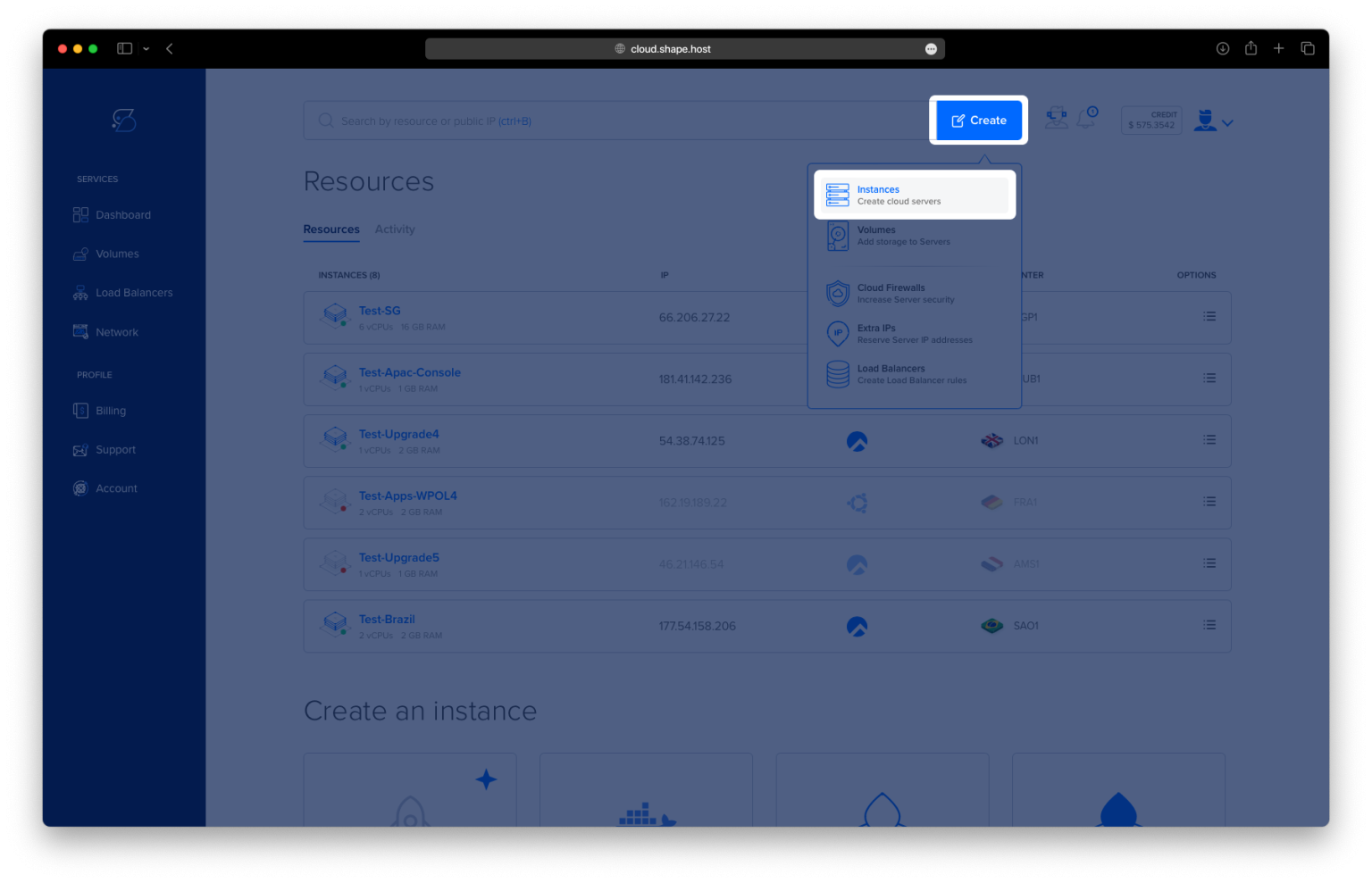
Click “Create” → “Instance”.

Choose your preferred server location.

Select Ubuntu 24.04 (64-bit) as the operating system.
Pick a plan with at least 2 CPUs, 4 GB RAM, and 20 GB SSD.

Click “Create Instance”.

Copy the server IP address from the Resources section.

2. Connect to Your VPS
On Linux/macOS
ssh root@your-server-ip
On Windows
- On Windows 10/11 PowerShell:
ssh root@your-server-ip - On older Windows, install PuTTY and log in as root using your server IP.
3. Update System and Install Prerequisites
Update repositories:
apt update
Upgrade installed packages:
apt upgrade

Install required tools:
apt install apt-transport-https ca-certificates curl gnupg lsb-release

4. Install Docker and Docker Compose
Add Docker’s GPG key:
curl -fsSL https://download.docker.com/linux/ubuntu/gpg | gpg --dearmor -o /etc/apt/trusted.gpg.d/docker.gpg
Add Docker repository for Ubuntu 24.04 (Noble):
echo "deb [arch=$(dpkg --print-architecture)] https://download.docker.com/linux/ubuntu noble stable" > /etc/apt/sources.list.d/docker.list
Update repositories and install Docker:
apt update
apt install docker-ce docker-ce-cli containerd.io docker-buildx-plugin docker-compose-plugin


Enable and start Docker:
systemctl enable --now docker
Verify versions:
docker --version
docker compose version

5. Install Appwrite
Create Appwrite directory:
mkdir -p /opt/appwrite
cd /opt/appwrite
Run the Appwrite installation container:
docker run -it --rm \
  --volume /var/run/docker.sock:/var/run/docker.sock \
  --volume "$(pwd)"/appwrite:/usr/src/code/appwrite:rw \
  --entrypoint="install" \
  appwrite/appwrite:latest

This generates the docker-compose.yml and .env files.
Generate a secure OpenSSL key:
openssl rand -base64 32
Check generated files:
ls -l /opt/appwrite/appwrite
You should see docker-compose.yml, .env, and related config files.

6. Configure Appwrite
Edit the .env file:
nano /opt/appwrite/appwrite/.env
Update these values:
_APP_ENV=production
_APP_OPENSSL_KEY_V1=PasteTheKeyYouGenerated
_APP_DOMAIN=appwrite.example.com
_APP_DOMAIN_TARGET=appwrite.example.com
_APP_ADMIN_EMAIL=admin@example.com
_APP_ADMIN_NAME=Administrator
7. Start Appwrite
Move into the Appwrite directory:
cd /opt/appwrite/appwrite
Start services:
docker compose up -d
Check container status:
docker compose ps

View logs:
docker compose logs --no-color --tail=200

8. Access Appwrite
Now open your browser and visit:
http://appwrite.example.com
Log in with the email and password you configured in the .env file.

This tutorial was built and tested on a Shape.Host Cloud VPS.
With Shape.Host, you get:
- High-performance Cloud VPS servers worldwide
- Support for Ubuntu, Debian, Rocky Linux, and AlmaLinux
- Instant scaling of CPU, RAM, and storage
- Reliable backups, snapshots, and monitoring
Start your Appwrite project today at https://shape.host.