BoxBilling on Debian 12 (Apache + MariaDB + PHP + SSL)
BoxBilling is a free, open-source billing and client management solution built for web hosting providers, digital businesses, and freelancers. It includes invoicing, product management, order automation, domain integration, and support ticketing — everything needed to manage clients and services in one place. With a plugin and theme system, BoxBilling can be customized and extended to fit business needs.
Running BoxBilling on Debian 12 (Bookworm) provides a stable, secure, and long-supported foundation for financial and client data management. Debian is well-known for its reliability in production environments and ships with systemd 252, OpenSSL 3, and modern PHP/MariaDB packages, making it an excellent choice for hosting BoxBilling.
Architecture Overview
| Layer | Component | Role |
|---|---|---|
| OS | Debian 12 (Bookworm) | Stable, secure base with long-term support |
| Web Server | Apache HTTPD | Hosts the PHP-based BoxBilling frontend and backend |
| Database | MariaDB/MySQL | Stores users, clients, invoices, orders, and transaction data |
| Runtime | PHP 8.x + Extensions | Runs BoxBilling core application logic |
| Reverse Proxy | Nginx (optional) | TLS termination, caching, load balancing |
| TLS | Let’s Encrypt / PKI | Secures client and admin access with HTTPS |
Why Use BoxBilling?
- All-in-one billing system – invoices, taxes, recurring payments, and multiple currencies.
- Client management – keep track of users, orders, and support requests.
- Hosting-ready – integrate with control panels, domain registrars, and provisioning tools.
- Free & open-source – no licensing fees compared to WHMCS or Blesta.
- Global support – multilingual and multi-currency capabilities.
BoxBilling vs Other Billing Platforms
| Feature/Capability | BoxBilling (Free) | WHMCS (Paid) | Blesta (Paid) | ClientExec (Paid) |
|---|---|---|---|---|
| License cost | Free, open-source | Commercial license | Commercial license | Commercial license |
| Core features | Billing, support, hosting | Full suite + large ecosystem | Billing + support | Billing + support |
| Extensibility | Plugins + themes | Wide marketplace | Limited | Limited |
| Best for | Freelancers, SMBs | Hosting providers | SMBs | SMBs |
BoxBilling is ideal for freelancers and small to medium providers who want automation without recurring licensing costs.
Security & Best Practices
- Use HTTPS everywhere with Let’s Encrypt or corporate PKI.
- Secure MariaDB with strong credentials, user permissions, and backups.
- Harden PHP (disable dangerous functions, configure
php.inisecurely). - Protect the admin panel with IP restrictions or firewall rules.
- Regularly update Debian, Apache, PHP, and BoxBilling to the latest versions.
- Enable Fail2Ban or rate-limiting on login endpoints.
Typical Use Cases
- Web hosting companies – manage domains, hosting, and client billing.
- Freelancers/digital agencies – automate invoicing and client support.
- SaaS startups – manage subscriptions and recurring billing.
- Testing environments – evaluate billing automation without licensing fees.
1. Create a Shape.Host VPS Instance
Log in to https://shape.host.
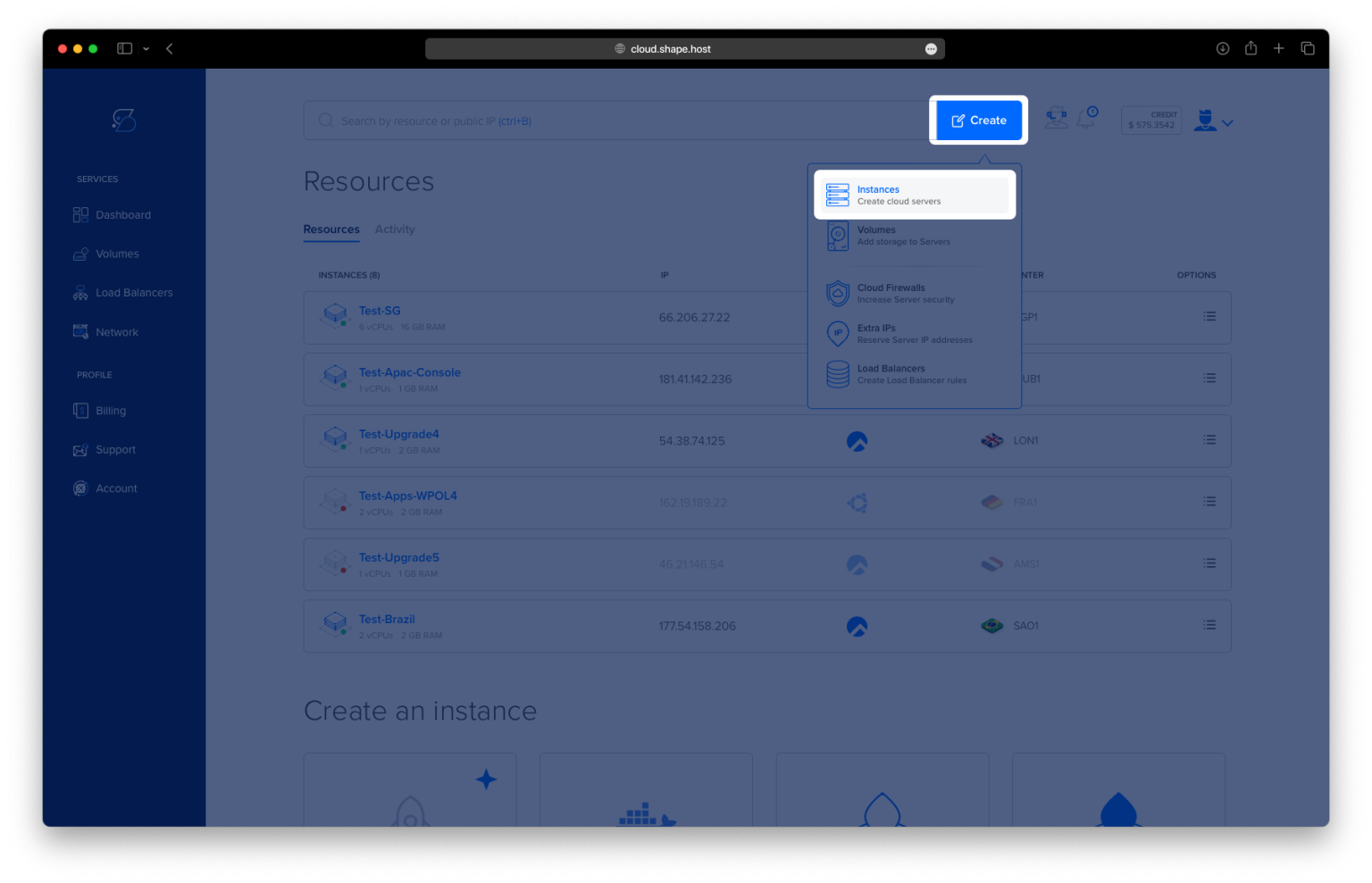
Click “Create” → “Instance”.
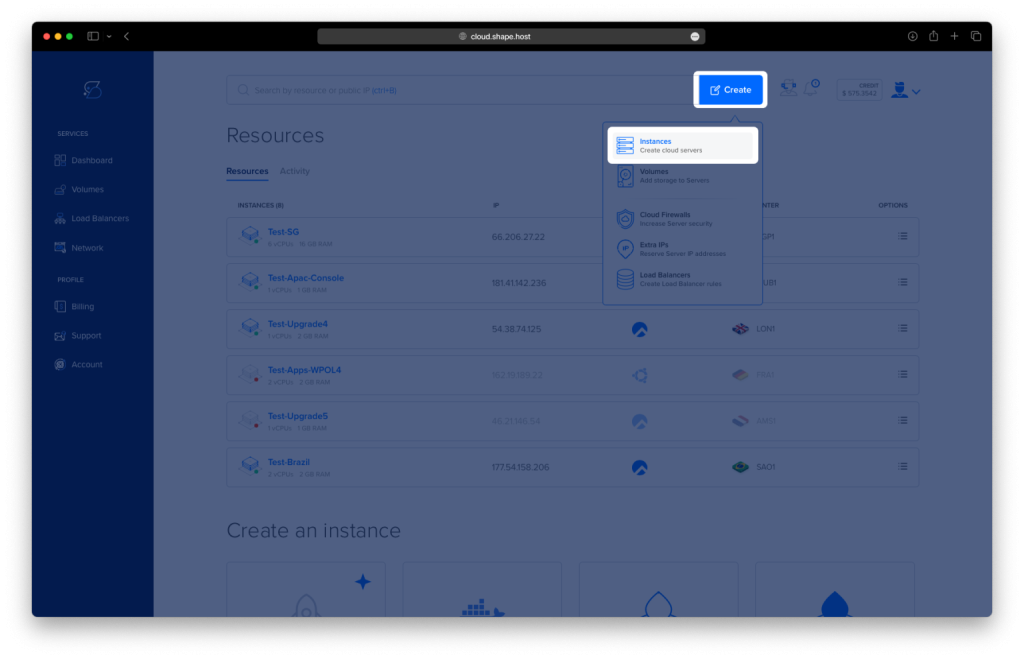
Select your preferred server location.
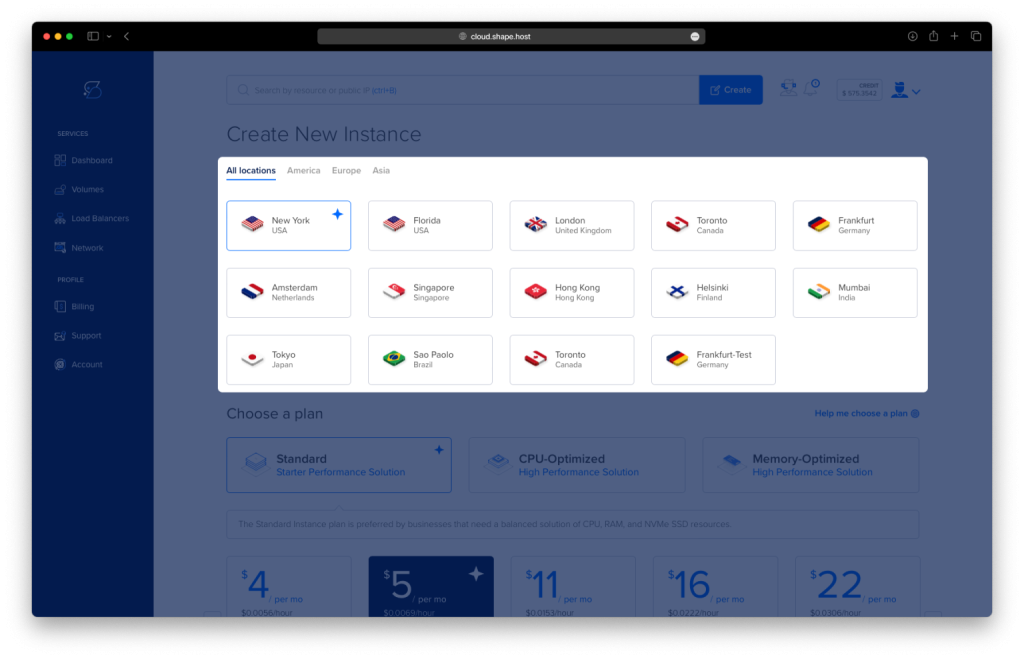
Choose Debian 12 (64-bit) as the operating system.
Pick a plan with at least 2 CPUs, 4 GB RAM, and 20 GB SSD.
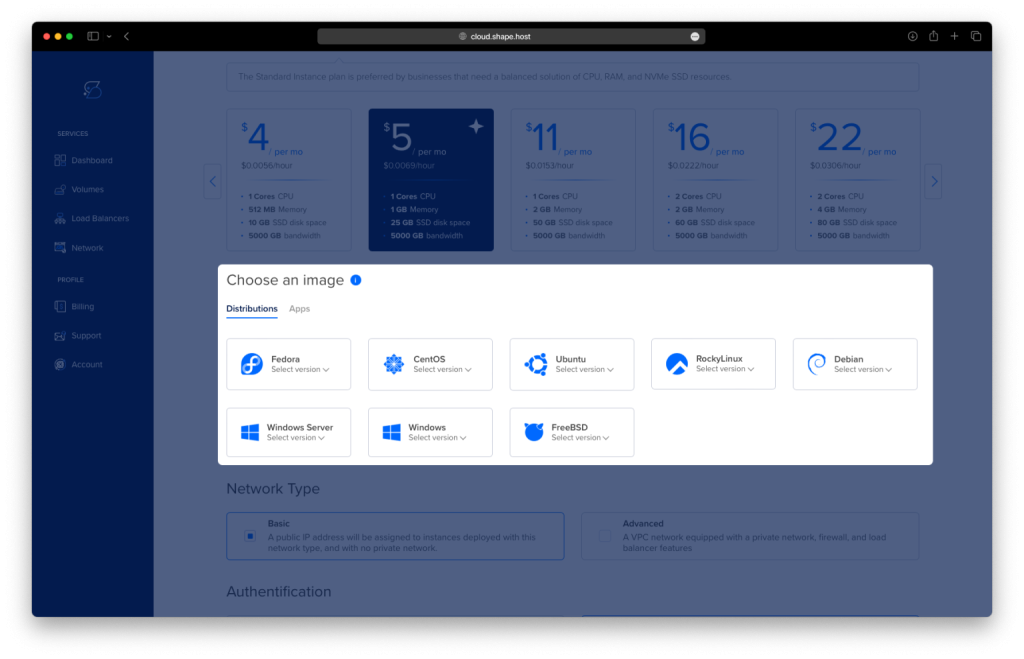
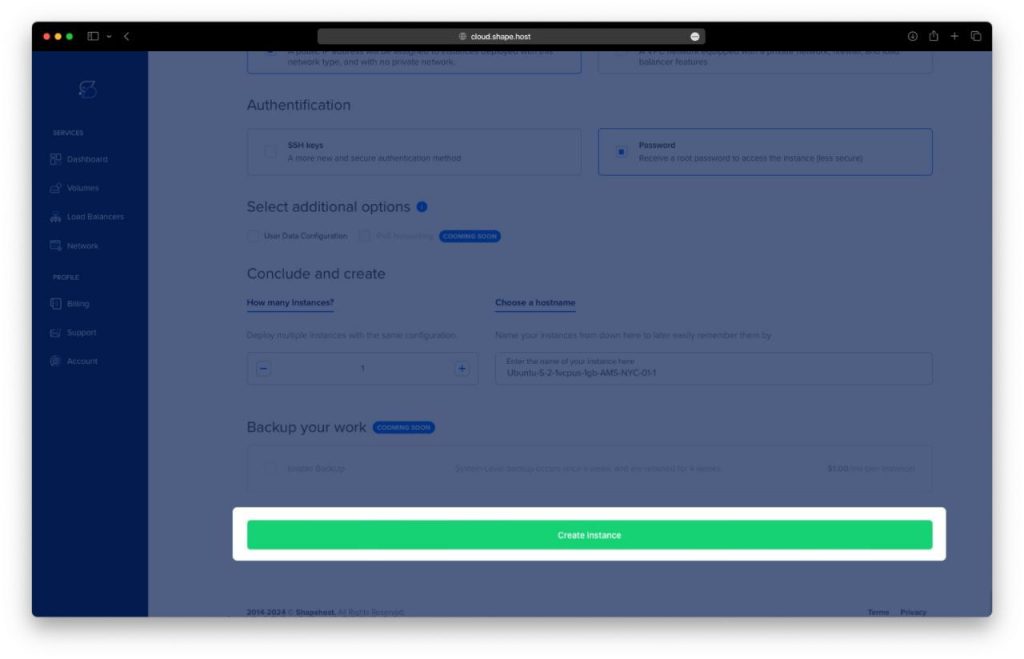
Click Create Instance.
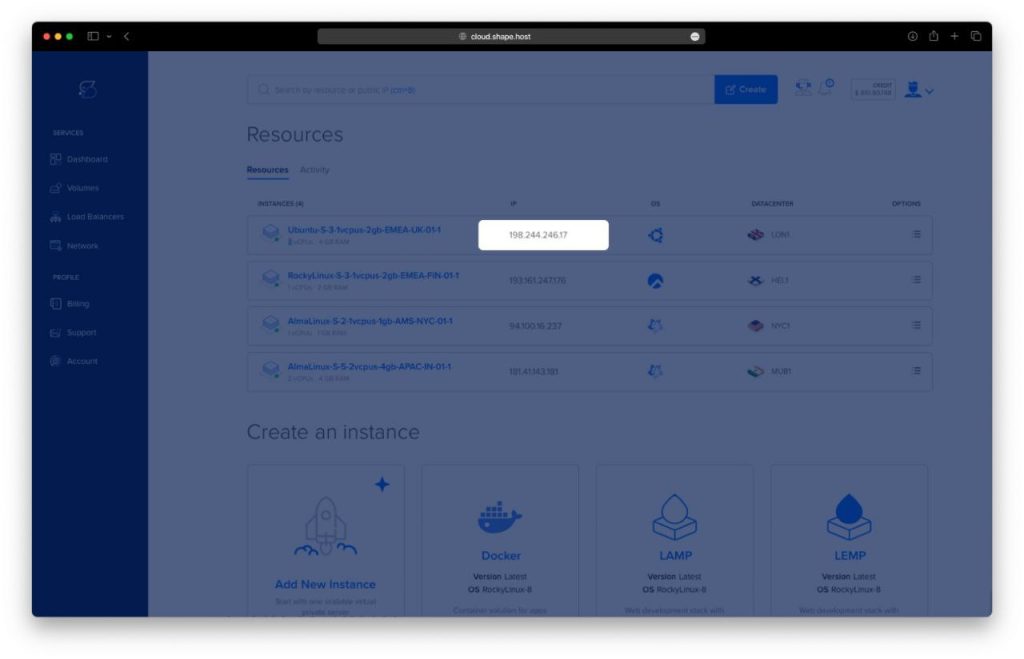
Copy the IP address from the Resources section.
2. Connect to Your VPS
On Linux/macOS
ssh root@your-server-ip
On Windows
- On Windows 10/11 PowerShell:
ssh root@your-server-ip - On older versions, use PuTTY and log in with root credentials.
3. Update the System and Install Dependencies
Update and upgrade packages:
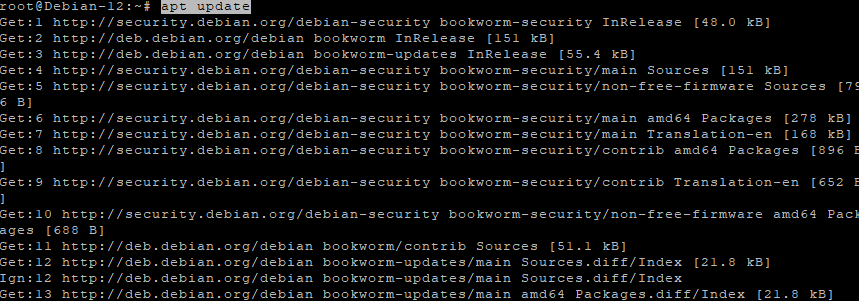
apt update
apt upgrade
Install Apache web server:
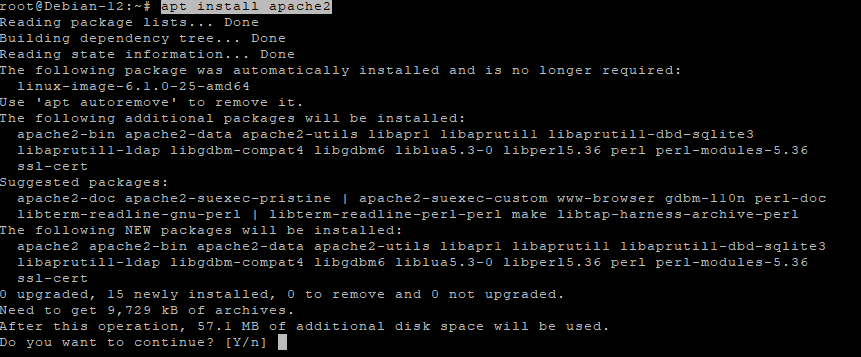
apt install apache2
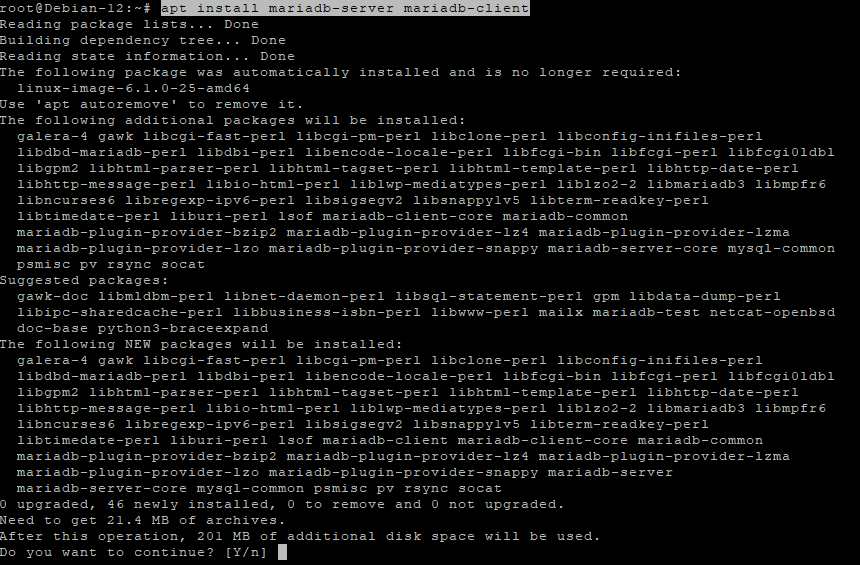
Install MariaDB:
apt install mariadb-server mariadb-client
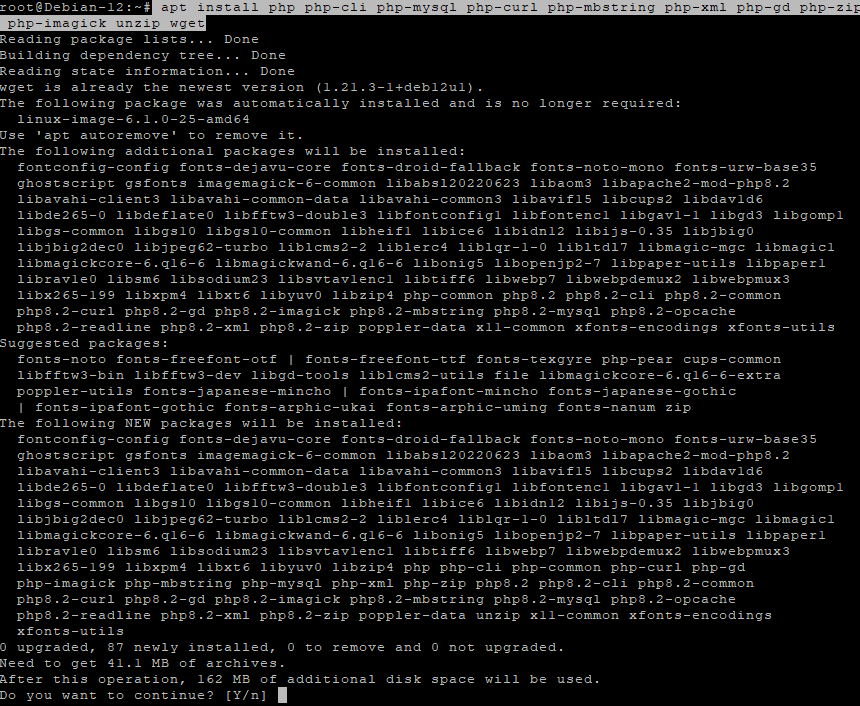
Install PHP with required extensions:
apt install php php-cli php-mysql php-curl php-mbstring php-xml php-gd php-zip php-imagick unzip wget
4. Configure MariaDB
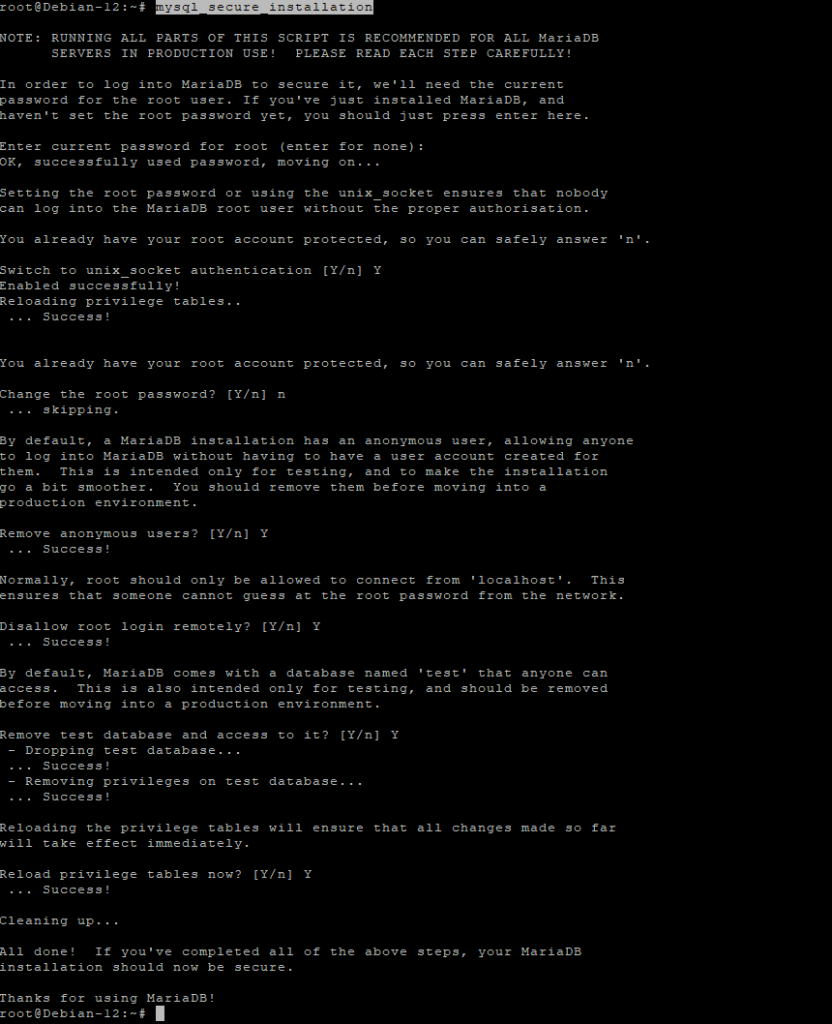
Secure MariaDB:
mysql_secure_installation
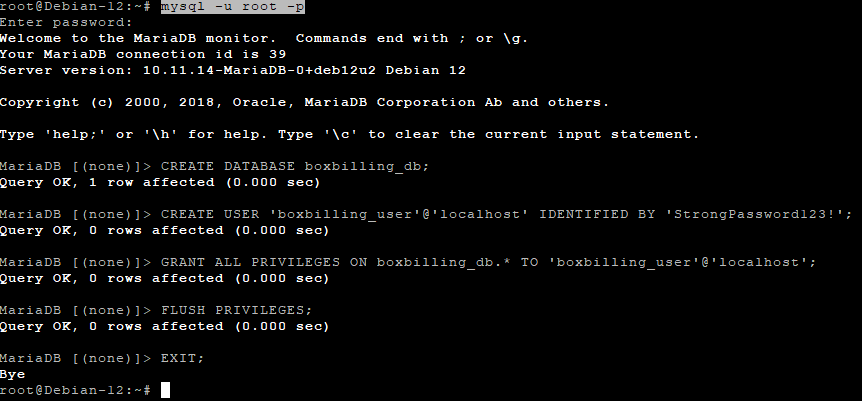
Log into MariaDB:
mysql -u root -p
Run the following SQL commands:
CREATE DATABASE boxbilling_db;
CREATE USER 'boxbilling_user'@'localhost' IDENTIFIED BY 'StrongPassword123!';
GRANT ALL PRIVILEGES ON boxbilling_db.* TO 'boxbilling_user'@'localhost';
FLUSH PRIVILEGES;
EXIT;
5. Install BoxBilling
Navigate to the web root:
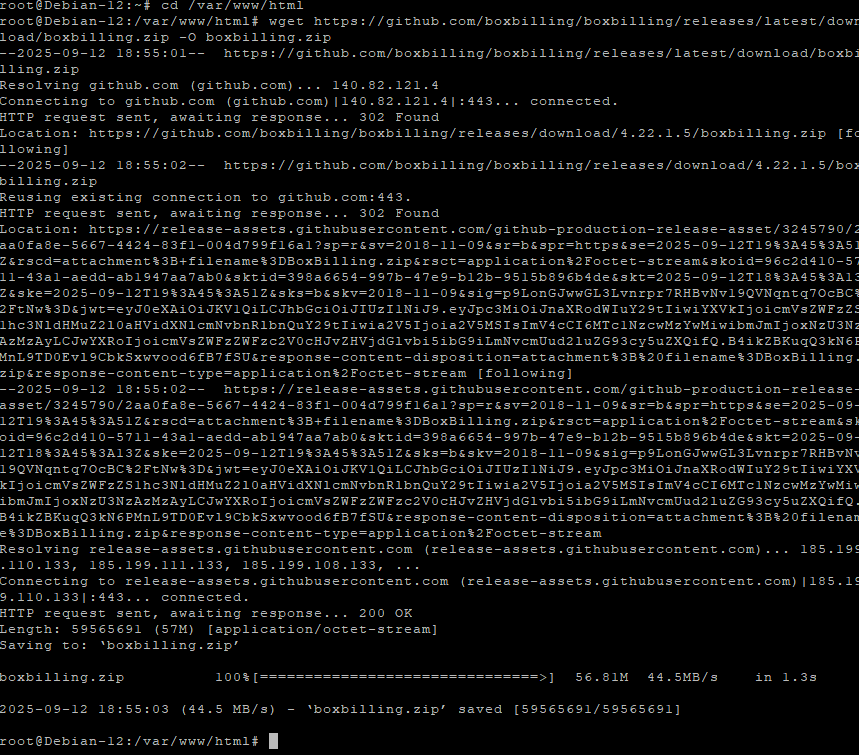
cd /var/www/html
Download BoxBilling:
wget https://github.com/boxbilling/boxbilling/releases/latest/download/boxbilling.zip -O boxbilling.zip
Unzip the archive:
unzip boxbilling.zip -d boxbilling
Set proper permissions:
chown -R www-data:www-data /var/www/html/boxbilling
chmod -R 755 /var/www/html/boxbilling

6. Configure Apache Virtual Host
Create a virtual host file:
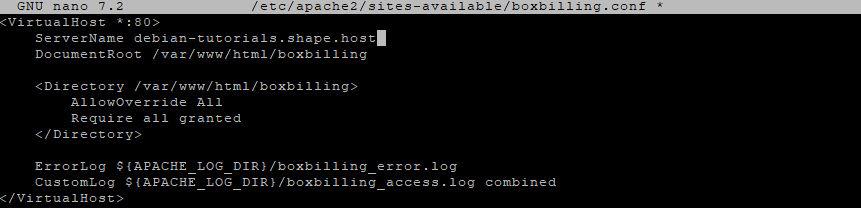
nano /etc/apache2/sites-available/boxbilling.conf
Paste:
<VirtualHost *:80>
    ServerName yourdomain.com
    DocumentRoot /var/www/html/boxbilling

    <Directory /var/www/html/boxbilling>
        AllowOverride All
        Require all granted
    </Directory>

    ErrorLog ${APACHE_LOG_DIR}/boxbilling_error.log
    CustomLog ${APACHE_LOG_DIR}/boxbilling_access.log combined
</VirtualHost>
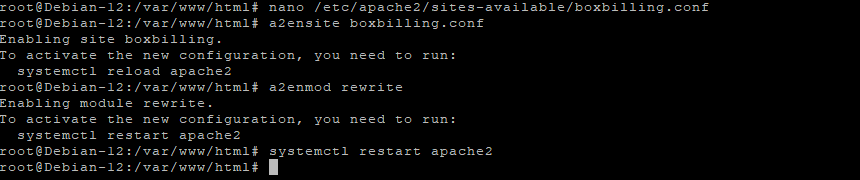
Enable the site and rewrite module:
a2ensite boxbilling.conf
a2enmod rewrite
systemctl restart apache2
7. Adjust PHP Settings
Edit PHP configuration (adjusting path for installed PHP version):
nano /etc/php/*/apache2/php.ini
Set:
memory_limit = 256M
upload_max_filesize = 64M
post_max_size = 64M
max_execution_time = 300
Restart Apache:
systemctl restart apache2

8. Configure Data Directories
Create cache and upload directories:
mkdir -p /var/www/html/boxbilling/bb-data/cache
mkdir -p /var/www/html/boxbilling/bb-data/uploads
Assign ownership and permissions:
chown -R www-data:www-data /var/www/html/boxbilling/bb-data
chmod -R 775 /var/www/html/boxbilling/bb-data

9. Enable SSL
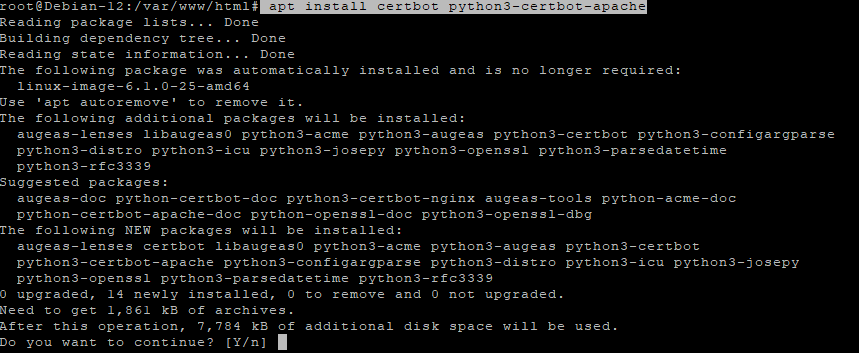
Install Certbot:
apt install certbot python3-certbot-apache
Generate SSL certificate:
certbot --apache -d debian-tutorials.shape.host
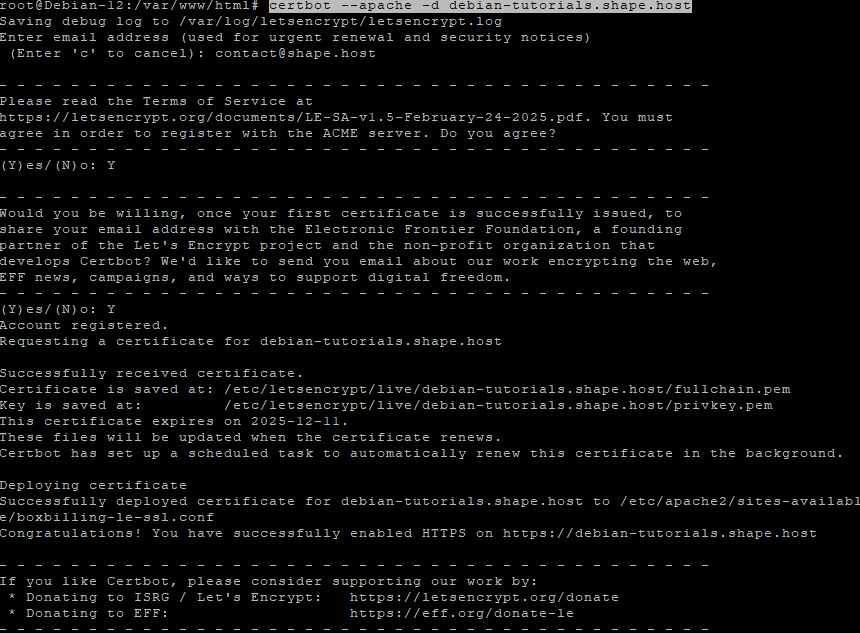
10. Final Steps
Remove the installer for security:
rm -rf /var/www/html/boxbilling/install
Now, open your browser and go to:
https://debian-tutorials.shape.host
Follow the web-based installer to finish setup.
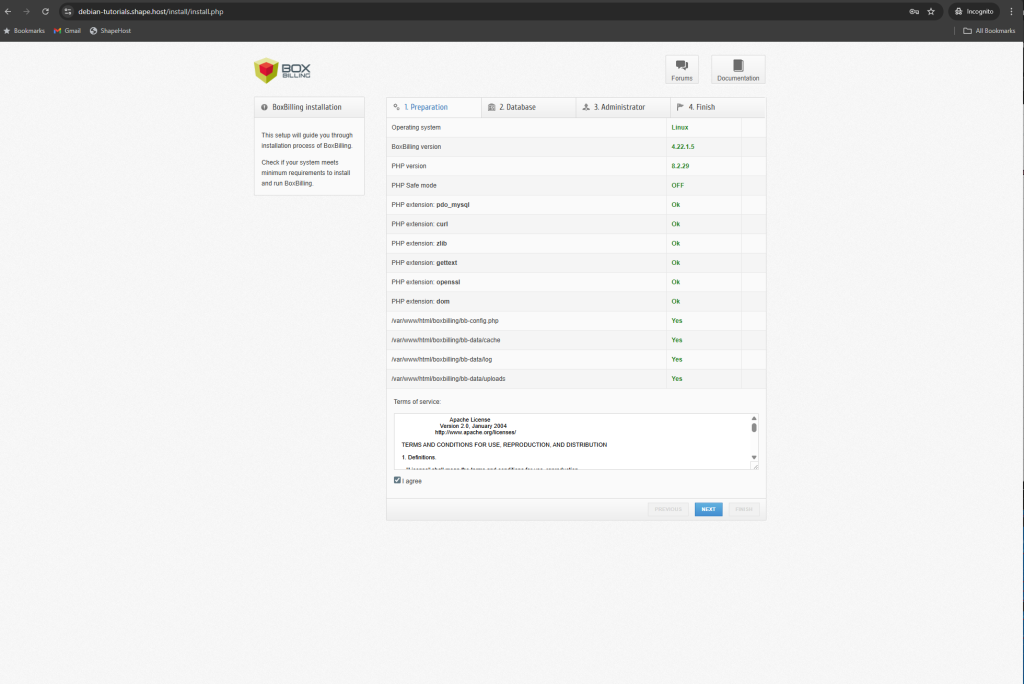
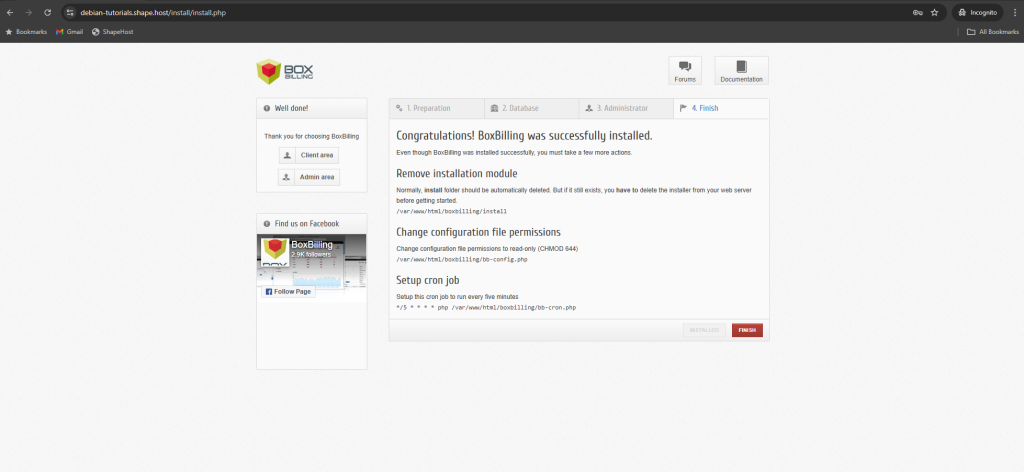
Once you’ve copied the BoxBilling files to your Debian 12 web server, open http://your-domain/install/install.php in your browser. The setup wizard will take you through four steps:
Preparation – The installer checks your Debian 12 PHP environment and required extensions. Accept the license terms and click Next.
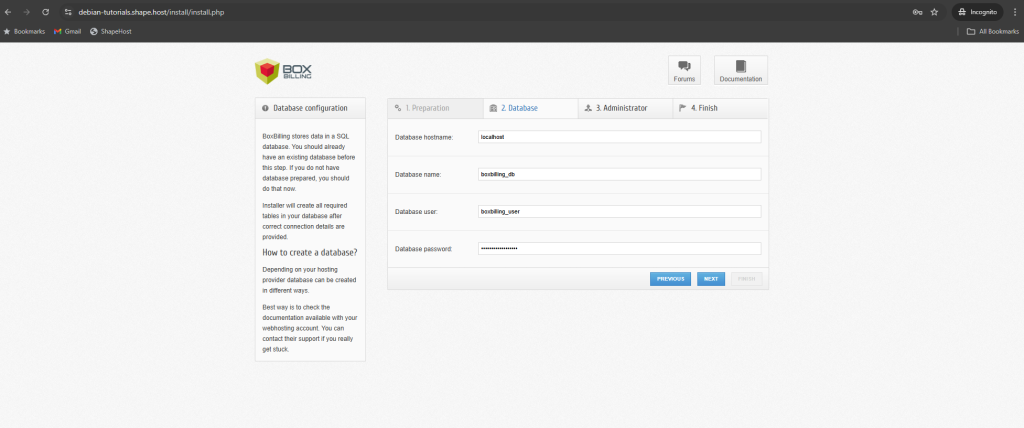
Database Configuration – Provide the database host, name, user and password you created on Debian 12. Click Next to initialize the tables.
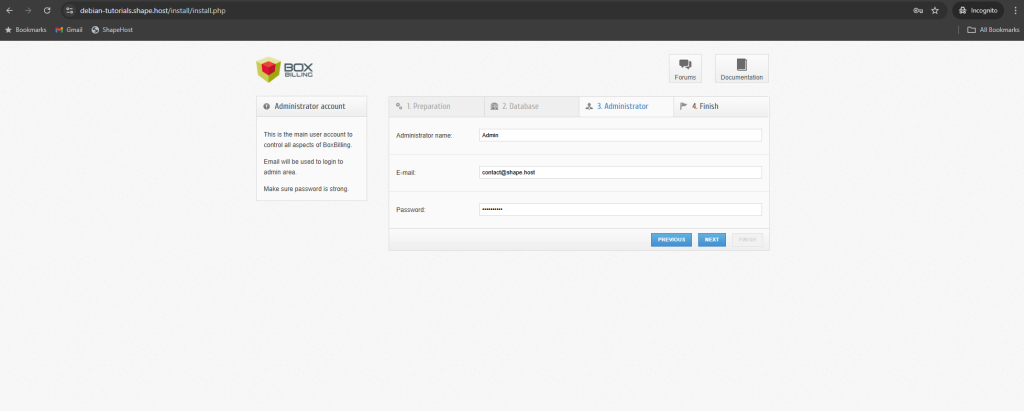
Administrator Account – Create your BoxBilling admin user by entering a username, email address and a strong password. Click Next.
Finish – When the success screen appears, delete the install directory, change bb-config.php to read-only (chmod 644), and set up the recommended cron job.
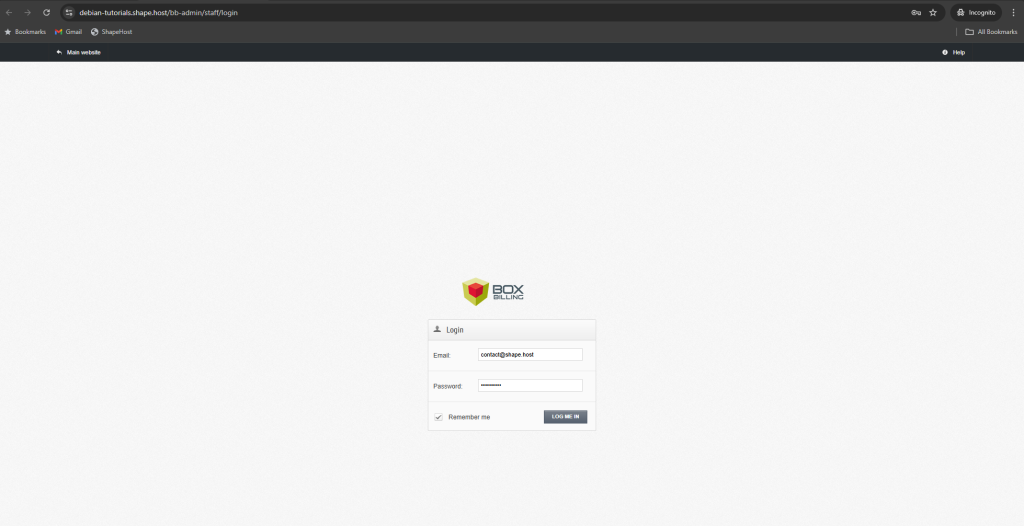
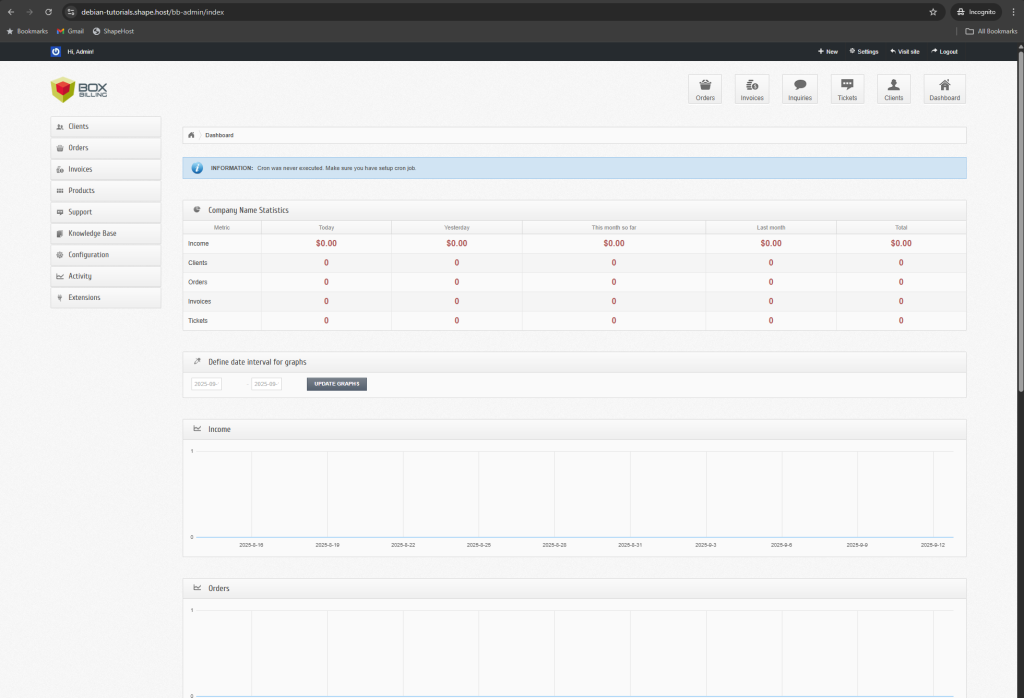
After these steps you can log in at http://your-domain/bb-admin with the admin credentials you just created.
This tutorial was created and tested on a Shape.Host Linux SSD VPS.
With Shape.Host you get:
- High-performance Cloud VPS across global locations
- Support for Debian, Ubuntu, Rocky Linux, AlmaLinux
- One-click scaling for CPU, RAM, and storage
- Features like snapshots, backups, and monitoring
Deploy your own BoxBilling server today at https://shape.host.