Dozzle Log Viewer on Ubuntu 24.04 (Docker + Nginx + SSL)
Dozzle is a lightweight, real-time log viewer for Docker containers. Instead of attaching manually to each container with docker logs -f, Dozzle provides a modern web-based dashboard that streams logs from all your containers in one place. It requires no complex setup and runs as a single Docker container, making it ideal for developers and operators who want quick visibility into their running services.
Ubuntu 24.04 (Noble Numbat) offers a hardened, long-supported base with systemd 255, modern OpenSSL 3, and updated Docker packages, making it an excellent foundation for running Dozzle in production or on a developer workstation.
Architecture Overview
| Layer | Component | Role |
|---|---|---|
| OS | Ubuntu 24.04 LTS | Stable, secure base; systemd service management |
| Runtime | Docker Engine | Runs Dozzle container in isolation |
| Application | Dozzle | Web UI that streams logs in real-time from Docker API |
| Reverse Proxy | Nginx (optional) | TLS termination, HTTP/2, caching, routing, access control |
| TLS | Let’s Encrypt / PKI | Secure HTTPS access to the log viewer |
Why Dozzle?
- Zero configuration – Deployable as a single container with no database.
- Real-time streaming – View container logs as they happen, with filtering and search.
- Lightweight – Minimal resource usage compared to full observability stacks.
- Web-based UI – No need to SSH or run
docker logsrepeatedly. - Secure deployment – Can run behind Nginx with SSL and authentication.
Dozzle vs Other Log Solutions
| Capability | Dozzle | Loki + Grafana | ELK/EFK Stack | Plain Docker CLI |
|---|---|---|---|---|
| Setup complexity | Very low (1 container) | Medium (multi-service) | High (Elasticsearch, Beats, Kibana, etc.) | None |
| Storage | No (stream only) | Yes (time-series DB) | Yes (Elasticsearch DB) | No |
| UI | Simple web UI | Grafana dashboards | Full-featured dashboards | Terminal only |
| Use case | Quick visibility | Centralized logging | Enterprise-scale logging | Debugging only |
Dozzle is best suited when you just need real-time logs quickly, without deploying a full observability stack. For long-term log retention and analytics, it can complement solutions like Loki or ELK.
Security & Best Practices
- Run Dozzle behind Nginx with HTTPS if exposed on the internet.
- Use basic authentication or an identity provider (e.g., Authelia, OAuth) for access control.
- Keep it internal when possible (VPN, intranet, or restricted firewall rules).
- Regularly update the Dozzle image (
amir20/dozzle:latest). - Combine with monitoring tools (Prometheus, Grafana) for a full observability layer.
Typical Use Cases
- Local development environments to quickly inspect logs.
- Small production setups where a full logging stack is overkill.
- Lightweight log monitoring on staging/test servers.
- Complementing centralized logging with real-time container insights.
A Dozzle + Docker + Nginx + SSL stack on Ubuntu 24.04 gives you a fast, secure, and user-friendly way to keep track of your container logs without the heavy overhead of full-scale logging systems.
1. Create a Shape.Host VPS Instance
Go to https://shape.host and log in.
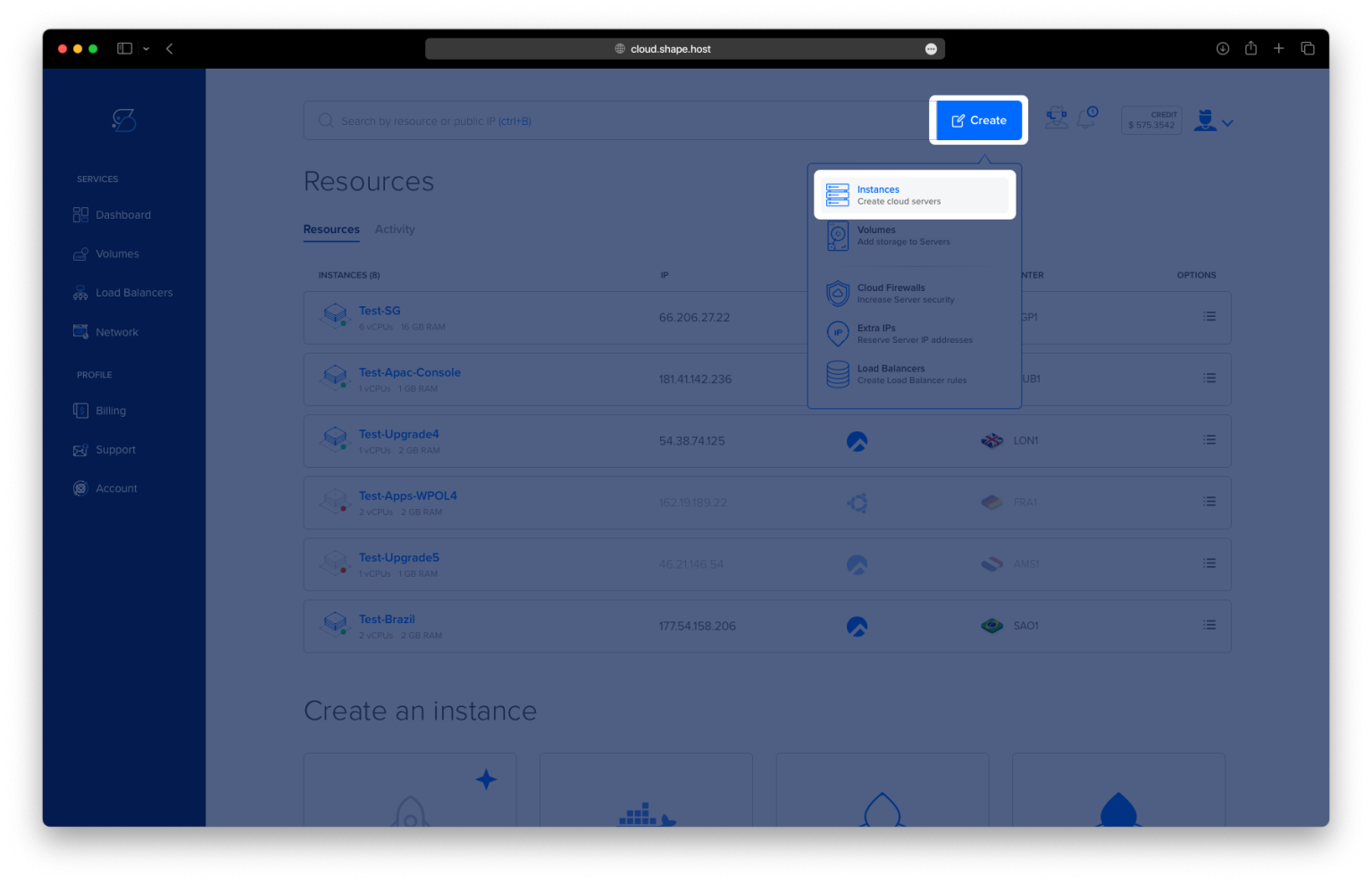
Click “Create” → “Instance”.
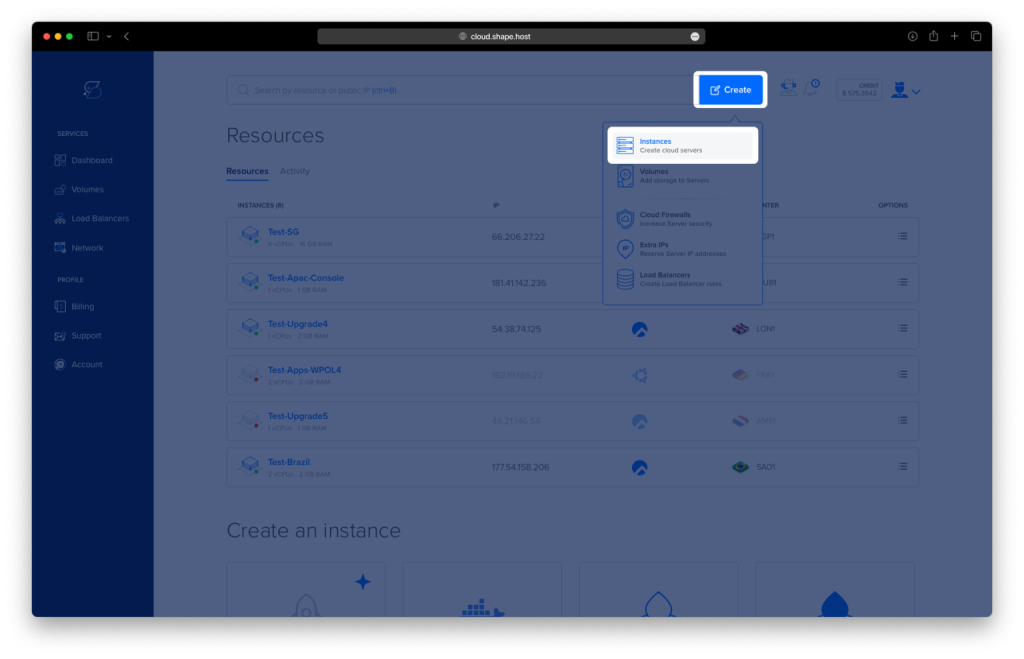
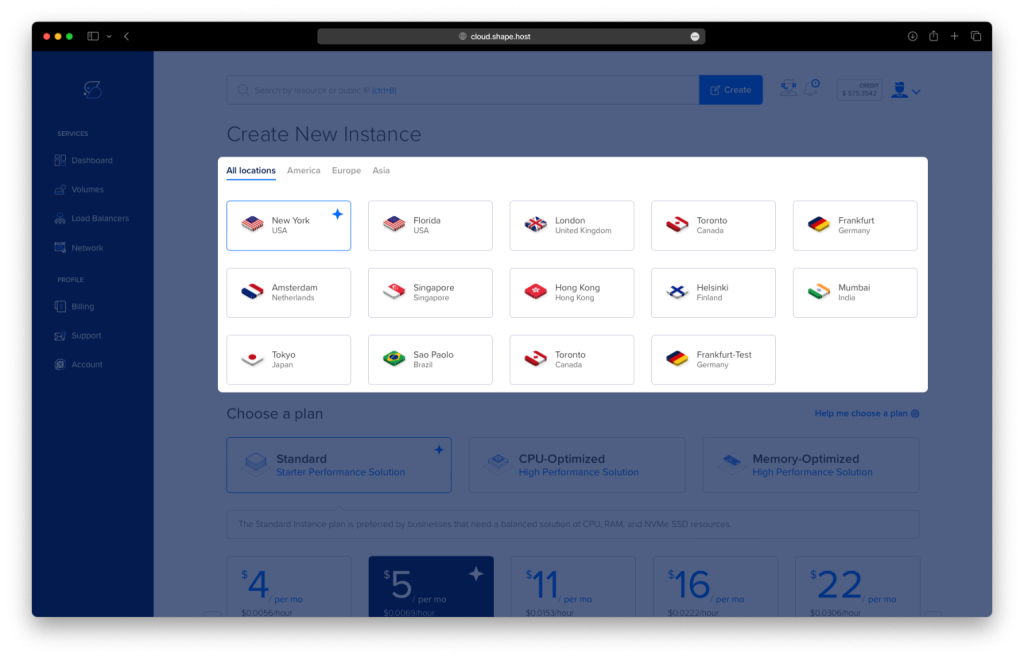
Select a server location close to your users.
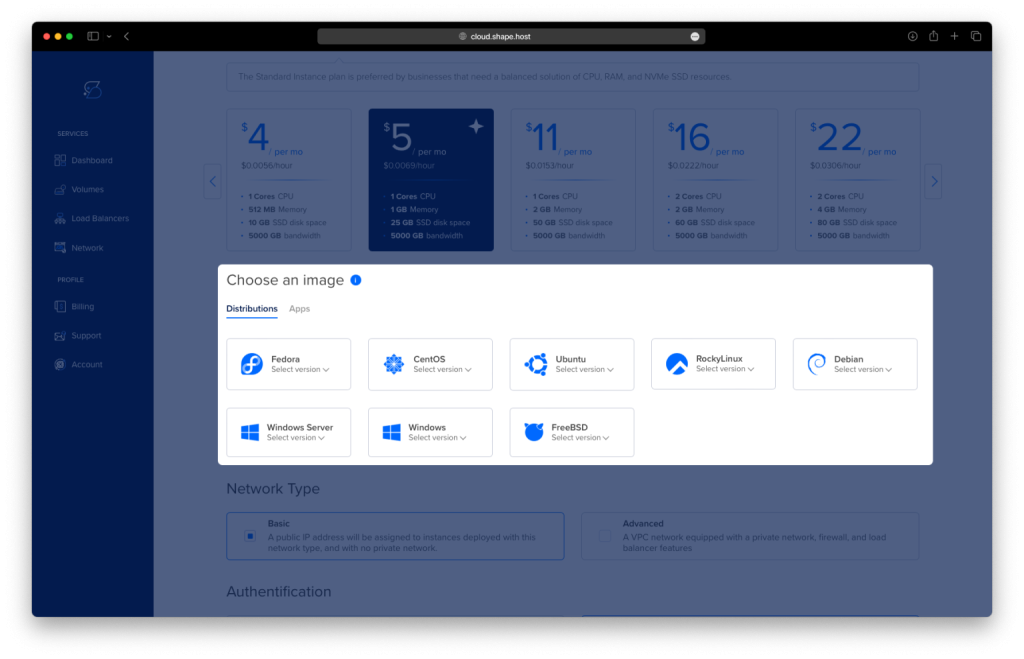
Choose Ubuntu 24.04 (64-bit).
Pick a plan with at least 2 CPUs, 4 GB RAM, and 20 GB SSD.
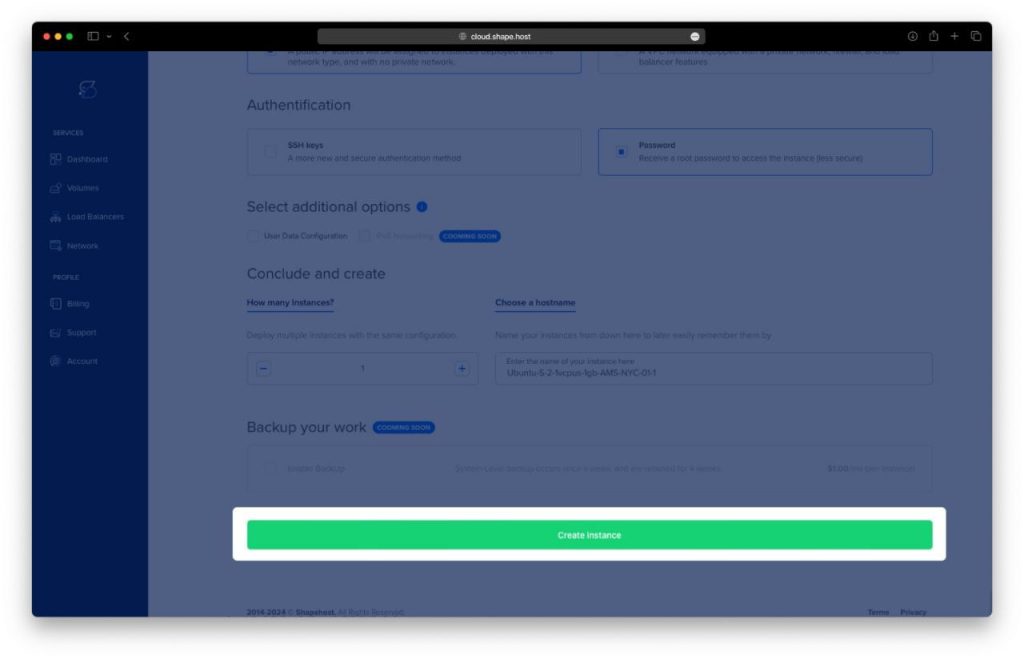
Click “Create Instance”.
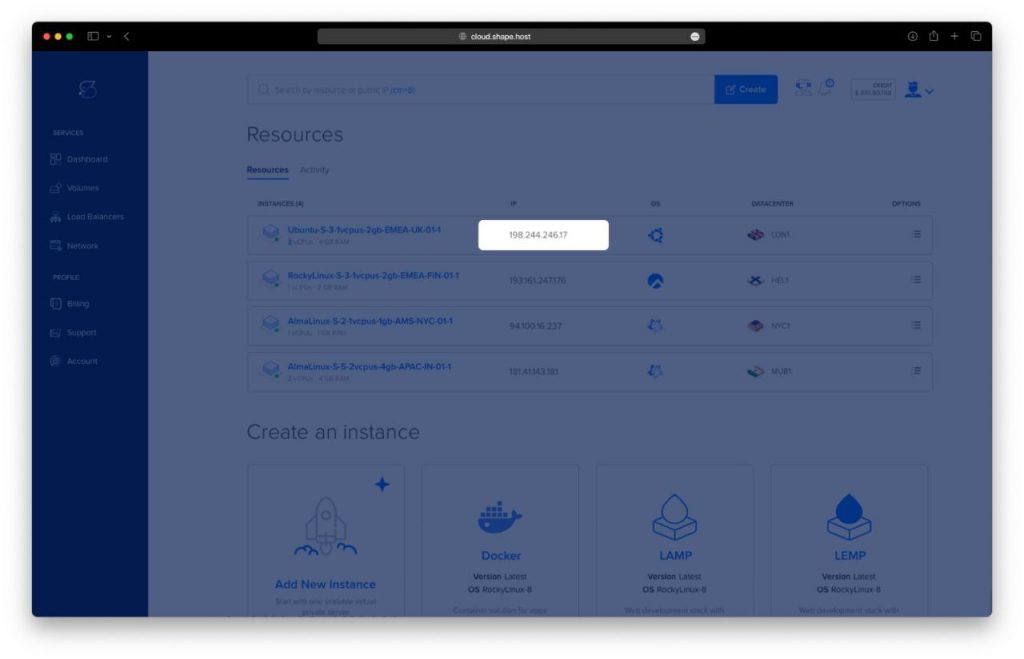
Copy the IP address from the Resources section.
2. Connect to Your VPS
On Linux / macOS
ssh root@your-server-ip
On Windows
- If using Windows 10/11, open PowerShell:
ssh root@your-server-ip - If on older Windows, download PuTTY, enter your server’s IP, and log in as root.
3. Update and Install Required Packages
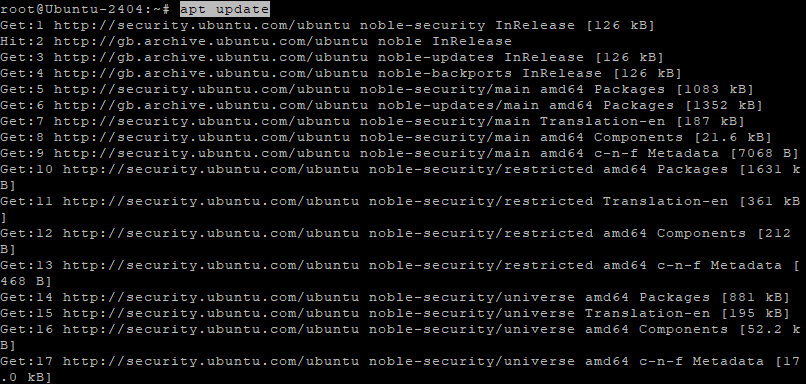
apt update
apt upgrade
Updates package lists and upgrades system packages.
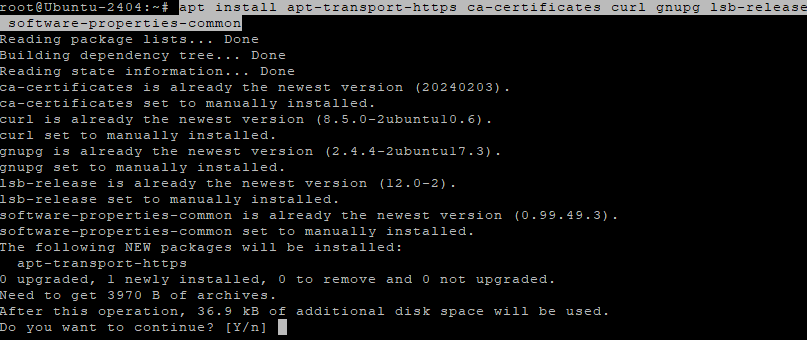
apt install apt-transport-https ca-certificates curl gnupg lsb-release software-properties-common
Installs required tools for adding Docker’s official repository.
4. Install Docker and Docker Compose
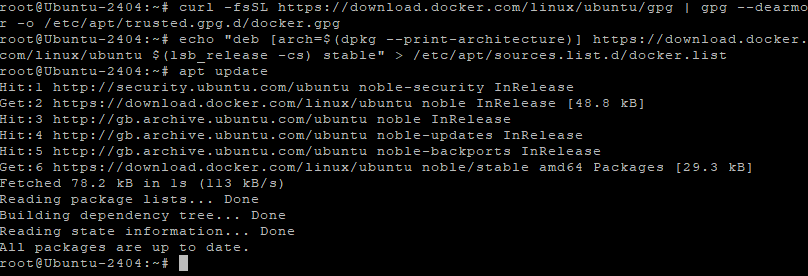
Add Docker’s GPG key:
curl -fsSL https://download.docker.com/linux/ubuntu/gpg | gpg --dearmor -o /etc/apt/trusted.gpg.d/docker.gpg
Add Docker repository:
echo "deb [arch=$(dpkg --print-architecture)] https://download.docker.com/linux/ubuntu $(lsb_release -cs) stable" > /etc/apt/sources.list.d/docker.list
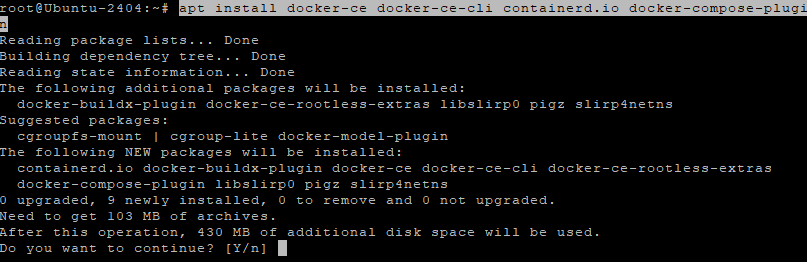
Update and install Docker:
apt update
apt install docker-ce docker-ce-cli containerd.io docker-compose-plugin
Enable and start Docker:
systemctl enable --now docker
Check versions:
docker --version
docker compose version

5. Deploy Dozzle with Docker Compose
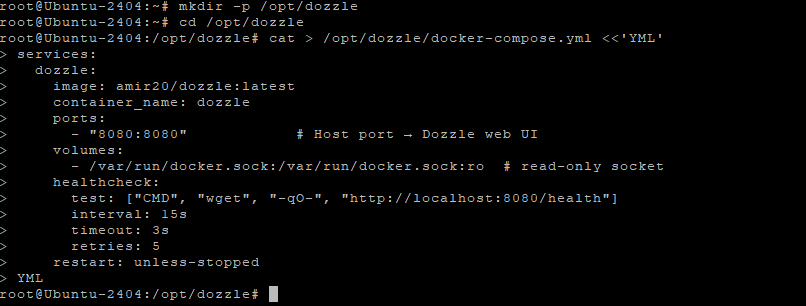
Create a directory:
mkdir -p /opt/dozzle
cd /opt/dozzle
Create the docker-compose.yml:
cat > /opt/dozzle/docker-compose.yml <<'YML'
services:
  dozzle:
    image: amir20/dozzle:latest
    container_name: dozzle
    ports:
      - "8080:8080"            # Host port → Dozzle web UI
    volumes:
      - /var/run/docker.sock:/var/run/docker.sock:ro  # read-only socket
    healthcheck:
      test: ["CMD", "wget", "-qO-", "http://localhost:8080/health"]
      interval: 15s
      timeout: 3s
      retries: 5
    restart: unless-stopped
YML
Remove any old container (if exists):
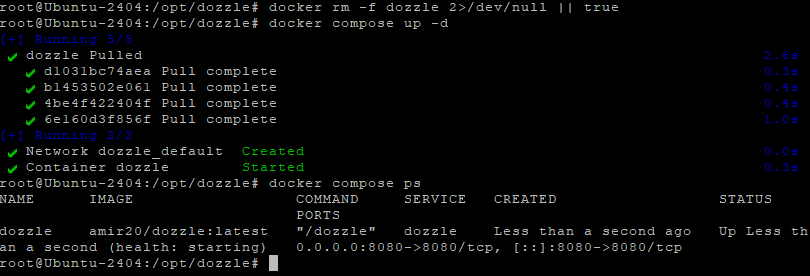
docker rm -f dozzle 2>/dev/null || true
Start Dozzle:
docker compose up -d
Check status:
docker compose ps
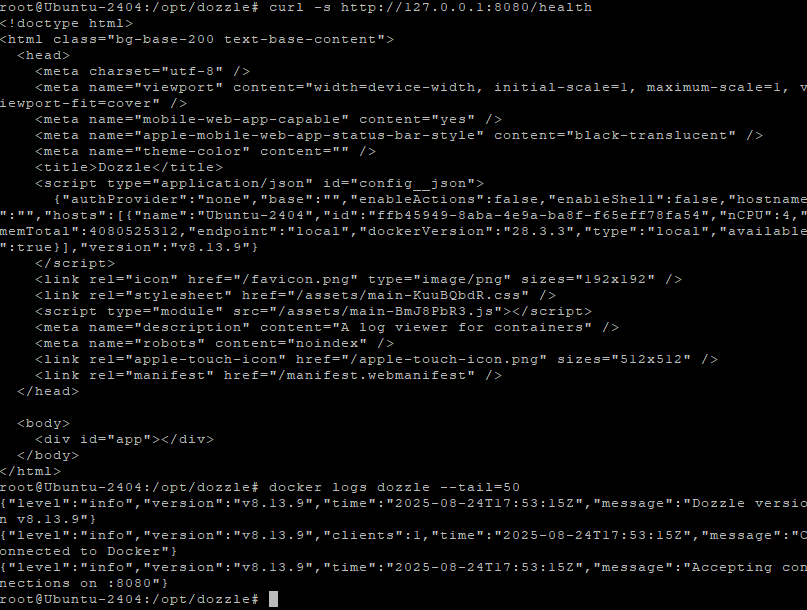
Verify health endpoint:
curl -s http://127.0.0.1:8080/health
Check logs:
docker logs dozzle --tail=50
6. Configure Nginx Reverse Proxy
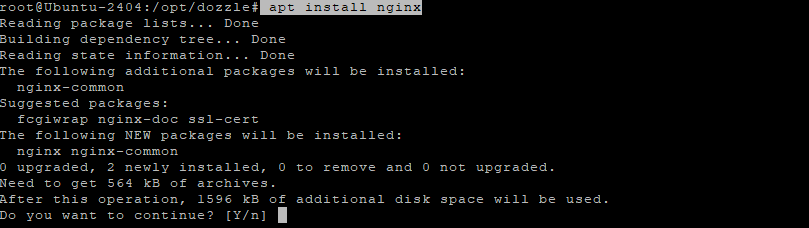
Install Nginx:
apt install nginx
systemctl enable --now nginx
Create site configuration:
cat > /etc/nginx/sites-available/dozzle.conf <<'NGINX'
server {
    listen 80;
    server_name your-domain.com;

    # Optional Basic Auth (see step 4.4)
    # auth_basic "Restricted";
    # auth_basic_user_file /etc/nginx/.htpasswd;

    location / {
        proxy_pass http://127.0.0.1:8080;
        proxy_http_version 1.1;
        proxy_set_header Connection "";
        proxy_set_header Host $host;
        proxy_set_header X-Real-IP $remote_addr;
        proxy_set_header X-Forwarded-For $proxy_add_x_forwarded_for;
        proxy_set_header X-Forwarded-Proto $scheme;
    }
}
NGINX
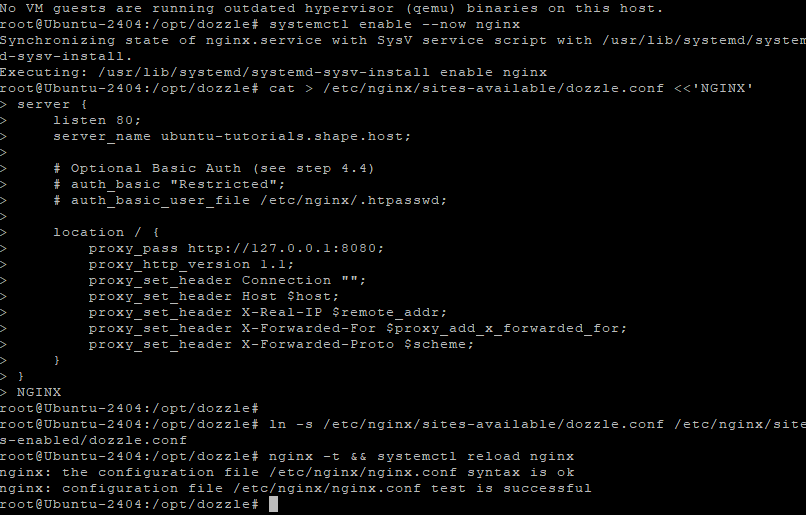
Enable and reload:
ln -s /etc/nginx/sites-available/dozzle.conf /etc/nginx/sites-enabled/dozzle.conf
nginx -t && systemctl reload nginx
7. Enable SSL with Let’s Encrypt
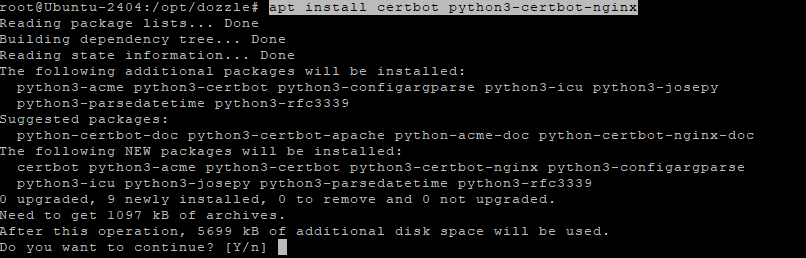
Install Certbot:
apt install certbot python3-certbot-nginx
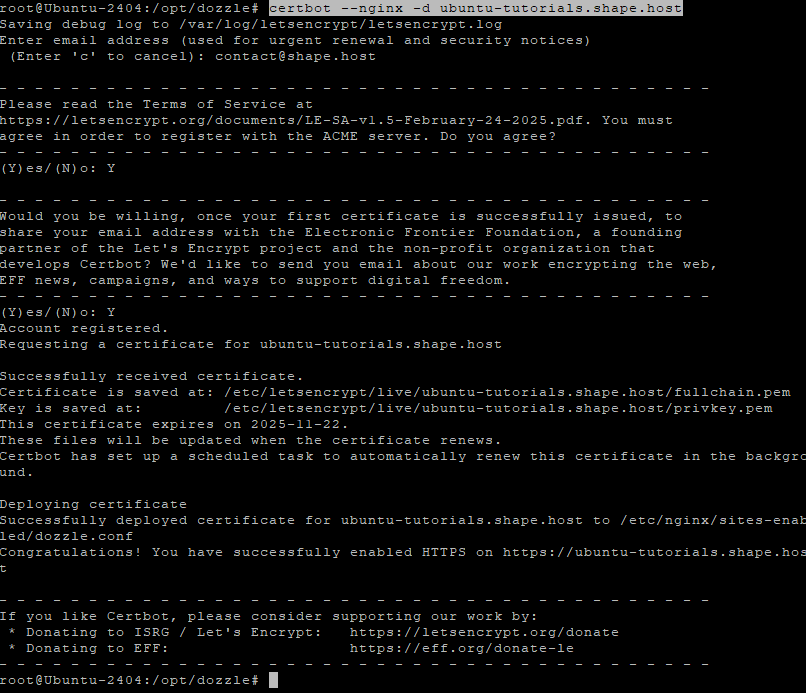
Obtain SSL certificate:
certbot --nginx -d your-domain.com
8. Access Dozzle
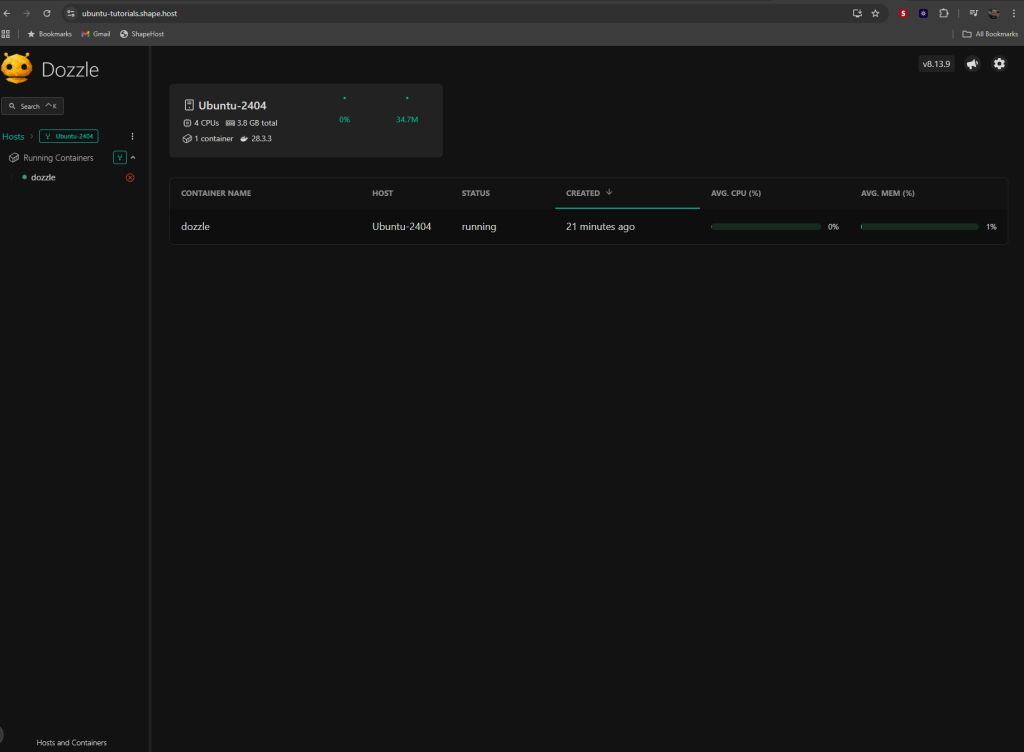
Open your browser and go to:
https://your-domain.com
You should see the Dozzle log viewer dashboard, showing Docker logs in real time.
This tutorial was built and tested on a Shape.Host Cloud VPS.
With Shape.Host, you can:
- Deploy high-performance VPS worldwide
- Run Ubuntu, Debian, Rocky Linux, AlmaLinux
- Scale resources instantly as your needs grow
- Use snapshots, backups, and monitoring for reliability
Start today at https://shape.host and deploy your own Dozzle setup in minutes.