ElkArte is a free, open-source forum software designed to create modern, fast, and feature-rich online discussion boards. Built as a successor to Simple Machines Forum (SMF), ElkArte offers a responsive design, advanced moderation tools, and social media integration, making it ideal for communities, support forums, and online discussions. Running ElkArte on Debian 12 ensures a secure, stable, and high-performance forum experience.
Key Features of ElkArte on Debian 12
1. Responsive and Mobile-Friendly Design
- Fully mobile-optimized UI for seamless access on all devices.
2. Modern User Interface (UI)
- Clean, simple, and easy-to-navigate forum structure and post layout.
3. Powerful Admin and Moderation Tools
- Manage users, permissions, and forum activities with advanced moderation features.
4. Social Media and OAuth Integration
- Supports Facebook, Google, Twitter login authentication.
5. Rich Text Editor and Markdown Support
- Users can format posts using BBCode, WYSIWYG editor, or Markdown.
6. Notification and Mention System
- Real-time @mentions and notifications keep users engaged.
7. Built-in Anti-Spam Protection
- Includes CAPTCHA, bad behavior filters, and spam prevention tools.
8. SEO Optimization for Forums
- Friendly URLs, meta tags, structured data, and social sharing enhancements.
9. File Attachments and Media Embedding
- Users can attach files and embed videos/images directly in posts.
10. Multi-Language Support
- Built-in language packs allow global community participation.
Advantages of Using ElkArte on Debian 12
- Fast and Lightweight: Optimized for speed and low resource usage, even on small servers.
- Open-Source and Free: No licensing fees, making it a cost-effective alternative to paid forum platforms.
- Highly Customizable: Supports themes, plugins, and extensions for unique forum designs.
- Secure and Private: Active security updates, two-factor authentication (2FA), and spam protection.
- Better User Engagement: Modern social features, badges, and notifications enhance participation.
- Ideal for Communities: Used for gaming forums, tech support, discussion boards, and niche communities.
Use Cases for ElkArte on Debian 12
1. Online Community and Discussion Boards
- Build interactive forums for technology, hobbies, education, or business networking.
2. Customer Support Forums
- Provide customer self-help and troubleshooting solutions via a user-driven forum.
3. Open-Source Software Support
- Engage in developer collaboration and technical discussions.
4. Private Team or Business Forums
- Create an internal company discussion board for projects and documentation.
5. Non-Profit and Educational Forums
- Connect volunteers, students, and professionals with informational discussions.
ElkArte vs. Other Forum Software
| Feature | ElkArte | phpBB | Discourse | MyBB |
|---|---|---|---|---|
| Mobile-Friendly UI | ✅ Yes | ❌ Limited | ✅ Yes | ❌ No |
| Built-in Anti-Spam | ✅ Yes | ❌ Requires Extensions | ✅ Yes | ❌ Basic |
| Social Media Integration | ✅ Yes | ❌ No | ✅ Yes | ❌ No |
| SEO Optimization | ✅ Yes | ✅ Yes | ✅ Yes | ❌ No |
| Ease of Installation | ✅ Simple Setup | ❌ Complex | ❌ Docker-Based | ✅ Easy |
| Best Use Case | ✅ Modern Forums | ✅ Classic Forums | ✅ Enterprise Communities | ✅ Simple Online Forums |
Why Use ElkArte on Debian 12?
- Stable and Secure Hosting Environment: Debian 12 provides long-term support (LTS) for forum stability.
- Better User Experience: Modern UI, social features, and markdown support improve community engagement.
- Customizable and Extensible: Use themes, plugins, and integrations for a unique forum experience.
- Open-Source and Free: No licensing costs, with community-driven support.
- SEO and Performance Optimized: Fast loading times and structured URLs help rank forums higher in search engines.
ElkArte on Debian 12 is a lightweight, modern, and feature-rich forum software that provides an excellent alternative to phpBB, MyBB, and Discourse. Whether you’re building a tech community, support forum, or private discussion board, ElkArte offers the best balance of performance, security, and customization.
Step 1: Set Up a Debian 12 Server
To install ElkArte, you need a Debian 12 server. If you haven’t set up a server yet, follow these steps to create one using Shape.Host:
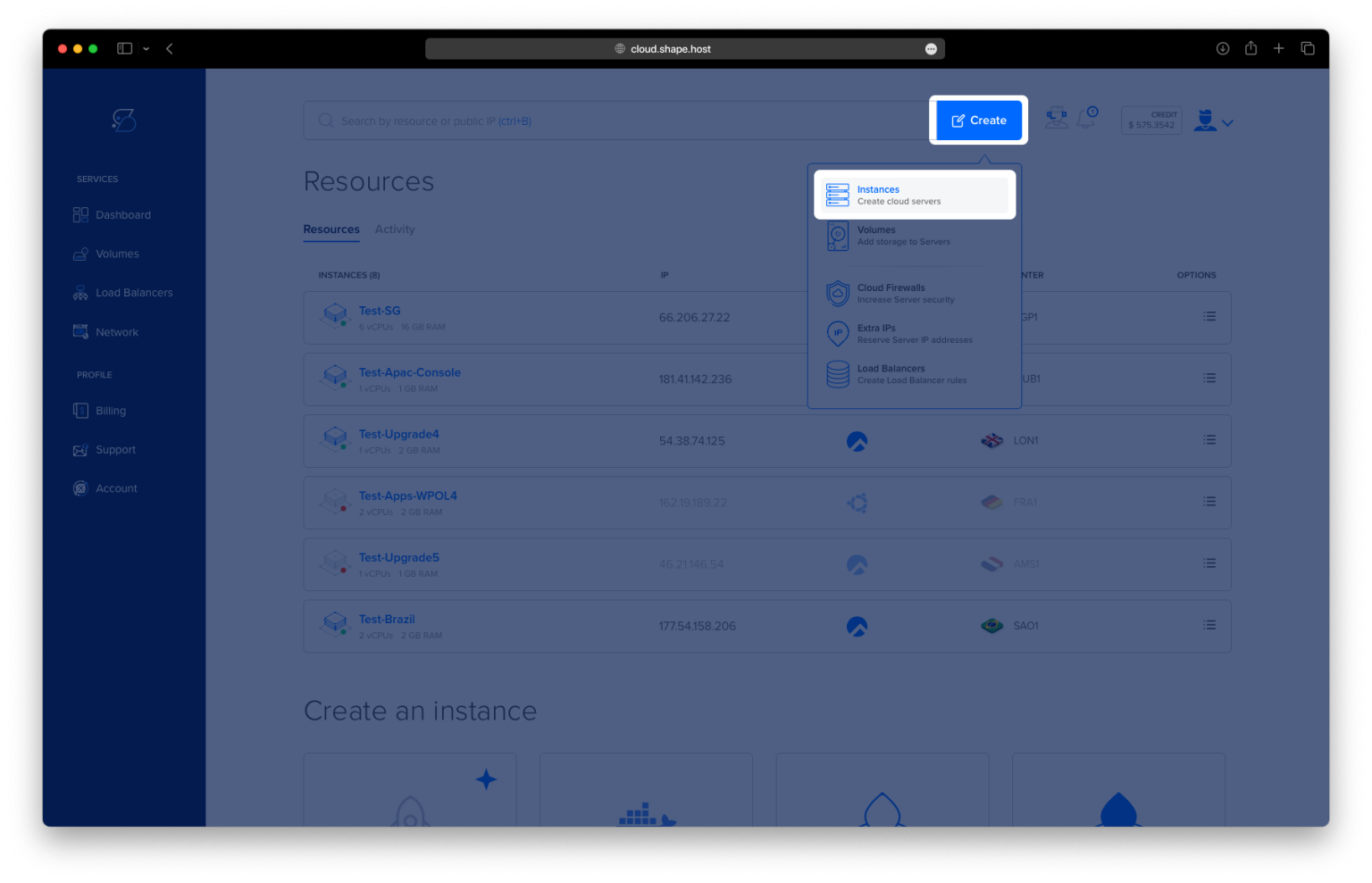
Log into Shape.Host and go to the Dashboard.
Click “Create” to start configuring a new cloud instance.
Select “Instances” from the available options.

Choose a Data Center Location that is geographically closer to your audience for better performance.

Pick a Hosting Plan that meets your requirements, whether Standard or Performance-Optimized.
Select Debian 12 as the Operating System and proceed with the setup.

Deploy the Server by selecting an authentication method (SSH keys or password authentication) and clicking Create Instance.

Find your instance’s IP address under the Resources section and use it to access your server.

Step 2: Connect to Your Server
Once your instance is ready, connect via SSH to start the installation.
- For Linux/macOS Users:
ssh root@<your_server_ip> - For Windows Users: Use PuTTY, enter your server’s IP address, and establish the connection.
Step 3: Update Your Server and Install Apache
To begin, update your package lists to ensure your system is up to date:
apt update && apt upgrade -y

Now, install the Apache web server, which will serve your ElkArte forum:
apt install apache2

Start and enable Apache so that it runs automatically on system boot:
systemctl start apache2
systemctl enable apache2
Check the status of the Apache service:
systemctl status apache2

Step 4: Install PHP and Required Extensions
Step 4.1: Add PHP Repository
To install the latest PHP version, add the Sury PHP Repository:
apt install -y lsb-release ca-certificates apt-transport-https software-properties-common wget
wget -O /etc/apt/trusted.gpg.d/php-sury.gpg https://packages.sury.org/php/apt.gpg
echo "deb https://packages.sury.org/php $(lsb_release -sc) main" | tee /etc/apt/sources.list.d/sury-php.list
Step 4.2: Install PHP and Required Modules
apt update
apt install php libapache2-mod-php php-mysql php-gd php-mbstring php-xml php-curl php-zip -y
Verify that PHP is installed:
php -v
Step 5: Install and Configure MariaDB
ElkArte requires a database to store forum content. We will use MariaDB as the database server.
Step 5.1: Install MariaDB
apt install mariadb-server

Step 5.2: Secure MariaDB
Run the security setup to enhance database security:
mysql_secure_installation

Step 5.3: Create a Database for ElkArte
Log into MySQL:
mysql -u root -p
Then, create a new database and user for ElkArte:
CREATE DATABASE elkarte_db;
CREATE USER 'elkarte_user'@'localhost' IDENTIFIED BY 'strong_password';
GRANT ALL PRIVILEGES ON elkarte_db.* TO 'elkarte_user'@'localhost';
FLUSH PRIVILEGES;
EXIT;

Step 6: Download and Install ElkArte
Step 6.1: Navigate to the Web Directory
cd /var/www/html
Step 6.2: Download the Latest ElkArte Release
wget https://github.com/elkarte/ElkArte/releases/download/v1.1.9/ElkArte_v1-1-9_install.zip

Step 6.3: Install Unzip (If Not Installed)
apt install unzip
Step 6.4: Extract the ElkArte Archive
unzip ElkArte_v1-1-9_install.zip -d elkarte
Step 6.5: Set Correct File Permissions
chown -R www-data:www-data /var/www/html/elkarte
chmod -R 755 /var/www/html/elkarte

Step 7: Configure Apache for ElkArte
Step 7.1: Create a Virtual Host File
nano /etc/apache2/sites-available/elkarte.conf
Step 7.2: Add the Following Apache Configuration
Replace example.com with your actual domain:
<VirtualHost *:80>
    ServerAdmin admin@example.com
    DocumentRoot /var/www/html/elkarte
    ServerName example.com

    <Directory /var/www/html/elkarte/>
        Options Indexes FollowSymLinks
        AllowOverride All
        Require all granted
    </Directory>

    ErrorLog ${APACHE_LOG_DIR}/elkarte_error.log
    CustomLog ${APACHE_LOG_DIR}/elkarte_access.log combined
</VirtualHost>
Save the file (Ctrl + X, then Y, then Enter).

Step 7.3: Enable Apache Configuration
a2ensite elkarte.conf
a2enmod rewrite
systemctl restart apache2

Step 8: Access ElkArte Web Installer
Now that everything is set up, open your browser and go to:
http://<your_server_ip>/elkarte
This will launch the ElkArte installation wizard, where you will:
Enter Database Credentials (Database Name: elkarte_db, Username: elkarte_user, Password: your_password)
Configure Admin Account
Complete the Setup
Welcome Screen
This is the first step of the ElkArte Installer for version 1.1.9. The installer guides you through the setup process in multiple steps.
Key Elements:
- Progress Bar: Displays the overall installation progress (currently at 0%).
- Installation Steps: The process consists of 8 steps:
- Welcome
- Existence Check
- Writable Check
- Database Settings
- Forum Settings
- Database Population
- Admin Account
- Finalize Installation
- Welcome Message: It provides an introduction to the installation and mentions that the forum setup will take only a few minutes.
- Note: The installer checks for the presence of essential configuration files (
Settings.phpandSettings_bak.php). If these files are missing, the installer attempts to rename the provided sample files. If this operation fails, users must manually rename:Settings.sample.php→Settings.phpSettings_bak.sample.php→Settings_bak.php
- Next Step: Click on “Continue” to proceed with the installation.

Database Settings
At this stage, the ElkArte Installer prompts you to configure database settings. This step is crucial because it defines where and how your forum will store data.
Key Elements:
- Progress Bar: Shows the installation progress at 10%.
- Installation Steps: The current step is Step 4: Database Settings.
Database Server Settings:
Here, you need to enter details about your MySQL database:
- Server name:
- The database server hostname.
- The default is typically localhost, but in this case, it’s set to
debian-tutorials.shape.host.
- User name:
- The username required to connect to the database.
- In this case, it’s set to elkarte_user.
- Password:
- The password associated with the database user.
- This field is hidden for security reasons.
- Database name:
- The name of the database where ElkArte will store forum data.
- Here, it’s set to elkarte_db.
- If the database doesn’t exist, the installer will attempt to create it.
- Table prefix:
- This value is used as a prefix for table names to prevent conflicts in a shared database.
- The default value is elkarte_.
- Tip: Do not install multiple forums using the same prefix unless you want them to share the same data.
Next Step:
Click on “Continue” to proceed to the next step.

Forum Settings
In this step, the ElkArte Installer prompts you to configure key settings for your forum.
Key Elements:
- Progress Bar: The installation progress is now at 25%.
- Installation Steps: The current step is Step 5: Forum Settings.
Forum Settings:
- Forum Name:
- This is the name of your forum, which will be displayed in the title and other areas.
- In this example, the forum is named ShapeHost.
- Forum URL:
- The base URL for accessing the forum.
- Ensure that the URL does not end with a trailing slash (
/). - The installer has auto-detected the URL as
http://debian-tutorials.shape.host.
- Gzip Output:
- Enabling this option compresses forum output, reducing bandwidth usage.
- Recommended for performance improvement.
- There is a “Click here to test” link, which should return “PASS” if supported by the server.
- Database Sessions:
- Stores session data in the database instead of using temporary files.
- This is recommended for better performance and reliability.
Next Step:
Click “Continue” to proceed.

Database Population
In this step, the ElkArte Installer has completed setting up the database and populated it with the necessary data for the forum to function.
Key Elements:
- Progress Bar: Installation progress is now at 65%.
- Installation Steps: The current step is Step 6: Database Population.
Database Population Summary:
- The forum settings have been saved.
- The database has been populated with 881 rows of essential data.
- This process includes inserting core forum settings, permissions, default categories, and other necessary records.
Next Step:
Click “Continue” to proceed to the Admin Account creation page, where you will set up the main administrator for the forum.

Admin Account Setup
At this stage, the ElkArte Installer prompts you to create the main administrator account for the forum.
Key Elements:
- Progress Bar: Installation progress is now at 80%.
- Installation Steps: The current step is Step 7: Admin Account.
Create Your Account:
- User Name:
- This is the username for the admin account.
- In this example, it is set to andrei.
- Password:
- Enter a strong password to secure your admin account.
- The password must be entered twice for verification.
- Email Address:
- This must be a valid email address for password recovery and notifications.
- Here, the email is set as contact@shape.host.
Database Password:
- For security reasons, the installer requires you to confirm the database password used earlier.
- This ensures the admin account is properly linked to the database.
Next Step:
Click “Continue” to proceed to the final installation step.

Finalizing the Installation
This is the final step of the ElkArte Installer, confirming that the forum has been successfully installed and is ready for use.
Key Elements:
- Progress Bar: Installation progress has reached 100%.
- Installation Steps: The current step is Step 8: Finalize Installation.
Completion Message:
- The installation process is complete.
- If any issues arise with the forum, support is available.
Security Reminder:
- The installer warns that the installation directory is still writable.
- It is recommended to change its permissions (
chmod) so that it is no longer writable for security reasons.
- It is recommended to change its permissions (
Optional: Delete Installation Directory
- There is an option to delete the install directory from the server.
- This is an important security step, but it may not work on all servers due to permission restrictions.
Next Steps:
- You can now access your newly installed forum by clicking the provided link.
- Once logged in, you will have access to the administration panel to configure and manage your forum.
Final Notes:
The ElkArte forum is now successfully set up! You should:
- Verify that everything is functioning correctly.
- Secure the installation directory by deleting or restricting its permissions.
- Customize your forum settings from the admin panel.

ElkArte Forum Installed Successfully!
This screenshot shows the ElkArte forum homepage after a successful installation.
Key Features Displayed:
- Forum Name:
- The forum is named ShapeHost.
- Login & Registration Options:
- Users can log in with their credentials.
- New users can register for an account.
- News Section:
- A default welcome message: “ElkArte – Just Installed!”
- This can be customized later in the admin panel.
- General Category & Discussion Board:
- A default category “General Discussion” is available for users to start conversations.
- Info Center & Forum Stats:
- Shows the number of topics, posts, and members.
- Displays the latest post:
"Welcome to ElkArte!"created by the admin account.
- Online Users:
- Currently, 1 guest is online, and the admin andrei is the latest registered user.
- Footer Information:
- Powered by ElkArte 1.1.9
- Includes a link to forum credits.
Next Steps for Admins
Now that the forum is installed, here’s what you can do next: ✅ Access the Admin Panel: Customize forum settings, themes, and permissions.
✅ Add New Categories & Boards: Organize discussions.
✅ Modify User Permissions: Set up roles for moderators and users.
✅ Enhance Security: Remove the installation directory and adjust file permissions.
✅ Install Plugins & Themes: Improve functionality and design.

Once the installation is complete, remove the installation files for security:
rm -rf /var/www/html/elkarte/install/
For fast, secure, and reliable hosting, consider Shape.Host Cloud VPS, which provides optimized performance for PHP-based applications like ElkArte.