Focalboard on Debian 12 (PostgreSQL + Nginx + SSL)
Focalboard is an open-source project and task management platform designed to help individuals and teams organize workflows more effectively. Similar to Trello, Asana, or Notion, it offers kanban boards, task lists, calendars, and database-style views — but with the advantage of being self-hosted, meaning you retain complete control over your data and infrastructure.
Running Focalboard on Debian 12 (Bookworm) provides a stable, secure, and long-term supported base for production. With systemd 252, OpenSSL 3, and modern PostgreSQL and Node.js packages, Debian 12 is an excellent choice for hosting Focalboard behind Nginx with SSL termination in enterprise or small team environments.
Architecture Overview
| Layer | Component | Role |
|---|---|---|
| OS | Debian 12 (Bookworm) | Reliable Linux base with long-term support |
| Database | PostgreSQL 15 | Stores user data, tasks, projects, and metadata |
| Application | Focalboard Server | Provides project management interface and API services |
| Runtime | Node.js (LTS) | Runs the Focalboard backend |
| Process Manager | systemd / PM2 | Keeps Focalboard running and ensures uptime |
| Reverse Proxy | Nginx | Handles TLS termination, routing, caching, and compression |
| TLS | Let’s Encrypt / PKI | Provides HTTPS access for the web UI and APIs |
Why Use Focalboard?
- Self-hosted alternative to Trello, Asana, and Notion.
- Feature-rich task management – kanban, lists, calendars, and filters.
- Data ownership – all information remains under your control.
- Open-source – no subscription fees or vendor lock-in.
- Collaboration-ready – suitable for freelancers, small teams, or enterprises.
Focalboard vs Other Tools
| Feature/Capability | Focalboard (Self-hosted) | Trello (Cloud) | Asana (Cloud) | Notion (Cloud) |
|---|---|---|---|---|
| Hosting | Self-hosted | SaaS only | SaaS only | SaaS only |
| Data ownership | Full control | Vendor-owned | Vendor-owned | Vendor-owned |
| Cost | Free, open-source | Paid plans | Paid plans | Paid plans |
| Features | Boards, tasks, calendars | Boards only | Project mgmt + tasks | Notes + tasks |
Focalboard is ideal if you want a no-cost, flexible, and self-hosted project management tool without relying on external SaaS providers.
Security & Best Practices
- Deploy behind Nginx with SSL enabled.
- Secure PostgreSQL with strong credentials and regular backups.
- Run Focalboard as a dedicated non-root system user.
- Use systemd for service management to ensure uptime.
- Keep Debian, PostgreSQL, Node.js, and Focalboard updated.
- Add security headers (HSTS, CSP, Referrer-Policy) in Nginx.
Typical Use Cases
- Freelancers organizing multiple client projects.
- Small teams replacing Trello or Asana with a free solution.
- Companies needing data sovereignty for project management.
- Education/NGOs seeking low-cost collaboration tools.
- Enterprise IT integrating self-hosted task management into workflows.
Running Focalboard on Debian 12 with PostgreSQL, Nginx, and SSL provides a secure, scalable, and customizable project management platform that puts you in full control of your data.
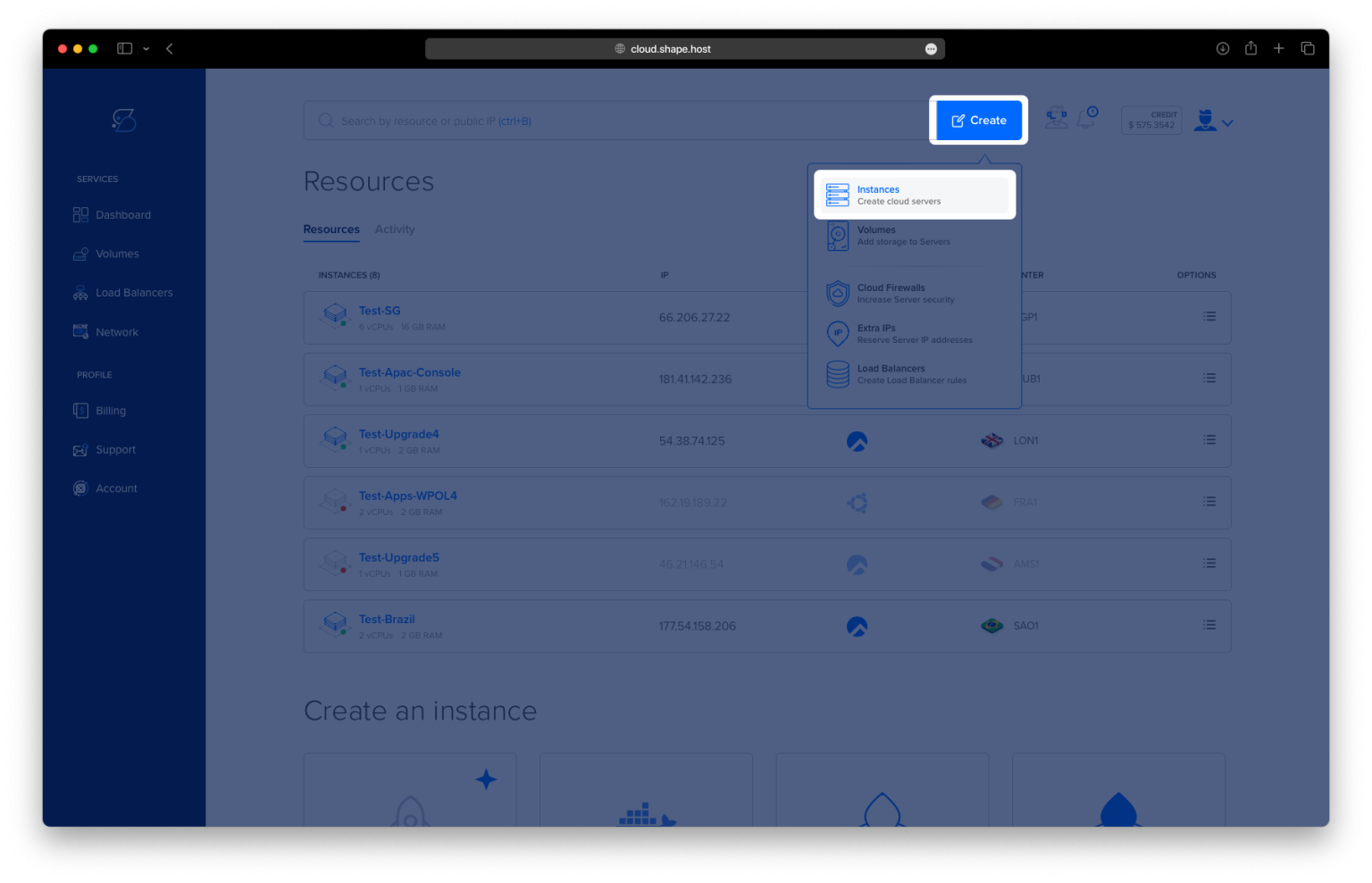
Step 1: Create a Server Instance on Shape.Host
First, set up a Debian 12 VPS. On Shape.Host:
Log in to your Shape.Host dashboard.
Click Create → Instance.

Select a data center location close to your users.

Choose a plan with 2 CPUs, 4 GB RAM, and 20 GB SSD (recommended for Focalboard).
Pick Debian 12 (64-bit) as the operating system.

Click Create Instance.

Copy the instance’s public IP address from the Resources section.

Step 2: Connect to Your Server
- Linux/macOS:
ssh root@your_server_ip - Windows (PuTTY):
Enter your server’s IP, choose SSH, and log in with the credentials provided by Shape.Host.
Step 3: Install Dependencies
Update packages and install tools:
apt update
apt install wget curl unzip gnupg nginx python3-certbot-nginx


Install PostgreSQL:
apt install postgresql postgresql-contrib

Step 4: Configure PostgreSQL
Switch to the postgres user:
su - postgres
Enter PostgreSQL shell:
psql
Inside psql, create database and user:
CREATE DATABASE focalboard;
CREATE USER focaluser WITH PASSWORD 'StrongPassword123!';
GRANT ALL PRIVILEGES ON DATABASE focalboard TO focaluser;
\q
Exit back to root:
exit

Step 5: Download and Extract Focalboard
Create installation directory:
mkdir -p /opt/focalboard
cd /opt/focalboard
Download the package:
wget https://sourceforge.net/projects/focalboard.mirror/files/v7.10.6/focalboard-server-linux-amd64.tar.gz/download -O focalboard.tar.gz
Extract it:
tar -xzf focalboard.tar.gz

Step 6: Configure Focalboard
Edit the config file:
nano /opt/focalboard/focalboard/config.json
Use this configuration (SQLite3 is default here, PostgreSQL can be used if preferred):
{
    "serverRoot": "http://localhost:8000",
    "port": 8000,
    "dbtype": "sqlite3",
    "dbconfig": "./focalboard.db",
    "postgres_dbconfig": "dbname=focalboard sslmode=disable",
    "useSSL": false,
    "webpath": "./pack",
    "filespath": "./files",
    "telemetry": true,
    "prometheusaddress": ":9092",
    "session_expire_time": 2592000,
    "session_refresh_time": 18000,
    "localOnly": false,
    "enableLocalMode": true,
    "localModeSocketLocation": "/var/tmp/focalboard_local.socket"
}

Step 7: Create systemd Service
nano /etc/systemd/system/focalboard.service
Paste the following:
[Unit]
Description=Focalboard Server
After=network.target

[Service]
Type=simple
Restart=always
RestartSec=5s
ExecStart=/opt/focalboard/focalboard/bin/focalboard-server
WorkingDirectory=/opt/focalboard/focalboard

[Install]
WantedBy=multi-user.target

Enable and start the service:
systemctl daemon-reload
systemctl enable focalboard
systemctl start focalboard

Step 8: Configure Nginx Reverse Proxy
Create Nginx config:
nano /etc/nginx/sites-available/focalboard.conf
Add:
upstream focalboard {
    server 127.0.0.1:8000;
    keepalive 32;
}

server {
    listen 80;
    server_name yourdomain.com;

    location / {
        proxy_pass http://focalboard;
        proxy_set_header Host $host;
        proxy_set_header X-Real-IP $remote_addr;
        proxy_set_header X-Forwarded-For $proxy_add_x_forwarded_for;
        proxy_set_header X-Forwarded-Proto $scheme;
    }

    location ~ /ws/* {
        proxy_http_version 1.1;
        proxy_set_header Upgrade $http_upgrade;
        proxy_set_header Connection "upgrade";
        proxy_pass http://focalboard;
    }
}

Enable the site and reload Nginx:
ln -s /etc/nginx/sites-available/focalboard.conf /etc/nginx/sites-enabled/
nginx -t
systemctl reload nginx

Step 9: Secure with SSL (Let’s Encrypt)
Request SSL certificate:
certbot --nginx -d debian-tutorials.shape.host

Now open in browser:
https://debian-tutorials.shape.host
You should see Focalboard running.


You installed Focalboard on Debian 12 with PostgreSQL, systemd service, Nginx reverse proxy, and Let’s Encrypt SSL.
For scalability and performance, deploy your apps on Shape.Host Cloud VPS, built for modern applications like Focalboard.