GlitchTip (Sentry Alternative) on Debian 12 (Docker Compose + Nginx + SSL)
GlitchTip is a modern, open-source error tracking and performance monitoring platform that serves as a drop-in alternative to Sentry. It helps developers monitor application health, detect bugs, and analyze performance through a user-friendly web interface. GlitchTip supports Sentry-compatible SDKs, allowing you to migrate seamlessly from Sentry while maintaining full control of your data.
Running GlitchTip on Debian 12 (Bookworm) ensures a stable, secure, and production-ready environment. Debian 12 features systemd 252, OpenSSL 3, and updated Docker Engine packages — making it ideal for hosting GlitchTip with PostgreSQL, Redis, Docker Compose, Nginx, and SSL encryption for enterprise-grade reliability.
Architecture Overview
| Layer | Component | Role |
|---|---|---|
| OS | Debian 12 (Bookworm) | Stable and long-term supported Linux base |
| Container Runtime | Docker Engine + Compose | Orchestrates GlitchTip and its dependencies |
| Application | GlitchTip (Django) | Core error tracking and performance monitoring application |
| Database | PostgreSQL 15 | Stores user, project, and issue data |
| Cache/Queue | Redis | Manages background task queues and event processing |
| Reverse Proxy | Nginx | Handles HTTPS termination, routing, and compression |
| TLS | Let’s Encrypt / PKI | Provides secure HTTPS access for GlitchTip dashboard and APIs |
Why Use GlitchTip?
- Open-source Sentry alternative – same functionality, zero vendor lock-in.
- Sentry SDK compatible – supports existing client libraries and integrations.
- Privacy-first design – all data stays on your infrastructure.
- Performance monitoring – identify slow transactions and backend bottlenecks.
- Team collaboration – invite users, manage roles, and track issues per project.
- Email notifications – configurable SMTP alerts for errors and regressions.
- Lightweight and efficient – runs well on modest infrastructure.
GlitchTip vs Other Error Tracking Tools
| Feature/Capability | GlitchTip (Self-hosted) | Sentry (Cloud/Self-hosted) | LogRocket | Elastic APM |
|---|---|---|---|---|
| Hosting | Self-hosted / Cloud | Cloud or on-prem | Cloud only | Self-hosted / Cloud |
| Database | PostgreSQL | PostgreSQL | Proprietary | Elasticsearch |
| Source available | 100% open-source | Partially open-source | No | Yes |
| SDK compatibility | Sentry SDKs supported | Native | No | Partial |
| Cost | Free, open-source | Paid tiers | Subscription | Depends on license |
| Ideal for | SMBs / DevOps teams | Enterprises | Frontend apps | Large infrastructures |
GlitchTip delivers Sentry-grade observability at zero licensing cost — making it the preferred choice for developers, startups, and DevOps teams seeking error tracking and performance analytics with full data ownership.
Security & Best Practices
- Run GlitchTip behind Nginx with HTTPS enabled.
- Store all database passwords and API keys securely in
.envor Docker secrets. - Limit PostgreSQL and Redis to internal Docker networks.
- Use Debian’s UFW or nftables to allow only ports 80/443.
- Keep Docker images and Debian packages updated frequently.
- Configure SMTP credentials for email alerts.
- Enable automatic SSL renewals using Certbot or Traefik ACME.
- Set up automated backups for PostgreSQL data volumes.
- Apply fail2ban or rate limiting to prevent brute-force attacks.
Typical Use Cases
- Error and crash monitoring for web, mobile, and backend services.
- Frontend error tracking using Sentry-compatible SDKs.
- Performance analytics for slow endpoints or database queries.
- Application health monitoring across microservices.
- Self-hosted observability for teams needing GDPR or HIPAA compliance.
Deploying GlitchTip on Debian 12 with Docker Compose and Nginx gives you a secure, scalable, and Sentry-compatible error tracking platform — perfect for teams that want full transparency, privacy, and control while maintaining enterprise-level observability.
Step 1: Create a Shape.Host Cloud VPS Instance
Log in to Shape.Host.
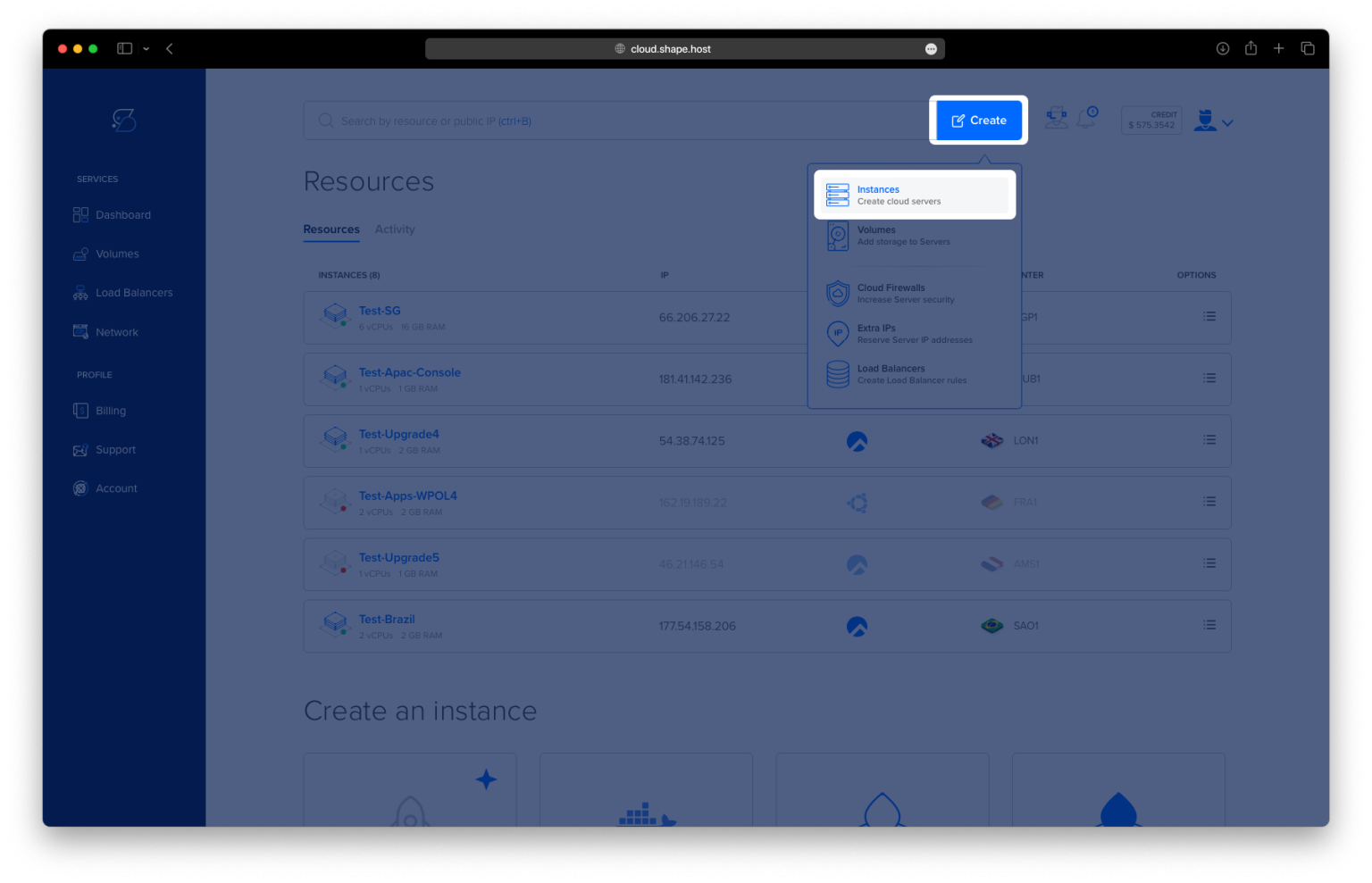
Click Create → Instance.

Choose a server location near your users.

Select a plan with at least 2 CPUs, 4 GB RAM, and 20 GB SSD.
Choose Debian 12 (Bookworm) as your operating system.

Click Create Instance.

Copy the public IP address of your instance — you’ll need it for SSH access.

Step 2: Connect to Your Server
Connect using SSH:
ssh root@your_server_ip
Step 3: Update the System
Update all packages to the latest versions:
apt update

Step 4: Install Docker and Dependencies
Install essential tools for managing repositories and HTTPS connections:
apt install ca-certificates curl gnupg

Create a directory for Docker’s GPG key:
install -m 0755 -d /etc/apt/keyrings
Download Docker’s official GPG key:
curl -fsSL https://download.docker.com/linux/debian/gpg -o /etc/apt/keyrings/docker.asc
Allow read access to the key:
chmod a+r /etc/apt/keyrings/docker.asc
Add Docker’s official repository for Debian 12 (Bookworm):
echo "deb [arch=$(dpkg --print-architecture) signed-by=/etc/apt/keyrings/docker.asc] \
https://download.docker.com/linux/debian bookworm stable" > /etc/apt/sources.list.d/docker.list
Update your package index again:
apt update

Install Docker Engine and the Docker Compose plugin:
apt install docker-ce docker-ce-cli containerd.io docker-compose-plugin

Check versions to confirm installation:
docker --version
docker compose version
Step 5: Create GlitchTip Directory
Create a dedicated directory for GlitchTip and navigate into it:
mkdir -p /opt/glitchtip
cd /opt/glitchtip

Step 6: Create the Docker Compose Configuration
Create the Docker Compose file:
nano docker-compose.yml
Paste the following configuration:
services:
  postgres:
    image: postgres:15
    container_name: glitchtip_postgres
    restart: always
    environment:
      POSTGRES_DB: glitchtip
      POSTGRES_USER: glitchtip
      POSTGRES_PASSWORD: strongpassword
    volumes:
      - ./postgres-data:/var/lib/postgresql/data

  redis:
    image: redis:7
    container_name: glitchtip_redis
    restart: always

  glitchtip:
    image: glitchtip/glitchtip:latest
    container_name: glitchtip_app
    depends_on:
      - postgres
      - redis
    environment:
      DATABASE_URL: postgres://glitchtip:strongpassword@postgres:5432/glitchtip
      SECRET_KEY: changethiskeytoarandomstring
      EMAIL_URL: smtp://smtp.example.com:587
      DEFAULT_FROM_EMAIL: noreply@example.com
      CELERY_BROKER_URL: redis://redis:6379/0
      ENABLE_SIGNUPS: "True"
      GLITCHTIP_DOMAIN: https://glitchtip.example.com
    ports:
      - "8000:8080"
    volumes:
      - ./uploads:/app/uploads
    restart: always
🧠 Notes:
- Replace
strongpasswordwith your own secure PostgreSQL password.- Replace
changethiskeytoarandomstringwith a strong random string (useopenssl rand -hex 32).- Update
smtp.example.comwith your actual mail server credentials.- Replace
glitchtip.example.comwith your domain name.
Save and exit (CTRL + O, ENTER, CTRL + X).

Step 7: Start GlitchTip
Pull and start the Docker containers:
docker compose up -d

Check running containers:
docker ps

Step 8: Initialize the Database
Run database migrations:
docker compose exec glitchtip python3 manage.py migrate

Create an administrator account:
docker compose exec glitchtip python3 manage.py createsuperuser
Enter your desired username, email, and password when prompted.

Step 9: Install and Configure Nginx
Install Nginx:
apt install nginx

Create a reverse proxy configuration for GlitchTip:
nano /etc/nginx/sites-available/glitchtip.conf
Paste the following configuration:
server {
    listen 80;
    server_name glitchtip.example.com;

    location / {
        proxy_pass http://127.0.0.1:8000;
        proxy_http_version 1.1;
        proxy_set_header Host $host;
        proxy_set_header X-Real-IP $remote_addr;
        proxy_set_header X-Forwarded-For $proxy_add_x_forwarded_for;
        proxy_set_header X-Forwarded-Proto $scheme;
        proxy_buffering off;
    }
}

Enable the site and reload Nginx:
ln -s /etc/nginx/sites-available/glitchtip.conf /etc/nginx/sites-enabled/
nginx -t
systemctl reload nginx

Step 10: Secure GlitchTip with SSL
Install Certbot and its Nginx plugin:
apt install certbot python3-certbot-nginx

Run Certbot to automatically generate and configure an SSL certificate:
certbot --nginx -d debian-tutorials.shape.host --email contact@shape.host --agree-tos --non-interactive

Reload Nginx to apply HTTPS:
systemctl reload nginx
Step 11: Access Your GlitchTip Instance
Open your web browser and visit:
https://glitchtip.example.com
Log in using the credentials you set for your superuser.
You now have a fully functional, self-hosted error monitoring and reporting platform ready for use.


Step 12: (Optional) Verify and Maintain
To ensure your installation is running correctly:
docker compose ps
docker compose logs -f glitchtip
To stop and start containers later:
docker compose down
docker compose up -d
You have installed GlitchTip (Sentry Alternative) on Debian 12 with Docker Compose, Nginx, and SSL encryption.
This self-hosted monitoring solution offers full control of your data and integrates seamlessly with modern development pipelines.
Deploying it on a Shape.Host Cloud VPS ensures stability, performance, and privacy for your team’s monitoring infrastructure.