htop on Ubuntu 24.04 – A Modern Interactive Process Viewer for Linux
htop is a powerful, real-time, interactive process viewer for Unix-like systems. Designed as an enhanced alternative to the classic top command, htop provides a user-friendly interface for monitoring system resources, managing processes, and diagnosing performance issues.
On Ubuntu 24.04 “Noble Numbat”, htop remains an essential tool for sysadmins, developers, and DevOps professionals, offering detailed visibility into the health and performance of your server or desktop system.
What Is htop?
htop is an interactive command-line utility written in C. It displays a dynamic view of system metrics and allows users to interactively sort, filter, and kill processes with keyboard shortcuts.
Compared to the traditional top command, htop offers:
- Colorized output for easier interpretation
- Horizontal and vertical scrolling
- Tree view for process hierarchy
- Real-time CPU, memory, and swap usage graphs
- Interactive process management (kill, renice)
Why Use htop on Ubuntu 24.04?
Ubuntu 24.04 ships with the latest Linux kernel (6.8+), improved systemd, and a variety of up-to-date system utilities. htop complements this ecosystem by offering quick insights into system behavior and an interactive overview of active processes.
| Feature in Ubuntu 24.04 | htop Benefit |
|---|---|
| systemd integration | Displays systemd-based service hierarchies |
| Multicore support | Per-core CPU activity graphs |
| Improved memory handling | Real-time RAM and swap monitoring |
| Modern scheduling | Monitor CPU affinity, thread grouping |
| Secure defaults (AppArmor/UFW) | Observe the impact of system security on services |
Core Features of htop
- Memory & Swap Monitoring: Shows active memory, buffers/cache, and total usage.
- CPU Core Usage Visualization: Per-thread CPU usage with colored bars.
- Process Tree View: Toggleable tree that displays parent-child process structure.
- Keyboard Shortcuts:
F2– Setup/configurationF3– Search processesF4– Filter processesF5– Tree viewF6– Sort columnF9– Kill process
- Renice & Signal Support: Change process priority or send termination signals.
- Detailed Per-Process Info: CPU%, MEM%, time, user, status, threads, I/O.
Common Use Cases
- Real-time performance diagnosis (e.g., find high CPU or memory consumers)
- Resource usage auditing on VPS, servers, and embedded devices
- Troubleshooting stuck or zombie processes
- Interactive process killing or renicing without typing
kill -9 - Monitoring containers or VMs running under the host kernel
htop vs top: Quick Comparison
| Feature | top | htop |
|---|---|---|
| Interface | Basic text, no colors | Colored, interactive |
| Mouse support | ❌ | ✅ |
| Tree view | ❌ | ✅ |
| Scrollable list | ❌ | ✅ |
| Process actions | Command-line only | Interactive (F-keys) |
| Ease of use | Moderate | Beginner-friendly |
Advanced Tips
- Use
htop -u usernameto filter processes by user. - Press
F2→Display Optionsto enable detailed CPU meters (frequency, IO wait). - Combine with
watch,atop, oriotopfor complementary system insight. - In Docker containers, install htop inside or monitor from the host system.
- On servers with hundreds of threads, configure column visibility and refresh rate for optimal performance.
Alternatives to htop
| Tool | Purpose |
|---|---|
atop | More detailed accounting, long-term resource tracking |
glances | Web-ready multi-resource monitor |
bpytop | Modern TUI with charts |
iotop | Focused on disk I/O |
bashtop | Eye-candy version of htop |
htop remains the most lightweight and universally compatible tool among them.
htop on Ubuntu 24.04 is a must-have system monitoring utility that brings speed, clarity, and control to your Linux environment. Whether you’re debugging a slow VPS, managing a home server, or just exploring how your system runs, htop offers a reliable, intuitive, and efficient interface to understand process-level activity in real time.
For VPS hosting or server environments—such as on Shape.Host Cloud VPS—htop provides invaluable insights into resource bottlenecks, process trees, and server health with a single command.
Step 1: Set Up a Server Instance on Shape.Host
To try out htop, you can deploy a fresh Ubuntu 24.04 instance using Shape.Host.
Go to https://shape.host and log in.
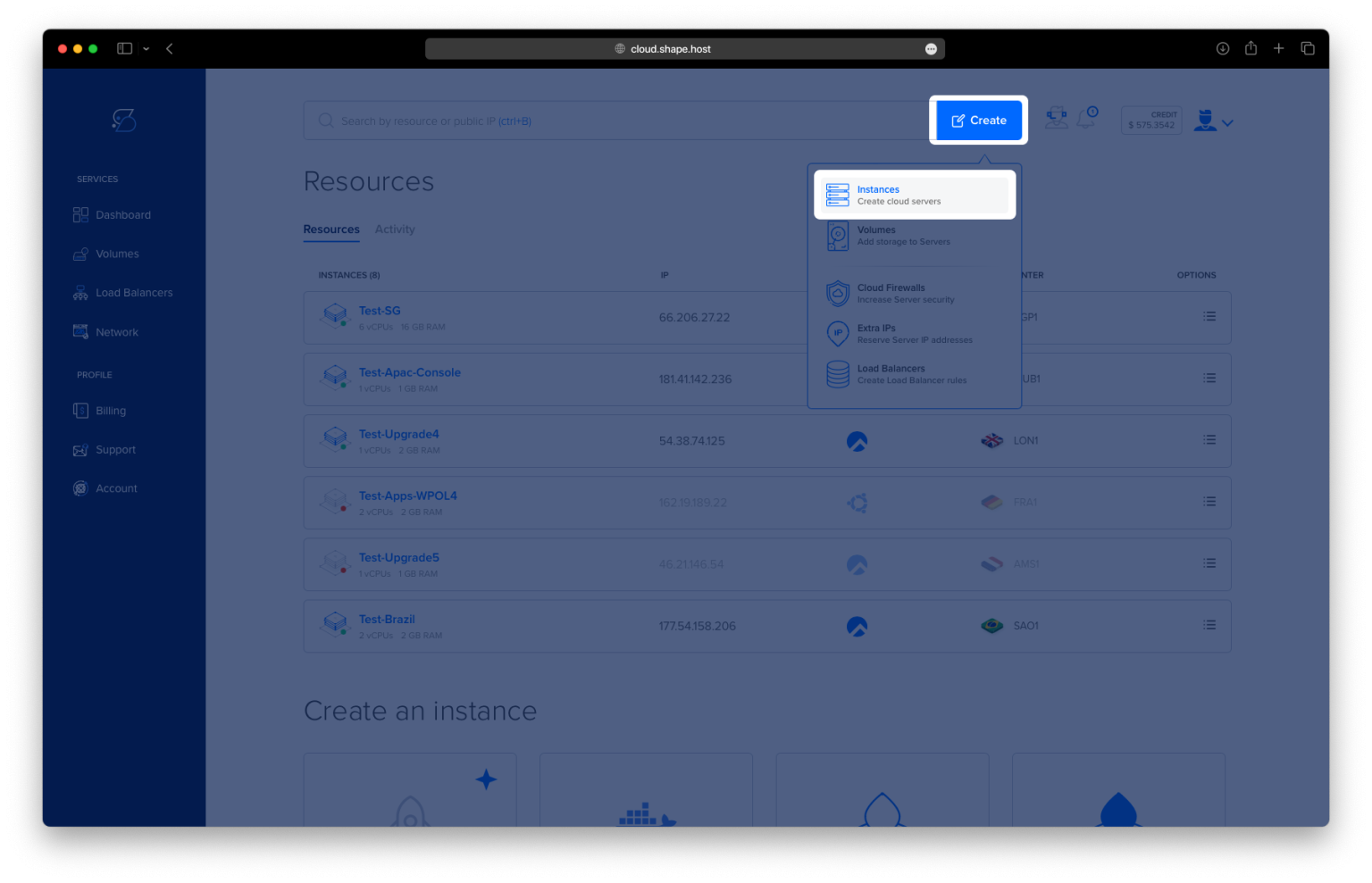
Click “Create” → “Instance.”

Configure your instance:
Region: Pick a location near you.

OS: Select Ubuntu 24.04 (64-bit)
Plan: Even a minimal configuration (1 vCPU, 1 GB RAM) is sufficient for testing.

Click Create Instance.

After provisioning, copy the IP address to connect via SSH.

Step 2: Connect to Your Ubuntu Server
From Linux/macOS:
ssh root@your_server_ip
From Windows:
Use PuTTY, enter your IP address, and connect as root.
Step 3: Install htop
Step 3.1 – Update Package List
Always begin by refreshing the package database:
apt update

Step 3.2 – Install htop
apt install htop

Step 3.3 – Confirm Installation
htop --version
You should see version information, confirming that htop was successfully installed.

Step 4: Launch htop
Start the htop interface by running:
htop
This will open a full-screen terminal application showing system metrics and process information in real time.

Step 5: Useful htop Keyboard Shortcuts
| Key | Action |
|---|---|
F1 | Open help menu |
F2 | Open setup/configuration menu |
F3 | Search for a process |
F4 | Filter process list |
F5 | Display tree view of process hierarchy |
F6 | Sort by a different column |
F9 | Kill the selected process |
F10 | Exit htop |
Arrow Keys | Navigate through the list |
Space | Select/deselect a process |
U | Show only user-owned processes |
Step 6: Uninstall htop (Optional)
If you no longer need htop, you can remove it using the following commands.
Step 6.1 – Remove htop (keep config files)
apt remove htop

Step 6.2 – Remove htop completely (with config)
apt purge htop

Step 6.3 – Clean up any unused dependencies
apt autoremove

You’ve now installed, used, and (optionally) removed htop on Ubuntu 24.04. It’s a powerful tool for monitoring system performance, managing processes, and keeping an eye on resource usage in real time.
Want to monitor your cloud server effortlessly?
Launch your Ubuntu VPS with Shape.Host Cloud VPS Infrastructure today at
👉 https://shape.host