InfluxDB 2 on Debian 12 – A Robust Time Series Platform on a Stable Foundation
InfluxDB 2.x is a modern, all-in-one time series database platform engineered for observability, monitoring, and real-time analytics. It includes a web-based UI, a powerful scripting language (Flux), native support for dashboards, alerts, and token-based security.
When deployed on Debian 12, it benefits from the operating system’s unmatched stability, minimalism, and long-term support—qualities ideal for self-hosted telemetry and metrics infrastructure in enterprise or scientific environments.
InfluxDB 2.x Core Components
InfluxDB 2 represents a major architectural evolution compared to the 1.x series. It integrates what was previously spread across several tools into a unified solution:
| Component | Purpose |
|---|---|
| Time Series Engine | High-write-throughput storage optimized for temporal data |
| Flux Language | Powerful query and scripting engine supporting joins, transformations, and data analysis |
| Web UI | Visual interface for dashboarding, query testing, and administration |
| Task Scheduler | Built-in background jobs for ETL, alerting, and reporting |
| Token-based Auth | Secure multi-tenant access control system |
| REST API | Uniform access to buckets, dashboards, orgs, and tokens |
All components are accessible over a single endpoint (default: http://localhost:8086 or via HTTPS).
Why Use Debian 12 for InfluxDB 2?
Debian 12 “Bookworm” offers a rock-solid, conservative Linux distribution that excels in production environments where predictability, minimalism, and reproducibility matter.
| Debian 12 Feature | Advantage for InfluxDB 2 |
|---|---|
| Linux Kernel 6.1 LTS | Low-latency I/O handling, ideal for write-heavy workloads |
| Systemd 252 | Process supervision, automatic restart, logging, hardening |
| Native PostgreSQL 15/16 | Useful for related infrastructure (e.g., Grafana, logging) |
| AppArmor Support | Optional security policies and confinement |
| No Snap/Flatpak Overhead | Pure APT-based workflow with reproducible builds |
| Minimal Base Image | Fewer background services, more memory for InfluxDB |
Debian’s strict release model ensures critical package consistency, reducing the likelihood of regressions in long-lived deployments.
Operational Benefits on Debian
InfluxDB 2 consumes moderate system resources but benefits from the efficient runtime environment of Debian:
| Metric | Typical Range |
|---|---|
| RAM Usage | ~300–600 MB (without high ingest) |
| CPU Load | Low idle, spikes during writes and query execution |
| Disk Throughput | High (depends on write rate and WAL configuration) |
| System Overhead | Minimal with standard Debian services disabled |
InfluxDB stores time series data in buckets, enabling fine-grained retention and replication policies. This makes it ideal for both ephemeral telemetry and long-term analytics.
Security and HTTPS Support
InfluxDB 2 supports HTTPS out-of-the-box via configuration options:
tls-certandtls-key: PEM-formatted certificate and key fileshttps-enabled: Forces all traffic over encrypted transporttls-min-version: Control protocol version for compliance (e.g., TLS 1.2+)- Integration with NGINX or Apache for additional TLS termination and routing options
Debian 12’s native support for OpenSSL 3.x ensures modern ciphers and compatibility with automated certificate tools like Certbot (Let’s Encrypt).
Combined with token-based authentication, access control, and optionally mTLS, this enables secure, enterprise-grade telemetry pipelines.
Use Cases and Deployment Scenarios
Running InfluxDB 2 on Debian 12 is a good fit for:
- DevOps Metrics: Telegraf → InfluxDB → Grafana pipelines
- IoT and Sensor Monitoring: Secure ingestion from edge devices
- Scientific Instrumentation: Real-time data collection and visualization
- Prometheus Integration: Via remote write (push Prometheus data to InfluxDB)
- Distributed Logging: Combined with Loki or syslog for log/metric correlation
- Business KPIs: Custom dashboards driven by real-time queries
Thanks to its flexible query engine (Flux), it can also serve for anomaly detection, business reporting, or predictive analytics.
Integration Ecosystem
InfluxDB 2 pairs well with many tools in Debian-based environments:
| Tool/Service | Integration Type | Purpose |
|---|---|---|
| Telegraf | Native agent | System/application metrics |
| Grafana | InfluxDB plugin | Advanced dashboards |
| Prometheus | Remote write endpoint | Federated metrics ingest |
| NGINX | Reverse proxy / HTTPS termination | TLS, caching, and routing |
| Rclone/Restic | Offsite backup sync | Store exports or raw WAL files |
| Systemd + Journald | Service control and logging | Reliability and observability |
With these integrations, InfluxDB becomes part of a scalable and secure observability stack tailored to Debian’s strengths.
Running InfluxDB 2 on Debian 12 gives you a durable, secure, and efficient time series platform with:
- Long-term operating system stability
- Excellent support for encrypted and token-secured APIs
- Minimal resource overhead and strong systemd integration
- Compatibility with modern DevOps and monitoring tools
- A perfect environment for self-hosted observability, telemetry, or analytics infrastructure
Debian’s conservative updates and high performance make it an ideal match for InfluxDB in serious production environments, edge monitoring setups, or internal enterprise observability stacks.
Step 1: Create and Connect to a VPS
🛠 Create a VPS on Shape.Host:
Go to https://shape.host and log in.
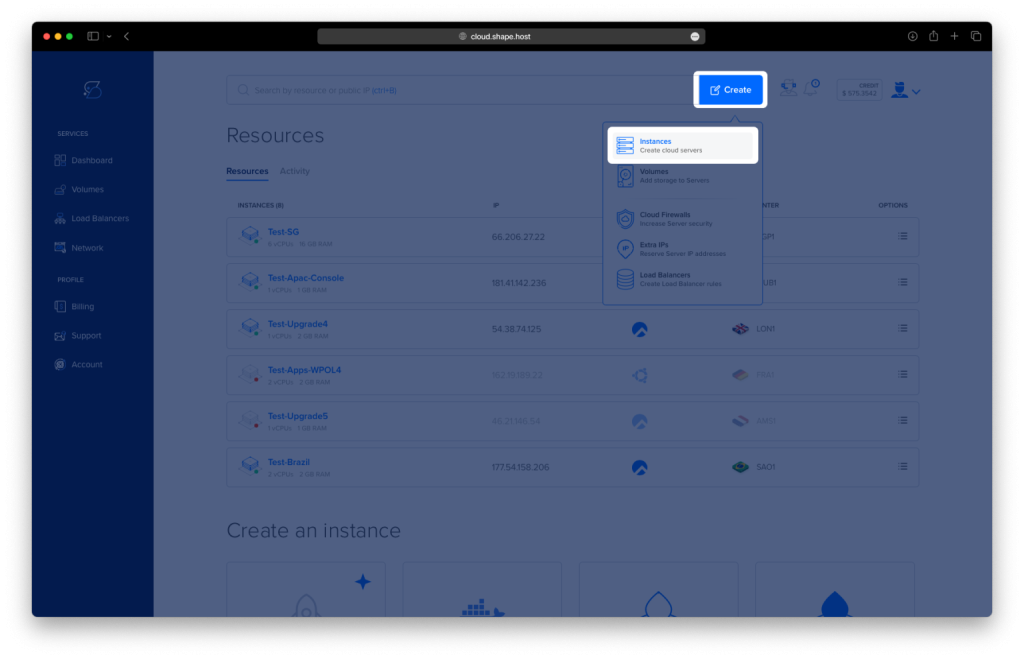
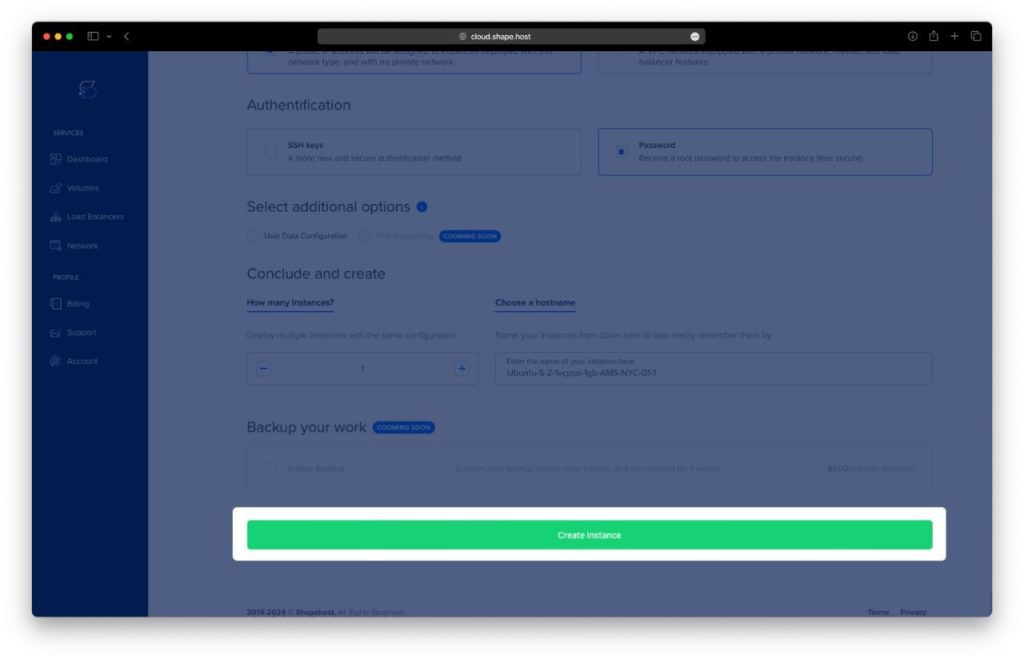
Click “Create” → choose “Instance”.
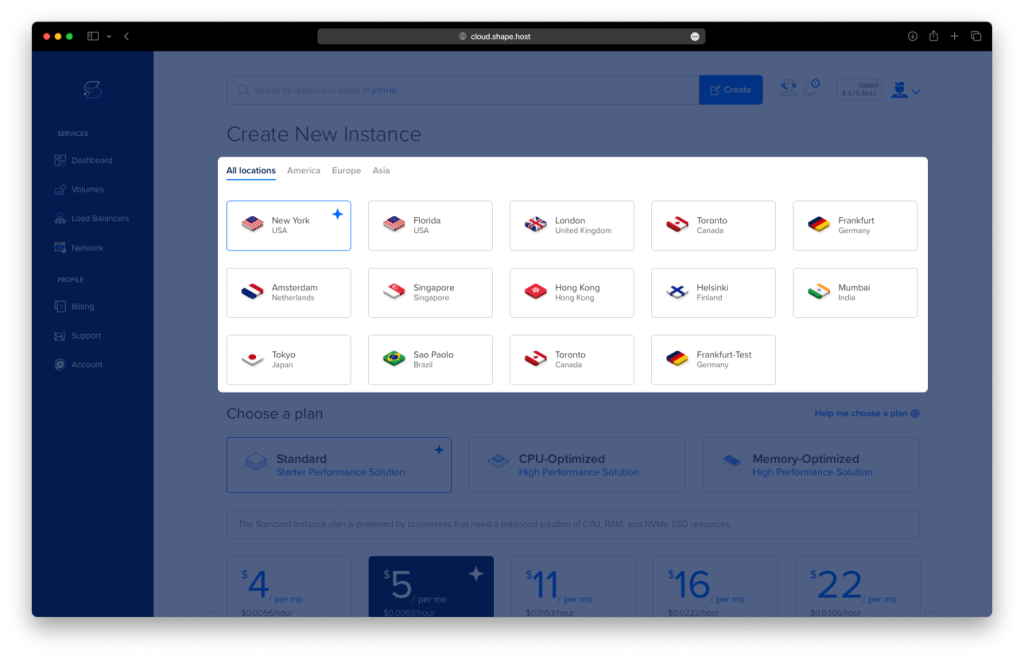
Select the server location closest to your users.
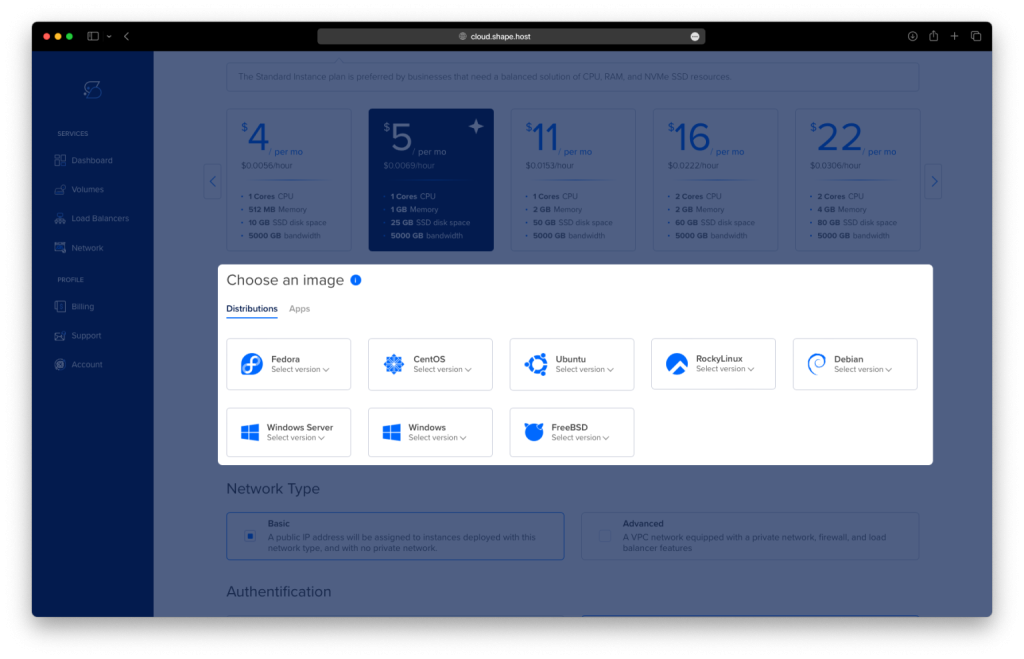
Select the Debian 12 (64-bit) OS.
Choose a plan with at least 1 CPU, 1 GB RAM, 10 GB SSD.
Click “Create Instance”.
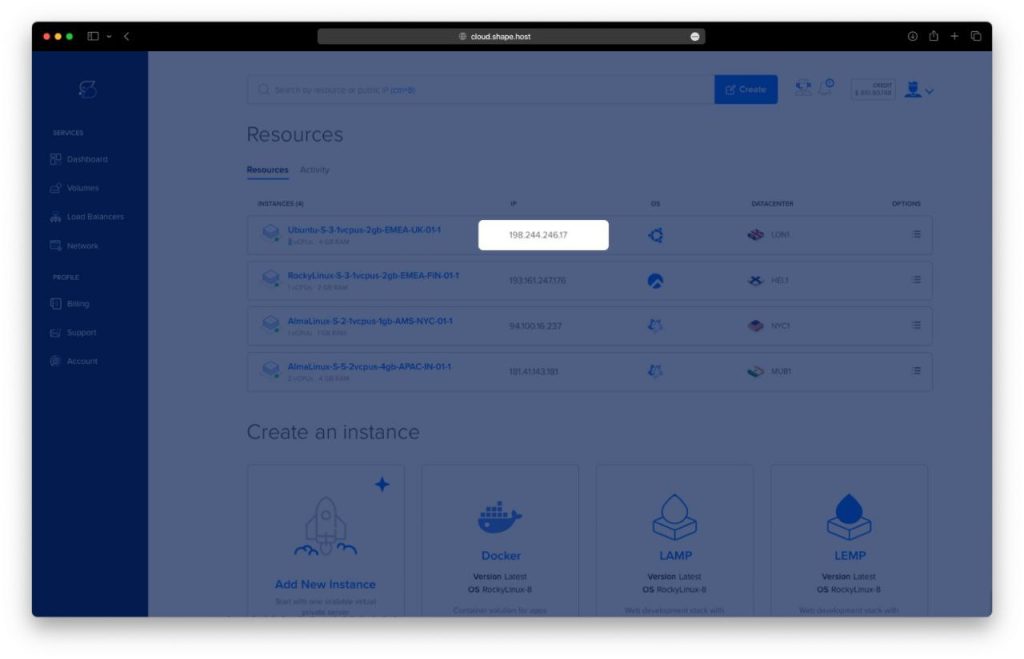
Copy the IP address of the instance from the “Resources” section.
Step 2: Connect to Your Instance
For Linux/macOS:
Open your terminal and connect:
ssh root@your_server_ip
For Windows:
- Download and install PuTTY.
- Open PuTTY, enter your server’s IP in Host Name, then click Open.
Step 3: Update and Upgrade the System
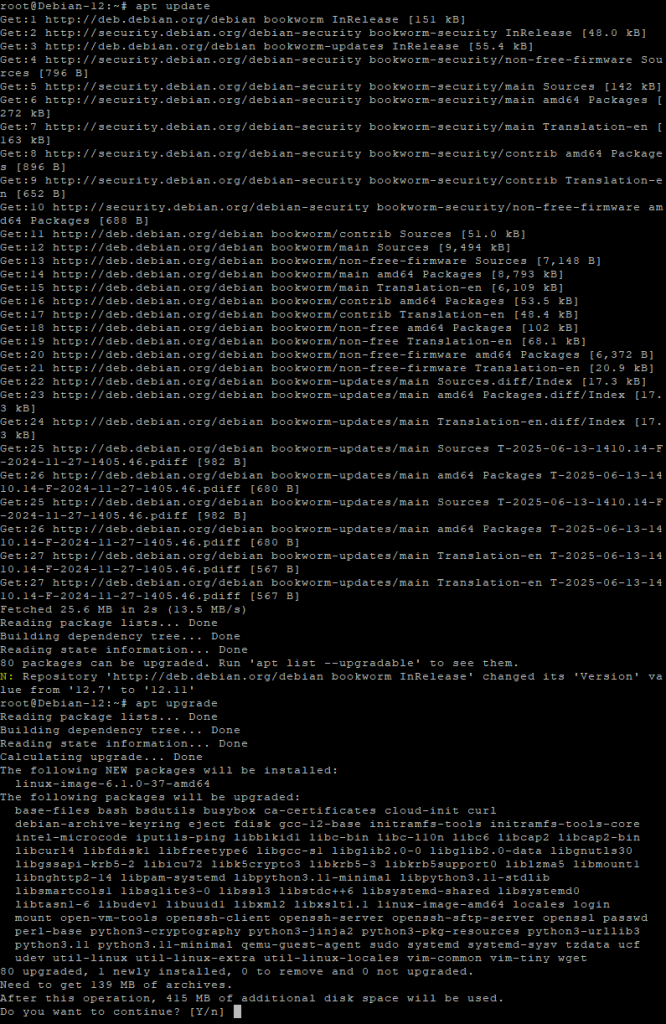
Update package lists:
apt update
Upgrade installed packages:
apt upgrade -y
Step 4: Install Required Tools
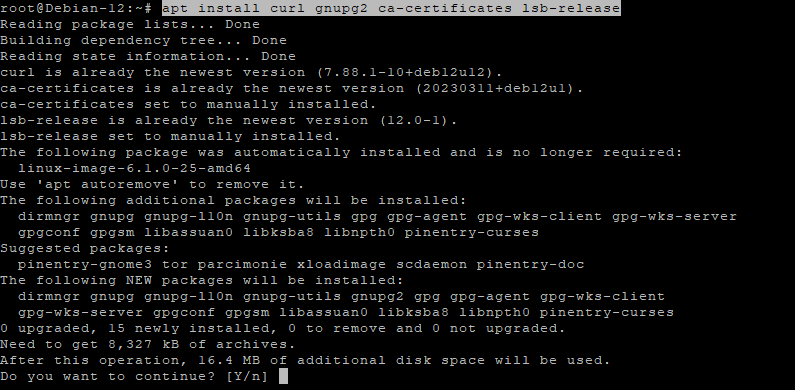
Install necessary packages:
apt install curl gnupg2 ca-certificates lsb-release -y
Step 5: Add InfluxDB GPG Key
Import the repository signing key:
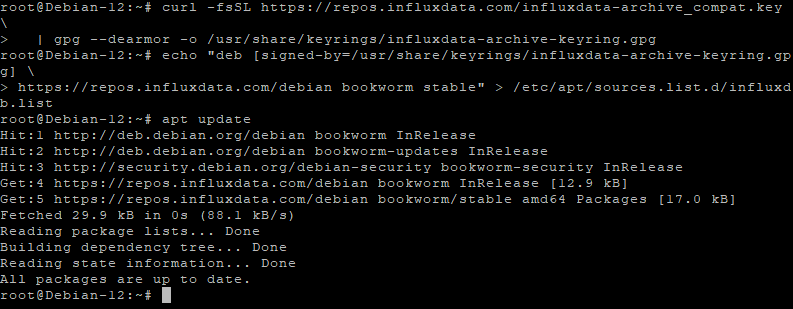
curl -fsSL https://repos.influxdata.com/influxdata-archive_compat.key | gpg --dearmor -o /usr/share/keyrings/influxdata-archive-keyring.gpg
Step 6: Add InfluxDB Repository
Add the official InfluxDB repo:
echo "deb [signed-by=/usr/share/keyrings/influxdata-archive-keyring.gpg] https://repos.influxdata.com/debian bookworm stable" > /etc/apt/sources.list.d/influxdb.list
Update again to load new repo:
apt update
Step 7: Install InfluxDB
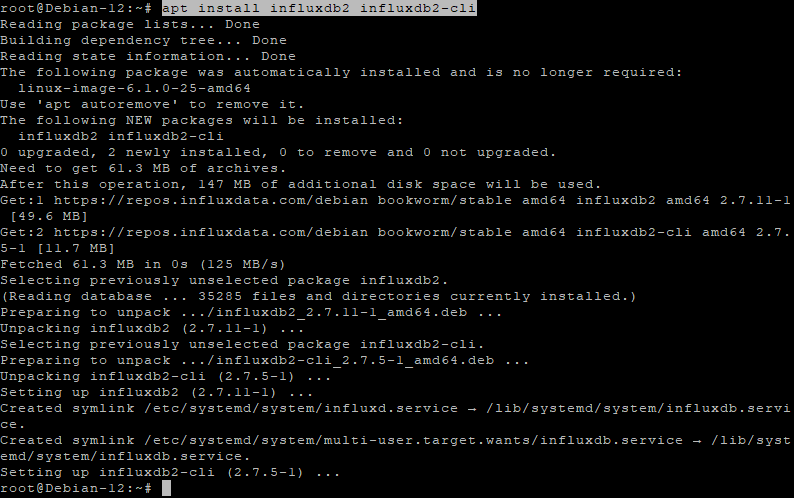
Install the server and CLI:
apt install influxdb2 influxdb2-cli -y
Step 8: Enable and Start InfluxDB
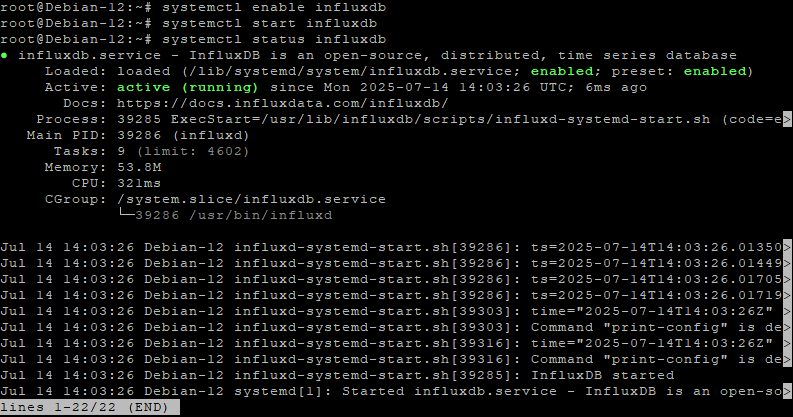
Enable InfluxDB to run on boot:
systemctl enable influxdb
Start the service:
systemctl start influxdb
Check status:
systemctl status influxdb
Check port:
ss -tulpn | grep 8086

Step 9: Set Up InfluxDB
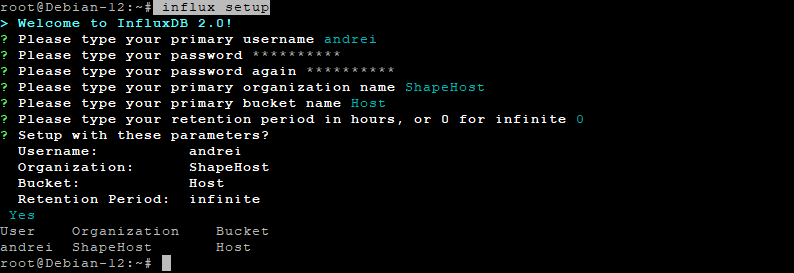
Run the guided setup:
influx setup
Fill in:
- Username
- Password
- Organization
- Bucket
Done!
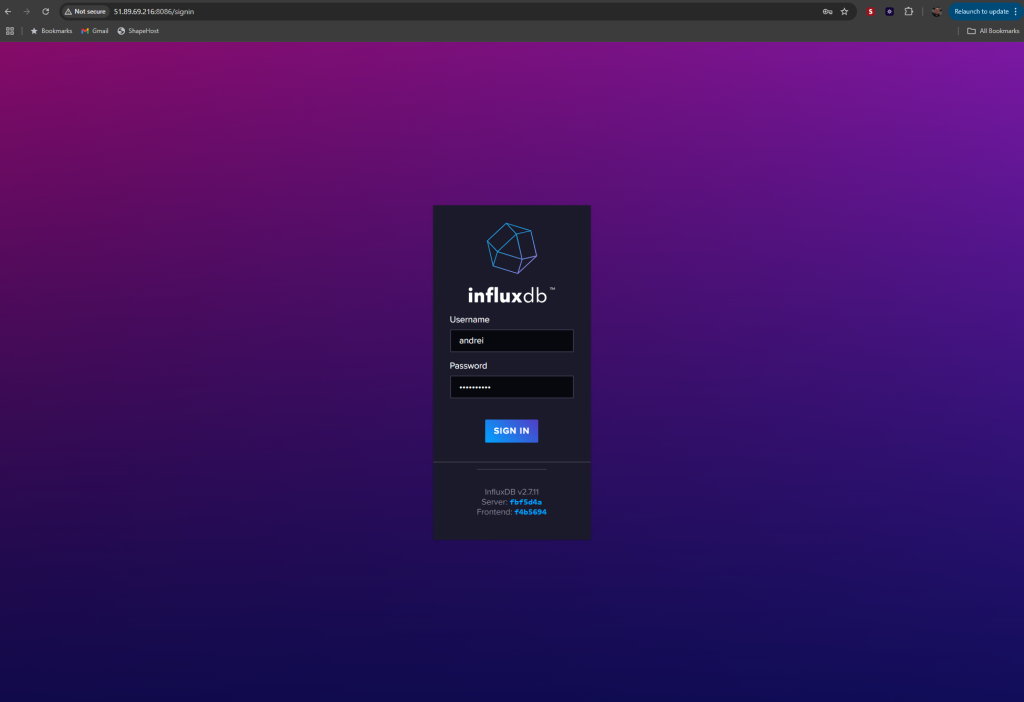
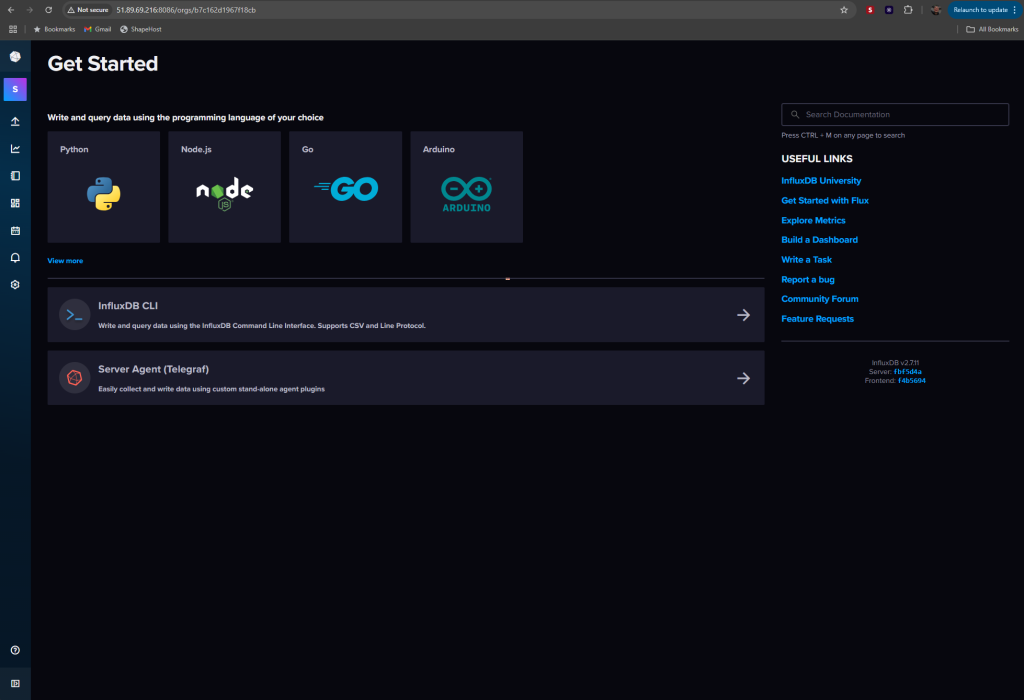
Now access your InfluxDB Web UI at:
http://your-server-ip:8086
If you want HTTPS and a domain, let me know and I’ll extend the tutorial.
Get high-performance Cloud VPS servers with full root access at Shape.Host — perfect for InfluxDB, Grafana, Docker, and more.