MEAN Stack on Debian 12 – Full-Stack JavaScript Development on a Stable, Minimalist OS
The MEAN Stack is a modern, JavaScript-based web development stack comprising:
- MongoDB – A NoSQL, document-oriented database
- Express.js – Lightweight web framework for Node.js
- Angular – A robust client-side SPA framework
- Node.js – Asynchronous JavaScript runtime for back-end logic
Deploying MEAN on Debian 12 provides a solid foundation for performance-focused and highly stable web applications, particularly in environments where minimalism, reliability, and system transparency are priorities.
Why Use Debian 12 for MEAN Stack?
Debian 12 is known for its conservative approach to software packaging, security, and long-term viability, making it ideal for production-grade server environments. It offers:
- Linux Kernel 6.1 LTS – Supports namespaces, control groups (cgroups v2), and modern hardware
- APT package ecosystem – Predictable package management with reproducible builds
- Stable runtime environment – Less frequent version updates mean fewer regressions
- Minimal footprint – Ideal for containerization or performance-sensitive deployments
- High security posture – Enabled by default:
unattended-upgrades,ufw, AppArmor, and secure defaults
For developers deploying apps that must run for years without interruption or major reconfiguration, Debian is an excellent host OS.
MEAN Stack Architectural Model
| Layer | Component | Functionality |
|---|---|---|
| Frontend | Angular | Handles user interfaces and browser-side business logic |
| Server | Express.js | API gateway and middleware on top of Node.js |
| Runtime | Node.js | Executes JavaScript on the server with non-blocking I/O |
| Database | MongoDB | Stores unstructured or semi-structured JSON-like documents |
All components communicate using JSON, over HTTP or WebSockets, with a unified JavaScript/TypeScript development flow.
Advantages of MEAN on Debian 12
- Single Language Stack – JavaScript/TypeScript across the entire stack
- Debian’s Stability – Great for mission-critical and long-lived deployments
- Security-First OS – With AppArmor and reproducible builds
- Fine Control – Ideal for developers and sysadmins who prefer hands-on configuration over automation-heavy stacks
- Great for Docker/Kubernetes – Debian base images are smaller and often used for custom MEAN containers
Debian 12 is frequently chosen for cloud images, edge deployments, and academic hosting, where predictable behavior and low maintenance are essential.
Development Workflow on Debian 12
Key workflows on Debian 12 in a MEAN environment:
- Node.js via NVM or external repo – Official APT version is often outdated;
nvmrecommended - MongoDB via external repos – MongoDB Inc. provides official
.debpackages for stable releases - Angular CLI – Installed via npm/yarn, supports
ng new,ng serve, andng build - Express project scaffolding – Easily bootstrapped with
express-generator - Reverse proxy – NGINX is commonly used for SSL, static delivery, and routing to Node.js apps
- Service management –
systemdhandles Node.js apps with service files, or developers may usepm2 - CI/CD compatibility – Debian works well with GitLab CI, Jenkins, Drone, and containerized GitHub Actions runners
Performance and Optimization
| Optimization Target | Strategy on Debian 12 |
|---|---|
| Node.js Execution | Use LTS versions (e.g., 18.x or 20.x) compiled with latest V8 engine |
| Caching | Integrate Redis for session and query cache layers |
| Angular Build | Use production builds (ng build --prod) with AOT and tree-shaking |
| MongoDB Tuning | Enable journaling, configure WiredTiger cache, index frequently used fields |
| Static Offloading | NGINX to serve frontend assets and Angular builds |
Debian’s minimal background processes and modularity allow deeper optimization of both memory and CPU utilization in high-concurrency environments.
Security Considerations
Debian 12 comes hardened by default, and MEAN stack applications can take advantage of:
| Security Feature | Relevance to MEAN |
|---|---|
| AppArmor profiles | Can be applied to mongod, node, and nginx binaries |
ufw or iptables | Restrict inbound connections to API and database |
| TLS & HTTPS | Easy to configure using NGINX + Let’s Encrypt |
| Helmet.js (Express) | Sets secure HTTP headers and helps prevent common vulnerabilities |
| MongoDB Access Control | Use strong auth, key files, and limit to localhost or internal VLAN |
| Node.js best practices | Avoid using deprecated APIs and sanitize input to prevent injection |
Pairing Debian’s default hardening with Node.js application-level best practices results in a very secure stack.
Containerization and Deployment
Debian 12 is often used as a base Docker image for MEAN apps, with advantages like:
- Smaller image sizes than Ubuntu-based images
- Longer image lifecycles and fewer upstream changes
- Better control over layer caching and package versions
Deployment options:
- Bare-metal / VM – Managed via systemd and NGINX
- Docker Compose – Isolated containers for MongoDB, Node.js, Angular build output
- Kubernetes – For autoscaling, load balancing, and service mesh integration
- Cloud VMs – Easy to deploy on AWS EC2, GCP Compute Engine, or Azure VMs with Debian 12 images
MEAN vs Other Stacks on Debian
| Stack | Language(s) | DB | Frameworks Used | Ideal For |
|---|---|---|---|---|
| MEAN | JavaScript/TypeScript | MongoDB | Angular, Express, Node | Real-time apps, SPAs |
| MERN | JavaScript/TypeScript | MongoDB | React, Express, Node | React-centric SPAs and frontends |
| LEMP | PHP/Python/JS | MySQL/PostgreSQL | Laravel, Flask, Django | Traditional or RESTful web apps |
| Django Stack | Python | PostgreSQL | Django | Enterprise and data-driven apps |
| SvelteKit Stack | JavaScript | MongoDB | SvelteKit, Node | Lightweight, modern frontends |
MEAN stands out on Debian for use cases such as real-time dashboards, progressive web apps, and developer-friendly JSON APIs.
Step 1: Set Up a Server Instance on Shape.Host
Start by launching a clean Debian 12 VPS. Shape.Host offers high-performance VPS hosting with root access, ideal for MEAN stack deployment.
Create an Instance:
Visit https://shape.host and log in.
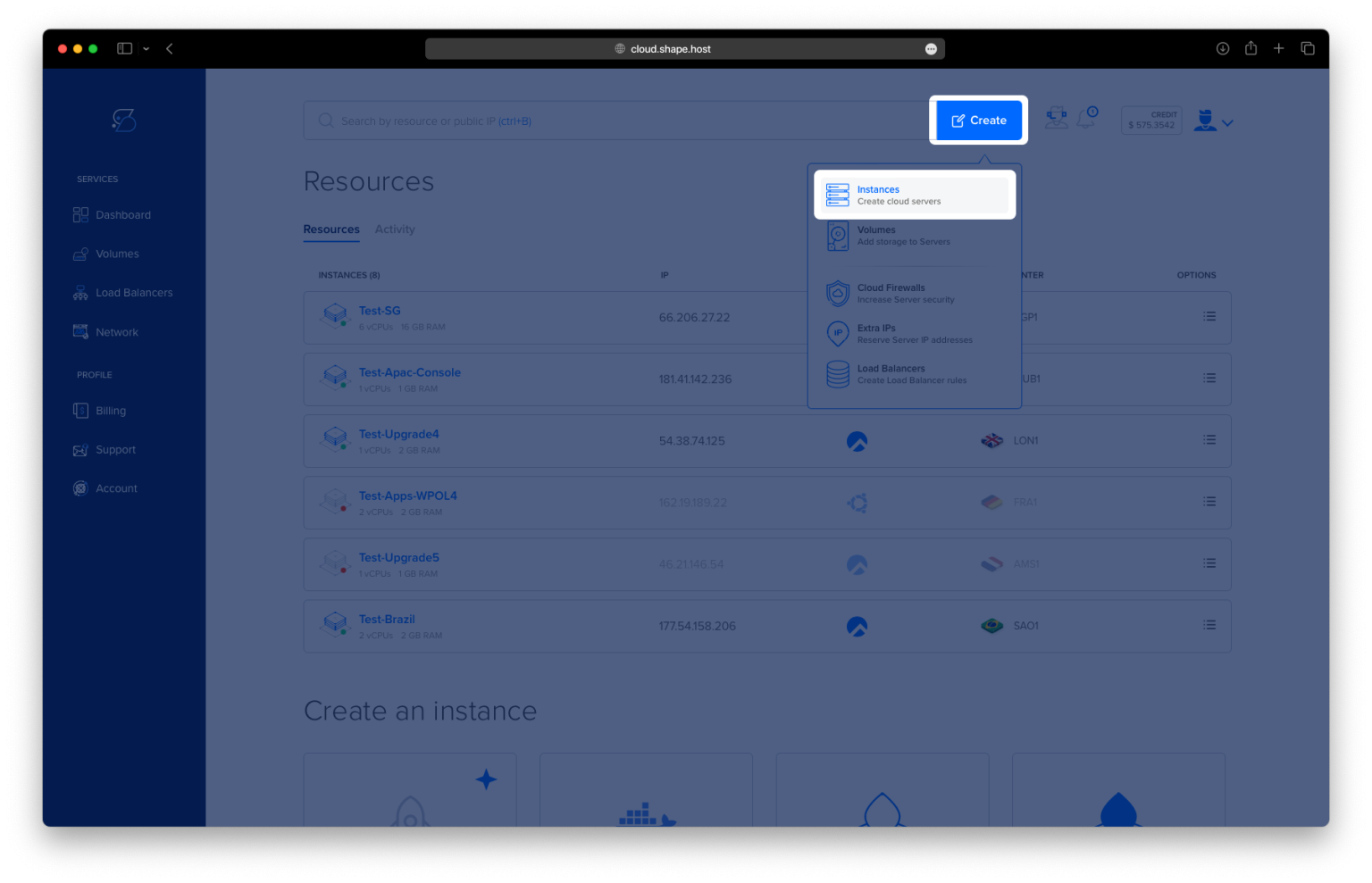
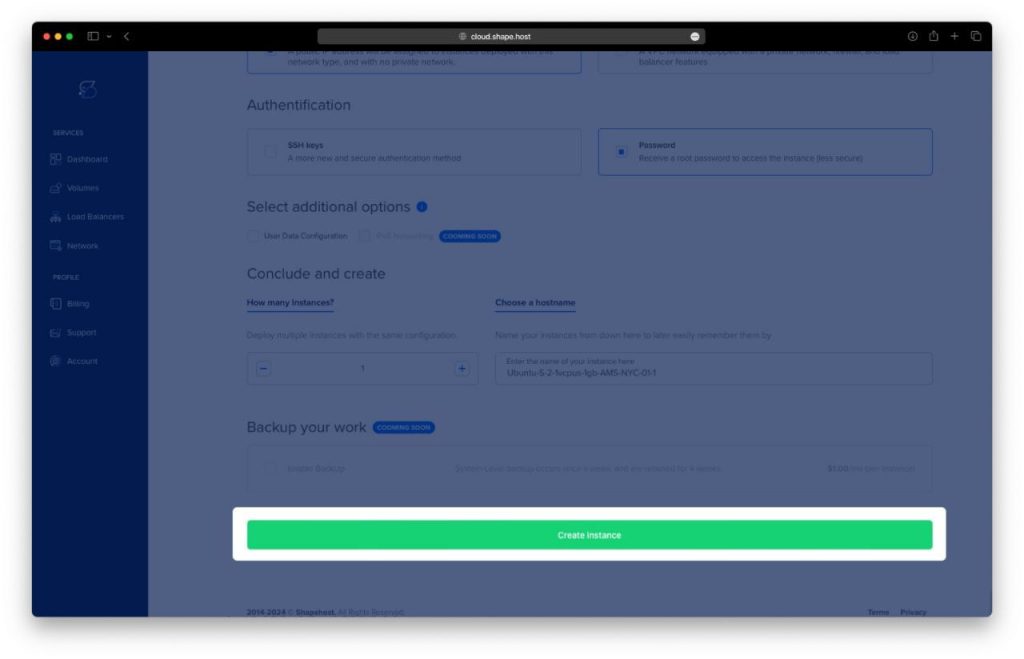
Click “Create” in your dashboard.
Choose “Instance” as the resource type.
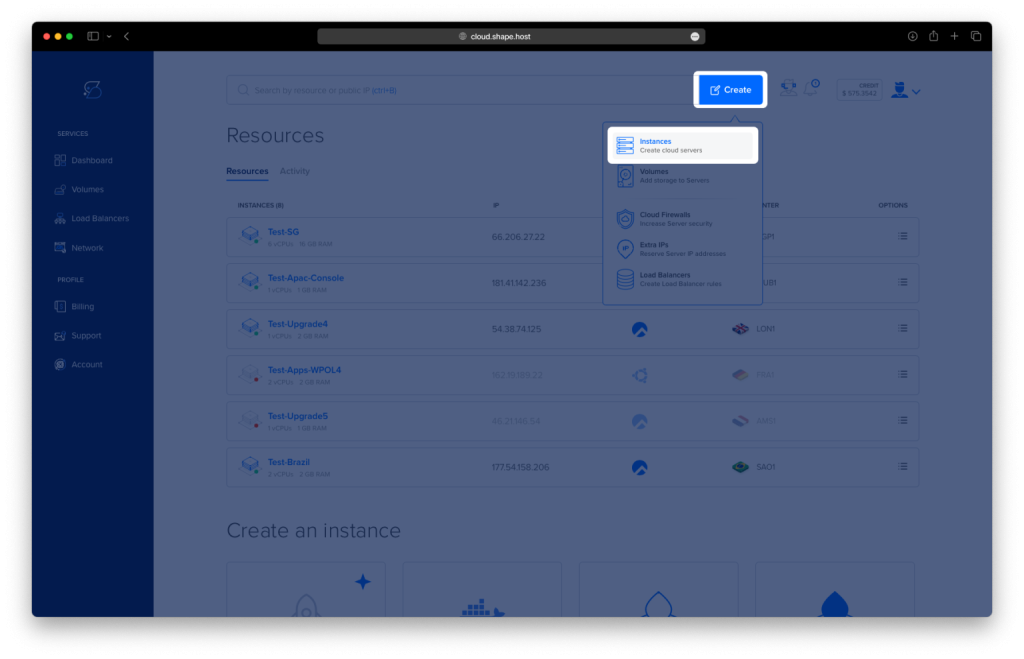
Select your preferred server location (data center) such as Germany, Netherlands, or the US.
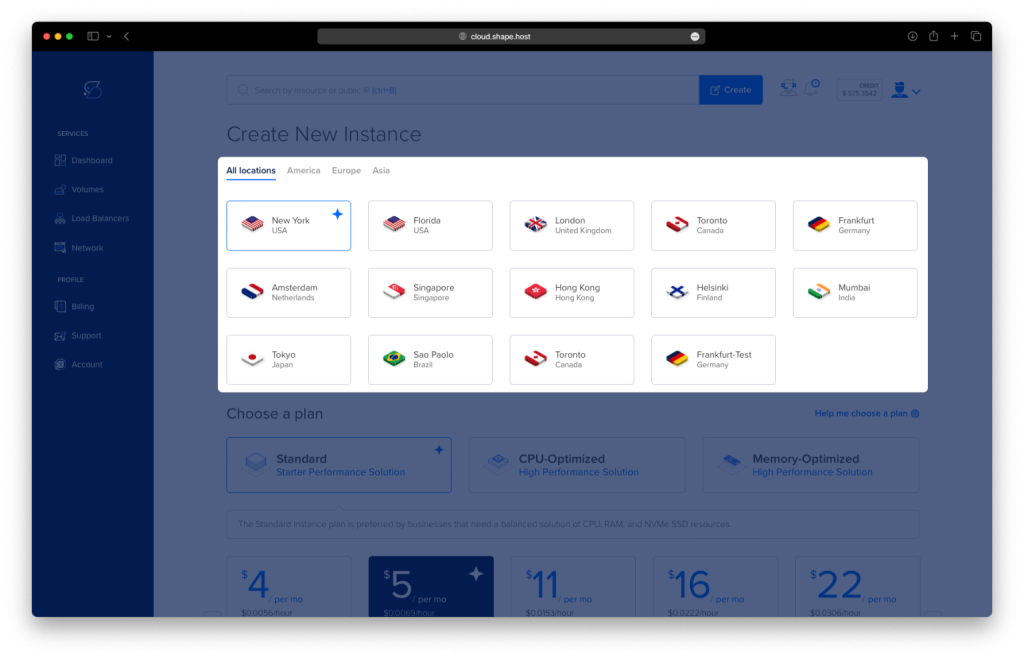
Choose Debian 12 (64-bit) as the operating system.
Select a hosting plan with at least 2 CPUs, 2 GB RAM, and 20 GB SSD.
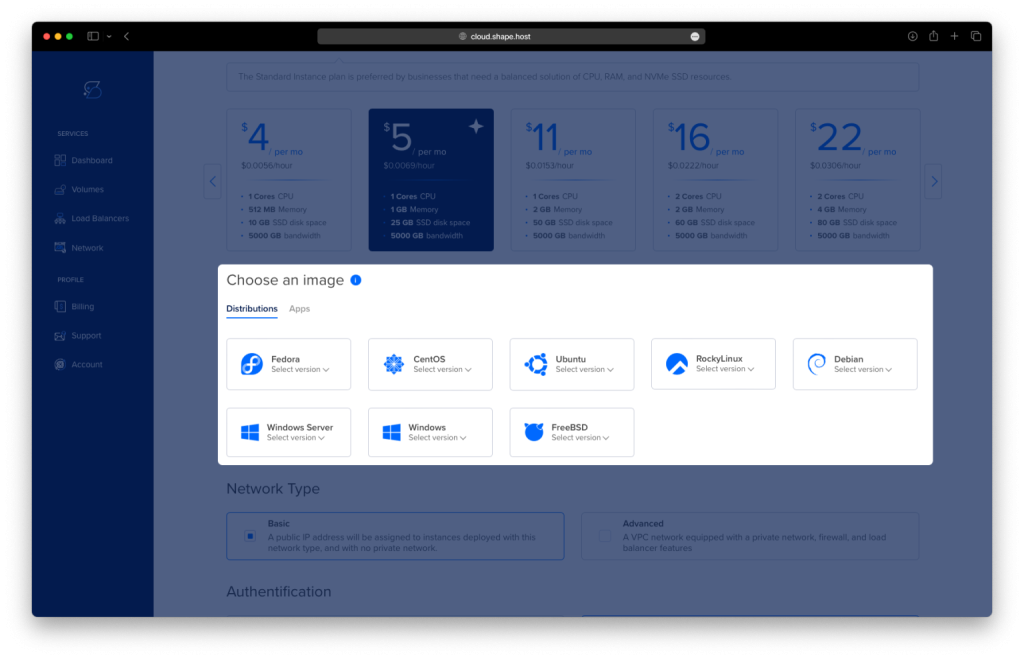
Click “Create Instance” and wait for the server to provision.
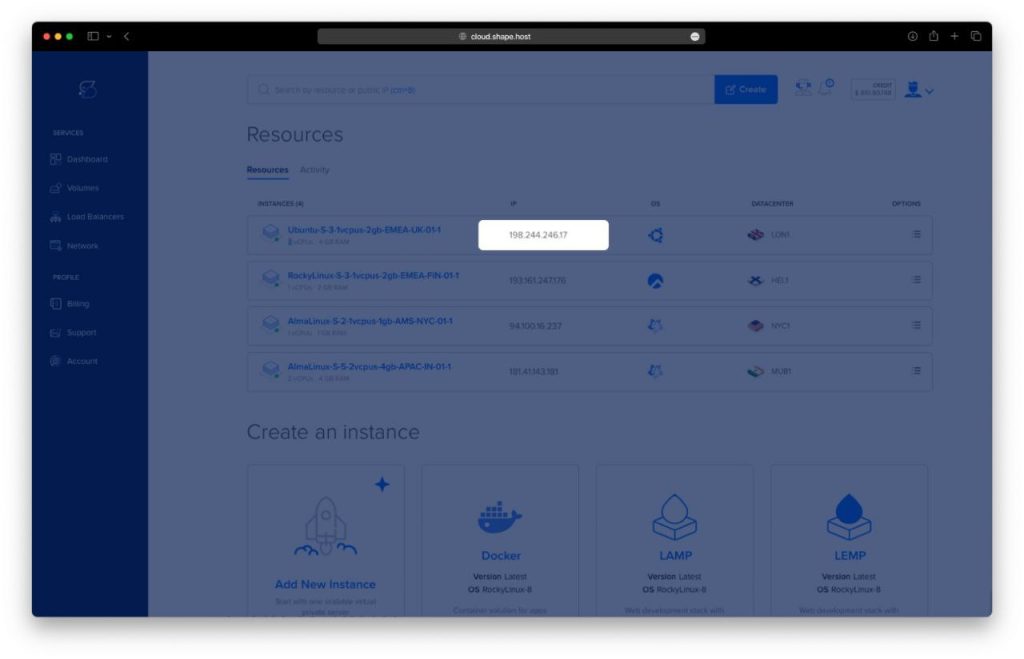
Copy the server’s IP address from the Resources section.
Connect to Your Instance
On Linux/macOS:
ssh root@your_server_ip
On Windows (using PuTTY):
- Download PuTTY.
- Open PuTTY, enter the IP in the Host Name field.
- Set port to
22, select SSH, and click Open.
Step 2: Install Node.js and NPM
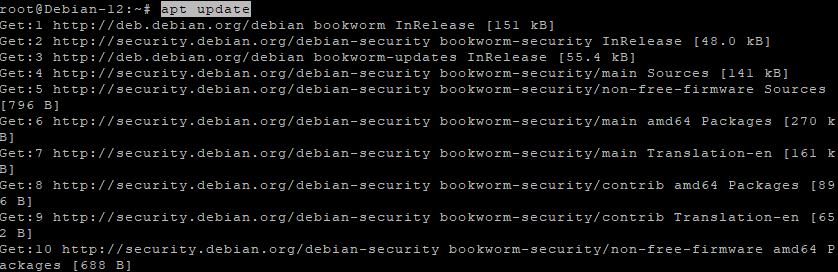
1. Update system packages:
apt update
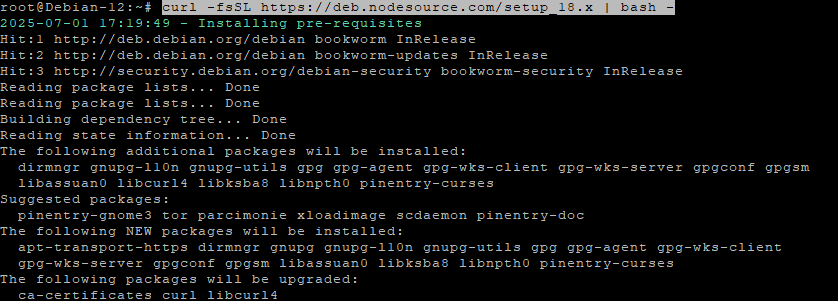
2. Add NodeSource repository for Node.js 18:
curl -fsSL https://deb.nodesource.com/setup_18.x | bash -
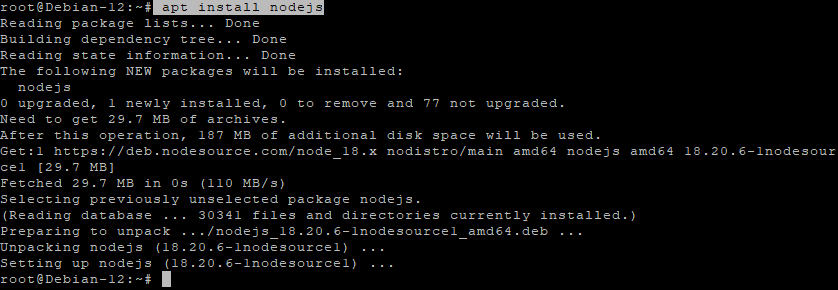
3. Install Node.js:
apt install nodejs
4. Check versions:
node -v
npm -v

Step 3: Install MongoDB 7.0
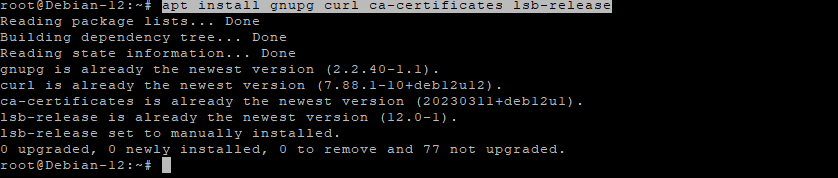
1. Install necessary dependencies:
apt install gnupg curl ca-certificates lsb-release
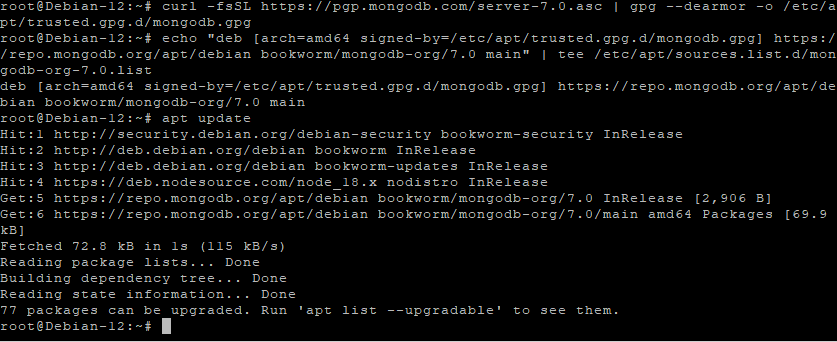
2. Add MongoDB GPG key:
curl -fsSL https://pgp.mongodb.com/server-7.0.asc | gpg --dearmor -o /etc/apt/trusted.gpg.d/mongodb.gpg
3. Add MongoDB repository:
echo "deb [arch=amd64 signed-by=/etc/apt/trusted.gpg.d/mongodb.gpg] https://repo.mongodb.org/apt/debian bookworm/mongodb-org/7.0 main" | tee /etc/apt/sources.list.d/mongodb-org-7.0.list
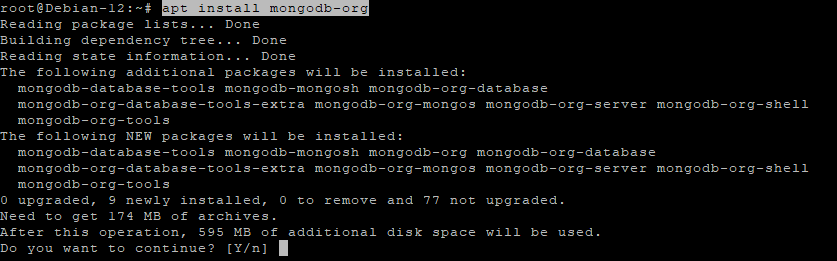
4. Update package list and install MongoDB:
apt update
apt install mongodb-org
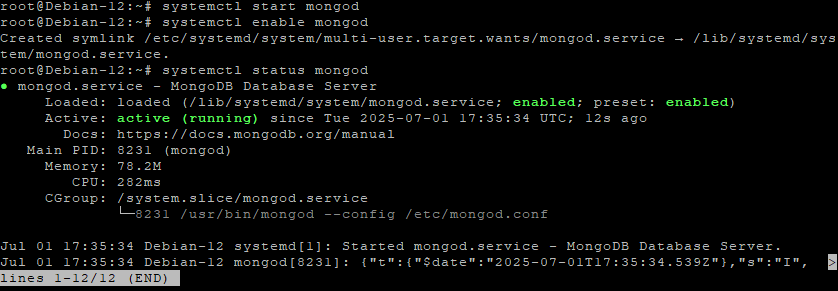
5. Start and enable MongoDB:
systemctl start mongod
systemctl enable mongod
6. Verify service status:
systemctl status mongod
Step 4: Install Angular CLI
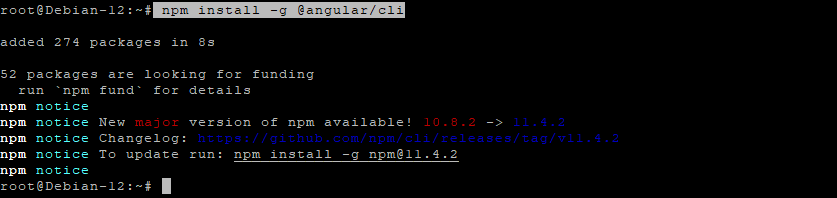
Install Angular CLI globally:
npm install -g @angular/cli
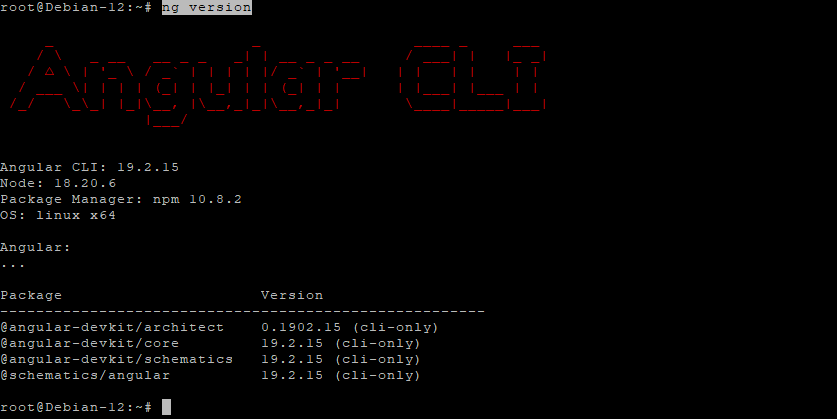
Check version:
ng version
Step 5: Create Express.js Application
1. Install Express application generator:
npm install -g express-generator

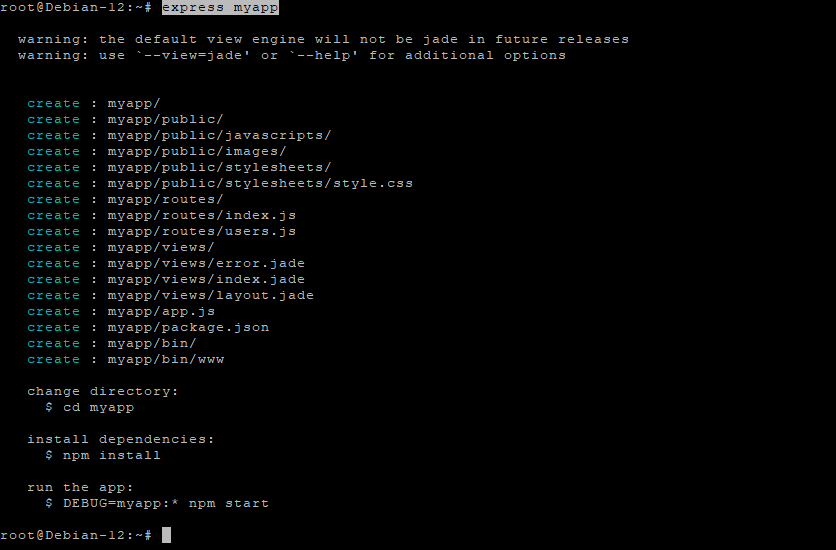
2. Generate a new Express app:
express myapp
3. Move into the app directory:
cd myapp
4. Install dependencies:
npm install
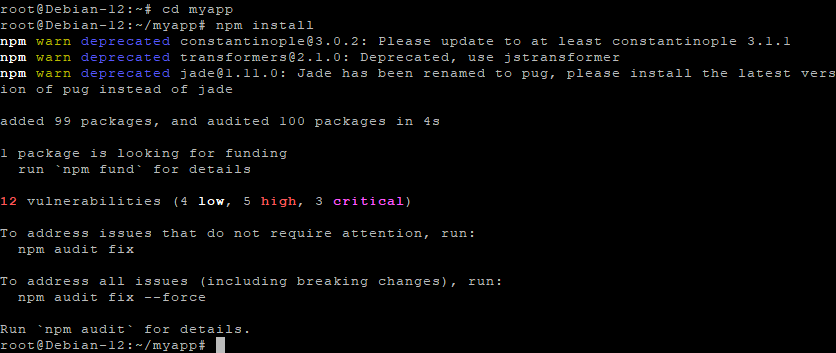
5. Start the Express server:
npm start

Then open your browser and visit:
http://your-server-ip:3000
You should see the default Express welcome page.

You’ve successfully installed the MEAN Stack on Debian 12, including Node.js, MongoDB 7.0, Angular CLI, and Express.js. This setup provides a solid foundation for building scalable full-stack web applications using JavaScript from frontend to backend.
Deploy your production-grade MEAN apps on Shape.Host Cloud VPS for performance, scalability, and full control.
Launch now at https://shape.host.