Nagios Core on AlmaLinux 9 — Enterprise-Grade Monitoring with a Stable RHEL Foundation
Nagios Core is a widely trusted open-source monitoring solution that provides health checks, status tracking, and alerting for infrastructure components. It is ideal for setups where configuration transparency, plugin extensibility, and system-level control are required.
AlmaLinux 9, as a downstream rebuild of Red Hat Enterprise Linux 9, delivers the security, performance, and long-term support needed for deploying Nagios Core in production environments, whether on bare metal, virtual machines, or containers.
Why Use Nagios Core on AlmaLinux 9?
AlmaLinux 9 is tailored for enterprise workloads. It provides a consistent and secure platform with 10+ years of lifecycle support—perfect for long-term monitoring solutions like Nagios.
| AlmaLinux 9 Feature | Benefit for Nagios Core |
|---|---|
| Kernel 5.14 LTS | Modern hardware support and I/O optimization |
| Systemd 250+ | Efficient service management for Nagios and Apache |
| SELinux (enforcing) | Strong access control, especially for plugin security |
| dnf & modularity | Allows selection of compatible PHP/Apache versions |
| OpenSSL 3.x | Required for TLS-secured plugin and web UI connections |
This makes AlmaLinux a particularly good fit for air-gapped, compliance-driven, or mission-critical environments.
Nagios Core System Components
Nagios Core consists of:
- nagios daemon — The main scheduling and check-processing engine
- Apache with CGI — Provides the web interface
- Object Definitions — Static configuration files for hosts, services, templates
- Nagios Plugins — Executable scripts/binaries for health checks
- Notification Handlers — Scripts that trigger alerts via email, SMS, or APIs
These components align well with the package and service management structures provided by AlmaLinux and the RHEL ecosystem.
Advantages of Using Nagios Core on AlmaLinux 9
- Predictable OS Environment
AlmaLinux provides RPM-based consistency, great for automation and long-term configuration management. - Systemd Integration
Nagios and Apache services are easily managed, monitored, and restarted usingsystemctl. - Security Hardening
SELinux policies can restrict plugin behavior. Custom rules ensure Nagios only interacts with explicitly permitted resources. - Enterprise-Grade PHP Support
Through Application Streams, you can pin compatible PHP versions (like PHP 8.1 or 8.2) for CGI UI support. - FirewallD Compatibility
Easily configure secure access to Nagios UI and remote monitoring ports. - Minimal Overhead
AlmaLinux is optimized for headless, non-GUI workloads—ideal for server-grade deployments with high uptime expectations.
Use Cases for Nagios Core on AlmaLinux 9
- Infrastructure Monitoring in Data Centers
- Remote Site Monitoring via VPN or SSH
- PCI-DSS or HIPAA-Compliant Environments
- Air-Gapped Monitoring Networks
- Hybrid Infrastructure (VMs, Physical, Cloud Instances)
Nagios Core’s text-based configurations and plugin architecture make it highly adaptable to a range of environments with strict audit or change control requirements.
Security Considerations
| Security Layer | Implementation Strategy on AlmaLinux 9 |
|---|---|
| SELinux | Create custom policies for plugin execution and file access |
| HTTPS (TLS) | Use Apache with mod_ssl and OpenSSL 3.x for encrypted UI |
| FirewallD | Restrict access to ports (80/443 or 5666 for NRPE) |
| Systemd Hardening | Apply unit restrictions like ProtectSystem=full |
| User Management | Define Nagios UI access via Apache’s htpasswd authentication |
Combined, these features enable Nagios to operate within secure enclaves or externally exposed hardened networks.
Plugin Ecosystem & Extensions
Nagios Core on AlmaLinux supports:
- Standard Nagios Plugins (
check_http,check_disk,check_load, etc.) - NRPE / NCPA for remote Linux/Windows monitoring
- SNMP tools for network device integration
- Webhook/SMS integration for modern alerting via custom scripts
- Visualization tools like Grafana (via PNP4Nagios or InfluxDB exporters)
Scripts can be written in Bash, Python, Perl, or compiled languages and run directly as part of the monitoring schedule.
Comparison with Other Monitoring Tools on AlmaLinux 9
| Feature/Need | Nagios Core | Zabbix | Icinga 2 |
|---|---|---|---|
| Transparency | Full config file control | Web-based | Hybrid (text + web) |
| Plugins | Custom and reusable | Integrated | Compatible with Nagios |
| Web Interface | Basic CGI | Rich UI | Rich UI + API |
| Time Series Data | External tools needed | Built-in | Optional via DB |
| Ease of Scaling | Manual / with addons | Native agent support | Distributed support |
Nagios Core is best when full control over monitoring definitions, schedules, and scripts is preferred.
Running Nagios Core on AlmaLinux 9 gives you:
- A secure and stable RHEL-class Linux environment
- Long lifecycle support through 2032
- Fine-tuned plugin execution and system resource usage
- Compatibility with enterprise security models (SELinux, SSL, firewalls)
- A mature and extensible monitoring platform for complex infrastructure
This setup is ideal for sysadmins and infrastructure teams seeking deterministic behavior, low resource usage, and deep customization.
Step 1: Create a Shape.Host Instance
Go to https://shape.host and log in.
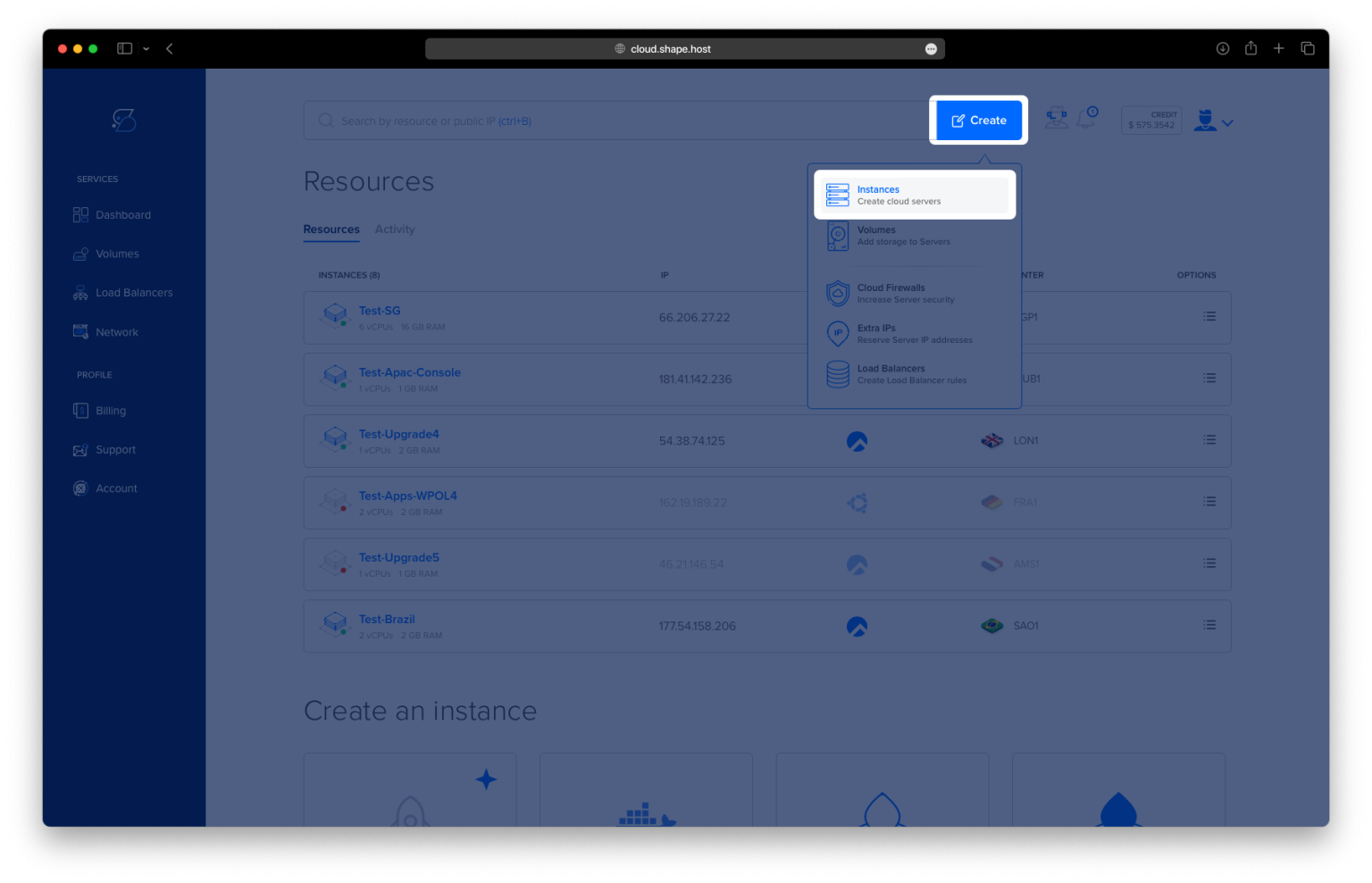
Click “Create”, then choose “Instance”.

Choose a server location closest to your users.

Select AlmaLinux 9 (64-bit) as the OS.
Choose a plan with at least 2 CPUs, 2 GB RAM, and 10 GB SSD.

Click “Create Instance”.

After creation, copy the IP address of the server.

Step 2: Connect to the Instance
On Linux/macOS:
ssh root@your-server-ip
On Windows:
- Download and install PuTTY.
- Open PuTTY and enter your server’s IP.
- Log in as
rootwhen prompted.
Step 3: Update the system
dnf update -y
This ensures all packages are up to date.

Step 4: Install Required Packages
dnf install httpd php php-cli gcc glibc glibc-common unzip wget make autoconf automake libtool libxml2 libxml2-devel gd gd-devel openssl openssl-devel perl gettext -y
Installs Apache, PHP, compilers, libraries, and other dependencies needed for compiling and running Nagios.

Step 5: Create Nagios User and Group
useradd nagios
Creates the nagios user.
groupadd nagcmd
Creates the nagcmd group for command access.
usermod -a -G nagcmd nagios
usermod -a -G nagcmd apache
Adds nagios and apache users to nagcmd group.

Step 6: Download and Compile Nagios Core
cd /usr/src
wget -O nagioscore.tar.gz https://github.com/NagiosEnterprises/nagioscore/archive/refs/tags/nagios-4.5.9.tar.gz
tar xzf nagioscore.tar.gz
cd nagioscore-nagios-4.5.9
Downloads and extracts Nagios Core source code.

./configure --with-command-group=nagcmd
make all
Configures and compiles Nagios.


Step 7: Install Nagios
make install
make install-init
make install-commandmode
make install-config
make install-webconf
Installs Nagios binaries, daemon, command mode, configuration files, and web config for Apache.


Step 8: Create Web Login
htpasswd -c /usr/local/nagios/etc/htpasswd.users nagiosadmin
Creates the nagiosadmin login for accessing the Nagios web interface.

Step 9: Enable and Start Apache
systemctl enable httpd
systemctl start httpd
systemctl status httpd
Starts and enables the Apache web server.

Step 10: Install Nagios Plugins
cd /usr/src
wget -O nagios-plugins.tar.gz https://github.com/nagios-plugins/nagios-plugins/archive/refs/tags/release-2.4.12.tar.gz
tar xzf nagios-plugins.tar.gz
cd nagios-plugins-release-2.4.12
Downloads and extracts Nagios plugins.

./tools/setup
./configure --with-nagios-user=nagios --with-nagios-group=nagios
make
make install
Configures, compiles, and installs plugins.


Step 11: Verify Configuration and Start Nagios
/usr/local/nagios/bin/nagios -v /usr/local/nagios/etc/nagios.cfg
Checks if your Nagios config is valid.

systemctl enable nagios
systemctl start nagios
systemctl status nagios
Starts and enables Nagios monitoring.

Step 12: Access Nagios Web Interface
Open your browser and go to:
http://your-server-ip/nagios
Login using nagiosadmin and the password you set earlier.


Powered by Shape.Host
For fast and reliable hosting, use Shape.Host Linux SSD VPS. All tutorials are tested and work flawlessly on their infrastructure.