Nagios Core on Debian 12 — Stable Monitoring on a Minimalist Linux Base
Nagios Core is a powerful, extensible open-source IT infrastructure monitoring system that focuses on checking the availability and performance of hosts and services. Its declarative configuration model and plugin-driven architecture make it ideal for environments where observability precision and operational control are important.
Debian 12, released in June 2023, is a long-term supported Linux distribution known for its conservative package selection and system stability. It provides a reliable base for deploying tools like Nagios Core in critical production environments or air-gapped networks.
Benefits of Using Nagios on Debian 12
| Feature | Benefit to Nagios Core |
|---|---|
| Systemd 252 | Modern process management for service control |
| OpenSSL 3.0 | Updated TLS stack for secure plugin communications |
| PHP 8.2 available | Supports the Nagios Core CGI web interface |
| APT ecosystem | Easy access to stable monitoring dependencies |
| Minimal system footprint | More CPU and memory dedicated to monitoring tasks |
| Long-term support (LTS) | Ideal for systems that should not require frequent upgrades |
Debian’s default security posture (e.g., AppArmor, secure defaults) complements Nagios Core’s operational model.
Nagios Core Components
Nagios follows a modular architecture, composed of:
- Daemon (
nagios): Executes check commands, schedules jobs, manages state - Configuration files: Define hosts, services, contacts, and command templates
- Plugins: Executable scripts or binaries used to check system state (e.g., CPU load, HTTP response)
- Event handlers: Trigger automated recovery or notifications
- CGI web interface: Provides status views, logs, and scheduling tools
- Notification system: Sends alerts via email or other channels on state changes
Each element is individually configurable, making Nagios a granular and predictable monitoring tool.
Use Cases for Nagios Core on Debian 12
- Infrastructure Health Monitoring — Track Linux servers, Windows hosts, printers, switches, and more
- Process & Service Uptime Checks — Ensure that critical services like MySQL, NGINX, or mail servers stay active
- Custom Business Logic Monitoring — Use custom scripts to check SLA violations or internal APIs
- Offline or Air-Gapped Systems — Nagios Core works without internet connectivity
- Academic & Training Environments — Teach foundational monitoring concepts using a transparent system
System Integration & Operational Model
Nagios runs as a systemd service and is typically served by Apache + PHP for the web interface. On Debian 12:
- Logging is handled via
syslogandsystemd-journald - Custom scripts (Bash, Python, Perl) are supported for plugin checks
- Firewall configuration can be controlled via
nftablesorufw - Mail utilities like
mailxorssmtpare used for alert delivery
Nagios’ flexibility means it doesn’t require any specific database backend unless used with extensions (e.g., PNP4Nagios, NDOUtils).
Security & Hardening Considerations
Debian 12 supports a secure Nagios deployment by default:
| Security Element | Application to Nagios Core |
|---|---|
| AppArmor profiles | Limit plugin behavior and script access |
| Least-privilege plugins | Plugins typically run as the nagios user |
| Firewall configuration | Prevent access to port 80/443 except from internal clients |
| Access control | Define users and permissions in htpasswd and cgi.cfg |
| HTTPS termination | Use Apache SSL modules or a reverse proxy like NGINX |
Secure use of token-based checks or SSH-based plugin execution (e.g., check_by_ssh) is common in Debian deployments.
Comparison with Modern Alternatives
| Feature | Nagios Core | Zabbix | Icinga 2 |
|---|---|---|---|
| Config Format | Static text files | Web UI or API | Text + DSL + Director |
| Web Interface | Basic CGI | Full-featured | Full-featured |
| Metrics Storage | State retention only | Time series DB (built-in) | Supports external DBs |
| Alerting System | Script-based | Integrated | Integrated |
| Scaling | Manual (NRPE/mod_gearman) | Distributed out of the box | Distributed out of the box |
Nagios remains popular where simplicity, predictability, and minimal dependencies are more important than interactive dashboards or dynamic configuration.
Ecosystem and Plugin Support
Nagios benefits from a mature ecosystem of tools and integrations:
| Tool/Integration | Purpose |
|---|---|
| NRPE/NCPA | Remote execution of checks on Linux/Windows systems |
| Grafana + PNP4Nagios | Visualize historical performance data |
| Slack, Telegram, Webhooks | Third-party alerting support via event handlers |
| Ansible/Puppet | Automate config file generation |
| NagiosQL | GUI-based config management addon |
Thousands of community plugins are available from repositories like Nagios Exchange.
Deploying Nagios Core on Debian 12 gives you a transparent, resilient monitoring solution with a minimal system footprint and full control over how checks and notifications are handled.
Key takeaways:
- Ideal for air-gapped, security-focused, or legacy infrastructure
- Fully scriptable, agent-based or agentless monitoring
- Deep community support and plugin library
- Static configuration model suitable for automation pipelines
- Not a modern observability suite—but a solid, predictable alternative
If you’re building a lightweight, deterministic monitoring stack on a rock-solid OS, Nagios Core on Debian 12 remains a compelling option.
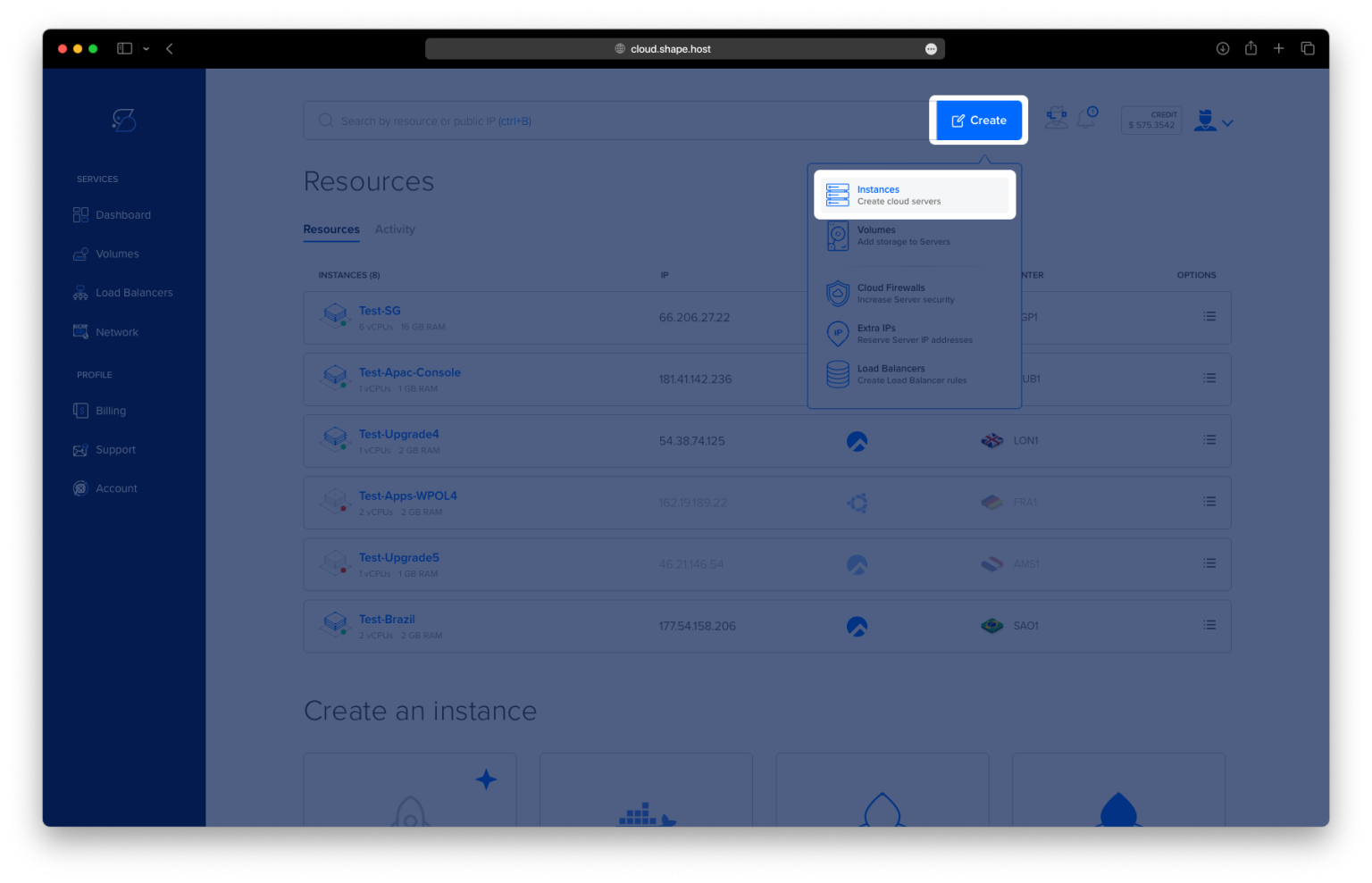
Step 1: Create a VPS on Shape.Host
Visit https://shape.host and log in.
Click “Create”, then choose “Instance”.

Choose a server location near your users (e.g., Germany, Netherlands).

Select Debian 12 (64-bit) as your OS.
Choose a VPS plan with at least 2 CPUs and 2 GB RAM.

Click “Create Instance”.

Copy the IP address of your instance from the Resources section.

Step 2: Connect to Your Server
From Linux/macOS:
ssh root@your_server_ip
From Windows:
Download and open PuTTY
- Host Name:
your_server_ip - Port:
22 - Click Open and log in as
root.
Step 3: Update the System and Install Dependencies
apt update

apt install apache2 php libapache2-mod-php build-essential libgd-dev unzip wget libssl-dev daemon -y
Installs Apache, PHP, and all required tools to build Nagios.

Step 4: Create Nagios User and Groups
useradd nagios
Creates the nagios user.
groupadd nagcmd
Creates a command group for Nagios.
usermod -a -G nagcmd nagios
usermod -a -G nagcmd www-data
Adds Nagios and Apache to the group to allow external command access.

Step 5: Download and Compile Nagios Core
cd /usr/src
wget -O nagioscore.tar.gz https://github.com/NagiosEnterprises/nagioscore/archive/refs/tags/nagios-4.5.9.tar.gz
tar xzf nagioscore.tar.gz
cd nagioscore-nagios-4.5.9

./configure --with-command-group=nagcmd
Prepares the build with the command group.

make all
Compiles Nagios core.

make install
make install-init
make install-commandmode
make install-config
make install-webconf
Installs Nagios and sets up services, config files, and web access.


Step 6: Set Up Web Access
htpasswd -c /usr/local/nagios/etc/htpasswd.users nagiosadmin
Creates a user for the Nagios web interface.

a2enmod rewrite
a2enmod cgi
systemctl restart apache2
Enables necessary Apache modules and restarts the server.

Step 7: Install Nagios Plugins
cd /usr/src
wget -O nagios-plugins.tar.gz https://github.com/nagios-plugins/nagios-plugins/archive/refs/tags/release-2.4.12.tar.gz
tar xzf nagios-plugins.tar.gz
cd nagios-plugins-release-2.4.12

apt install autoconf automake libtool pkg-config -y
Installs tools needed for plugin compilation.

./tools/setup
./configure --with-nagios-user=nagios --with-nagios-group=nagios
make
make install
Builds and installs Nagios plugins.


Step 8: Verify and Start Nagios
/usr/local/nagios/bin/nagios -v /usr/local/nagios/etc/nagios.cfg
Checks if the configuration is valid.

systemctl enable nagios
systemctl start nagios
Enables and starts Nagios service.

Step 9: Access the Web Interface
Open your browser and visit:
http://your_server_ip/nagios
Log in using the username nagiosadmin and the password you set earlier.


Hosted by ShapeHost
This tutorial was tested on a ShapeHost Cloud VPS, optimized for performance and security. Start your own VPS today at https://shape.host