Plane.so on Rocky Linux 9 (Docker Compose + PostgreSQL + Redis + SSL)
Plane.so is an open-source project management and issue tracking platform designed for modern development teams. It enables agile workflows with features like sprints, issues, roadmaps, and releases, offering the same functionality as tools like Jira, Linear, or ClickUp — but entirely self-hosted, ensuring total data privacy and customization. Built with React (Next.js), Django (Python), PostgreSQL, and Redis, Plane combines flexibility, performance, and an elegant interface tailored for developers.
Running Plane on Rocky Linux 9 — a community-driven, RHEL-compatible enterprise operating system — provides a stable, secure, and long-term supported foundation for production deployments. With SELinux enforced by default, systemd 252, OpenSSL 3, and full support for Docker and Docker Compose, Rocky Linux 9 delivers an ideal environment for hosting Plane with SSL and Nginx reverse proxy integration.
Architecture Overview
| Layer | Component | Role |
|---|---|---|
| OS | Rocky Linux 9 | Enterprise-grade, RHEL-compatible base with SELinux enforcement |
| Container Runtime | Docker Engine + Compose | Orchestrates Plane and all dependent containers |
| Database | PostgreSQL 15 | Stores projects, issues, users, and configuration data |
| Cache Queue | Redis | Handles caching, background jobs, and real-time updates |
| Backend | Django (Python) | Provides API, authentication, and business logic |
| Frontend | Next.js (React) | User interface for managing tasks, sprints, and workflows |
| Reverse Proxy | Nginx (optional) | TLS termination, routing, and request handling |
| TLS | Let’s Encrypt / PKI | Enables secure HTTPS for user and API access |
Why Use Plane.so?
- Open-source and self-hosted – complete control of your data.
- Feature-rich – sprints, issue tracking, team collaboration, and roadmaps.
- Scalable – suitable for small teams, startups, and enterprises.
- Modern architecture – powered by Django, React, Redis, and PostgreSQL.
- Cost-efficient – no recurring subscription fees or vendor lock-in.
Plane.so vs Other Project Management Tools
| Feature/Capability | Plane.so (Self-hosted) | Jira (Cloud) | Linear (Cloud) | ClickUp (Cloud) |
|---|---|---|---|---|
| Hosting | Self-hosted (Docker) | SaaS only | SaaS only | SaaS only |
| Cost | Free, open-source | Subscription-based | Subscription-based | Subscription-based |
| Database | PostgreSQL | Proprietary | Proprietary | Proprietary |
| Real-time updates | Yes (via Redis) | Yes | Yes | Yes |
| Customization | Full (source access) | Limited | Moderate | Limited |
Plane.so is ideal for teams seeking Jira-level functionality without cloud dependency, licensing costs, or privacy concerns.
Security & Best Practices
- Deploy behind Nginx with SSL enabled for secure access.
- Store sensitive credentials as Docker secrets or environment variables.
- Restrict PostgreSQL and Redis to internal Docker networks.
- Use systemd to manage Docker Compose as a persistent service.
- Apply SELinux policies and firewall rules to harden your system.
- Schedule automated database backups for PostgreSQL.
- Keep Rocky Linux, Docker, and Plane images updated regularly.
Typical Use Cases
- Software teams managing sprints, bugs, and releases.
- Startups replacing Jira or Linear with a free, self-hosted solution.
- Agencies collaborating with clients and teams securely.
- Enterprises deploying project management under compliance frameworks.
- Open-source projects tracking issues and feature requests collaboratively.
Deploying Plane.so on Rocky Linux 9 with Docker Compose gives you a secure, scalable, and enterprise-ready project management platform — combining the stability of Rocky Linux with the flexibility and power of open-source software.
Step 1: Create a Server Instance on Shape.Host
Before starting, set up your Rocky Linux server:
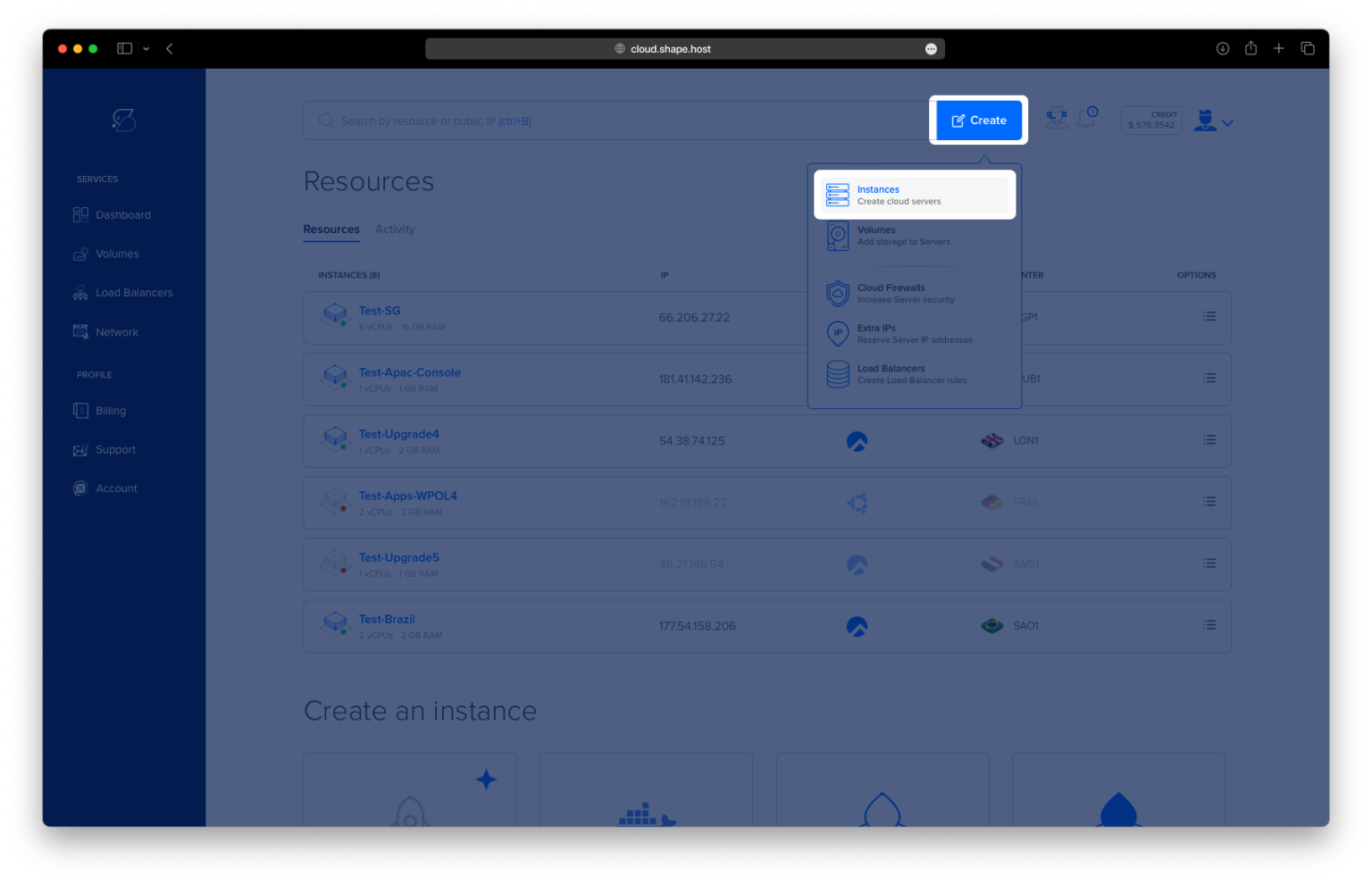
Go to Shape.Host and log into your account.
Click Create → Instance.

Choose your server location closest to your users.

Select a plan with at least 4 CPUs, 8 GB RAM, and 40 GB SSD (recommended).
Pick Rocky Linux 9 (64-bit) as your operating system.

Click Create Instance.

Copy the public IP address from the Resources section once your instance is created.

Step 2: Connect to Your Server
Connect to your instance using SSH:
- Linux/macOS:
ssh root@your_server_ip - Windows (PuTTY):
- Open PuTTY.
- Enter your instance IP under “Host Name.”
- Select SSH and click Open.
- Log in using your Shape.Host credentials.
Step 3: Install Docker and Docker Compose
Update system packages:
dnf update

Install required dependencies:
dnf install ca-certificates curl gnupg lsb-release

Add Docker’s official GPG key:
curl -fsSL https://download.docker.com/linux/centos/gpg | gpg --dearmor -o /etc/pki/rpm-gpg/docker.gpg
Create Docker’s repository configuration:
tee /etc/yum.repos.d/docker.repo > /dev/null <<EOF
[docker-ce-stable]
name=Docker CE Stable - \$basearch
baseurl=https://download.docker.com/linux/centos/\$releasever/\$basearch/stable
enabled=1
gpgcheck=1
gpgkey=file:///etc/pki/rpm-gpg/docker.gpg
EOF
Update again and install Docker Engine and Compose plugin:
dnf update
dnf install docker-ce docker-ce-cli containerd.io docker-compose-plugin

Enable and start Docker:
systemctl enable --now docker
Check that Docker Compose is installed:
docker compose version
You should see the version output confirming Docker Compose is ready.

Step 4: Install Plane.so Using the Official Installer
Download and execute Plane’s installer script:
curl -fsSL https://prime.plane.so/install/ | sh -
This script automatically sets up the Docker Compose environment for Plane.so, downloading all necessary containers like PostgreSQL, Redis, and Plane’s backend/frontend services.
Step 5: Complete the Installation
The script will prompt you for configuration details:
- Domain name: Enter your Plane domain (e.g.,
plane.example.com). - Setup type:
- Choose Express for quick local testing or demo purposes.
- Choose Advanced for production-grade configuration.
After confirming your choices, the installer will:
- Pull the required Docker images.
- Create environment files.
- Deploy all Plane services automatically.


Step 6: Access the Plane.so Dashboard
When installation is complete, open your browser and visit:
https://YOUR_DOMAIN
You’ll be greeted by the Plane setup interface. Create your first workspace, add projects, and invite your team.


You’ve successfully installed Plane.so on Rocky Linux 9 using Docker Compose.
You now have a self-hosted project management platform for your team, running securely in containers and easily scalable.
For optimal uptime and performance, deploy Plane on a Shape.Host Linux SSD VPS — offering enterprise-grade reliability and dedicated resources tailored for containerized applications like Plane.so.