Tandoor Recipes on Ubuntu 24.04 (Docker Compose + PostgreSQL + Nginx + SSL)
Tandoor Recipes is an open-source self-hosted recipe management platform that allows you to store, organize, plan, and share recipes through an elegant web interface. It supports meal planning, shopping lists, ingredient scaling, nutrition analysis, and even importing recipes from websites — all while keeping your data private and under your control.
Running Tandoor Recipes on Ubuntu 24.04 LTS (Noble Numbat) provides a secure, modern, and long-term supported environment for hosting your personal or shared recipe platform. With Docker Compose, PostgreSQL, Nginx, and SSL encryption, Ubuntu 24.04 delivers the perfect foundation for reliability, performance, and easy maintenance.
Architecture Overview
| Layer | Component | Role |
|---|---|---|
| OS | Ubuntu 24.04 LTS | Stable, long-term supported base system for Docker deployments |
| Container Runtime | Docker Engine + Compose | Orchestrates Tandoor Recipes and supporting services |
| Application | Tandoor Recipes (Django) | Core web application and backend logic |
| Database | PostgreSQL 15/16 | Stores recipes, ingredients, users, and metadata |
| Reverse Proxy | Nginx (optional) | Handles HTTPS, compression, caching, and routing |
| TLS | Let’s Encrypt / PKI | Provides HTTPS encryption for secure access |
Why Use Tandoor Recipes?
- Centralized recipe storage – organize all your recipes in one private space.
- Automatic imports – add recipes from popular cooking websites.
- Meal planning & shopping lists – generate grocery lists based on weekly plans.
- Nutritional insights – automatic nutrition data and portion control.
- Multi-user support – collaborate with family or team members.
- Image uploads and tagging – organize visually with photos and filters.
- Open-source and privacy-focused – no external data tracking or vendor lock-in.
Tandoor Recipes vs Other Recipe Managers
| Feature/Capability | Tandoor Recipes (Self-hosted) | Paprika (App) | Cookpad (Cloud) | AnyList (Cloud) |
|---|---|---|---|---|
| Hosting | Self-hosted / Docker | Mobile only | Cloud-based | Cloud-based |
| Cost | Free, open-source | Paid | Free/Paid | Subscription |
| Multi-user support | ✅ Yes | ❌ No | ✅ Limited | ✅ Limited |
| Shopping lists | ✅ Yes | ✅ Yes | ✅ Yes | ✅ Yes |
| Nutrition tracking | ✅ Yes | ❌ No | ❌ No | ❌ No |
| Privacy | Full control (self-hosted) | Cloud sync | Cloud only | Cloud only |
Tandoor Recipes is the perfect solution for food enthusiasts, chefs, and families who want a private, feature-rich recipe system that runs on their own server.
Security & Best Practices
- Deploy behind Nginx with HTTPS enabled via Let’s Encrypt or a custom certificate.
- Use environment variables or Docker secrets for PostgreSQL credentials.
- Limit PostgreSQL to internal Docker networks only.
- Keep Docker, Django, and Ubuntu packages regularly updated.
- Configure UFW to allow only ports 80 and 443.
- Set up automated backups for PostgreSQL volumes.
- Store uploaded media (images) on a mounted volume or network share.
- Restrict write permissions to the application user only.
- Automate SSL renewals using Certbot or Traefik ACME integration.
Typical Use Cases
- Personal recipe collections with advanced categorization and tagging.
- Shared family cookbooks with meal planning and grocery lists.
- Professional kitchens maintaining internal recipe catalogs.
- Food bloggers managing and publishing structured recipes.
- Nutritionists creating meal plans with nutritional breakdowns.
Deploying Tandoor Recipes on Ubuntu 24.04 with Docker Compose and PostgreSQL gives you a secure, private, and powerful platform for managing every aspect of your culinary workflow — from recipe storage to meal planning — all hosted on your own terms.
Step 1: Set Up a Server Instance
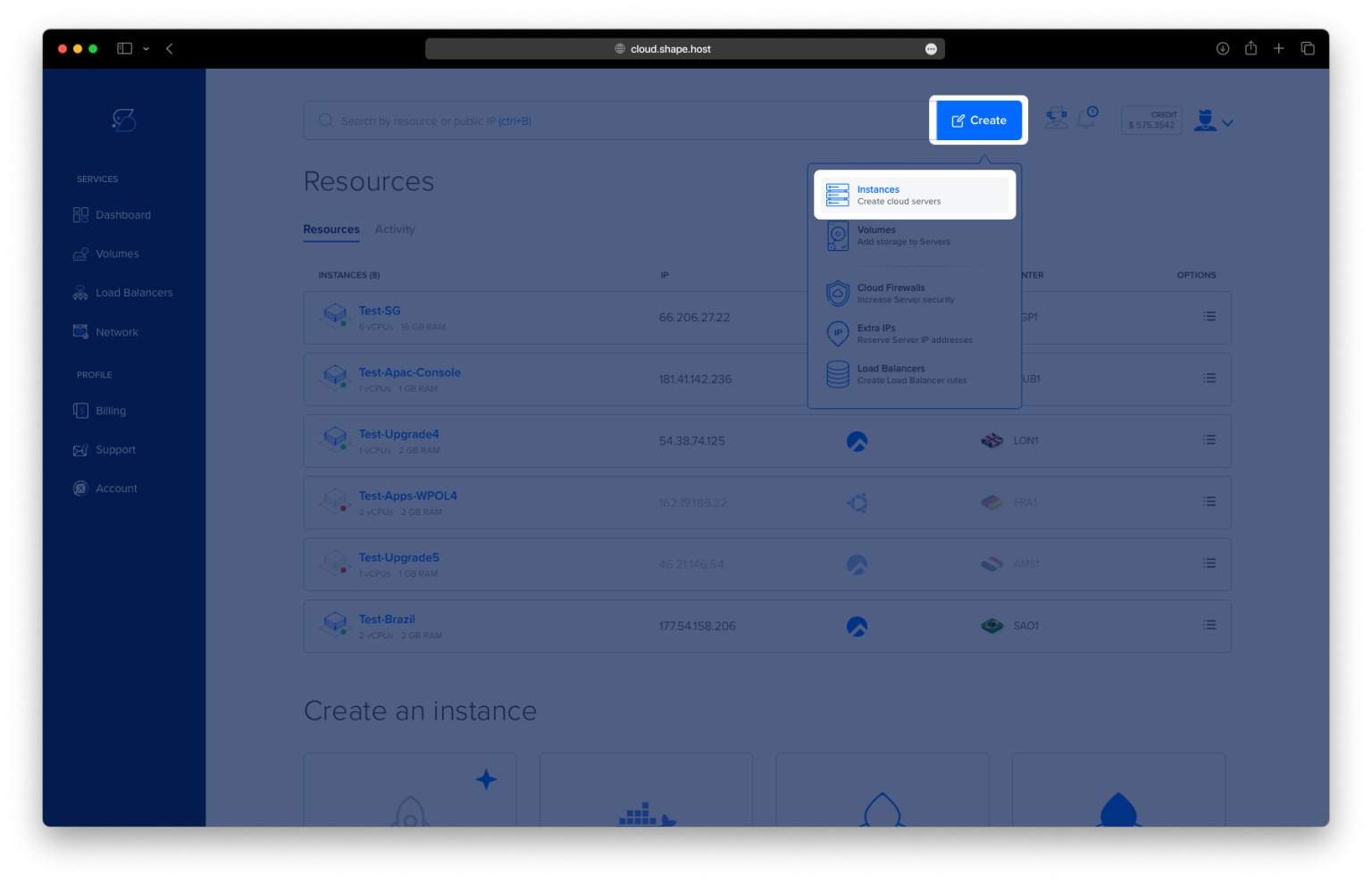
Before starting, you’ll need a clean Ubuntu 24.04 server. The easiest way to get one up and running is through Shape.Host Cloud VPS.
Visit Shape.Host and log into your account.
Click on “Create” and select “Instance.”
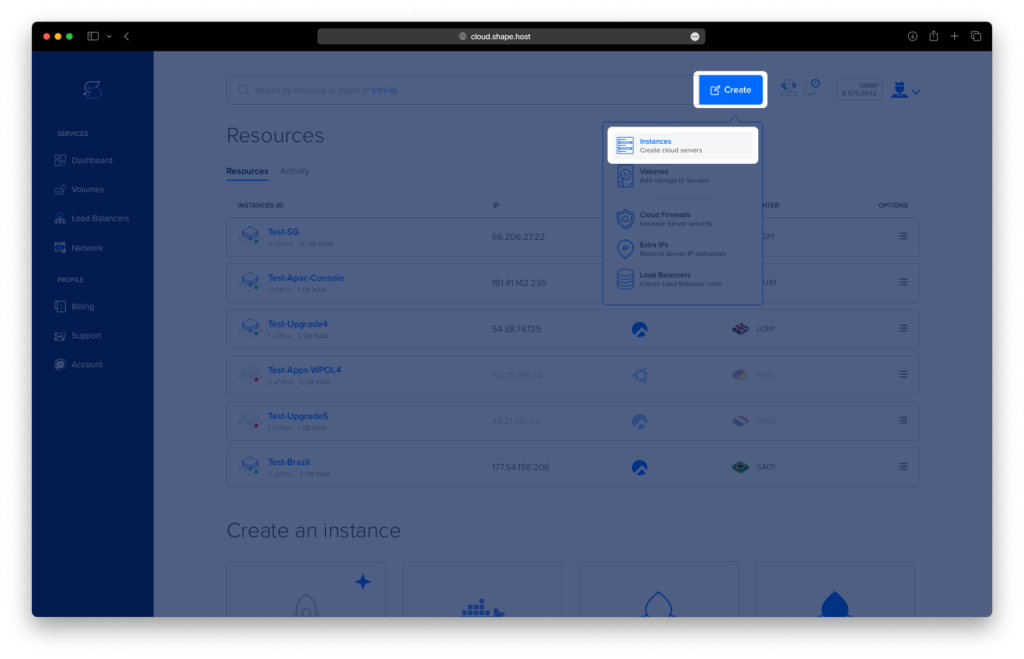
Choose a data center close to your target users for faster response times.
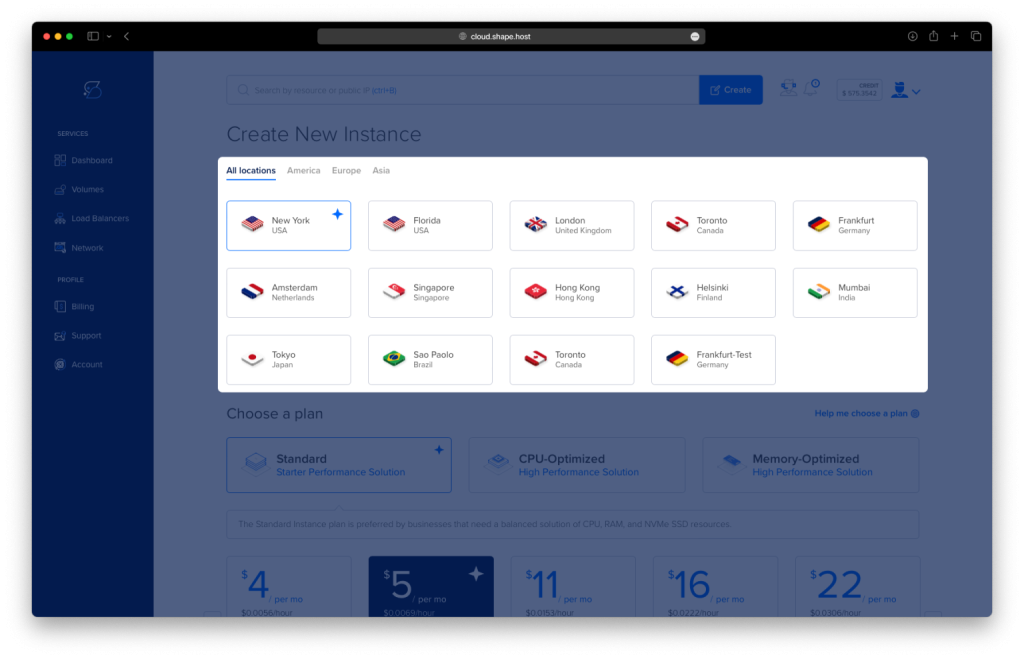
Pick a plan with at least 2 CPUs, 4 GB RAM, and 20 GB SSD.
Under the Operating System section, select Ubuntu 24.04 (64-bit).
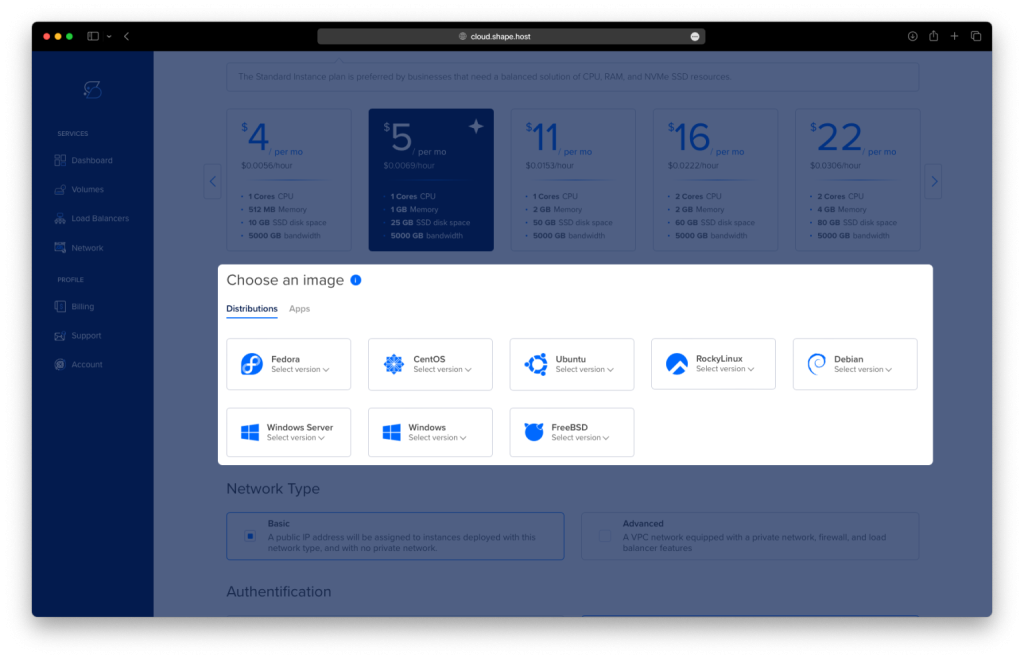
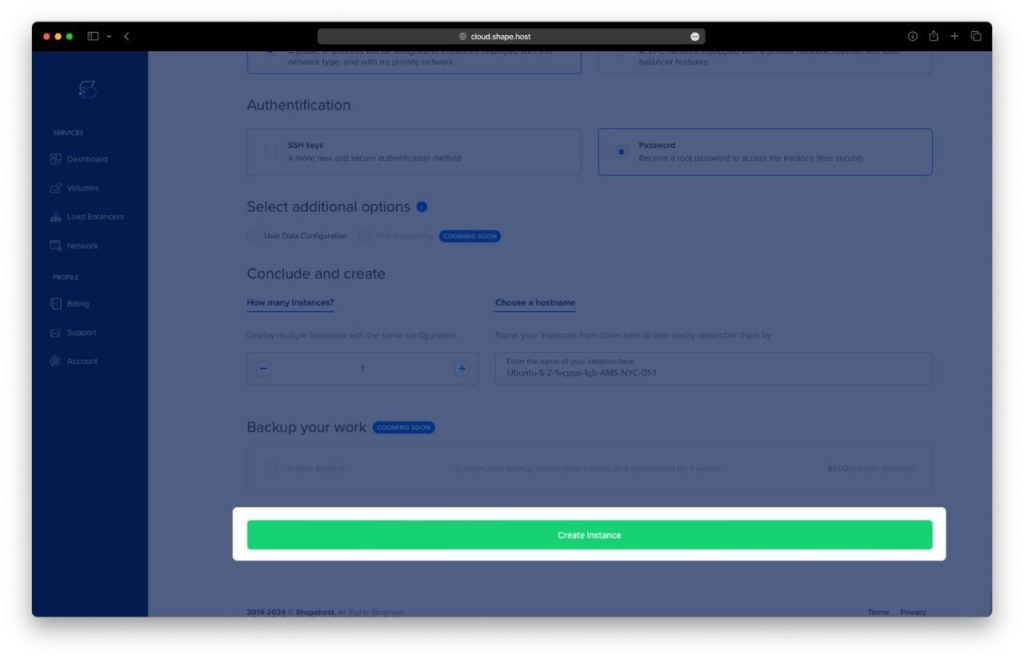
Click “Create Instance” to launch your server.
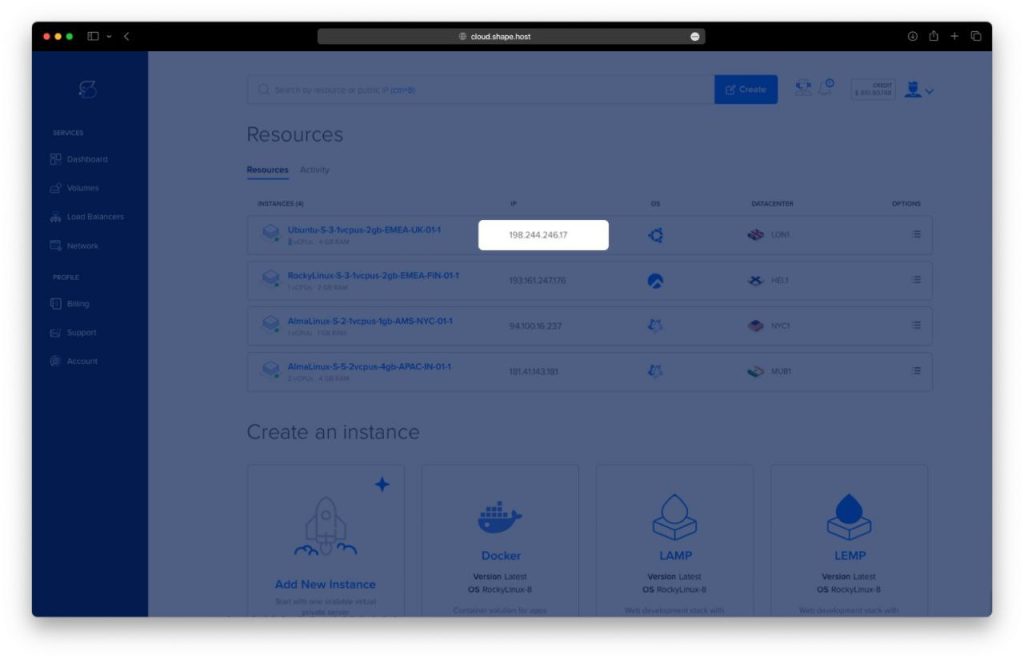
Once the instance is active, locate your public IP address in the “Resources” section — you’ll need it to connect.
Step 2: Connect to Your Instance
You can connect to your instance using SSH.
For Linux/macOS:
ssh root@your_server_ip
For Windows (PuTTY):
- Open PuTTY.
- Enter your server’s IP address.
- Log in as root.
Now you’re ready to install Tandoor Recipes.
Step 3: Install Docker and Dependencies
Update the System
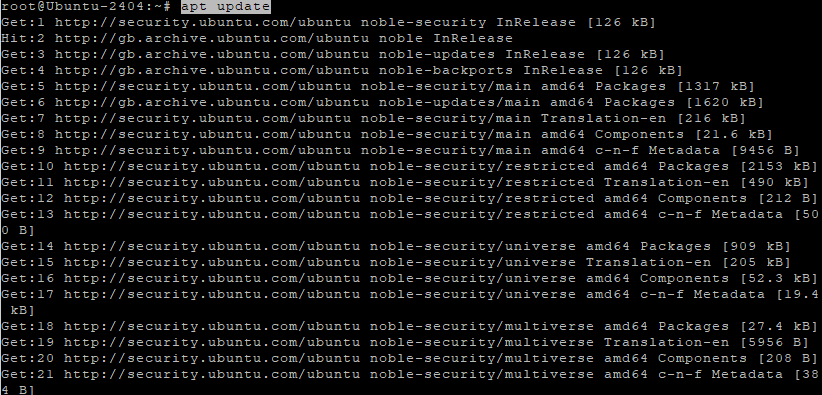
apt update
Refreshes the package list to ensure all repositories are up to date.
Install Required Packages
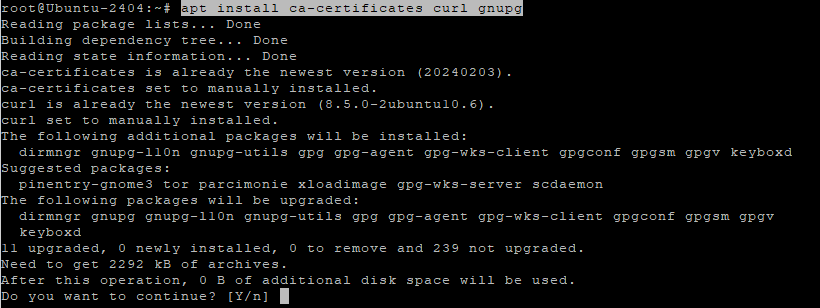
apt install ca-certificates curl gnupg
Installs essential packages to manage repositories and SSL certificates.
Create a Keyring Directory
install -m 0755 -d /etc/apt/keyrings
Creates a secure directory for storing repository keys.
Add Docker’s Official GPG Key
curl -fsSL https://download.docker.com/linux/ubuntu/gpg | gpg --dearmor -o /etc/apt/keyrings/docker.gpg
Downloads and stores Docker’s GPG key.
Set Key Permissions
chmod a+r /etc/apt/keyrings/docker.gpg
Ensures the key is readable by the system.
Add Docker Repository
echo   "deb [arch=$(dpkg --print-architecture) signed-by=/etc/apt/keyrings/docker.gpg] https://download.docker.com/linux/ubuntu \
  $(. /etc/os-release && echo "$VERSION_CODENAME") stable" |   tee /etc/apt/sources.list.d/docker.list > /dev/null
Adds Docker’s stable repository to your sources list.
Update Again
apt update
Loads the Docker repository into your package manager.
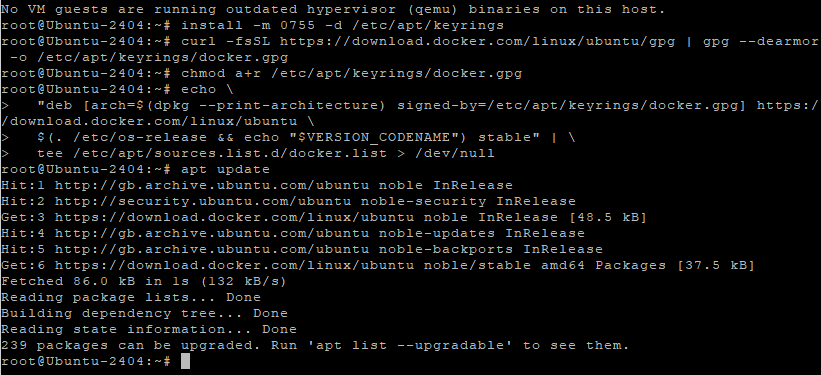
Install Docker Engine and Compose
apt install docker-ce docker-ce-cli containerd.io docker-buildx-plugin docker-compose-plugin
Installs Docker Engine and the Docker Compose plugin needed to run containers.
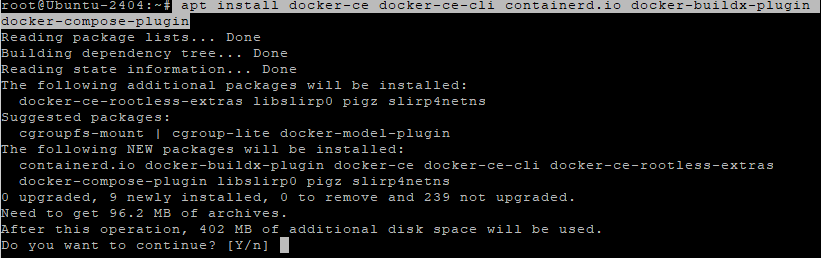
Verify Docker Installation
docker compose version
Confirms that Docker Compose is installed and functioning.

Step 4: Deploy Tandoor Recipes
Create a Project Directory
mkdir -p /opt/tandoor
cd /opt/tandoor
Creates a dedicated directory for Tandoor.
Download the Default Environment Template
wget https://raw.githubusercontent.com/vabene1111/recipes/develop/.env.template -O .env
Fetches the default .env file template from the Tandoor GitHub repository.
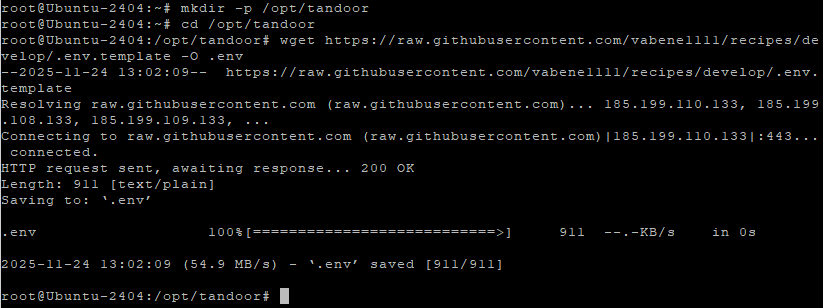
Generate a Secure Secret Key
python3 -c "import secrets; print(secrets.token_urlsafe(50))"
Generates a random secret key to secure your Django application.
Configure the .env File
nano .env
Open the file and edit the following parameters:
Example configuration:
# Leave debug off for production
DEBUG=0

# REQUIRED: Change this to a random string
SECRET_KEY=ChangeThisToSomethingSecureAndRandom

# Database Configuration
POSTGRES_HOST=db_recipes
POSTGRES_PORT=5432
POSTGRES_USER=djangouser
POSTGRES_PASSWORD=YourSecurePasswordHere
POSTGRES_DB=djangodb

# Web Server Configuration
ALLOWED_HOSTS=*
Make sure to:
- Replace
SECRET_KEYwith the value generated earlier. - Use a strong password for
POSTGRES_PASSWORD. - Update
ALLOWED_HOSTSwith your domain or server IP.
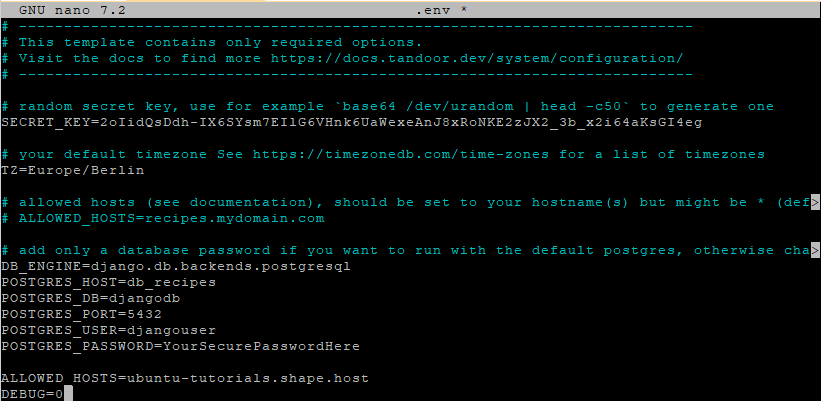
Create Docker Compose Configuration
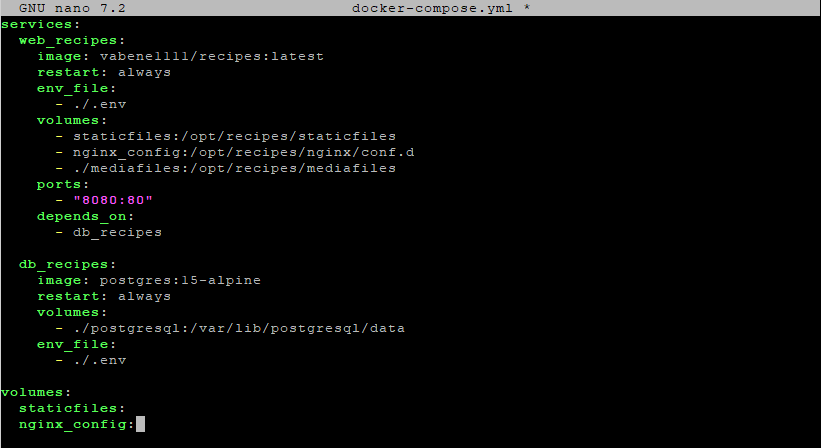
nano docker-compose.yml
Paste the following configuration:
services:
  web_recipes:
    image: vabene1111/recipes:latest
    restart: always
    env_file:
      - ./.env
    volumes:
      - staticfiles:/opt/recipes/staticfiles
      - nginx_config:/opt/recipes/nginx/conf.d
      - ./mediafiles:/opt/recipes/mediafiles
    ports:
      - "8080:80"
    depends_on:
      - db_recipes

  db_recipes:
    image: postgres:15-alpine
    restart: always
    volumes:
      - ./postgresql:/var/lib/postgresql/data
    env_file:
      - ./.env

volumes:
  staticfiles:
  nginx_config:
Save and exit (CTRL+O, ENTER, CTRL+X).
Start the Containers
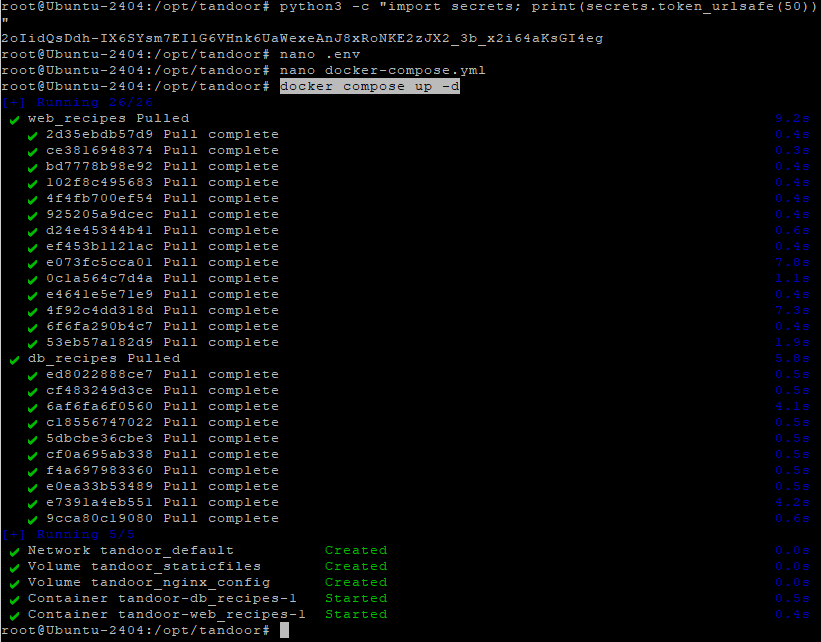
docker compose up -d
This pulls the required Docker images and starts Tandoor Recipes and PostgreSQL.
Step 5: Configure Nginx as a Reverse Proxy
Install Nginx and Certbot
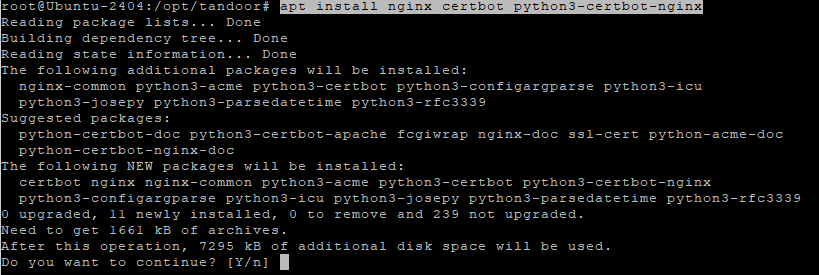
apt install nginx certbot python3-certbot-nginx
Installs Nginx to handle incoming traffic and Certbot to manage SSL certificates.
Create Nginx Configuration File
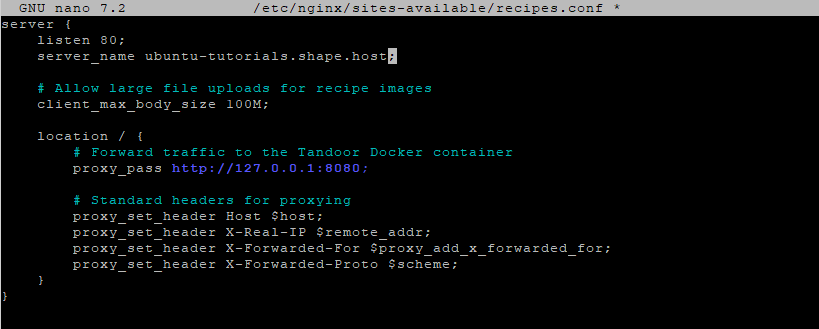
nano /etc/nginx/sites-available/recipes.conf
Add the following configuration:
server {
    listen 80;
    server_name your-domain.com;

    # Allow large file uploads for recipe images
    client_max_body_size 100M;

    location / {
        # Forward traffic to the Tandoor Docker container
        proxy_pass http://127.0.0.1:8080;

        # Standard headers for proxying
        proxy_set_header Host $host;
        proxy_set_header X-Real-IP $remote_addr;
        proxy_set_header X-Forwarded-For $proxy_add_x_forwarded_for;
        proxy_set_header X-Forwarded-Proto $scheme;
    }
}
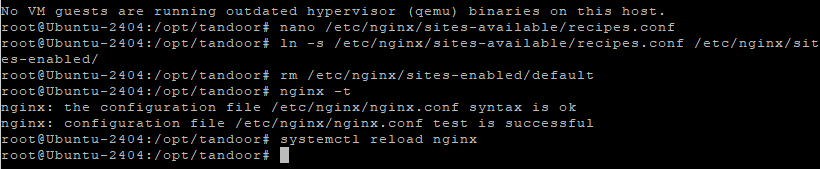
Enable the Configuration
ln -s /etc/nginx/sites-available/recipes.conf /etc/nginx/sites-enabled/
Remove Default Configuration
rm /etc/nginx/sites-enabled/default
Test and Reload Nginx
nginx -t
Checks for syntax errors.
systemctl reload nginx
Applies the new configuration.
Step 6: Secure Your Domain with SSL
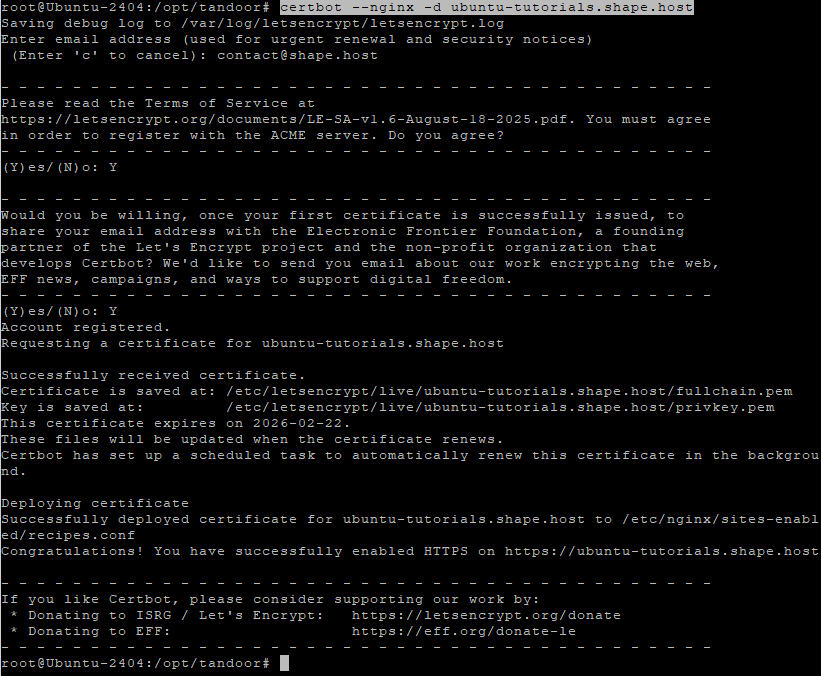
Obtain SSL Certificate
certbot --nginx -d ubuntu-tutorials.shape.host your-domain.com
This command automatically configures HTTPS using a free Let’s Encrypt SSL certificate.
Step 7: Verify Installation
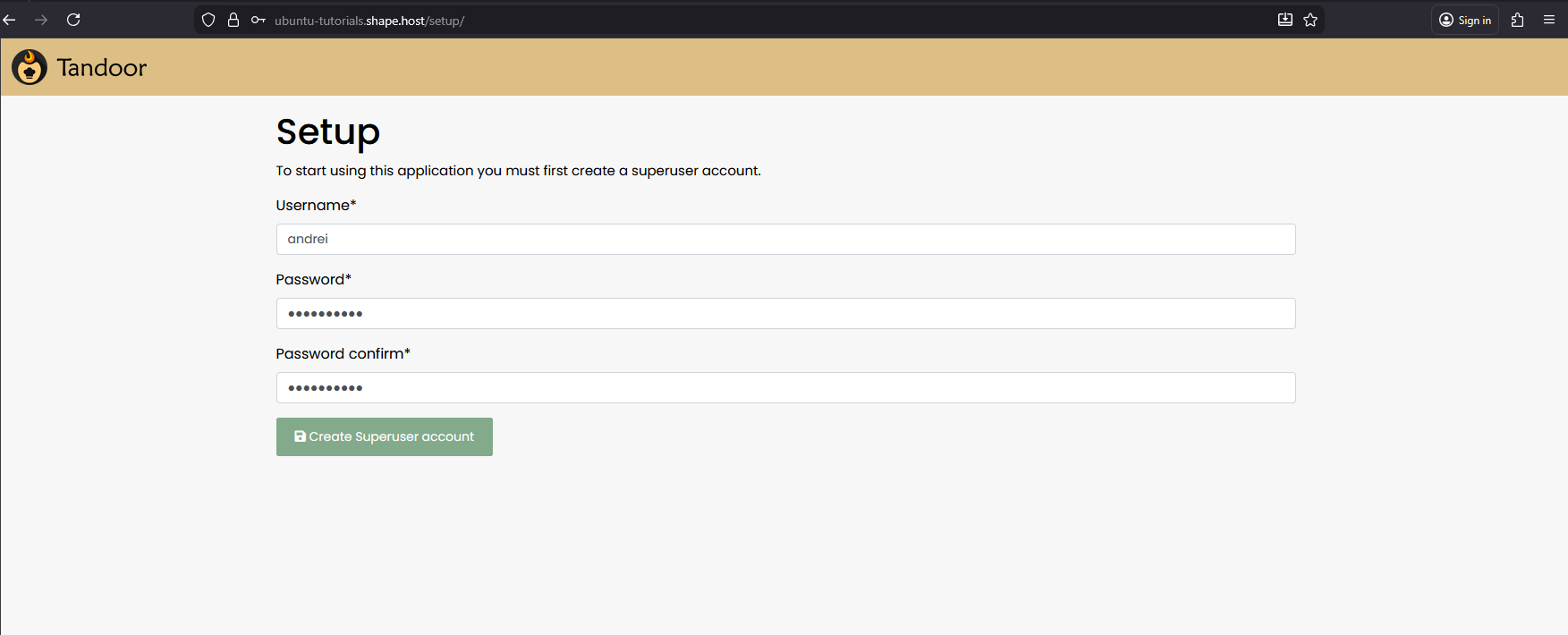
- Visit your domain or server IP in a browser:
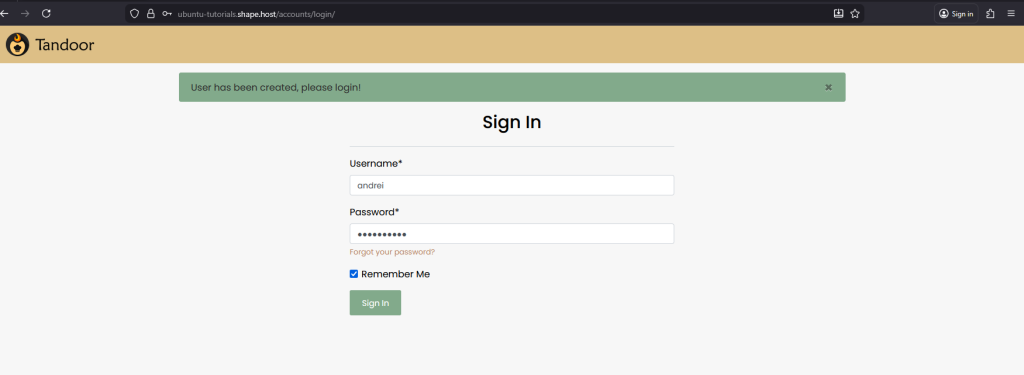
https://your-domain.com - You should see the Tandoor Recipes login page.
- Log in or create an admin account to begin managing recipes.
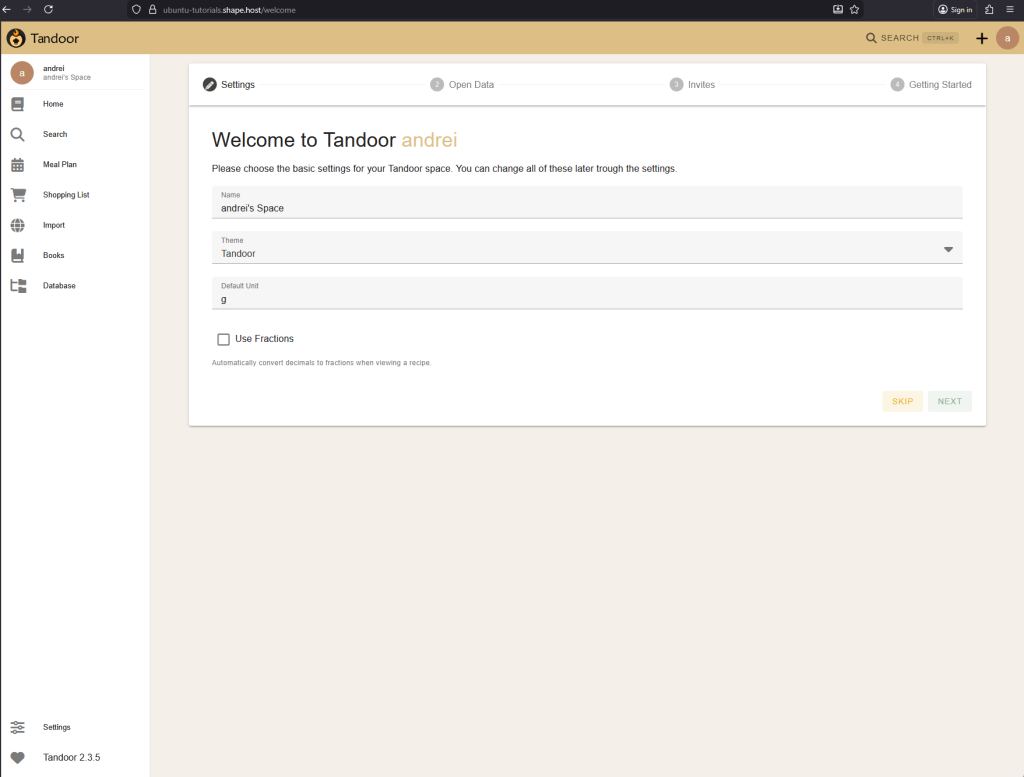
You installed Tandoor Recipes on Ubuntu 24.04 using Docker Compose, PostgreSQL, Nginx, and Certbot. This setup provides a secure and efficient self-hosted recipe management system for your home or business.
For dependable, high-performance hosting, consider deploying your next project with Shape.Host Cloud VPS — the perfect solution for developers who need fast, reliable, and scalable cloud infrastructure.