Terraform is an open-source Infrastructure as Code (IaC) tool developed by HashiCorp. It allows users to define, provision, and manage infrastructure using a declarative configuration language known as HashiCorp Configuration Language (HCL). Terraform supports cloud providers (AWS, Azure, Google Cloud), on-premises solutions, and Kubernetes, making it an essential tool for DevOps, automation, and infrastructure management. Running Terraform on Debian 12 ensures a stable, secure, and optimized environment for deploying and managing infrastructure efficiently.
Key Features of Terraform on Debian 12
1. Infrastructure as Code (IaC)
- Define infrastructure using configuration files instead of manual provisioning.
2. Multi-Cloud Support
- Works with AWS, Azure, Google Cloud, DigitalOcean, Kubernetes, and more.
3. Declarative Configuration
- Uses HCL (HashiCorp Configuration Language) to define infrastructure states.
4. State Management
- Maintains infrastructure state files to track changes and prevent drift.
5. Immutable Infrastructure
- Changes are applied by replacing resources, ensuring consistency.
6. Dependency Graphing
- Terraform automatically determines dependencies and provisions resources in the correct order.
7. Plan and Apply Workflow
terraform planpreviews changes before applying them withterraform apply.
8. Modular Infrastructure Management
- Use Terraform modules to create reusable infrastructure components.
9. Secret and Configuration Management
- Works with Vault, AWS Secrets Manager, and environment variables for secure credentials handling.
10. Community and Provider Plugins
- Extensible with third-party providers, community modules, and automation integrations.
Advantages of Using Terraform on Debian 12
- Cross-Platform and Multi-Cloud: Manage infrastructure across multiple providers from a single tool.
- Automated and Repeatable Deployments: Reduce manual configuration errors with code-driven automation.
- Scalability and Flexibility: Supports both small deployments and enterprise-scale infrastructure.
- Optimized for DevOps Pipelines: Integrates with CI/CD tools (Jenkins, GitHub Actions, GitLab CI/CD).
- Security and Compliance: Ensures consistent security policies across cloud and on-premises environments.
Use Cases for Terraform on Debian 12
1. Cloud Infrastructure Provisioning
- Deploy and manage resources on AWS, Azure, Google Cloud, and DigitalOcean.
2. Kubernetes Cluster Management
- Automate Kubernetes cluster deployments and configuration.
3. Hybrid and Multi-Cloud Deployments
- Use Terraform to standardize infrastructure across different cloud providers.
4. Continuous Deployment (CD) Pipelines
- Automate infrastructure provisioning in CI/CD workflows.
5. Infrastructure Security and Compliance
- Enforce role-based access control (RBAC) and security policies with Terraform.
6. Disaster Recovery and Infrastructure Replication
- Rebuild identical infrastructure in case of failures using Terraform state files.
Terraform vs. Other IaC Tools
| Feature | Terraform | Ansible | CloudFormation | Pulumi |
|---|---|---|---|---|
| Multi-Cloud Support | ✅ Yes | ✅ Yes | ❌ AWS Only | ✅ Yes |
| Declarative Syntax | ✅ Yes (HCL) | ❌ Imperative (YAML) | ✅ Yes (JSON/YAML) | ✅ Yes (Python/Go) |
| State Management | ✅ Yes | ❌ No | ✅ Yes | ✅ Yes |
| Immutable Infrastructure | ✅ Yes | ❌ No | ✅ Yes | ✅ Yes |
| Best Use Case | ✅ Cloud + Hybrid IaC | ✅ Configuration Management | ✅ AWS Infrastructure | ✅ Multi-Cloud + Scripting |
Why Use Terraform on Debian 12?
- Stable and Secure Platform: Debian 12 ensures long-term support (LTS) for infrastructure automation.
- Optimized Performance: Terraform runs efficiently on Debian’s lightweight, secure environment.
- Seamless DevOps Integration: Works with Git, CI/CD tools, Kubernetes, and monitoring solutions.
- Scalability and Flexibility: Supports enterprise cloud deployments and hybrid infrastructure.
- Cost-Effective and Open-Source: Free to use, with strong community and enterprise support.
Terraform on Debian 12 is a powerful, scalable, and efficient tool for managing infrastructure as code (IaC). Whether you’re deploying cloud resources, managing Kubernetes clusters, or automating multi-cloud environments, Terraform ensures consistent, repeatable, and secure infrastructure deployments.
Step 1: Set Up a Debian 12 Server
Before you can install Terraform, you need a Debian 12 server. If you haven’t set up a server yet, follow these steps to create one on Shape.Host:
Log into Shape.Host and go to your Dashboard.
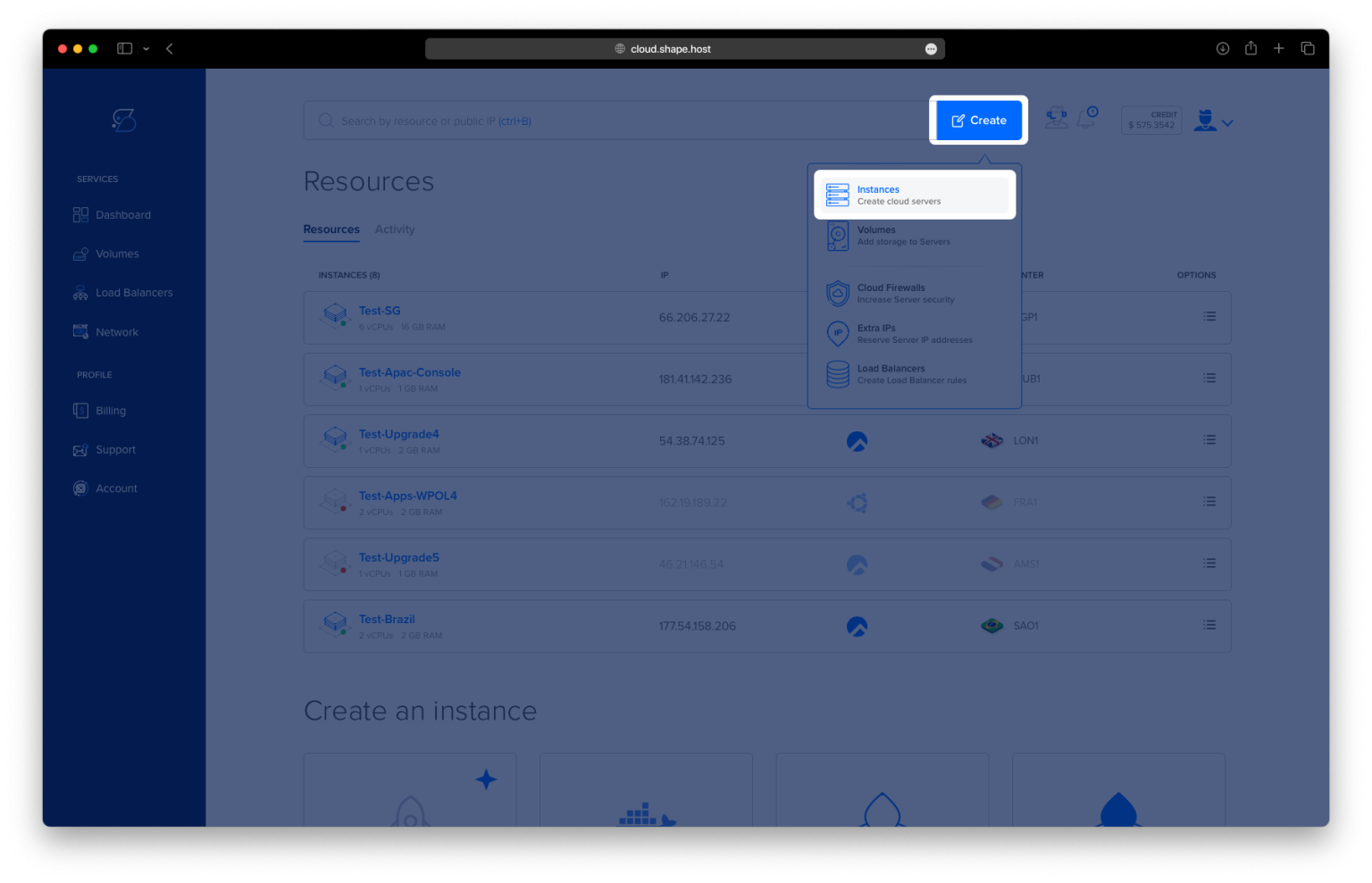
Click “Create” to start setting up a new server instance.
Choose “Instances” from the available options to configure your server.

Select a Data Center Location that is geographically closest to your users for better performance.

Pick a Hosting Plan that fits your project needs, such as Standard or Performance-Optimized.
Set Debian 12 as the Operating System and proceed with the setup.

Deploy the Server by choosing an authentication method (SSH keys or password authentication) and clicking Create Instance.

After your instance has been created, you can find the IP address by navigating back to the dashboard. This IP address will be needed to connect to your server via SSH.

Step 2: Connect to Your Server
Once your server is up and running, connect to it via SSH:
- For Linux/macOS Users:
ssh root@<your_server_ip> - For Windows Users: Use PuTTY, enter your server’s IP address, and establish the connection.
Step 3: Update System Packages
Keeping your system up to date ensures compatibility with the latest software versions. Run the following command to update all packages:
apt update && apt upgrade -y
This command will update your package list and install any available upgrades.

Step 4: Install Required Dependencies
Before installing Terraform, install some essential system tools like GPG (for verifying software packages) and software-properties-common (for managing software repositories):
apt install gnupg software-properties-common gpg

Step 5: Add the Official HashiCorp Repository
Terraform is maintained by HashiCorp, and it is recommended to install it from their official repository to ensure you get the latest version.
Step 5.1: Add HashiCorp GPG Key
To verify the authenticity of the Terraform package, first download the HashiCorp signing key:
wget -O- https://apt.releases.hashicorp.com/gpg | gpg --dearmor -o /usr/share/keyrings/hashicorp-archive-keyring.gpg
Step 5.2: Add the HashiCorp Repository to Your System
Next, add the official Terraform repository to your package sources:
echo "deb [signed-by=/usr/share/keyrings/hashicorp-archive-keyring.gpg] https://apt.releases.hashicorp.com $(lsb_release -cs) main" | tee /etc/apt/sources.list.d/hashicorp.list

Step 5.3: Update the Package List Again
Since we added a new repository, update the package list so the system can recognize the newly added source:
apt update

Step 6: Install Terraform
Now that the HashiCorp repository is added, install Terraform by running:
apt install terraform

To confirm the installation, check the Terraform version:
terraform --version
If Terraform is installed correctly, the output should display the installed version number.

Step 7: Verify Terraform Installation
To ensure Terraform is properly installed and ready to use, simply run:
terraform
You should see a list of Terraform commands, confirming that it’s working correctly.
For a fast and reliable cloud environment, consider Shape.Host Linux SSD VPS, which is optimized for Terraform and DevOps workflows.