TYPO3 is an open-source enterprise-grade content management system (CMS) designed for scalable, high-performance websites and applications. With its flexibility, security, and multilingual support, TYPO3 is widely used by businesses, government organizations, and educational institutions. Running TYPO3 on Debian 12 provides a stable, secure, and optimized environment for managing complex websites efficiently.
Key Features of TYPO3 on Debian 12
1. Enterprise-Grade CMS
- Built for large-scale, high-traffic websites with complex content structures.
2. Modular and Extensible
- Supports over 7,000 extensions to enhance functionality.
3. Multilingual Support
- Manage multi-language websites with built-in translation tools.
4. Advanced User and Permission Management
- Role-based access control (RBAC) for teams, editors, and administrators.
5. SEO and Performance Optimization
- Features SEO-friendly URLs, meta tags, and caching mechanisms for faster page loads.
6. Flexible Content Structure
- Uses structured page trees, flexible layouts, and custom content types.
7. Secure and GDPR-Compliant
- Regular security updates, built-in two-factor authentication (2FA), and data privacy tools.
8. Workflow and Publishing Control
- Approve and schedule content with editorial workflows and versioning.
9. Headless CMS and API-First Approach
- Use TYPO3 as a backend-only (headless CMS) for React, Vue.js, and mobile apps.
10. Integration with Enterprise Tools
- Supports LDAP, SAML, CRM, ERP, and marketing automation tools.
Advantages of Using TYPO3 on Debian 12
- Stable and Secure Platform: Debian 12 provides long-term support (LTS) and regular security patches.
- Highly Scalable and Performance-Optimized: Designed for large enterprise portals, corporate websites, and government platforms.
- Developer-Friendly and Extensible: Offers custom themes, extensions, and API integration.
- Open-Source and Cost-Effective: No licensing fees, with a strong TYPO3 developer community.
- Multisite Management: Manage multiple websites from a single TYPO3 installation.
Use Cases for TYPO3 on Debian 12
1. Corporate and Enterprise Websites
- Build large, content-heavy business websites with structured navigation.
2. Government and Public Sector Websites
- Manage secure, multilingual portals with role-based user access.
3. Higher Education and University Websites
- Organize course catalogs, student portals, and faculty pages.
4. E-Commerce and Digital Marketing
- Integrate TYPO3 with Magento, WooCommerce, or custom e-commerce solutions.
5. Media and Publishing Platforms
- Publish news, articles, and multimedia content with flexible editorial workflows.
6. Non-Profit and Community Portals
- Create membership sites, fundraising platforms, and informational hubs.
TYPO3 vs. Other CMS Platforms
| Feature | TYPO3 | WordPress | Drupal | Joomla |
|---|---|---|---|---|
| Enterprise-Ready | ✅ Yes | ❌ No | ✅ Yes | ⚠️ Moderate |
| Multisite Support | ✅ Yes | ❌ Requires Plugins | ✅ Yes | ⚠️ Limited |
| Built-In SEO Tools | ✅ Yes | ❌ Requires Plugins | ✅ Yes | ✅ Yes |
| Security and Compliance | ✅ Strong | ❌ Requires Plugins | ✅ Strong | ✅ Moderate |
| Customization & APIs | ✅ Highly Extensible | ✅ Moderate | ✅ Highly Extensible | ✅ Moderate |
| Best Use Case | ✅ Enterprise & Government | ✅ Small Businesses & Blogs | ✅ Enterprise & Developers | ✅ Community Portals |
Why Use TYPO3 on Debian 12?
- Optimized for Large-Scale Websites: Best suited for enterprise, government, and educational websites.
- Strong Security Measures: Supports advanced authentication, data privacy compliance, and secure user access.
- Developer-Friendly Framework: Custom themes, extensions, and API-first headless CMS capabilities.
- Multilingual and Multi-Site Support: Manage multiple websites and translations within a single TYPO3 instance.
- SEO and Performance Optimization: Advanced caching, metadata, and structured content for search engine rankings.
TYPO3 on Debian 12 is a powerful, scalable, and secure CMS built for enterprise, government, and educational institutions. Whether you’re managing a corporate website, an online publication, or a university portal, TYPO3 provides advanced content management, security, and performance optimization to support your digital presence.
Step 1: Set Up a Debian 12 Server
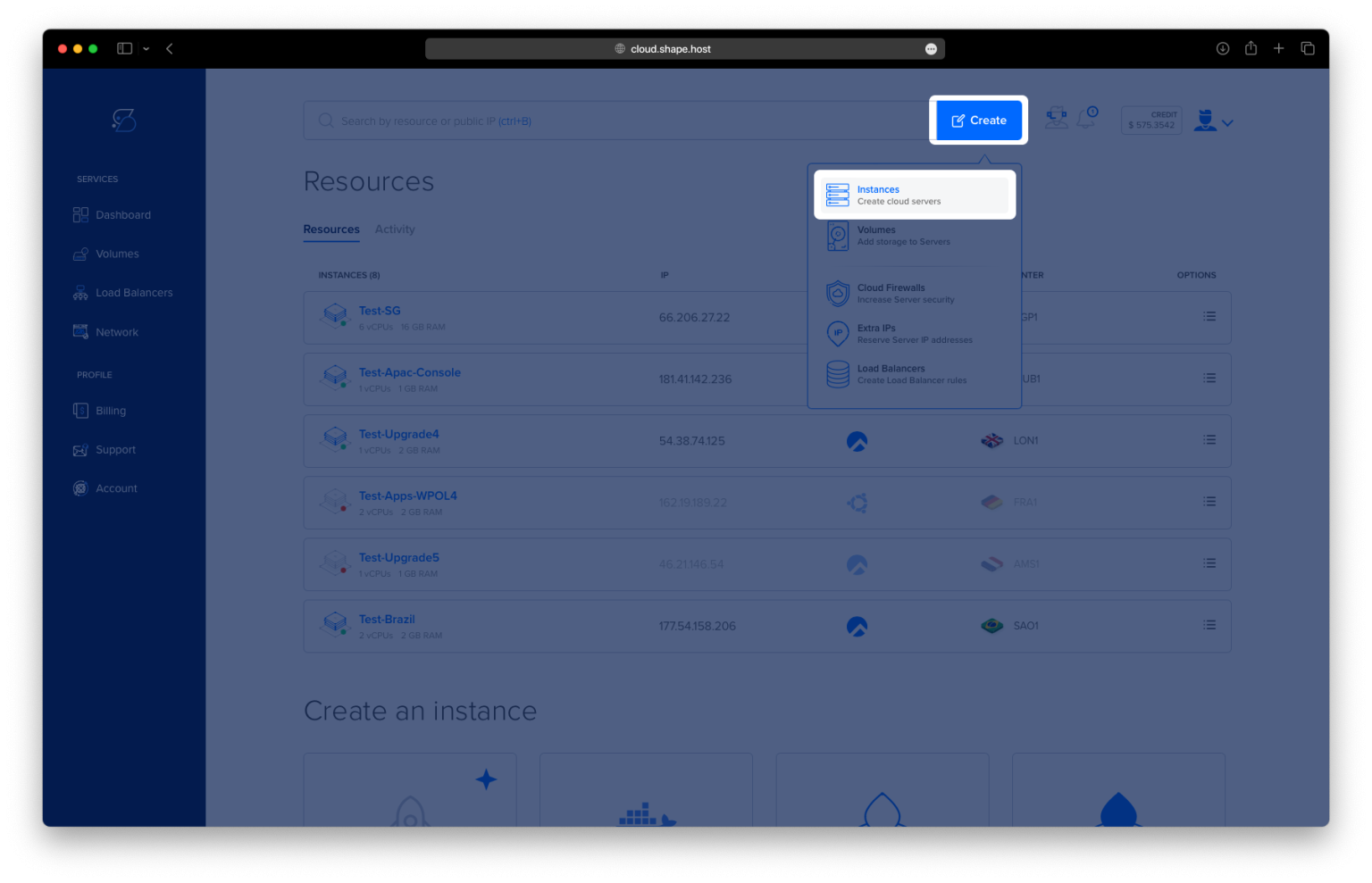
Before proceeding, ensure you have a Debian 12 server. If you don’t have one yet, follow these steps to create an instance on Shape.Host:
Log into Shape.Host and go to your Dashboard.
Click “Create” to start setting up a new virtual machine.
Select “Instances” to configure your TYPO3 hosting environment.

Choose a Data Center Location closest to your audience for optimal performance.

Pick a Hosting Plan that fits your project’s requirements, such as Standard or Performance-Optimized.
Set Debian 12 as the Operating System and finalize the instance setup.

Deploy the Server by selecting an authentication method (SSH keys or password authentication) and clicking Create Instance.

Get the Instance IP: After creating your instance, find the public IP address in the Shape.Host dashboard under Resources.

Step 2: Connect to Your Server
Once your server is deployed, connect via SSH:
- For Linux/macOS Users:
ssh root@<your_server_ip> - For Windows Users: Use PuTTY, enter your server’s IP address, and establish the connection.
Step 3: Update System Packages
Before installing TYPO3, update your system to ensure compatibility with the latest software:
apt update && apt upgrade -y

Step 4: Install Apache, MariaDB, Composer, and PHP
TYPO3 requires Apache (web server), MariaDB (database server), Composer (PHP dependency manager), and PHP.
Step 4.1: Install Required Packages
apt install apache2 mariadb-server composer php php-common php-mysql libapache2-mod-php php-gd php-curl php-json php-xmlrpc php-intl php-bcmath php-zip php-apcu php-mbstring php-fileinfo php-xml php-soap -y

Step 4.2: Verify Services
Check if Apache and MariaDB are enabled and running:
systemctl is-enabled apache2
systemctl status apache2

systemctl is-enabled mariadb
systemctl status mariadb


Step 4.3: Verify Installed Versions
To ensure PHP and Composer are correctly installed, check their versions:
php -v
php -m
which composer
sudo -u www-data composer -v


Step 5: Configure PHP for TYPO3
TYPO3 requires specific PHP settings. Edit the php.ini file:
nano /etc/php/8.2/apache2/php.ini
Modify the following values:
memory_limit = 512M
max_execution_time = 240
max_input_vars = 1500

date.timezone = Europe/Amsterdam

post_max_filesize = 50M
upload_max_filesize = 50M
Save the file (Ctrl + X, then Y, then Enter) and restart Apache:
systemctl restart apache2
Step 6: Secure and Configure MariaDB
Run the MariaDB security script to enhance security:
mariadb-secure-installation

Step 6.1: Create TYPO3 Database and User
Log into MariaDB:
mariadb -u root -p
Then, create a TYPO3 database and user:
CREATE DATABASE typo3db;
GRANT ALL PRIVILEGES ON typo3db.* TO 'typo3'@'localhost' IDENTIFIED BY 'typo3password';
FLUSH PRIVILEGES;
SHOW GRANTS FOR typo3@localhost;
QUIT;

Step 7: Install TYPO3
Step 7.1: Create TYPO3 Directory
mkdir -p /var/www/{.cache,.config,typo3}
chown -R www-data:www-data /var/www/{.cache,.config,typo3}
chmod u+rw /var/www/typo3
Step 7.2: Install TYPO3 Using Composer
cd /var/www/typo3
sudo -u www-data composer create-project typo3/cms-base-distribution:^12 .

Verify the installation files:
ls
Step 8: Configure Apache for TYPO3
Step 8.1: Enable Required Apache Modules
a2enmod rewrite headers
Step 8.2: Create a Virtual Host for TYPO3
nano /etc/apache2/sites-available/typo3.conf
Paste the following configuration:
<VirtualHost *:80>
    ServerAdmin contact@example.com
    DocumentRoot /var/www/typo3/public
    ServerName example.com

    <Directory /var/www/typo3/public/>
          Options FollowSymlinks
          AllowOverride All
          Require all granted
    </Directory>

    ErrorLog ${APACHE_LOG_DIR}/error.log
    CustomLog ${APACHE_LOG_DIR}/access.log combined

    <Directory /var/www/typo3/public/>
            RewriteEngine on
            RewriteBase /
            RewriteCond %{REQUEST_FILENAME} !-f
            RewriteRule ^(.*) index.php [PT,L]
    </Directory>
</VirtualHost>

Save the file and restart Apache:
a2ensite typo3.conf
apachectl configtest
systemctl restart apache2

Step 9: Secure TYPO3 with SSL
To secure TYPO3 with Let’s Encrypt SSL, install Certbot:
apt install certbot python3-certbot-apache -y

Run Certbot to generate and apply an SSL certificate:
certbot --apache --agree-tos --no-eff-email --redirect --hsts --staple-ocsp --email contact@shape.host -d debian-tutorials.shape.host

Step 10: Finalizing TYPO3 Installation
Step 10.1: Create the FIRST_INSTALL File
This enables the TYPO3 web installer:
sudo -u www-data touch /var/www/typo3/public/FIRST_INSTALL
Step 10.2: Access TYPO3 Web Installer
Open your browser and go to:
http://your_domain_or_ip
Follow the TYPO3 installation wizard, where you will:
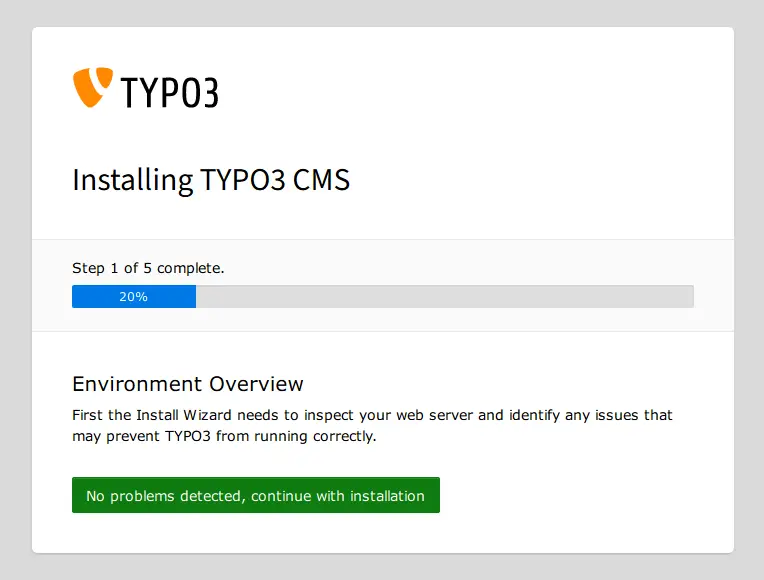
Ensure your system environment is ready, then click No problems detected, and continue with the installation.

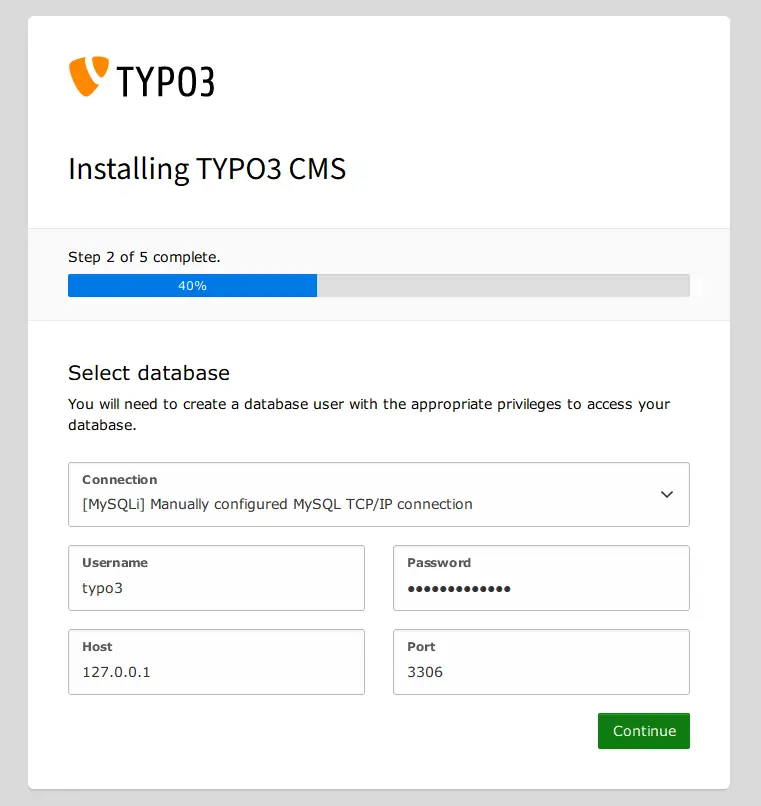
Input details of MariaDB database user, password, and host, then click Continue.

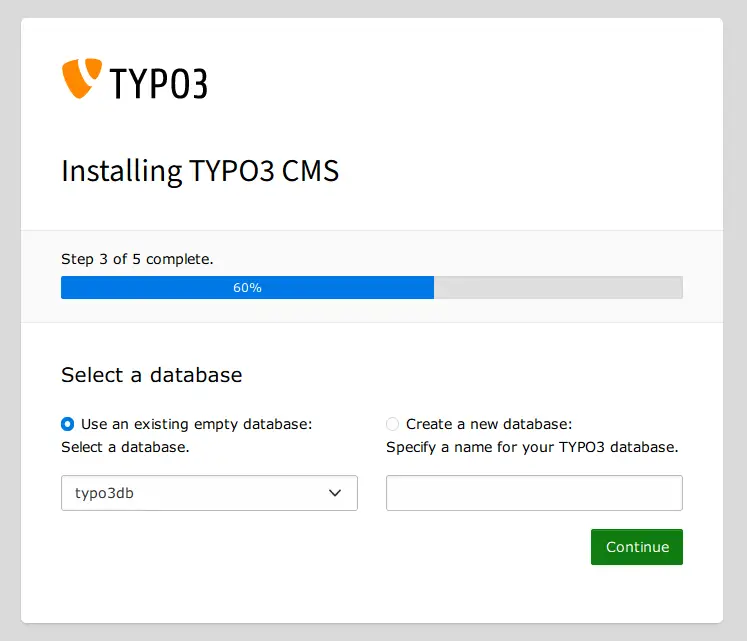
Select the option Use existing empty database and select the database typo3db. Then, click Continue again.

Next, input the new admin user, password, and email address for your TYPO3 CMS installation. Click Continue to confirm.
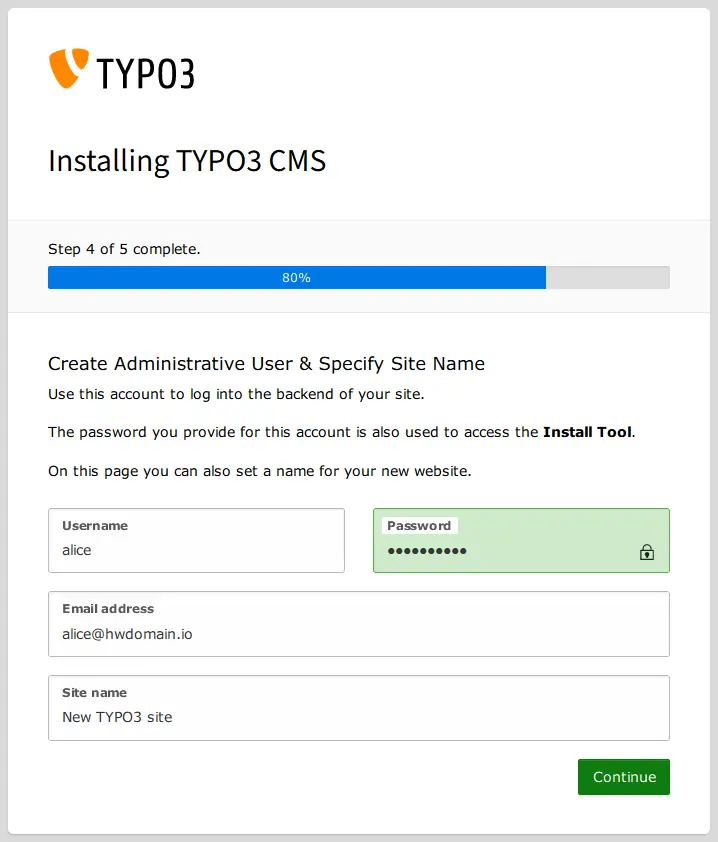

Once the installation is finished, you should get the following page.
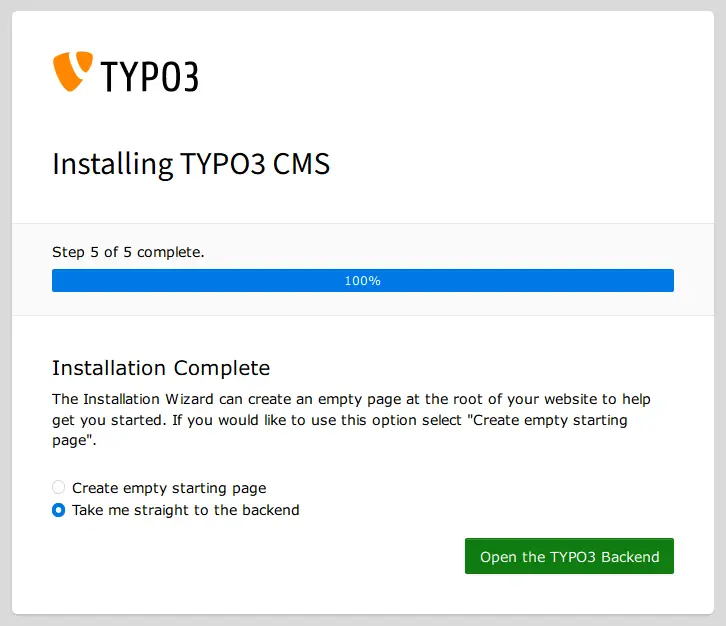

Click the Open the TYPO3 Backend to access the TYPO3 administration dashboard.
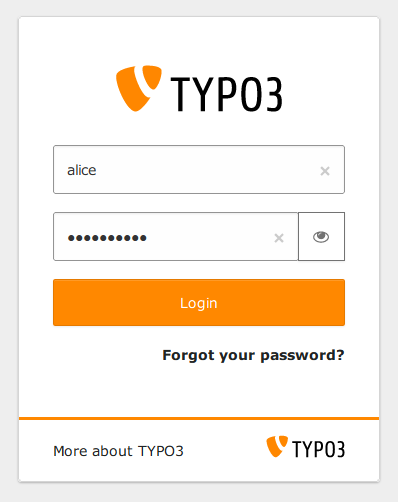
You should get the TYPO3 login page. Input your username and password, then click Login.

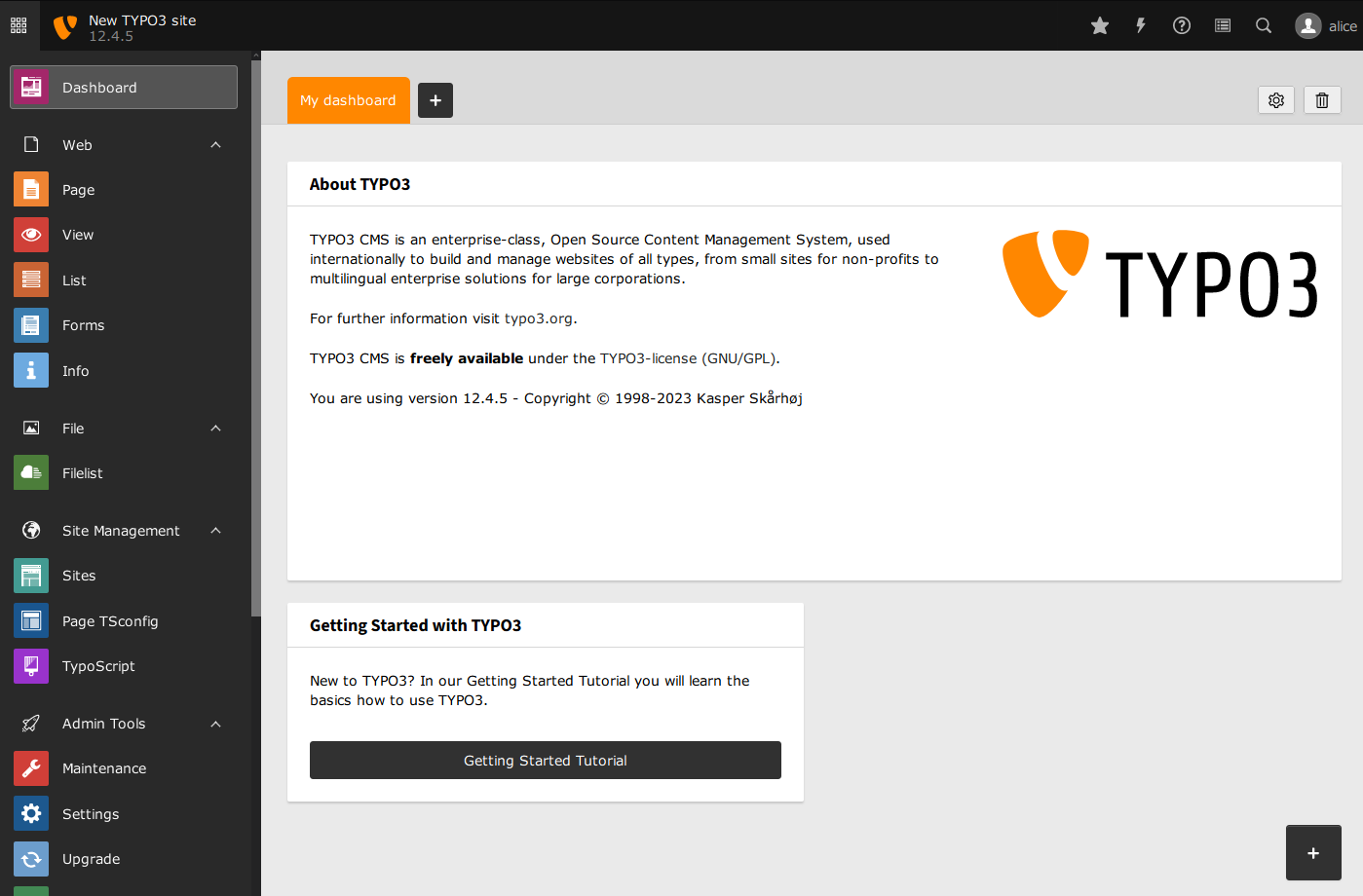
When login is successful, you should see the TYPO3 administration dashboard like the following:

For fast, secure, and optimized hosting, check out Shape.Host Cloud VPS, ideal for TYPO3 and other web applications. 🚀