WildFly Java Application Server on Debian 12 (Systemd + Nginx + SSL)
WildFly (formerly JBoss AS) is a high-performance, lightweight, and flexible Java application server designed for enterprise-grade deployments. It fully supports Jakarta EE (Java EE) specifications, RESTful services, microservices, clustering, and secure management. Its modular architecture makes it faster, more scalable, and easier to maintain compared to traditional Java servers.
Running WildFly on Debian 12 (Bookworm) provides a stable, secure, and long-term supported foundation. Debian’s reliability and strong community support make it an excellent choice for production workloads, with systemd 252, OpenSSL 3, and modern OpenJDK versions ensuring a hardened and future-proof environment.
Architecture Overview
| Layer | Component | Role |
|---|---|---|
| OS | Debian 12 (Bookworm) | Rock-solid base with security updates and long-term support |
| Runtime | OpenJDK 17 / 21 (LTS) | Runs WildFly application server and deployed apps |
| Application | WildFly (Jakarta EE server) | Provides APIs, container, clustering, and enterprise Java features |
| Process Manager | systemd | Keeps WildFly running as a background service |
| Reverse Proxy | Nginx (optional) | TLS termination, HTTP/2, load balancing, routing |
| TLS | Let’s Encrypt / PKI | Provides secure HTTPS for applications and admin console |
Why Use WildFly?
- Complete Jakarta EE platform – run enterprise Java apps with full API support.
- High performance & modular – optimized startup, lower memory footprint, extensible modules.
- Flexible deployments – WAR/EAR packages, standalone mode, or clustered domain mode.
- Enterprise security – RBAC, TLS encryption, LDAP/AD integration.
- Built-in clustering and HA – failover, load balancing, and distributed cache support.
WildFly vs Other Java Servers
| Feature/Capability | WildFly | Tomcat | Payara / GlassFish | Jetty |
|---|---|---|---|---|
| Jakarta EE support | Full (complete spec) | Partial (Servlet/JSP) | Full | Partial (Servlets, WebSockets) |
| Clustering & HA | Yes | Limited | Yes | Limited |
| Modular design | Yes | Lightweight core | Less modular | Lightweight core |
| Management console | Yes (web + CLI) | No | Yes | No |
WildFly excels when you need a full-featured enterprise Java server with clustering and security, while Tomcat or Jetty are best suited for lightweight servlet-based apps.
Security & Best Practices
- Run WildFly under a dedicated system user (non-root).
- Manage the service with systemd for uptime and controlled restarts.
- Place WildFly behind Nginx with SSL for secure access.
- Keep OpenJDK and WildFly updated to the latest stable versions.
- Protect the management console with firewall rules and strong credentials.
- Use RBAC for admin permissions; integrate LDAP/AD for enterprise setups.
Typical Use Cases
- Running enterprise Jakarta EE applications.
- Hosting REST/SOAP APIs for backend services.
- Deploying clustering and high-availability platforms.
- Building modular microservices on top of Java.
- Serving as a middleware backbone for large organizations.
1. Create a Shape.Host VPS Instance
Log in at https://shape.host.
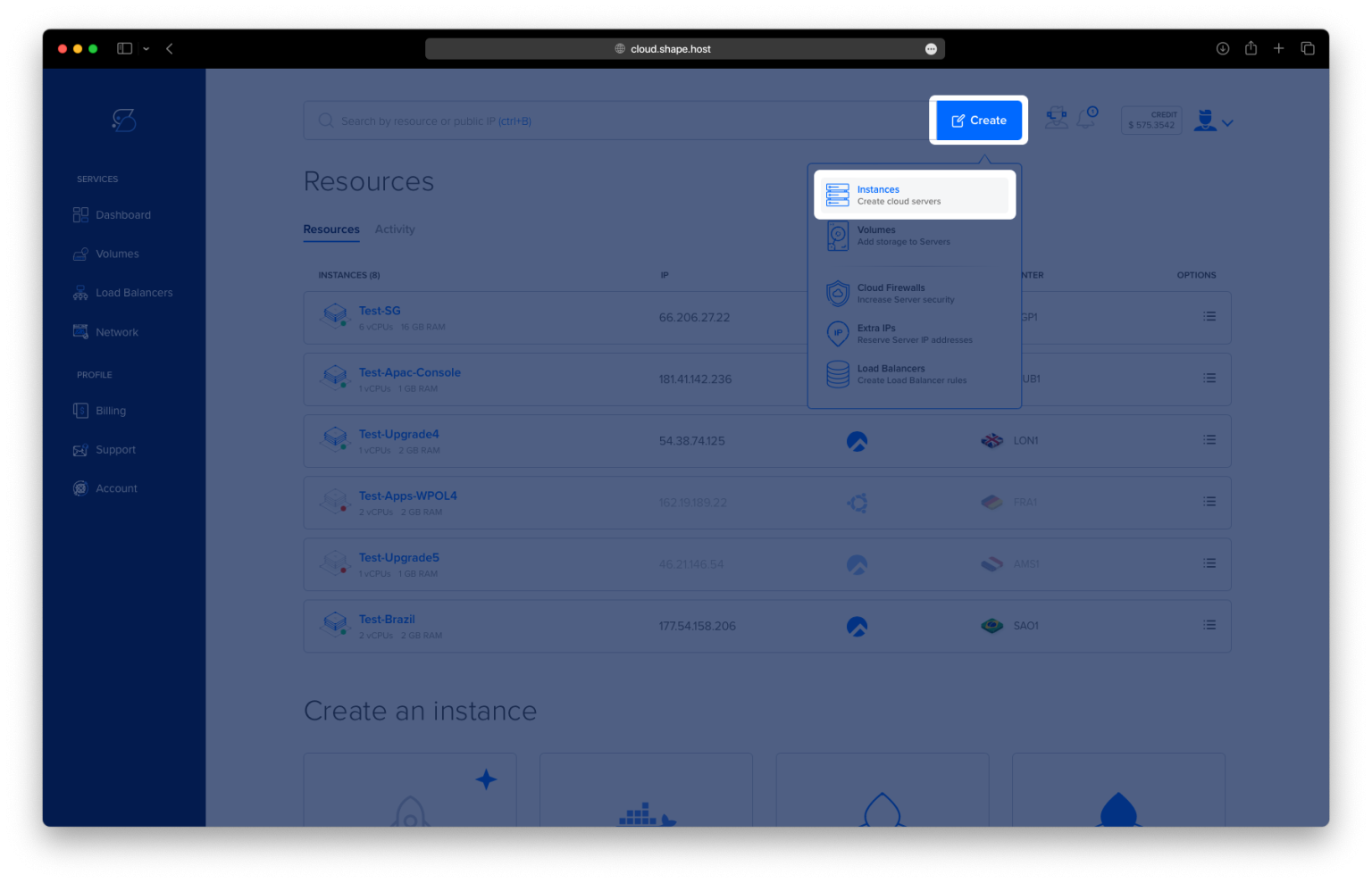
Click “Create” → “Instance”.

Select the server location closest to your users.

Choose Debian 12 (64-bit) as the operating system.
Pick a plan with at least 2 CPUs, 4 GB RAM, and 20 GB SSD.

Click “Create Instance”.

Copy the IP address from the Resources section.

2. Connect to Your VPS
On Linux/macOS
ssh root@your-server-ip
On Windows
- On Windows 10/11 PowerShell:
ssh root@your-server-ip - On older Windows, install PuTTY and connect using root.
3. Install Java
Update and upgrade packages:
apt update
apt upgrade

Install JDK:
apt install default-jdk

Verify Java version:
java --version

4. Create WildFly User and Directory
Add a dedicated system user:
groupadd -r wildfly
useradd -r -g wildfly -d /opt/wildfly -s /sbin/nologin wildfly

5. Download and Extract WildFly
Download WildFly 37:
wget https://github.com/wildfly/wildfly/releases/download/37.0.0.Final/wildfly-37.0.0.Final.tar.gz -P /tmp

Extract to /opt:
tar xf /tmp/wildfly-37.0.0.Final.tar.gz -C /opt/
Create a symlink for easier management:
ln -sfn /opt/wildfly-37.0.0.Final /opt/wildfly
Set permissions:
chown -RH wildfly:wildfly /opt/wildfly*

6. Configure WildFly as a System Service
Create config directory:
mkdir -p /etc/wildfly
Copy systemd files:
cp /opt/wildfly/docs/contrib/scripts/systemd/wildfly.conf /etc/wildfly/
cp /opt/wildfly/docs/contrib/scripts/systemd/wildfly.service /etc/systemd/system/
cp /opt/wildfly/docs/contrib/scripts/systemd/launch.sh /opt/wildfly/bin/
Make launch.sh executable:
chmod +x /opt/wildfly/bin/launch.sh
chown -R wildfly:wildfly /opt/wildfly
Reload systemd:
systemctl daemon-reload
Enable and start WildFly:
systemctl enable --now wildfly

7. Create Admin User
Run the built-in script:
/opt/wildfly/bin/add-user.sh
This will prompt you to create a management user for accessing the admin console.

8. Configure Firewall
Install and enable UFW:
apt install ufw

Allow WildFly ports and SSH:
ufw allow 8080/tcp
ufw allow 9990/tcp
ufw allow ssh
ufw enable

9. Configure WildFly Bind Addresses
Edit WildFly config file:
nano /etc/wildfly/wildfly.conf
Set:
WILDFLY_BIND=0.0.0.0
Also edit standalone configuration:
nano /opt/wildfly/standalone/configuration/standalone.xml
Find:
<interfaces>
    <interface name="management">
        <inet-address value="${jboss.bind.address.management:127.0.0.1}"/>
    </interface>
    <interface name="public">
        <inet-address value="${jboss.bind.address:127.0.0.1}"/>
    </interface>
</interfaces>
Change 127.0.0.1 → 0.0.0.0:
<interfaces>
    <interface name="management">
        <inet-address value="${jboss.bind.address.management:0.0.0.0}"/>
    </interface>
    <interface name="public">
        <inet-address value="${jboss.bind.address:0.0.0.0}"/>
    </interface>
</interfaces>

Restart WildFly:
systemctl restart wildfly
Check status:
systemctl status wildfly

10. Access WildFly
- Application URL:
http://<server-IP>:8080 - Admin Console:
http://<server-IP>:9990
Login with the admin user you created earlier.


This tutorial was tested on a Shape.Host Cloud VPS.
With Shape.Host, you get:
- High-performance VPS hosting across global locations
- Full support for Debian, Ubuntu, AlmaLinux, and Rocky Linux
- Instant resource scaling (CPU, RAM, storage)
- Built-in snapshots, backups, and monitoring
Start today at https://shape.host and deploy WildFly in minutes.