How to Install n8n on Ubuntu 24.04
n8n on Ubuntu 24.04 is a practical way to self-host workflow automation, API orchestration, scheduled jobs, AI-assisted pipelines, and integrations between SaaS services and internal tools. It gives you the flexibility of self-hosting while keeping the editor approachable enough for fast workflow building and testing.
In this guide, we deploy a fresh Ubuntu 24.04.1 LTS server on Shape.Host CloudStack, verify the current stable n8n release and its Node.js requirement, install Node.js 22, install n8n 2.12.2 globally with npm, run it as a dedicated systemd service, place Nginx in front of it on tutorials.shape.host, and secure the installation with a Let’s Encrypt SSL certificate.
What Is n8n?
n8n is a workflow automation platform that lets you connect services, move data between systems, trigger jobs on schedules or webhooks, and build multi-step automations from a visual editor. It is especially useful when you want more control than a hosted automation platform gives you, including self-hosted storage, local network access, or custom infrastructure placement.
Versions Used in This Tutorial
| Component | Version Verified | Source |
|---|---|---|
| Ubuntu | 24.04.1 LTS | Fresh Shape.Host restore and /etc/os-release check |
| n8n | 2.12.2 | Current npm stable release at install time |
| Node.js | 22.22.1 | Installed from the Node 22 upstream repository |
| npm | 10.9.4 | Installed with Node.js 22 |
| SSL | Let’s Encrypt certificate for tutorials.shape.host |
Issued live during the deployment |
Why Install n8n on Ubuntu 24.04?
- Ubuntu 24.04.1 LTS provides a stable long-term support base for self-hosted automation.
- n8n is easy to install from npm once the Node runtime matches the current upstream requirement.
- Running n8n behind Nginx gives you a familiar reverse-proxy layer for TLS, redirects, and future hardening.
- A dedicated VM keeps workflow data and integrations under your own infrastructure control.
Prerequisites
- A fresh Ubuntu 24.04 server
- Root or sudo access
- A domain pointing to your server, in this case
tutorials.shape.host - At least 2 vCPU, 4 GB RAM, and 50 GB storage for a comfortable base deployment
1. Verify the Operating System
Start by confirming that the server is running Ubuntu 24.04.1 LTS.
cat /etc/os-release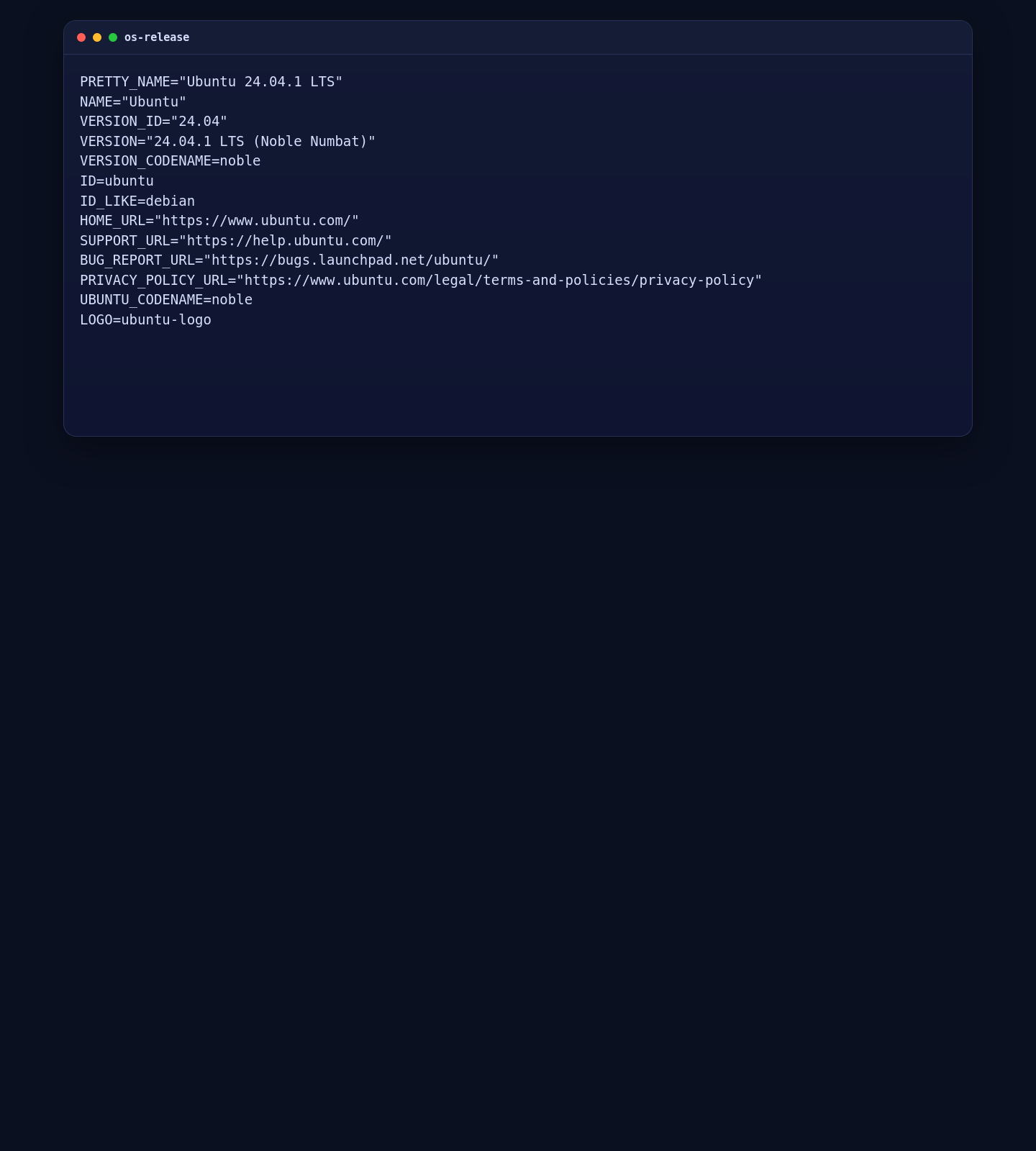
2. Update the Server and Install Base Utilities
Before installing Node.js or n8n, update the server and install the tools needed for repository setup and package builds.
apt-get update
DEBIAN_FRONTEND=noninteractive apt-get -y upgrade
DEBIAN_FRONTEND=noninteractive apt-get install -y curl ca-certificates gnupg build-essential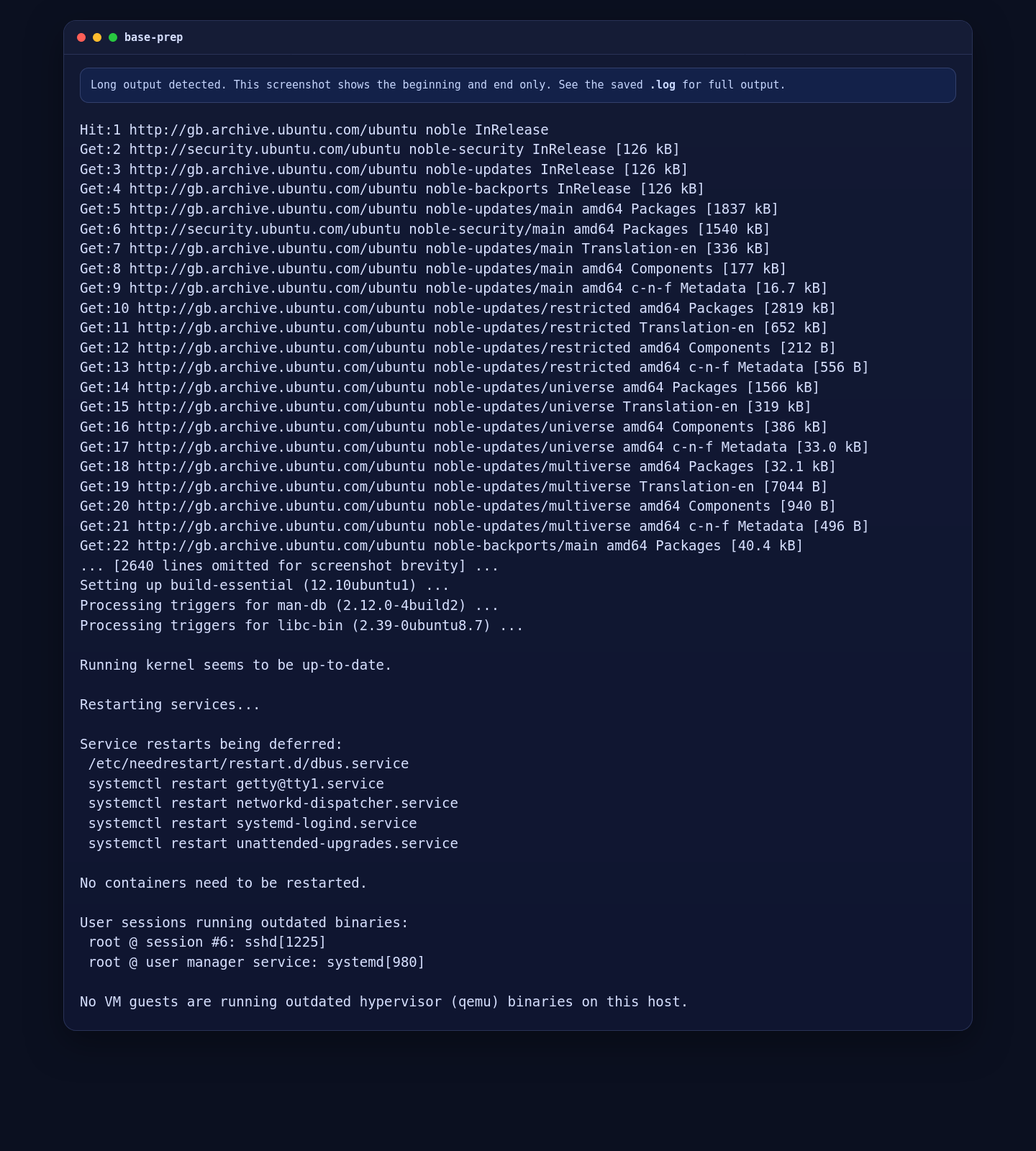
3. Install Node.js 22
At the time of this deployment, Ubuntu 24.04 still offered Node 18 from the default package source, but the current stable n8n release published a Node engine requirement of >=22.16. Because of that, the correct install path is to add the Node 22 upstream repository first.
curl -fsSL https://deb.nodesource.com/setup_22.x | bash -
DEBIAN_FRONTEND=noninteractive apt-get install -y nodejs
node --version
npm --version
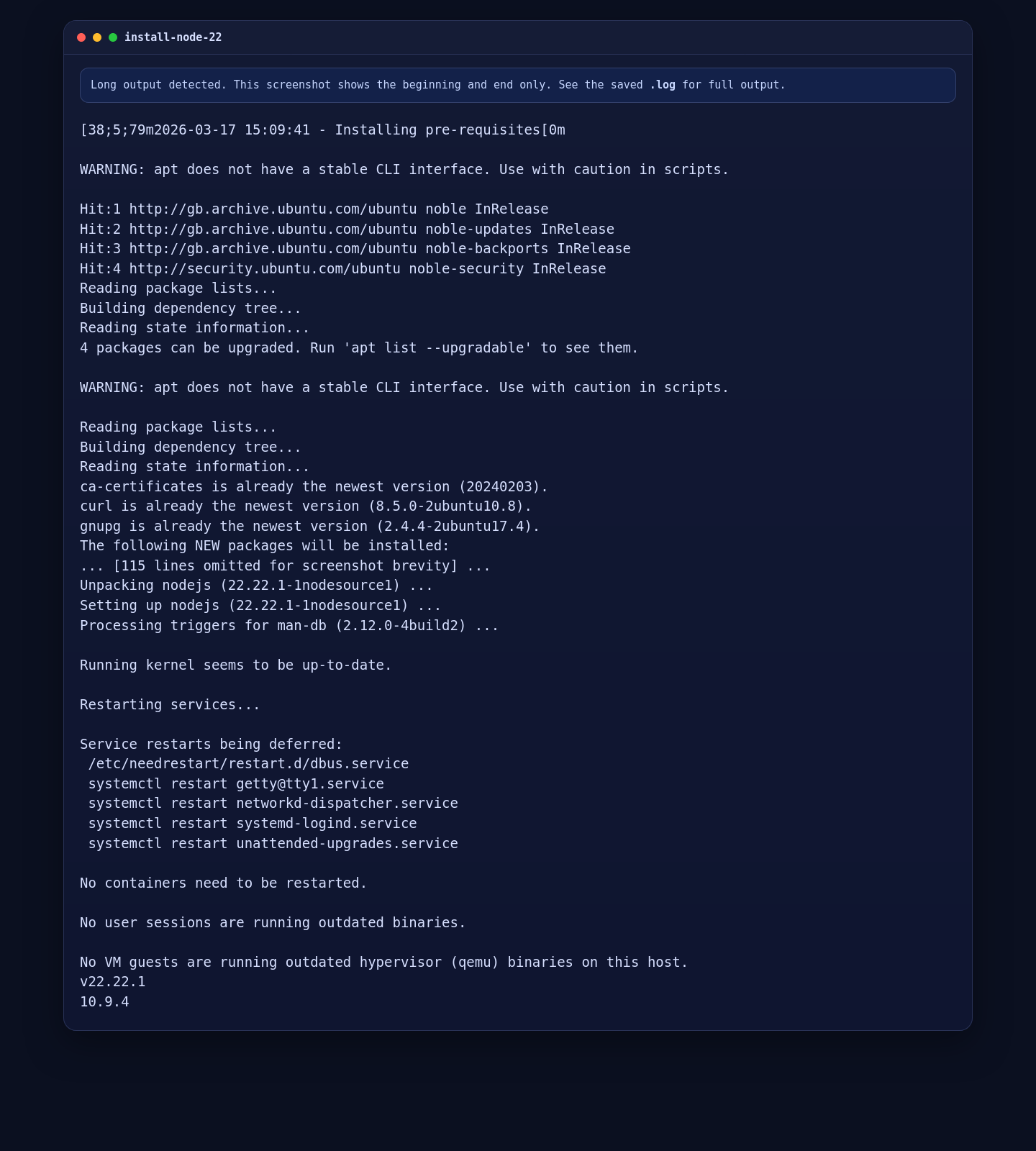
On this server, that resulted in:
- Node.js
v22.22.1 - npm
10.9.4
4. Install n8n 2.12.2 Globally
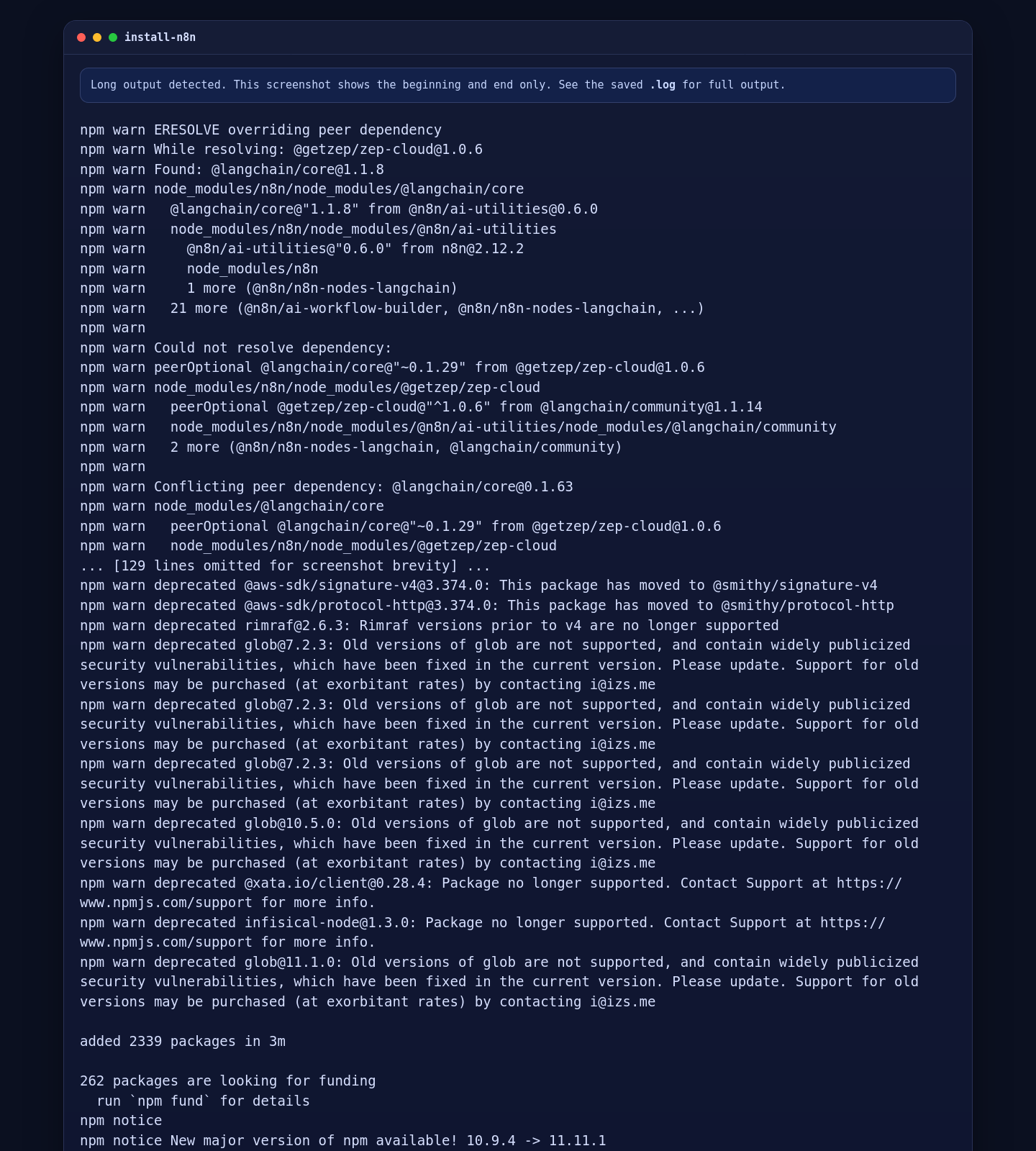
With the runtime in place, install the latest stable n8n release globally through npm:
npm install -g n8n@2.12.2
command -v n8n
n8n --version
On the live Shape.Host VM, the installed CLI reported 2.12.2.
5. Run n8n as a Dedicated systemd Service
For a cleaner production-style layout, create a dedicated n8n system user, prepare its working directory, and then create a full systemd unit that binds n8n only to 127.0.0.1:5678.
getent group n8n || groupadd --system n8n
id -u n8n >/dev/null 2>&1 || useradd --system --gid n8n --home-dir /var/lib/n8n --create-home --shell /usr/sbin/nologin n8n
mkdir -p /var/lib/n8n/.n8n
chown -R n8n:n8n /var/lib/n8n

cat >/etc/systemd/system/n8n.service <<'EOF'
[Unit]
Description=n8n workflow automation
After=network-online.target
Wants=network-online.target

[Service]
Type=simple
User=n8n
Group=n8n
WorkingDirectory=/var/lib/n8n
Environment=HOME=/var/lib/n8n
Environment=N8N_USER_FOLDER=/var/lib/n8n/.n8n
Environment=N8N_HOST=tutorials.shape.host
Environment=N8N_PORT=5678
Environment=N8N_PROTOCOL=http
Environment=N8N_LISTEN_ADDRESS=127.0.0.1
Environment=N8N_EDITOR_BASE_URL=http://tutorials.shape.host/
Environment=WEBHOOK_URL=http://tutorials.shape.host/
Environment=N8N_SECURE_COOKIE=false
ExecStart=/usr/bin/n8n start
Restart=always
RestartSec=5

[Install]
WantedBy=multi-user.target
EOF

systemctl daemon-reload
systemctl enable --now n8n
This keeps n8n off the public interface directly and leaves Nginx to handle the public listener.
6. Configure Nginx as a Reverse Proxy
Once the service is running, install the reverse proxy packages, create an Nginx server block for tutorials.shape.host, and proxy traffic to 127.0.0.1:5678.
DEBIAN_FRONTEND=noninteractive apt-get install -y nginx certbot python3-certbot-nginx

cat >/etc/nginx/sites-available/n8n <<'EOF'
server {
    listen 80;
    listen [::]:80;
    server_name tutorials.shape.host;

    client_max_body_size 20m;

    location / {
        proxy_pass http://127.0.0.1:5678;
        proxy_http_version 1.1;
        proxy_set_header Upgrade $http_upgrade;
        proxy_set_header Connection "upgrade";
        proxy_set_header Host $host;
        proxy_set_header X-Real-IP $remote_addr;
        proxy_set_header X-Forwarded-For $proxy_add_x_forwarded_for;
        proxy_set_header X-Forwarded-Proto $scheme;
        proxy_set_header X-Forwarded-Host $host;
        proxy_set_header X-Forwarded-Port $server_port;
        proxy_cache_bypass $http_upgrade;
    }
}
EOF

ln -sf /etc/nginx/sites-available/n8n /etc/nginx/sites-enabled/n8n
rm -f /etc/nginx/sites-enabled/default
systemctl enable --now nginx
nginx -t
systemctl reload nginx
If you use UFW on the server, open ports 80 and 443 before requesting the certificate:
ufw allow 80/tcp
ufw allow 443/tcp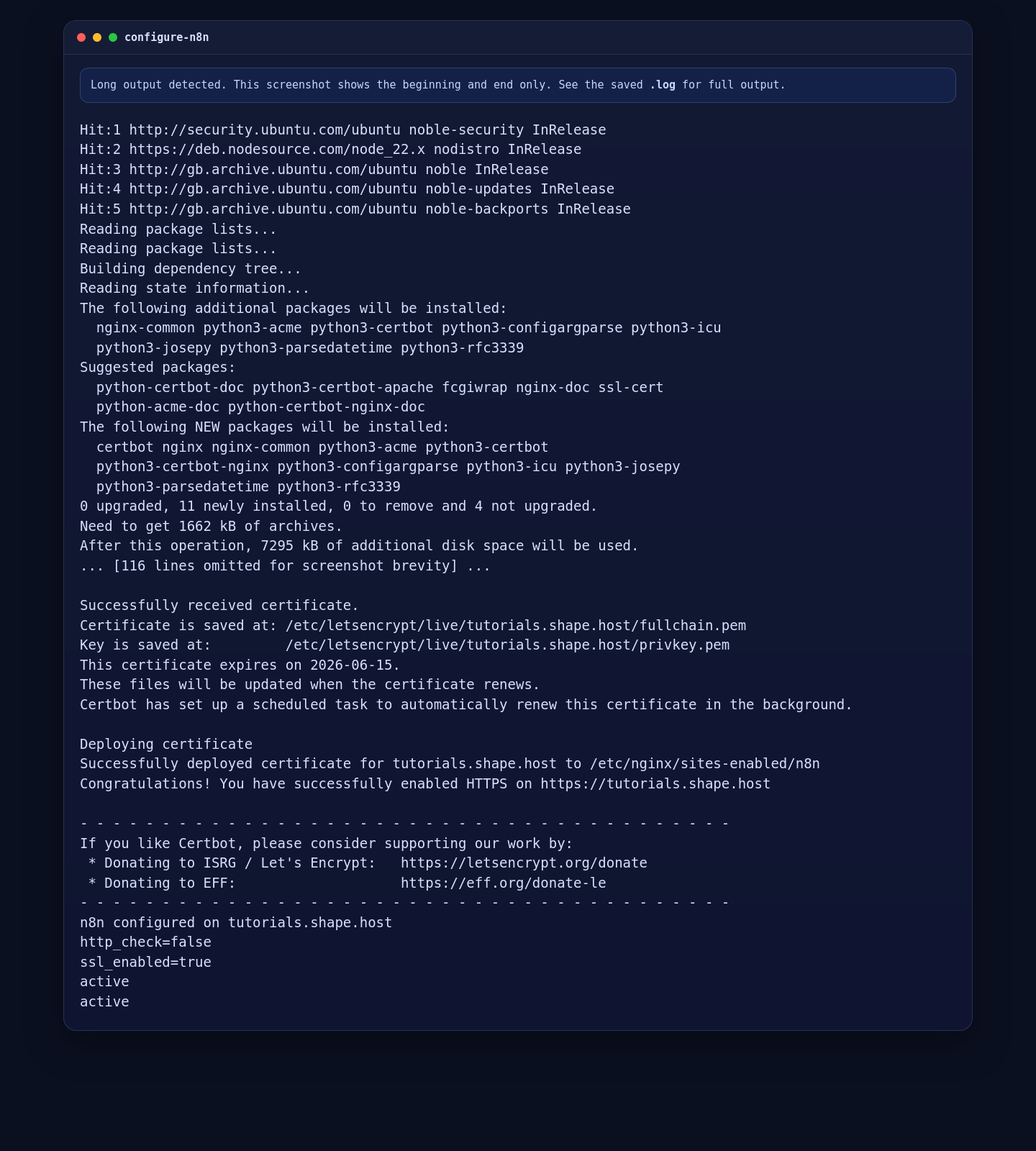
7. Secure the Deployment with Let’s Encrypt
Because tutorials.shape.host resolved to the server publicly, we were able to request and deploy a real certificate with Certbot using contact@shape.host as the registration address.
certbot --nginx --non-interactive --agree-tos -m contact@shape.host -d tutorials.shape.host --redirectAfter the certificate is issued, update the n8n service so it advertises the public HTTPS URL and uses secure cookies:
sed -i 's#N8N_PROTOCOL=http#N8N_PROTOCOL=https#' /etc/systemd/system/n8n.service
sed -i 's#N8N_EDITOR_BASE_URL=http://tutorials.shape.host/#N8N_EDITOR_BASE_URL=https://tutorials.shape.host/#' /etc/systemd/system/n8n.service
sed -i 's#WEBHOOK_URL=http://tutorials.shape.host/#WEBHOOK_URL=https://tutorials.shape.host/#' /etc/systemd/system/n8n.service
sed -i 's#N8N_SECURE_COOKIE=false#N8N_SECURE_COOKIE=true#' /etc/systemd/system/n8n.service
systemctl daemon-reload
systemctl restart n8n
On this deployment, Certbot issued a certificate for tutorials.shape.host with an expiry date of 2026-06-15.
8. Verify the Installed Versions and Service State
Use the following commands to verify the final application state:
node --version
npm --version
n8n --version
systemctl is-active n8n nginx
curl -I https://tutorials.shape.host/
certbot certificates
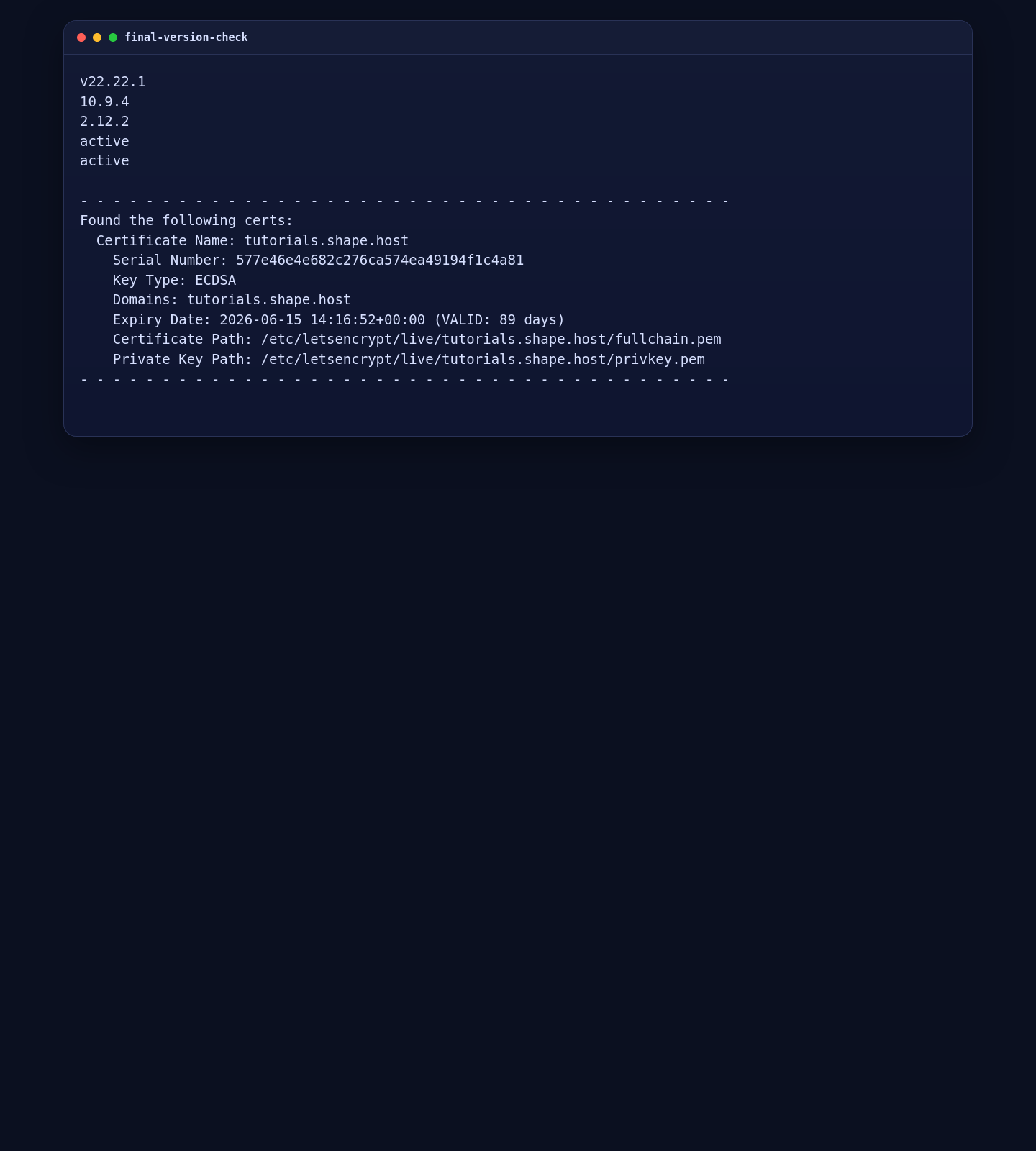
On this Shape.Host deployment, the final versions were:
- Node.js 22.22.1
- npm 10.9.4
- n8n 2.12.2
- Nginx active
- n8n active
https://tutorials.shape.host/returned a valid HTTPS response
9. Confirm the n8n Editor in a Browser
Finally, open https://tutorials.shape.host/ in a browser. The screenshot below confirms that the n8n editor is reachable through the reverse proxy over HTTPS.
Troubleshooting Notes
- If n8n fails to install from npm, verify the Node.js version first. The current stable release does not target Ubuntu’s default Node 18 package.
- If you see a brief
502 Bad Gatewayimmediately after service startup, wait a few seconds and check again. Nginx may become ready before n8n finishes its first initialization. - If you want production-grade scaling later, move the default SQLite-backed setup to PostgreSQL and review the n8n queue mode and worker deployment options.
Conclusion
You now have a working n8n installation on Ubuntu 24.04 with Node.js 22, Nginx reverse proxying, and a live Let’s Encrypt certificate on tutorials.shape.host. On this verified Shape.Host deployment, the final application version was n8n 2.12.2.
From here, the next sensible steps are creating your administrator account, reviewing n8n’s security settings, deciding whether to stay with the default SQLite storage or move to PostgreSQL, and building your first production workflows on top of this HTTPS-enabled base.