Excalidraw on Ubuntu 24.04
(Docker + Nginx + SSL)
Excalidraw is an open-source virtual whiteboard and diagramming application designed for fast, intuitive visual collaboration. It allows users to create hand-drawn–style diagrams, sketches, flowcharts, wireframes, and technical drawings directly in the browser, with a strong focus on simplicity, speed, and privacy.
Unlike many online whiteboard tools, Excalidraw can be fully self-hosted, giving you complete control over access, data, and availability. This makes it ideal for development teams, educators, designers, and organizations that want collaborative whiteboarding without relying on third-party SaaS platforms.
Running Excalidraw on Ubuntu 24.04 LTS (Noble Numbat) provides a modern, secure, and long-term supported operating system. Ubuntu 24.04 includes systemd 255, OpenSSL 3, and excellent Docker support, making it a solid foundation for hosting Excalidraw with Docker, Nginx, and HTTPS (SSL) in a production-ready setup.
Architecture Overview
| Layer | Component | Role |
|---|---|---|
| OS | Ubuntu 24.04 LTS | Secure, long-term supported Linux base |
| Container Runtime | Docker / Docker Compose | Runs the Excalidraw application |
| Application | Excalidraw (React) | Whiteboard UI and collaboration logic |
| Reverse Proxy | Nginx | HTTPS termination, routing, compression |
| TLS | Let’s Encrypt / PKI | Encrypted web access |
| Clients | Web browsers | Create and collaborate on diagrams |
Excalidraw itself is stateless, which makes it extremely easy to deploy, scale, and maintain.
Why Use Excalidraw?
- Simple and intuitive UI – no learning curve
- Hand-drawn style diagrams – ideal for brainstorming and planning
- Fully self-hosted – no third-party dependencies
- Privacy-friendly – your drawings stay on your server
- Real-time collaboration – share links and collaborate instantly
- Export options – PNG, SVG, and Excalidraw JSON
- Open-source & actively maintained
- Very lightweight – minimal CPU and memory usage
Excalidraw is designed to help teams think visually without friction.
Excalidraw vs Other Whiteboard Tools
| Feature / Capability | Excalidraw | Miro | FigJam | Draw.io |
|---|---|---|---|---|
| Hosting | Self-hosted | Cloud only | Cloud only | Cloud / Self |
| Open-source | ✅ Yes | ❌ No | ❌ No | ❌ Partial |
| Real-time collaboration | ✅ Yes | ✅ Yes | ✅ Yes | ❌ Limited |
| Privacy control | Full | Vendor-controlled | Vendor-controlled | Partial |
| Ease of use | Very high | Medium | Medium | Medium |
| Cost | Free | Paid | Paid | Free / Paid |
Excalidraw is ideal when simplicity, speed, and privacy matter more than enterprise-heavy features.
Security & Best Practices on Ubuntu 24.04
- Run Excalidraw behind Nginx with HTTPS enabled.
- Bind the Docker container to localhost only and expose it via Nginx.
- Use Let’s Encrypt SSL certificates with automatic renewal.
- Enable UFW and allow only ports 80 and 443.
- Regularly update:
- Ubuntu packages
- Docker images
- Excalidraw container
- Add basic rate limiting in Nginx if exposed publicly.
- Restrict access with authentication if used internally (optional).
- Monitor container health and logs.
Typical Use Cases
- Architecture diagrams for DevOps and engineering teams
- System design & flowcharts
- Brainstorming sessions
- Technical documentation visuals
- Education & remote teaching
- Wireframes and UI sketches
- Internal team collaboration tools
Deploying Excalidraw on Ubuntu 24.04 gives you a fast, private, and reliable self-hosted whiteboard solution — perfect for visual thinking, technical planning, and collaborative work without SaaS lock-in.
Step 1: Create a Server Instance on Shape.Host
To self-host Excalidraw, you need a VPS with Docker support.
Log in to https://shape.host
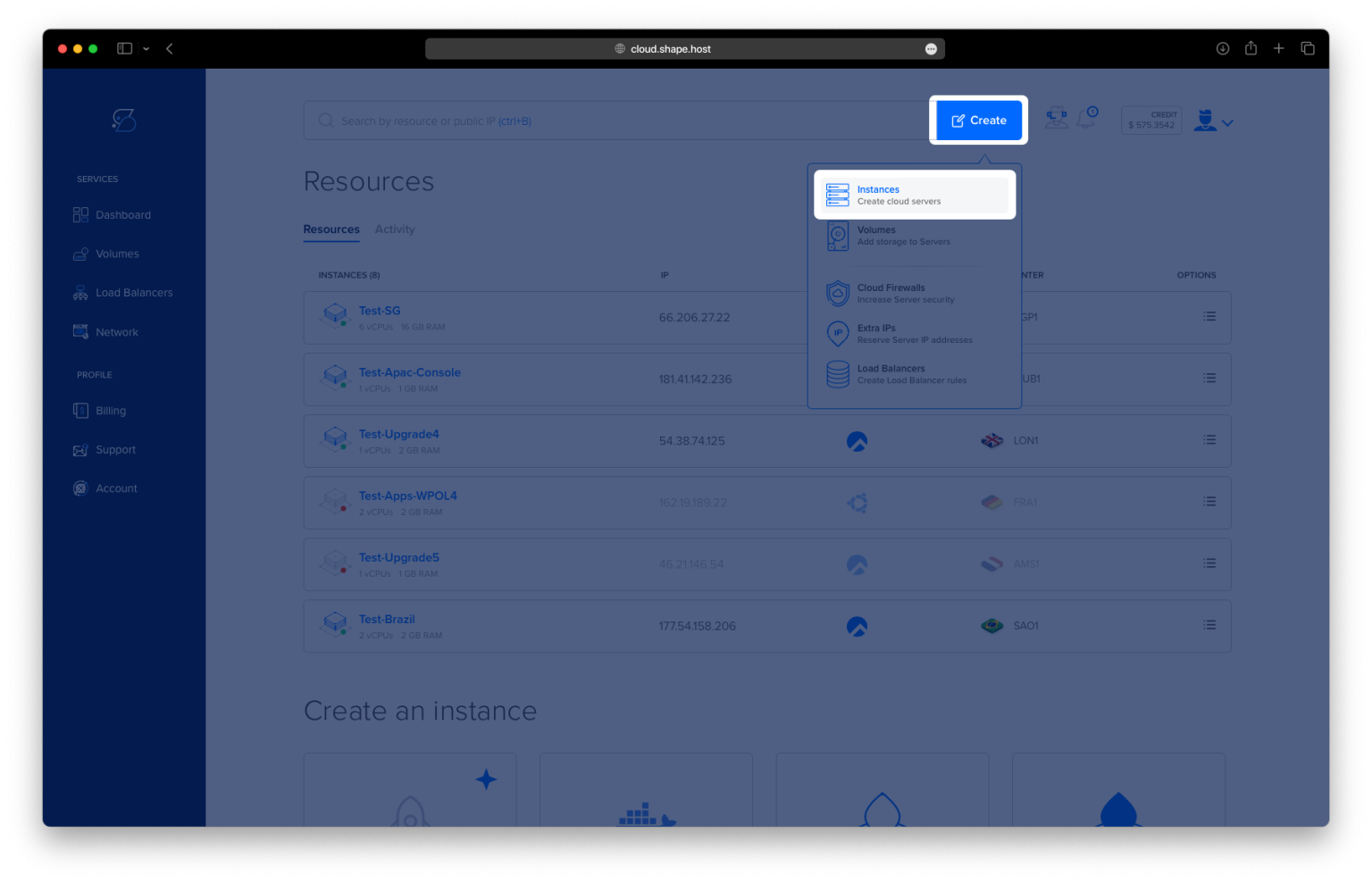
Click Create → Instance

Choose a data center location close to your users

Select a plan with at least:
1–2 CPU cores
2 GB RAM
20 GB SSD storage
Choose Ubuntu 24.04 (64-bit) as the operating system

Create the instance and wait for provisioning

Copy the public IP address of the server

Step 2: Connect to the Server
From Linux, macOS, or Windows:
ssh root@YOUR_SERVER_IP
This opens a secure shell session and gives you full administrative (root) access to the server.
Step 3: Update the Operating System
apt update
- Refreshes the local package index
- Ensures the system knows about the latest available software versions
apt upgrade -y
- Installs all pending updates
- Improves security and stability before installing new services

Step 4: Install Docker Engine
curl -fsSL https://get.docker.com | sh
- Downloads and runs the official Docker installation script
- Installs Docker Engine and all required dependencies automatically

systemctl enable docker
- Configures Docker to start automatically when the server boots
systemctl start docker
- Starts the Docker service immediately
docker --version
- Verifies that Docker is installed and working correctly

Step 5: Install Docker Compose Plugin
apt install docker-compose-plugin
- Installs Docker Compose v2 as a plugin
- Allows you to manage containers using
docker compose
docker compose version
- Confirms Docker Compose is available and functional
Step 6: Create the Excalidraw Project Directory
mkdir -p /opt/excalidraw
- Creates a dedicated directory for Excalidraw
- Keeps application files organized under
/opt
cd /opt/excalidraw
- Switches into the Excalidraw project directory

Step 7: Create Docker Compose Configuration
nano docker-compose.yml
Paste the following content:
services:
  excalidraw:
    image: excalidraw/excalidraw:latest
    container_name: excalidraw
    restart: unless-stopped
    ports:
      - "127.0.0.1:5000:80"
What this configuration does:
- Uses the official Excalidraw Docker image
- Runs Excalidraw in a single container
- Binds port 5000 only to localhost (security best practice)
- Automatically restarts the container if it stops or crashes

Step 8: Start Excalidraw
docker compose up -d
- Pulls the Excalidraw image if it’s not already present
- Starts the container in detached (background) mode

docker ps
- Lists running containers
- Confirms that the Excalidraw container is active
curl -I http://127.0.0.1:5000
- Sends a test HTTP request to the Excalidraw service
- A
200 OKor302response confirms it is running locally

Step 9: Install and Enable Nginx
apt install nginx
- Installs the Nginx web server

systemctl enable nginx
- Enables Nginx to start automatically on boot
systemctl start nginx
- Starts the Nginx service
Nginx will act as a reverse proxy, forwarding public traffic to Excalidraw.

Step 10: Configure Nginx Reverse Proxy
nano /etc/nginx/sites-available/excalidraw
Paste:
server {
    listen 80;
    server_name draw.example.com;

    location / {
        proxy_pass http://127.0.0.1:5000;
        proxy_http_version 1.1;
        proxy_set_header Upgrade $http_upgrade;
        proxy_set_header Connection "upgrade";
        proxy_set_header Host $host;
        proxy_set_header X-Real-IP $remote_addr;
        proxy_set_header X-Forwarded-For $proxy_add_x_forwarded_for;
        proxy_set_header X-Forwarded-Proto $scheme;
    }
}
Explanation:
- Listens on port 80 for HTTP traffic
- Forwards requests to Excalidraw running on localhost
- Includes WebSocket headers required by Excalidraw
- Preserves real client IP and protocol information

Step 11: Enable the Nginx Site
ln -s /etc/nginx/sites-available/excalidraw /etc/nginx/sites-enabled/
- Enables the Excalidraw site configuration
nginx -t
- Tests the Nginx configuration for syntax errors
systemctl reload nginx
- Reloads Nginx and applies the new configuration

Step 12: Enable SSL with Let’s Encrypt
apt install certbot python3-certbot-nginx
- Installs Certbot and the Nginx integration plugin

certbot --nginx -d ubuntu-tutorials.shape.host
Replace with your real domain:
yourdomain.com
Certbot will:
- Issue a free SSL certificate
- Automatically configure HTTPS in Nginx
- Enable automatic certificate renewal

Step 13: Access Excalidraw
Open your browser:
https://draw.example.com
You now have:
- A self-hosted Excalidraw instance
- Running in Docker
- Secured with HTTPS
- Accessible via a custom domain

You installed Excalidraw on Ubuntu 24.04 using Docker, exposed it through Nginx, and secured it with Let’s Encrypt SSL. This setup is lightweight, secure, and ideal for personal use, teams, or internal documentation workflows.
For hosting self-hosted tools like Excalidraw with full root access, reliability, and scalability, Shape.Host Cloud VPS provides a solid foundation for modern server deployments.