 Christian Wells
MeshCentral on Debian 12
(Self-Hosted Remote Management + Node.js + Nginx + SSL)
MeshCentral is a powerful, open-source remote management and remote access platform used to securely control, monitor, and administer computers and servers from a web browser. It provides remote desktop, terminal access, file transfer, device grouping, user and role management, and optional out-of-band management — all without relying on third-party cloud services.
Unlike proprietary tools such as TeamViewer or AnyDesk, MeshCentral can be fully self-hosted, giving you complete ownership of devices, credentials, and connection data. This makes it especially attractive for system administrators, MSPs, DevOps teams, and privacy-focused organizations.
Running MeshCentral on Debian 12 (Bookworm) offers a stable, security-first, and long-term supported operating system. Debian 12 ships with OpenSSL 3, systemd 252, and a mature Node.js ecosystem, making it a solid foundation for a production-grade remote management server.
Architecture Overview
| Layer | Component | Role |
|---|---|---|
| OS | Debian 12 (Bookworm) | Stable, long-term supported Linux base |
| Runtime | Node.js LTS (18 / 20) | Runs the MeshCentral server |
| Application | MeshCentral | Web UI, device management, relay |
| Database | Built-in (NeDB / SQLite) | Stores users, devices, settings |
| Reverse Proxy | Nginx (recommended) | HTTPS termination and routing |
| TLS | Let’s Encrypt / PKI | Encrypted secure connections |
| Clients | Browsers + Mesh Agents | Remote access and device control |
MeshCentral uses a single-service architecture, which keeps deployments lightweight, fast, and easy to maintain.
Why Use MeshCentral?
- Fully self-hosted — no vendor lock-in
- Remote desktop & terminal — browser-based access
- Agent-based management — Windows, Linux, macOS
- Granular permissions — users, groups, roles
- WebSocket-based connections — efficient and responsive
- File transfer & power controls
- Multi-tenant capable — suitable for MSPs
- Open-source & actively maintained
- Very low resource usage
MeshCentral is built for secure, scalable remote administration with full infrastructure control.
MeshCentral vs Other Remote Management Tools
| Feature / Capability | MeshCentral | TeamViewer | AnyDesk | Apache Guacamole |
|---|---|---|---|---|
| Hosting | Self-hosted | Cloud only | Cloud only | Self-hosted |
| Open-source | ✅ Yes | ❌ No | ❌ No | ✅ Yes |
| Data ownership | Full control | Vendor-controlled | Vendor-controlled | Full control |
| Agent-based | ✅ Yes | ✅ Yes | ✅ Yes | ❌ No |
| Web UI | ✅ Yes | ❌ No | ❌ No | ✅ Yes |
| Cost | Free | Paid | Paid | Free |
MeshCentral stands out for privacy, transparency, and flexibility.
Security & Best Practices on Debian 12
- Always run MeshCentral over HTTPS.
- Use Let’s Encrypt SSL certificates with automatic renewal.
- Bind MeshCentral to 127.0.0.1 and expose it via Nginx.
- Store secrets only in config files or environment variables.
- Disable public account creation if not required.
- Enforce strong passwords and role-based access.
- Use UFW or nftables and allow only ports 80 / 443.
- Keep Debian, Node.js, and MeshCentral updated.
- Regularly back up:
- MeshCentral data directory
- Configuration files
- Monitor logs for authentication attempts and device activity.
Typical Use Cases
- Remote server administration
- IT support and helpdesk operations
- MSPs managing multiple clients
- Home labs and self-hosted environments
- Device inventory and monitoring
- Secure alternative to TeamViewer or AnyDesk
- Enterprise or compliance-sensitive environments
Deploying MeshCentral on Debian 12 gives you a secure, scalable, and fully self-hosted remote management solution — combining modern Node.js performance with Debian’s proven stability, strong encryption, and full control over your infrastructure.
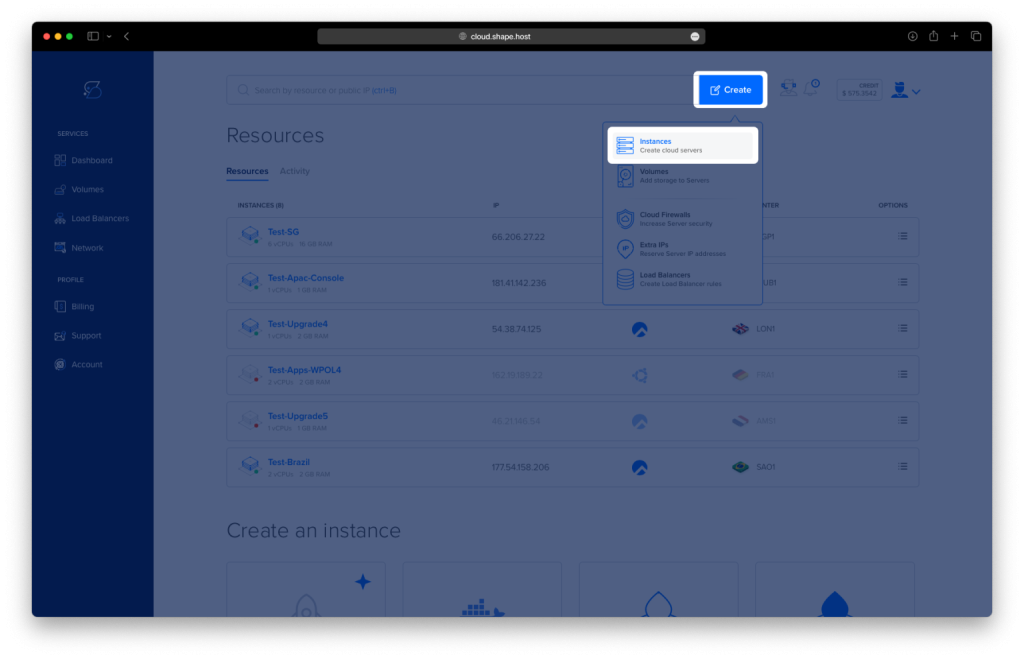
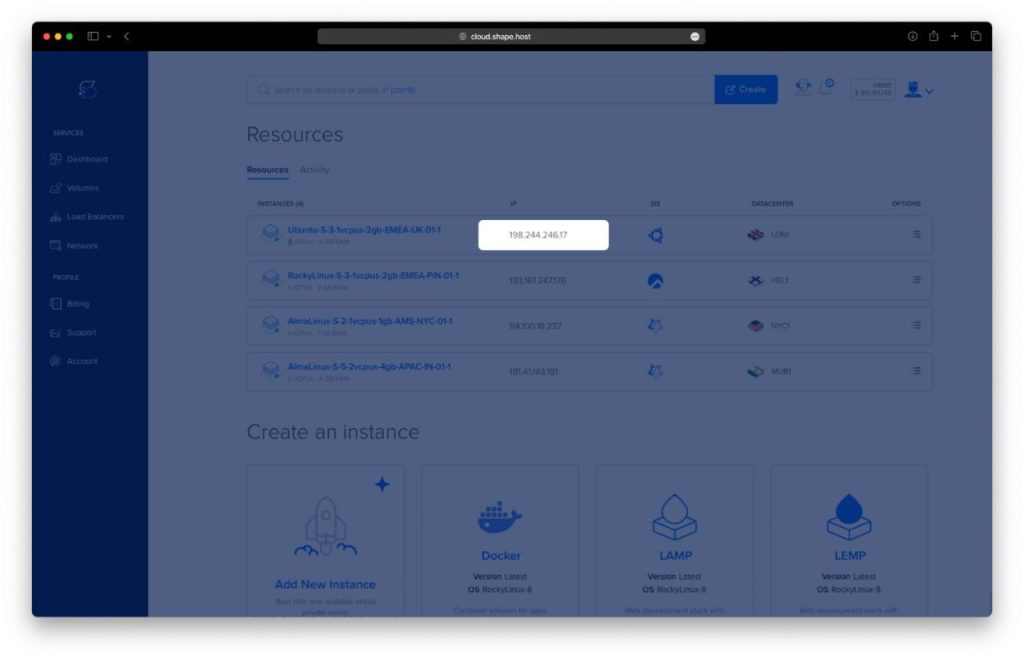
Step 1: Create a Server Instance on Shape.Host
Before installing MeshCentral, you need a VPS with a public IP address.
Log in to https://shape.host
Click Create → Instance
Choose a data center close to your users
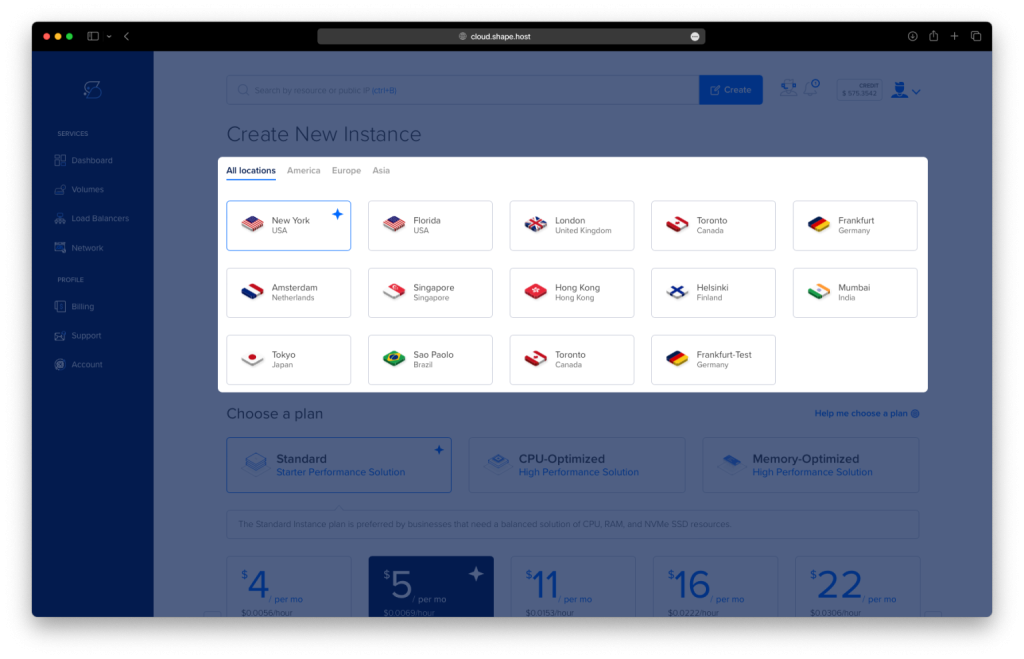
Select a plan with at least:
2 CPU cores
4 GB RAM
30–40 GB SSD
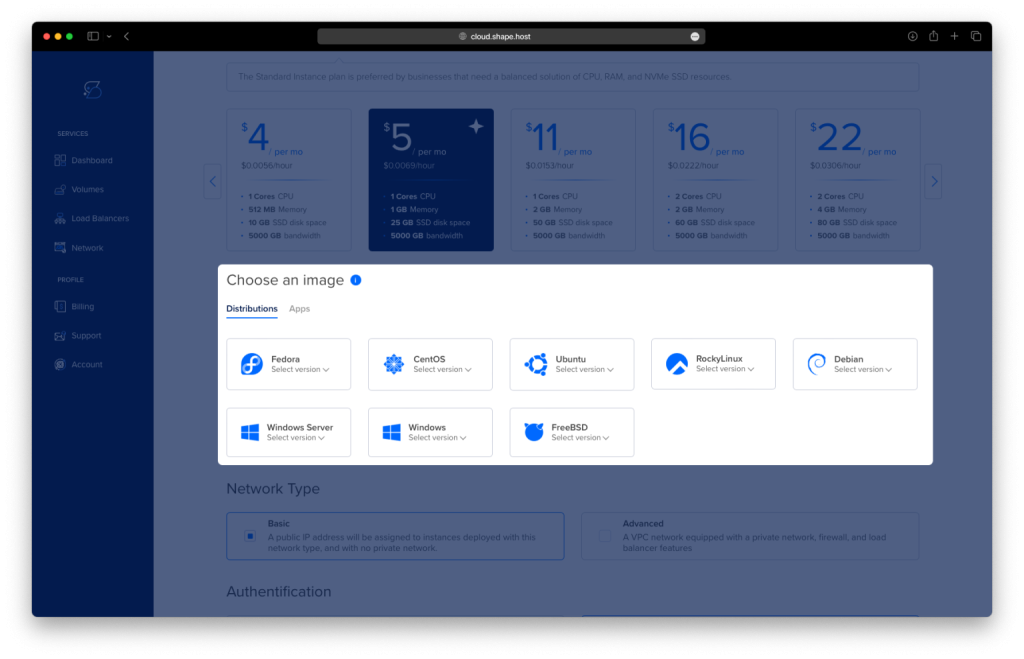
Choose Debian 12 (Bookworm) as the operating system
Create the instance and wait for provisioning
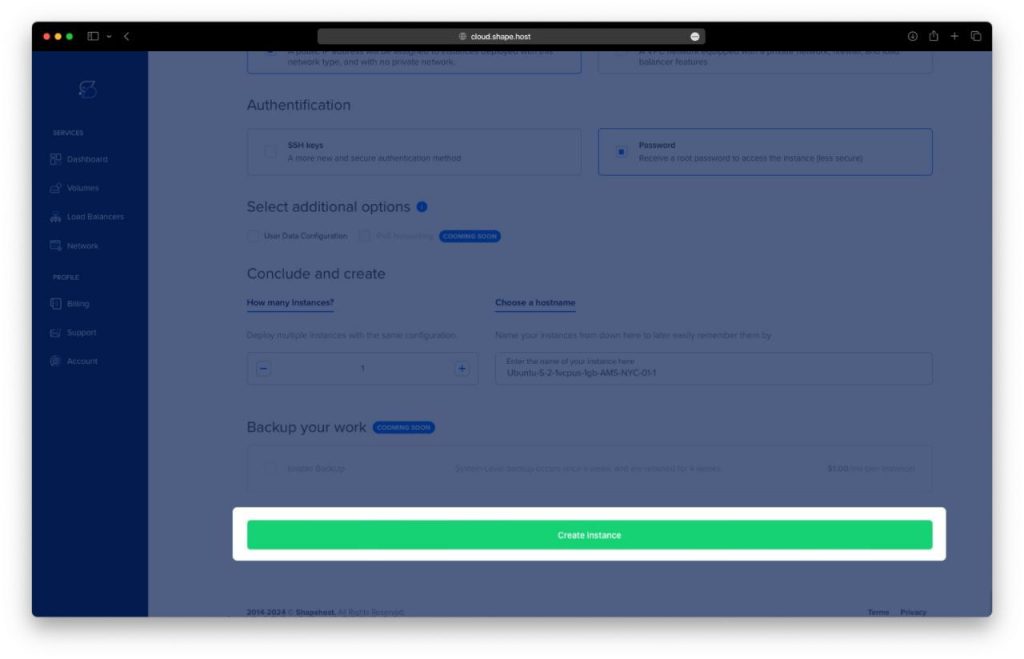
Copy the public IP address
Step 2: Connect to the Server (Linux, macOS & Windows)
Linux / macOS
ssh root@YOUR_SERVER_IP
Windows (PowerShell / Windows Terminal)
ssh root@YOUR_SERVER_IP
Windows (PuTTY)
- Host Name:
YOUR_SERVER_IP - Port:
22 - Connection type: SSH
- Username:
root
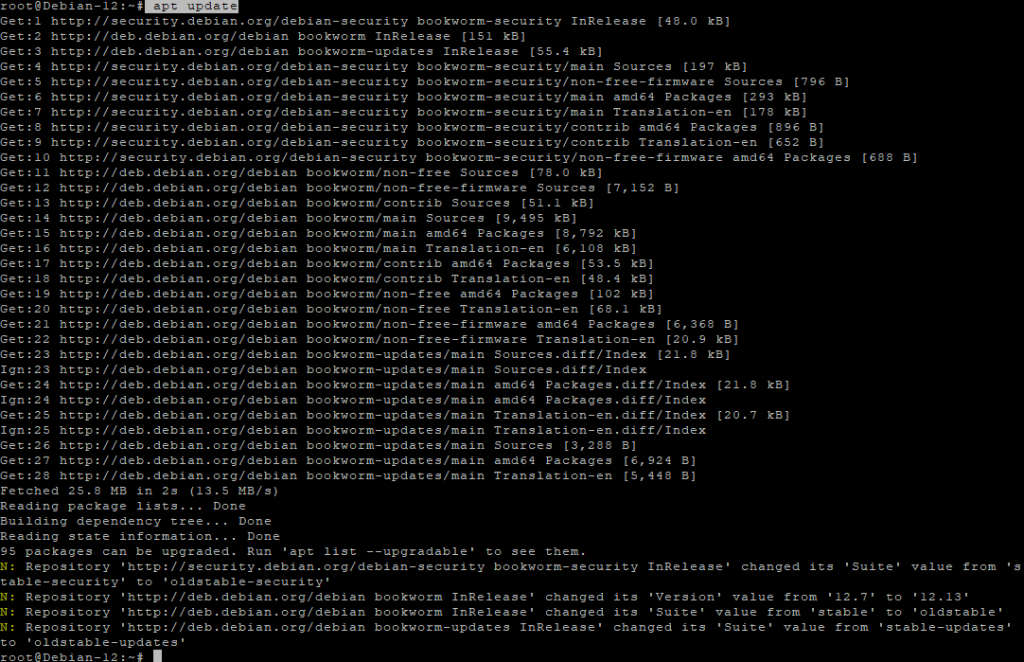
Step 3: Update the System
apt update
- Refreshes the Debian package index
apt upgrade -y
- Installs all available system and security updates
- Ensures compatibility with Node.js and MeshCentral
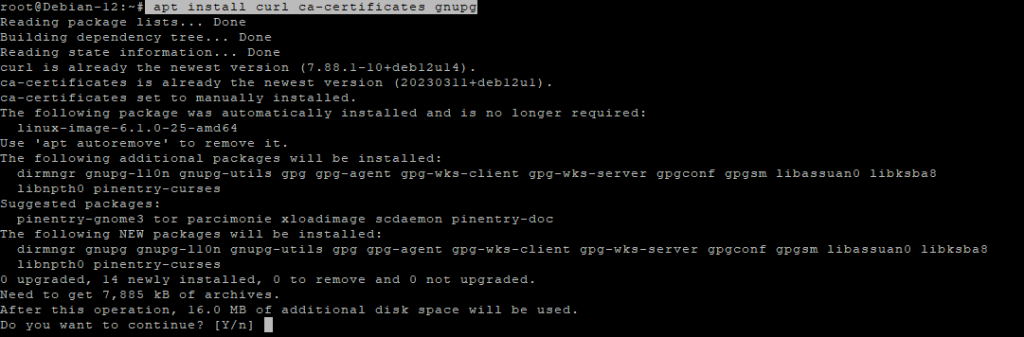
Step 4: Install Required Dependencies
apt install curl ca-certificates gnupg
These packages are required for:
- Secure HTTPS downloads
- Adding external repositories
- Verifying cryptographic signatures
Step 5: Install Node.js 20 (Required by MeshCentral)
MeshCentral requires a modern Node.js runtime.
curl -fsSL https://deb.nodesource.com/setup_20.x | bash -
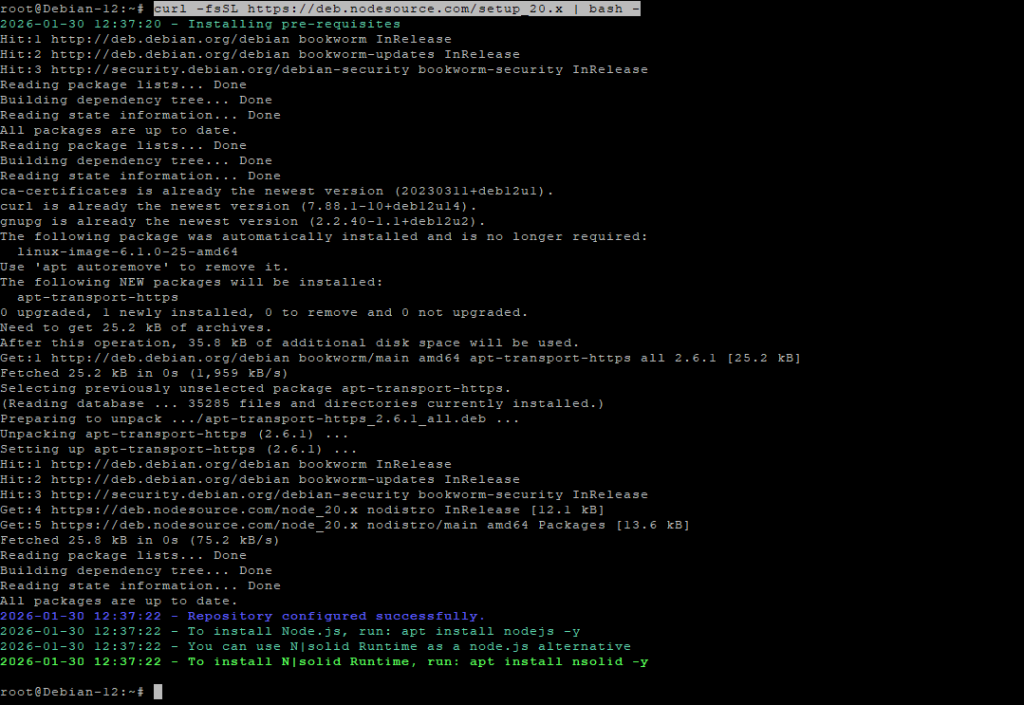
- Adds the official NodeSource repository for Node.js 20
apt install nodejs
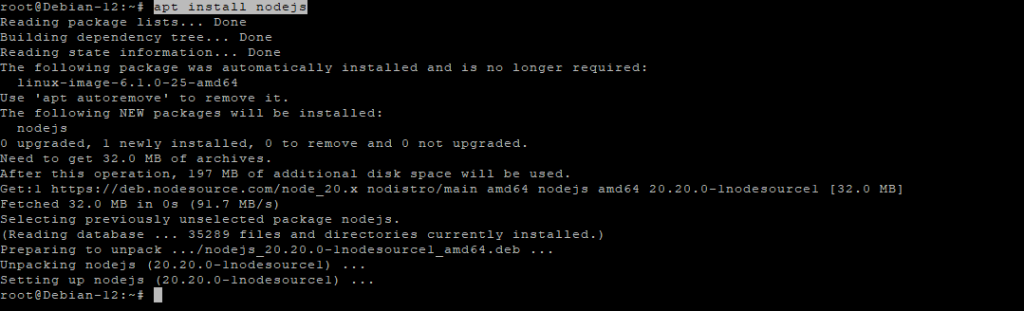
Verify installation:
node -v
npm -v

Step 6: Install MeshCentral
Create the application directory:
mkdir -p /opt/meshcentral
cd /opt/meshcentral
Install MeshCentral via npm:
npm install meshcentral
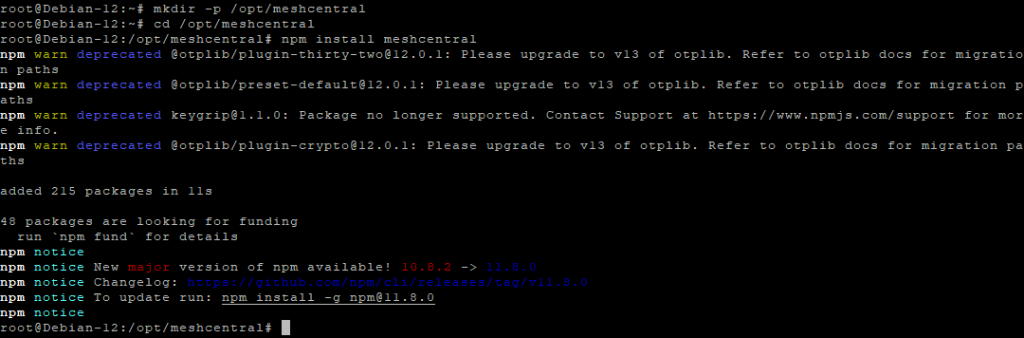
Create the data directory:
mkdir -p /opt/meshcentral/meshcentral-data
This directory stores configuration files, certificates, and runtime data.
Step 7: Initial MeshCentral Configuration
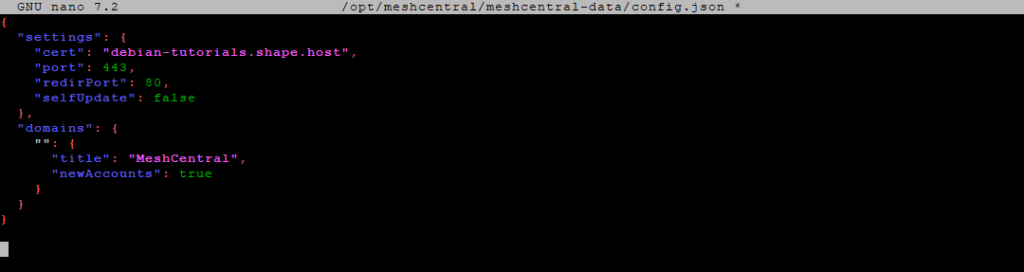
Create the configuration file:
nano /opt/meshcentral/meshcentral-data/config.json
Initial configuration:
{
  "settings": {
    "cert": "ubuntu-tutorials.shape.host",
    "port": 443,
    "redirPort": 80,
    "selfUpdate": false
  },
  "domains": {
    "": {
      "title": "MeshCentral",
      "newAccounts": true
    }
  }
}
What this configuration does
- Sets the domain MeshCentral will use
- Listens on HTTPS (443) and redirects HTTP (80)
- Disables automatic self-updates
- Allows creation of the first admin account
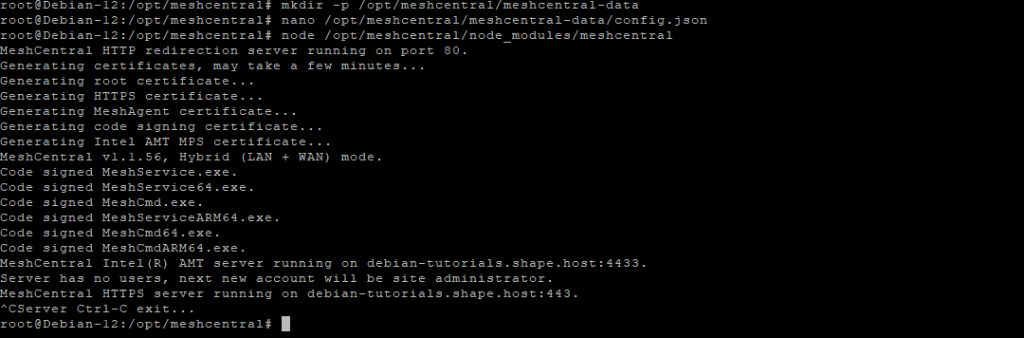
Test-run MeshCentral manually:
node /opt/meshcentral/node_modules/meshcentral
- Confirms MeshCentral starts correctly
- Stop it with Ctrl + C after verification
Step 8: Create a systemd Service
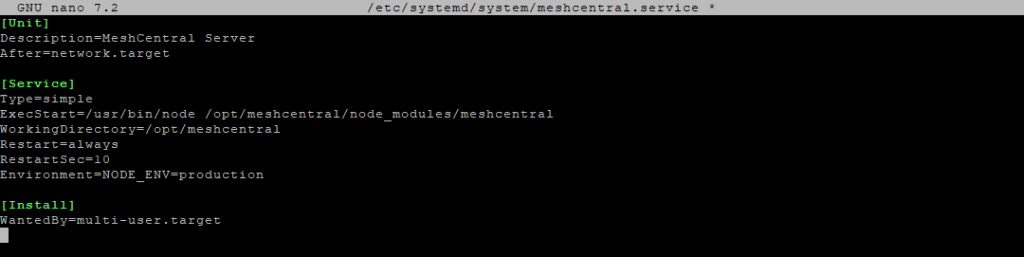
Create the service file:
nano /etc/systemd/system/meshcentral.service
Paste:
[Unit]
Description=MeshCentral Server
After=network.target

[Service]
Type=simple
ExecStart=/usr/bin/node /opt/meshcentral/node_modules/meshcentral
WorkingDirectory=/opt/meshcentral
Restart=always
RestartSec=10
Environment=NODE_ENV=production

[Install]
WantedBy=multi-user.target
Reload systemd:
systemctl daemon-reload
Enable and start MeshCentral:
systemctl enable meshcentral
systemctl start meshcentral
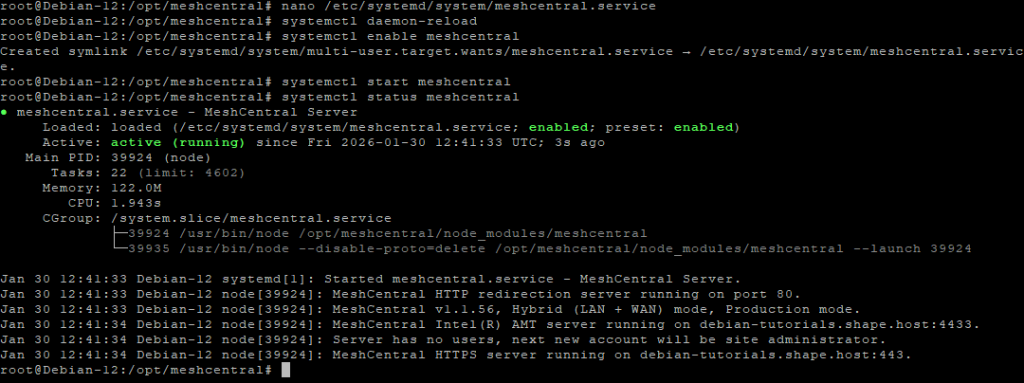
Check service status:
systemctl status meshcentral
Step 9: Enable Let’s Encrypt SSL
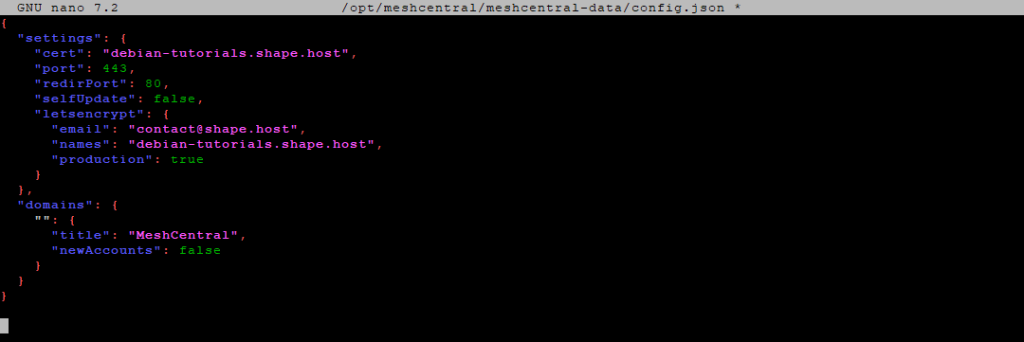
Edit the configuration file again:
nano /opt/meshcentral/meshcentral-data/config.json
Final production configuration:
{
  "settings": {
    "cert": "ubuntu-tutorials.shape.host",
    "port": 443,
    "redirPort": 80,
    "selfUpdate": false,
    "letsencrypt": {
      "email": "contact@shape.host",
      "names": "ubuntu-tutorials.shape.host",
      "production": true
    }
  },
  "domains": {
    "": {
      "title": "MeshCentral",
      "newAccounts": false
    }
  }
}
What changed
- Enables Let’s Encrypt SSL
- Issues a trusted HTTPS certificate automatically
- Disables public account registration for security
Restart MeshCentral:
systemctl restart meshcentral
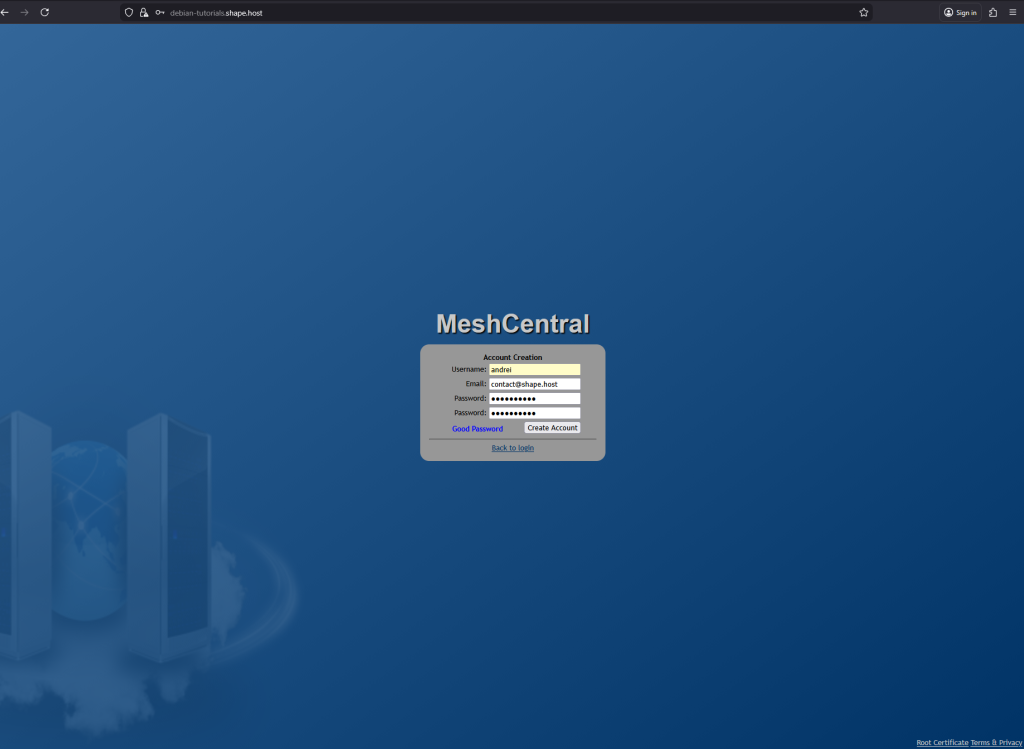
Step 10: Access MeshCentral
Open your browser:
https://ubuntu-tutorials.shape.host
You now have:
- A fully self-hosted MeshCentral server
- Running on Debian 12
- Secured with Let’s Encrypt HTTPS
- Managed as a persistent systemd service
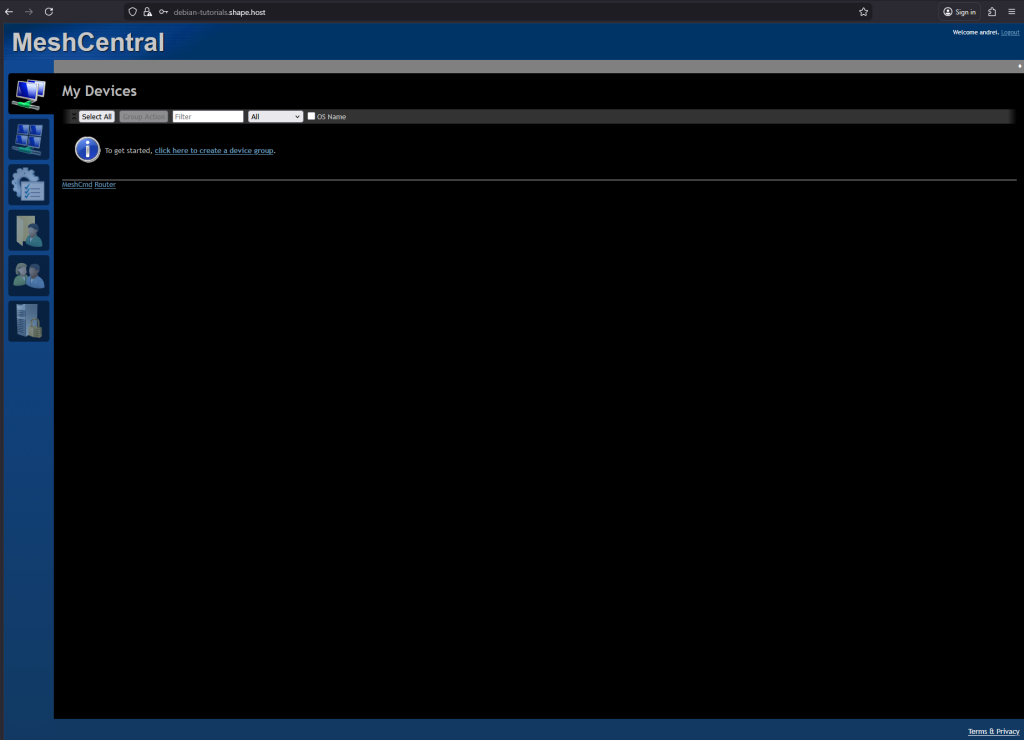
You have installed MeshCentral on Debian 12, configured it to run as a system service, and secured it with Let’s Encrypt SSL. This setup provides a secure, centralized platform for managing remote systems and devices with full control over your infrastructure.
For reliable hosting, full root access, and long-term stability, Shape.Host Cloud VPS is a strong foundation for running production-grade remote management platforms like MeshCentral.
