Ackee (Self-Hosted Analytics) on Ubuntu 24.04
Ackee is a lightweight, open-source self-hosted web analytics platform built with a strong focus on privacy, simplicity, and data ownership. It offers the most important website metrics—such as page views, referrers, browsers, devices, and screen sizes—without cookies, user profiling, or invasive tracking.
Unlike traditional analytics platforms, Ackee is designed to be GDPR-friendly by default, making it ideal for websites that want meaningful insights without cookie banners or legal complexity.
Running Ackee on Ubuntu 24.04 LTS (Noble Numbat) provides a modern, secure, and long-term supported base system. Ubuntu 24.04 ships with OpenSSL 3, systemd 255, and excellent Docker support, making it a solid choice for deploying Ackee with Docker, MongoDB, Nginx, and HTTPS in a clean and production-ready setup.
Architecture Overview
| Layer | Component | Role |
|---|---|---|
| OS | Ubuntu 24.04 LTS | Stable, long-term supported Linux base |
| Container Runtime | Docker / Docker Compose | Runs Ackee and MongoDB services |
| Application | Ackee (Node.js) | Analytics engine and dashboard |
| Database | MongoDB | Stores anonymized analytics data |
| Reverse Proxy | Nginx | HTTPS termination, routing, compression |
| TLS | Let’s Encrypt / PKI | Secure access to the analytics dashboard |
Ackee’s architecture is intentionally minimal, which makes it easy to deploy, easy to maintain, and easy to back up.
Why Use Ackee?
- Privacy-first analytics – no cookies, no user tracking, no profiling
- GDPR-compliant by design – usually no consent banner required
- Self-hosted & open-source – complete control over your analytics data
- Lightweight and fast – minimal impact on website performance
- Clean dashboard – focuses only on meaningful metrics
- Simple JS tracking snippet – easy to integrate into any website
- Multiple sites support – track several domains from one instance
Ackee is perfect for users who want ethical analytics without unnecessary complexity.
Ackee vs Other Analytics Platforms
| Feature / Capability | Ackee | Google Analytics | Plausible | Umami |
|---|---|---|---|---|
| Hosting | Self-hosted | Cloud only | Cloud / self-hosted | Cloud / self-hosted |
| Cookies | ❌ No | ✅ Yes | ❌ No | ❌ No |
| GDPR friendly | ✅ Yes | ❌ No (by default) | ✅ Yes | ✅ Yes |
| Data ownership | Full | Google-controlled | Partial | Full |
| Tracking depth | Essential | Very detailed | Essential | Moderate |
| Cost | Free, open-source | Free / Paid | Paid | Free / Paid |
Ackee is best suited for blogs, company sites, landing pages, and privacy-focused projects where trust and transparency matter.
Security & Best Practices
- Run Ackee behind Nginx with HTTPS enabled.
- Keep Ackee and MongoDB accessible only via internal Docker networks.
- Store admin tokens and database credentials using environment variables.
- Enable UFW and allow only ports 80 and 443.
- Automate SSL certificate renewal using Certbot.
- Regularly update Ubuntu, Docker, Ackee, and MongoDB images.
- Back up MongoDB data volumes on a scheduled basis.
- Restrict dashboard access to trusted users or IP ranges if needed.
Typical Use Cases
- Personal blogs & portfolios – privacy-respecting visitor insights
- Company websites – GDPR-friendly analytics without cookie banners
- Landing pages – track referrers and traffic sources ethically
- Agencies & developers – analytics for multiple client websites
- Open-source or non-profit projects – transparent and ethical tracking
Deploying Ackee on Ubuntu 24.04 with Docker, MongoDB, Nginx, and SSL gives you a fast, privacy-friendly, and fully self-hosted analytics solution—offering essential insights while respecting user privacy and keeping your data entirely under your control.
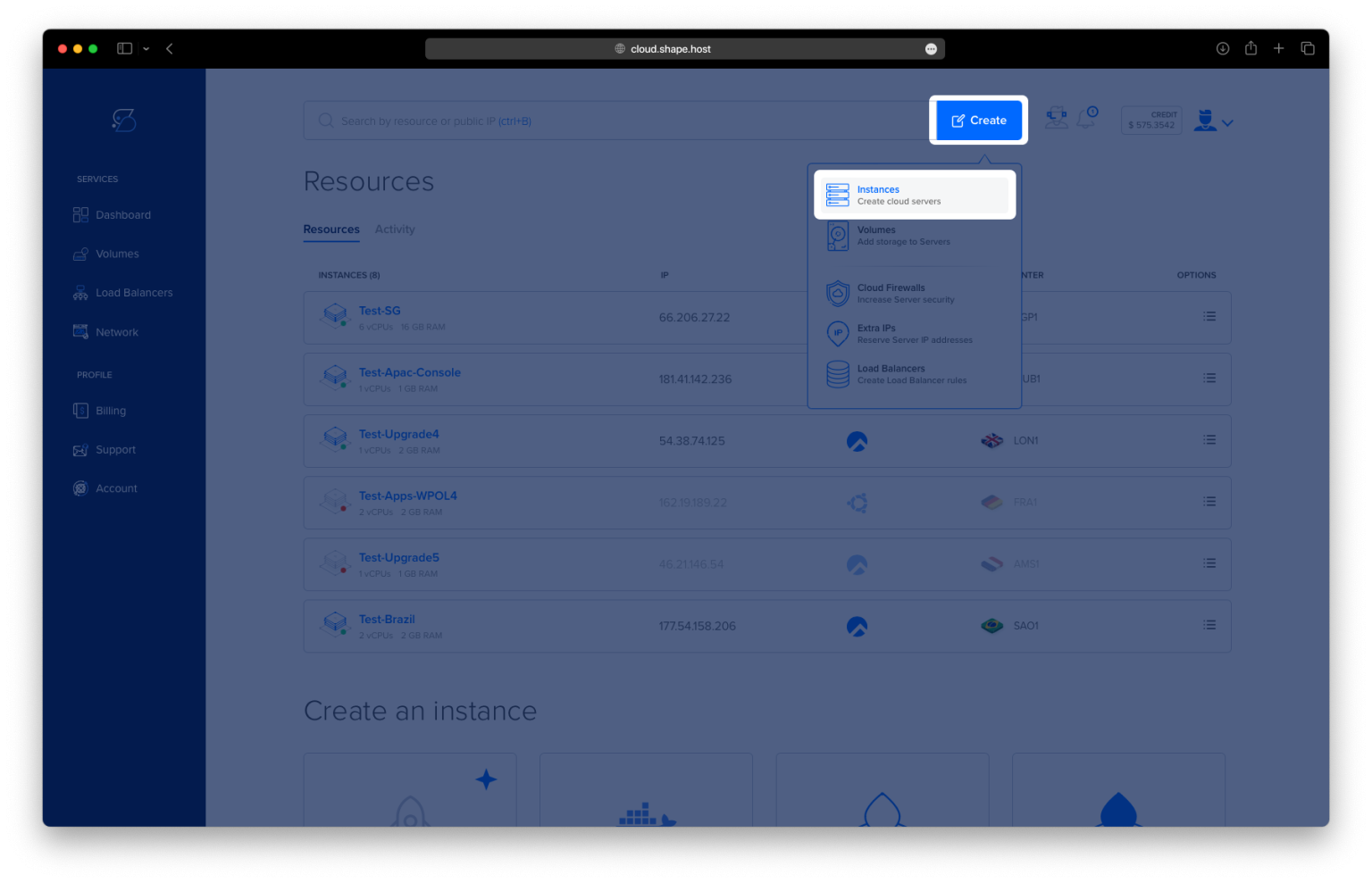
Create an Ubuntu 24.04 Instance on Shape.Host
Go to https://shape.host and log in
Click Create
Choose Instance

Select a server location

Choose Ubuntu 24.04 (64-bit)
Pick a plan (recommended minimum):
2 vCPU
4 GB RAM
20 GB NVMe SSD

Click Create Instance
Wait for provisioning

Copy the public IP address

Step 1: Connect to the Server via SSH
ssh root@YOUR_SERVER_IP
You are now logged in as the root user.
Step 2: Update the System
apt update
apt upgrade -y
Updates package lists and installs the latest security updates.

Step 3: Install Required System Packages
apt install ca-certificates curl gnupg lsb-release
These packages are required to securely add external repositories.

Step 4: Create Docker Keyrings Directory
mkdir -p /etc/apt/keyrings
Stores trusted GPG keys for package verification.
Step 5: Add Docker GPG Key
curl -fsSL https://download.docker.com/linux/ubuntu/gpg | gpg --dearmor -o /etc/apt/keyrings/docker.gpg
Ensures Docker packages are verified and trusted.
Step 6: Add Docker Repository
echo "deb [arch=$(dpkg --print-architecture) signed-by=/etc/apt/keyrings/docker.gpg] \
https://download.docker.com/linux/ubuntu \
$(lsb_release -cs) stable" > /etc/apt/sources.list.d/docker.list
Adds the official Docker repository.
Step 7: Update Package List Again
apt update
Loads the newly added Docker repository.

Step 8: Install Docker and Docker Compose
apt install docker-ce docker-ce-cli containerd.io docker-buildx-plugin docker-compose-plugin
Installs Docker Engine and Docker Compose v2.

Step 9: Verify Docker Installation
docker version
docker compose version
Confirms Docker is installed correctly.
Step 10: Create Ackee Directory
mkdir -p /opt/ackee
cd /opt/ackee
This directory will store Ackee configuration and MongoDB data.

Step 11: Create Docker Compose File
nano docker-compose.yml
Paste the following configuration:
services:
  mongo:
    image: mongo:6
    container_name: ackee-mongo
    restart: unless-stopped
    volumes:
      - ./mongo-data:/data/db

  ackee:
    image: electerious/ackee:latest
    container_name: ackee
    restart: unless-stopped
    depends_on:
      - mongo
    environment:
      - ACKEE_MONGODB=mongodb://mongo:27017/ackee
      - ACKEE_USERNAME=admin
      - ACKEE_PASSWORD=STRONG_ADMIN_PASSWORD
      - ACKEE_ALLOW_ORIGIN=https://analytics.example.com
    ports:
      - "127.0.0.1:3000:3000"
Explanation:
- MongoDB stores analytics data
- Ackee runs only on localhost for security
- Admin credentials are set via environment variables
ACKEE_ALLOW_ORIGINmust match your domain
Save and exit the file.

Step 12: Start Ackee
docker compose up -d
Starts MongoDB and Ackee in the background.

Step 13: Check Running Containers
docker ps
Both ackee and ackee-mongo containers should be running.

Step 14: Test Ackee Locally
curl http://127.0.0.1:3000
Confirms Ackee is responding before exposing it to the internet.

Step 15: Install Nginx
apt install nginx
Nginx will act as a reverse proxy.

Step 16: Enable and Start Nginx
systemctl enable nginx
systemctl start nginx

Step 17: Create Nginx Reverse Proxy Configuration
nano /etc/nginx/sites-available/ackee
Paste:
server {
    listen 80;
    server_name analytics.example.com;

    location / {
        proxy_pass http://127.0.0.1:3000;
        proxy_set_header Host $host;
        proxy_set_header X-Real-IP $remote_addr;
        proxy_set_header X-Forwarded-For $proxy_add_x_forwarded_for;
        proxy_set_header X-Forwarded-Proto $scheme;
    }
}

Step 18: Enable the Nginx Site
ln -s /etc/nginx/sites-available/ackee /etc/nginx/sites-enabled/ackee
rm /etc/nginx/sites-enabled/default
Step 19: Test and Reload Nginx
nginx -t
systemctl reload nginx

Step 20: Install SSL Certificate
apt install certbot python3-certbot-nginx
certbot --nginx -d ubuntu-tutorials.shape.host
Certbot automatically configures HTTPS.


Access Ackee Analytics
https://your-domain.com
Login credentials:
Username: admin
Password: STRONG_ADMIN_PASSWORD


Ackee runs best on fast, reliable infrastructure.
Shape.Host Linux SSD VPS provides:
- NVMe SSD storage
- Instant deployment
- Clean Linux images
- Stable networking
- Perfect performance for Docker workloads
Deploy your next self-hosted analytics stack at https://shape.host.