 Christian Wells
Run LiteLLM on AlmaLinux 10 with Docker
LiteLLM is an OpenAI-compatible proxy and admin layer for managing many LLM providers behind one API surface. It is a strong fit when you want a self-hosted control plane for keys, budgets, model routing, and an admin UI without exposing provider credentials directly to every client.
In this guide, we restore a fresh AlmaLinux 10.1 (Heliotrope Lion) server on Shape.Host, verify the latest LiteLLM stable release from the official project, install Docker Engine and Docker Compose from Docker’s official repository for Enterprise Linux, deploy LiteLLM with PostgreSQL and Prometheus in a localhost-only stack, and validate the admin UI safely through an SSH tunnel.
| Application | LiteLLM |
|---|---|
| Validated LiteLLM version | 1.82.3 |
| Stable release checked | v1.82.3-stable.patch.2 |
| Operating system | AlmaLinux 10.1 (Heliotrope Lion) |
| Container runtime | Docker Engine 29.3.1 with Docker Compose 5.1.1 |
| Supporting services | PostgreSQL 16 and Prometheus |
| Access pattern | LiteLLM bound to 127.0.0.1:4000 with browser access through an SSH tunnel |
| Validated on | Live Shape.Host AlmaLinux 10.1 server |
Why Use LiteLLM on AlmaLinux 10?
- LiteLLM gives you one API endpoint for many LLM providers and model backends.
- The admin UI lets you manage keys, spend controls, and routing from a single place.
- AlmaLinux 10.1 (Heliotrope Lion) is a stable and current base for containerized control-plane services.
- A localhost-only bind keeps the proxy and admin UI off the public interface until you deliberately add a reverse proxy later.
Before You Begin
Make sure you have the following before you start:
- A fresh AlmaLinux 10 server
- Root or sudo access
- An SSH key that can log in to the server
- A local workstation where you can open an SSH tunnel to the server
1. Verify the AlmaLinux 10 Release
Start by confirming that the rebuilt server is actually running AlmaLinux 10.1 (Heliotrope Lion).
cat /etc/os-release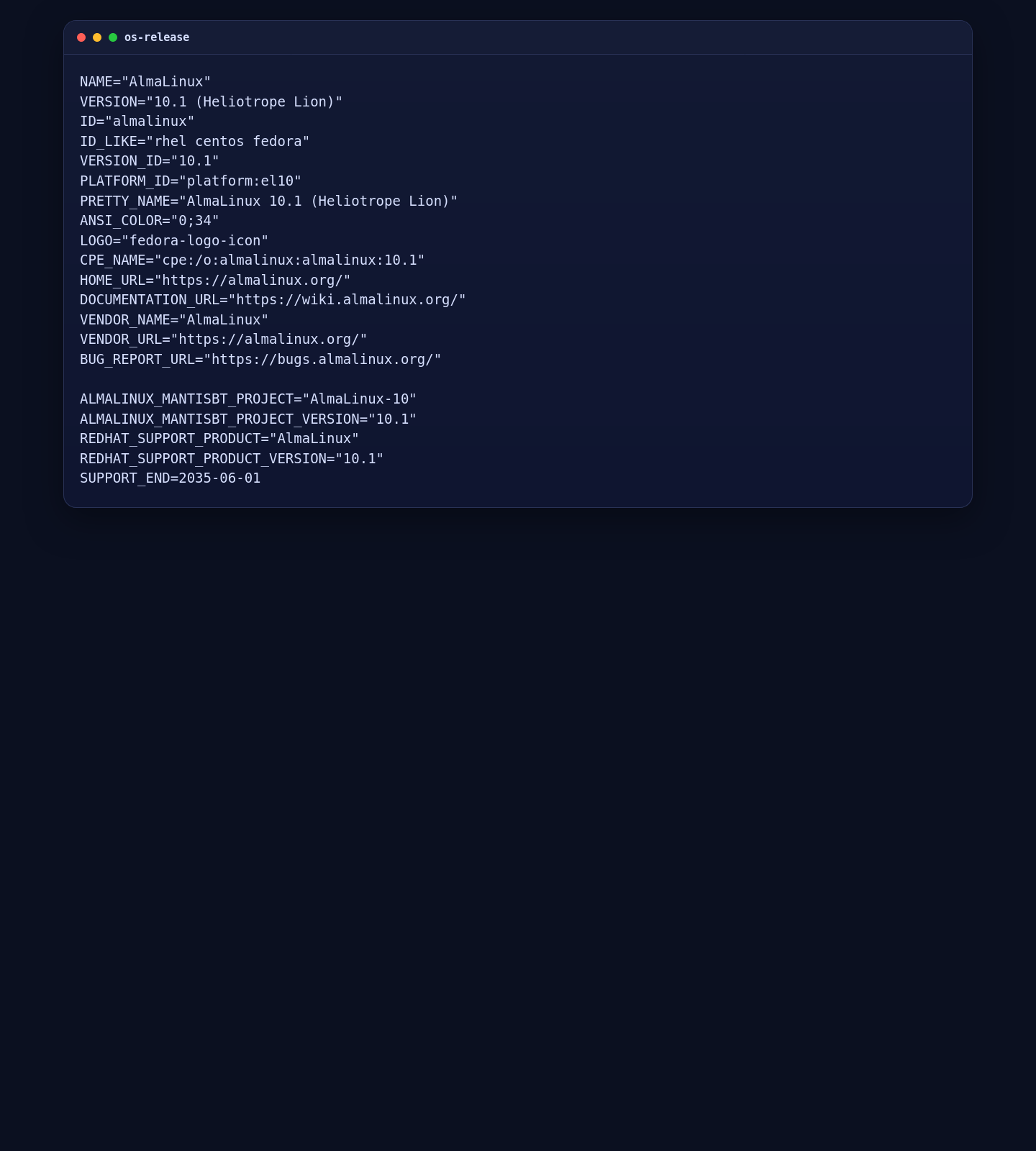
2. Install Docker Engine, Docker Compose, and Base Tools
LiteLLM’s upstream self-hosted stack uses Docker Compose, so the clean AlmaLinux route is Docker’s official repository for Enterprise Linux instead of the older AppStream container stack.
dnf -y install dnf-plugins-core curl git openssl
dnf config-manager --add-repo https://download.docker.com/linux/centos/docker-ce.repo
dnf -y install docker-ce docker-ce-cli containerd.io docker-buildx-plugin docker-compose-plugin

systemctl enable --now docker

docker --version
docker compose version
git --version
getenforce || true
firewall-cmd --list-services || true
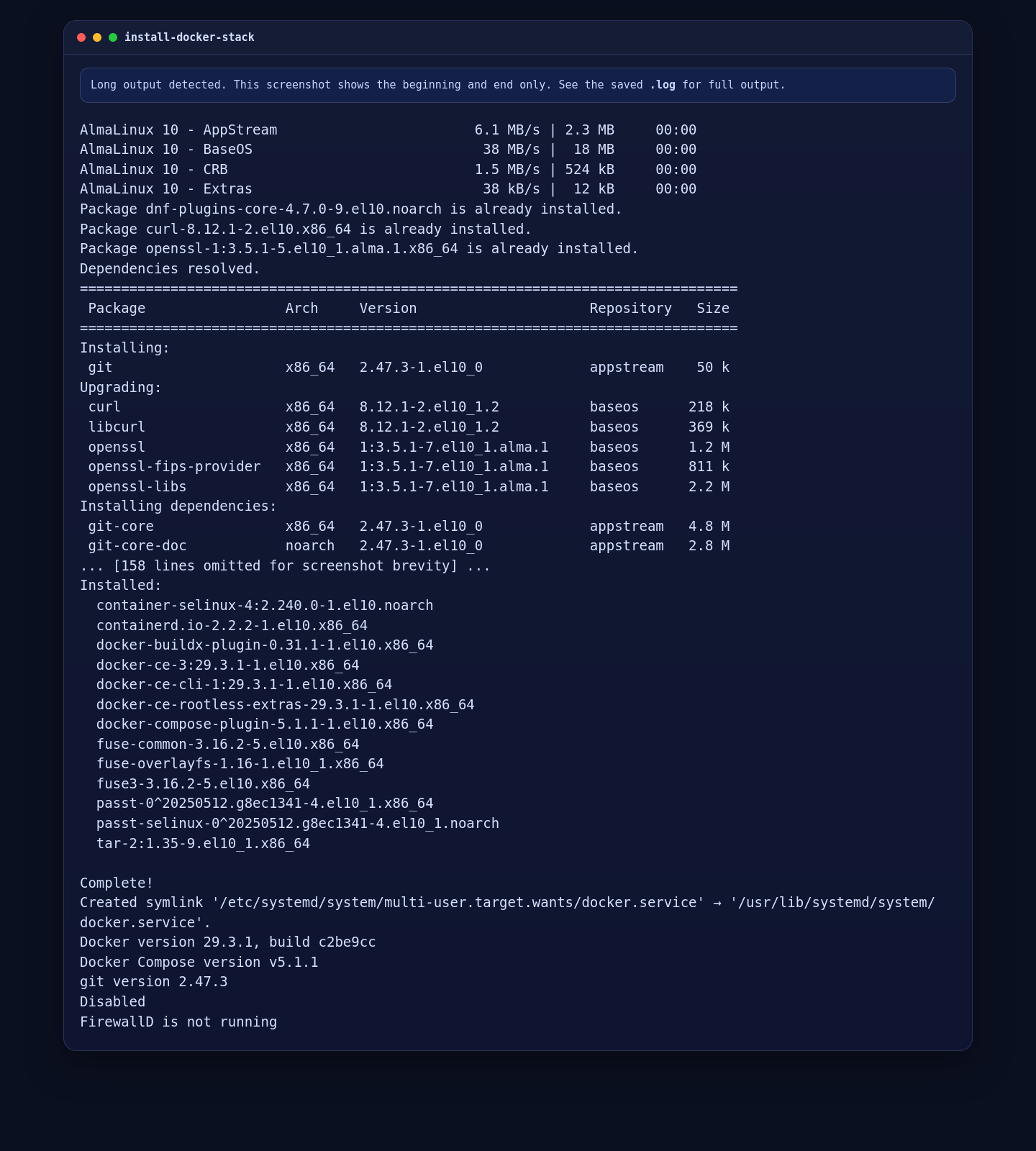
On the validated AlmaLinux 10.1 server, this installed Docker Engine 29.3.1, Docker Compose 5.1.1, Git 2.47.3, and confirmed that SELinux was Disabled on the live template while firewalld was not running.
3. Create the LiteLLM Stack Files
The official Compose example uses the stable LiteLLM image plus PostgreSQL and Prometheus. In this tutorial, we keep the proxy on 127.0.0.1:4000 and do not publish the database or metrics ports to the public interface.
mkdir -p /opt/litellm
cd /opt/litellm

MASTER_KEY="sk-$(openssl rand -hex 16)"
SALT_KEY="sk-$(openssl rand -hex 16)"

cat > .env <<EOF
LITELLM_MASTER_KEY=${MASTER_KEY}
LITELLM_SALT_KEY=${SALT_KEY}
STORE_MODEL_IN_DB=True
EOF

cat > compose.yaml <<'EOF'
services:
  litellm:
    image: docker.litellm.ai/berriai/litellm:main-stable
    container_name: litellm
    restart: unless-stopped
    ports:
      - "127.0.0.1:4000:4000"
    environment:
      DATABASE_URL: postgresql://llmproxy:dbpassword9090@db:5432/litellm
      STORE_MODEL_IN_DB: "True"
    env_file:
      - .env
    depends_on:
      db:
        condition: service_healthy
    command:
      - "--port"
      - "4000"
    healthcheck:
      test:
        - CMD-SHELL
        - python3 -c "import urllib.request; urllib.request.urlopen('http://localhost:4000/health/liveliness')"
      interval: 30s
      timeout: 10s
      retries: 3
      start_period: 40s

  db:
    image: postgres:16
    restart: unless-stopped
    container_name: litellm_db
    environment:
      POSTGRES_DB: litellm
      POSTGRES_USER: llmproxy
      POSTGRES_PASSWORD: dbpassword9090
    volumes:
      - postgres_data:/var/lib/postgresql/data
    healthcheck:
      test: ["CMD-SHELL", "pg_isready -d litellm -U llmproxy"]
      interval: 2s
      timeout: 5s
      retries: 15

  prometheus:
    image: prom/prometheus
    restart: unless-stopped
    volumes:
      - prometheus_data:/prometheus
      - ./prometheus.yml:/etc/prometheus/prometheus.yml
    command:
      - "--config.file=/etc/prometheus/prometheus.yml"
      - "--storage.tsdb.path=/prometheus"
      - "--storage.tsdb.retention.time=15d"

volumes:
  prometheus_data:
    driver: local
  postgres_data:
    name: litellm_postgres_data
EOF

cat > prometheus.yml <<'EOF'
global:
  scrape_interval: 15s

scrape_configs:
  - job_name: litellm
    static_configs:
      - targets:
          - litellm:4000
EOF

grep '^LITELLM_MASTER_KEY=' .env | sed 's/=.*$/=[redacted]/'
grep '^LITELLM_SALT_KEY=' .env | sed 's/=.*$/=[redacted]/'
grep '^STORE_MODEL_IN_DB=' .env
grep 'image: docker.litellm.ai/berriai/litellm:main-stable' compose.yaml
grep '127.0.0.1:4000:4000' compose.yaml
docker compose config --services
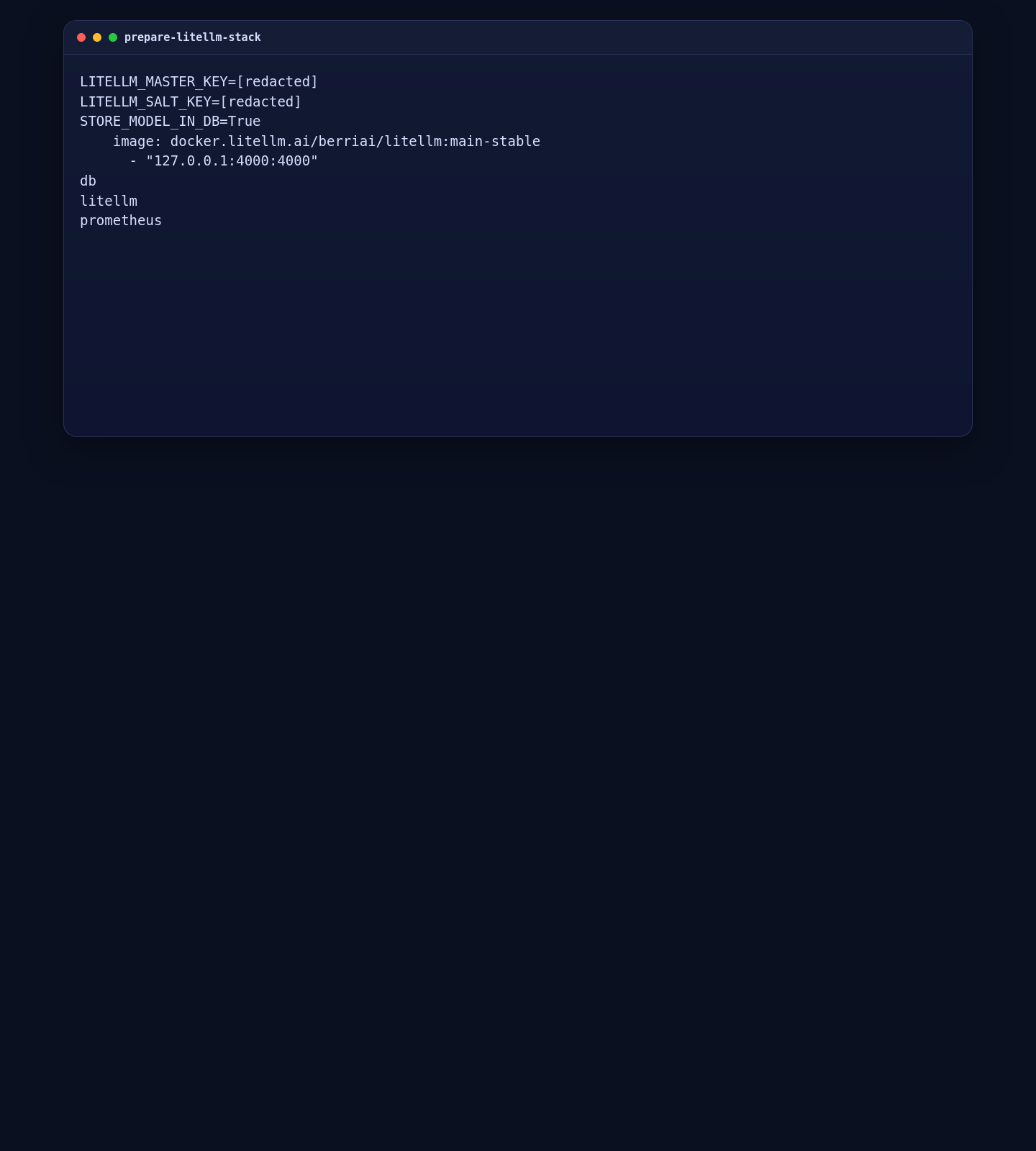
This gives LiteLLM a persistent PostgreSQL backend, enables adding models through the UI, and avoids exposing the proxy on a public address during the initial install.
4. Start LiteLLM
With the stack files in place, pull the images and start the LiteLLM services.
4.1 Launch the Compose Stack
cd /opt/litellm
docker compose pull
docker compose up -d
sleep 35
docker compose ps
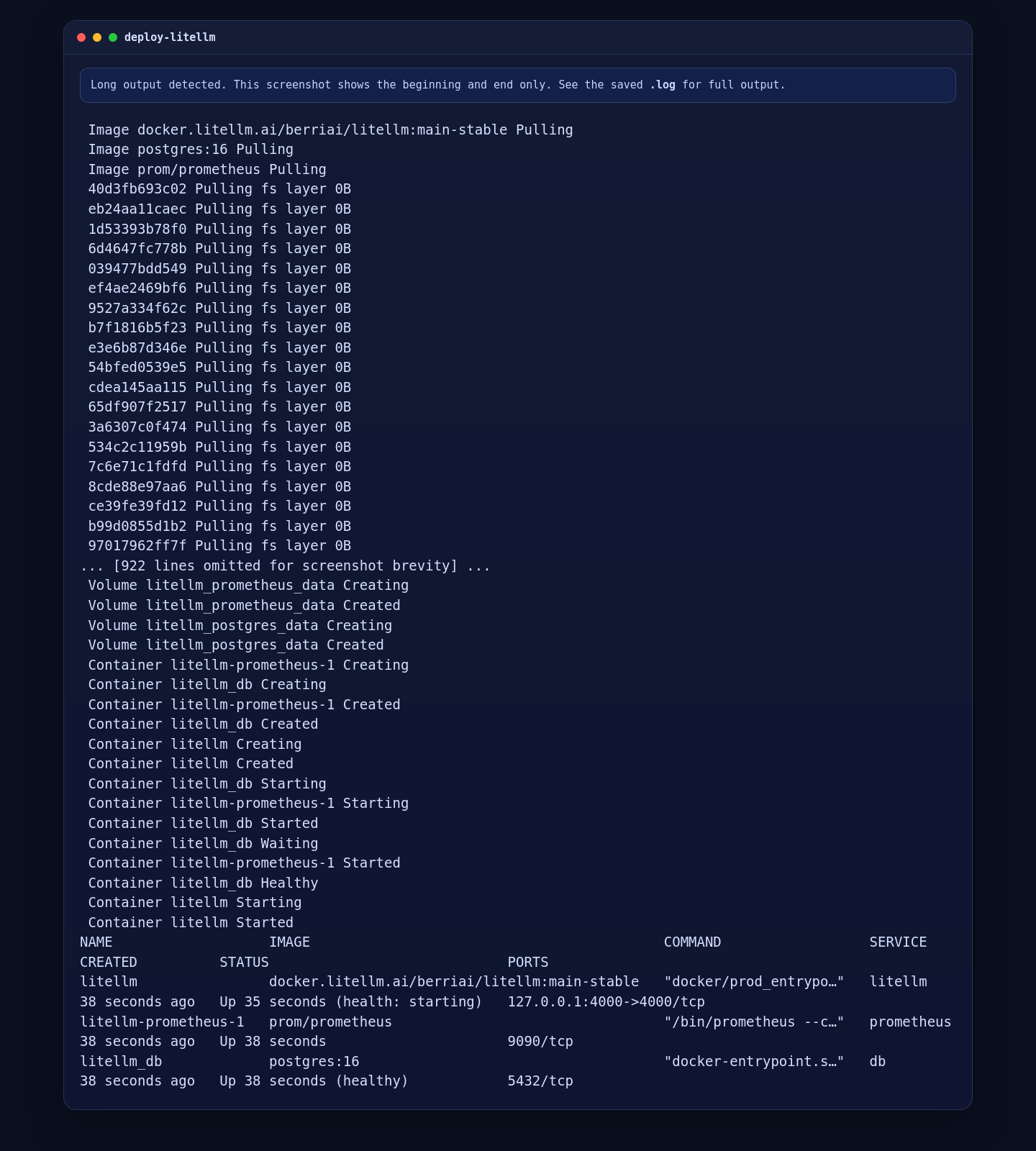
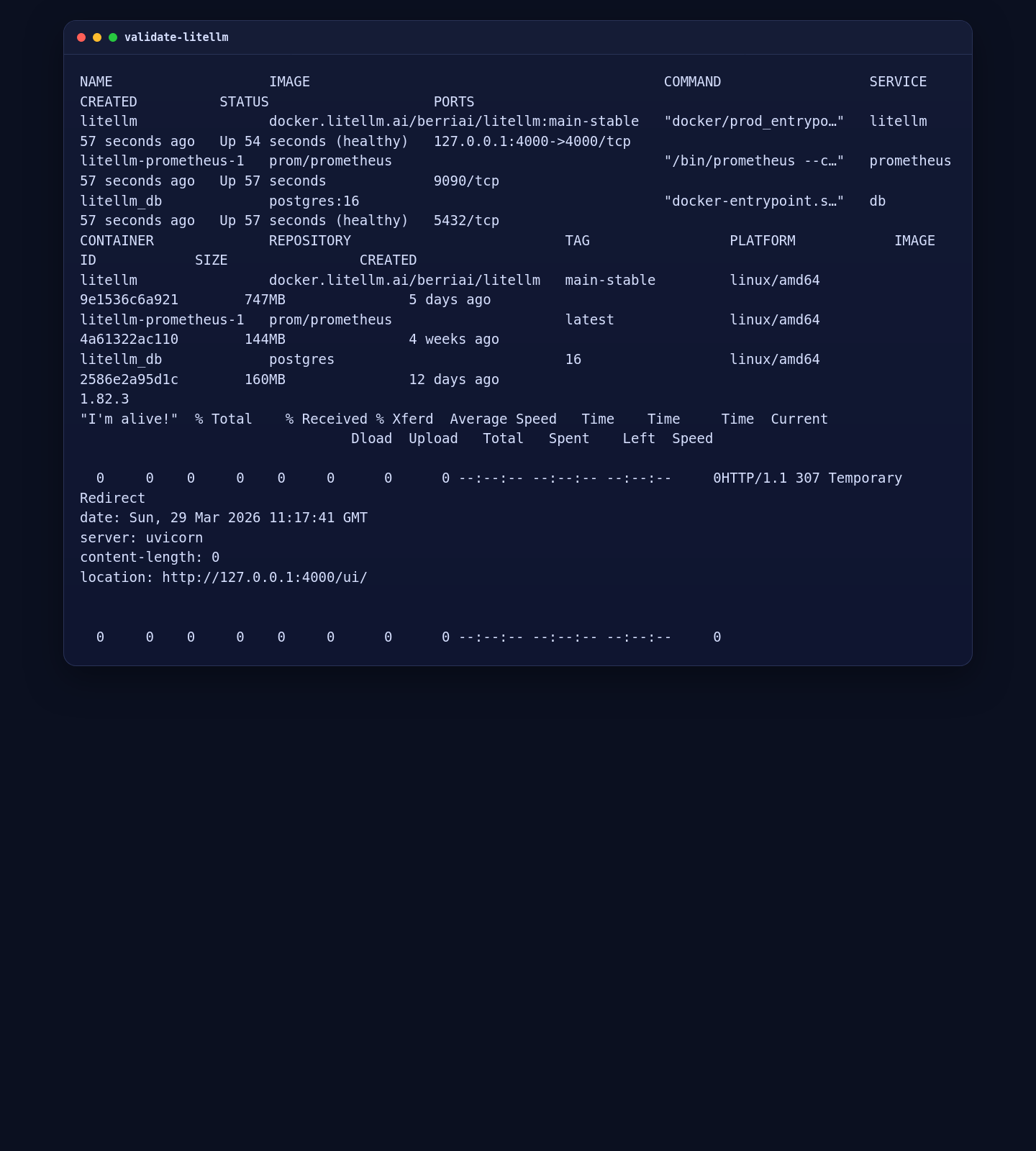
On the validated AlmaLinux server, Docker pulled the current main-stable LiteLLM image, created the PostgreSQL and Prometheus services, and brought the LiteLLM proxy up in the healthy state.
4.2 Validate the LiteLLM Service Locally
cd /opt/litellm
docker compose ps
docker compose images
docker exec litellm python3 -c "import importlib.metadata; print(importlib.metadata.version('litellm'))"
curl -fsS http://127.0.0.1:4000/health/liveliness
curl -I http://127.0.0.1:4000/ui
On the live deployment, the running container reported LiteLLM version 1.82.3, the liveliness endpoint returned I'm alive!, and the local UI route answered with an HTTP 307 Temporary Redirect to /ui/, which is the expected browser flow.
5. Open the LiteLLM Admin UI Through an SSH Tunnel
This installation keeps LiteLLM on localhost instead of exposing the proxy and admin UI directly to the public network. Create an SSH tunnel from your local machine, then open the forwarded port in your browser.
ssh -L 14000:127.0.0.1:4000 root@YOUR_SERVER_IPAfter the tunnel is open, browse to:
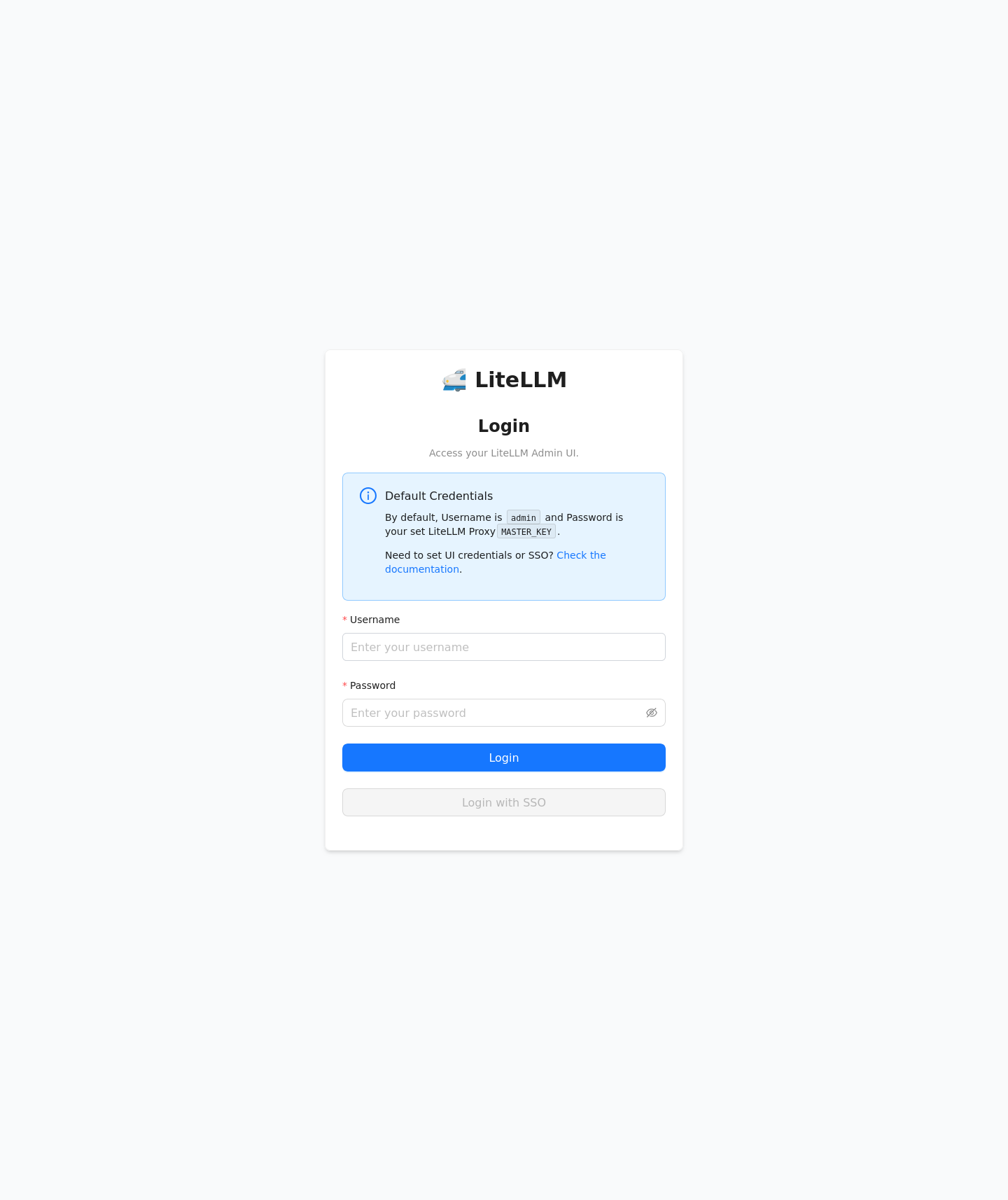
http://127.0.0.1:14000/uiOn the live server, the LiteLLM login screen loaded correctly through the tunnel. The page itself showed the upstream default behavior: use admin as the username and the generated LITELLM_MASTER_KEY from your .env file as the password.
6. Run Final Server-Side Checks
Before you stop, confirm that the containers are still healthy, the proxy is bound only to localhost, and the health and UI routes still respond on the server.
cd /opt/litellm
docker compose ps
docker compose images
docker exec litellm python3 -c "import importlib.metadata; print(importlib.metadata.version('litellm'))"
ss -lntp | grep ':4000'
curl -fsS http://127.0.0.1:4000/health/liveliness
curl -I http://127.0.0.1:4000/ui
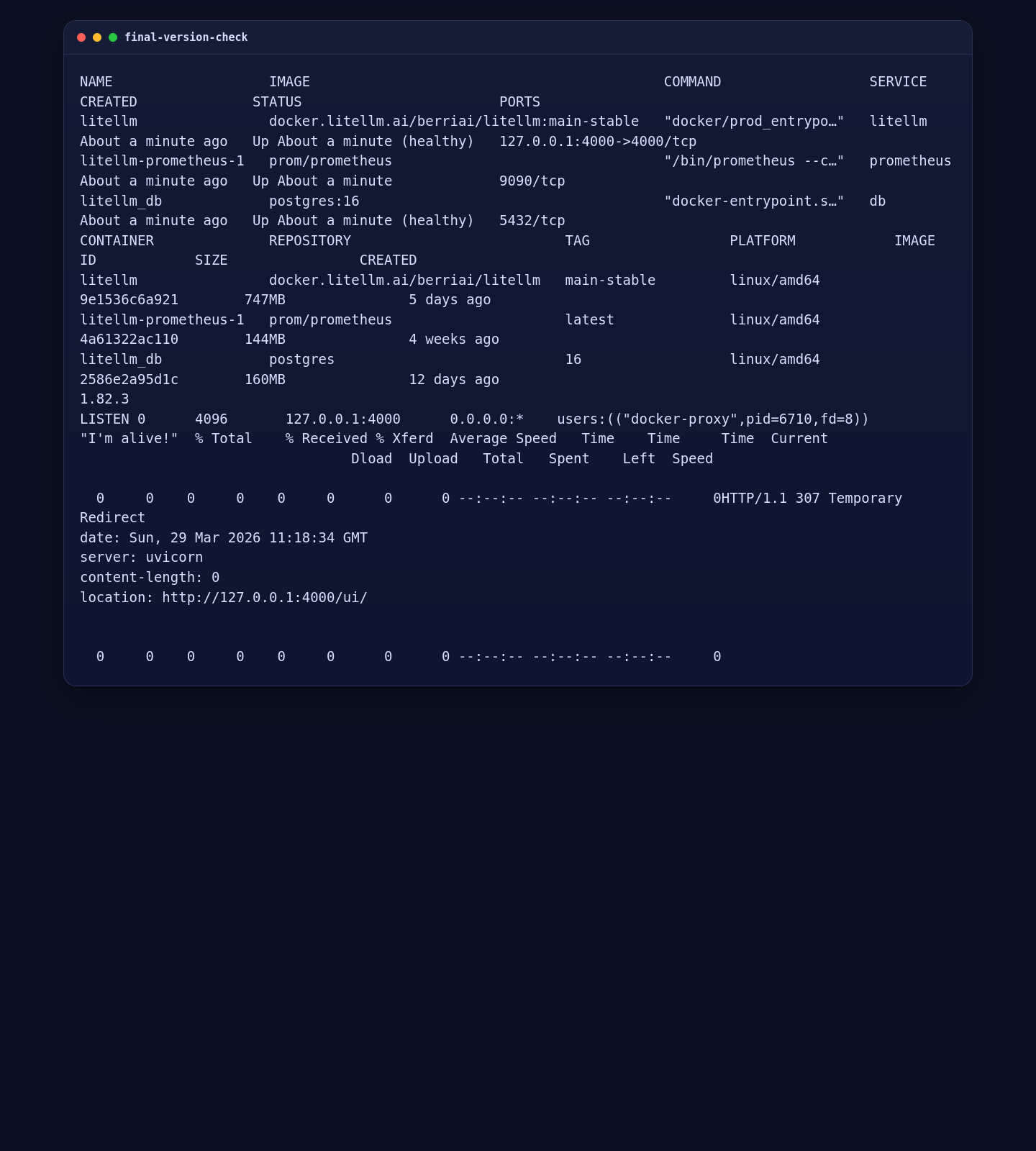
On the validated deployment, the final check showed LiteLLM 1.82.3 listening only on 127.0.0.1:4000, with the health route still returning I'm alive! and the local UI route still redirecting correctly to /ui/.
Conclusion
You now have LiteLLM on AlmaLinux 10 running with PostgreSQL and Prometheus in a safer localhost-only layout. From here, you can log in to the admin UI over the SSH tunnel, add model credentials and routes, and only introduce a public reverse proxy later if you decide you need shared browser access.
