 Christian Wells
Install Coolify on AlmaLinux 10 and Publish the Panel
Coolify on AlmaLinux 10 gives you a self-hosted platform-as-a-service for Docker workloads, databases, static sites, and Git-based deployments while keeping the control plane on infrastructure you own. If you want a deploy-anywhere panel without depending on a hosted PaaS provider, this is one of the cleanest ways to do it on a modern RHEL-compatible server.
In this guide, we rebuild a fresh AlmaLinux 10.1 server on Shape.Host, verify the latest Coolify release from the official project, install it with the supported installer, confirm the healthy containers, publish the panel on tutorials.shape.host through Coolify’s Traefik proxy, validate the routing path, and note the current Let’s Encrypt rate-limit behavior on the shared tutorial hostname.
What Is Coolify?
Coolify is a self-hosted application deployment platform that lets you manage applications, services, databases, workers, and static sites from a web interface while deploying to your own servers. It supports Docker images, Git repositories, automatic builds, environment variables, reverse proxying, and HTTPS routing, making it a strong fit for teams or individuals who want PaaS convenience on private infrastructure.
Versions Used in This Tutorial
| Component | Version Verified | Source |
|---|---|---|
| AlmaLinux | 10.1 | Fresh Shape.Host restore and /etc/os-release check |
| Coolify | 4.0.0-beta.468 | Latest GitHub release at install time |
| Docker Engine | 29.3.0 | Installed automatically by the official Coolify installer on AlmaLinux 10.1 |
| Docker Compose | 5.1.0 | Installed automatically by the official Coolify installer |
| Traefik | 3.6 | Coolify proxy container used for the public panel route |
| Public route | tutorials.shape.host |
Validated live on the routed AlmaLinux server |
Why Run Coolify on AlmaLinux 10?
- AlmaLinux 10 provides a modern RHEL-compatible base with long support windows.
- The official Coolify installer supports dnf-based systems and handles Docker plus container deployment automatically.
- Coolify’s built-in Traefik proxy can publish the panel on a real hostname without layering a separate web server in front.
- Using your own VM keeps deployments, secrets, and hosted workloads under your own operational control.
Prerequisites
- A fresh AlmaLinux 10 server
- Root or sudo access
- A domain pointed to the server IP, in this case
tutorials.shape.host - At least 2 vCPU, 4 GB RAM, and 50 GB storage
- Ports
80,443,8000,6001, and6002available
1. Verify the Operating System
Start by confirming that the rebuilt server is really running AlmaLinux 10.1.
cat /etc/os-release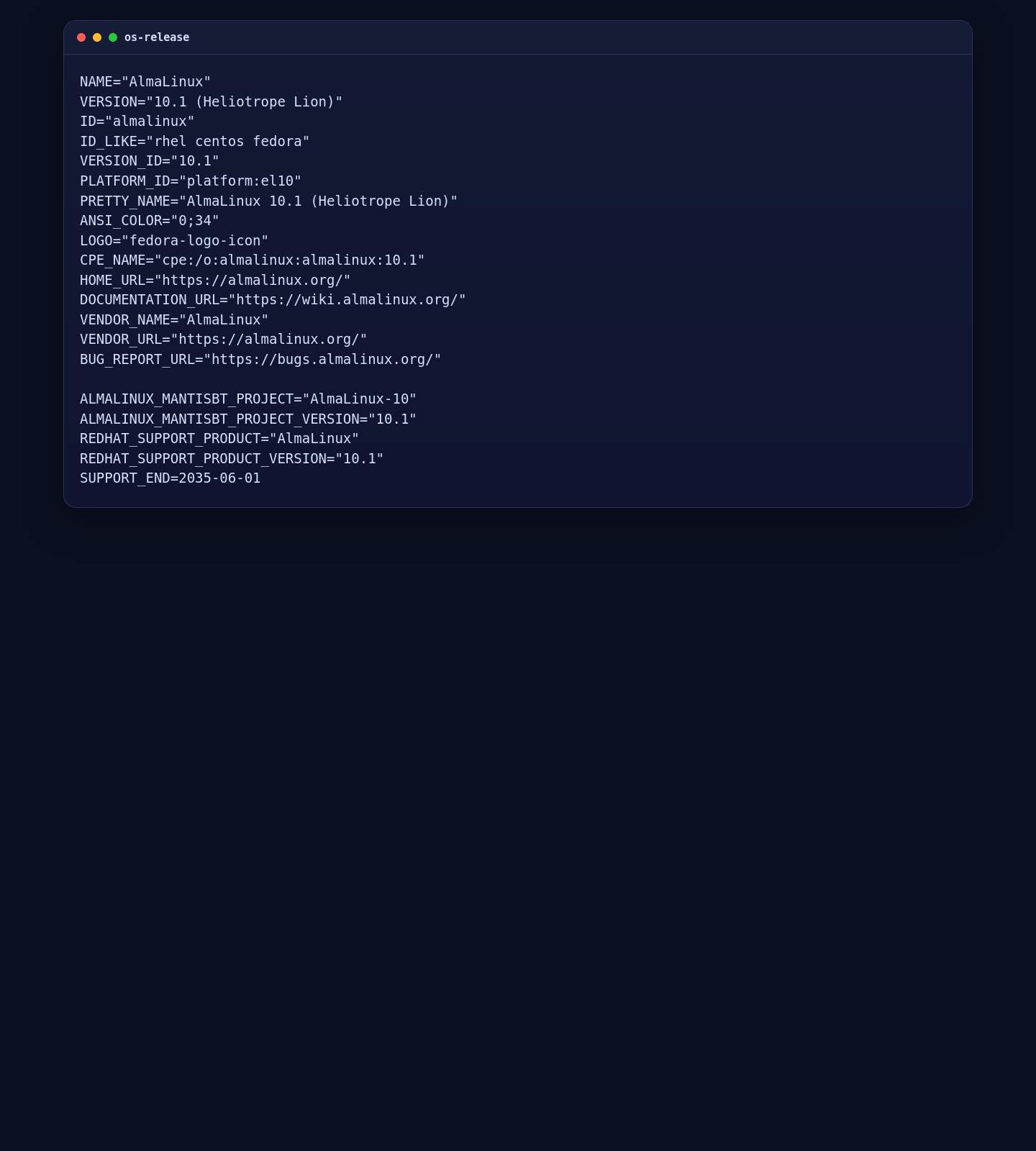
2. Export Root User Variables and Run the Official Installer
Coolify’s installer accepts predefined root-user values through environment variables. Generate a strong password, export the values, and run the installer directly from the official CDN.
ROOT_USER_PASSWORD=$(openssl rand -base64 24 | tr -d '\n')
export ROOT_USERNAME="shapehost"
export ROOT_USER_EMAIL="contact@shape.host"
export ROOT_USER_PASSWORD

curl -fsSL https://cdn.coollabs.io/coolify/install.sh | bash
If you want to keep the generated password available for the first panel access, save it locally on the server:
printf '%s\n' "$ROOT_USER_PASSWORD" >/root/coolify-root-password.txt
chmod 600 /root/coolify-root-password.txt
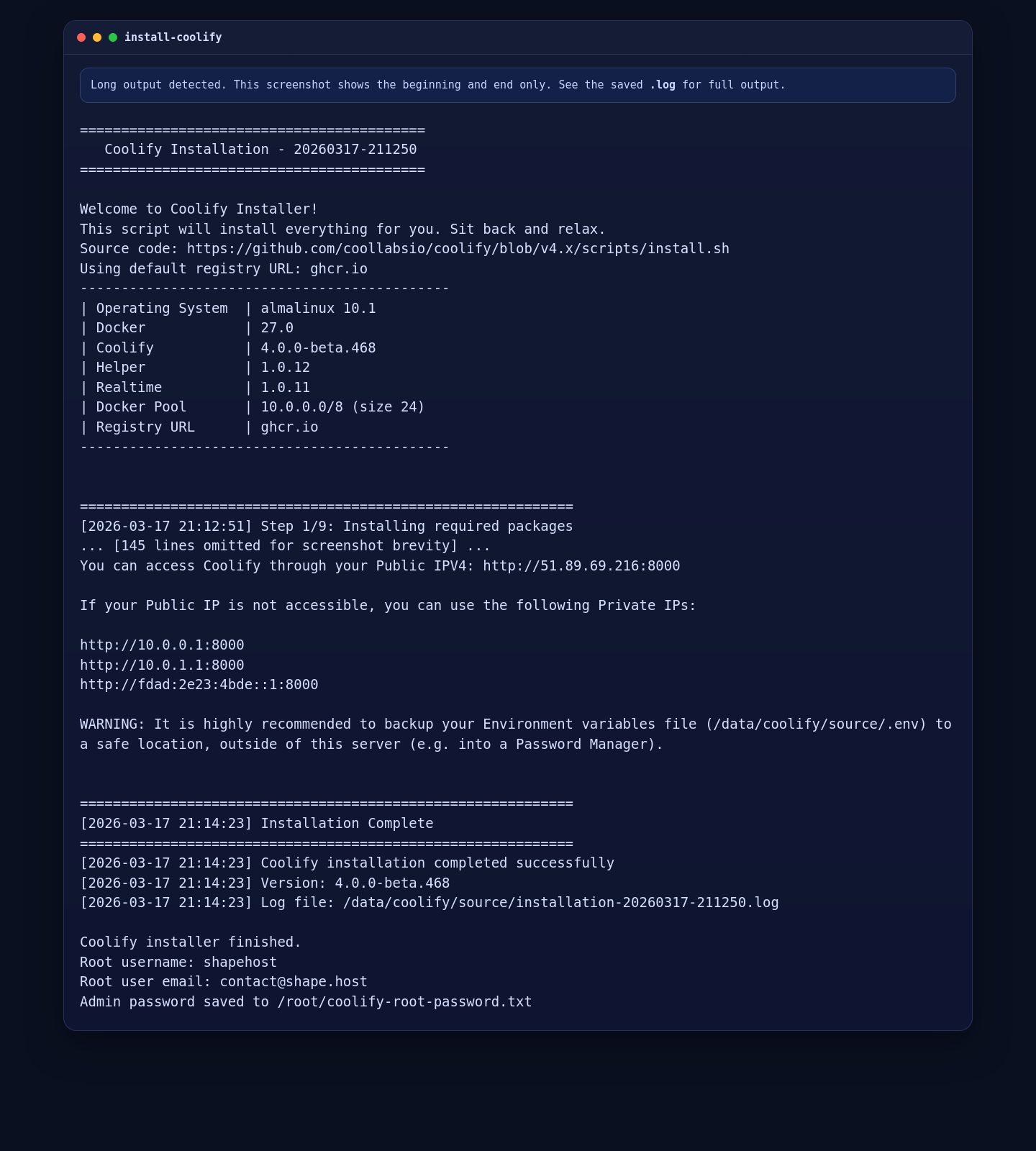
On the validated Shape.Host server, the installer detected AlmaLinux 10.1, installed Docker 29.3.0 and Docker Compose 5.1.0, generated the environment, and deployed Coolify 4.0.0-beta.468 successfully.
3. Validate the Core Coolify Containers
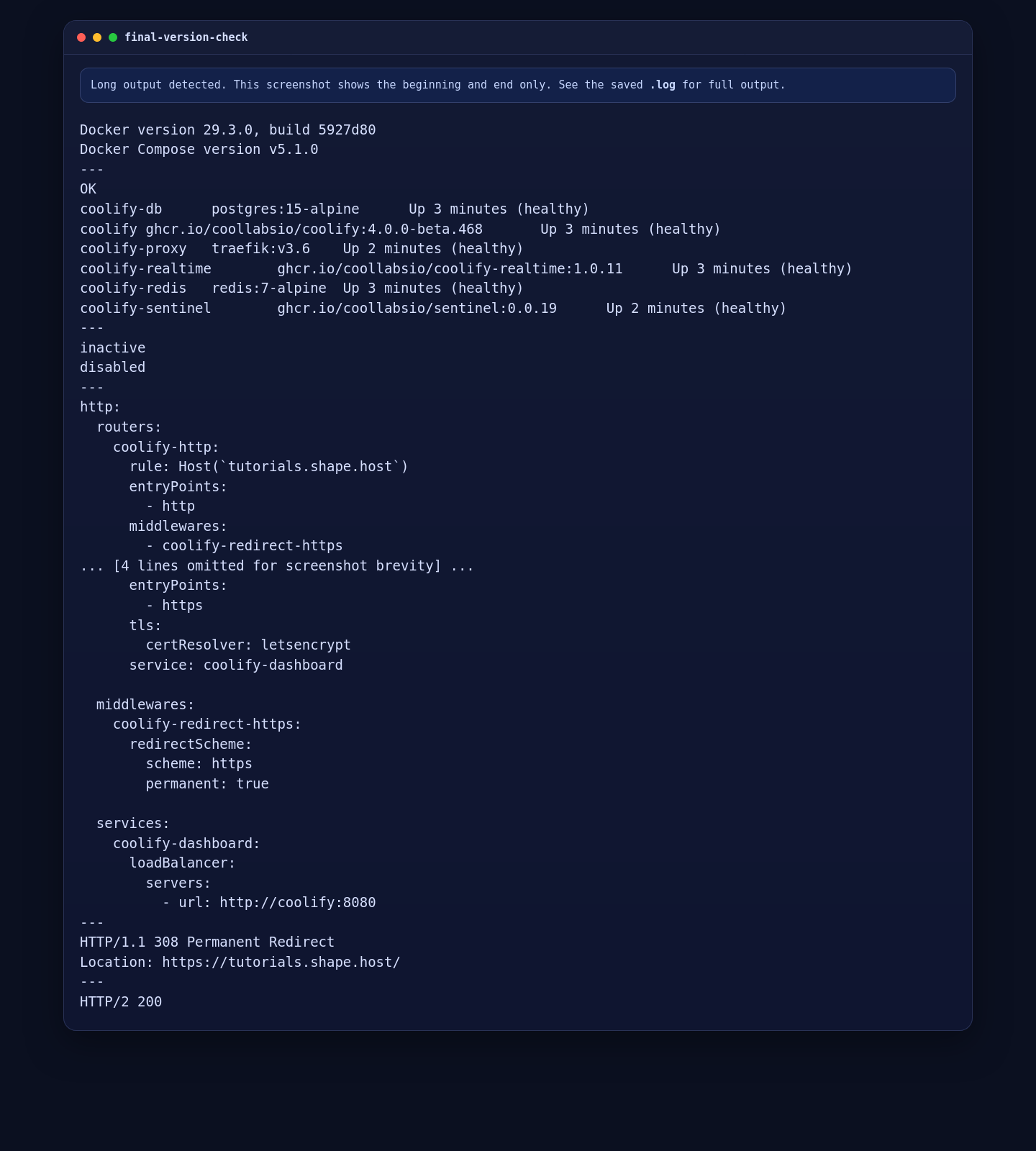
Before configuring the public route, confirm that the platform is healthy on the local panel port and that the container set is fully running.
docker --version
docker compose version
curl -fsS http://127.0.0.1:8000/api/health
docker ps --format '{{.Names}}\t{{.Image}}\t{{.Status}}' | sort
On this AlmaLinux deployment, the installer also brought up the coolify-proxy container automatically, which made the public-route step simpler than the earlier Ubuntu test.
4. Publish the Panel on tutorials.shape.host
Coolify uses Traefik for routing. Create a file-provider route so the hostname points to the main Coolify application container.
cat >/data/coolify/proxy/dynamic/coolify-dashboard.yml <<'EOF'
http:
  routers:
    coolify-http:
      rule: Host(`tutorials.shape.host`)
      entryPoints:
        - http
      middlewares:
        - coolify-redirect-https
      service: coolify-dashboard

    coolify-https:
      rule: Host(`tutorials.shape.host`)
      entryPoints:
        - https
      tls:
        certResolver: letsencrypt
      service: coolify-dashboard

  middlewares:
    coolify-redirect-https:
      redirectScheme:
        scheme: https
        permanent: true

  services:
    coolify-dashboard:
      loadBalancer:
        servers:
          - url: http://coolify:8080
EOF
Because the proxy container was already healthy on this server, Traefik picked up the route automatically without needing an extra compose restart.
5. Validate the Public Route
The following checks validate the HTTP redirect and the HTTPS panel route directly from the server. The --resolve flag forces the requests to the local host while still using the public hostname for routing.
curl -sI --resolve tutorials.shape.host:80:127.0.0.1 \
  http://tutorials.shape.host/ | grep -E '^(HTTP/|Location:|Server:)'

curl -skI --resolve tutorials.shape.host:443:127.0.0.1 \
  https://tutorials.shape.host/register | grep -E '^(HTTP/|Location:|Server:)'
On the tested server, HTTP returned a 308 Permanent Redirect and the routed HTTPS page returned HTTP/2 200. The panel route itself was fully working.
6. Open the Browser and Complete the Initial Panel Flow
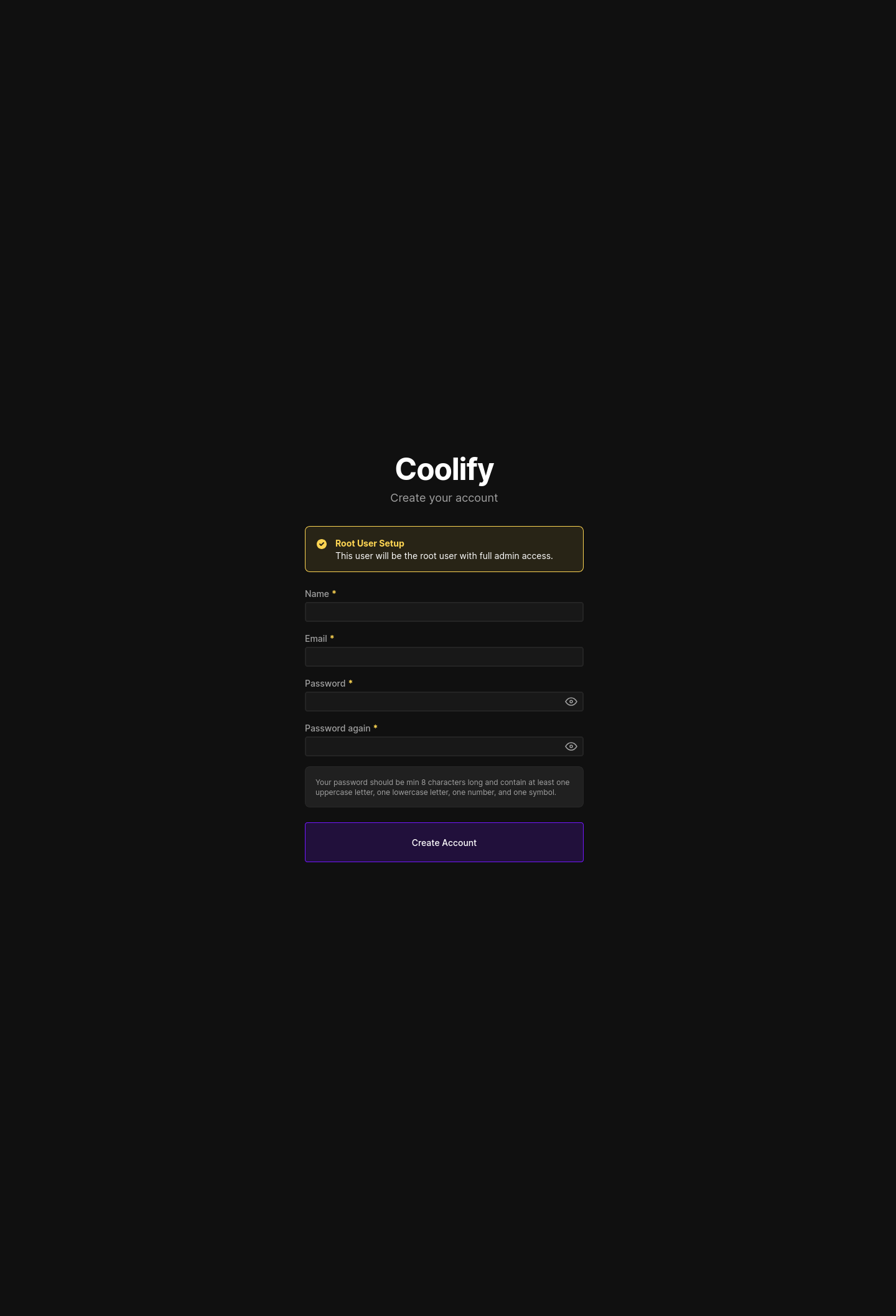
Open https://tutorials.shape.host/ in a browser to reach the panel route. On the tested AlmaLinux server, the first request landed on the Coolify registration page for the initial admin setup.
Important SSL Note for This Specific Test Hostname
On March 17, 2026, tutorials.shape.host had already reached Let’s Encrypt’s exact-set weekly issuance limit for that hostname. Because of that, Traefik served its temporary self-signed certificate during this test window even though the route itself was working correctly. On a fresh hostname, or after the Let’s Encrypt rate-limit window resets, Traefik should be able to obtain a normal trusted certificate automatically.
Troubleshooting Notes
- If the installer fails, make sure you are running it as
rootor withsudo. - If
curl -fsS http://127.0.0.1:8000/api/healthdoes not returnOK, inspect the current containers withdocker psand review logs under/data/coolify/source/. - If the public route does not answer, confirm that
tutorials.shape.hostresolves to the server IP and that ports 80 and 443 are reachable. - If HTTPS serves a self-signed certificate, check the Traefik logs with
docker logs coolify-proxyto see whether the hostname is waiting on ACME validation or has hit a rate limit. - If you only want to validate routing from the server itself, use the
curl --resolvepattern shown above.
Conclusion
You now have a working Coolify installation on AlmaLinux 10 with the official installer, healthy application and proxy containers, and a live panel route on tutorials.shape.host. On this validated Shape.Host deployment, the installed Coolify release was 4.0.0-beta.468.
The next sensible steps are completing the first admin setup, connecting a Git provider, adding your first project, and testing an application deployment from the panel.
