 Christian Wells
Set Up FlowiseAI on AlmaLinux 10 with Docker
FlowiseAI is a visual builder for AI workflows and agents, with a browser-based canvas for chaining models, tools, memory, and integrations without writing every orchestration step by hand. It is a strong fit when you want a self-hosted interface for prototyping AI pipelines on infrastructure you control.
In this guide, we restore a fresh AlmaLinux 10.1 server on Shape.Host, verify the current FlowiseAI stable release from the official project, install Docker Engine and Docker Compose from Docker’s official repository for Enterprise Linux, deploy FlowiseAI 3.1.1 in a localhost-only container, and validate the setup screen safely over an SSH tunnel.
| Application | FlowiseAI |
|---|---|
| Application version | 3.1.1 |
| Operating system | AlmaLinux 10.1 (Heliotrope Lion) |
| Container runtime | Docker Engine 29.3.1 with Docker Compose 5.1.1 |
| Supporting tools | Git 2.47.3 and OpenSSL 3.5.1 |
| Access pattern | FlowiseAI bound to 127.0.0.1:3000 with browser access through an SSH tunnel |
| Validated on | Live Shape.Host AlmaLinux 10.1 server |
Why Use FlowiseAI on AlmaLinux 10?
- FlowiseAI gives you a visual workspace for building and testing AI flows without writing a full custom frontend.
- AlmaLinux 10.1 (Heliotrope Lion) provides a current and stable base for containerized apps.
- Docker keeps the deployment easy to reproduce and update.
- A localhost-only bind keeps the FlowiseAI editor off the public interface until you intentionally add a reverse proxy later.
Before You Begin
Make sure you have the following before you start:
- A fresh AlmaLinux 10 server
- Root or sudo access
- An SSH key that can log in to the server
- A local workstation where you can open an SSH tunnel to the server
1. Verify the AlmaLinux 10 Release
Start by confirming that the rebuilt server is actually running AlmaLinux 10.1 (Heliotrope Lion).
cat /etc/os-release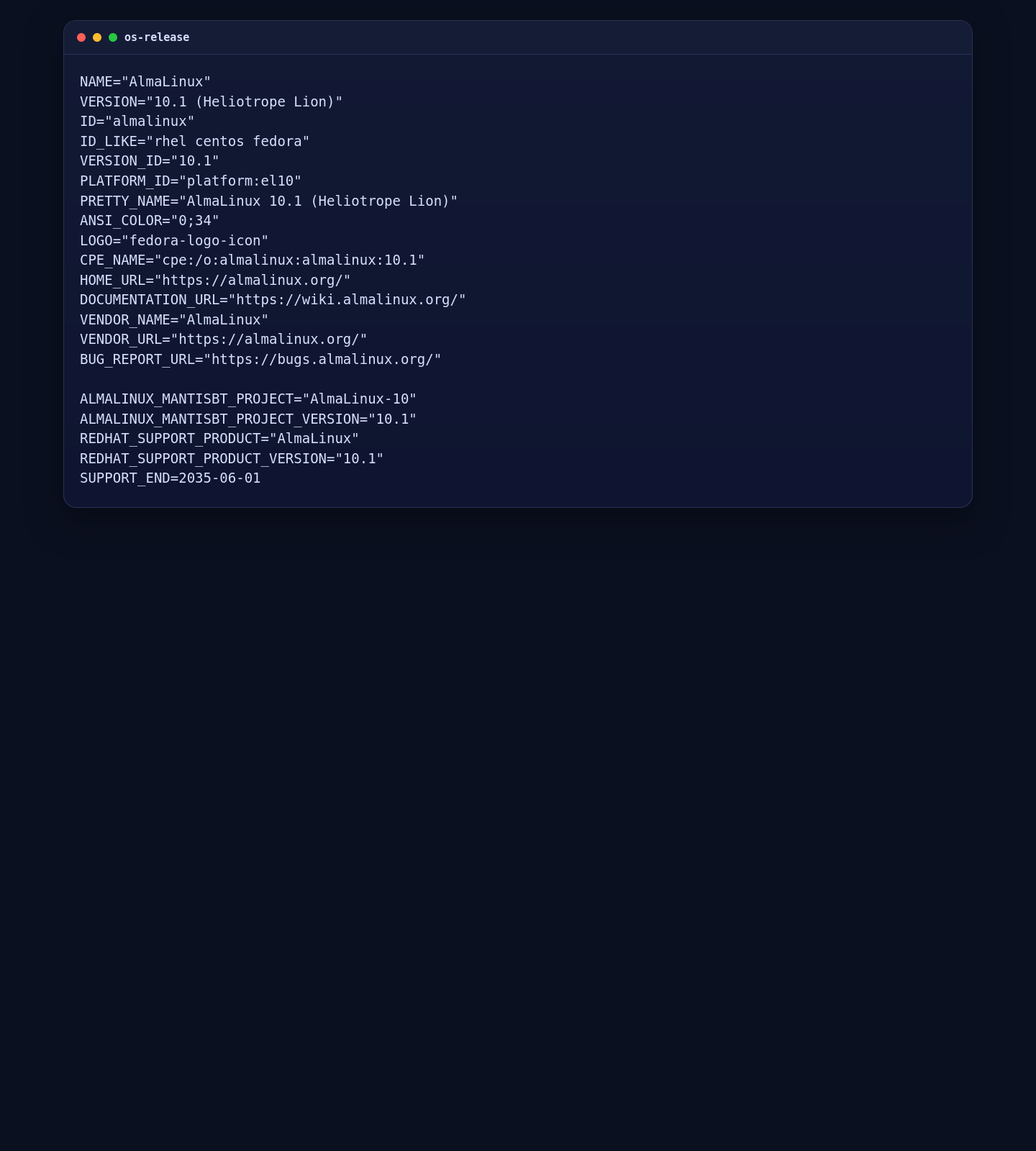
2. Install Docker Engine, Docker Compose, and Base Tools
FlowiseAI has an official Docker path, so the clean AlmaLinux route is Docker’s official Docker CE repository for Enterprise Linux rather than relying on an older AppStream container stack.
dnf -y install dnf-plugins-core curl git openssl
dnf config-manager --add-repo https://download.docker.com/linux/centos/docker-ce.repo
dnf -y install docker-ce docker-ce-cli containerd.io docker-buildx-plugin docker-compose-plugin

systemctl enable --now docker

docker --version
docker compose version
git --version
getenforce || true
firewall-cmd --list-services || true
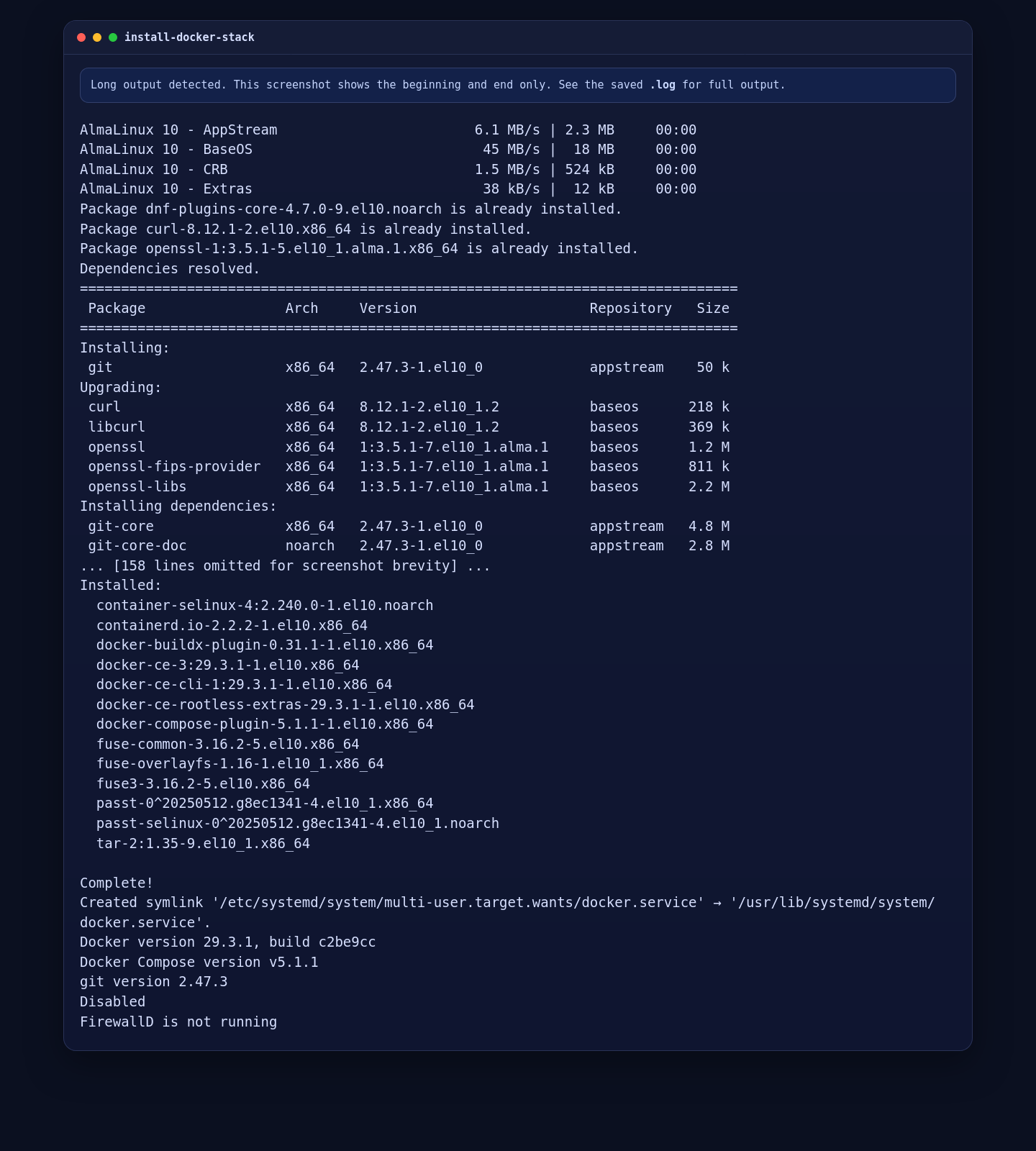
On the validated AlmaLinux 10.1 server, this installed Docker Engine 29.3.1, Docker Compose 5.1.1, Git 2.47.3, and confirmed that SELinux was Disabled on the live template while firewalld was not running.
3. Create the FlowiseAI Configuration
The official Docker image expects its persistent data to live under /root/.flowise inside the container. A small environment file plus a bind-mounted data directory is enough for a clean single-server deployment.
mkdir -p /opt/flowise/flowise-data
cd /opt/flowise

cat > .env <<'EOF'
PORT=3000
DATABASE_PATH=/root/.flowise
LOG_PATH=/root/.flowise/logs
SECRETKEY_PATH=/root/.flowise
BLOB_STORAGE_PATH=/root/.flowise/storage
EOF

cat > compose.yaml <<'EOF'
services:
  flowise:
    image: flowiseai/flowise:3.1.1
    container_name: flowise
    restart: unless-stopped
    env_file:
      - .env
    ports:
      - 127.0.0.1:3000:3000
    volumes:
      - ./flowise-data:/root/.flowise
EOF

grep '^PORT=' .env
grep '^DATABASE_PATH=' .env
grep 'image:' compose.yaml
grep '127.0.0.1:3000:3000' compose.yaml
docker compose config --services
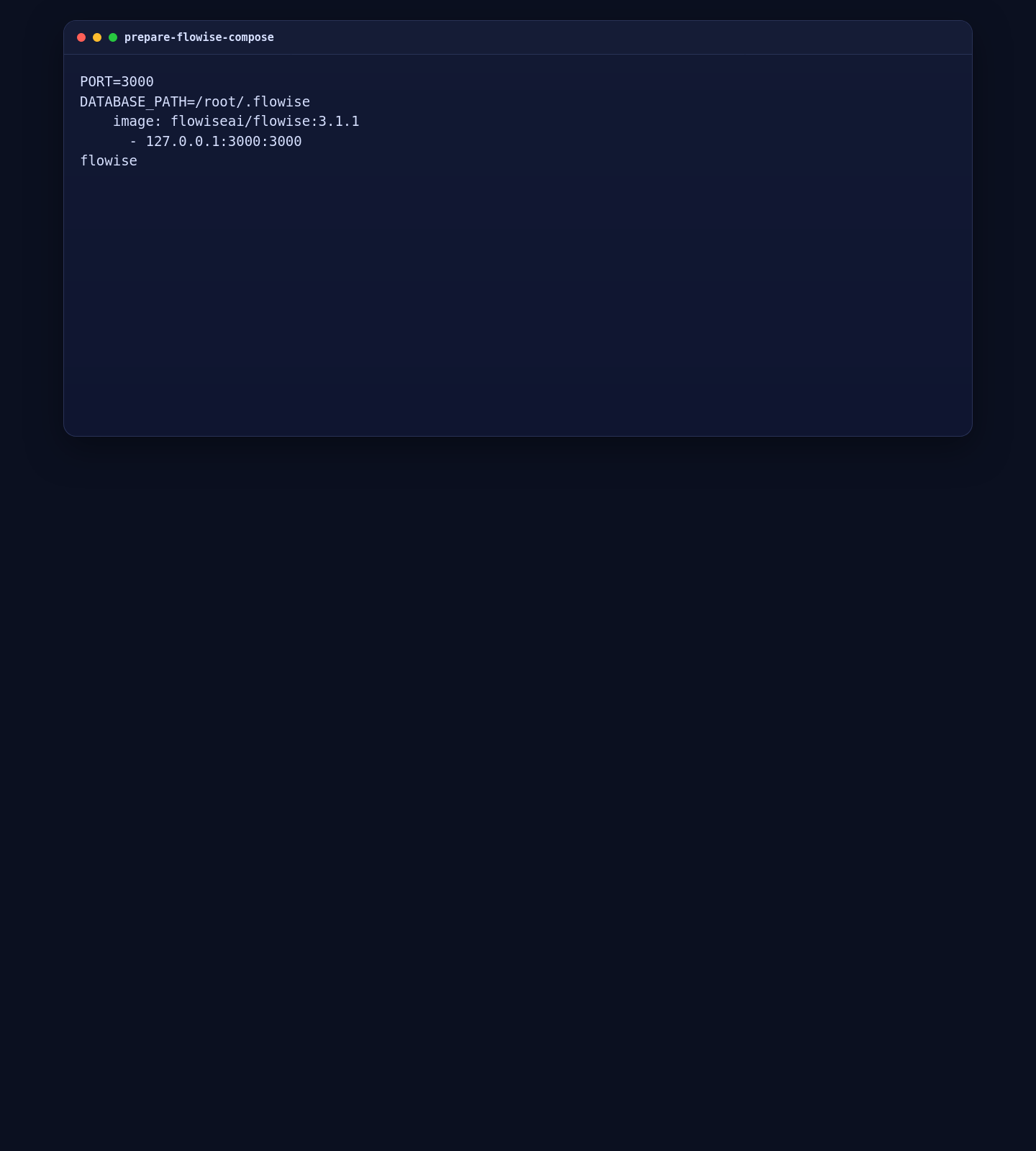
This keeps FlowiseAI on localhost, persists its database and generated assets on the host, and pins the current stable image instead of following the moving latest tag in production.
4. Start FlowiseAI
With the configuration in place, pull the image and start the FlowiseAI container.
4.1 Launch the Container
cd /opt/flowise
docker compose pull
docker compose up -d
sleep 30
docker compose ps
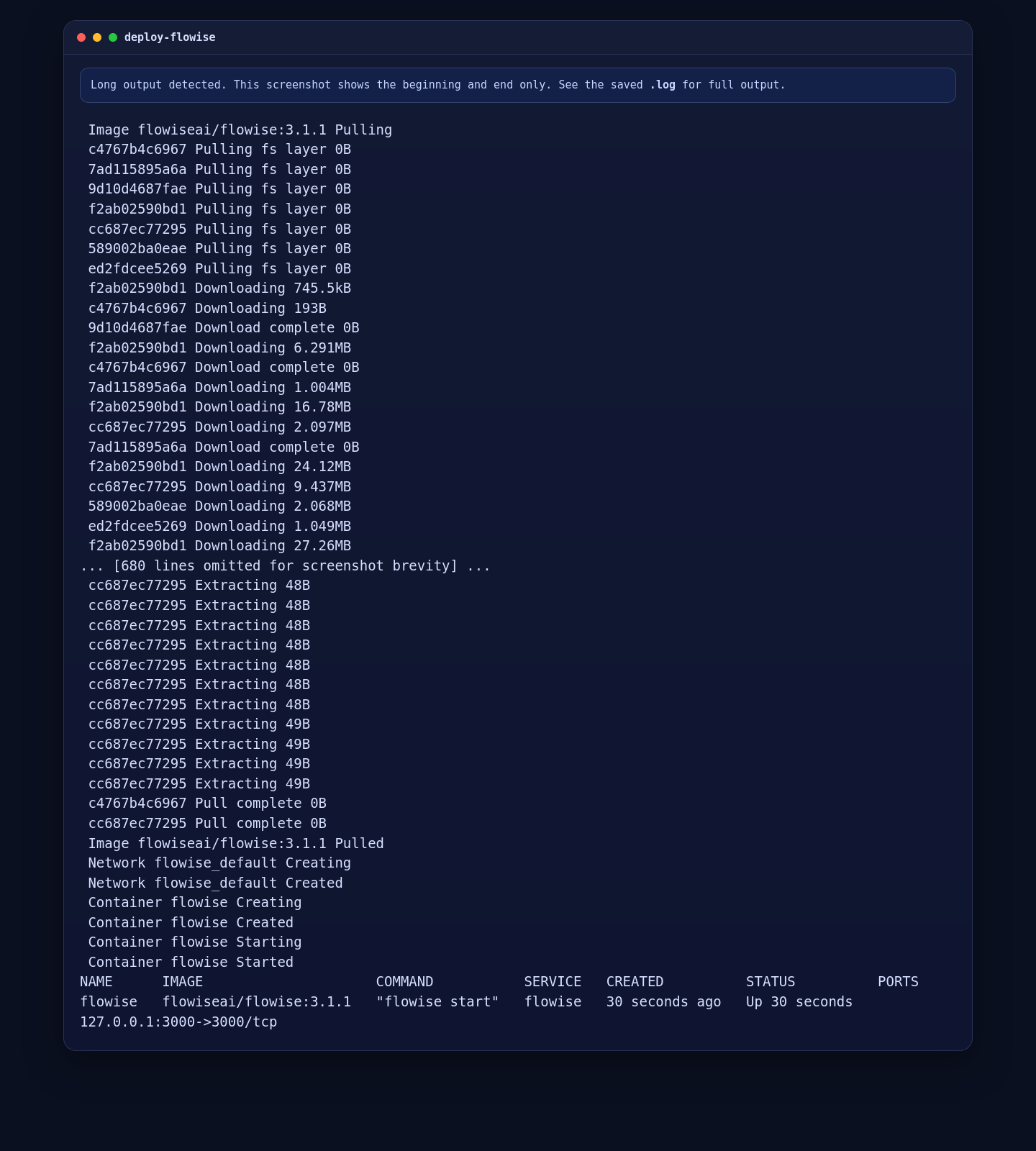
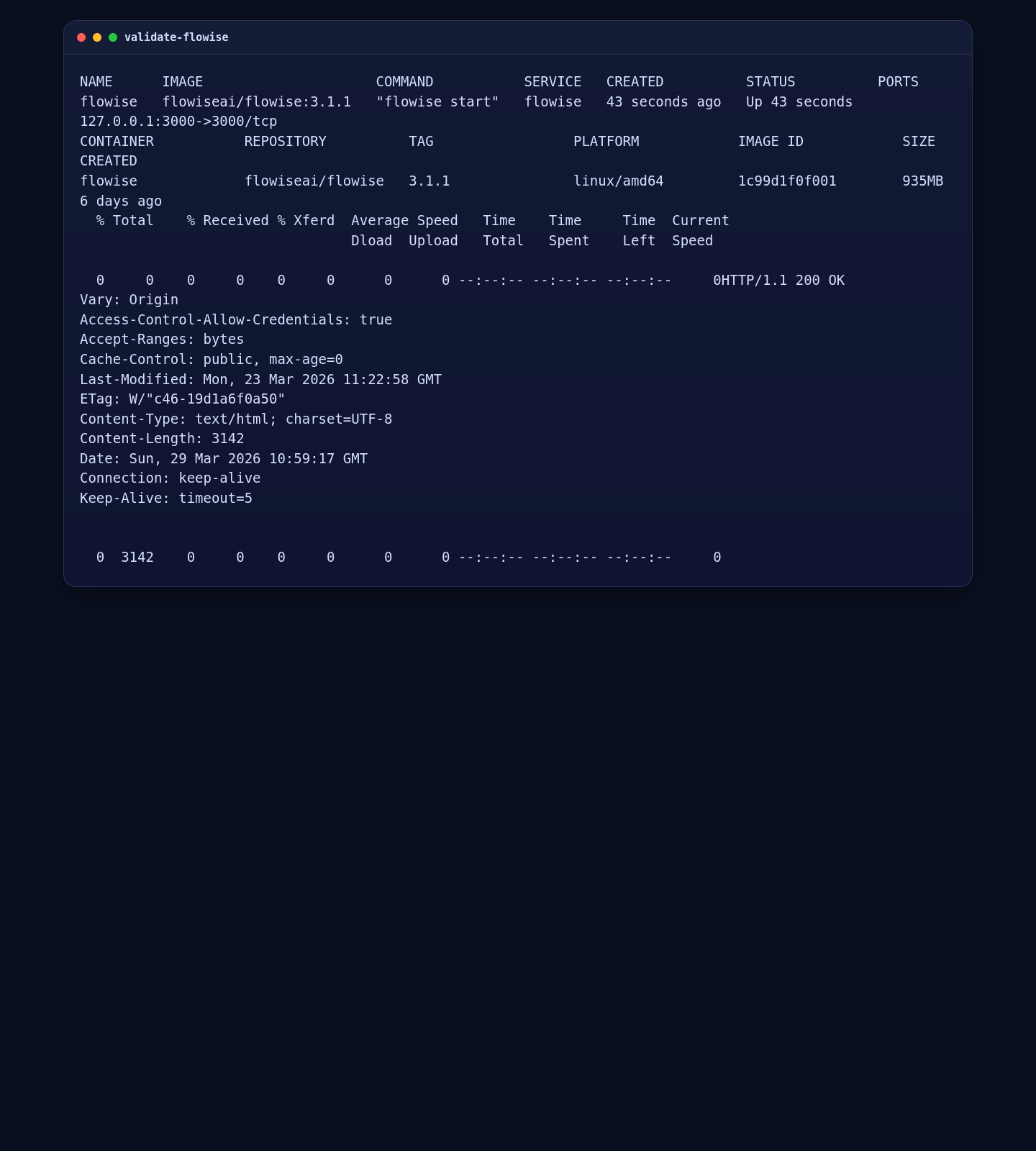
On the validated server, Docker pulled flowiseai/flowise:3.1.1, created the container, and brought the service up successfully.
4.2 Validate the Local HTTP Response
docker compose ps
docker compose images
curl -I http://127.0.0.1:3000
The live deployment returned HTTP/1.1 200 OK from the local FlowiseAI route, which is the expected result before you open the editor through an SSH tunnel.
5. Open the FlowiseAI UI Through an SSH Tunnel
This installation keeps FlowiseAI on localhost instead of exposing the editor directly to the public network. Create an SSH tunnel from your local machine, then open the forwarded port in your browser.
ssh -L 13000:127.0.0.1:3000 root@YOUR_SERVER_IPAfter the tunnel is open, browse to:
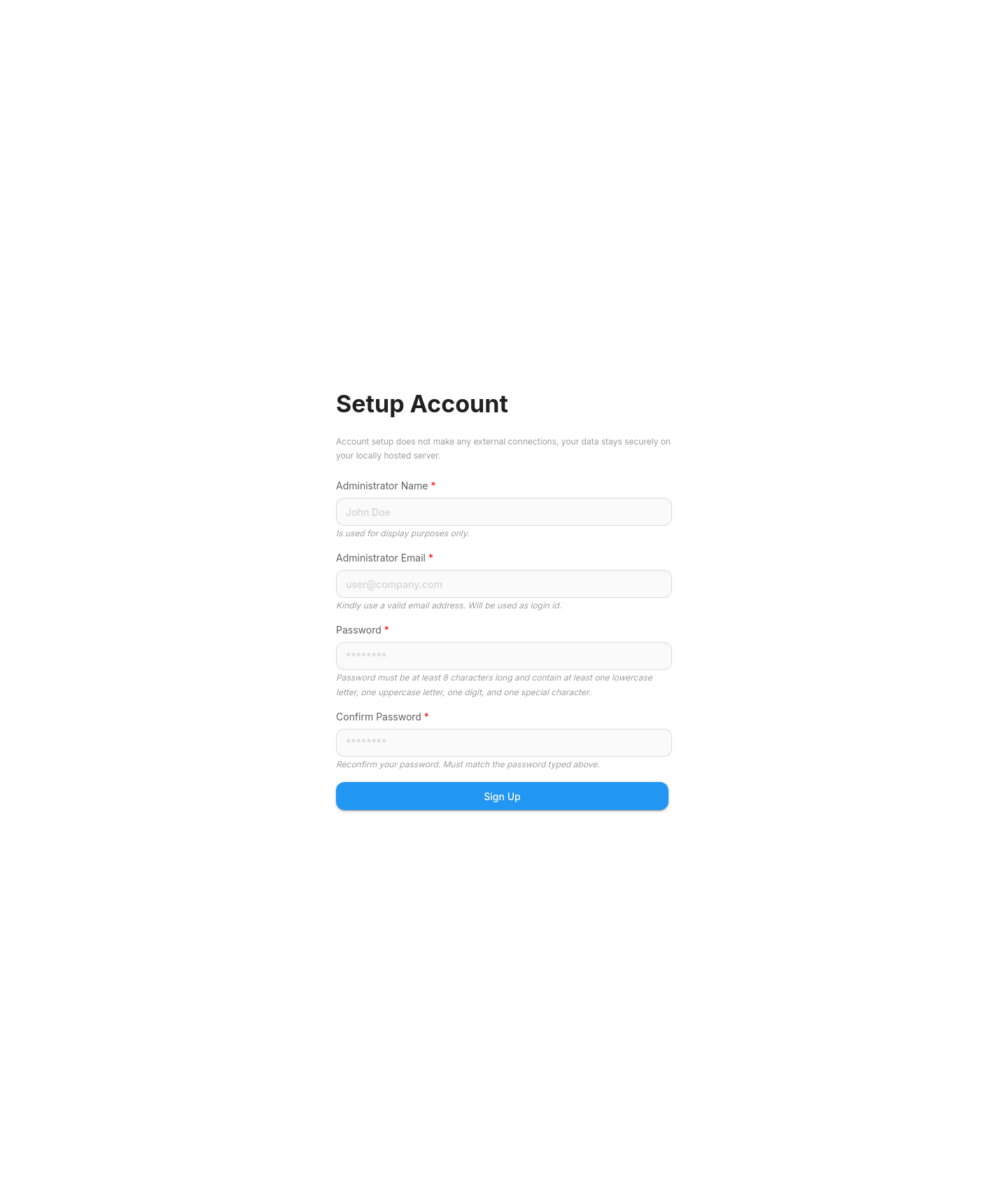
http://127.0.0.1:13000On the live server, the initial FlowiseAI setup screen loaded correctly through the tunnel and was ready for the first administrator account.
6. Run Final Server-Side Checks
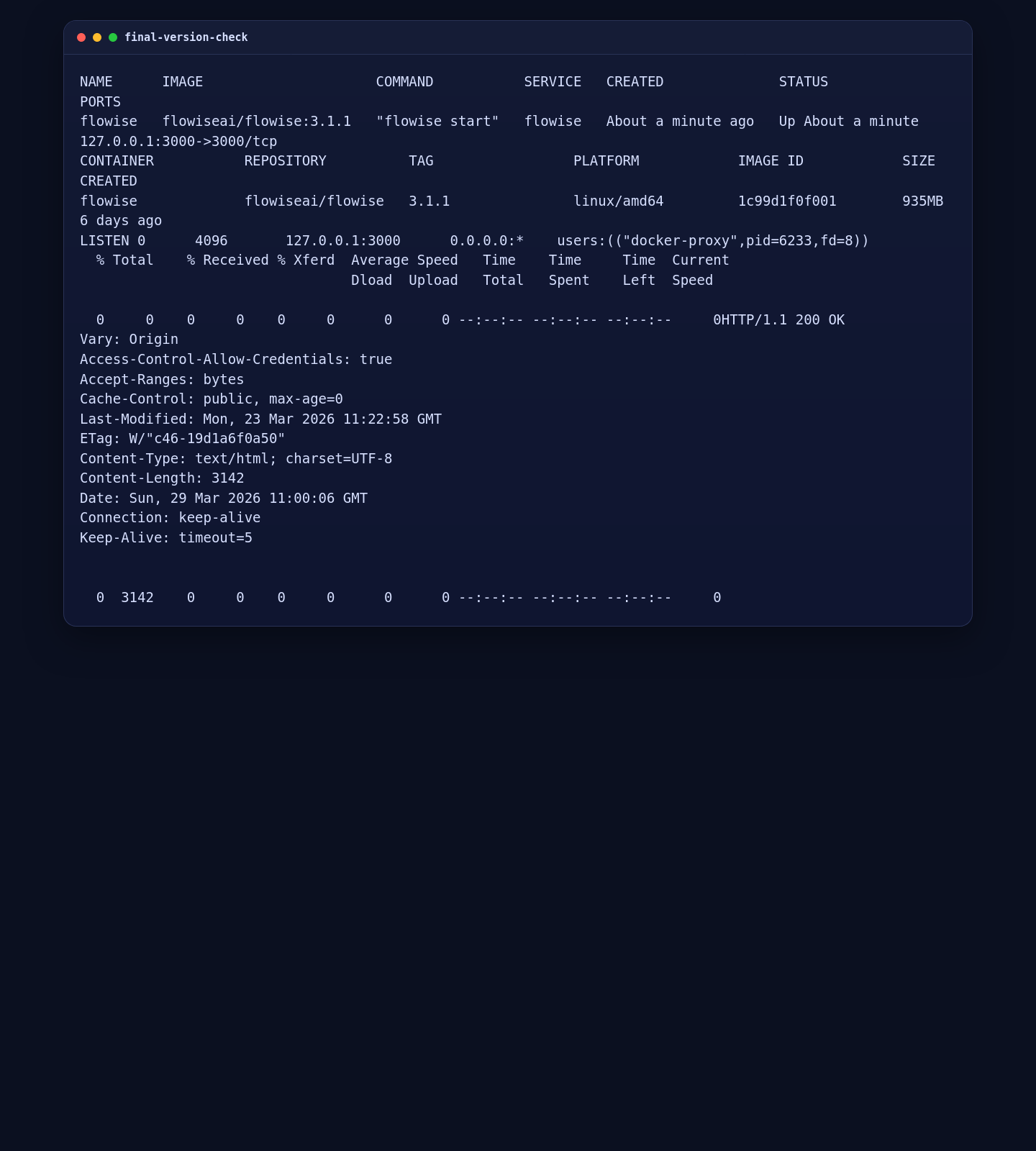
Before you stop, confirm that the container is still healthy, the port is bound only to localhost, and the local HTTP response remains available.
cd /opt/flowise
docker compose ps
docker compose images
ss -lntp | grep ':3000'
curl -I http://127.0.0.1:3000
On the validated deployment, the final check showed FlowiseAI listening only on 127.0.0.1:3000 and still returning 200 OK locally.
Conclusion
You now have FlowiseAI on AlmaLinux 10 running in Docker with persistent local data and a safer localhost-only access pattern. From here, you can finish the first-account setup, connect your preferred model providers, and only add a public reverse proxy later if you decide you need browser access without SSH tunneling.
