 Christian Wells
Ghostfolio (Investment Tracker) on Debian 12 (Docker + Nginx + SSL)
Ghostfolio is an open-source, self-hosted investment portfolio tracker and wealth management platform. It enables individuals and investors to track stocks, ETFs, cryptocurrencies, and other financial assets from a single interface — while retaining complete privacy and control over their financial data. With its intuitive dashboard, real-time market data integration, and visual analytics, Ghostfolio helps users make data-driven investment decisions without relying on third-party SaaS platforms.
Running Ghostfolio on Debian 12 (Bookworm) offers a stable, secure, and long-term supported environment for self-hosting your financial dashboard. With Docker Compose, Nginx, and SSL encryption, Debian 12 provides the ideal foundation for a production-ready, privacy-focused investment management system.
Architecture Overview
| Layer | Component | Role |
|---|---|---|
| OS | Debian 12 (Bookworm) | Stable, LTS foundation for web application hosting |
| Container Runtime | Docker Engine + Compose | Orchestrates Ghostfolio and its dependencies |
| Application | Ghostfolio (Node.js + NestJS) | Core investment tracking and analytics engine |
| Database | PostgreSQL 15/16 | Stores user portfolios, transactions, and price history |
| Reverse Proxy | Nginx | Handles HTTPS termination, routing, and compression |
| TLS | Let’s Encrypt / PKI | Provides SSL encryption for secure web access |
Why Use Ghostfolio?
- All-in-one investment tracker – manage stocks, ETFs, crypto, and more.
- Privacy-first architecture – fully self-hosted, no external data sharing.
- Automated portfolio analytics – performance, diversification, and asset allocation.
- API-driven design – supports integrations with price feeds and market APIs.
- Modern UI – built with Angular and NestJS for smooth performance.
- Multi-user support – ideal for individuals, families, or small financial teams.
- Free and open-source – no subscription fees or data lock-in.
Ghostfolio vs Other Investment Trackers
| Feature/Capability | Ghostfolio (Self-hosted) | Sharesight | CoinStats | Kubera |
|---|---|---|---|---|
| Hosting | Self-hosted / Cloud | Cloud only | Cloud only | Cloud only |
| Asset Types | Stocks, ETFs, crypto | Stocks/ETFs only | Crypto only | Multi-asset |
| Privacy | 100% local control | Cloud-based | Cloud-based | Cloud-based |
| Cost | Free, open-source | Subscription | Subscription | Subscription |
| Data Ownership | Full | Vendor-owned | Vendor-owned | Vendor-owned |
| Multi-user support | ✅ Yes | ❌ No | ✅ Yes | ✅ Yes |
Ghostfolio provides a powerful and ethical alternative to commercial portfolio trackers, enabling financial independence and total data control — essential for privacy-conscious investors.
Security & Best Practices
- Deploy behind Nginx with HTTPS via Let’s Encrypt or your own certificate authority.
- Store PostgreSQL credentials and API keys in environment variables or Docker secrets.
- Limit database and app ports to the internal Docker network.
- Enable UFW and allow only ports 80 and 443.
- Automate SSL renewals with Certbot or Traefik ACME.
- Keep Docker, Ghostfolio, and Debian packages updated regularly.
- Schedule PostgreSQL backups and verify recovery procedures.
- Use fail2ban or Nginx rate limiting to protect login endpoints.
- Set strong passwords and two-factor authentication (2FA) if available.
Typical Use Cases
- Personal wealth tracking – manage investments across multiple brokers and markets.
- Crypto + stock investors – monitor diversified portfolios in one dashboard.
- Family portfolio management – track collective finances securely.
- Financial advisors – build private tools for client portfolio analysis.
- Developers & data enthusiasts – integrate Ghostfolio with APIs for automation.
Deploying Ghostfolio on Debian 12 with Docker, Nginx, and SSL gives you a powerful, private, and modern investment tracking solution — combining financial intelligence with the transparency and freedom of open-source software.
Create Your Cloud Server on Shape.Host
Before installing Ghostfolio, deploy a Debian 12 VPS.
Visit https://shape.host and log in.
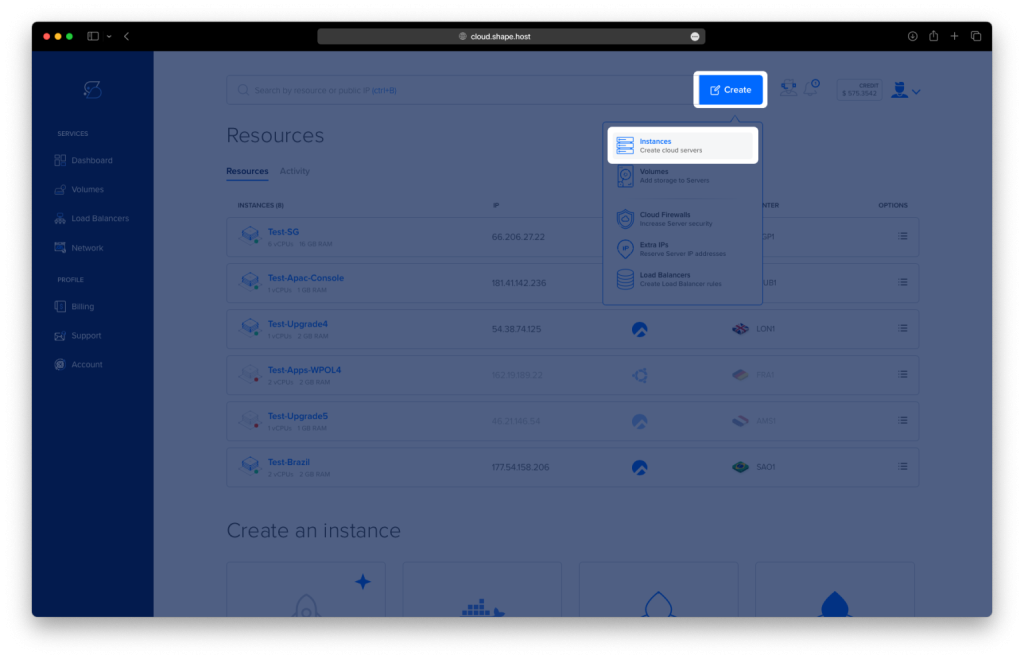
Click Create → Instance.
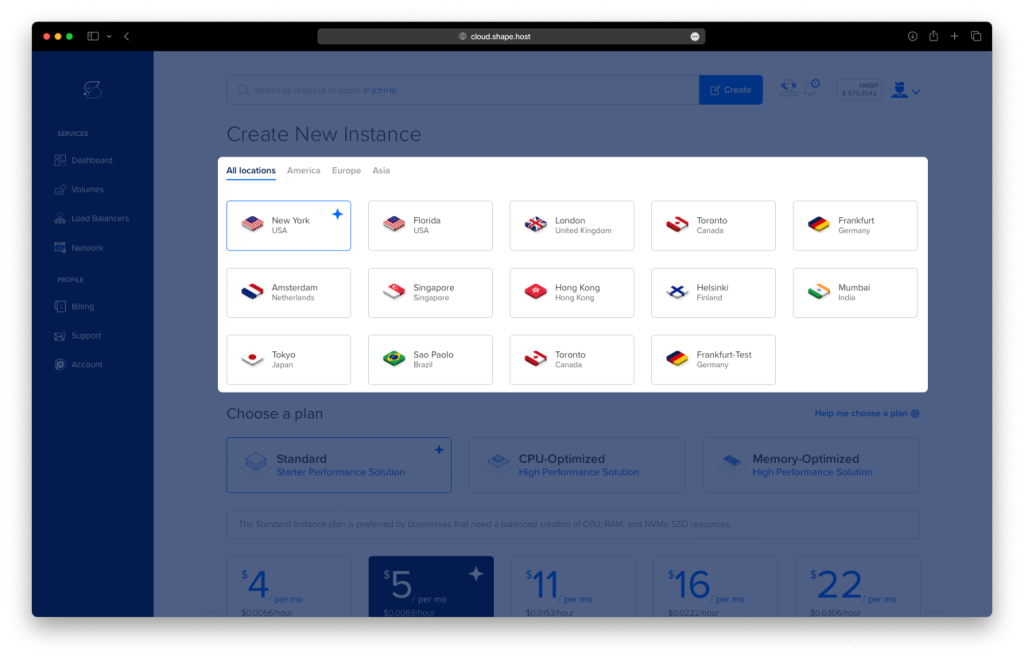
Select the nearest data center.
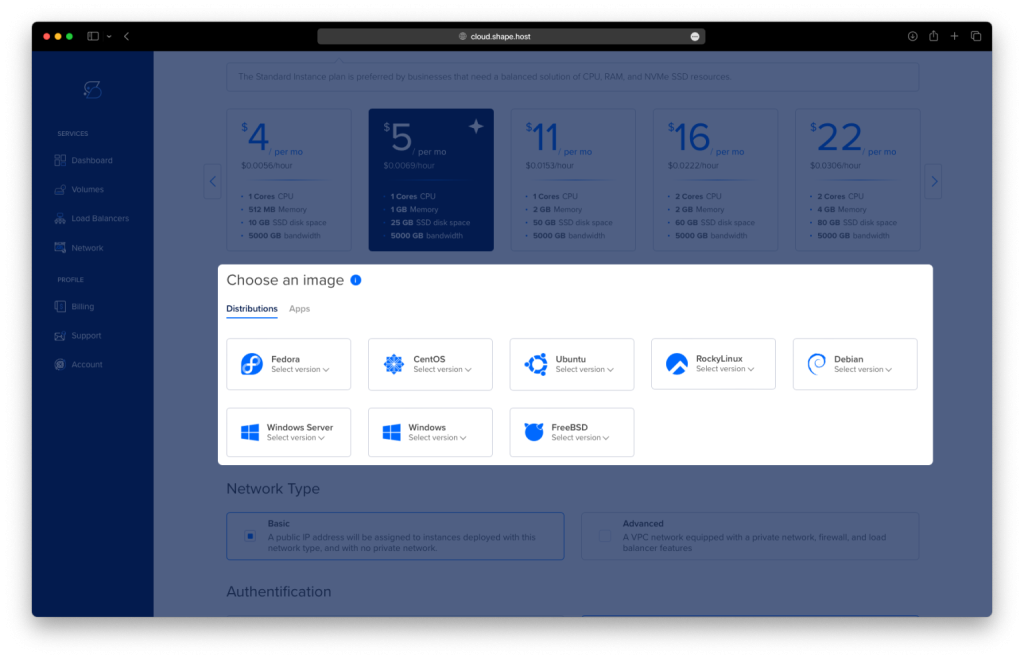
Choose Debian 12 (64-bit) as the operating system.
Select a plan. Minimum recommended:
2 vCPUs
4 GB RAM
20 GB NVMe SSD
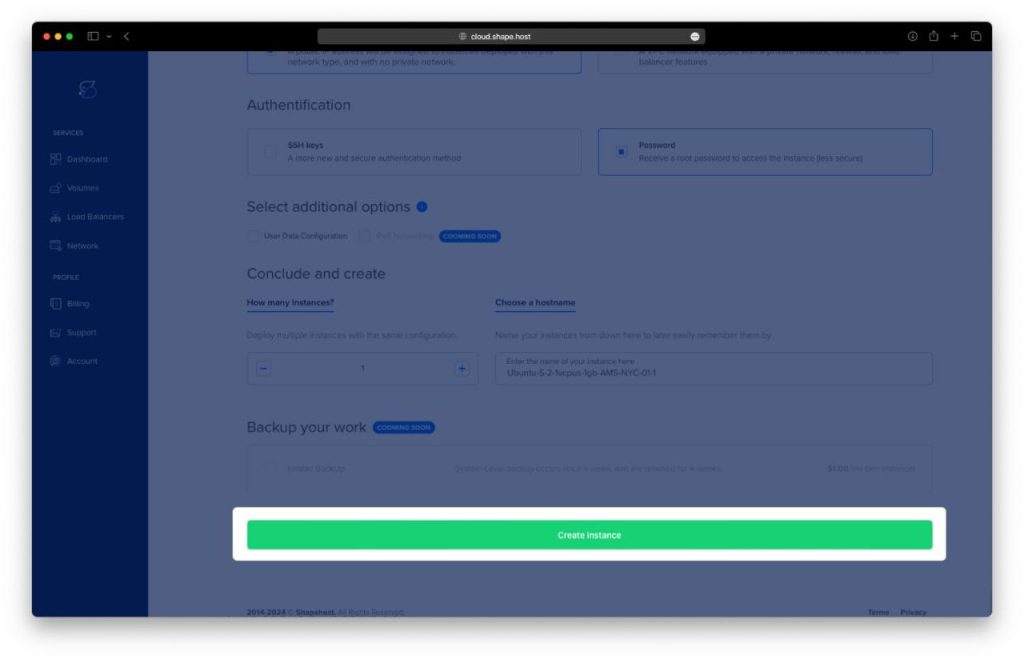
Click Create Instance.
Wait 20–40 seconds for provisioning.
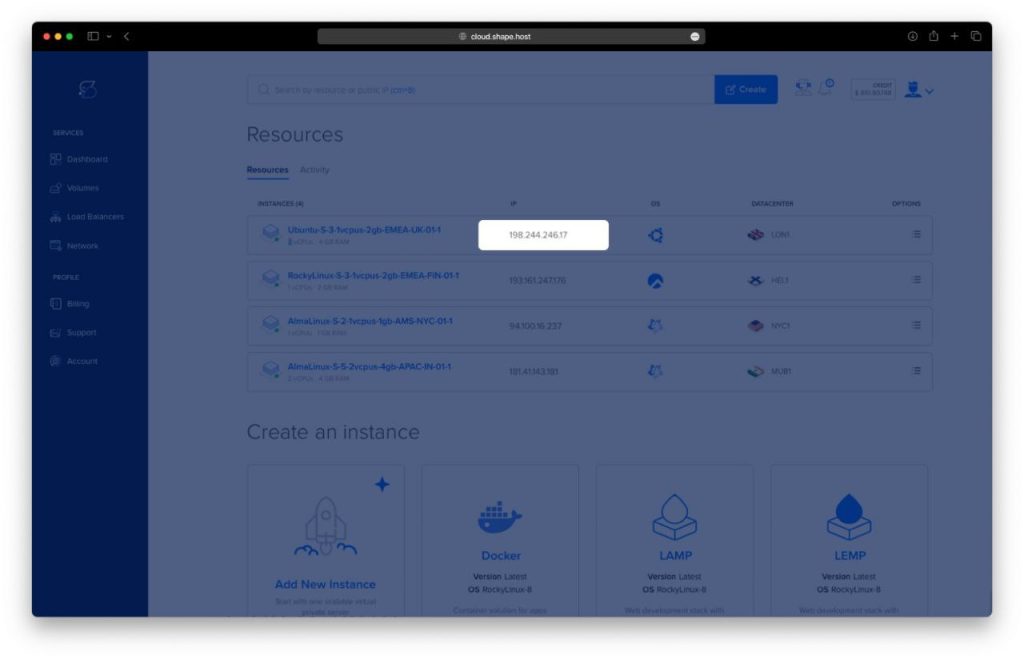
Copy the server’s public IP.
This VPS will host your Ghostfolio installation.
Step 1: Connect to Your Server via SSH
On Linux / macOS:
ssh root@YOUR_SERVER_IP
On Windows (PowerShell or Windows Terminal):
ssh root@YOUR_SERVER_IP
Accept the fingerprint, and you will be logged in as root.
Step 2: Update System Packages
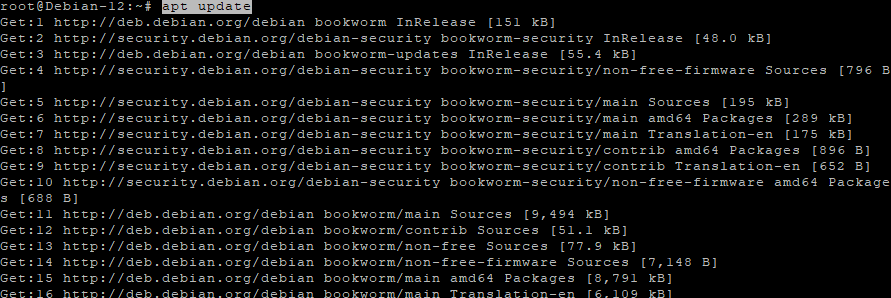
apt update
Ensures your package index is fresh.
Step 3: Install Required Dependencies
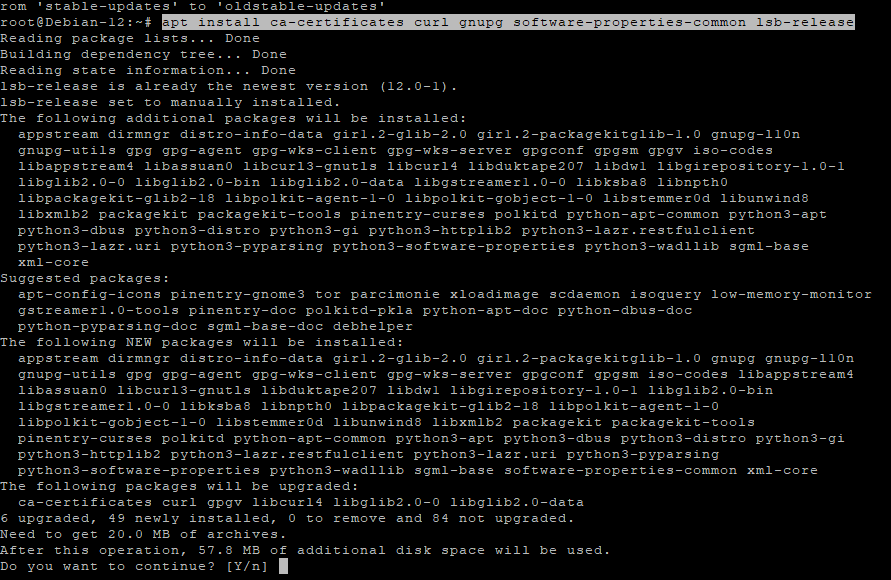
apt install ca-certificates curl gnupg software-properties-common lsb-release
These tools allow downloading and verifying Docker packages securely.
Step 4: Create Docker Key Directory
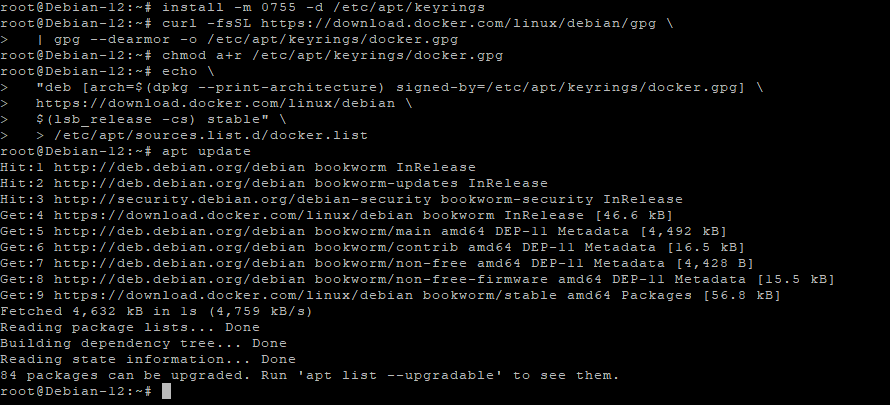
install -m 0755 -d /etc/apt/keyrings
Docker’s GPG key will be stored here.
Step 5: Add Docker GPG Key
curl -fsSL https://download.docker.com/linux/debian/gpg | gpg --dearmor -o /etc/apt/keyrings/docker.gpg
Step 6: Fix File Permissions
chmod a+r /etc/apt/keyrings/docker.gpg
Step 7: Add Docker Repository
echo   "deb [arch=$(dpkg --print-architecture) signed-by=/etc/apt/keyrings/docker.gpg] \
  https://download.docker.com/linux/debian \
  $(lsb_release -cs) stable"   > /etc/apt/sources.list.d/docker.list
This enables Docker installation from official sources.
Step 8: Update Again
apt update
Loads the new Docker repository.
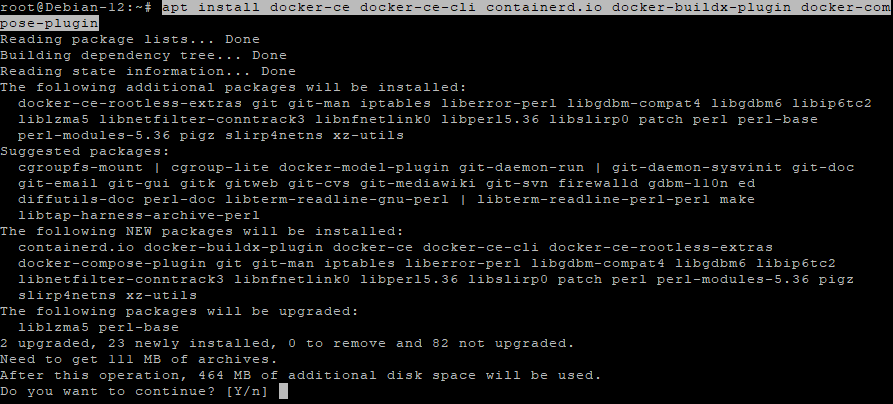
Step 9: Install Docker Engine + Docker Compose
apt install docker-ce docker-ce-cli containerd.io docker-buildx-plugin docker-compose-plugin
Installs everything required to run Docker applications.
Step 10: Enable Docker
systemctl enable docker
Step 11: Start Docker
systemctl start docker

Step 12: Add User to Docker Group
usermod -aG docker $USER
Allows using Docker without root (after logout/login).
Step 13: Create Ghostfolio Directory
mkdir -p /opt/ghostfolio
Step 14: Enter Directory
cd /opt/ghostfolio

Step 15: Generate Required Keys and Secrets
Your history shows four keys generated:
openssl rand -hex 32
openssl rand -hex 32
openssl rand -hex 32
openssl rand -hex 16
You will use these values for:
- JWT secret
- Access token salt
- Refresh token salt
- Optional additional salts
Copy and store them securely.

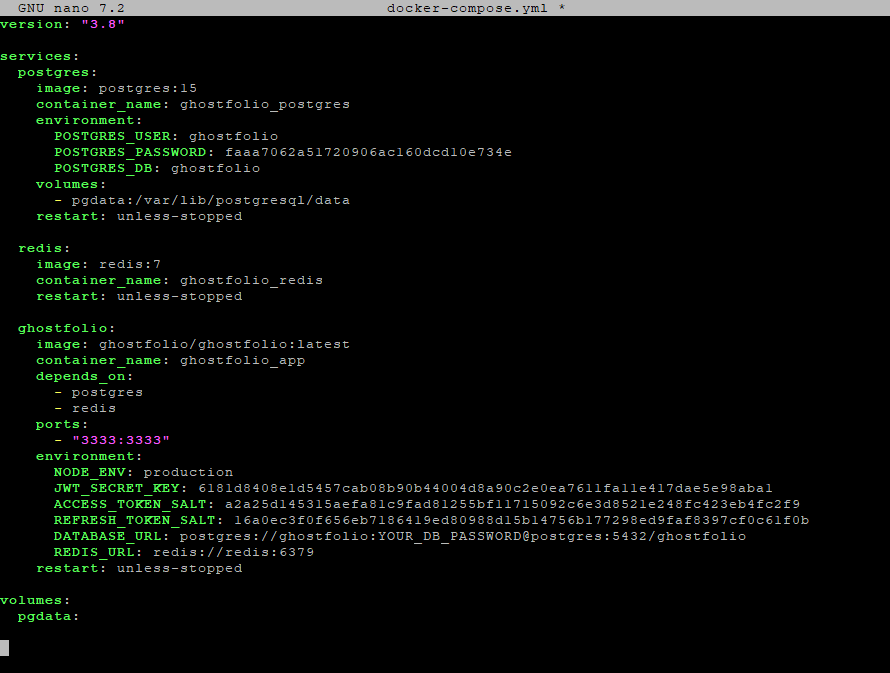
Step 16: Create docker-compose.yml
nano docker-compose.yml
Paste your exact configuration:
version: "3.8"

services:
  postgres:
    image: postgres:15
    container_name: ghostfolio_postgres
    environment:
      POSTGRES_USER: ghostfolio
      POSTGRES_PASSWORD: YOUR_DB_PASSWORD
      POSTGRES_DB: ghostfolio
    volumes:
      - pgdata:/var/lib/postgresql/data
    restart: unless-stopped

  redis:
    image: redis:7
    container_name: ghostfolio_redis
    restart: unless-stopped

  ghostfolio:
    image: ghostfolio/ghostfolio:latest
    container_name: ghostfolio_app
    depends_on:
      - postgres
      - redis
    ports:
      - "3333:3333"
    environment:
      NODE_ENV: production
      JWT_SECRET_KEY: YOUR_JWT_SECRET
      ACCESS_TOKEN_SALT: YOUR_ACCESS_TOKEN_SALT
      REFRESH_TOKEN_SALT: YOUR_REFRESH_TOKEN_SALT
      DATABASE_URL: postgres://ghostfolio:YOUR_DB_PASSWORD@postgres:5432/ghostfolio
      REDIS_URL: redis://redis:6379
    restart: unless-stopped

volumes:
  pgdata:
Save and exit (CTRL+O, ENTER, CTRL+X).
Step 17: Start Ghostfolio
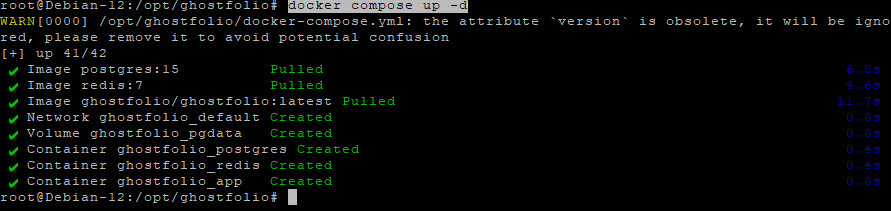
docker compose up -d
Starts PostgreSQL, Redis, and Ghostfolio.
Step 18: View Logs
docker logs ghostfolio_app --tail 50
Use this to check for startup errors.
Step 19: Test Ghostfolio from Browser
Before configuring Nginx, verify the app is running:
http://YOUR.SERVER.IP:3333
If everything is correct, you should see the Ghostfolio interface.
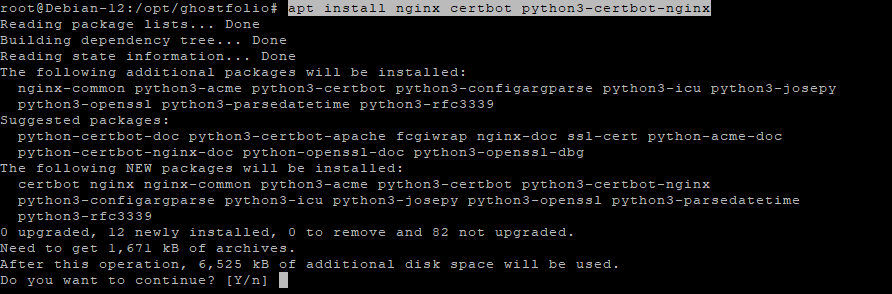
Step 20: Install Nginx and Certbot
apt install nginx certbot python3-certbot-nginx
Step 21: Enable and Start Nginx
systemctl enable nginx
systemctl start nginx

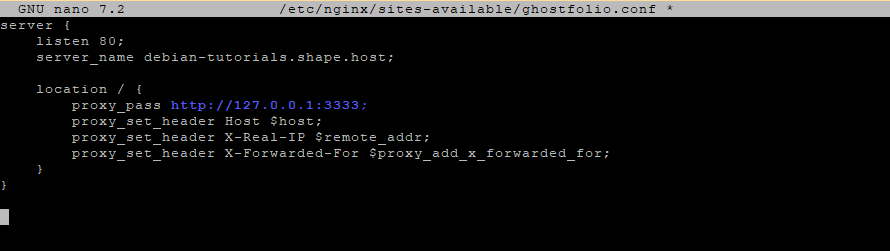
Step 22: Create Nginx Reverse Proxy
nano /etc/nginx/sites-available/ghostfolio.conf
Paste:
server {
    listen 80;
    server_name your.domain.com;

    location / {
        proxy_pass http://127.0.0.1:3333;
        proxy_set_header Host $host;
        proxy_set_header X-Real-IP $remote_addr;
        proxy_set_header X-Forwarded-For $proxy_add_x_forwarded_for;
    }
}
Step 23: Enable the Site
ln -s /etc/nginx/sites-available/ghostfolio.conf /etc/nginx/sites-enabled/
Step 24: Test Nginx
nginx -t
Step 25: Reload Nginx
systemctl reload nginx

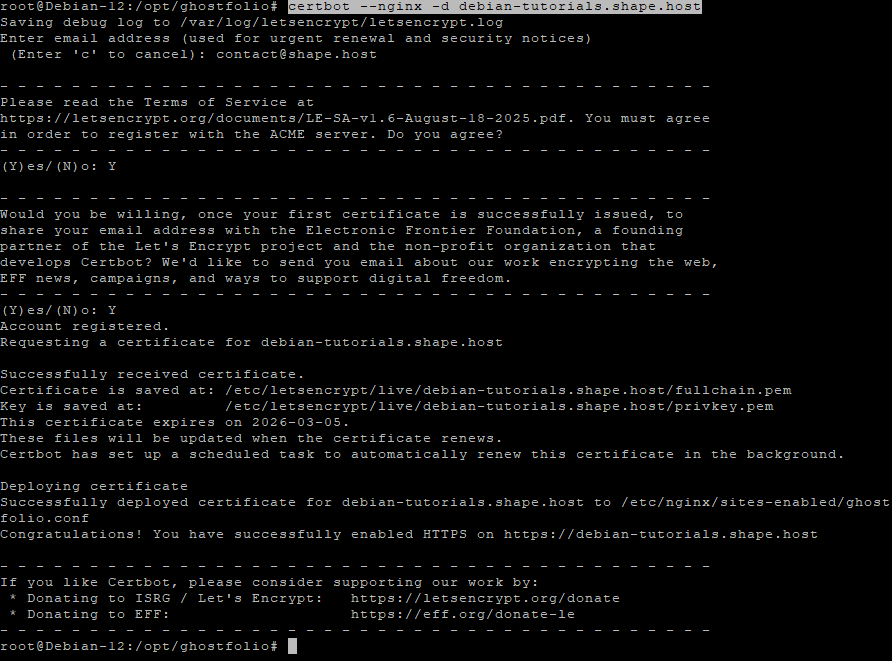
Step 26: Secure Your Domain with HTTPS
certbot --nginx -d debian-tutorials.shape.host
Certbot automatically configures SSL with Nginx.
Step 27: Access Your Secure Ghostfolio Installation
https://your.domain.com
Ghostfolio is now fully installed, running securely over HTTPS.

Shape.Host – High-Performance Hosting for Modern Applications
Deploying Ghostfolio, NocoDB, HedgeDoc, Paperless-ngx, Appwrite, and similar apps requires fast and reliable infrastructure.
Shape.Host provides:
- NVMe-based Cloud VPS
- Instant deployment
- Clean OS presets
- Excellent uptime
- Scalable resources
Visit https://shape.host to host your next project with confidence.
