 Christian Wells
NocoDB (Airtable Alternative) on Debian 12 (Docker + Nginx + SSL)
NocoDB is an open-source Airtable alternative that turns any existing SQL database into a smart spreadsheet interface. It enables teams to collaborate, visualize, and manage data without writing code — offering REST and GraphQL APIs, role-based permissions, and automation features. NocoDB is ideal for building internal tools, dashboards, CRMs, and data management systems that integrate directly with your existing SQL databases.
Running NocoDB on Debian 12 (Bookworm) ensures a stable, secure, and production-grade environment with long-term support. Debian 12 ships with systemd 252, OpenSSL 3, and up-to-date Docker and Nginx packages, providing an excellent foundation for deploying NocoDB via Docker Compose, secured with Nginx and SSL certificates for enterprise-ready performance.
Architecture Overview
| Layer | Component | Role |
|---|---|---|
| OS | Debian 12 (Bookworm) | Stable, LTS base for hosting web applications |
| Container Runtime | Docker Engine + Compose | Orchestrates NocoDB and supporting services |
| Application | NocoDB (Node.js) | Main web interface and backend API layer |
| Database | PostgreSQL / MySQL / MariaDB | Stores data and schema definitions |
| Reverse Proxy | Nginx | Handles HTTPS termination, routing, and compression |
| TLS | Let’s Encrypt / PKI | Provides HTTPS security via SSL certificates |
Why Use NocoDB?
- Open-source Airtable replacement – no subscription, no vendor lock-in.
- Connect any SQL database – supports MySQL, PostgreSQL, MariaDB, SQLite, and SQL Server.
- Spreadsheet-like interface – manage and visualize data easily.
- Auto-generated REST & GraphQL APIs – instantly expose your data for integrations.
- Team collaboration – manage users, roles, and access permissions.
- Custom views and dashboards – grid, gallery, form, and Kanban modes.
- Secure and scalable – perfect for startups, developers, and enterprise users alike.
NocoDB vs Other No-Code / Data Platforms
| Feature/Capability | NocoDB (Self-hosted) | Airtable | Baserow | SeaTable |
|---|---|---|---|---|
| Hosting | Self-hosted / Cloud | Cloud only | Self-hosted / Cloud | Self-hosted / Cloud |
| Database backend | MySQL / PostgreSQL / SQLite | Proprietary | PostgreSQL | Proprietary |
| API Access | REST + GraphQL | Limited | REST | REST |
| Cost | Free, open-source | Subscription | Free/Paid | Paid |
| Data Ownership | Full control | Cloud storage | Full control | Partial |
| Customization | High | Limited | Moderate | Moderate |
NocoDB delivers the flexibility of Airtable combined with the power of SQL — making it the top open-source solution for teams that want no-code simplicity with enterprise scalability.
Security & Best Practices
- Deploy behind Nginx with HTTPS via Let’s Encrypt or your SSL provider.
- Store environment variables and credentials securely in a
.envfile or Docker secrets. - Restrict NocoDB’s internal port (
8080) tolocalhostonly. - Keep Docker images, NocoDB, and Debian packages up to date.
- Enable UFW and allow only ports 80 and 443.
- Automate certificate renewals using Certbot or Traefik ACME integration.
- Schedule regular database backups for PostgreSQL or MySQL.
- Configure RBAC (Role-Based Access Control) for granular permissions.
- Apply fail2ban or rate limiting on Nginx to protect authentication endpoints.
Typical Use Cases
- Internal business tools – build dashboards, forms, and reports quickly.
- CRM systems – manage leads, sales pipelines, and customer data.
- Inventory & product management – real-time inventory tracking with data views.
- Data visualization – transform SQL tables into visual spreadsheets.
- API integration layer – expose relational data for external applications.
- Collaboration platform – empower non-technical users to work with databases easily.
Deploying NocoDB on Debian 12 with Docker, Nginx, and SSL gives you a secure, self-hosted Airtable alternative — combining the freedom of open-source software with enterprise-grade reliability, privacy, and performance.
Create Your Cloud Server Instance on Shape.Host
Before installing NocoDB, you need a Debian 12 VPS.
Follow these steps to create one on Shape.Host:
Go to https://shape.host and log in.
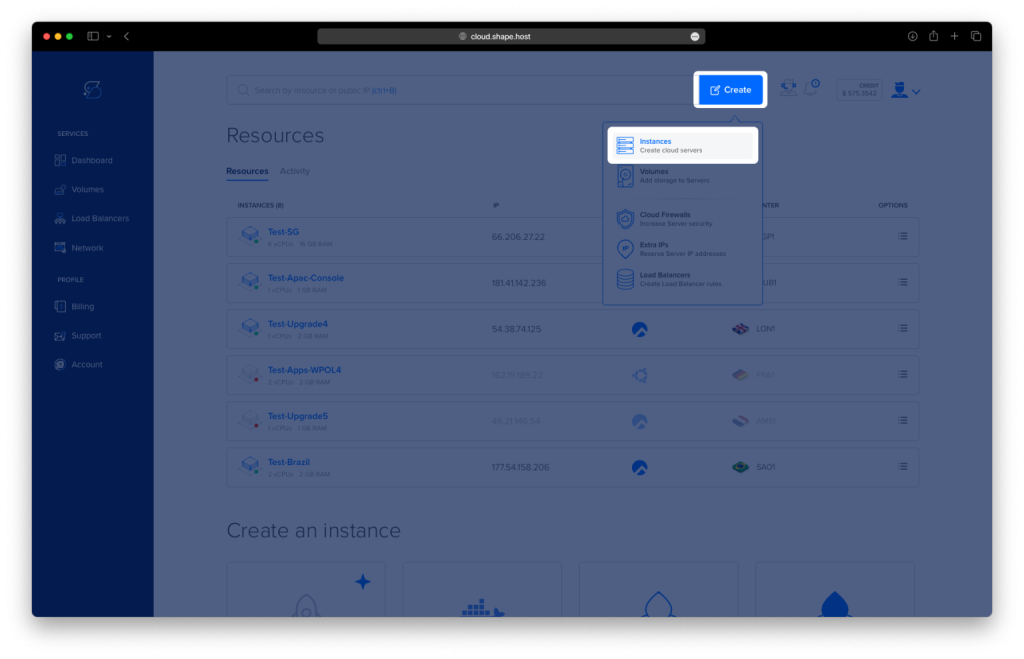
Click Create in the upper-right corner.
Select Instance.
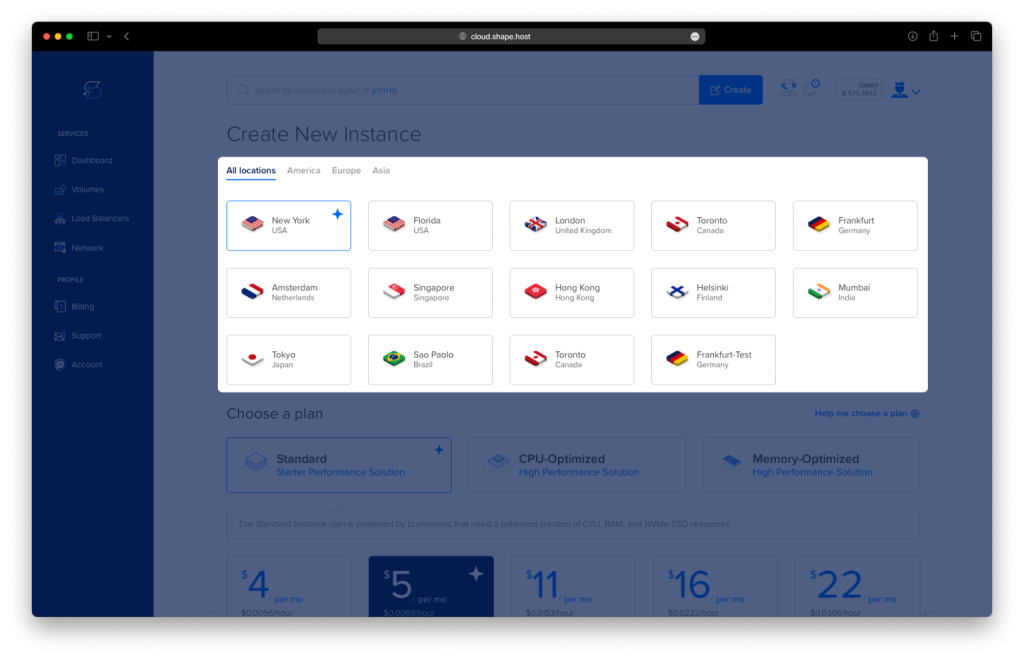
Choose the closest data center.
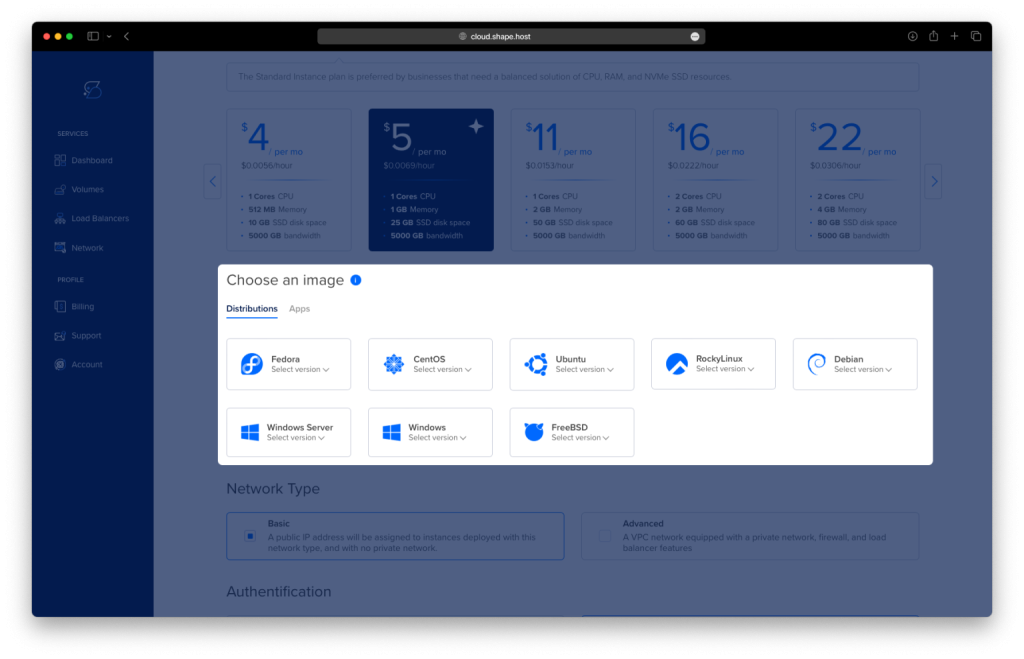
Select Debian 12 (64-bit) as your operating system.
Choose a plan. Recommended minimum:
2 vCPUs
4 GB RAM
20 GB NVMe storage
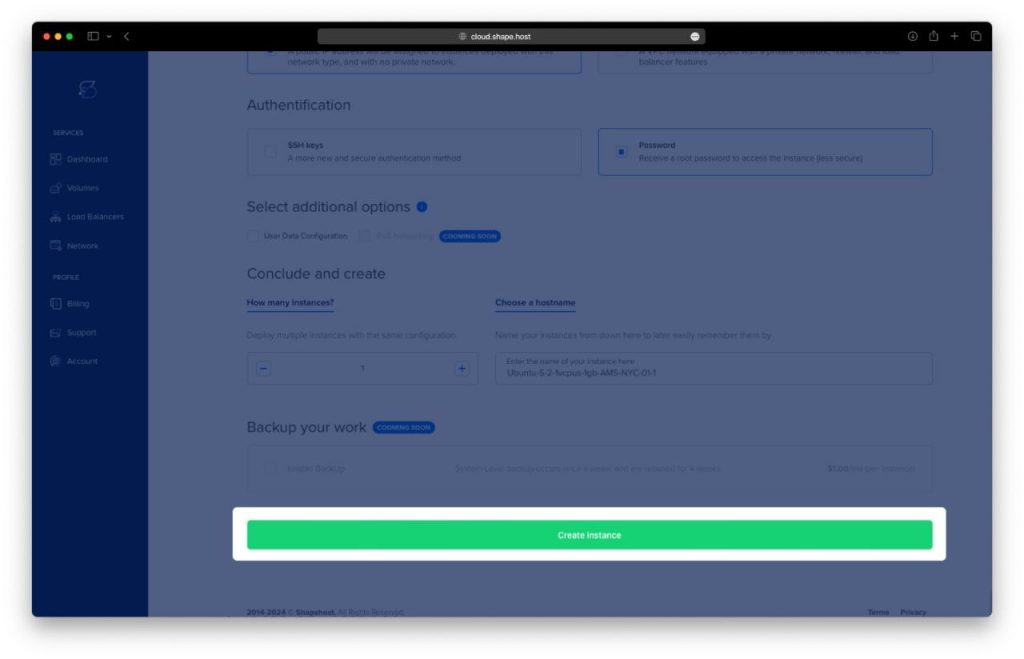
Click Create Instance.
Wait 20–40 seconds for deployment.
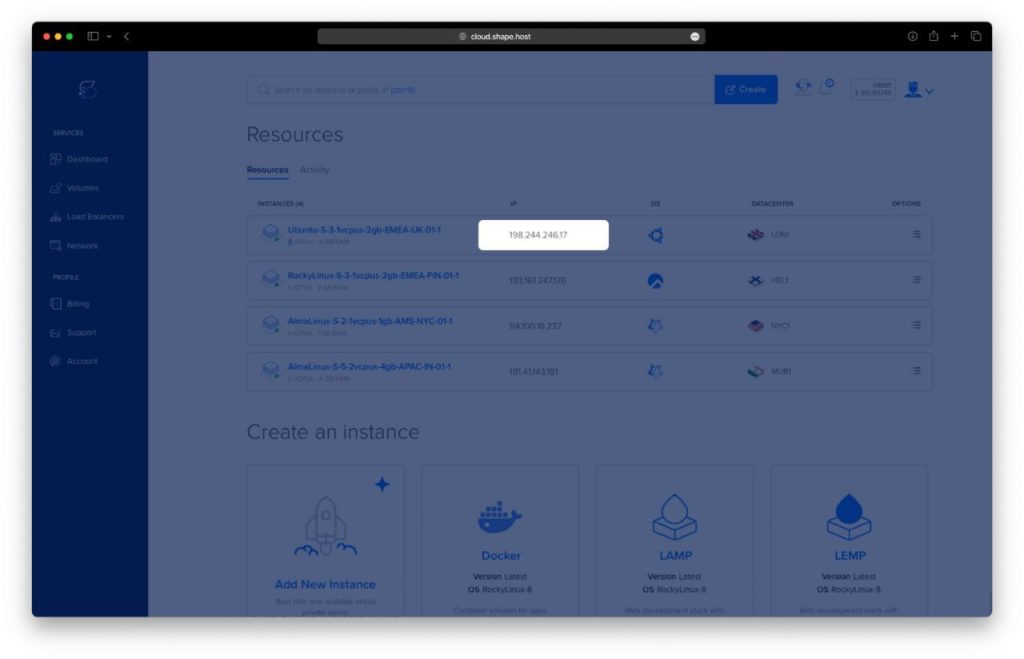
Copy the public IP address from the “Resources” section.
Your Debian 12 instance is ready for SSH access.
Step 1: Connect to Your Instance (SSH)
Connect remotely to your new server.
On macOS or Linux
Open Terminal and run:
ssh root@YOUR_SERVER_IP
On Windows
You can use:
- Windows Terminal
- PowerShell
- PuTTY
Using Windows Terminal / PowerShell:
ssh root@YOUR_SERVER_IP
When prompted to trust the fingerprint, type yes.
You are now logged into your Debian 12 server as root.
Step 2: Update Your System
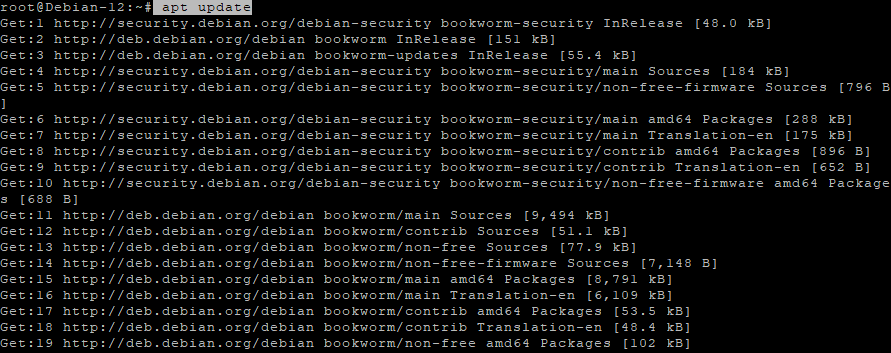
apt update
This refreshes the list of available packages to ensure everything you install is up to date.
Step 3: Install Required Dependencies
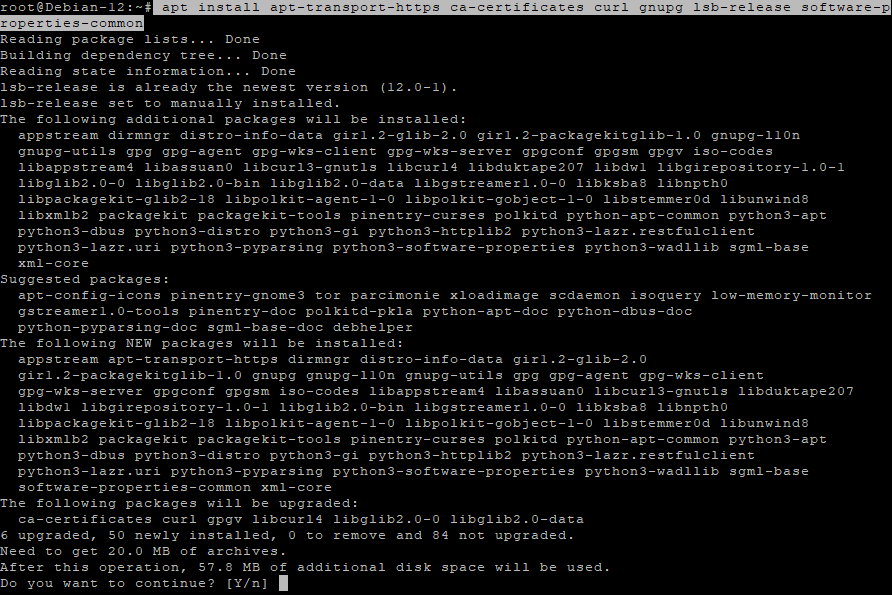
apt install apt-transport-https ca-certificates curl gnupg lsb-release software-properties-common
Explanation of packages:
apt-transport-https– enables HTTPS downloadsca-certificates– verifies SSL certificatescurl– used to fetch filesgnupg– needed for secure key importlsb-release– used to detect system versionsoftware-properties-common– adds repo management tools
All of these are needed to install Docker securely.
Step 4: Add Docker’s GPG Key
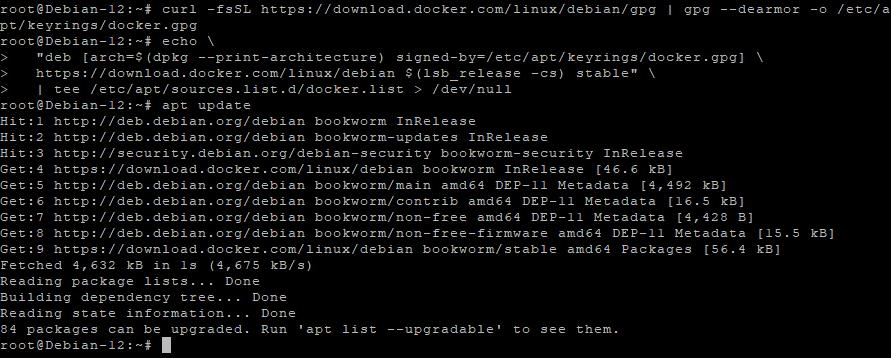
curl -fsSL https://download.docker.com/linux/debian/gpg | gpg --dearmor -o /etc/apt/keyrings/docker.gpg
This securely imports Docker’s official signing key.
Step 5: Add Docker’s Official Repository
echo   "deb [arch=$(dpkg --print-architecture) signed-by=/etc/apt/keyrings/docker.gpg] \
  https://download.docker.com/linux/debian $(lsb_release -cs) stable"   | tee /etc/apt/sources.list.d/docker.list > /dev/null
This registers the Docker repository for Debian 12.
Step 6: Update Again
apt update
This loads the newly added Docker repository.
Step 7: Install Docker Engine + Docker Compose
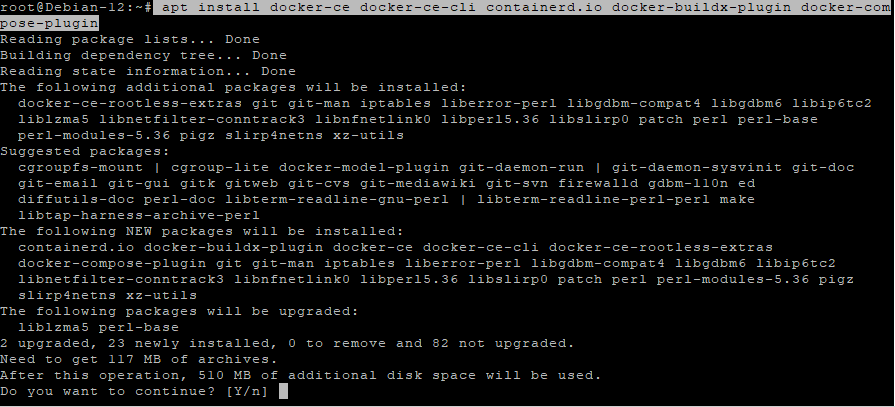
apt install docker-ce docker-ce-cli containerd.io docker-buildx-plugin docker-compose-plugin
This installs both the Docker runtime and the Compose v2 plugin.
Step 8: Enable Docker on Boot
systemctl enable docker
Step 9: Start Docker
systemctl start docker
Step 10: Add User to Docker Group
usermod -aG docker $USER
This allows you to run Docker without using sudo after logging out and back in.
Step 11: Create NocoDB Directory
mkdir ~/nocodb
Step 12: Enter the Directory
cd ~/nocodb

Step 13: Generate a Secure JWT Secret
openssl rand -hex 32
Copy this secret for later use.

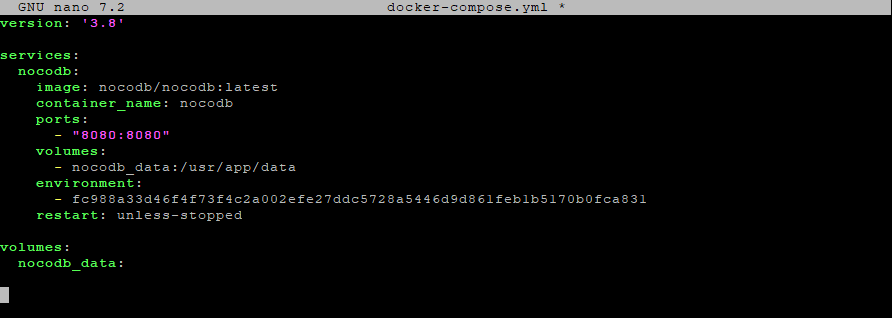
Step 14: Create docker-compose.yml
nano docker-compose.yml
Paste your configuration:
version: '3.8'

services:
  nocodb:
    image: nocodb/nocodb:latest
    container_name: nocodb
    ports:
      - "8080:8080"
    volumes:
      - nocodb_data:/usr/app/data
    environment:
      - NC_AUTH_JWT_SECRET=YOUR_RANDOM_JWT_SECRET
    restart: unless-stopped

volumes:
  nocodb_data:
This file:
- Runs the latest NocoDB image
- Exposes port 8080
- Stores persistent data inside a Docker volume
- Sets your secure JWT secret
- Enables automatic restarts
Save and exit:
CTRL+O, ENTER, then CTRL+X
Step 15: Start NocoDB
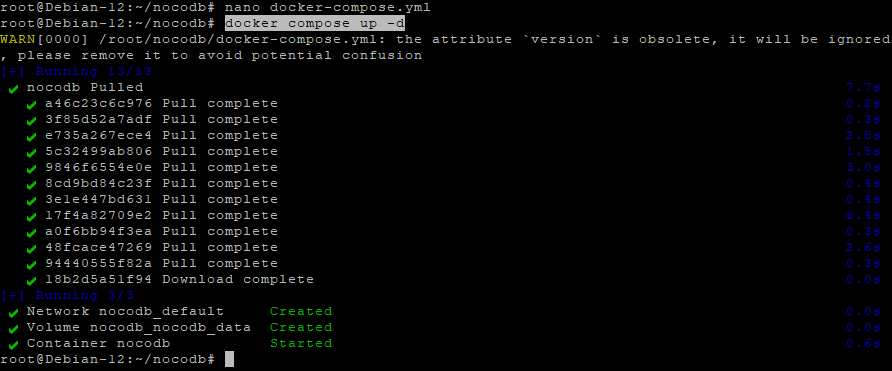
docker compose up -d
NocoDB starts in the background.
Step 16: Check Running Containers
docker ps

You should see:
nocodb Up
Step 17: View Logs (Optional)
docker compose logs
Useful if something does not start correctly.
Step 18: Install Nginx and Certbot
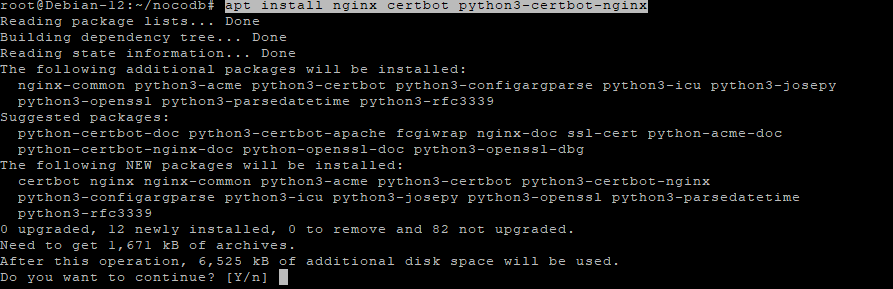
apt install nginx certbot python3-certbot-nginx
This installs the reverse proxy and SSL automation tools.
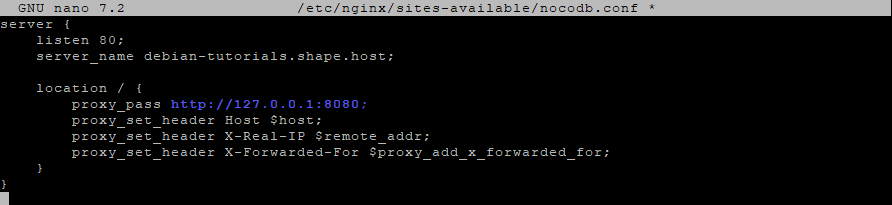
Step 19: Create Nginx Reverse Proxy Config
nano /etc/nginx/sites-available/nocodb.conf
Paste:
server {
    listen 80;
    server_name your.domain.com;

    location / {
        proxy_pass http://127.0.0.1:8080;
        proxy_set_header Host $host;
        proxy_set_header X-Real-IP $remote_addr;
        proxy_set_header X-Forwarded-For $proxy_add_x_forwarded_for;
    }
}
Step 20: Enable the Site
ln -s /etc/nginx/sites-available/nocodb.conf /etc/nginx/sites-enabled/
Step 21: Test Nginx
nginx -t
Step 22: Reload Nginx
systemctl reload nginx

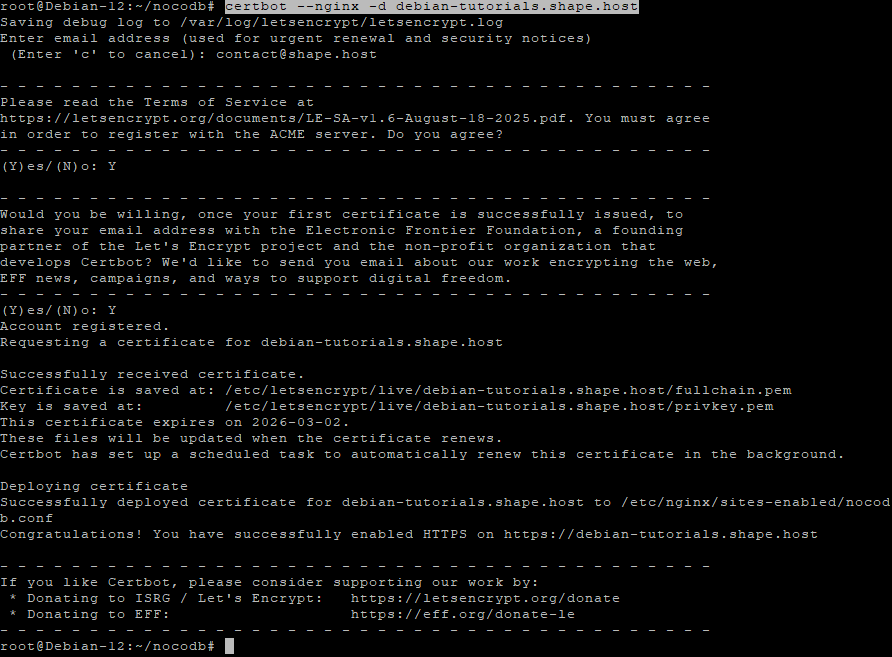
Step 23: Enable HTTPS with Certbot
certbot --nginx -d debian-tutorials.shape.host
Certbot automatically:
- Issues a free SSL certificate
- Updates the Nginx config
- Enables HTTPS
- Reloads Nginx
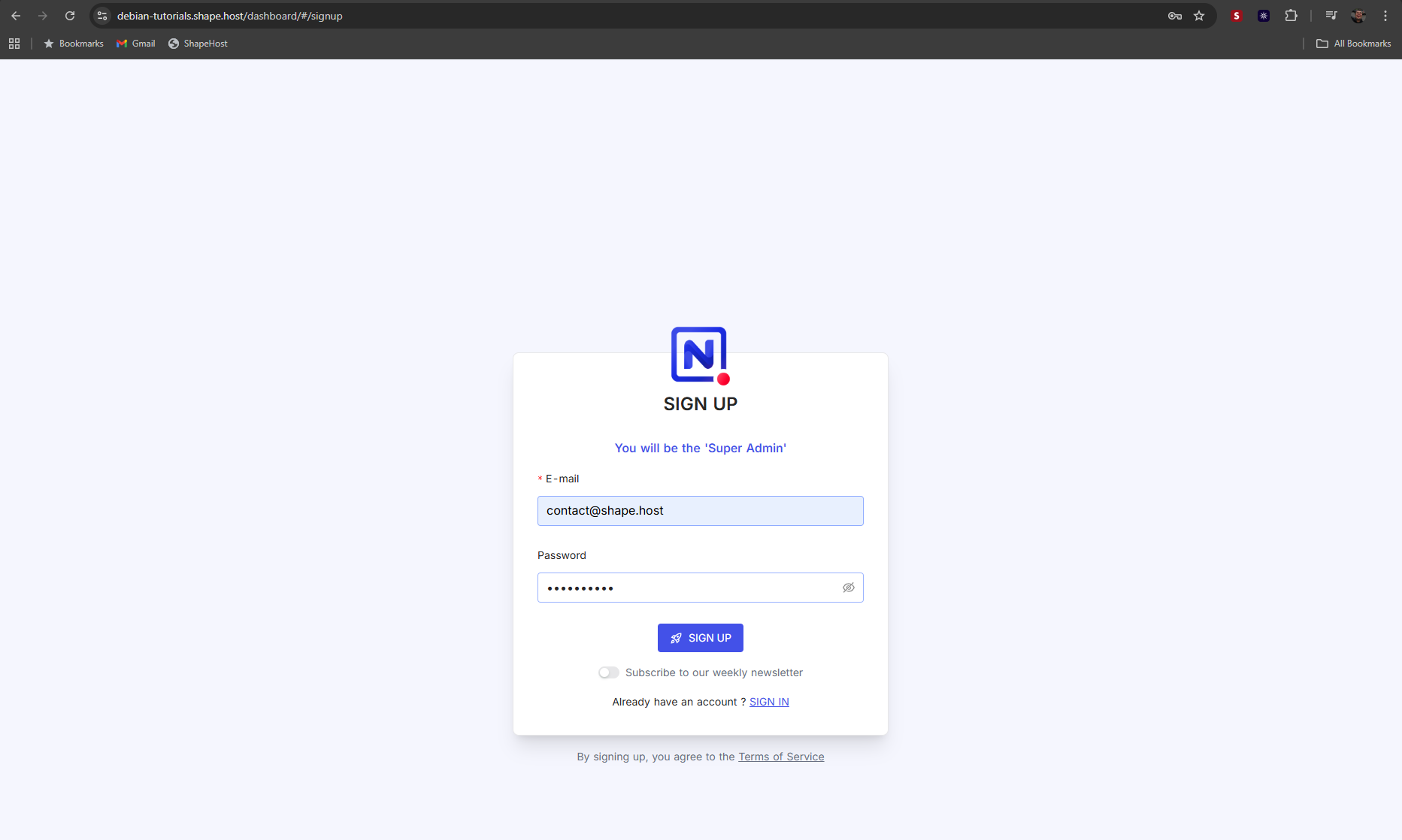
Step 24: Access NocoDB
Open:
https://your.domain.com
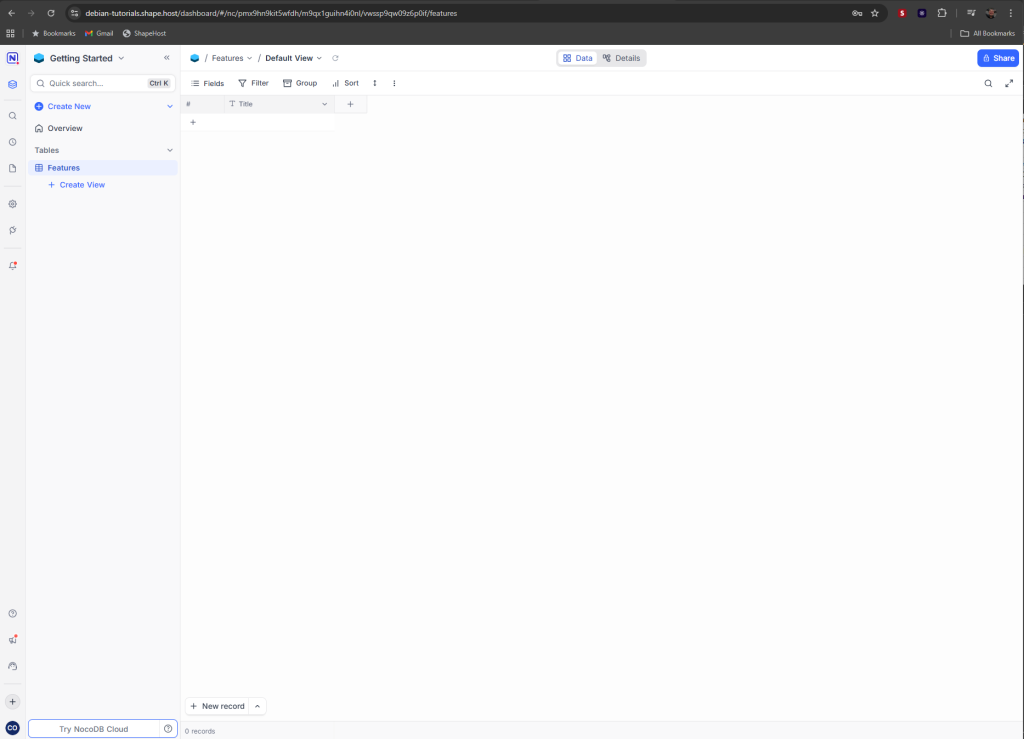
NocoDB is now fully installed, secured, and ready to use.
For hosting modern applications like NocoDB, HedgeDoc, Paperless-ngx, Appwrite, Focalboard, and others, Shape.Host Linux SSD VPS provides:
- High-performance NVMe storage
- Fast deployment
- Clean OS images
- Excellent uptime
- Scalable cloud resources
Ideal for developers, businesses, and self-hosted platforms.
