Jitsi Meet on Debian 12
(Self-Hosted Video Conferencing + Nginx + SSL)
Jitsi Meet is a powerful, open-source video conferencing platform that allows secure audio and video meetings directly in the browser — without requiring user accounts, plugins, or proprietary software. It supports HD video, screen sharing, chat, meeting moderation, recording/streaming, and optional end-to-end encryption (E2EE), making it a strong alternative to Zoom, Google Meet, or Microsoft Teams.
Unlike cloud-based video conferencing services, Jitsi Meet can be fully self-hosted, giving you complete control over meeting data, media traffic, and user access. This makes it especially suitable for organizations that care about privacy, compliance, and infrastructure ownership.
Running Jitsi Meet on Debian 12 (Bookworm) provides a stable, security-focused, and long-term supported operating system. Debian 12 includes OpenSSL 3, systemd 252, and mature networking packages, making it an excellent foundation for a production-grade, self-hosted video conferencing server.
Architecture Overview
| Layer | Component | Role |
|---|---|---|
| OS | Debian 12 (Bookworm) | Stable, long-term supported Linux base |
| Web Server | Nginx | HTTPS termination and web access |
| Web App | Jitsi Meet | Browser-based meeting interface |
| Media Server | Jitsi Videobridge | Handles audio/video streams |
| Signaling | Prosody + Jicofo | Authentication, signaling, room control |
| Transport | UDP / TCP | Real-time media transport (WebRTC) |
| TLS | Let’s Encrypt / PKI | Encrypted connections |
Jitsi’s modular design allows it to scale from small private meetings to large multi-participant conferences.
Why Use Jitsi Meet?
- Open-source & self-hosted – no vendor lock-in
- No user accounts required – join meetings via simple links
- High-quality audio & video – WebRTC-based
- Screen sharing & chat – built-in collaboration tools
- Meeting moderation – lobby, passwords, participant controls
- End-to-end encryption (E2EE) – optional enhanced privacy
- Browser-based – works on all modern browsers
- Scalable architecture – suitable for teams and organizations
Jitsi Meet is ideal for users who want private, secure video conferencing without SaaS dependencies.
Jitsi Meet vs Other Video Conferencing Platforms
| Feature / Capability | Jitsi Meet | Zoom | Google Meet | Microsoft Teams |
|---|---|---|---|---|
| Hosting | Self-hosted | Cloud only | Cloud only | Cloud only |
| Open-source | ✅ Yes | ❌ No | ❌ No | ❌ No |
| Data ownership | Full control | Vendor-controlled | Vendor-controlled | Vendor-controlled |
| Accounts required | ❌ No | ✅ Yes | ✅ Yes | ✅ Yes |
| E2EE | ✅ Yes | Partial | Partial | Partial |
| Cost | Free (self-hosted) | Free / Paid | Free | Paid |
Jitsi stands out for privacy, flexibility, and infrastructure control.
Security & Best Practices on Debian 12
- Serve Jitsi only over HTTPS.
- Use Let’s Encrypt SSL certificates with automatic renewal.
- Open required ports:
- 443/TCP – HTTPS
- 10000/UDP – media traffic
- Optional fallbacks: 4443/TCP, 5349/TCP
- Use UFW or nftables to restrict unused ports.
- Enable room moderation (passwords, lobby).
- Keep Debian and Jitsi packages updated regularly.
- Monitor CPU, RAM, disk, and network bandwidth.
- Use a dedicated domain or subdomain (e.g.
meet.example.com). - Tune Nginx and Videobridge settings for performance.
- For larger deployments, consider multiple videobridges.
Typical Use Cases
- Team meetings and stand-ups
- Private business calls
- Remote education and training
- Internal company conferencing
- Privacy-focused organizations
- Self-hosted alternatives to Zoom or Meet
- Government, NGO, or compliance-sensitive environments
Deploying Jitsi Meet on Debian 12 gives you a secure, scalable, and fully self-hosted video conferencing solution — combining modern WebRTC technology with full data ownership, strong encryption, and Debian’s proven stability.
Step 1: Create a Server Instance on Shape.Host
Before installing Jitsi Meet, you need a VPS with a public IP address.
Log in to https://shape.host
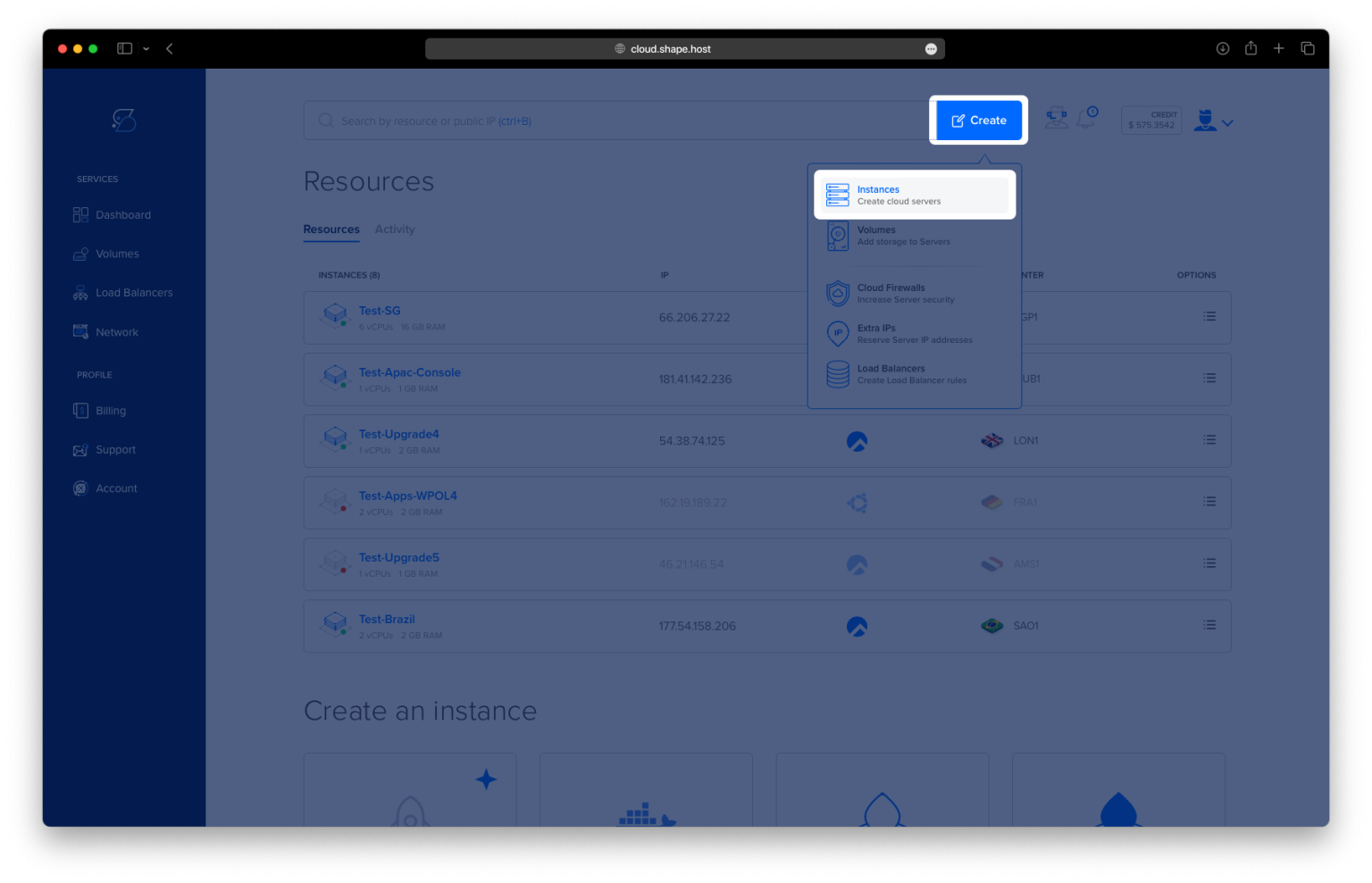
Click Create → Instance

Choose a data center close to your users

Select a plan with at least:
2 CPU cores (4 recommended for multiple participants)
4 GB RAM
40 GB SSD storage
Choose Debian 12 (Bookworm) as the operating system

Create the instance and wait for provisioning

Copy the public IP address of the server

Step 2: Connect to the Server (Linux, macOS & Windows)
Linux / macOS
ssh root@YOUR_SERVER_IP
Windows (PowerShell / Windows Terminal)
ssh root@YOUR_SERVER_IP
Windows (PuTTY)
- Host Name:
YOUR_SERVER_IP - Port:
22 - Connection type:
SSH - Username:
root
After connecting, you should see a root shell prompt.
Step 3: Update the Operating System
apt update
- Refreshes the local package index
apt upgrade -y
- Installs all available security and system updates
- Ensures compatibility with Jitsi dependencies

Step 4: Set the Hostname (Mandatory for Jitsi)
Jitsi requires a fully qualified domain name (FQDN) to function correctly.
hostnamectl set-hostname debian-tutorials.shape.host
- Sets the system hostname permanently
Edit the hosts file:
nano /etc/hosts
Add or update the following lines (replace the IP):
127.0.0.1       localhost
YOUR_SERVER_IP  meet.example.com
This ensures local hostname resolution works correctly.

Verify hostname:
hostname

Update package lists again:
apt update
apt upgrade

Reboot the server to fully apply hostname changes:
reboot
Reconnect via SSH after reboot.
Step 5: Install and Configure Firewall (UFW)
Jitsi requires several ports for signaling, media, and NAT traversal.
apt install ufw

ufw allow 22/tcp
- Allows SSH access
ufw allow 80/tcp
ufw allow 443/tcp
- Allows HTTP and HTTPS traffic
ufw allow 10000/udp
- Main Jitsi video/audio media port
ufw allow 3478/udp
- STUN/TURN (UDP)
ufw allow 5349/tcp
- TURN over TCP (fallback for restricted networks)
Enable firewall:
ufw enable

Check firewall status:
ufw status

Step 6: Install Java Runtime Environment
Jitsi components require Java to run.
apt install openjdk-17-jre-headless
- Installs Java 17 runtime (recommended for Debian 12)

Verify Java installation:
java -version

If multiple Java versions are present, select Java 17:
update-alternatives --config java
Step 7: Add Jitsi Package Repository
Install GPG support:
apt install gnupg
Download and store the Jitsi signing key:
curl -fsSL https://download.jitsi.org/jitsi-key.gpg.key | gpg --dearmor > /usr/share/keyrings/jitsi-keyring.gpg
Verify the key exists:
ls -lah /usr/share/keyrings/jitsi-keyring.gpg
Add the Jitsi repository:
echo "deb [signed-by=/usr/share/keyrings/jitsi-keyring.gpg] https://download.jitsi.org stable/" > /etc/apt/sources.list.d/jitsi-stable.list
Update package lists:
apt update

Step 8: Install Jitsi Meet
apt install jitsi-meet

During installation you will be prompted:
Hostname
meet.example.com
SSL certificate
- Choose Generate a new self-signed certificate
This certificate is temporary. You can later replace it with Let’s Encrypt if needed.


Step 9: Restart Jitsi Services
After installation, restart all Jitsi components to ensure everything loads correctly.
systemctl restart prosody
systemctl restart jicofo
systemctl restart jitsi-videobridge2
systemctl restart nginx

Check service status:
systemctl status prosody jicofo jitsi-videobridge2 nginx
All services should be active (running).

Step 10: Access Jitsi Meet
Open your browser:
https://meet.example.com
You now have:
- A self-hosted Jitsi Meet server
- Running on Debian 12
- Ready for secure video conferencing

You installed Jitsi Meet on Debian 12, configured the required hostname and firewall rules, installed all necessary dependencies, and verified that all core services are running correctly. This setup is suitable for private meetings, internal company communication, or public conferencing without relying on third-party providers.
For hosting real-time communication platforms with reliability, performance, and full root access, Shape.Host Cloud VPS provides a stable and scalable foundation for production deployments.