 Christian Wells
Set Up Dokploy on AlmaLinux 10 and Route the Panel
Dokploy on AlmaLinux 10 gives you a self-hosted deployment platform for Docker workloads with a modern web panel, built-in Traefik routing, database and service support, and Docker Swarm orchestration. It is a strong fit when you want a lightweight PaaS-style experience on your own server without depending on a managed control plane.
In this guide, we rebuild a fresh AlmaLinux 10.1 server on Shape.Host, verify the current Dokploy release from the official project, install Docker from Docker’s official repository because Dokploy’s bundled Docker path does not support this AlmaLinux build cleanly, install Dokploy 0.28.6, route the panel through Traefik on tutorials.shape.host, and validate the running platform from both the terminal and a browser.
What Is Dokploy?
Dokploy is a self-hosted deployment platform designed around Docker and Docker Swarm. It gives you a web interface for applications, databases, routing, and infrastructure management while still running on servers you control. That makes it appealing for teams or individuals who want simpler app deployment flows without abandoning their own infrastructure.
Versions Used in This Tutorial
| Component | Version Verified | Source |
|---|---|---|
| AlmaLinux | 10.1 | Fresh Shape.Host restore and /etc/os-release check |
| Dokploy | 0.28.6 | Latest GitHub release at install time |
| Docker Engine | 29.3.0 | Installed from Docker’s official repository |
| Docker Compose | 5.1.0 | Installed from Docker’s official repository |
| Traefik | 3.6.7 | Installed by Dokploy for routing |
| Database stack | PostgreSQL 16 and Redis 7 | Installed by Dokploy as part of the platform stack |
Why Use Dokploy on AlmaLinux 10?
- AlmaLinux 10 gives you a modern RHEL-compatible base with long support windows.
- Dokploy bundles a clean Docker Swarm-based platform model that is easy to understand and operate.
- Its built-in Traefik layer makes it practical to publish apps and panel routes on real hostnames.
- A dedicated VM keeps the control plane, deployment logic, and app workloads on infrastructure you manage.
Prerequisites
- A fresh AlmaLinux 10 server
- Root or sudo access
- A hostname pointed to the server IP, in this example
tutorials.shape.host - At least 2 vCPU, 4 GB RAM, and 50 GB storage
- Ports
80,443, and3000available
1. Verify the Operating System
Start by confirming that the rebuilt server is actually running AlmaLinux 10.1.
cat /etc/os-release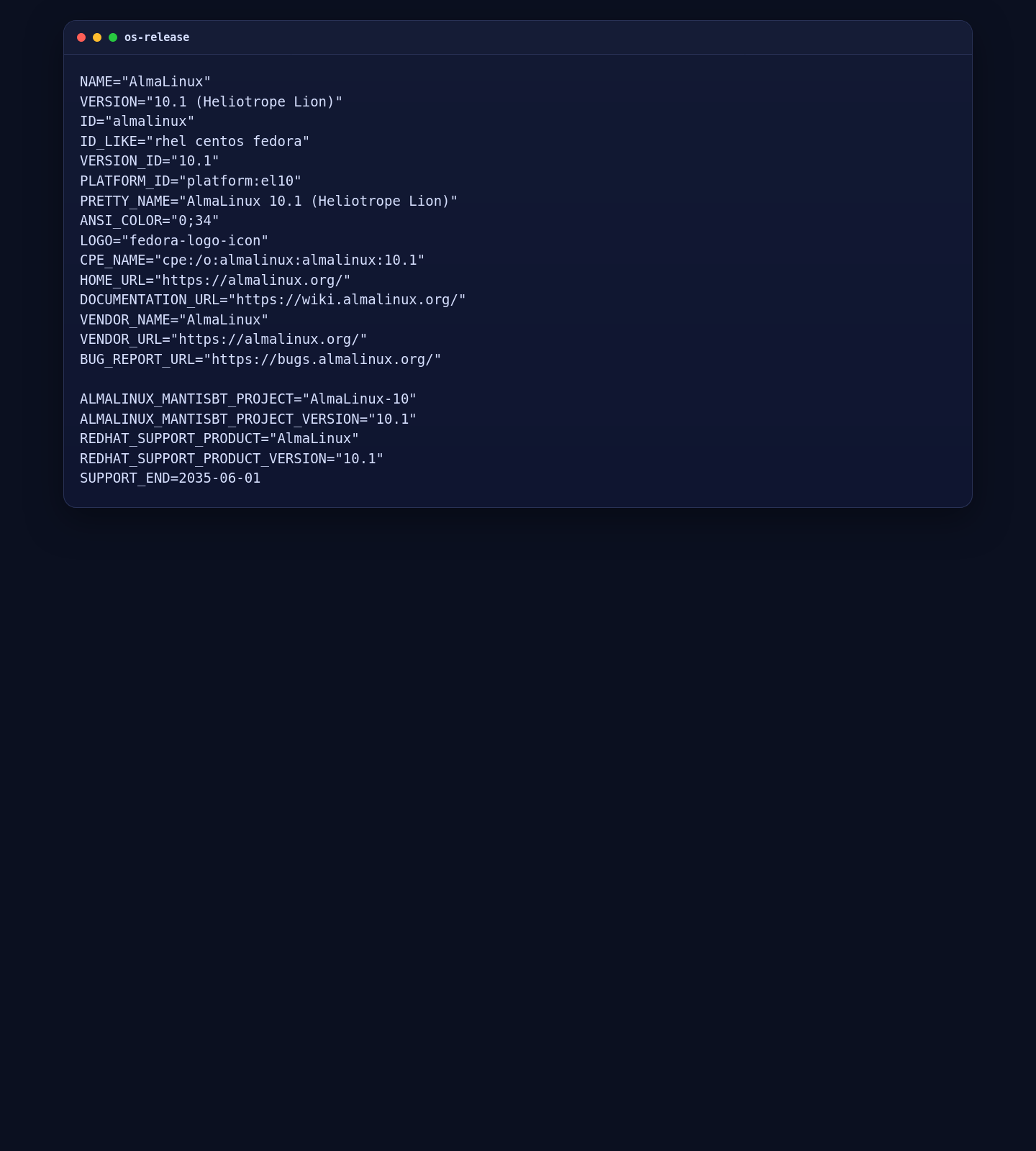
2. Install Docker from the Official Repository
On this tested AlmaLinux 10.1 server, Dokploy’s installer fell back to Docker’s convenience script and that helper returned Unsupported distribution 'almalinux'. The reliable AlmaLinux path is to install Docker yourself from Docker’s official CentOS or Enterprise Linux repository first.
dnf -y install dnf-plugins-core curl ca-certificates
dnf config-manager --add-repo https://download.docker.com/linux/centos/docker-ce.repo
dnf -y install docker-ce docker-ce-cli containerd.io docker-buildx-plugin docker-compose-plugin
systemctl enable --now docker

docker --version
docker compose version
On the live Shape.Host deployment, that resulted in Docker Engine 29.3.0 and Docker Compose 5.1.0.
3. Install Dokploy with an Explicit Advertise Address
The Dokploy installer on this server also needed an explicit advertise address because it could not discover a private one automatically. For this deployment, the public server address was used successfully.
export DOKPLOY_VERSION="v0.28.6"
export ADVERTISE_ADDR="51.89.69.216"

curl -fsSL https://dokploy.com/install.sh | sh
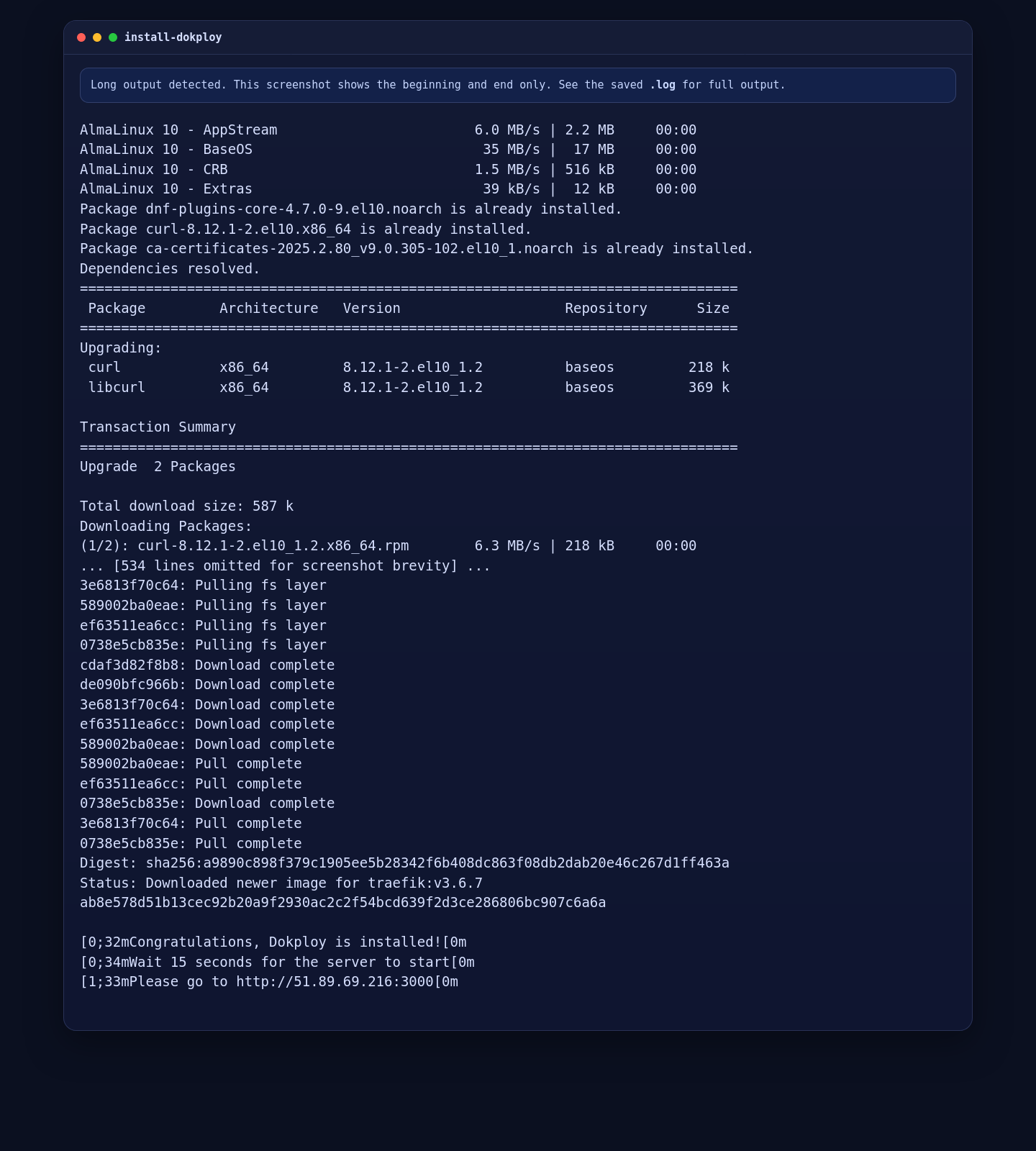
After the install completes, Dokploy tells you to access the panel on port 3000. You can confirm the first redirect locally with:
curl -I http://127.0.0.1:3000/On the validated AlmaLinux run, Dokploy redirected the first request to /register, which is the expected initial panel flow.
4. Check the Platform Services
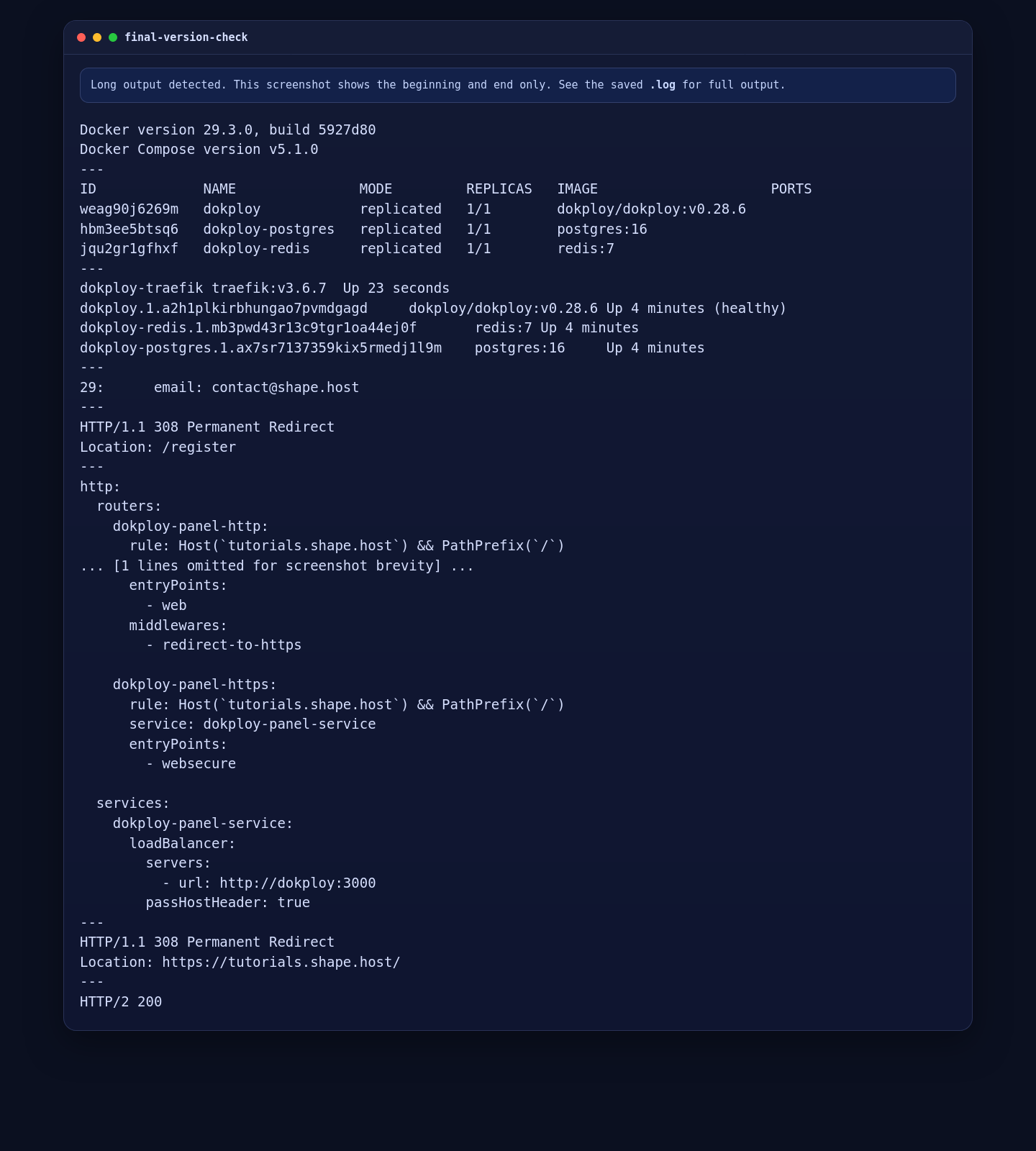
Dokploy uses Docker Swarm and deploys its own platform services. Validate the service list and running containers before adding the public hostname route.
docker service ls
docker ps --format '{{.Names}}\t{{.Image}}\t{{.Status}}'
On this deployment, Dokploy brought up:
dokployas the main panel servicedokploy-postgreson PostgreSQL 16dokploy-redison Redis 7dokploy-traefikas the public routing layer
5. Set the ACME Email and Route the Panel on tutorials.shape.host
Dokploy’s default Traefik config used test@localhost.com for ACME on this server, so that was updated first to match the tutorial workflow. Then a file-provider route was added for the panel hostname.
sed -i 's/email: test@localhost.com/email: contact@shape.host/' /etc/dokploy/traefik/traefik.yml
docker restart dokploy-traefik

cat >/etc/dokploy/traefik/dynamic/tutorials-panel.yml <<'EOF'
http:
  routers:
    dokploy-panel-http:
      rule: Host(`tutorials.shape.host`) && PathPrefix(`/`)
      service: dokploy-panel-service
      entryPoints:
        - web
      middlewares:
        - redirect-to-https

    dokploy-panel-https:
      rule: Host(`tutorials.shape.host`) && PathPrefix(`/`)
      service: dokploy-panel-service
      entryPoints:
        - websecure

  services:
    dokploy-panel-service:
      loadBalancer:
        servers:
          - url: http://dokploy:3000
        passHostHeader: true
EOF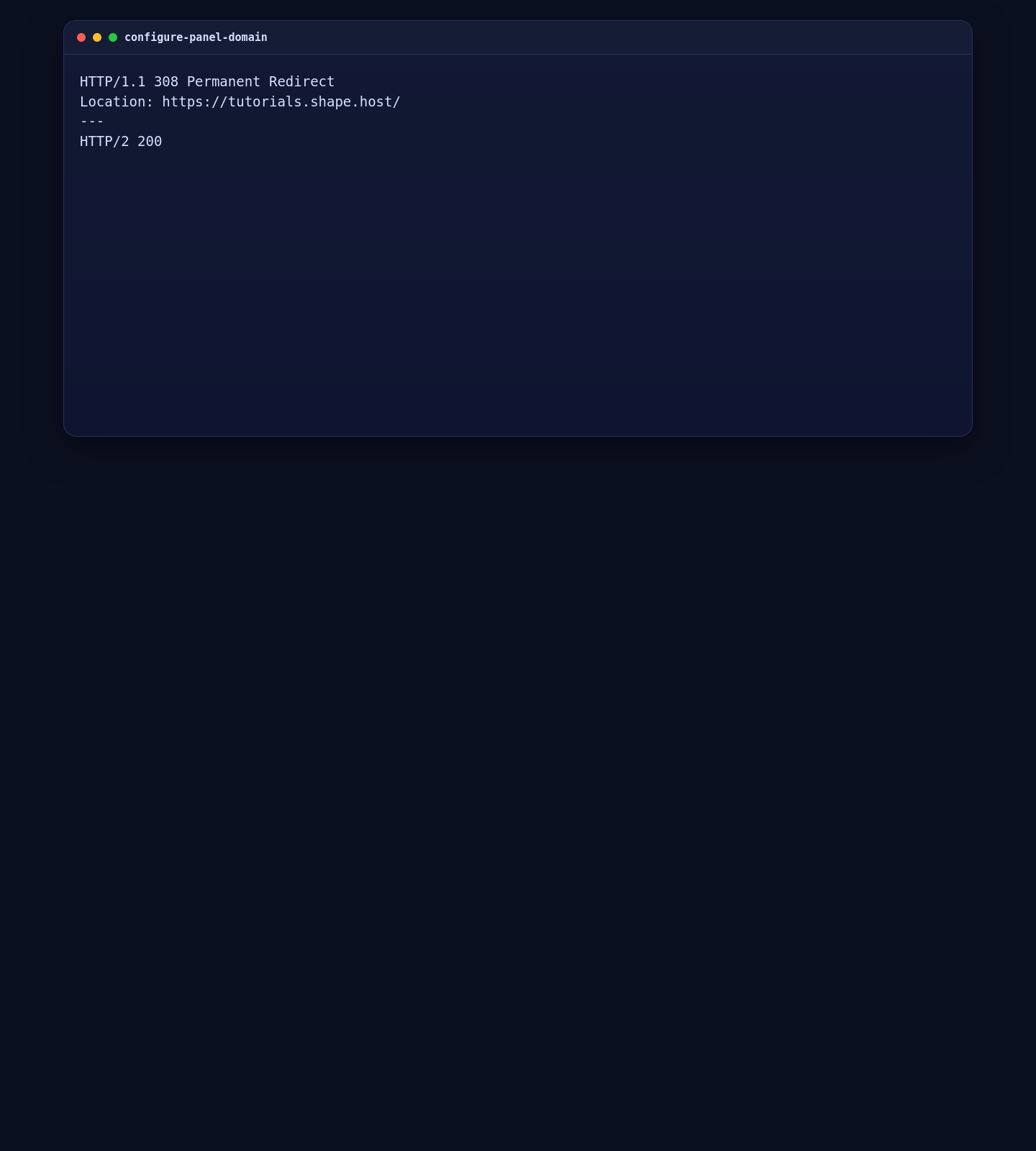
6. Validate the Local Panel and the Public Route
Use these checks to confirm both the base panel and the routed hostname:
curl -sI http://127.0.0.1:3000/ | grep -E '^(HTTP/|Location:|Server:)'

curl -sI --resolve tutorials.shape.host:80:127.0.0.1 \
  http://tutorials.shape.host/ | grep -E '^(HTTP/|Location:|Server:)'

curl -skI --resolve tutorials.shape.host:443:127.0.0.1 \
  https://tutorials.shape.host/register | grep -E '^(HTTP/|Location:|Server:)'
On the tested Shape.Host deployment, the local panel returned a redirect to /register, the hostname route returned an HTTP 308 Permanent Redirect to HTTPS, and the HTTPS panel page returned HTTP/2 200.
7. Open the Browser and Complete the Initial Setup
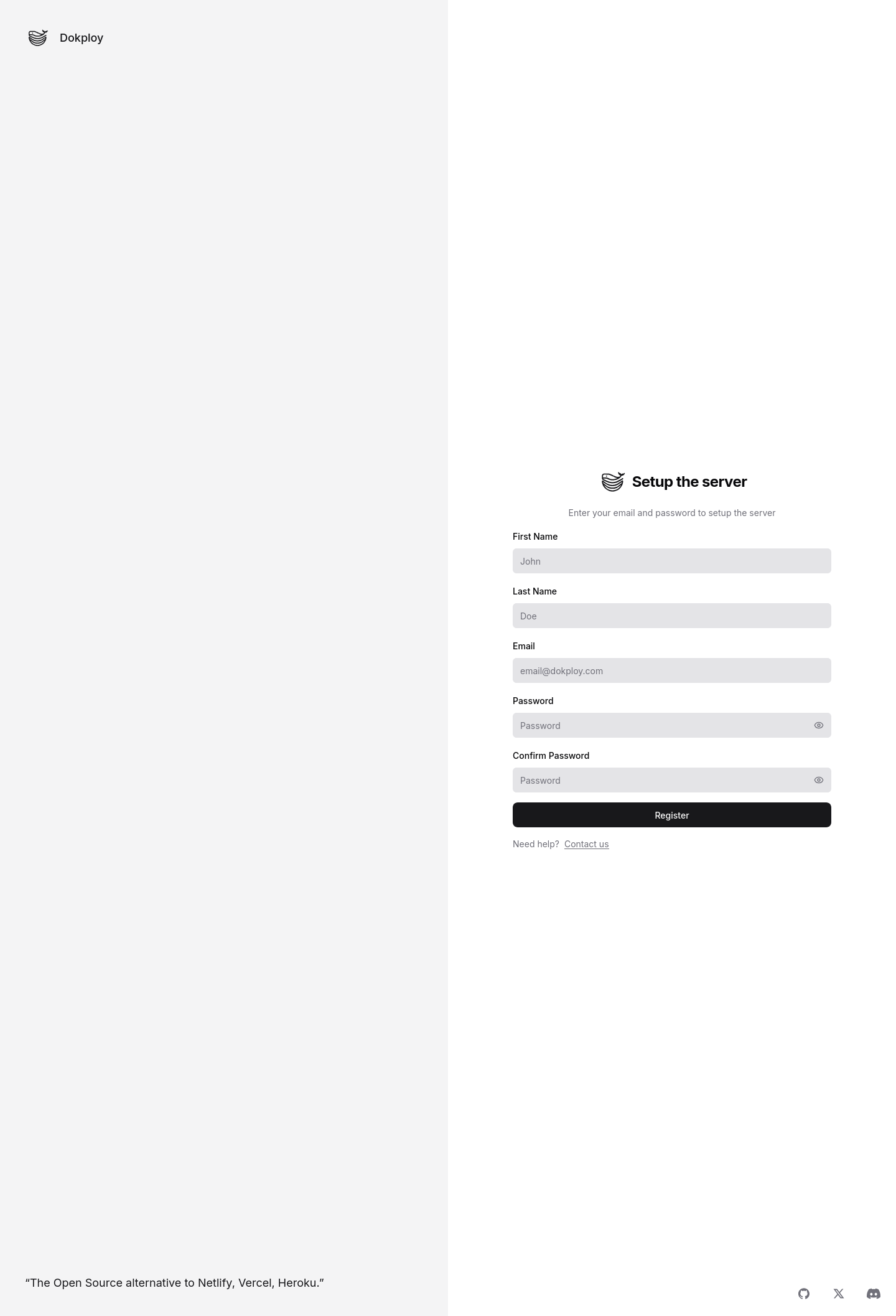
Open https://tutorials.shape.host/register in a browser to reach the Dokploy registration page and complete the initial panel setup.
Important SSL Note for This Shared Tutorial Hostname
On March 17, 2026, tutorials.shape.host had already hit Let’s Encrypt’s exact-set weekly issuance limit. Because of that, Traefik could route the panel correctly but could not obtain a fresh trusted certificate for this hostname during the test window. The HTTPS route still worked with the temporary certificate, and on a fresh hostname or after the rate-limit window resets, the same Traefik route should be able to obtain a normal trusted certificate automatically.
Troubleshooting Notes
- If Dokploy reports that Docker installation is unsupported on AlmaLinux, install Docker manually from Docker’s official repository before running the Dokploy installer again.
- If the installer cannot find a private IP address, export
ADVERTISE_ADDRmanually before running it. - If the panel works on port
3000but not on the public hostname, verify the Traefik route file and confirm thattutorials.shape.hoststill resolves to the server IP. - If HTTPS serves a temporary or self-signed certificate, inspect
docker logs dokploy-traefikfor ACME validation or rate-limit errors. - If you want to validate the routed hostname directly from the server, use the
curl --resolvechecks from the validation section.
Conclusion
You now have a working Dokploy installation on AlmaLinux 10 with Docker Swarm, Traefik routing, and a live panel route on tutorials.shape.host. On this validated Shape.Host deployment, the installed Dokploy release was 0.28.6.
The next sensible steps are creating the first admin account, connecting your first project, and testing an application deployment through the Dokploy panel.
