Deploy Dokploy on Ubuntu 24.04 and Route the Panel
Dokploy on Ubuntu 24.04 gives you a self-hosted deployment platform for Docker workloads with a clean web panel, built-in Traefik routing, database support, and Docker Swarm orchestration. It is a practical choice when you want a PaaS-style workflow on infrastructure you control instead of relying on a hosted control plane.
In this guide, we restore a fresh Ubuntu 24.04.1 LTS server on Shape.Host, verify the current Dokploy release from the official project, install Dokploy 0.28.7 with the official installer, publish the panel on tutorials.shape.host, and validate the final platform from both the terminal and a browser.
What Is Dokploy?
Dokploy is a self-hosted application platform designed around Docker and Docker Swarm. It provides a web interface for deployments, databases, routing, and infrastructure tasks while still running directly on your own server. That makes it useful for teams or individual operators who want simpler application delivery without giving up control of the machine itself.
Versions Used in This Tutorial
| Component | Version Verified | Source |
|---|---|---|
| Ubuntu | 24.04.1 LTS | Fresh Shape.Host restore and /etc/os-release validation |
| Dokploy | 0.28.7 | Latest GitHub release on March 18, 2026 |
| Docker Engine | 28.5.0 | Installed by Dokploy’s official installer on this Ubuntu run |
| Docker Compose | 5.1.0 | Installed alongside Docker by the official installer |
| Traefik | 3.6.7 | Installed by Dokploy for routing |
| Database stack | PostgreSQL 16 and Redis 7 | Installed by Dokploy as platform services |
Why Use Dokploy on Ubuntu 24.04?
- Ubuntu 24.04.1 LTS gives you a modern and widely supported Linux base for production services.
- Dokploy bundles a simple Docker Swarm platform model that is easy to understand and manage.
- The built-in Traefik layer makes it straightforward to expose the panel and application routes on real hostnames.
- A dedicated VM keeps the control plane, routing, and app workloads on infrastructure you own.
Prerequisites
- A fresh Ubuntu 24.04 server
- Root or sudo access
- A hostname pointed to the server IP, in this example
tutorials.shape.host - At least 2 vCPU, 4 GB RAM, and 50 GB storage
- Ports
80,443, and3000available
1. Verify the Operating System
Start by confirming that the rebuilt server is actually running Ubuntu 24.04.1 LTS.
cat /etc/os-release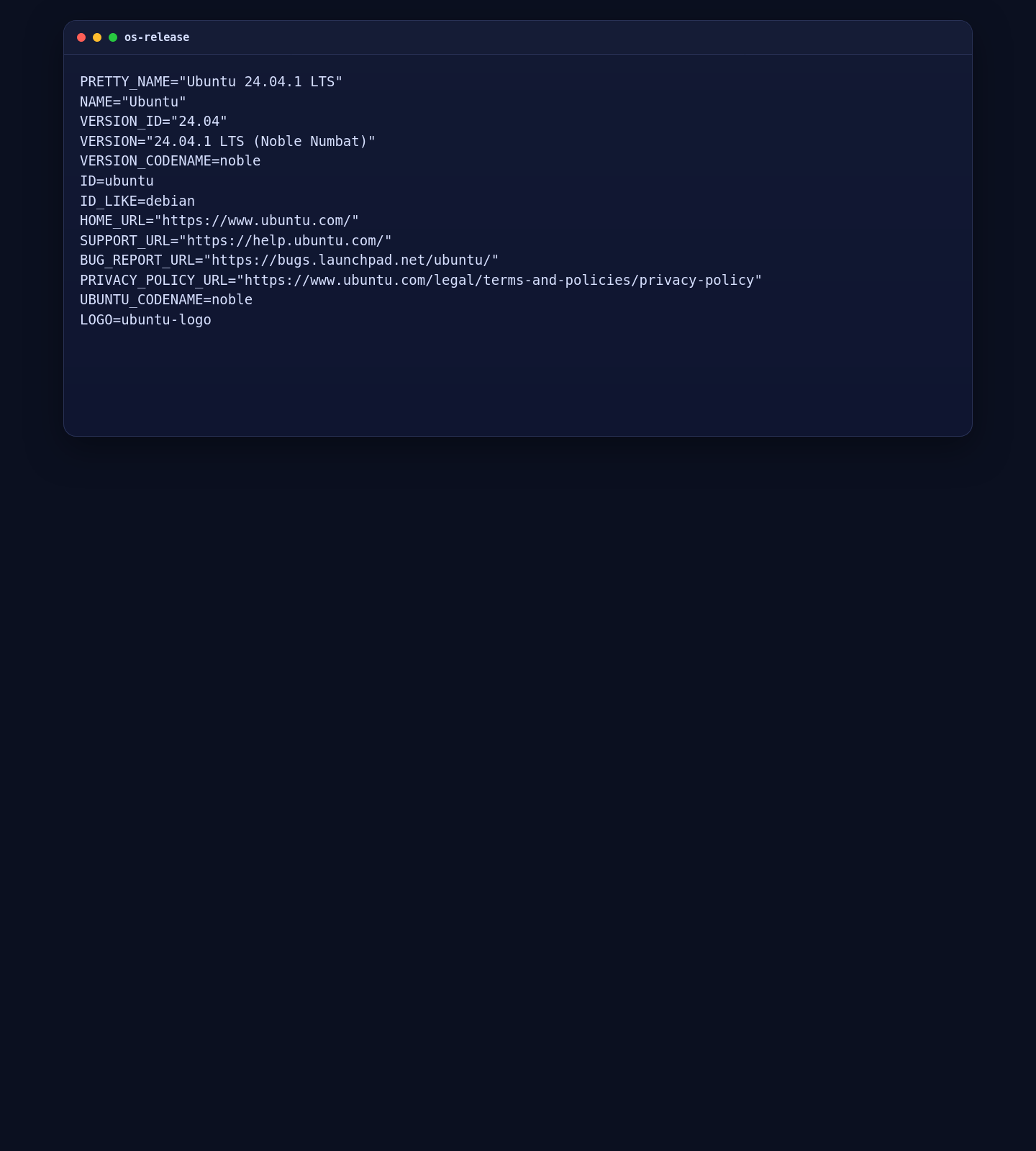
2. Install Dokploy with the Official Script
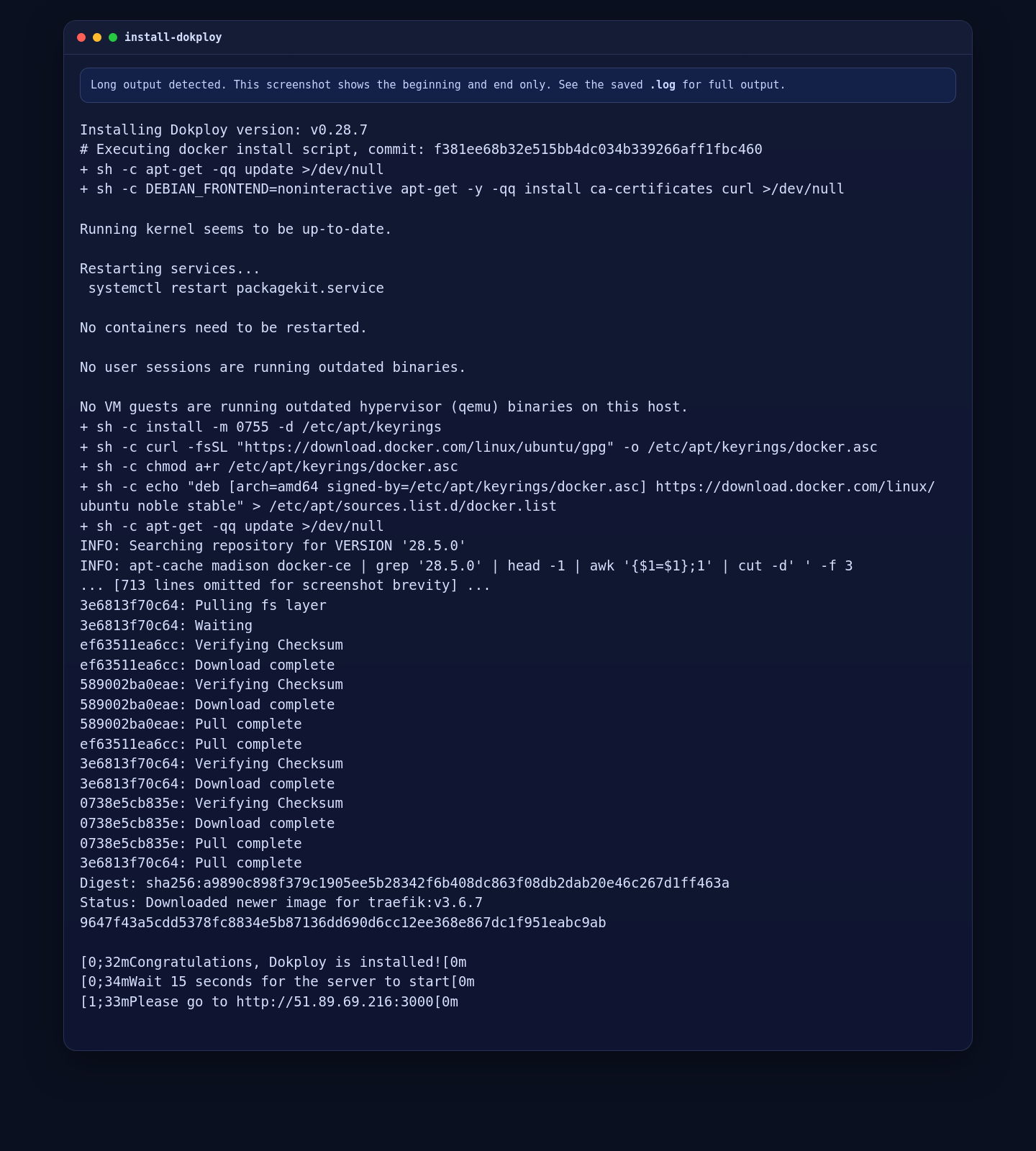
On this validated Ubuntu 24.04.1 deployment, Dokploy’s official installer completed successfully on a fresh server and installed Docker automatically. To keep the article reproducible, the current stable Dokploy release is pinned explicitly before the install starts.
export DOKPLOY_VERSION="v0.28.7"
export ADVERTISE_ADDR="51.89.69.216"

curl -fsSL https://dokploy.com/install.sh | sh
After the installation finishes, Dokploy tells you to open the panel on port 3000. Confirm the first redirect locally with:
curl -I http://127.0.0.1:3000/On the live Shape.Host run, the installer brought up Dokploy successfully and the local panel redirected to /register, which is the expected first-run flow.
3. Check the Platform Services
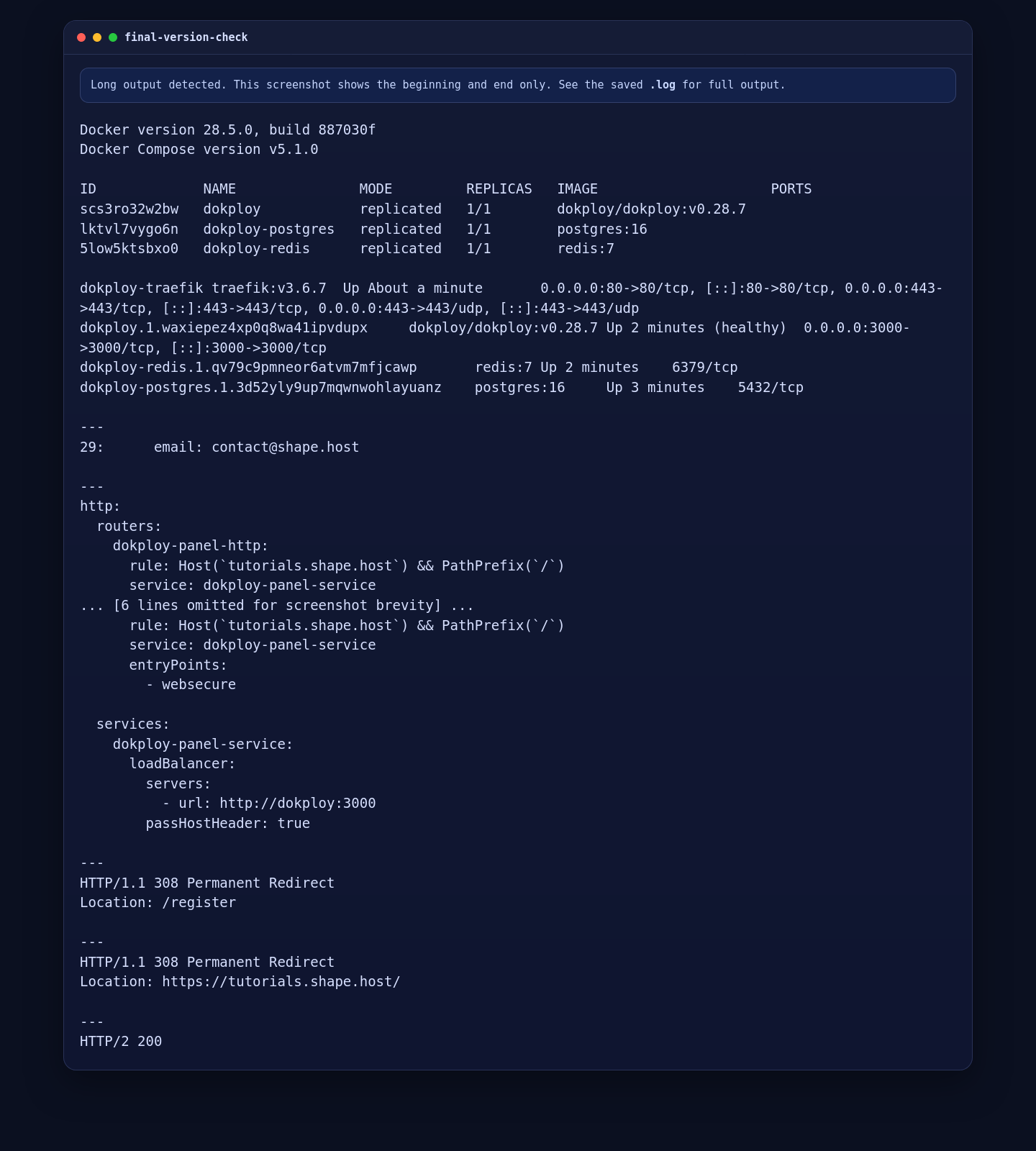
Dokploy uses Docker Swarm and starts its own platform services. Validate the service list and running containers before adding the public hostname route.
docker --version
docker compose version
docker service ls
docker ps --format '{{.Names}}\t{{.Image}}\t{{.Status}}\t{{.Ports}}'
On this deployment, Dokploy brought up:
dokployas the main panel servicedokploy-postgreson PostgreSQL 16dokploy-redison Redis 7dokploy-traefikon Traefik 3.6.7 for public routing
4. Set the ACME Email and Route the Panel on tutorials.shape.host
Dokploy’s default Traefik configuration used test@localhost.com for ACME on this server, so that was updated first to match the tutorial workflow. After that, a file-provider route was added for the panel hostname.
sed -i 's/email: test@localhost.com/email: contact@shape.host/' /etc/dokploy/traefik/traefik.yml
docker restart dokploy-traefik

cat >/etc/dokploy/traefik/dynamic/tutorials-panel.yml <<'EOF'
http:
  routers:
    dokploy-panel-http:
      rule: Host(`tutorials.shape.host`) && PathPrefix(`/`)
      service: dokploy-panel-service
      entryPoints:
        - web
      middlewares:
        - redirect-to-https

    dokploy-panel-https:
      rule: Host(`tutorials.shape.host`) && PathPrefix(`/`)
      service: dokploy-panel-service
      entryPoints:
        - websecure

  services:
    dokploy-panel-service:
      loadBalancer:
        servers:
          - url: http://dokploy:3000
        passHostHeader: true
EOF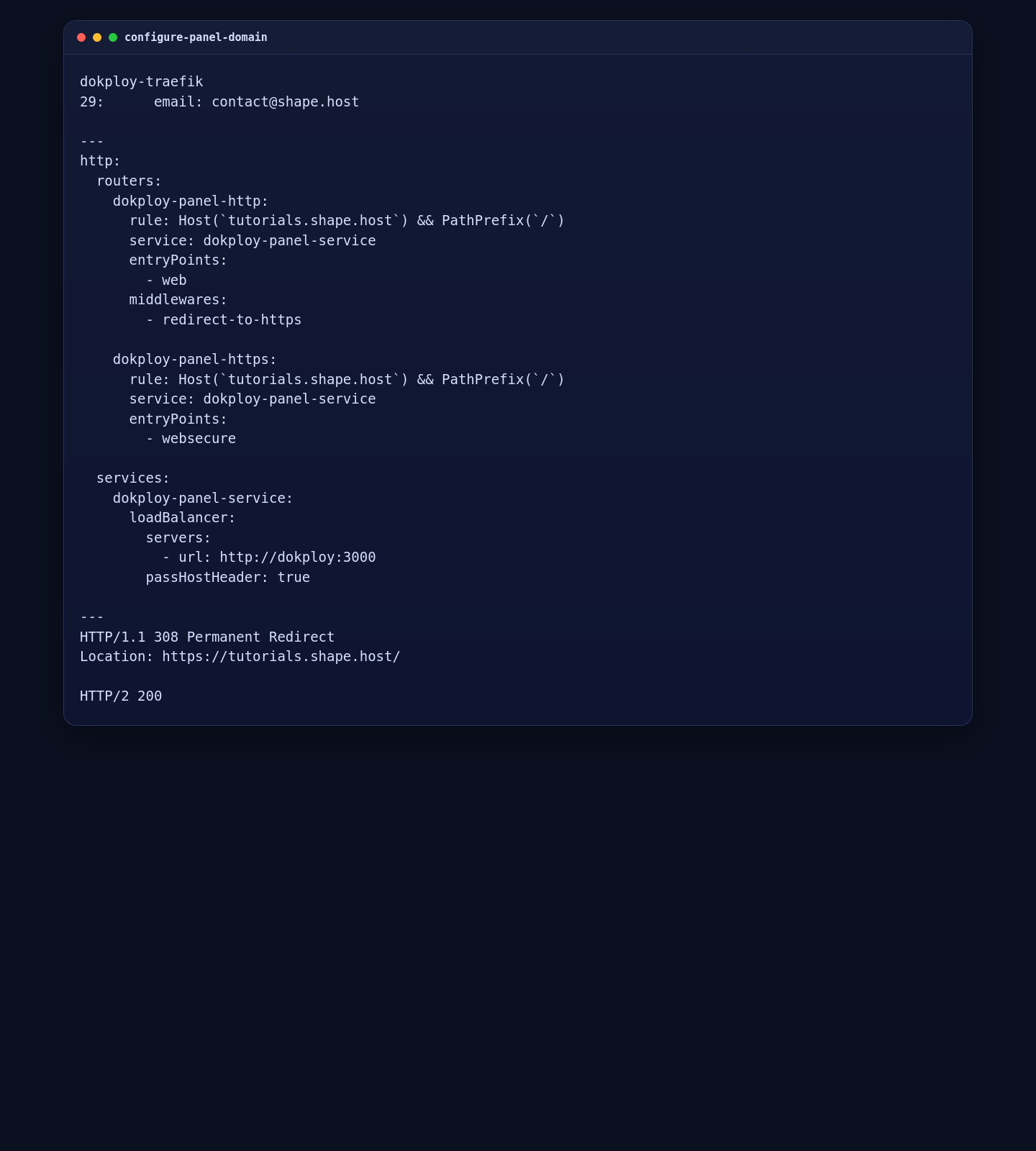
5. Validate the Local Panel and the Public Route
Run these checks to confirm the base panel, the hostname redirect, and the HTTPS route:
curl -sI http://127.0.0.1:3000/ | grep -E '^(HTTP/|Location:|Server:)'

curl -sI --resolve tutorials.shape.host:80:127.0.0.1 \
  http://tutorials.shape.host/ | grep -E '^(HTTP/|Location:|Server:)'

curl -skI --resolve tutorials.shape.host:443:127.0.0.1 \
  https://tutorials.shape.host/register | grep -E '^(HTTP/|Location:|Server:)'
On the tested Ubuntu deployment, the local panel returned an HTTP 308 Permanent Redirect to /register, the hostname route redirected HTTP to HTTPS, and the HTTPS registration page returned HTTP/2 200.
6. Open the Browser and Complete the Initial Setup
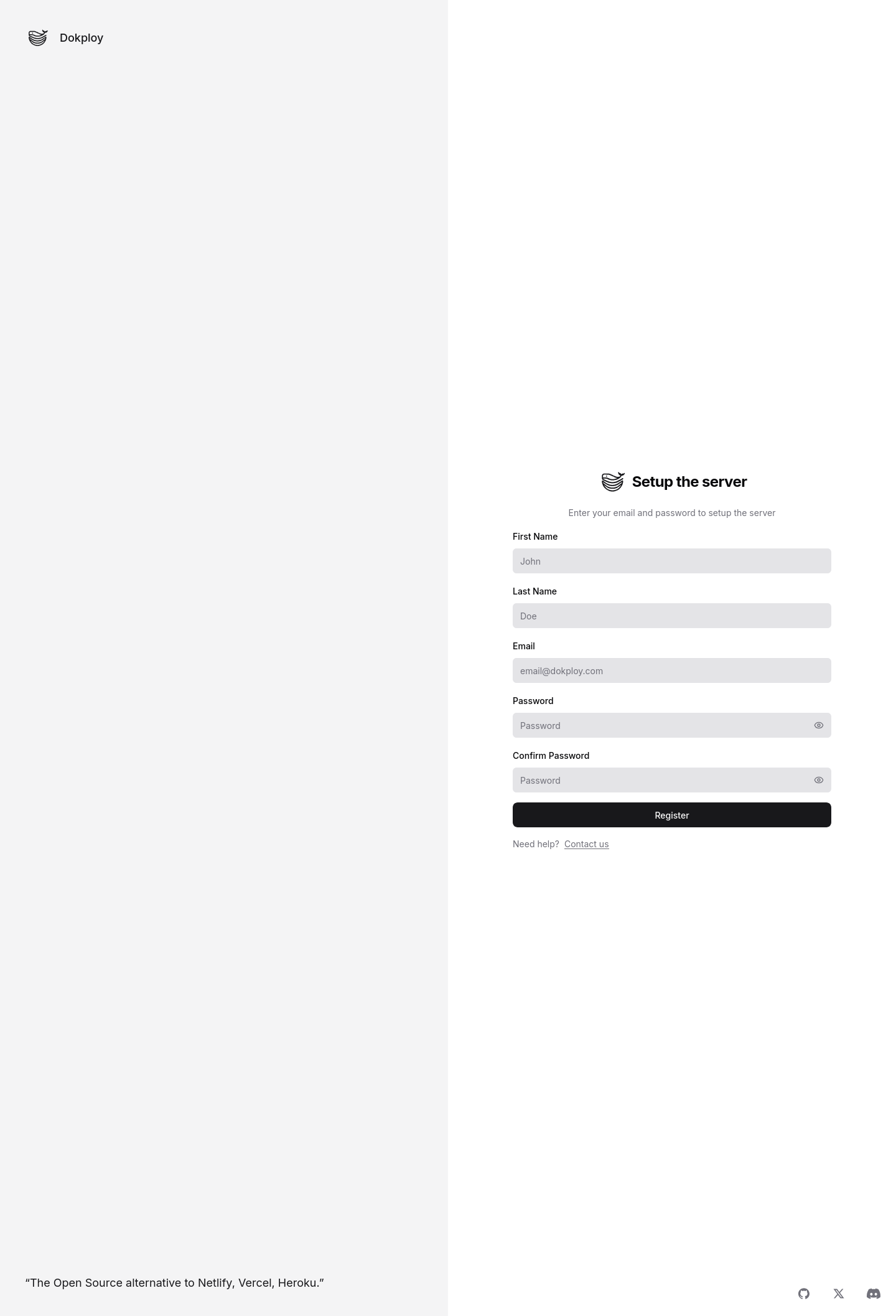
Open https://tutorials.shape.host/register in a browser to reach the Dokploy registration page and complete the initial panel setup.
Important SSL Note for This Shared Tutorial Hostname
On March 18, 2026, tutorials.shape.host was still under Let’s Encrypt’s exact-set weekly issuance limit from recent tutorial runs. Because of that, Traefik could route the panel correctly but could not obtain a fresh trusted certificate for this hostname during the validation window. The HTTPS route still loaded successfully with the temporary certificate, and on a fresh hostname or after the rate-limit window resets, the same Traefik route should be able to obtain a normal trusted certificate automatically.
Troubleshooting Notes
- If the installer stops immediately, make sure ports
80,443, and3000are not already in use. - If the installer cannot detect the correct IP address automatically, export
ADVERTISE_ADDRmanually before running it. - If the panel works on port
3000but not on the public hostname, verify the Traefik route file and confirm thattutorials.shape.hoststill resolves to the server IP. - If HTTPS serves a temporary or self-signed certificate, inspect
docker logs dokploy-traefikfor ACME rate-limit or validation errors. - If you want to validate the routed hostname directly from the server, use the
curl --resolvechecks from the validation section.
Conclusion
You now have a working Dokploy installation on Ubuntu 24.04 with Docker Swarm, Traefik routing, and a live panel route on tutorials.shape.host. On this validated Shape.Host deployment, Dokploy installed successfully at version 0.28.7.
The next sensible steps are creating the first admin account, connecting your first project, and testing an application deployment through the Dokploy panel.