 Christian Wells
Deploy Uptime Kuma on AlmaLinux 10 with Docker and ZeroSSL
Uptime Kuma on AlmaLinux 10 gives you a self-hosted monitoring dashboard for websites, APIs, TCP services, SSL certificates, and custom uptime checks. It is a practical fit when you want modern monitoring on a RHEL-compatible server without depending on an external monitoring platform.
In this guide, we rebuild a fresh AlmaLinux 10.1 server on Shape.Host, verify the current Uptime Kuma release, install Docker from Docker’s official CentOS-compatible repository, deploy Uptime Kuma 2.2.1 with Docker Compose, place Nginx in front of it, open the required firewalld rules, enable the SELinux policy needed for proxying, issue a trusted ZeroSSL certificate for tutorials.shape.host, and validate the final HTTPS setup from both the terminal and a browser.
What Is Uptime Kuma?
Uptime Kuma is a self-hosted monitoring application that lets you monitor HTTP, TCP, DNS, ping, Docker, and push endpoints from a simple web interface. It also includes notifications, status pages, and SSL certificate tracking, which makes it useful for personal infrastructure and production services alike.
Versions Used in This Tutorial
| Component | Version Verified | Source |
|---|---|---|
| AlmaLinux | 10.1 | Fresh Shape.Host restore and /etc/os-release validation |
| Uptime Kuma | 2.2.1 | Latest GitHub release on March 18, 2026 |
| Docker Engine | 29.3.0 | Installed from Docker’s official repository |
| Docker Compose | 5.1.0 | Installed from Docker’s official repository |
| Nginx | 1.26.3 | AlmaLinux 10 package used in the live deployment |
| Certificate issuer | ZeroSSL ECC Domain Secure Site CA | Validated from the live certificate chain |
Why Use Uptime Kuma on AlmaLinux 10?
- AlmaLinux 10 gives you a stable RHEL-compatible base with a long support horizon.
- Uptime Kuma stays lightweight compared with larger monitoring stacks.
- Docker Compose makes deployment simple and repeatable.
- Nginx plus ZeroSSL gives you a clean public HTTPS endpoint for the monitoring interface.
Prerequisites
- A fresh AlmaLinux 10 server
- Root or sudo access
- A hostname pointed to the server IP, in this example
tutorials.shape.host - ZeroSSL EAB credentials for ACME issuance
- At least 2 vCPU, 4 GB RAM, and 50 GB storage
- Ports
80and443open to the internet
1. Verify the Operating System
Start by confirming that the rebuilt server is actually running AlmaLinux 10.1.
cat /etc/os-release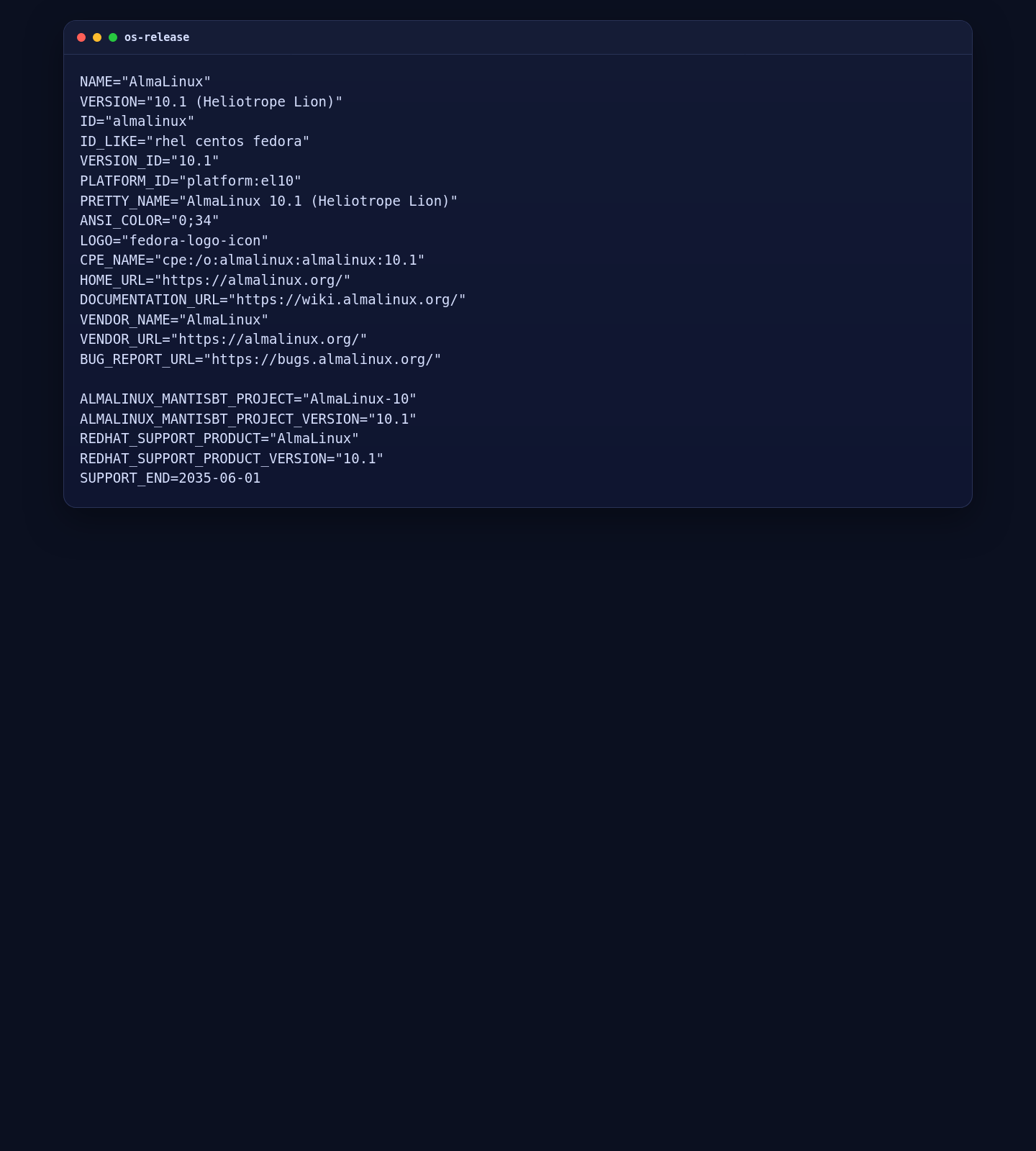
2. Install Docker from the Official Repository
Uptime Kuma’s official documentation still recommends Docker Compose for a fresh installation. On AlmaLinux 10, the clean path is Docker’s official CentOS-compatible repository.
dnf -y install dnf-plugins-core curl ca-certificates
dnf config-manager --add-repo https://download.docker.com/linux/centos/docker-ce.repo
dnf -y install docker-ce docker-ce-cli containerd.io docker-buildx-plugin docker-compose-plugin
systemctl enable --now docker

docker --version
docker compose version
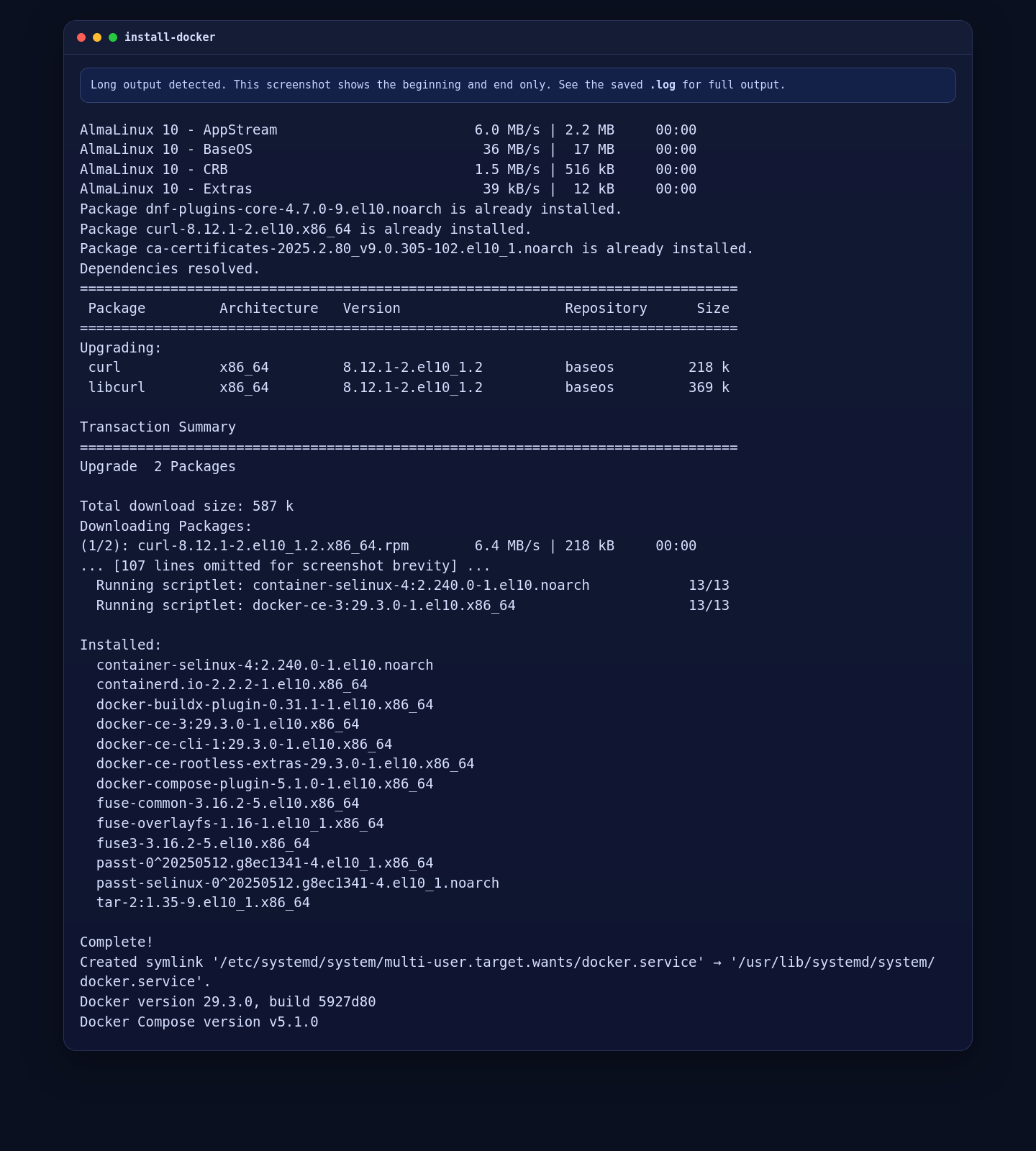
On the live Shape.Host server, this installed Docker Engine 29.3.0 and Docker Compose 5.1.0.
3. Deploy Uptime Kuma with Docker Compose
Create a working directory, write the Compose file, pull the image, and start the container. In this setup, Uptime Kuma is bound to 127.0.0.1:3001 so it stays behind the reverse proxy.
install -d -m 755 /opt/uptime-kuma
install -d -m 755 /opt/uptime-kuma/uptime-kuma

cat >/opt/uptime-kuma/compose.yaml <<'EOF'
services:
  uptime-kuma:
    image: louislam/uptime-kuma:2.2.1
    container_name: uptime-kuma
    restart: unless-stopped
    ports:
      - 127.0.0.1:3001:3001
    volumes:
      - ./uptime-kuma:/app/data
EOF

cd /opt/uptime-kuma
docker compose pull
docker compose up -d --remove-orphans

docker compose ps
curl -I http://127.0.0.1:3001/
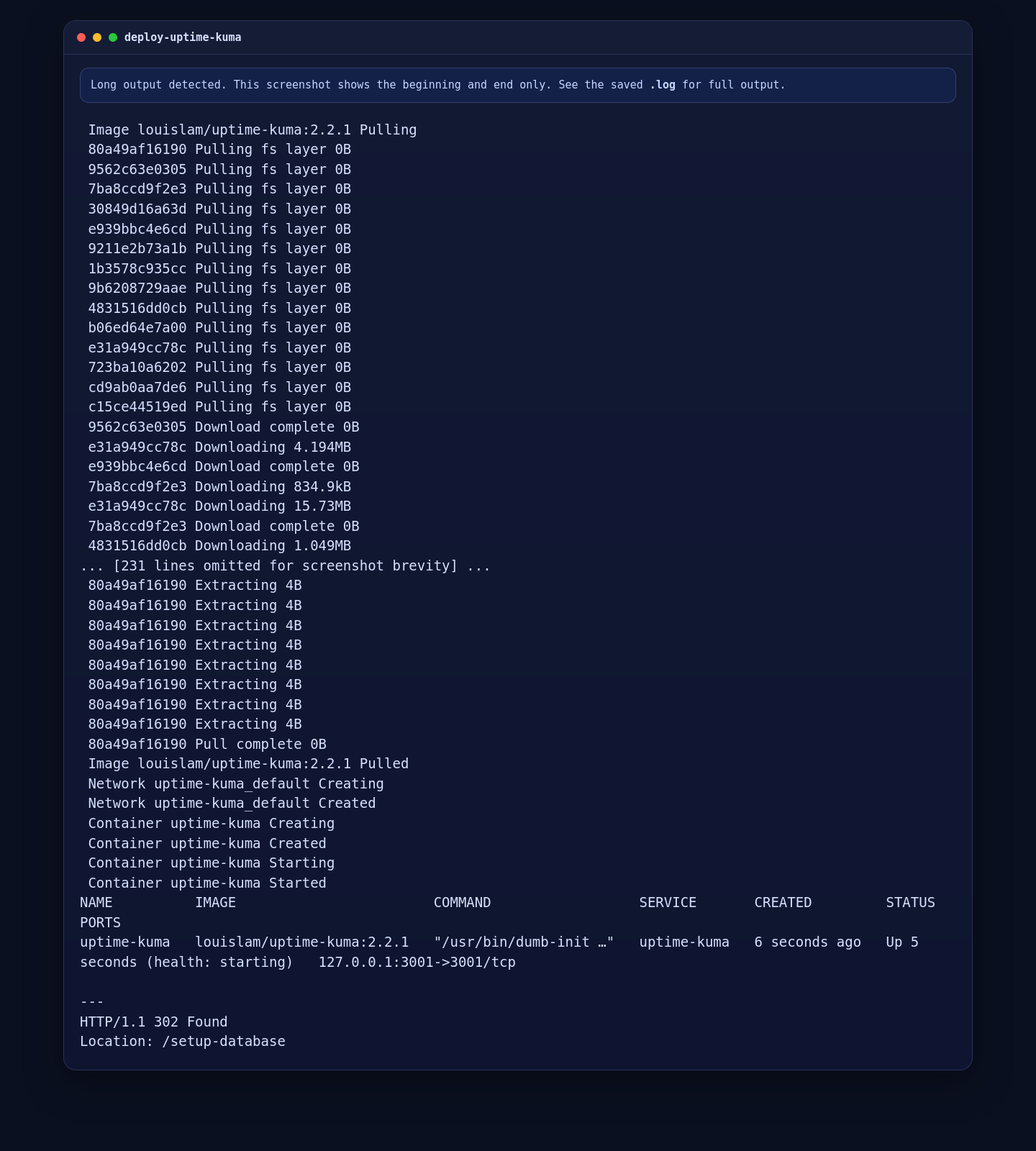
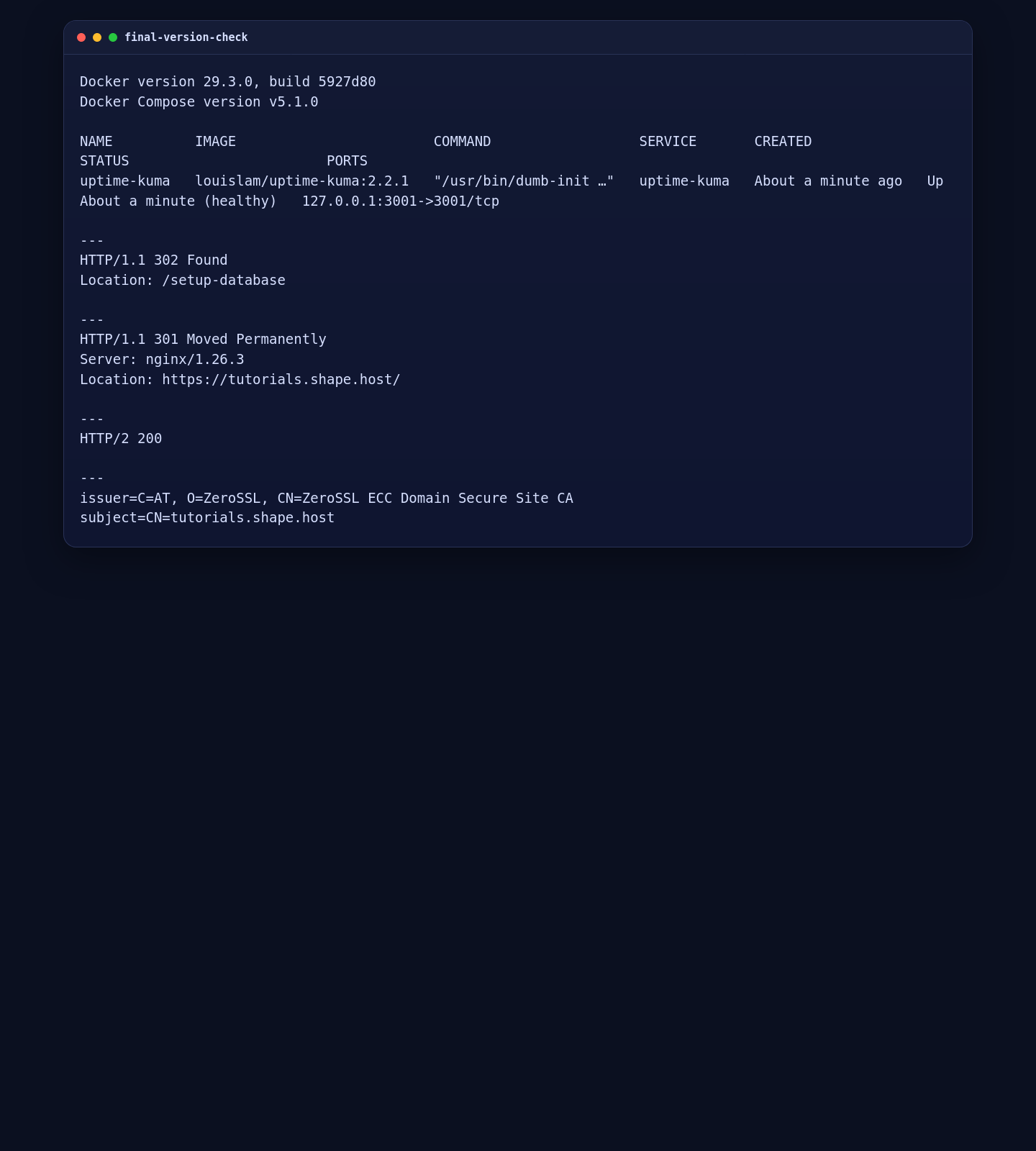
On the tested AlmaLinux deployment, the container came up healthy and the local endpoint returned a redirect to /setup-database, which is the correct first-run setup page.
4. Install Nginx, Open firewalld, and Allow SELinux Proxying
On AlmaLinux 10, a reverse proxy setup also needs the firewall and SELinux side handled explicitly. Install the required packages, create the HTTP-only site definition, open the firewall, and enable the SELinux boolean that lets Nginx connect to the local Uptime Kuma service.
dnf -y install nginx socat firewalld policycoreutils-python-utils

install -d -m 755 /var/www/_letsencrypt
install -d -m 755 /etc/ssl/uptime-kuma

cat >/etc/nginx/conf.d/uptime-kuma.conf <<'EOF'
server {
    listen 80;
    listen [::]:80;
    server_name tutorials.shape.host;

    location /.well-known/acme-challenge/ {
        root /var/www/_letsencrypt;
    }

    location / {
        proxy_pass http://127.0.0.1:3001;
        proxy_http_version 1.1;
        proxy_set_header Host $host;
        proxy_set_header X-Real-IP $remote_addr;
        proxy_set_header X-Forwarded-For $proxy_add_x_forwarded_for;
        proxy_set_header X-Forwarded-Proto $scheme;
        proxy_set_header Upgrade $http_upgrade;
        proxy_set_header Connection "upgrade";
    }
}
EOF

nginx -t
systemctl enable --now nginx firewalld
firewall-cmd --permanent --add-service=http
firewall-cmd --permanent --add-service=https
firewall-cmd --reload
setsebool -P httpd_can_network_connect 1
systemctl reload nginx
5. Issue a ZeroSSL Certificate with acme.sh
For the live deployment, ZeroSSL EAB credentials were loaded securely from the local secrets environment. In a public tutorial, use placeholders and replace them with your own ZeroSSL values.
curl -fsSL https://get.acme.sh | sh -s email=contact@shape.host

/root/.acme.sh/acme.sh --register-account \
  -m contact@shape.host \
  --server zerossl \
  --eab-kid "your_zerossl_eab_kid" \
  --eab-hmac-key "your_zerossl_eab_hmac_key"

/root/.acme.sh/acme.sh --issue \
  --server zerossl \
  --webroot /var/www/_letsencrypt \
  -d tutorials.shape.host \
  --keylength ec-256

/root/.acme.sh/acme.sh --install-cert \
  -d tutorials.shape.host \
  --ecc \
  --fullchain-file /etc/ssl/uptime-kuma/fullchain.cer \
  --key-file /etc/ssl/uptime-kuma/tutorials.shape.host.key \
  --reloadcmd "systemctl reload nginx"
On the validated run, ZeroSSL issued an ECC certificate successfully and Nginx reloaded with the installed key and full chain.
6. Replace the HTTP Site with the Final HTTPS Reverse Proxy
After the certificate is in place, switch the Nginx configuration to HTTPS and redirect all HTTP traffic to HTTPS. On this AlmaLinux 10 build, the clean syntax is listen 443 ssl; plus http2 on;.
cat >/etc/nginx/conf.d/uptime-kuma.conf <<'EOF'
server {
    listen 80;
    listen [::]:80;
    server_name tutorials.shape.host;

    location /.well-known/acme-challenge/ {
        root /var/www/_letsencrypt;
    }

    location / {
        return 301 https://$host$request_uri;
    }
}

server {
    listen 443 ssl;
    listen [::]:443 ssl;
    http2 on;
    server_name tutorials.shape.host;

    ssl_certificate /etc/ssl/uptime-kuma/fullchain.cer;
    ssl_certificate_key /etc/ssl/uptime-kuma/tutorials.shape.host.key;

    location / {
        proxy_pass http://127.0.0.1:3001;
        proxy_http_version 1.1;
        proxy_set_header Host $host;
        proxy_set_header X-Real-IP $remote_addr;
        proxy_set_header X-Forwarded-For $proxy_add_x_forwarded_for;
        proxy_set_header X-Forwarded-Proto $scheme;
        proxy_set_header Upgrade $http_upgrade;
        proxy_set_header Connection "upgrade";
    }
}
EOF

nginx -t
systemctl reload nginx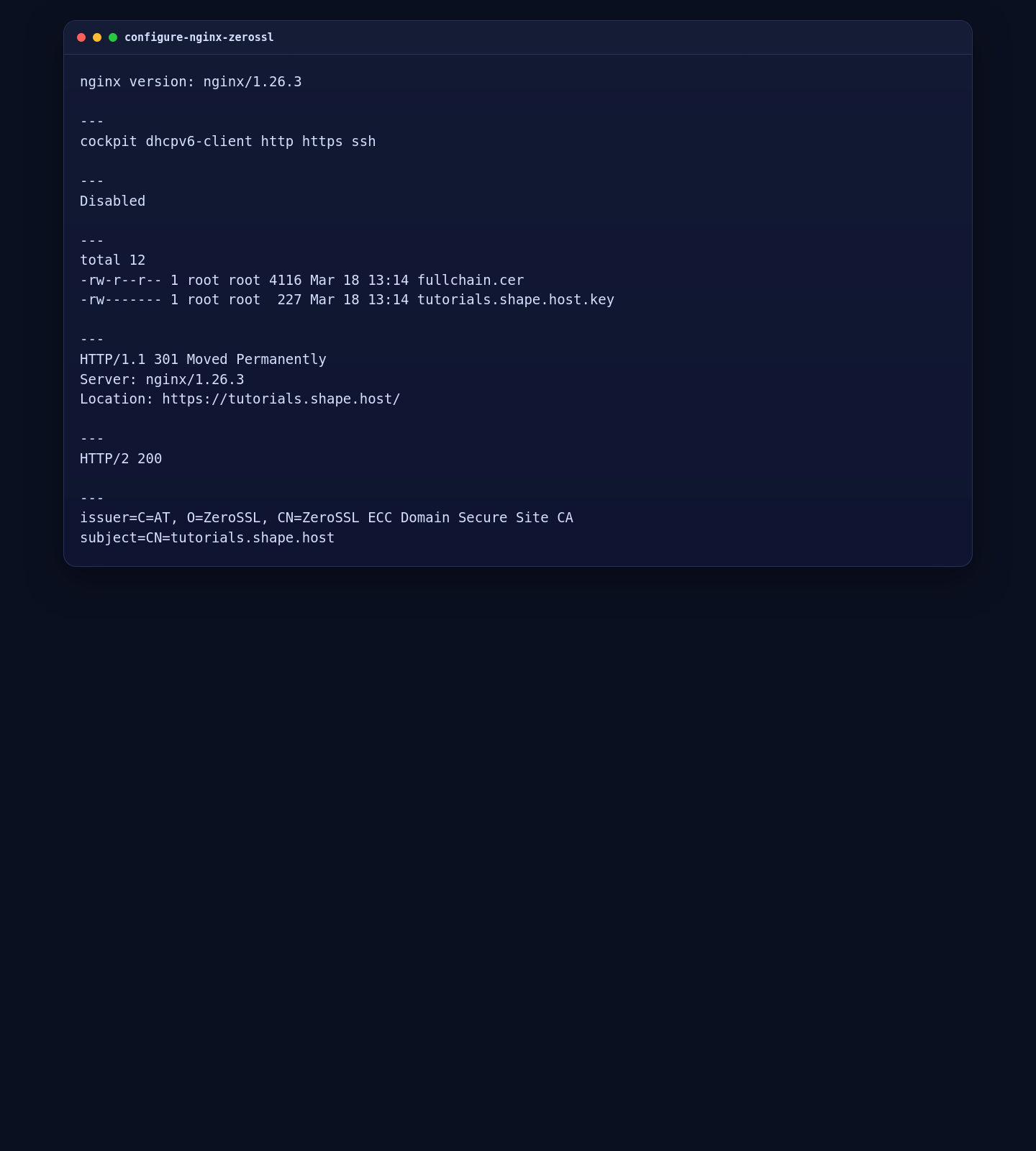
7. Validate the Local App, Public Route, and Certificate Issuer
Use these checks to confirm that Uptime Kuma is healthy locally, that HTTP redirects to HTTPS, and that the live certificate is issued by ZeroSSL.
docker --version
docker compose version

cd /opt/uptime-kuma
docker compose ps

curl -sI http://127.0.0.1:3001/ | grep -E '^(HTTP/|Location:|Server:)'
curl -sI --resolve tutorials.shape.host:80:127.0.0.1 http://tutorials.shape.host/ | grep -E '^(HTTP/|Location:|Server:)'
curl -sI --resolve tutorials.shape.host:443:127.0.0.1 https://tutorials.shape.host/setup-database | grep -E '^(HTTP/|Location:|Server:)'
echo | openssl s_client -connect 127.0.0.1:443 -servername tutorials.shape.host 2>/dev/null | openssl x509 -noout -issuer -subject
On the tested server, the local Uptime Kuma endpoint returned HTTP/1.1 302 Found to /setup-database, the public hostname returned HTTP/1.1 301 Moved Permanently to HTTPS, the HTTPS setup page returned HTTP/2 200, and the certificate issuer was ZeroSSL ECC Domain Secure Site CA.
8. Open the Setup Page in a Browser
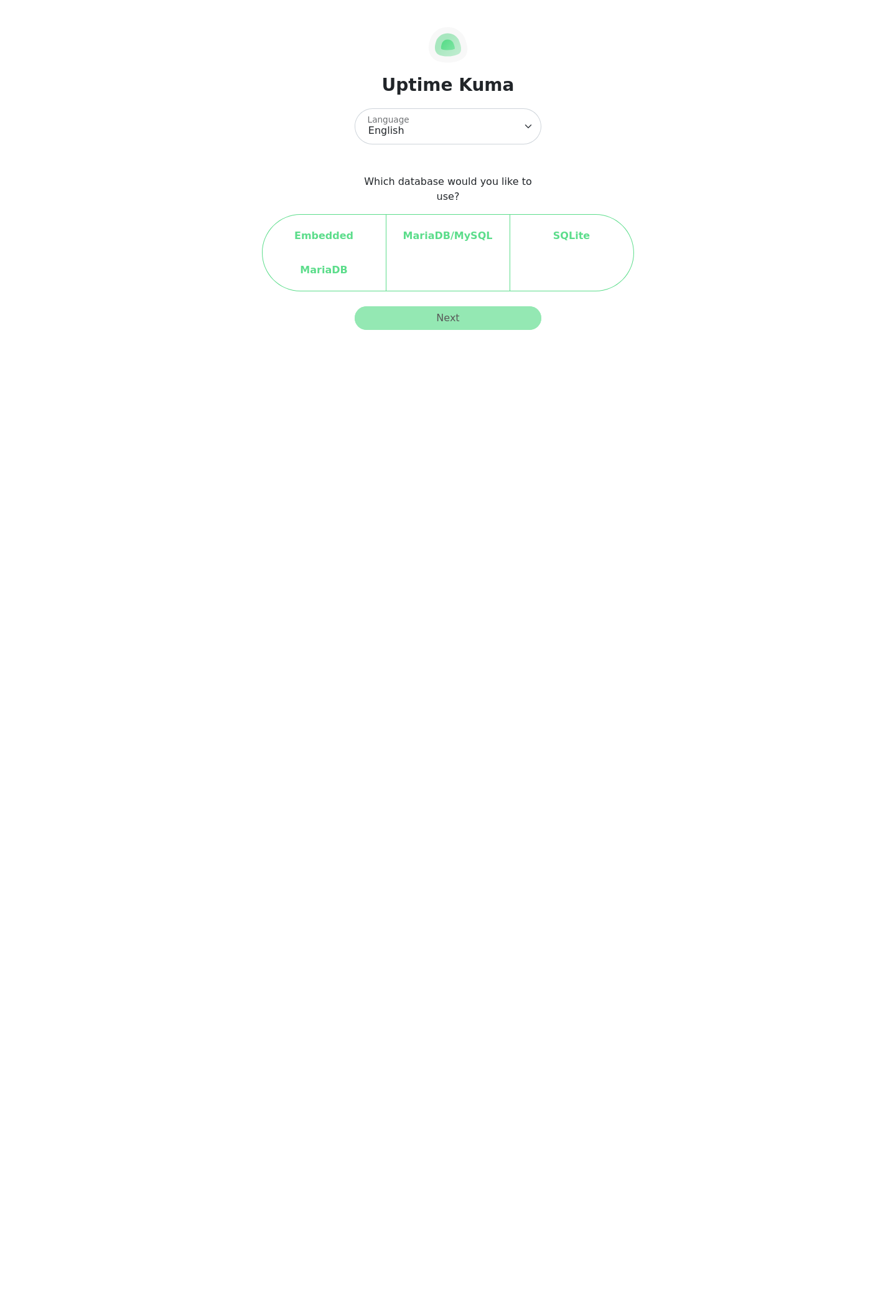
Once the reverse proxy and certificate are in place, open https://tutorials.shape.host/setup-database to finish the first-run configuration in the Uptime Kuma web interface.
Troubleshooting Notes
- If Docker is missing or too old, reinstall it from Docker’s official repository before pulling the Uptime Kuma image.
- If Uptime Kuma does not answer on
127.0.0.1:3001, checkdocker compose psanddocker compose logs uptime-kuma. - If the browser cannot reach the site, confirm that firewalld allows
httpandhttpsand that the hostname still points to the correct public IP. - If Nginx serves a certificate but cannot proxy the app on AlmaLinux, confirm that
setsebool -P httpd_can_network_connect 1was applied successfully. - If ZeroSSL issuance fails, verify the webroot path and make sure the HTTP challenge location is reachable from the internet.
Conclusion
You now have a working Uptime Kuma deployment on AlmaLinux 10 with Docker, Nginx, firewalld, SELinux-aware proxying, and a trusted ZeroSSL certificate on tutorials.shape.host. On this validated Shape.Host run, the deployed Uptime Kuma version was 2.2.1.
The next sensible steps are completing the setup wizard, adding your first monitors, and configuring at least one notification channel for alerts.
