Install Paperless-ngx on AlmaLinux 10 with Docker and ZeroSSL
Paperless-ngx gives you a self-hosted document management platform for scanned paperwork, PDFs, and office files. It combines OCR, document indexing, and a clean web interface so you can turn a raw folder of files into a searchable archive that stays practical on a small VPS.
In this guide, we restore a fresh AlmaLinux 10.1 server on Shape.Host, verify the latest stable Paperless-ngx release from the official project, install Docker Engine and Docker Compose from Docker’s official EL repository, deploy Paperless-ngx 2.20.13 with PostgreSQL 18 and Redis 8, place Nginx in front of it on tutorials.shape.host, secure the site with a trusted ZeroSSL certificate, and validate the finished deployment from both the terminal and a browser.
| Application | Paperless-ngx |
|---|---|
| Application version | 2.20.13 |
| Operating system | AlmaLinux 10.1 |
| Container runtime | Docker Engine 29.3.0 with Docker Compose 5.1.1 |
| Database | PostgreSQL 18 |
| Message broker | Redis 8 |
| Reverse proxy | Nginx 1.26.3 |
| Public hostname | tutorials.shape.host |
| TLS issuer | ZeroSSL ECC Domain Secure Site CA |
| Validated on | Live Shape.Host AlmaLinux 10.1 server |
Why Use Paperless-ngx on AlmaLinux 10?
- AlmaLinux 10.1 gives you a modern RHEL-compatible base for a document archive you want to keep stable.
- Paperless-ngx has an official Docker Compose deployment pattern and recommends PostgreSQL for new installations.
- Nginx lets you keep the Paperless container bound to
127.0.0.1while still publishing a clean HTTPS endpoint. - ZeroSSL gives you a trusted public certificate for secure browser access on your final hostname.
Before You Begin
Make sure the following prerequisites are in place before you start:
- A fresh AlmaLinux 10 server
- Root or sudo access
- A DNS record pointing
tutorials.shape.hostto your server IP - Ports
80and443open to the internet - Your ZeroSSL EAB key ID and EAB HMAC key for ACME account registration
1. Verify the AlmaLinux 10 Release
Start by confirming that the restored server is actually running AlmaLinux 10.1.
cat /etc/os-release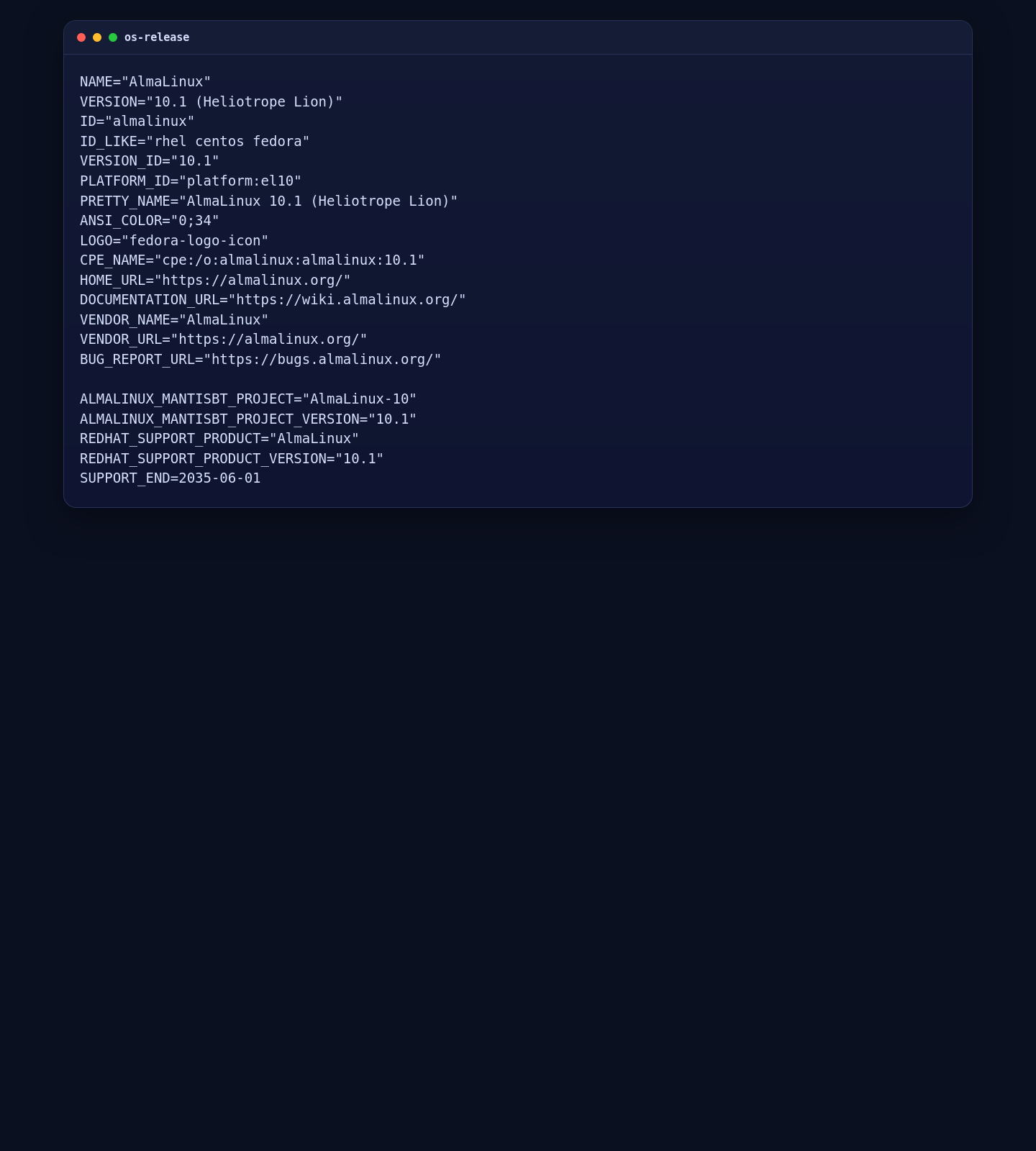
2. Install Docker, Docker Compose, Nginx, Firewalld, and Base Dependencies
On AlmaLinux 10, the clean approach is to install Docker Engine from Docker’s official EL repository instead of relying on older distro-packaged container builds. We also install Nginx, firewalld, and the helper packages needed for certificate automation and SELinux-aware administration.
dnf -y install ca-certificates curl nginx openssl socat firewalld dnf-plugins-core policycoreutils-python-utils
dnf config-manager --add-repo https://download.docker.com/linux/centos/docker-ce.repo
dnf -y install docker-ce docker-ce-cli containerd.io docker-buildx-plugin docker-compose-plugin

systemctl enable --now docker nginx firewalld
firewall-cmd --permanent --add-service=http
firewall-cmd --permanent --add-service=https
firewall-cmd --reload

docker --version
docker compose version
nginx -v
firewall-cmd --state
getenforce
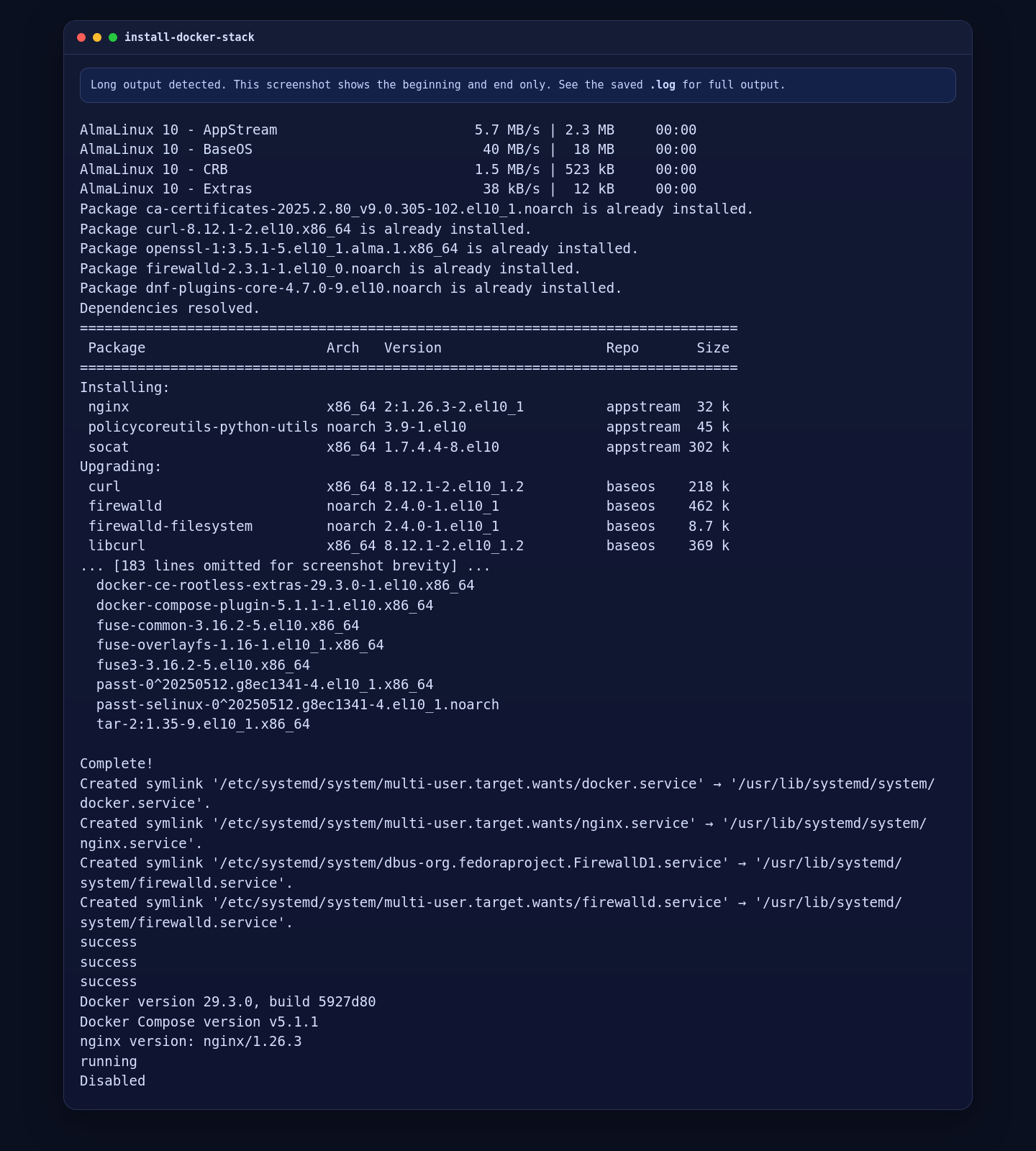
On the validated AlmaLinux 10.1 deployment, this installed Docker Engine 29.3.0, Docker Compose 5.1.1, and Nginx 1.26.3, with firewalld running and SELinux reported as Disabled on this template.
3. Create the Paperless-ngx Compose Files
The official setup documentation recommends PostgreSQL for new installations, so this guide uses the official PostgreSQL plus Redis stack and pins the Paperless-ngx image to the current stable release. We also generate a fresh application secret and a fresh PostgreSQL password on the server instead of leaving default values in place.
mkdir -p /opt/paperless-ngx/consume /opt/paperless-ngx/export
cd /opt/paperless-ngx
chown -R 1000:1000 consume export

cat > .env <<'EOF'
COMPOSE_PROJECT_NAME=paperless
EOF

PAPERLESS_SECRET_KEY="$(openssl rand -hex 32)"
POSTGRES_PASSWORD="$(openssl rand -hex 16)"

cat > docker-compose.env <<EOF
USERMAP_UID=1000
USERMAP_GID=1000
PAPERLESS_URL=https://tutorials.shape.host
PAPERLESS_SECRET_KEY=${PAPERLESS_SECRET_KEY}
PAPERLESS_TIME_ZONE=Etc/UTC
PAPERLESS_OCR_LANGUAGE=eng
EOF

cat > docker-compose.yml <<EOF
services:
  broker:
    image: docker.io/library/redis:8
    restart: unless-stopped
    volumes:
      - redisdata:/data

  db:
    image: docker.io/library/postgres:18
    restart: unless-stopped
    volumes:
      - pgdata:/var/lib/postgresql
    environment:
      POSTGRES_DB: paperless
      POSTGRES_USER: paperless
      POSTGRES_PASSWORD: ${POSTGRES_PASSWORD}

  webserver:
    image: ghcr.io/paperless-ngx/paperless-ngx:2.20.13
    restart: unless-stopped
    depends_on:
      - db
      - broker
    ports:
      - "127.0.0.1:8000:8000"
    volumes:
      - data:/usr/src/paperless/data
      - media:/usr/src/paperless/media
      - ./export:/usr/src/paperless/export
      - ./consume:/usr/src/paperless/consume
    env_file: docker-compose.env
    environment:
      PAPERLESS_REDIS: redis://broker:6379
      PAPERLESS_DBHOST: db
      PAPERLESS_DBUSER: paperless
      PAPERLESS_DBPASS: ${POSTGRES_PASSWORD}
      PAPERLESS_DBNAME: paperless

volumes:
  data:
  media:
  pgdata:
  redisdata:
EOF

cat .env
grep '^USERMAP_UID=' docker-compose.env
grep '^USERMAP_GID=' docker-compose.env
grep '^PAPERLESS_URL=' docker-compose.env
grep '^PAPERLESS_TIME_ZONE=' docker-compose.env
grep '^PAPERLESS_OCR_LANGUAGE=' docker-compose.env
grep '^    image:' docker-compose.yml
grep 'POSTGRES_PASSWORD:' docker-compose.yml | sed 's/: .*$/ : [redacted]/'
grep 'PAPERLESS_DBPASS:' docker-compose.yml | sed 's/: .*$/ : [redacted]/'
docker compose config --services
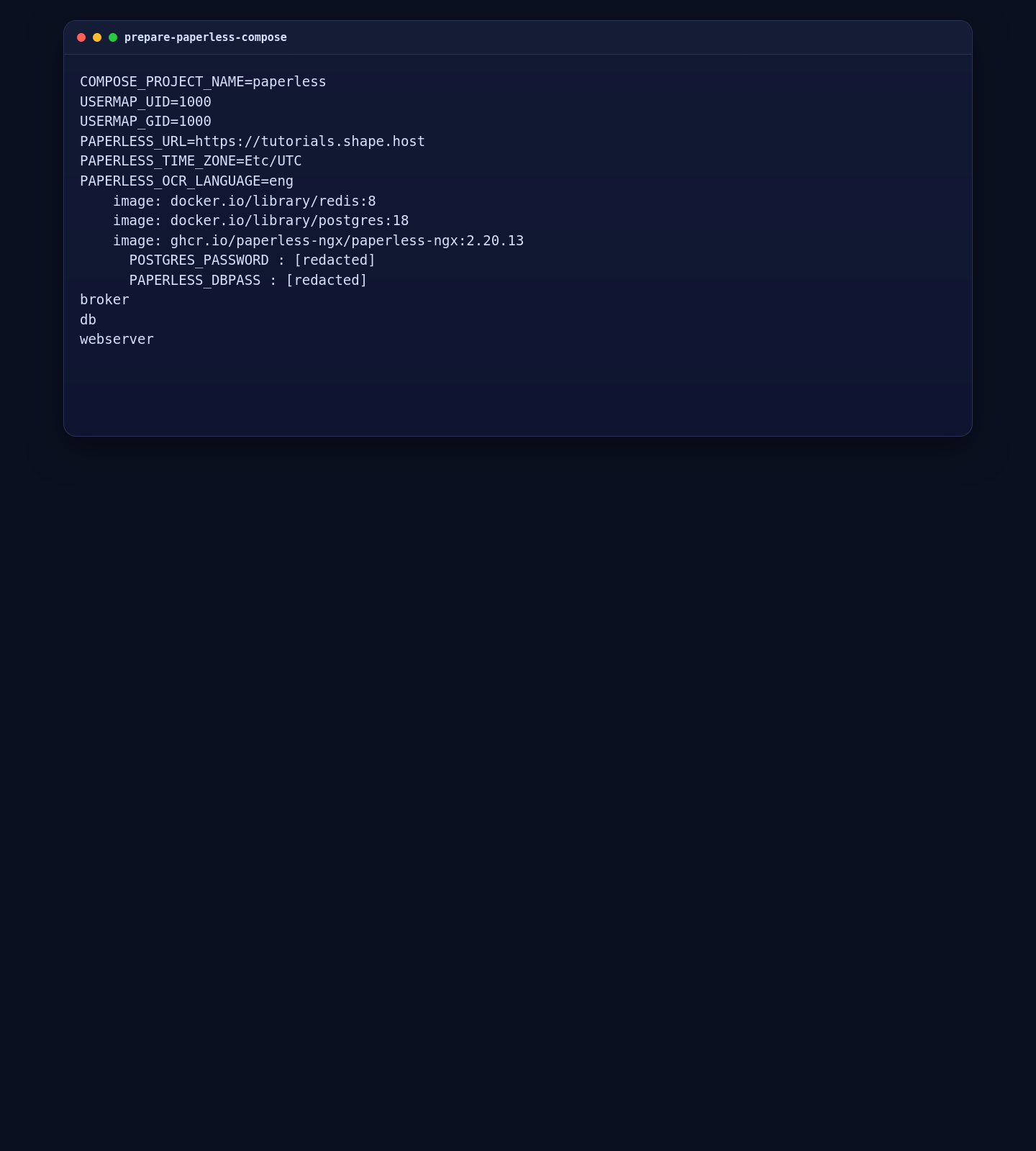
The verified AlmaLinux 10.1 run shows the pinned Redis, PostgreSQL, and Paperless-ngx images together with the public Paperless URL and the generated password lines safely redacted in the verification output.
4. Start Paperless-ngx
With the compose files in place, pull the images, start the full stack, and wait for the webserver health check before you expose it through Nginx.
4.1 Pull the Images and Start the Stack
cd /opt/paperless-ngx
docker compose pull
docker compose up -d
sleep 60
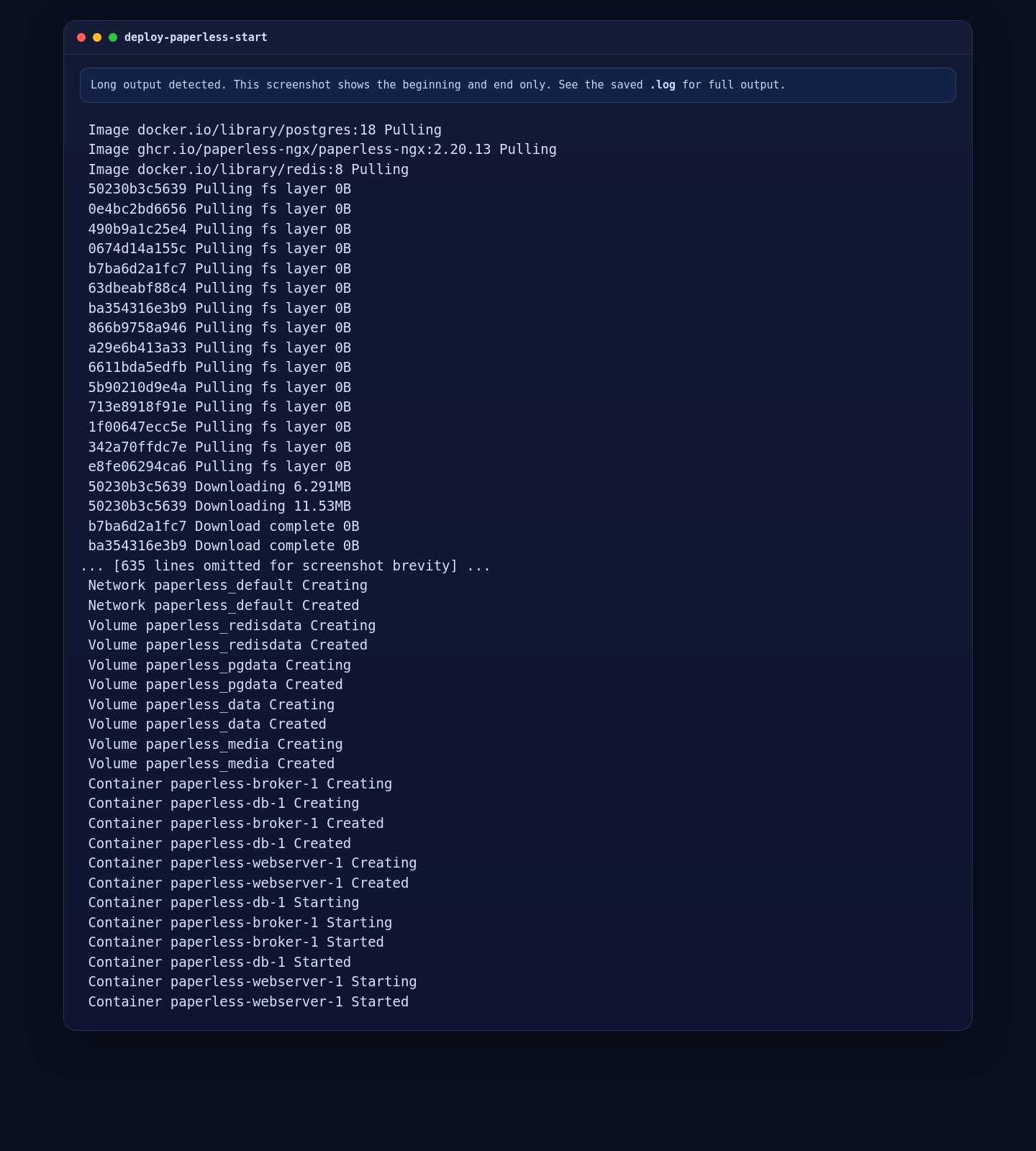
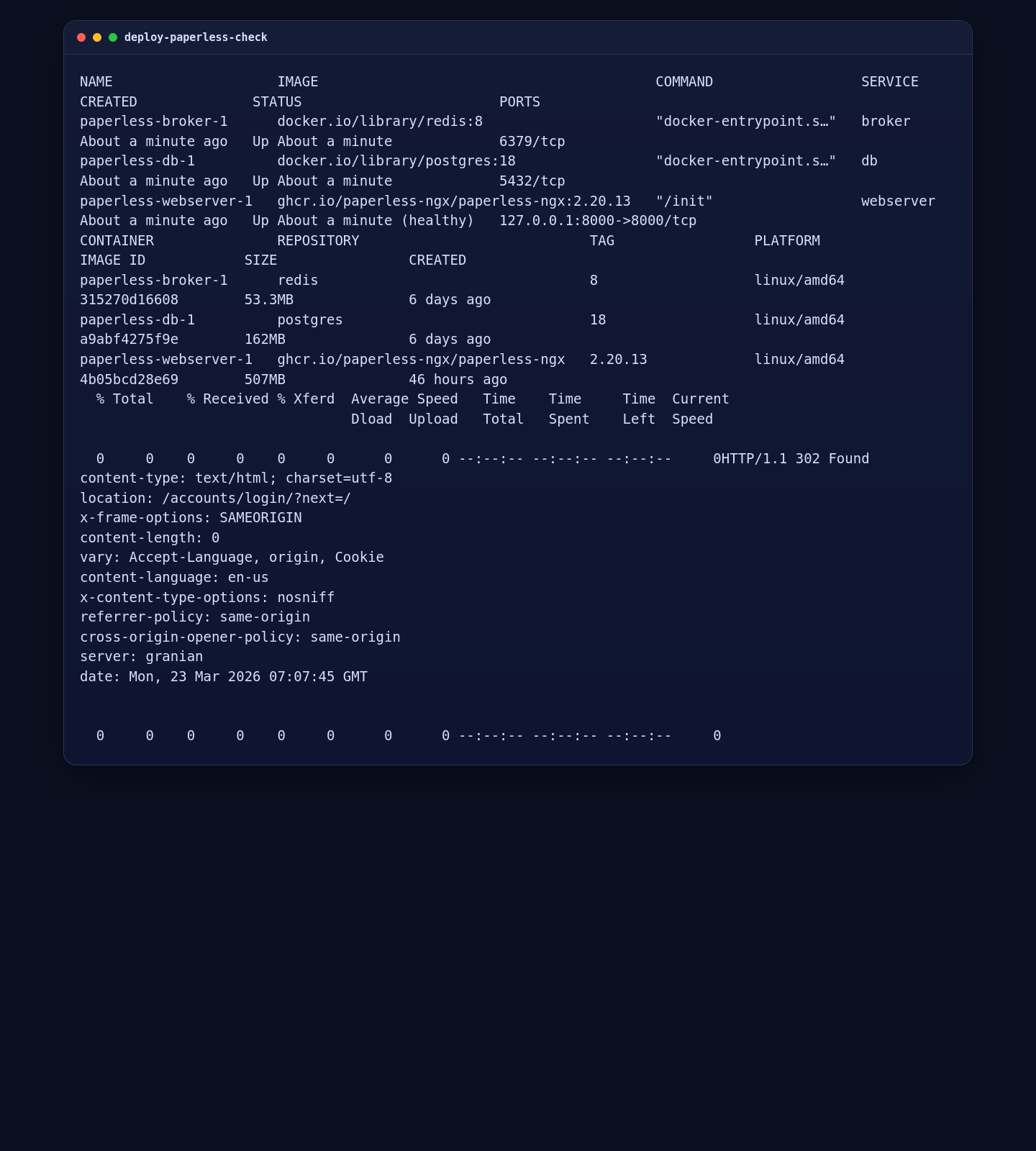
On the live server, Docker pulled Redis 8, PostgreSQL 18, and Paperless-ngx 2.20.13, created the named volumes, and started the stack successfully.
4.2 Validate the Running Containers and Local HTTP Response
docker compose ps
docker compose images
curl -I http://127.0.0.1:8000
On the validated deployment, all three containers were running, the Paperless webserver was healthy, and the local endpoint returned HTTP/1.1 302 Found to /accounts/login/?next=/, which is the expected first-user state for a new Paperless-ngx installation.
5. Configure Nginx, Firewalld, SELinux, and ZeroSSL
After the local stack is healthy, put Nginx in front of it, confirm the firewall allows HTTP and HTTPS, enable the SELinux network-connect boolean when the host is enforcing, issue the ZeroSSL certificate, and then switch the site to permanent HTTPS.
mkdir -p /var/www/_letsencrypt /etc/nginx/ssl/tutorials.shape.host

cat > /etc/nginx/conf.d/tutorials.shape.host.conf <<'EOF'
upstream paperless_app {
    server 127.0.0.1:8000;
    keepalive 32;
}

server {
    listen 80;
    server_name tutorials.shape.host;

    location /.well-known/acme-challenge/ {
        root /var/www/_letsencrypt;
        default_type "text/plain";
    }

    client_max_body_size 100M;

    location / {
        proxy_pass http://paperless_app;
        proxy_http_version 1.1;
        proxy_set_header Host $host;
        proxy_set_header X-Real-IP $remote_addr;
        proxy_set_header X-Forwarded-For $proxy_add_x_forwarded_for;
        proxy_set_header X-Forwarded-Proto $scheme;
    }
}
EOF

firewall-cmd --permanent --add-service=http
firewall-cmd --permanent --add-service=https
firewall-cmd --reload

# Run this if SELinux is enforcing on your server.
setsebool -P httpd_can_network_connect 1

nginx -t
systemctl reload nginx

curl -fsSL https://get.acme.sh | sh -s email=contact@shape.host
/root/.acme.sh/acme.sh --set-default-ca --server zerossl
/root/.acme.sh/acme.sh --register-account --server zerossl --eab-kid YOUR_ZEROSSL_EAB_KID --eab-hmac-key YOUR_ZEROSSL_EAB_HMAC_KEY
/root/.acme.sh/acme.sh --issue --server zerossl --webroot /var/www/_letsencrypt -d tutorials.shape.host --keylength ec-256
/root/.acme.sh/acme.sh --install-cert -d tutorials.shape.host --ecc \
  --fullchain-file /etc/nginx/ssl/tutorials.shape.host/fullchain.cer \
  --key-file /etc/nginx/ssl/tutorials.shape.host/tutorials.shape.host.key \
  --reloadcmd "systemctl reload nginx"

cat > /etc/nginx/conf.d/tutorials.shape.host.conf <<'EOF'
upstream paperless_app {
    server 127.0.0.1:8000;
    keepalive 32;
}

server {
    listen 80;
    server_name tutorials.shape.host;

    location /.well-known/acme-challenge/ {
        root /var/www/_letsencrypt;
        default_type "text/plain";
    }

    location / {
        return 301 https://$host$request_uri;
    }
}

server {
    listen 443 ssl;
    http2 on;
    server_name tutorials.shape.host;

    ssl_certificate /etc/nginx/ssl/tutorials.shape.host/fullchain.cer;
    ssl_certificate_key /etc/nginx/ssl/tutorials.shape.host/tutorials.shape.host.key;

    add_header Strict-Transport-Security "max-age=31536000; includeSubDomains" always;
    client_max_body_size 100M;

    location / {
        proxy_pass http://paperless_app;
        proxy_http_version 1.1;
        proxy_set_header Host $host;
        proxy_set_header X-Real-IP $remote_addr;
        proxy_set_header X-Forwarded-For $proxy_add_x_forwarded_for;
        proxy_set_header X-Forwarded-Proto $scheme;
    }
}
EOF

nginx -t
systemctl reload nginx
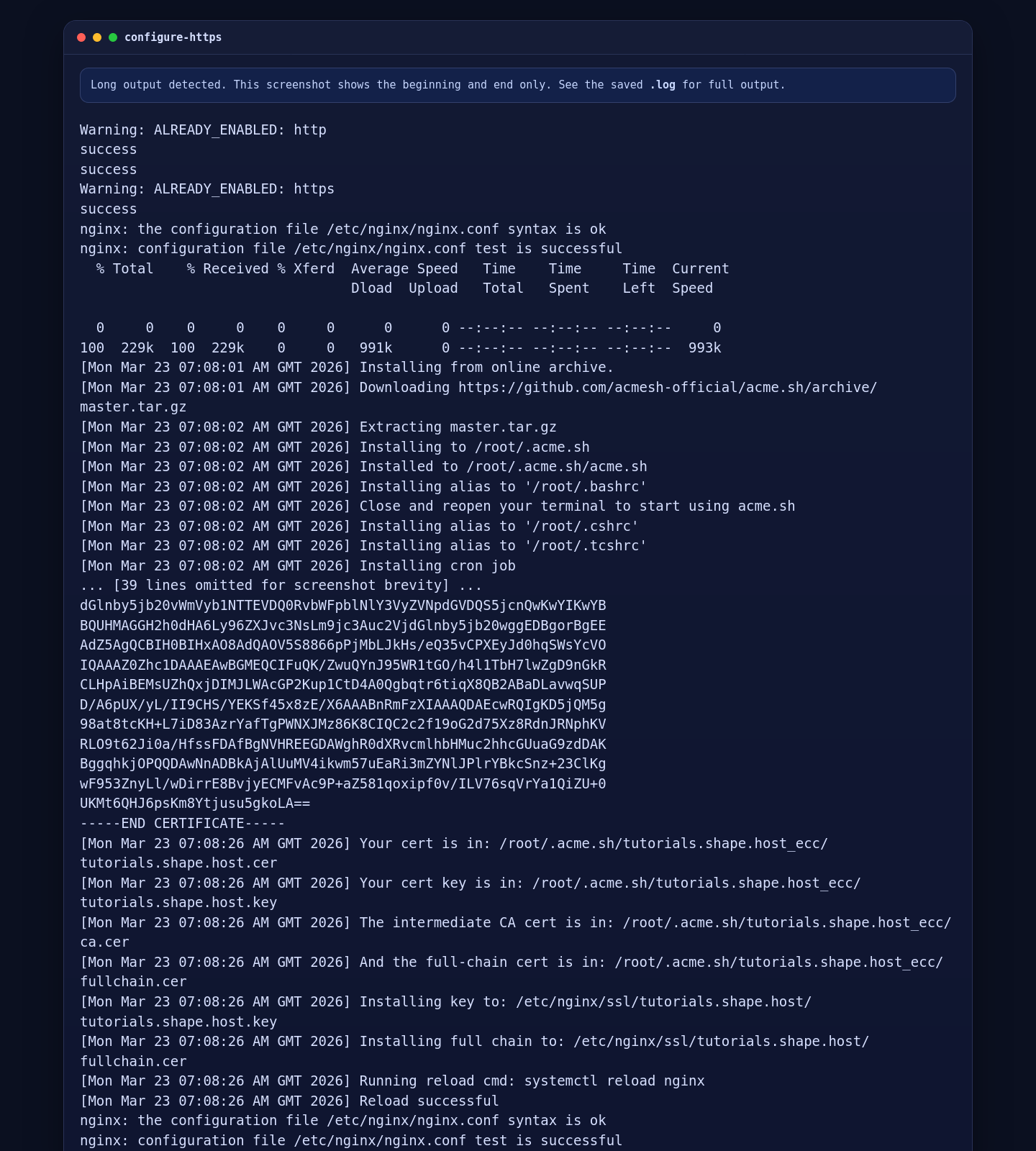
On the validated AlmaLinux 10.1 run, firewalld allowed the public services, Nginx accepted the configuration cleanly, and ZeroSSL issued a trusted ECC certificate for tutorials.shape.host.
6. Validate the Public HTTPS Deployment
Finish by confirming that the full stack is healthy, the firewall still exposes the required services, SELinux is in the expected state, the public HTTPS route returns the same Paperless login redirect, and the installed certificate is the expected ZeroSSL certificate.
cd /opt/paperless-ngx
docker compose ps
docker compose images
firewall-cmd --list-services
echo "SELinux status: $(getenforce)"
getsebool httpd_can_network_connect || true
nginx -v
curl -I --resolve tutorials.shape.host:443:51.89.69.216 https://tutorials.shape.host
openssl x509 -in /etc/nginx/ssl/tutorials.shape.host/fullchain.cer -noout -issuer -subject
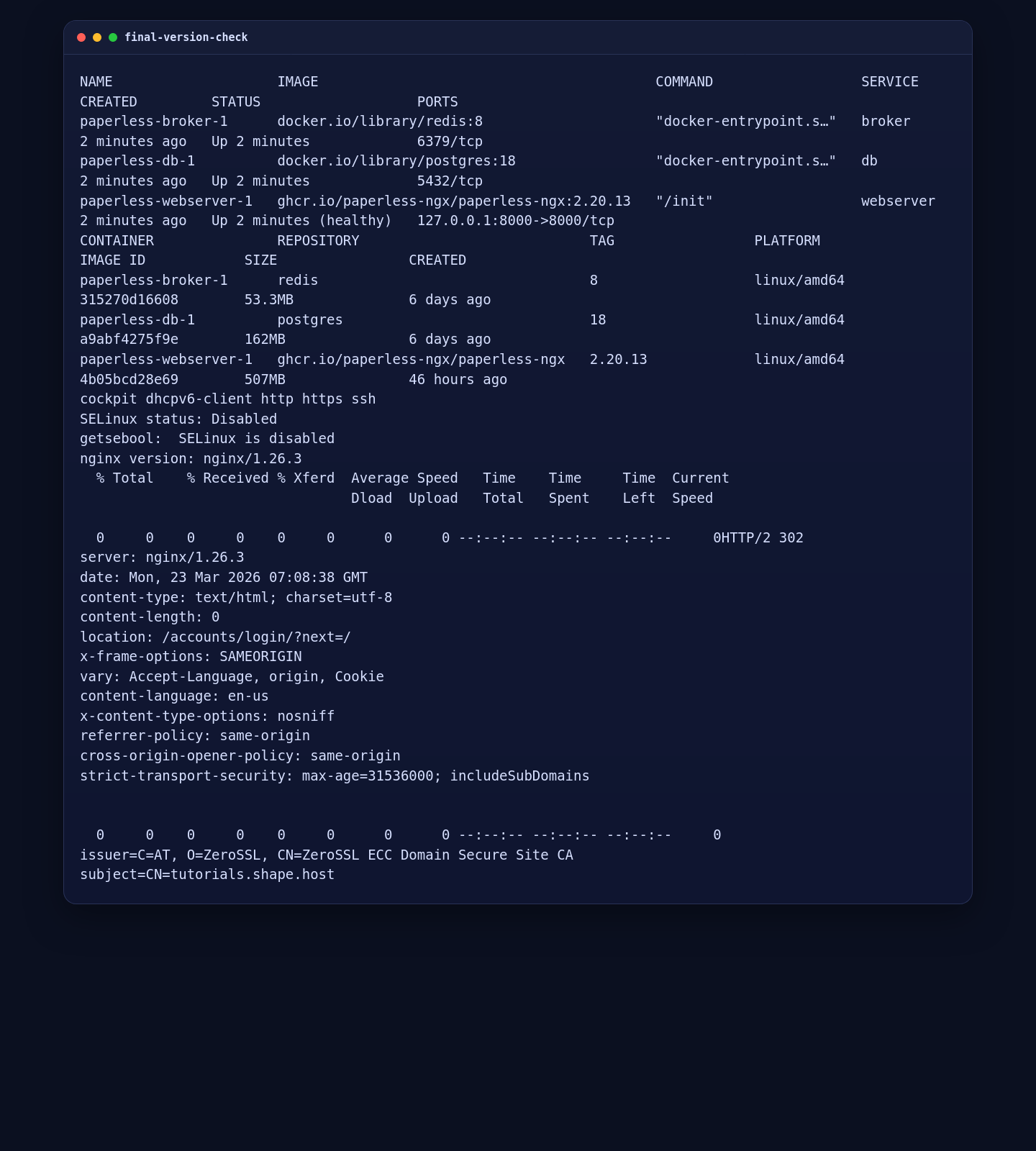
On the live server, the public route returned HTTP/2 302 to the Paperless login flow, the webserver container stayed healthy, and the certificate issuer resolved to ZeroSSL ECC Domain Secure Site CA.
7. Confirm the First-User Signup Page in a Browser
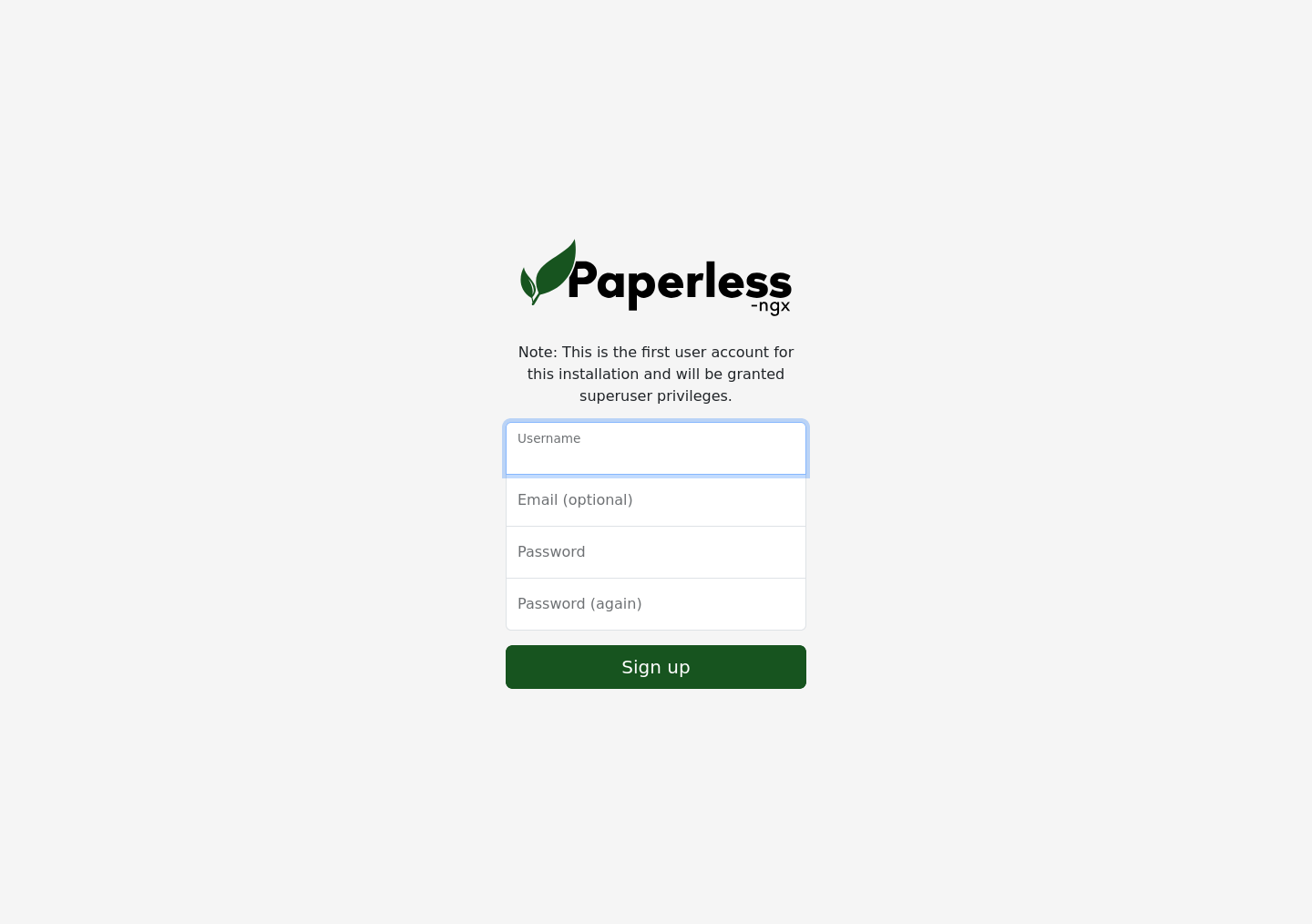
The final browser check confirms that the public HTTPS route renders the Paperless-ngx first-user signup page instead of a blank page, proxy error, or certificate warning. That page is where you create the initial superuser for this fresh installation.
Hardening Notes
- Back up the
paperless_data,paperless_media,paperless_pgdata, andpaperless_redisdatavolumes regularly. - If you scan documents in more than one language, add
PAPERLESS_OCR_LANGUAGEStodocker-compose.envand recreate the stack. - Keep the application bound to
127.0.0.1so Paperless-ngx is only reachable through Nginx. - If your host runs SELinux in enforcing mode, keep
httpd_can_network_connectenabled so Nginx can continue proxying to the local container.
Conclusion
You now have Paperless-ngx running on AlmaLinux 10.1 with Docker Engine, Docker Compose, PostgreSQL, Redis, Nginx, firewalld, and a trusted ZeroSSL certificate on tutorials.shape.host. The final live validation confirms the pinned 2.20.13 stack is healthy, the public HTTPS route returns the expected Paperless login redirect, and the browser loads the first-user signup screen successfully.