What is aaPanel?
aaPanel is a free and user-friendly web-based hosting control panel designed to simplify the management of Linux servers (including Debian, Ubuntu, CentOS, and others). It provides a powerful graphical interface for handling server operations like website hosting, databases, FTP, SSL, firewalls, cron jobs, and more—without needing deep command-line knowledge.
aaPanel is especially popular among developers, hosting providers, and small businesses that want a lightweight and modern alternative to cPanel or Plesk, with both free and premium options.
Key Features of aaPanel
Web-Based Control Panel
- Clean, intuitive web UI accessible via browser (default port:
8888). - Lightweight and fast loading, even on low-resource VPS instances.
Website & Domain Management
- Create and manage websites with ease.
- Supports PHP versions switching, Nginx, Apache, or OpenLiteSpeed.
- Built-in support for Let’s Encrypt SSL certificates.
Database Management
- Easily manage MySQL, MariaDB, PostgreSQL.
- phpMyAdmin integration included.
- Create users, assign privileges, and manage backups.
FTP Server
- Built-in FTP server support (vsftpd).
- Secure FTP account management with quota control.
One-Click Installers
- Easily install popular applications and environments:
- LAMP/LEMP stacks
- WordPress, Joomla, Drupal
- Docker, Node.js, Redis, Memcached
- Various monitoring and optimization tools
Security & Firewall Tools
- Built-in firewall manager.
- SSH login alerts, WAF support, and security scanning.
- Fail2Ban support for brute-force protection.
Scheduled Tasks & Cron Jobs
- Easy GUI for scheduling backup tasks, script executions, etc.
- Monitor task history and outputs.
Monitoring & Logs
- Real-time monitoring of CPU, RAM, disk, network usage.
- View system and application logs directly in the panel.
aaPanel vs Other Hosting Panels
| Feature | aaPanel | cPanel | Plesk | Webmin | CyberPanel |
|---|---|---|---|---|---|
| License | ✅ Free (with paid plugins) | ❌ Paid | ❌ Paid | ✅ Free | ✅ Free |
| Ease of Use | ✅ Very Easy | ✅ Very Easy | ✅ Very Easy | ⚠️ Intermediate | ✅ Easy |
| Web Server Options | ✅ Nginx, Apache, OpenLiteSpeed | ✅ Apache | ✅ Nginx, Apache | ✅ Apache | ✅ OpenLiteSpeed |
| One-Click Apps | ✅ Yes | ✅ Yes | ✅ Yes | ⚠️ Limited | ✅ Yes |
| Email Server Support | ⚠️ Manual Setup | ✅ Yes | ✅ Yes | ✅ Yes | ✅ Yes |
| Resource Usage | ✅ Low | ❌ High | ❌ High | ✅ Low | ✅ Low |
| Best For | Developers, VPS users | Hosting companies | Enterprises | Sysadmins | WordPress and LiteSpeed users |
System Requirements
Minimum recommended specs:
- OS: Debian 10/11/12, Ubuntu 20.04/22.04, CentOS 7/8, AlmaLinux, Rocky Linux
- RAM: 512MB (1 GB+ recommended)
- Disk: 100 MB (panel only, web stack requires more)
- Python: Ships with its own dependencies
Pros of aaPanel
✅ Completely free to use, with paid plugins for extended functionality
✅ One-click deployment of full web stacks
✅ Lightweight and optimized for low-resource VPS
✅ Active community and plugin ecosystem
✅ Regular updates and bug fixes
✅ No steep learning curve
Cons
❌ Some advanced features (e.g., load balancing, professional monitoring tools) require paid plugins
❌ Lacks native email hosting stack (can be installed manually)
❌ Fewer security hardening features than commercial panels out-of-the-box
❌ Community support can be slower than with enterprise solutions
Use Cases
- Hosting personal or client websites on a VPS
- Managing a WordPress server without cPanel
- Developers needing a simple, GUI-based way to manage LAMP/LEMP environments
- Cost-effective hosting for startups and small businesses
- Educational environments for learning server management
aaPanel is an excellent, modern, and lightweight control panel for managing web servers on Debian 12 and other Linux distributions. It strikes a balance between power and simplicity, making it a great option for developers, system administrators, and web hosting enthusiasts looking for a free cPanel alternative with rich features and easy automation.
If you’re running a VPS or cloud server, aaPanel is one of the easiest ways to deploy and manage websites, databases, and server-side services from a clean and responsive web interface.
Step 1: Create a Server on Shape.Host
To install aaPanel, you need a running Ubuntu 24.04 server. Here’s how to set one up using Shape.Host:
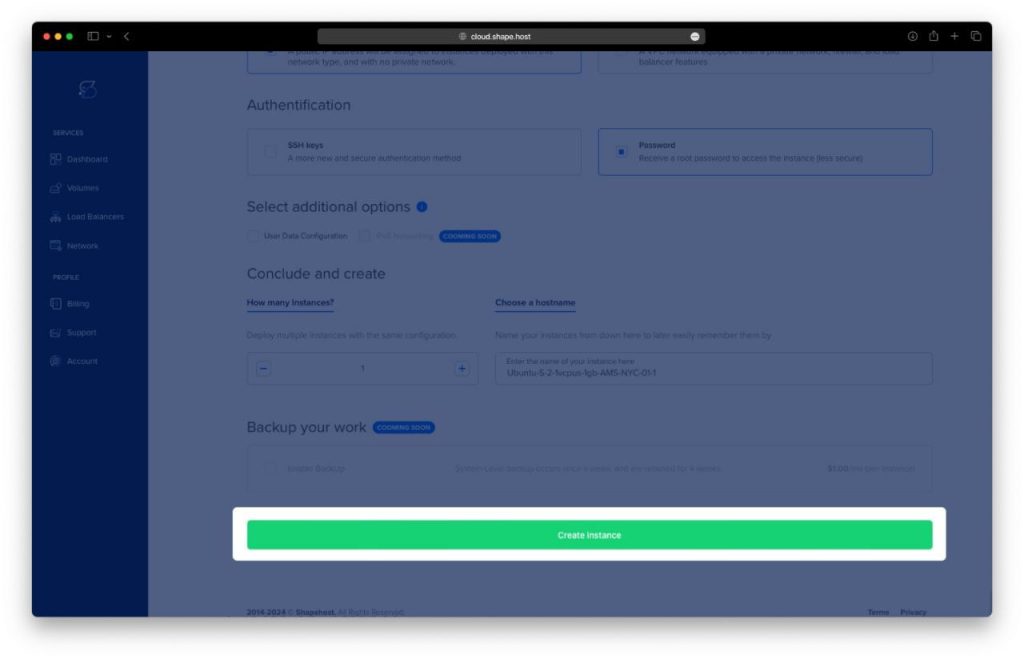
Go to https://shape.host and log in.
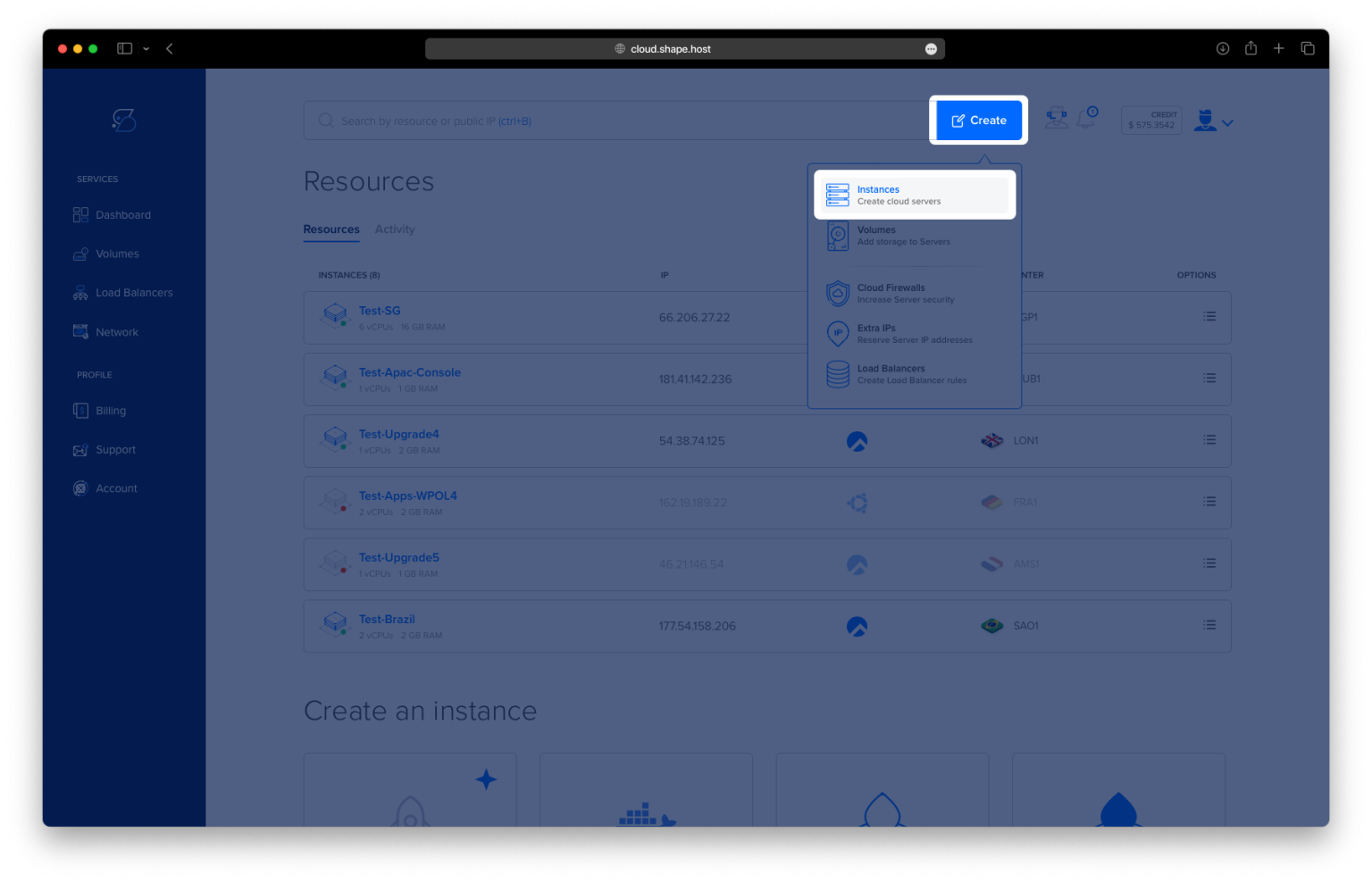
Click “Create”.
Choose the Instance type.
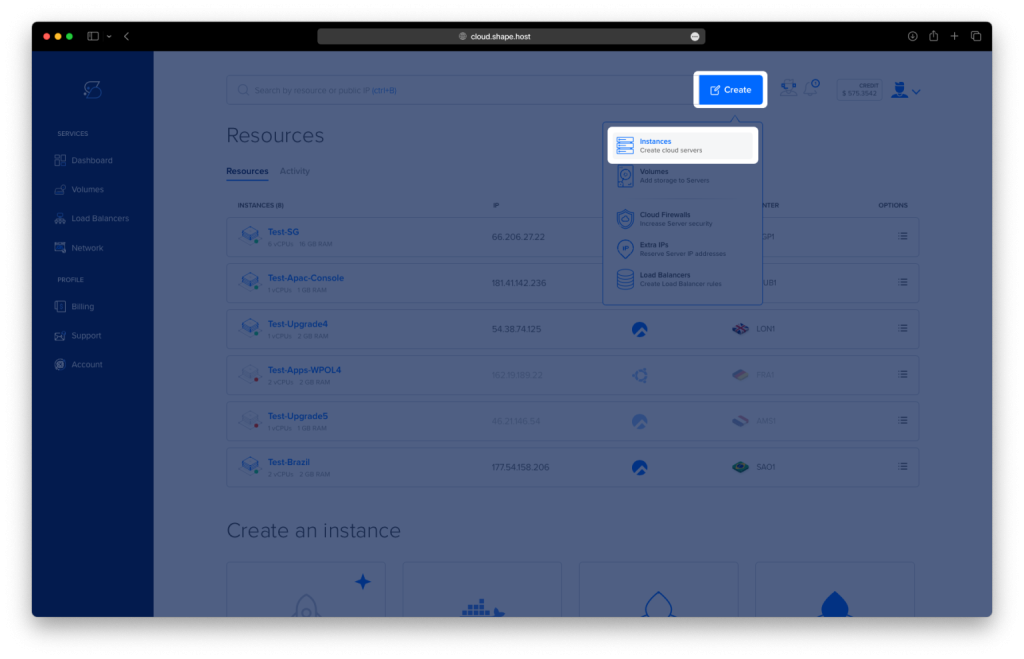
Select a location close to you or your users.
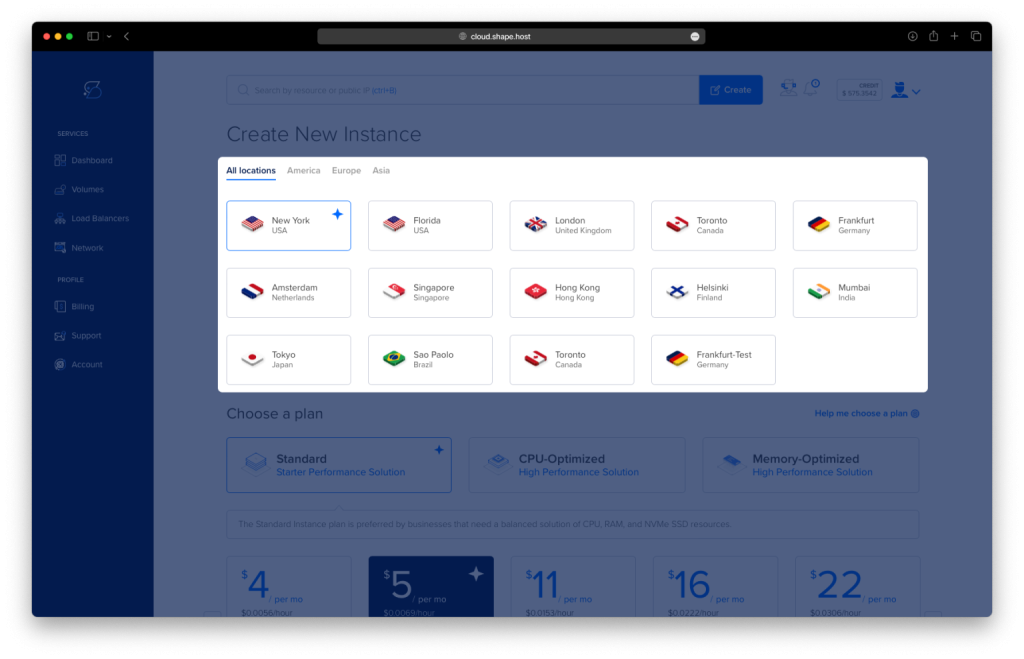
Choose a server plan — at least 1 CPU, 2 GB RAM, and 20 GB SSD is recommended.
Select Ubuntu 24.04 (64-bit) as the operating system.
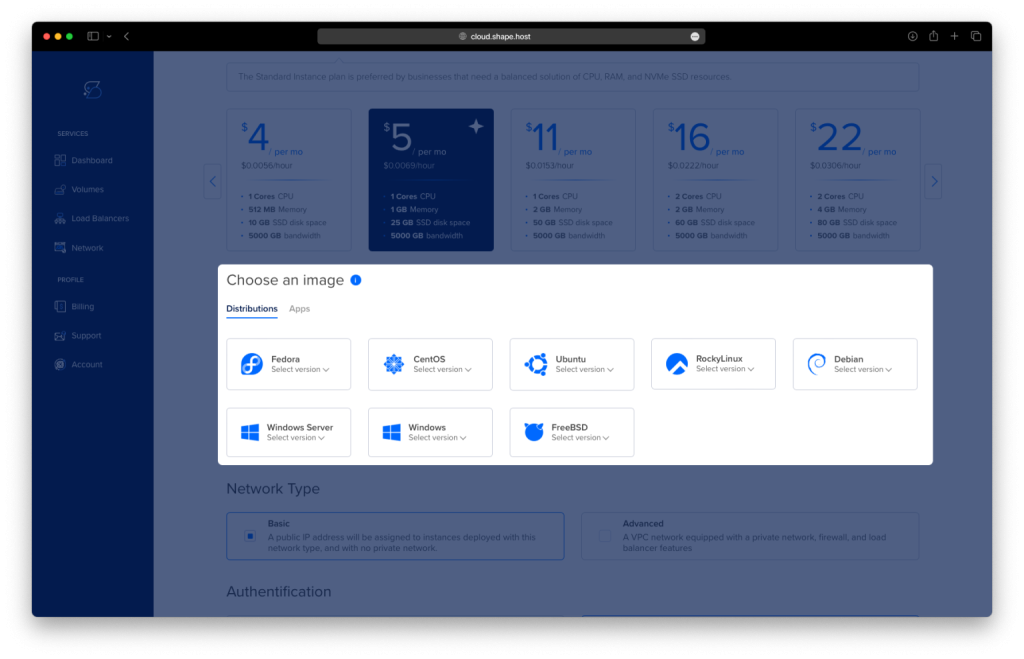
Click “Create Instance”.
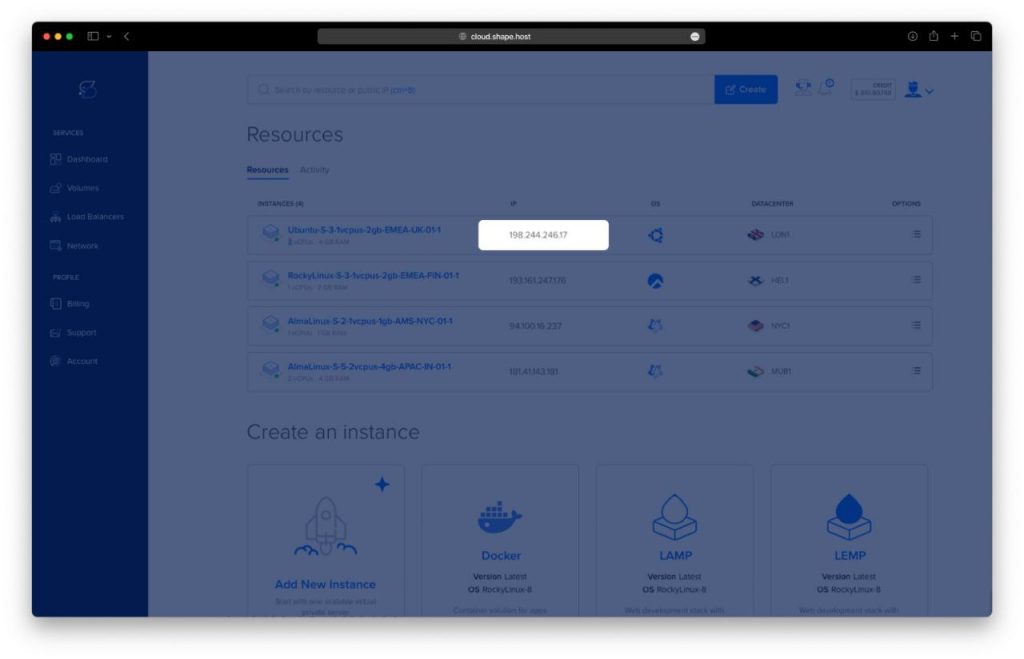
Once the instance is created, go to the Resources section to find the public IP address of your instance. You will use this to connect to the instance remotely.
Step 2: Connect to Your Server
Once your server is live, connect to it using SSH.
On Linux/macOS:
ssh root@your_server_ip
On Windows:
Use PuTTY or Windows Terminal with the server IP and root credentials provided by Shape.Host.
Step 3: Update Your System
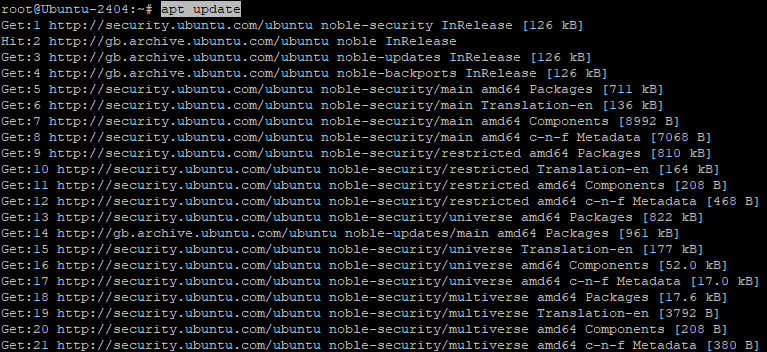
It’s always good to update your server before installing any software:
apt update
Step 4: Download and Run the aaPanel Installer
Now let’s install aaPanel using their official script.
Run this command:
URL=https://www.aapanel.com/script/install_7.0_en.sh && if [ -f /usr/bin/curl ]; then curl -ksSO "$URL"; else wget --no-check-certificate -O install_7.0_en.sh "$URL"; fi; bash install_7.0_en.sh aapanel
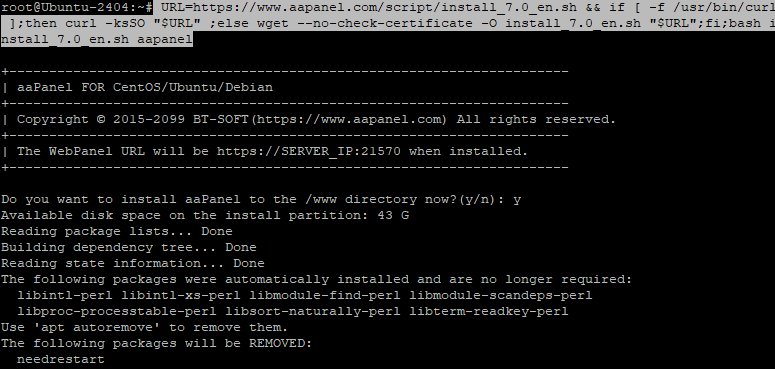
What this command does:
- Checks if
curlis available. If not, it useswget. - Downloads the
install_7.0_en.shscript. - Executes the script to install aaPanel in English.
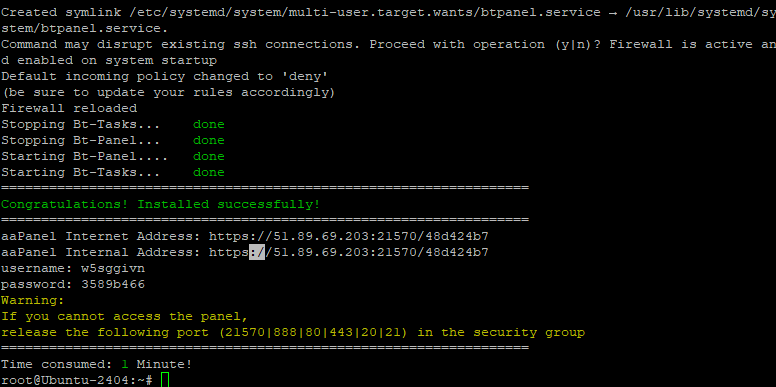
The installation will take a few minutes. Once it’s done, you’ll get:
The login URL for aaPanel
A randomly generated username and password (you will find it at the end of installation process)
Make sure to save these details!
Step 5: Log In to aaPanel
Open your browser and go to the URL shown after installation (you will find it at the end of installation process http://your_server_ip:********/).
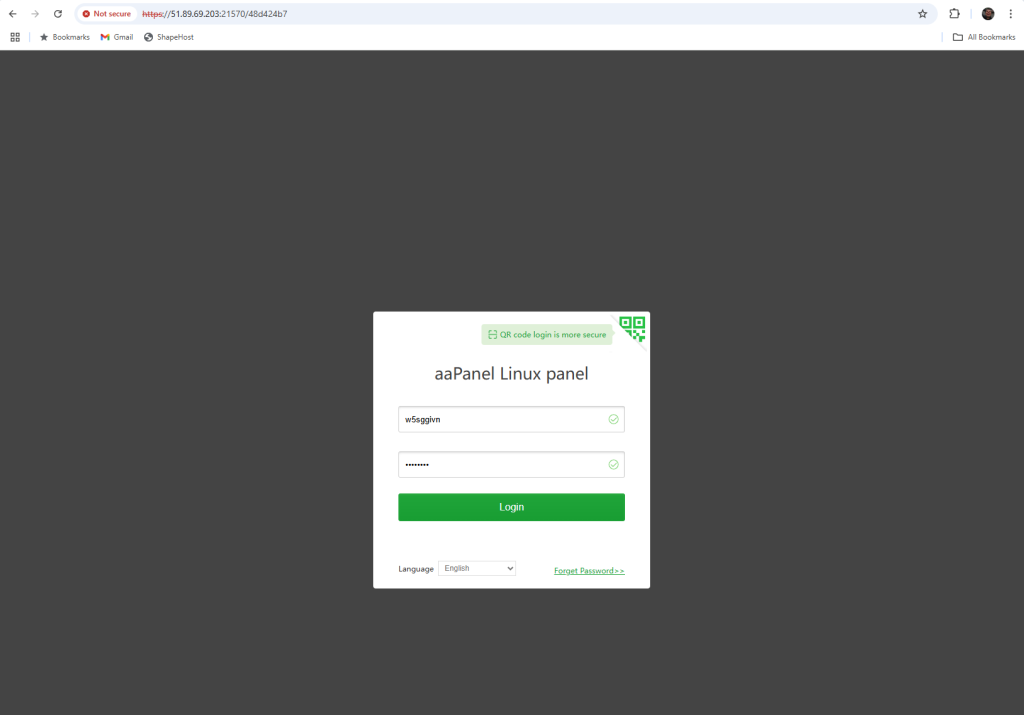
Log in using the username and password provided in the terminal.
aaPanel will guide you through a few setup steps and ask which web stack you’d like to install (LAMP, LNMP, etc.).
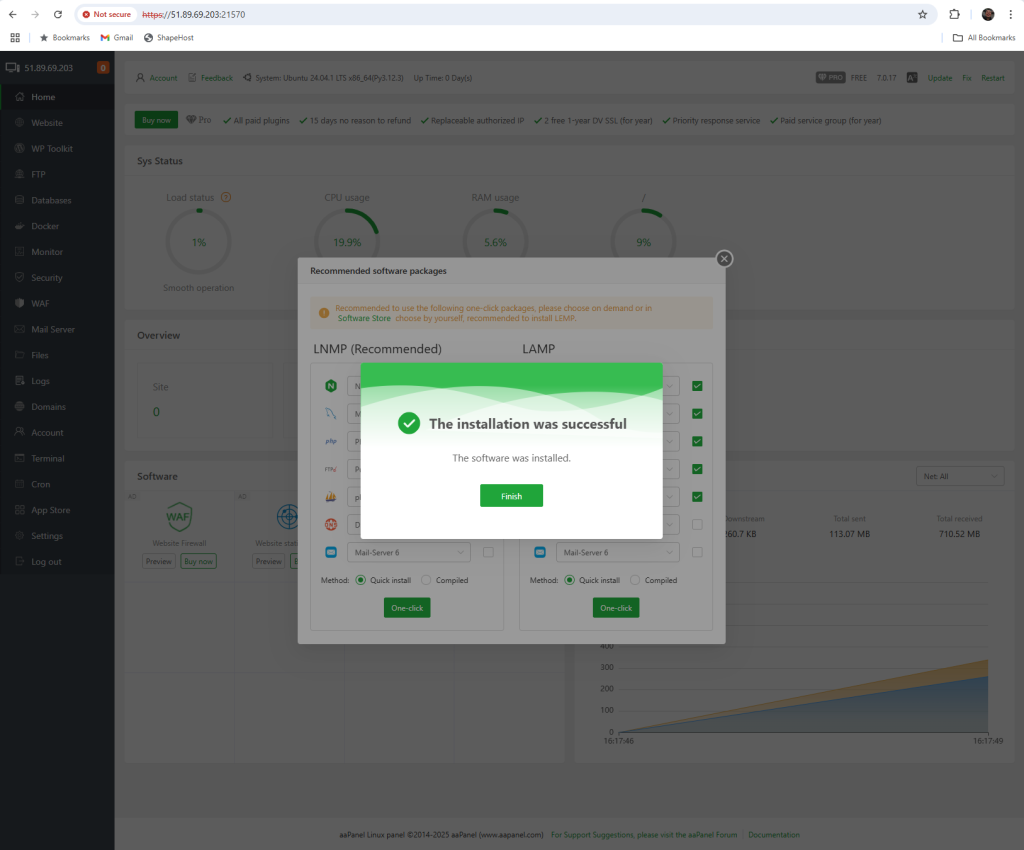
You can choose default packages like Nginx, MySQL, PHP, or customize your installation.
With aaPanel, you can now:
- Deploy websites and databases
- Set up SSL in one click
- Manage files, cron jobs, and services easily
- Monitor your server in real-time
Want fast, affordable cloud hosting?
Get started with Shape.Host Linux SSD VPS — perfect for hosting aaPanel, WordPress, custom stacks, and more.